> ## Documentation Index
> Fetch the complete documentation index at: https://manual.voiceping.net/llms.txt
> Use this file to discover all available pages before exploring further.

# 时间跟踪

> 用于记录工作时间的时间跟踪功能使用方法

export const FeedbackZh = () => <>
    <Tip>
      对该功能有想法或需求？请通过 <a href="/zh/product-feedback">Product Feedback</a> 发送给团队。
    </Tip>

    <h2>官方链接</h2>

    <CardGroup cols={2}>
      <Card title="官方网站" icon="globe" href="https://voiceping.net/en/">
        访问官方网站
      </Card>
      <Card title="X (Twitter)" icon="x-twitter" href="https://x.com/VoicePingMedia">
        在X上关注我们
      </Card>
      <Card title="Facebook" icon="facebook" href="https://www.facebook.com/voiceping.inc">
        在Facebook上点赞
      </Card>
      <Card title="LinkedIn" icon="linkedin" href="https://www.linkedin.com/company/28684130/">
        在LinkedIn上连接
      </Card>
    </CardGroup>
  </>;

通过时间跟踪功能记录的工作会按项目和时间进行整理，并可附带工作备注（可选），作为日志保存。

## 如何跟踪工作时间

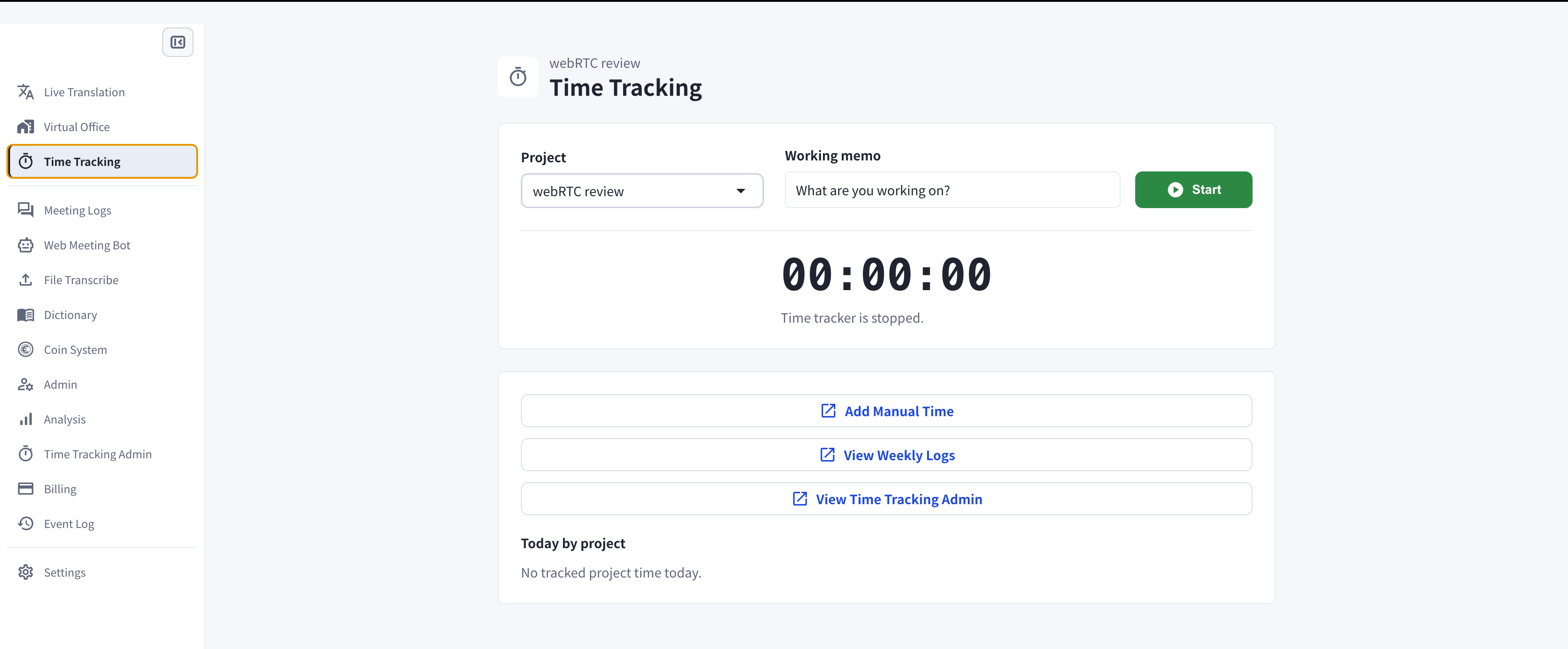
1. 从左侧边栏打开**时间跟踪**
2. 从管理员分配的项目中，选择接下来要进行的项目
3. 输入工作备注（可选）
4. 点击**开始**开始跟踪
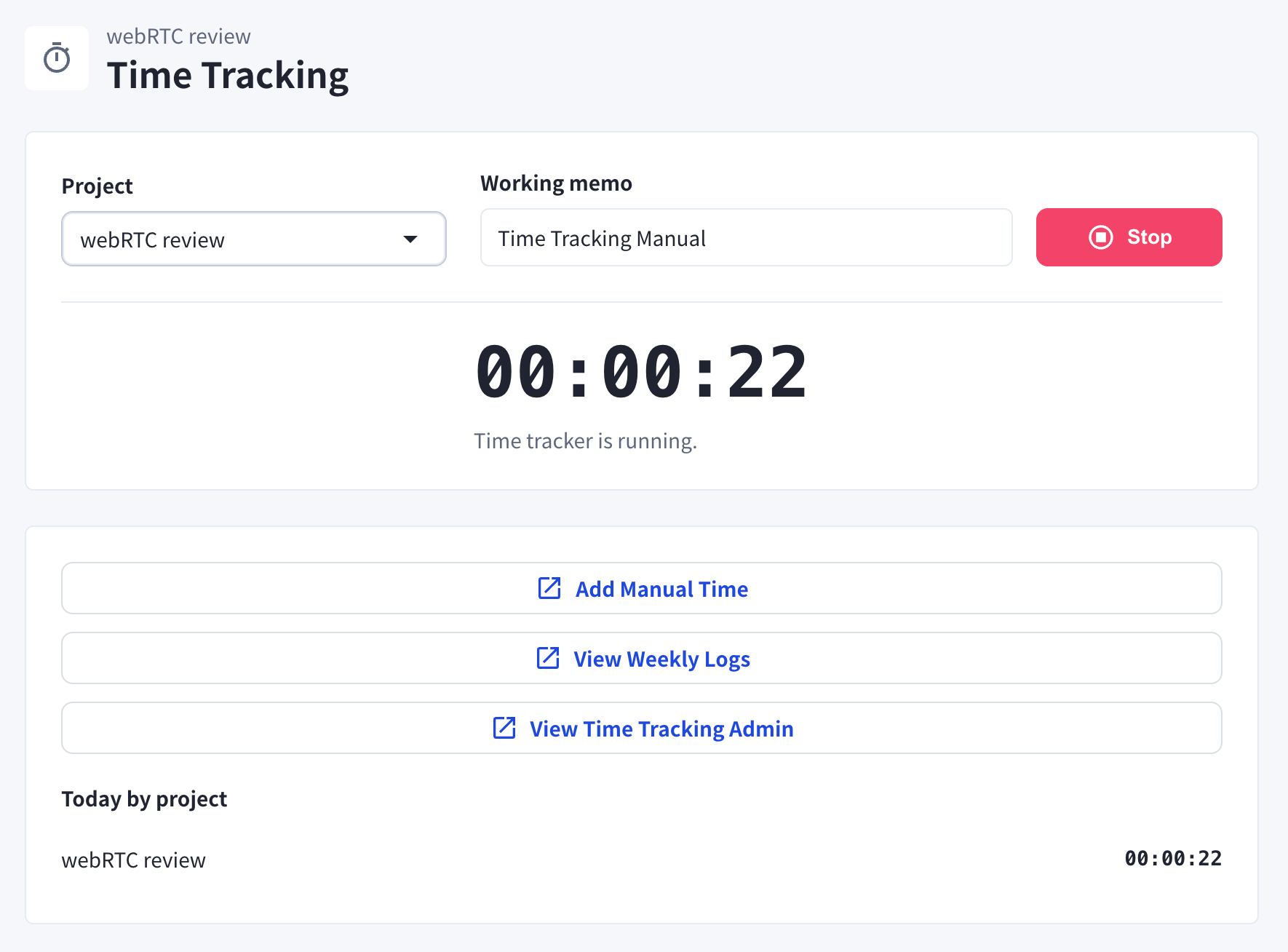
5. 工作结束后，点击**停止**结束跟踪

<Frame caption="启动计时器前的时间跟踪页面">
  <img src="https://mintcdn.com/test-cf63e467/XehoYRhOCnputp7e/en/images/time-tracking/01-time-tracking-page.png?fit=max&auto=format&n=XehoYRhOCnputp7e&q=85&s=eec363a7a8b0c7e25514f23d2a8b5fdd" alt="带有项目选择、工作备注和开始按钮的时间跟踪页面" width="3420" height="1416" data-path="en/images/time-tracking/01-time-tracking-page.png" />
</Frame>

<Frame caption="跟踪期间，页面会显示运行中的计时器和今日各项目的合计时间">
  <img src="https://mintcdn.com/test-cf63e467/XehoYRhOCnputp7e/en/images/time-tracking/02-timer-running.png?fit=max&auto=format&n=XehoYRhOCnputp7e&q=85&s=3a2fcff250e899d93fb5517aa2e442ed" alt="显示停止按钮和今日项目合计的运行中的时间跟踪器" width="1770" height="1308" data-path="en/images/time-tracking/02-timer-running.png" />
</Frame>

<Note>
  **计时器自动停止的情况**

  1. 变为离开状态时
     * 回到座位并重新开始操作电脑后，计时器会自动恢复。

  2. 电脑进入睡眠模式时
</Note>

## 手动添加工作时间

如果有未记录的工作时间，可以手动添加。

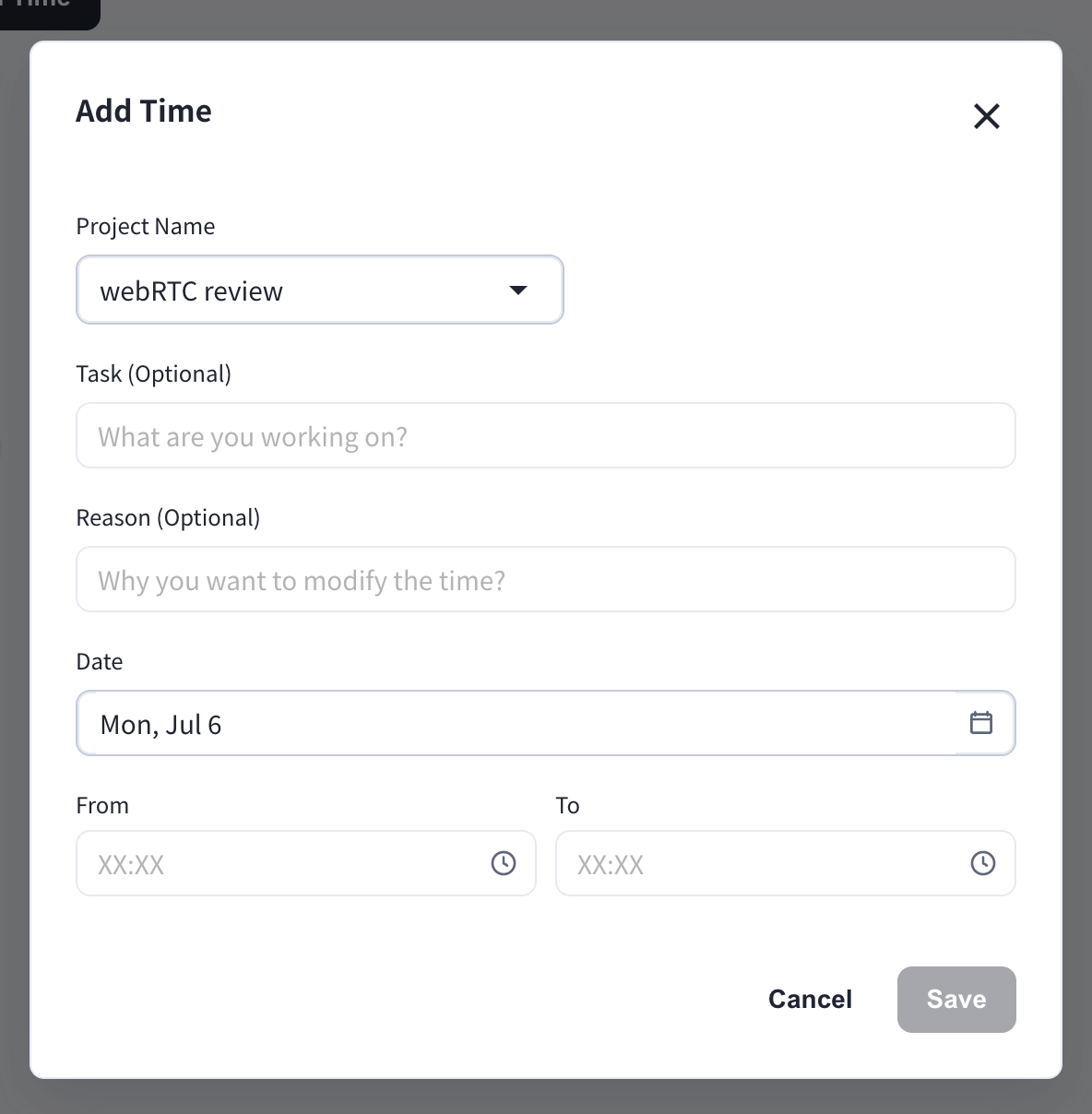
1. 在**时间跟踪**页面，点击**添加手动时间**
2. 选择项目，并可根据需要输入任务和更改原因
3. 选择日期和时间范围（From / To）
4. 点击**保存**

<Frame>
  <img src="https://mintcdn.com/test-cf63e467/XehoYRhOCnputp7e/en/images/time-tracking/03-add-time-modal.png?fit=max&auto=format&n=XehoYRhOCnputp7e&q=85&s=26e1d9e27689d30d5e1a67f8bbcc2d6f" alt="带有项目名称、任务、原因、日期和时间范围字段的添加时间对话框" width="1184" height="1208" data-path="en/images/time-tracking/03-add-time-modal.png" />
</Frame>

<Note>
  手动添加和删除会记录在**手动时间记录**中，管理者可以查看。
</Note>

## 查看自己的时间跟踪

<Note>
  成员只能查看自己的日志。管理者可以查看所有成员的日志。
</Note>

### 1. 周报

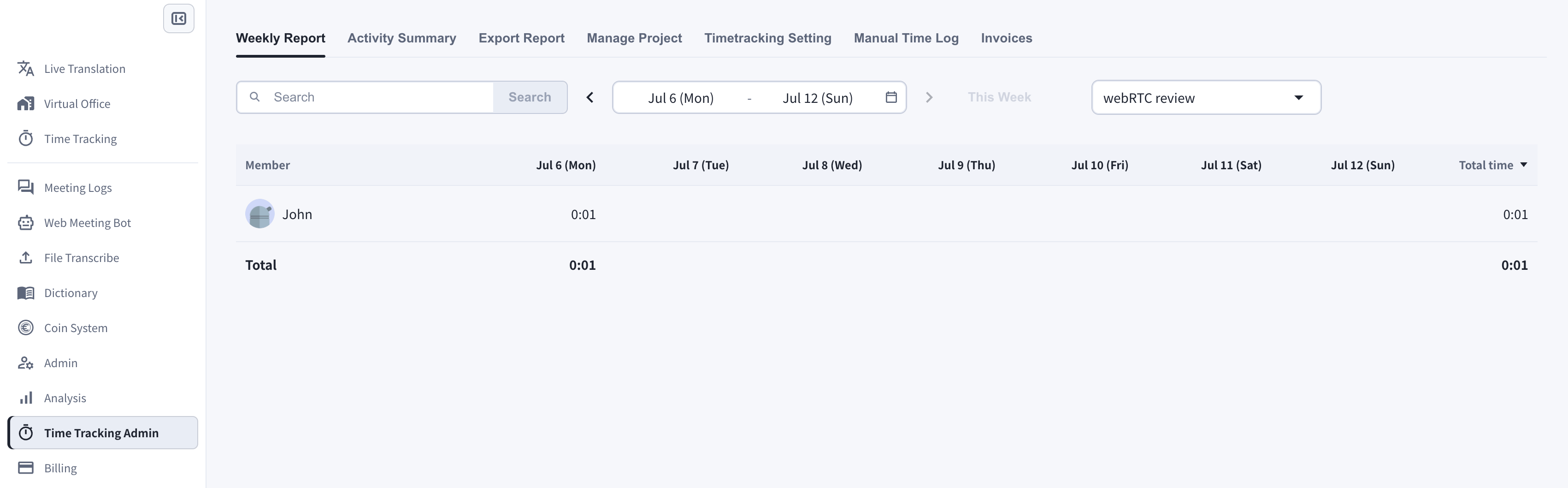
1. 在**时间跟踪**页面，点击**查看每周工作日志**
2. 选择周和项目
3. 查看每日和每周的合计时间
<Frame>
  <img src="https://mintcdn.com/test-cf63e467/XehoYRhOCnputp7e/en/images/time-tracking/04-weekly-report.png?fit=max&auto=format&n=XehoYRhOCnputp7e&q=85&s=e8e496e7cf801cc33e5f781842b16a98" alt="显示所选周和项目每日工时的周报" width="3402" height="1058" data-path="en/images/time-tracking/04-weekly-report.png" />
</Frame>

### 2. 活动摘要

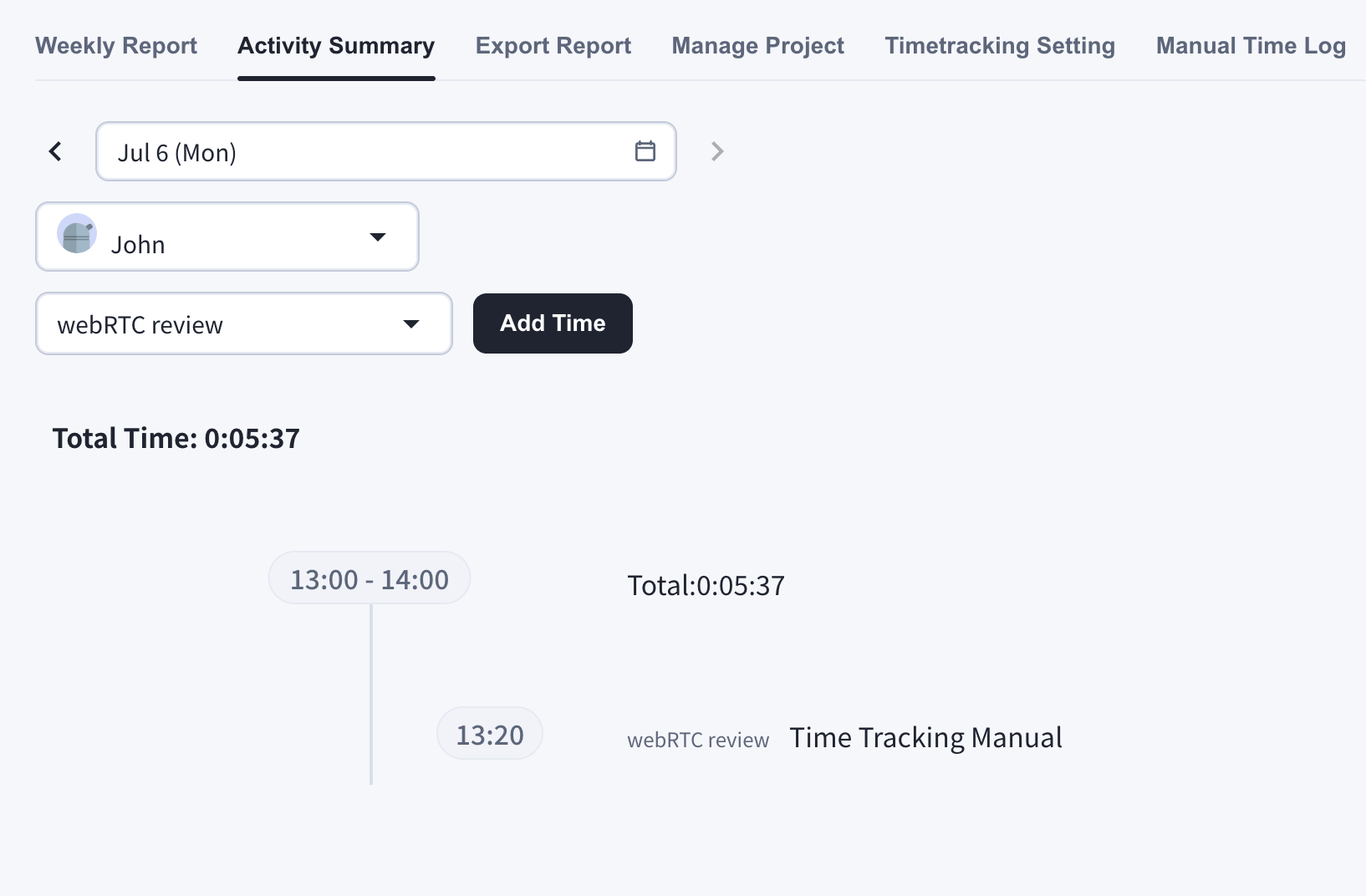
**活动摘要**标签以时间线形式显示一天的跟踪时间以及工作备注。
<Frame>
  <img src="https://mintcdn.com/test-cf63e467/XehoYRhOCnputp7e/en/images/time-tracking/05-activity-summary.png?fit=max&auto=format&n=XehoYRhOCnputp7e&q=85&s=540abf2c49a89ea1b686443fd3530566" alt="显示一天跟踪时间条目的活动摘要时间线" width="1634" height="1072" data-path="en/images/time-tracking/05-activity-summary.png" />
</Frame>

<Tip>
  如果管理者启用了桌面截图、网络摄像头拍摄或输入活动跟踪，它们也会显示在活动摘要中。启用网络摄像头拍摄后，时间跟踪页面会显示摄像头选择器。
</Tip>

### 删除跟踪时间

在活动摘要中点击垃圾桶图标即可删除跟踪时间。

<Note>
  可删除的范围：

  * 删除一天的全部记录
  * 删除1小时的记录
  * 删除10分钟的时间段
</Note>

<FeedbackZh />