> ## Documentation Index
> Fetch the complete documentation index at: https://manual.voiceping.net/llms.txt
> Use this file to discover all available pages before exploring further.
# 虚拟办公室
> 使用移动应用在虚拟办公室进行团队沟通
export const FeedbackZh = () => <>
对该功能有想法或需求?请通过 Product Feedback 发送给团队。
官方链接
访问官方网站
在X上关注我们
在Facebook上点赞
在LinkedIn上连接
;
VoicePing用户除了桌面应用外,还可以使用移动应用。与桌面应用一样,移动应用具有呼叫功能、语音翻译功能和会议室,即使无法打开电脑也可以与团队进行沟通。
## 切换到虚拟办公室模式
您可以在主屏幕上切换虚拟办公室模式和语音翻译模式。点击菜单顶部的"切换到虚拟办公室模式"进入虚拟办公室。
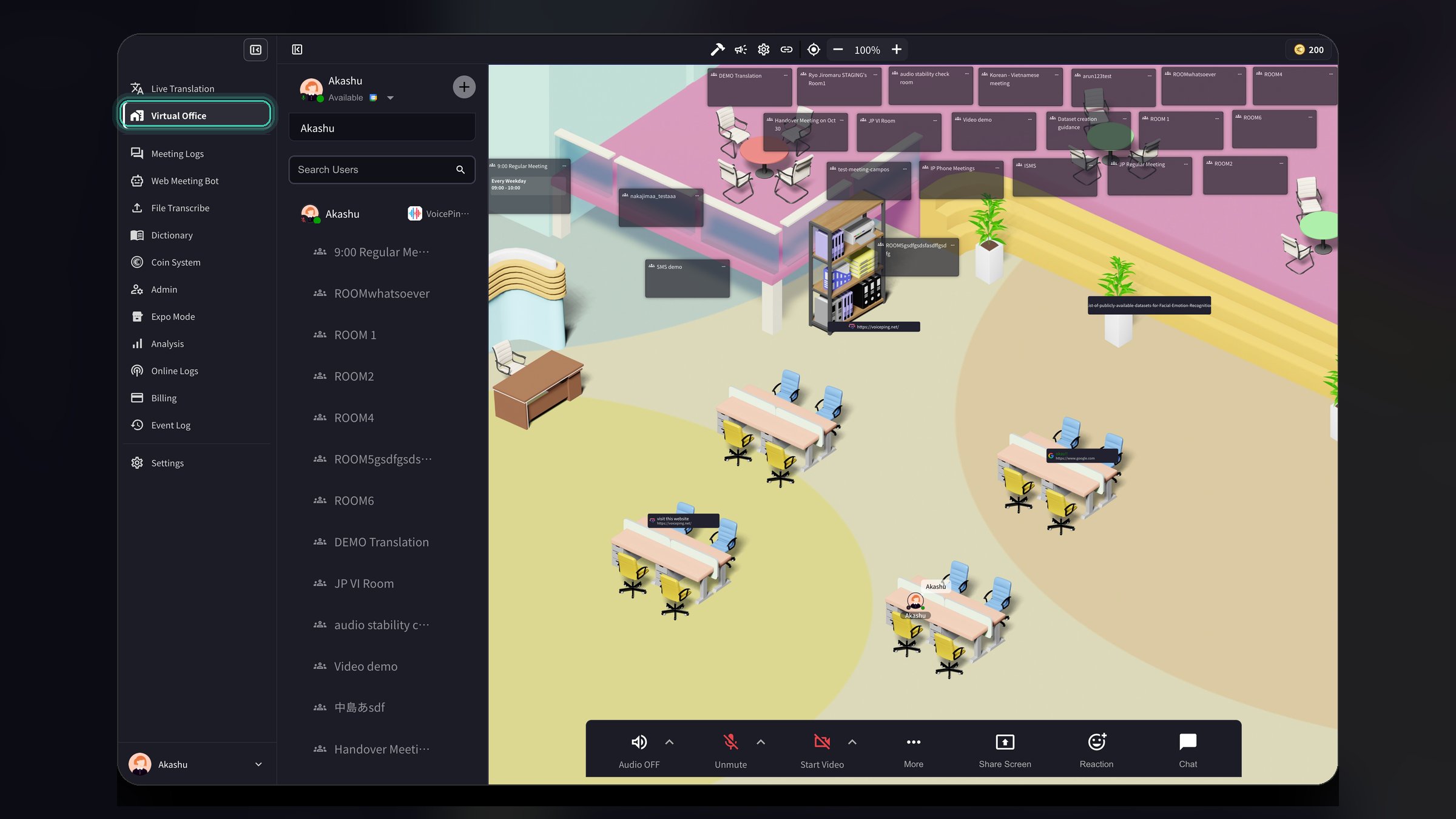 切换模式时,您还会看到以下选项:
* **仅提取麦克风音频**:启用后,仅提取和翻译麦克风输入,忽略其他音频
* **检测会议**:当检测到设置中选择的应用程序的会议时发送通知
* **默认启用麦克风**:开始翻译时自动打开麦克风
* **演示字幕**:显示用于演示的透明文本聊天窗口,字幕会高亮显示
## 启用或禁用虚拟办公室
工作空间管理员可以为工作空间中的所有成员启用或禁用虚拟办公室功能。
1. 打开**设置**(点击右上角的齿轮图标)
2. 从左侧边栏选择**工作空间**
3. 找到**启用虚拟办公室**开关
4. 打开或关闭以为所有工作空间成员启用/禁用虚拟办公室
5. 点击**更新**保存更改
切换模式时,您还会看到以下选项:
* **仅提取麦克风音频**:启用后,仅提取和翻译麦克风输入,忽略其他音频
* **检测会议**:当检测到设置中选择的应用程序的会议时发送通知
* **默认启用麦克风**:开始翻译时自动打开麦克风
* **演示字幕**:显示用于演示的透明文本聊天窗口,字幕会高亮显示
## 启用或禁用虚拟办公室
工作空间管理员可以为工作空间中的所有成员启用或禁用虚拟办公室功能。
1. 打开**设置**(点击右上角的齿轮图标)
2. 从左侧边栏选择**工作空间**
3. 找到**启用虚拟办公室**开关
4. 打开或关闭以为所有工作空间成员启用/禁用虚拟办公室
5. 点击**更新**保存更改
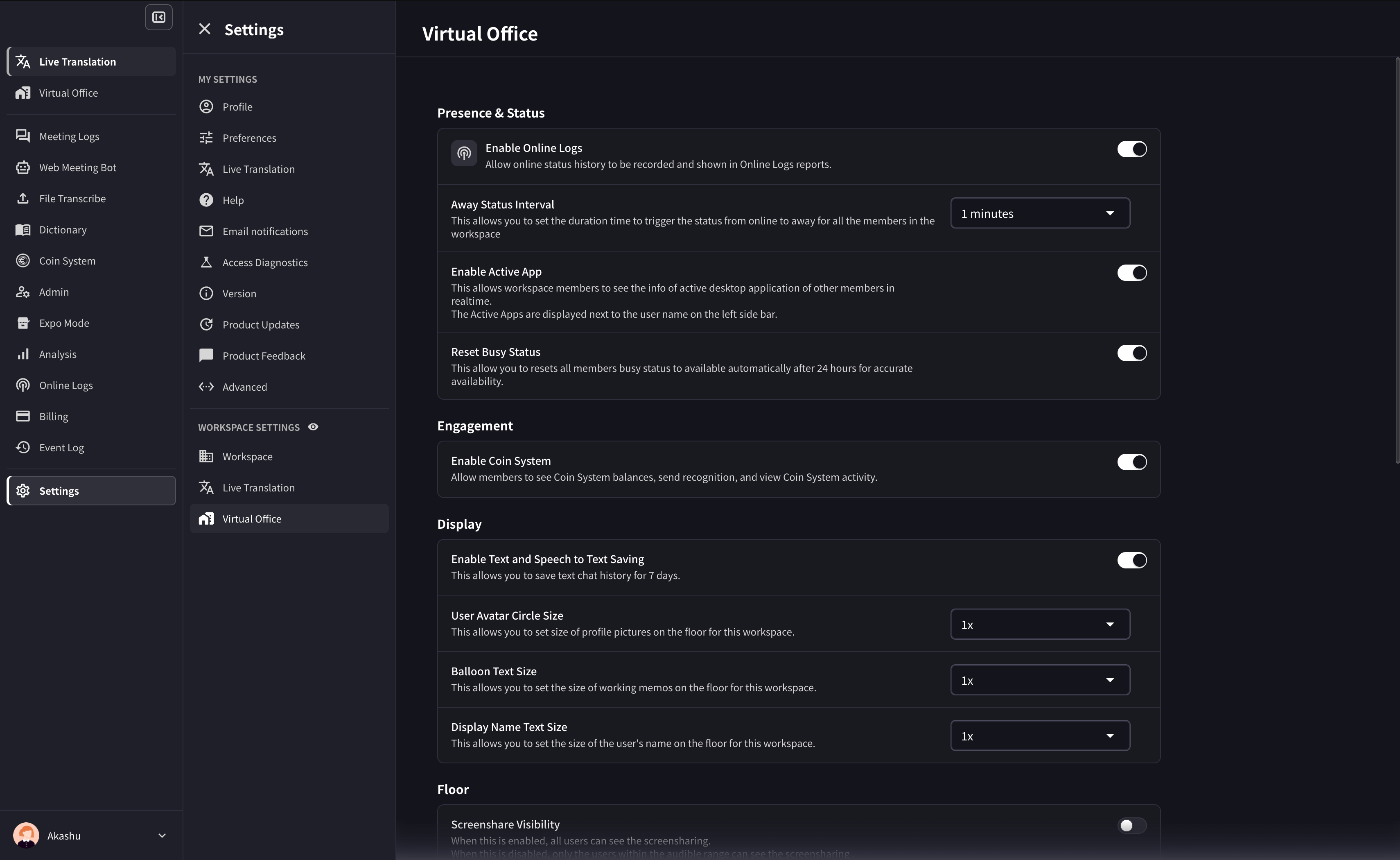 您还可以配置:
* **离开状态间隔**:设置成员状态自动变为"离开"之前的持续时间
* **启用活动应用**:允许工作空间成员实时查看其他成员的活动桌面应用程序
## 1. 创建VoicePing账户和工作空间
如果您还没有VoicePing账户和工作空间,请从应用商店下载VoicePing应用。下载应用后,开始使用应用,创建账户和新工作空间。创建方法请参阅[这里](/zh/owner-signup)
## 2. 邀请团队成员
在VoicePing桌面应用中,有[3种方法邀请公司内部人员加入VoicePing工作空间](/zh/invite-members),但移动应用只有1种方法邀请团队成员加入工作空间。
点击应用左上角的个人资料图标后,会显示侧边栏。进入\[设置]>\[通过URL邀请],会显示邀请链接。
## 在楼层与团队交流
在远程办公中,进行网络会议正在成为标准,但由于日程调整麻烦等原因导致沟通减少的情况并不少见。
为了解决这个问题,VoicePing虚拟办公室具有可以轻松与团队交流的「呼叫」功能。
首先,让我们从用户状态确认对方是否可以交谠。
### 用户状态
### 呼叫
如果对方可以交谈,请使用「呼叫」功能。
在移动应用中,点击对方的用户图标或侧边栏中的电话图标即可呼叫对方。
### 文字聊天
除了「呼叫」功能外,还提供了聊天框作为与他人交流的工具。
在移动应用中,点击屏幕底部的文字图标或用户头像中的文字图标发送消息。
点击屏幕右上角的键盘图标可以显示/隐藏消息框。
## 进行会议
VoicePing移动应用也可以进行会议。如果楼层没有会议室,请创建一个。
### 创建会议室
点击楼层上的「+」按钮可以创建新会议室。
输入会议室名称,选择设计。
## 语音翻译(可选)
语音翻译功能也可以在VoicePing移动应用中使用。首先,从设置中选择可翻译的语言。
### 设置可翻译的语言
点击应用左上角的用户图标后,会显示侧边栏。进入\[设置]>\[工作空间],有\[语音转文字/翻译]设置。点击箭头图标,选择在工作空间中使用的语言。
### 指定语言
使用语音翻译功能时,请选择发言语言和翻译语言。
## Data Retention
Audio data on paid self-service plans is retained for up to 3 months. Meeting logs are retained according to the workspace plan or managed contract. Web Meeting Bot or recording video is documented only where that video is available for a session and is retained for up to 1 month. Download needed data before the retention period ends.
## VoicePing 3.0 Virtual Office Notes
* Floor access can be affected by member, group, and policy settings. If assignment fails, check [Member Management](/zh/member-management) and group settings.
* Meeting rooms support card position lock, grid/presenter video layouts, and member-managed meeting rooms where permitted.
* Floor text chat can default to nearby users as the receiver.
* Custom objects support text editing, URLs, YouTube, and iframe embeds.
您还可以配置:
* **离开状态间隔**:设置成员状态自动变为"离开"之前的持续时间
* **启用活动应用**:允许工作空间成员实时查看其他成员的活动桌面应用程序
## 1. 创建VoicePing账户和工作空间
如果您还没有VoicePing账户和工作空间,请从应用商店下载VoicePing应用。下载应用后,开始使用应用,创建账户和新工作空间。创建方法请参阅[这里](/zh/owner-signup)
## 2. 邀请团队成员
在VoicePing桌面应用中,有[3种方法邀请公司内部人员加入VoicePing工作空间](/zh/invite-members),但移动应用只有1种方法邀请团队成员加入工作空间。
点击应用左上角的个人资料图标后,会显示侧边栏。进入\[设置]>\[通过URL邀请],会显示邀请链接。
## 在楼层与团队交流
在远程办公中,进行网络会议正在成为标准,但由于日程调整麻烦等原因导致沟通减少的情况并不少见。
为了解决这个问题,VoicePing虚拟办公室具有可以轻松与团队交流的「呼叫」功能。
首先,让我们从用户状态确认对方是否可以交谠。
### 用户状态
### 呼叫
如果对方可以交谈,请使用「呼叫」功能。
在移动应用中,点击对方的用户图标或侧边栏中的电话图标即可呼叫对方。
### 文字聊天
除了「呼叫」功能外,还提供了聊天框作为与他人交流的工具。
在移动应用中,点击屏幕底部的文字图标或用户头像中的文字图标发送消息。
点击屏幕右上角的键盘图标可以显示/隐藏消息框。
## 进行会议
VoicePing移动应用也可以进行会议。如果楼层没有会议室,请创建一个。
### 创建会议室
点击楼层上的「+」按钮可以创建新会议室。
输入会议室名称,选择设计。
## 语音翻译(可选)
语音翻译功能也可以在VoicePing移动应用中使用。首先,从设置中选择可翻译的语言。
### 设置可翻译的语言
点击应用左上角的用户图标后,会显示侧边栏。进入\[设置]>\[工作空间],有\[语音转文字/翻译]设置。点击箭头图标,选择在工作空间中使用的语言。
### 指定语言
使用语音翻译功能时,请选择发言语言和翻译语言。
## Data Retention
Audio data on paid self-service plans is retained for up to 3 months. Meeting logs are retained according to the workspace plan or managed contract. Web Meeting Bot or recording video is documented only where that video is available for a session and is retained for up to 1 month. Download needed data before the retention period ends.
## VoicePing 3.0 Virtual Office Notes
* Floor access can be affected by member, group, and policy settings. If assignment fails, check [Member Management](/zh/member-management) and group settings.
* Meeting rooms support card position lock, grid/presenter video layouts, and member-managed meeting rooms where permitted.
* Floor text chat can default to nearby users as the receiver.
* Custom objects support text editing, URLs, YouTube, and iframe embeds.