> ## Documentation Index
> Fetch the complete documentation index at: https://manual.voiceping.net/llms.txt
> Use this file to discover all available pages before exploring further.

# 词汇生成器

> 从PDF和文本中自动提取自定义短语，提高语音转文字准确度

export const FeedbackZh = () => <>
    <Tip>
      对该功能有想法或需求？请通过 <a href="/zh/product-feedback">Product Feedback</a> 发送给团队。
    </Tip>

    <h2>官方链接</h2>

    <CardGroup cols={2}>
      <Card title="官方网站" icon="globe" href="https://voiceping.net/en/">
        访问官方网站
      </Card>
      <Card title="X (Twitter)" icon="x-twitter" href="https://x.com/VoicePingMedia">
        在X上关注我们
      </Card>
      <Card title="Facebook" icon="facebook" href="https://www.facebook.com/voiceping.inc">
        在Facebook上点赞
      </Card>
      <Card title="LinkedIn" icon="linkedin" href="https://www.linkedin.com/company/28684130/">
        在LinkedIn上连接
      </Card>
    </CardGroup>
  </>;

<Note>
  此功能仅在付费方案中可用。如果您使用的是免费方案，请升级您的方案。访客用户无法使用此功能。
</Note>

## 什么是词汇生成器？

**词汇生成器**是一款AI驱动的工具，可自动从您的文档中提取专业术语，并将其添加到工作区的自定义词典中，从而提高语音转文字的准确度。

只需在会议前上传PDF或粘贴文本，AI就会检测出容易被语音转文字误识别的短语，例如行业术语、产品名称和技术专业用语。然后可以将这些短语批量添加到您的词典中，提高所有后续会议的转录准确度。

### 工作原理

1. **上传** -- 上传包含专业术语的PDF或粘贴文本
2. **AI分析** -- AI自动检测可能被语音转文字误识别的短语
3. **添加到词典** -- 将提取的短语添加到工作区的自定义词典中
4. **提高准确度** -- 所有后续会议都将受益于更准确的术语转录

***

## 访问此功能

1. 在VoicePing中打开虚拟办公室
2. 点击工具栏中的**词典**按钮
3. 词典设置对话框将打开
4. 选择**词汇生成器**标签页
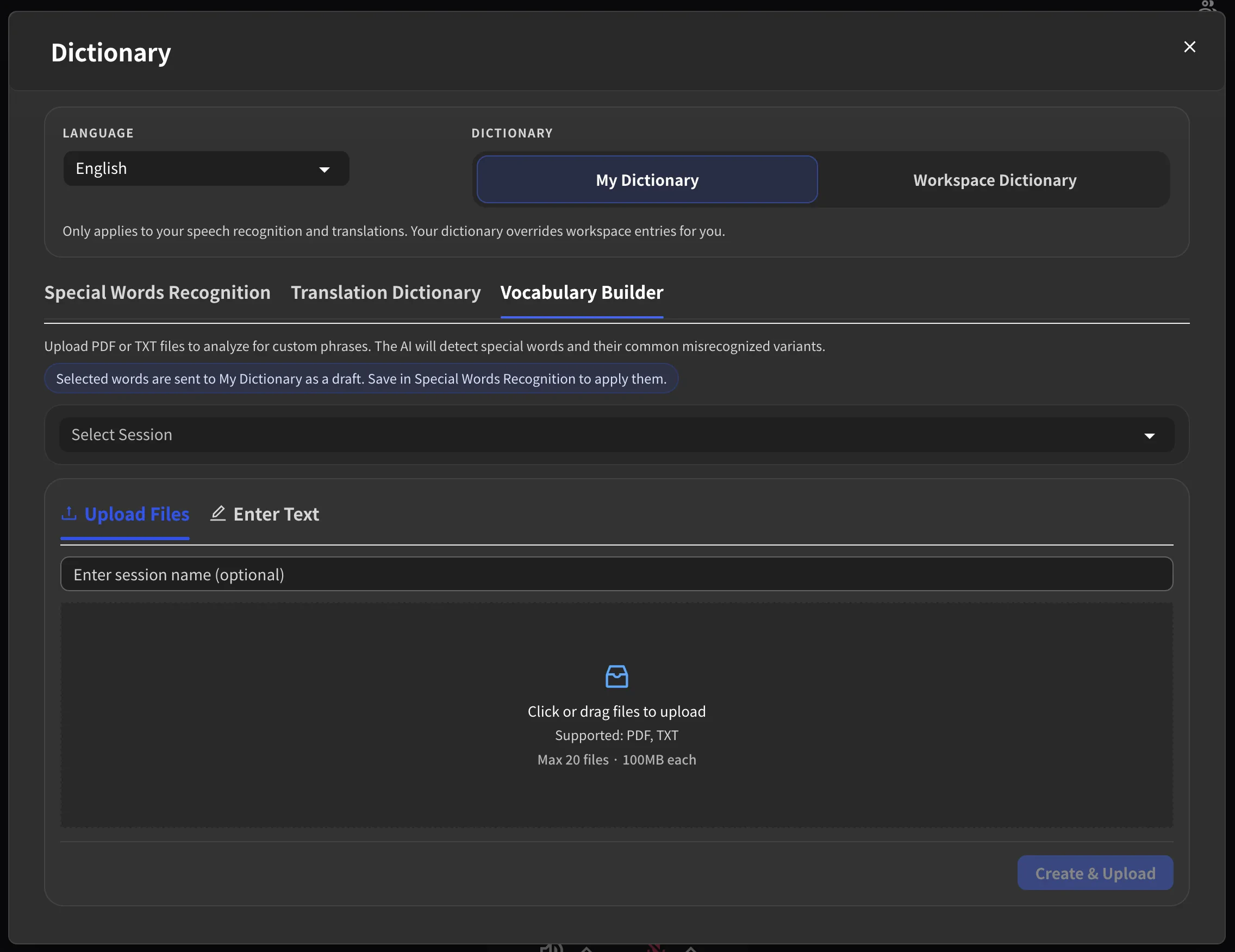
<Frame>
  <img src="https://mintcdn.com/test-cf63e467/yJOLVx6nWj9-gzC6/en/images/vocabulary-builder/01-access.webp?fit=max&auto=format&n=yJOLVx6nWj9-gzC6&q=85&s=2f623ef1c164c3432b7f0bc39662baea" alt="访问词汇生成器" width="2272" height="1752" data-path="en/images/vocabulary-builder/01-access.webp" />
</Frame>

***

## 使用方法

### 步骤1：选择语言

从对话框顶部的下拉菜单中选择分析语言。所选语言应与您文档的语言一致。
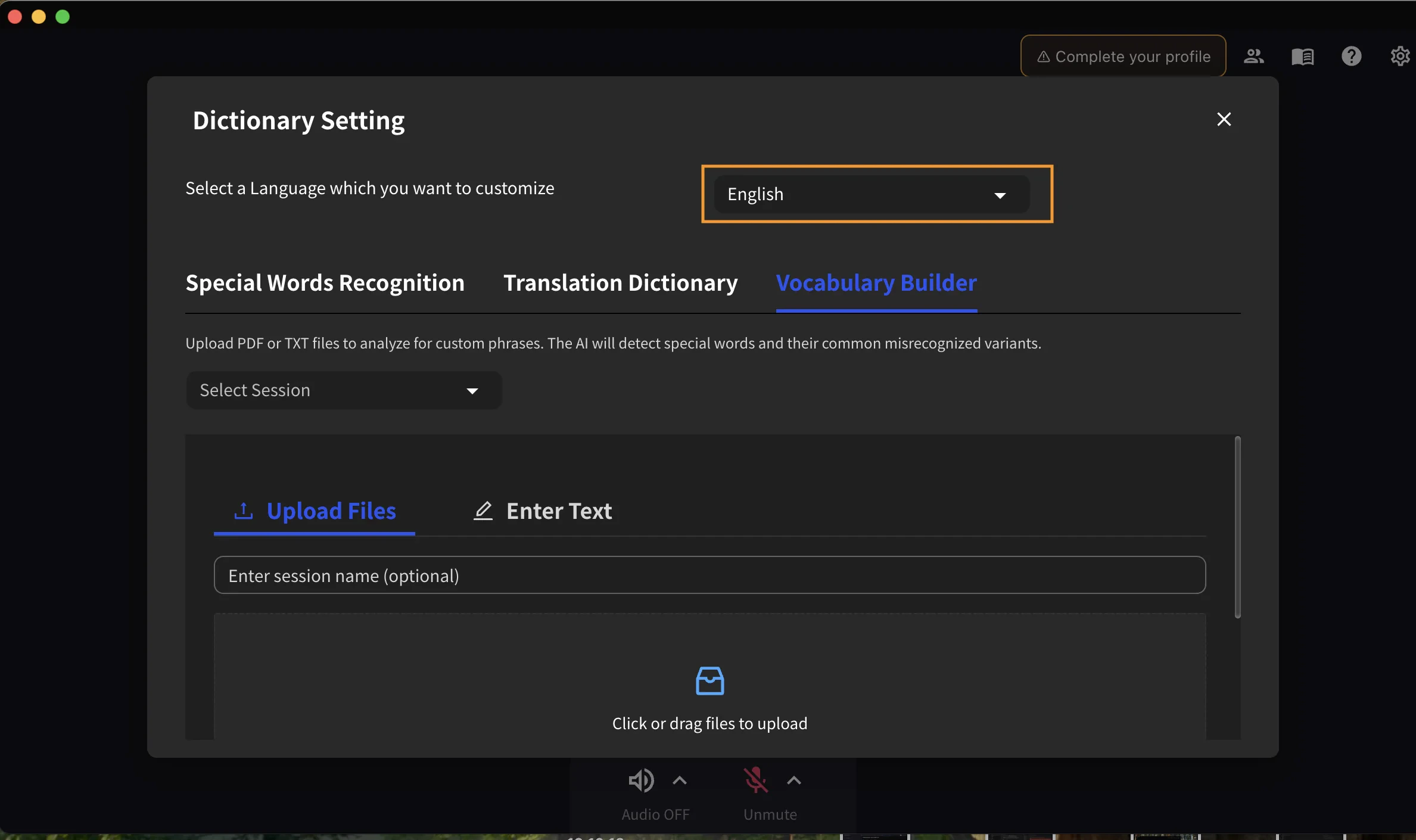
<Frame>
  <img src="https://mintcdn.com/test-cf63e467/yJOLVx6nWj9-gzC6/en/images/vocabulary-builder/02-select-language.webp?fit=max&auto=format&n=yJOLVx6nWj9-gzC6&q=85&s=5775b7c2ce2b271e1f2f9b0ca1f12cd7" alt="选择语言" width="2377" height="1410" data-path="en/images/vocabulary-builder/02-select-language.webp" />
</Frame>

### 步骤2：创建新会话

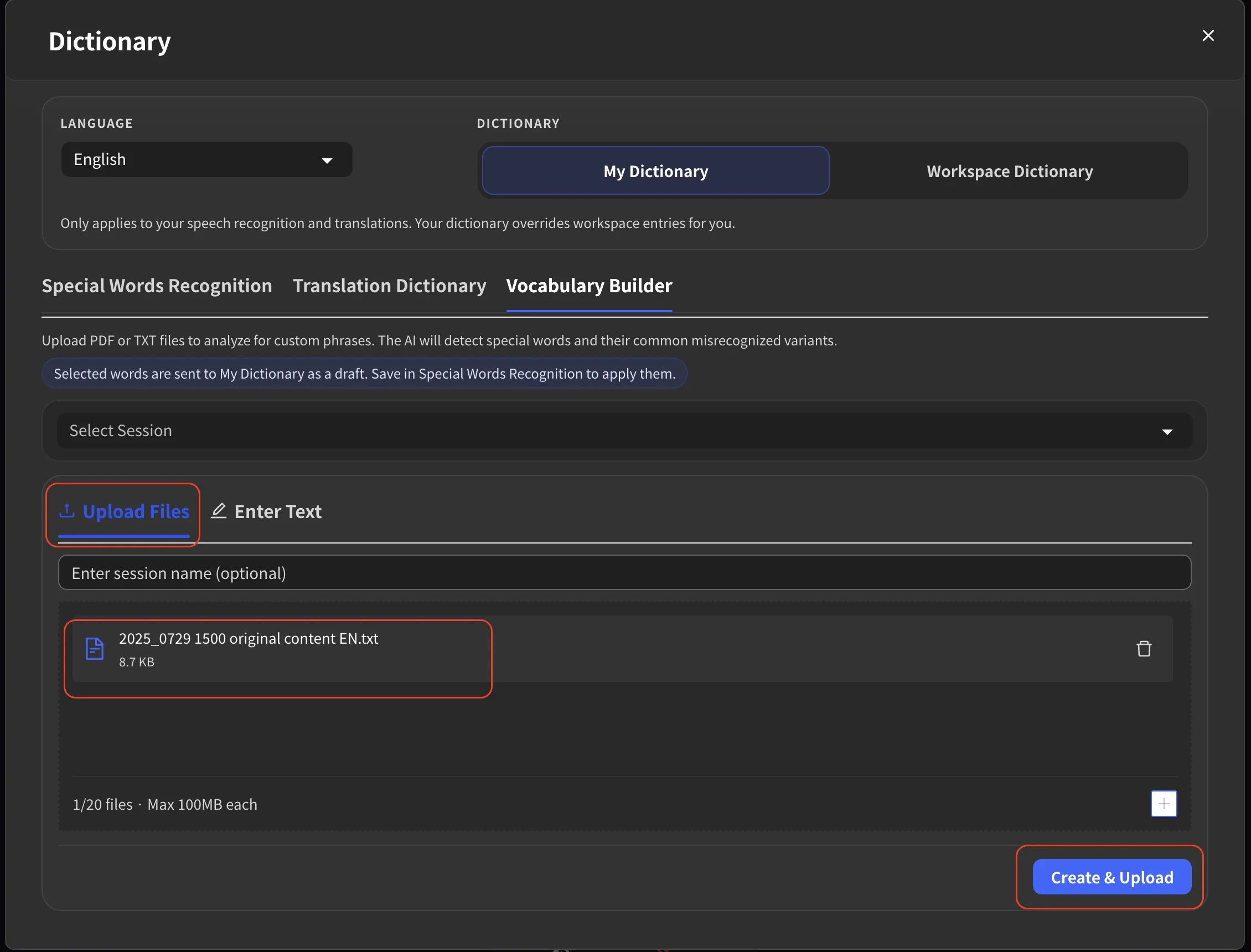
#### 选项A：上传文件

1. 点击或将文件拖放到上传区域
2. 从您的电脑中选择PDF或TXT文件
3. 输入会话名称（可选 -- 将自动生成默认名称）
4. 点击下方按钮以启动处理

**文件限制：**

| 项目         | 限制        |
| ---------- | --------- |
| 支持的格式      | PDF, TXT  |
| 每个会话的最大文件数 | 20        |
| 最大文件大小     | 每个文件100MB |
<Frame>
  <img src="https://mintcdn.com/test-cf63e467/yJOLVx6nWj9-gzC6/en/images/vocabulary-builder/03-upload-files.webp?fit=max&auto=format&n=yJOLVx6nWj9-gzC6&q=85&s=74d8745a54f7d8acc6fb0930275dc239" alt="上传文件" width="2260" height="1720" data-path="en/images/vocabulary-builder/03-upload-files.webp" />
</Frame>

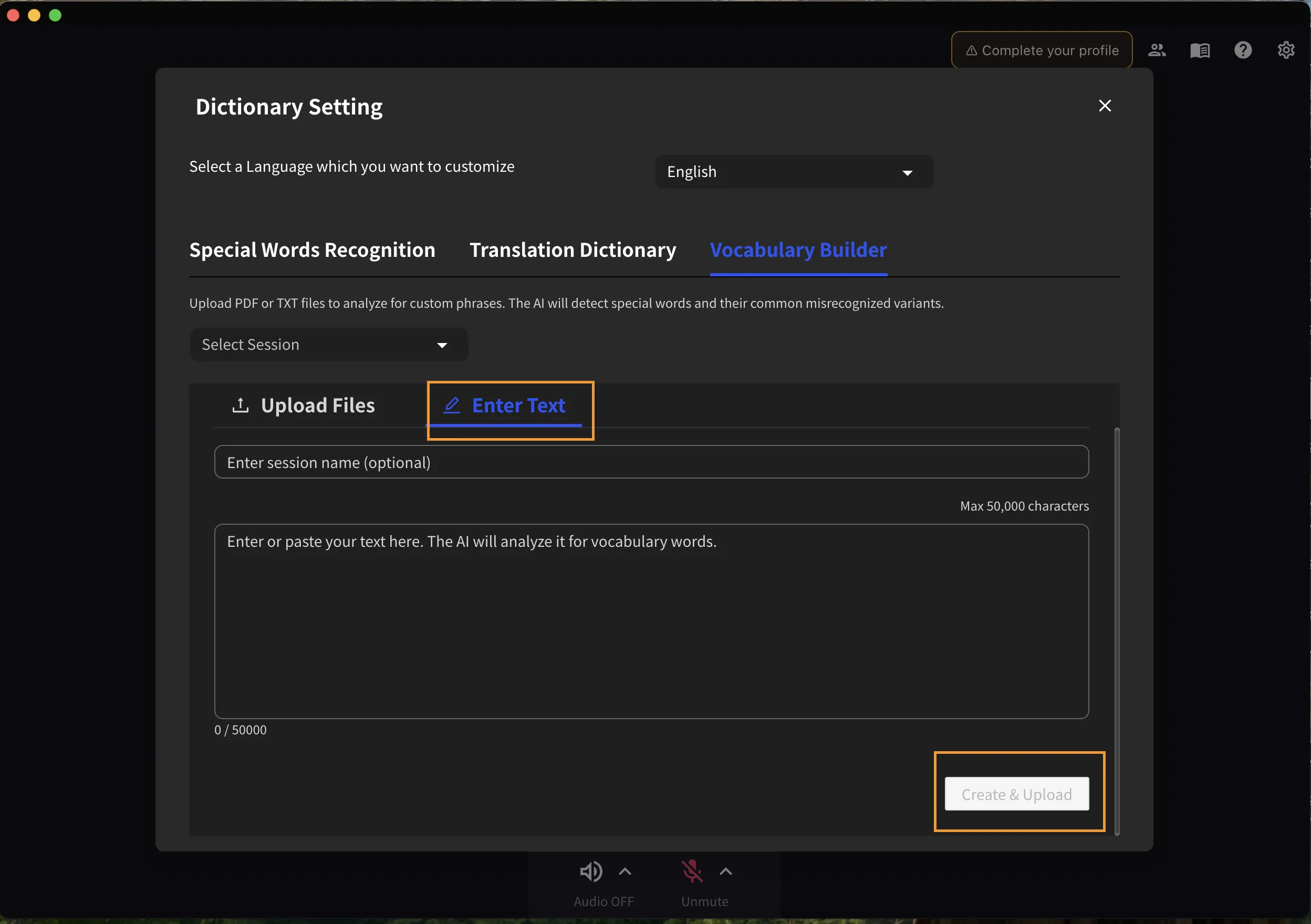
#### 选项B：粘贴文本

1. 切换到文本输入模式
2. 直接粘贴您的文本内容
3. 输入会话名称（可选）
4. 点击下方按钮以启动处理

\*\*文本限制：\*\*最多50,000个字符

<Frame>
  <img src="https://mintcdn.com/test-cf63e467/yJOLVx6nWj9-gzC6/en/images/vocabulary-builder/04-paste-text.webp?fit=max&auto=format&n=yJOLVx6nWj9-gzC6&q=85&s=c0f9218b0e44b22e0f63dc2c602f962e" alt="粘贴文本" width="2496" height="1759" data-path="en/images/vocabulary-builder/04-paste-text.webp" />
</Frame>

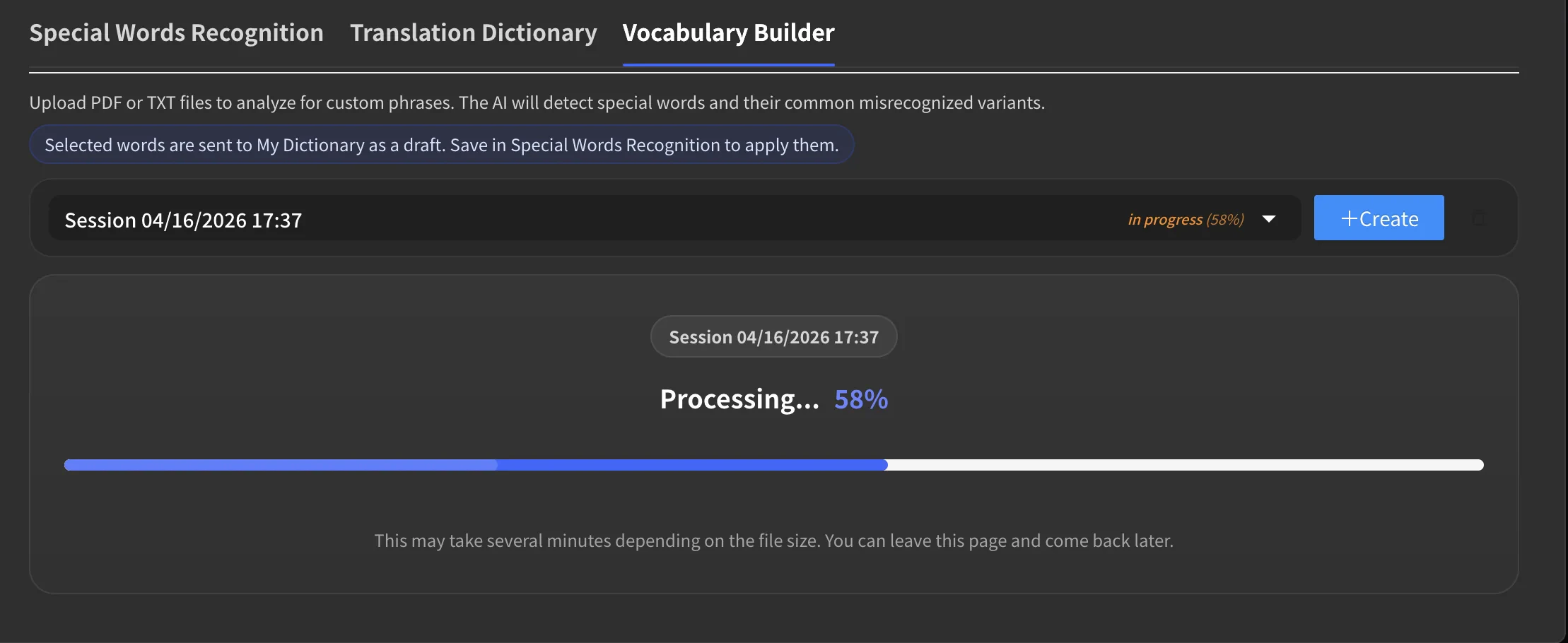
### 步骤3：等待处理

* 进度条显示当前处理状态
* 您可以关闭对话框稍后返回 -- 处理将在后台继续
<Frame>
  <img src="https://mintcdn.com/test-cf63e467/yJOLVx6nWj9-gzC6/en/images/vocabulary-builder/05-processing.webp?fit=max&auto=format&n=yJOLVx6nWj9-gzC6&q=85&s=1081b7b88644eaf3b9d5b2835820d322" alt="处理状态" width="2218" height="910" data-path="en/images/vocabulary-builder/05-processing.webp" />
</Frame>

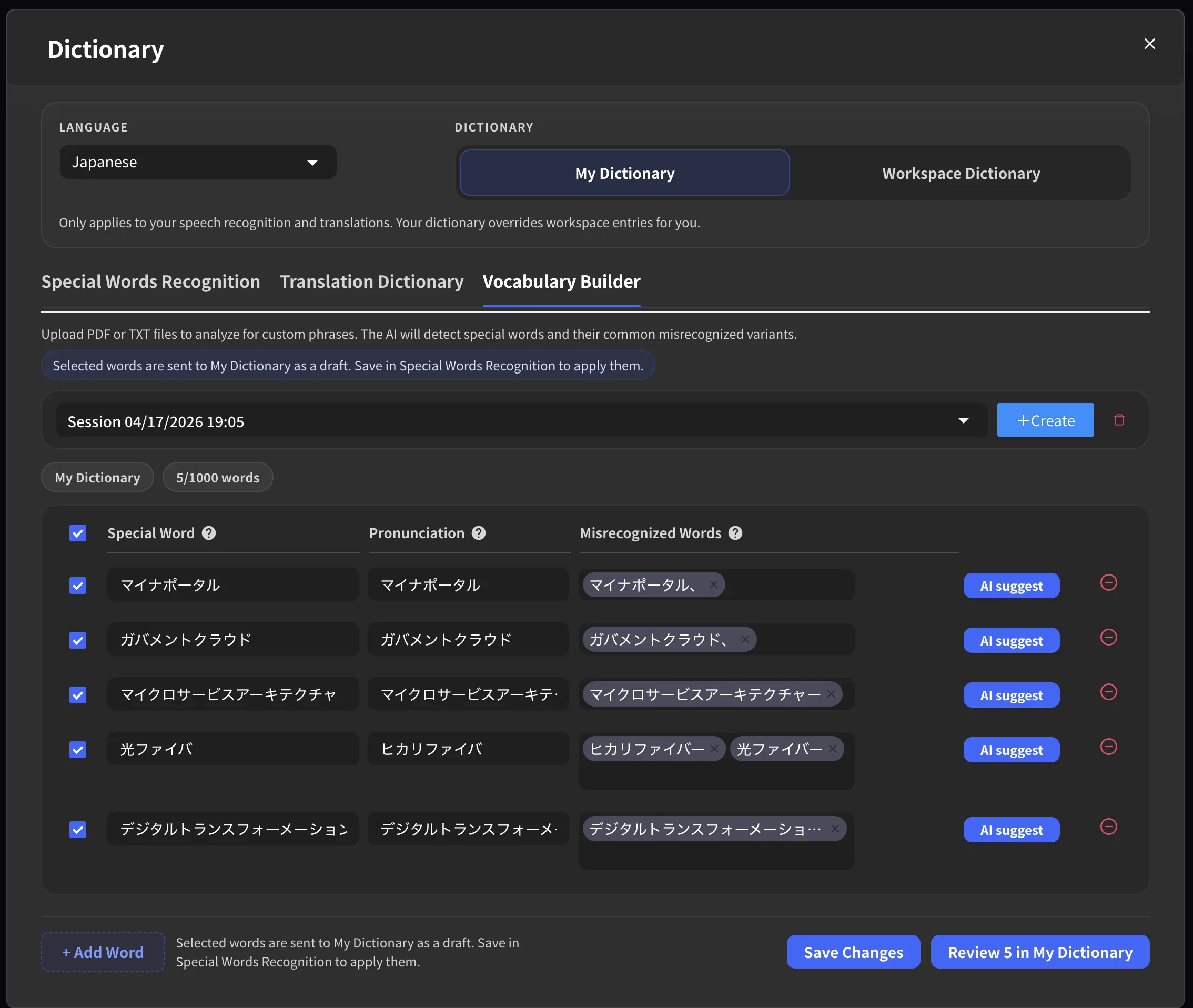
### 步骤4：审核提取的短语

处理完成后：

1. 从会话下拉菜单中选择您的会话
2. 查看检测到的短语列表
3. 对于每个短语，您可以：
   * 编辑短语
   * 查看和编辑误识别的变体
   * 添加发音指南
   * 请求更多AI建议
<Frame>
  <img src="https://mintcdn.com/test-cf63e467/yJOLVx6nWj9-gzC6/en/images/vocabulary-builder/06-review-phrases.webp?fit=max&auto=format&n=yJOLVx6nWj9-gzC6&q=85&s=2b90c123f77cd85f1e7814f6b1ff3fc1" alt="审核提取的短语" width="2268" height="1916" data-path="en/images/vocabulary-builder/06-review-phrases.webp" />
</Frame>

### 步骤5：将短语添加到词典

1. 选择您想要保存的短语
2. 点击**将选中项添加到词典**
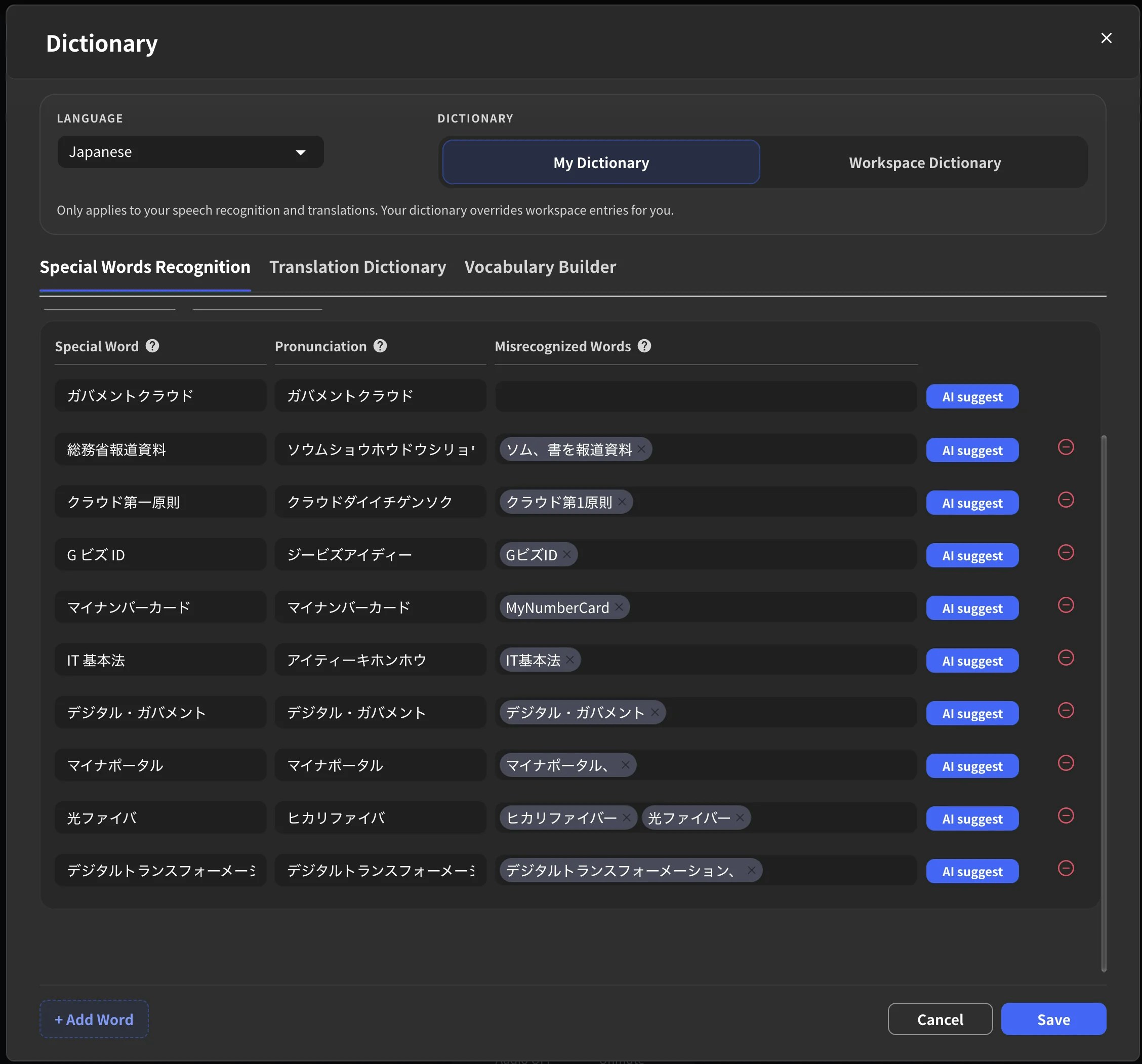
3. 选中的短语将被添加到**特殊词汇识别**中，以提高语音转文字的准确度

<Frame>
  <img src="https://mintcdn.com/test-cf63e467/yJOLVx6nWj9-gzC6/en/images/vocabulary-builder/07-added-to-dictionary.webp?fit=max&auto=format&n=yJOLVx6nWj9-gzC6&q=85&s=cc71dfabd3a51d3ccf1bbe7747f9365d" alt="将短语添加到词典" width="2256" height="2102" data-path="en/images/vocabulary-builder/07-added-to-dictionary.webp" />
</Frame>

<Tip>
  添加到词典的短语将应用于**整个工作区的所有后续会议**。每位团队成员都将受益于更高的转录准确度。
</Tip>

***

## 管理会话

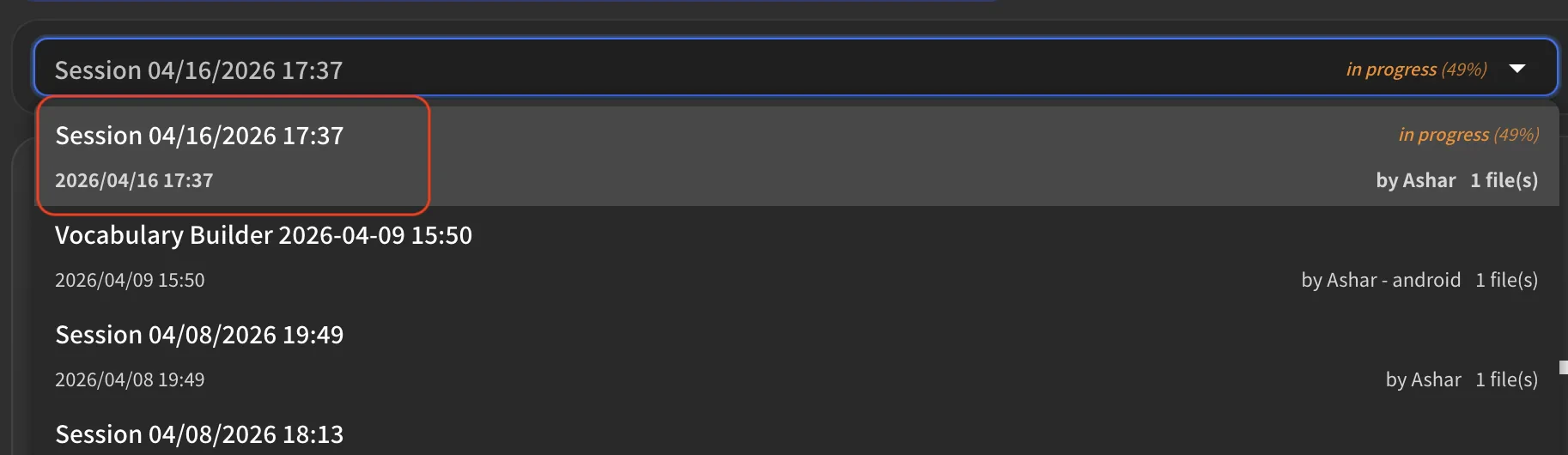
### 查看历史会话

使用会话下拉菜单查看所有以前的分析会话。每个会话显示其创建日期和处理状态。
<Frame>
  <img src="https://mintcdn.com/test-cf63e467/yJOLVx6nWj9-gzC6/en/images/vocabulary-builder/08-session-list.webp?fit=max&auto=format&n=yJOLVx6nWj9-gzC6&q=85&s=fbcd95554264daa52b61142cd97b68d9" alt="会话列表" width="1826" height="530" data-path="en/images/vocabulary-builder/08-session-list.webp" />
</Frame>

### 删除会话

选择一个会话并点击删除选项将其移除。已删除的会话无法恢复。

<FeedbackZh />