> ## Documentation Index
> Fetch the complete documentation index at: https://manual.voiceping.net/llms.txt
> Use this file to discover all available pages before exploring further.
# Web Meeting Bot
> Schedule the VoicePing Web Meeting Bot for Zoom, Google Meet, and Microsoft Teams with calendar integration, listener links, realtime AI, and bot video playback.
export const ContactZh = () => <>
如有任何问题,请通过此表单与我们联系。
## 官方链接
访问官方网站
在X上关注我们
在Facebook上点赞
在LinkedIn上连接
;
Web Meeting Bot joins supported online meetings, records the meeting audio for transcription, creates meeting logs, and can share live captions or translation with listeners.
## Supported Meeting Platforms
* Zoom
* Google Meet
* Microsoft Teams
## Open Web Meeting Bot
Go to **Meeting Logs > Web Meeting Bot**. The page has five main tabs:
| Tab | Purpose |
| --------------- | ---------------------------------------------------------------------------- |
| **Schedule** | Create a manual bot session from a meeting URL. |
| **Upcoming** | Check scheduled manual or calendar sessions. |
| **Live** | Monitor bots that are joining, waiting, recording, uploading, or processing. |
| **History** | Review completed, failed, canceled, or expired sessions. |
| **Integration** | Connect Google Calendar or Outlook Calendar for automatic scheduling. |
## Schedule A Bot Manually
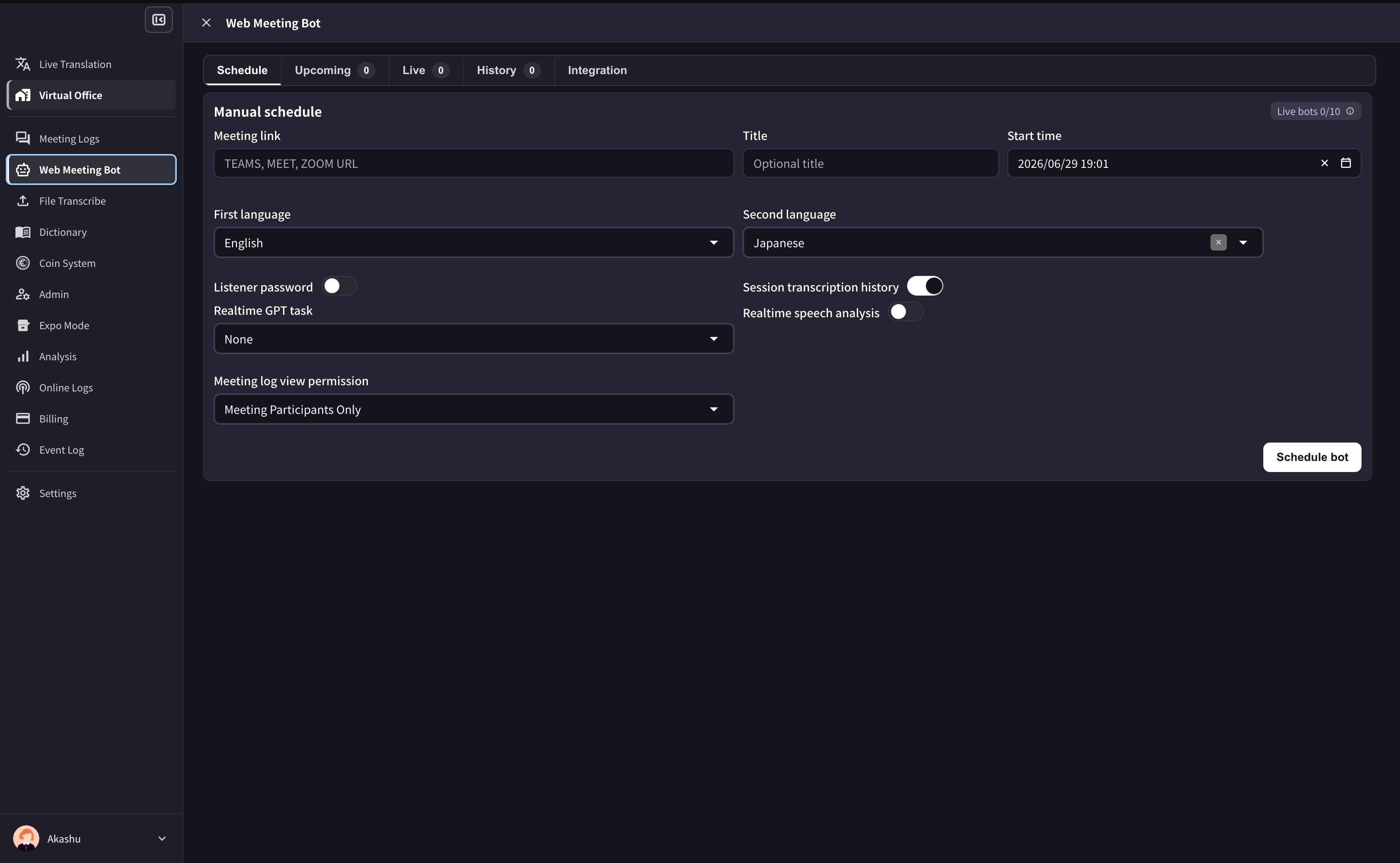
1. Open **Schedule**.
2. Paste the Zoom, Google Meet, or Microsoft Teams meeting URL.
3. Add an optional title and start time.
4. Select the first language and, if needed, a second language for translation.
5. Optionally enable listener password protection, session transcription history, realtime speech analysis, and a realtime GPT task.
6. Choose the meeting log view permission.
7. Click **Schedule bot**.
 ## Calendar Integration
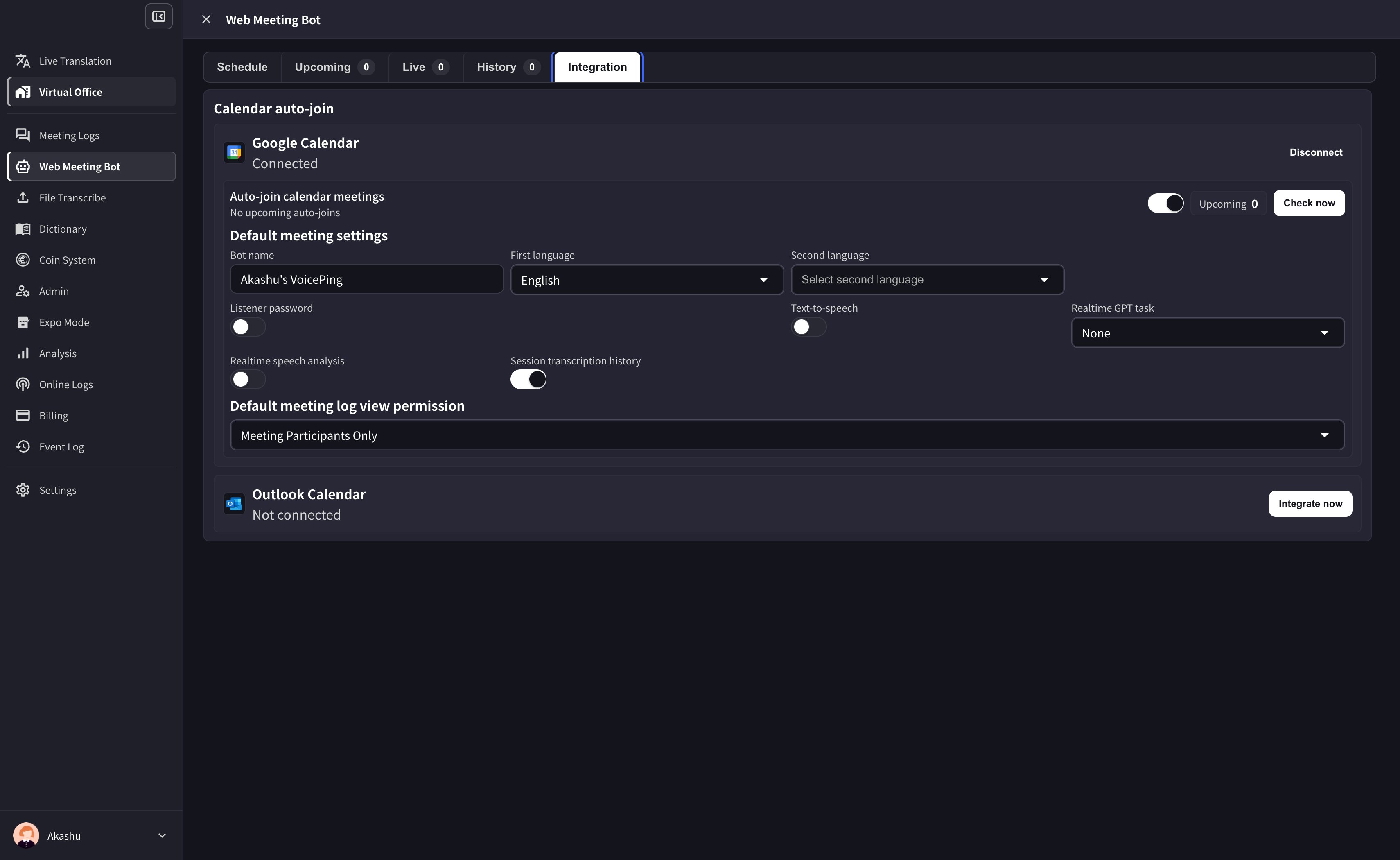
Connect Google Calendar or Outlook Calendar in the **Integration** tab. VoicePing can detect supported meeting links in upcoming calendar events and prepare bot sessions automatically.
For a connected calendar, turn on **Auto-join calendar meetings**, set the default bot name, languages, listener password, text-to-speech, realtime GPT task, realtime speech analysis, session transcription history, and default meeting log view permission. Use **Check now** to refresh upcoming calendar meetings.
## Calendar Integration
Connect Google Calendar or Outlook Calendar in the **Integration** tab. VoicePing can detect supported meeting links in upcoming calendar events and prepare bot sessions automatically.
For a connected calendar, turn on **Auto-join calendar meetings**, set the default bot name, languages, listener password, text-to-speech, realtime GPT task, realtime speech analysis, session transcription history, and default meeting log view permission. Use **Check now** to refresh upcoming calendar meetings.
 Calendar sessions use the calendar event window. Manual sessions reserve the duration you set when scheduling.
## Live Sessions And Listener Access
The **Live** tab lists active bots. Use **Copy listener link** to share the listener page, **Setting** to adjust languages and listener options, or **Kick out bot** to remove a bot from the meeting.
Calendar sessions use the calendar event window. Manual sessions reserve the duration you set when scheduling.
## Live Sessions And Listener Access
The **Live** tab lists active bots. Use **Copy listener link** to share the listener page, **Setting** to adjust languages and listener options, or **Kick out bot** to remove a bot from the meeting.
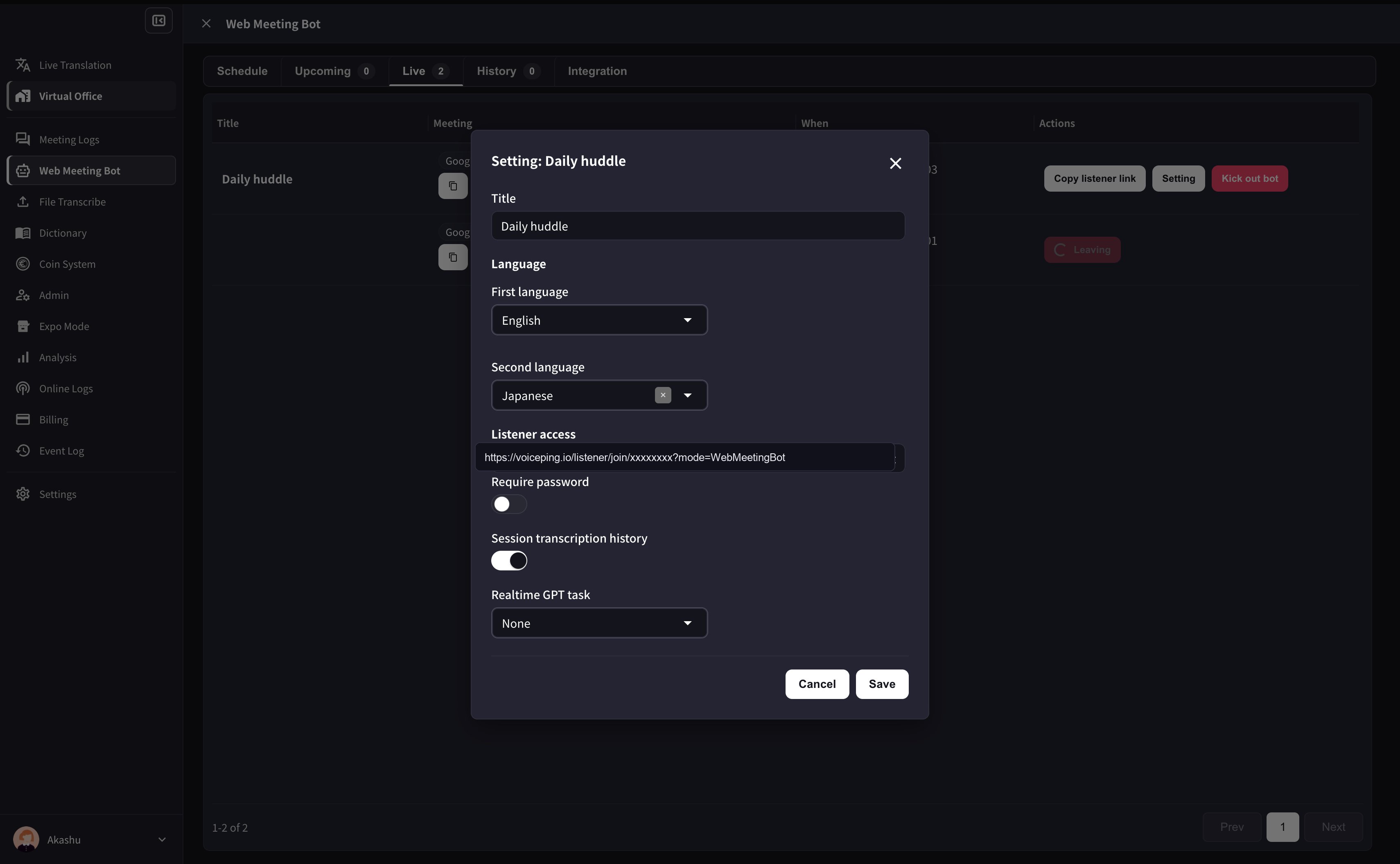 When listener access is enabled, invitees can open a browser link to view live transcription and translation. You can protect the link with a password and decide whether listeners can keep transcript history in local storage.
## Statuses
Common bot statuses include:
* **Scheduled** - waiting for the scheduled start time
* **Launching / Joining** - bot is starting and opening the meeting
* **Waiting for admit** - the meeting host must admit the bot
* **Recording** - bot is in the meeting and capturing audio
* **Uploading / Transcribing / Diarizing / Summarizing** - post-processing is running
* **Completed** - transcript and summary are ready
* **Failed / Canceled** - session did not complete
## Limits
Workspace live bot limits are set by plan: Free 1, Small 3, Premium 5, Enterprise 10. The app shows the current workspace limit. Free workspaces also have a limited number of monthly bot join attempts.
## Bot Video
During the online meeting, the bot appears as a meeting participant. When bot video is available, it can show the VoicePing listener screen so participants can open listener access from the meeting itself.
When listener access is enabled, invitees can open a browser link to view live transcription and translation. You can protect the link with a password and decide whether listeners can keep transcript history in local storage.
## Statuses
Common bot statuses include:
* **Scheduled** - waiting for the scheduled start time
* **Launching / Joining** - bot is starting and opening the meeting
* **Waiting for admit** - the meeting host must admit the bot
* **Recording** - bot is in the meeting and capturing audio
* **Uploading / Transcribing / Diarizing / Summarizing** - post-processing is running
* **Completed** - transcript and summary are ready
* **Failed / Canceled** - session did not complete
## Limits
Workspace live bot limits are set by plan: Free 1, Small 3, Premium 5, Enterprise 10. The app shows the current workspace limit. Free workspaces also have a limited number of monthly bot join attempts.
## Bot Video
During the online meeting, the bot appears as a meeting participant. When bot video is available, it can show the VoicePing listener screen so participants can open listener access from the meeting itself.
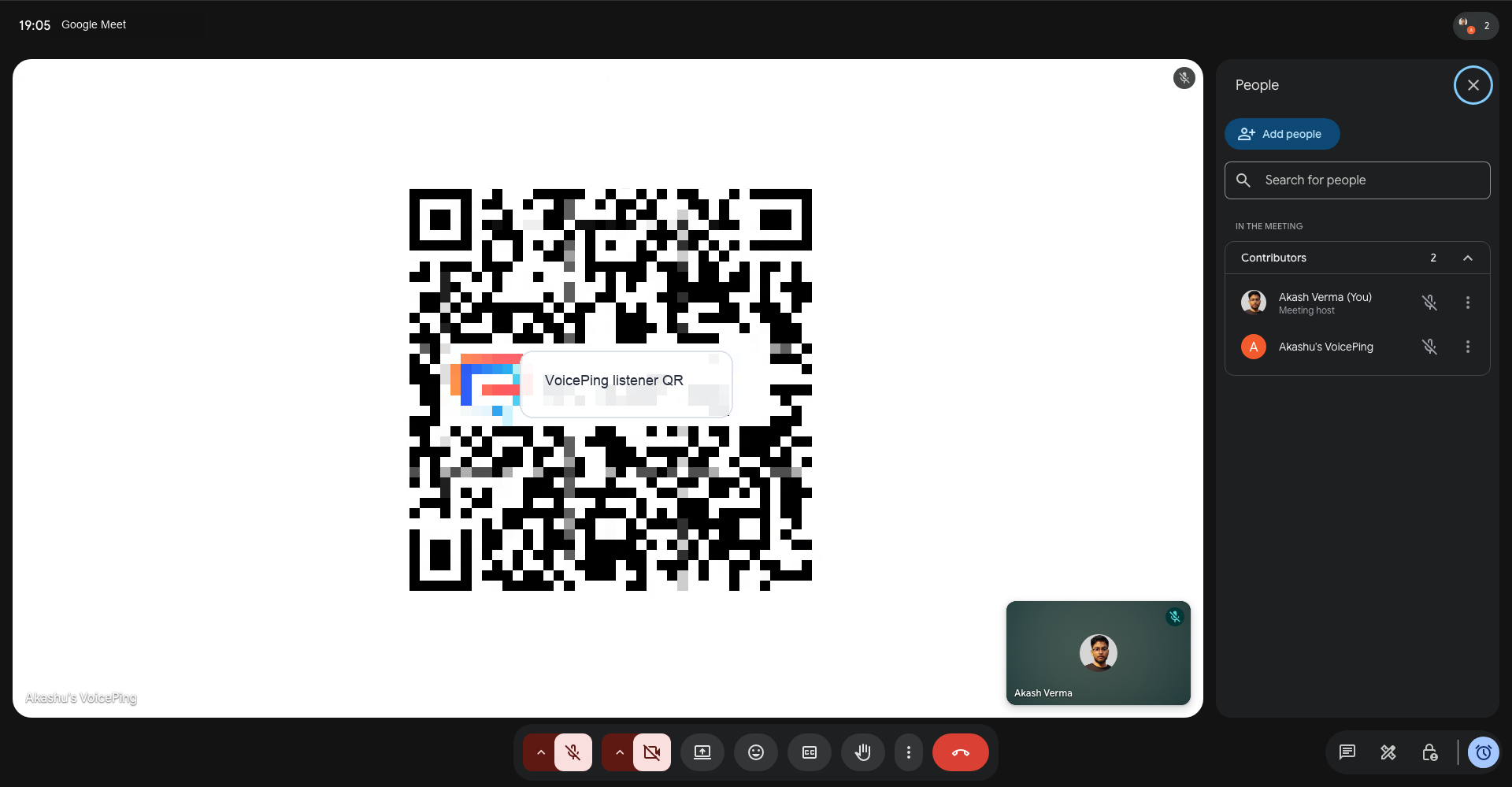 After the meeting, open bot video from the Web Meeting Bot recording or meeting log. Bot video can be processing, ready, expired, canceled, failed, or unavailable. Download needed video before the retention period ends.
## Troubleshooting
* If the bot waits in the lobby, admit it from the meeting host account.
* If Zoom passcode or permission settings are wrong, update the meeting URL and reschedule.
* If a calendar event is missing, confirm Google or Outlook integration is connected and the event contains a supported meeting URL.
* If the workspace is at its live bot limit, wait for another bot to finish or kick out an active bot before scheduling another live session.
After the meeting, open bot video from the Web Meeting Bot recording or meeting log. Bot video can be processing, ready, expired, canceled, failed, or unavailable. Download needed video before the retention period ends.
## Troubleshooting
* If the bot waits in the lobby, admit it from the meeting host account.
* If Zoom passcode or permission settings are wrong, update the meeting URL and reschedule.
* If a calendar event is missing, confirm Google or Outlook integration is connected and the event contains a supported meeting URL.
* If the workspace is at its live bot limit, wait for another bot to finish or kick out an active bot before scheduling another live session.