> ## Documentation Index
> Fetch the complete documentation index at: https://manual.voiceping.net/llms.txt
> Use this file to discover all available pages before exploring further.
# Check Device and Network Access
> Run VoicePing Access Diagnostics, understand permission and network results, check LiveKit media connectivity, and export a report for support.
export const FeedbackEn = () => <>
Have an idea or request about this feature? Send it to the team via Product Feedback.
Official Links
Visit our official website
Follow us on X
Like us on Facebook
Connect on LinkedIn
;
Use **Access Diagnostics** when your microphone, camera, screen sharing, desktop audio, Virtual Office controls, or VoicePing connection does not work as expected. The page checks the permissions and network access VoicePing needs on the current computer.
Access Diagnostics checks this computer and its current network. Run it again after changing a device, macOS or Windows permission, VPN, proxy, firewall, or network.
## Open Access Diagnostics
1. Open the VoicePing desktop app.
2. Select **Settings** from the bottom of the left sidebar.
3. Under **My Settings**, select **Access Diagnostics**.
4. Select **Run diagnostics** to run all 24 checks.
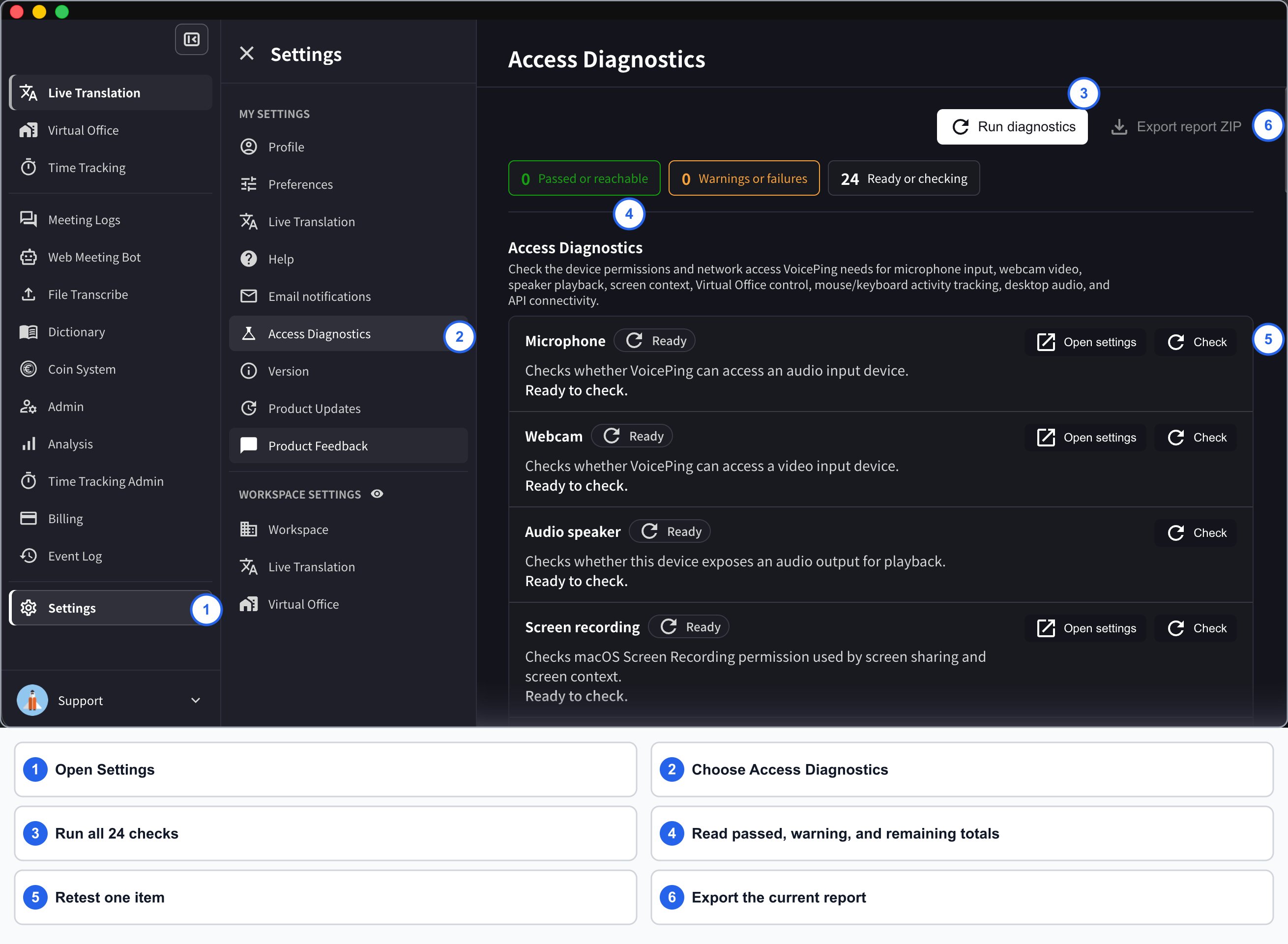 The overview shows where Access Diagnostics sits in VoicePing. Use the enlarged view below to read the controls.
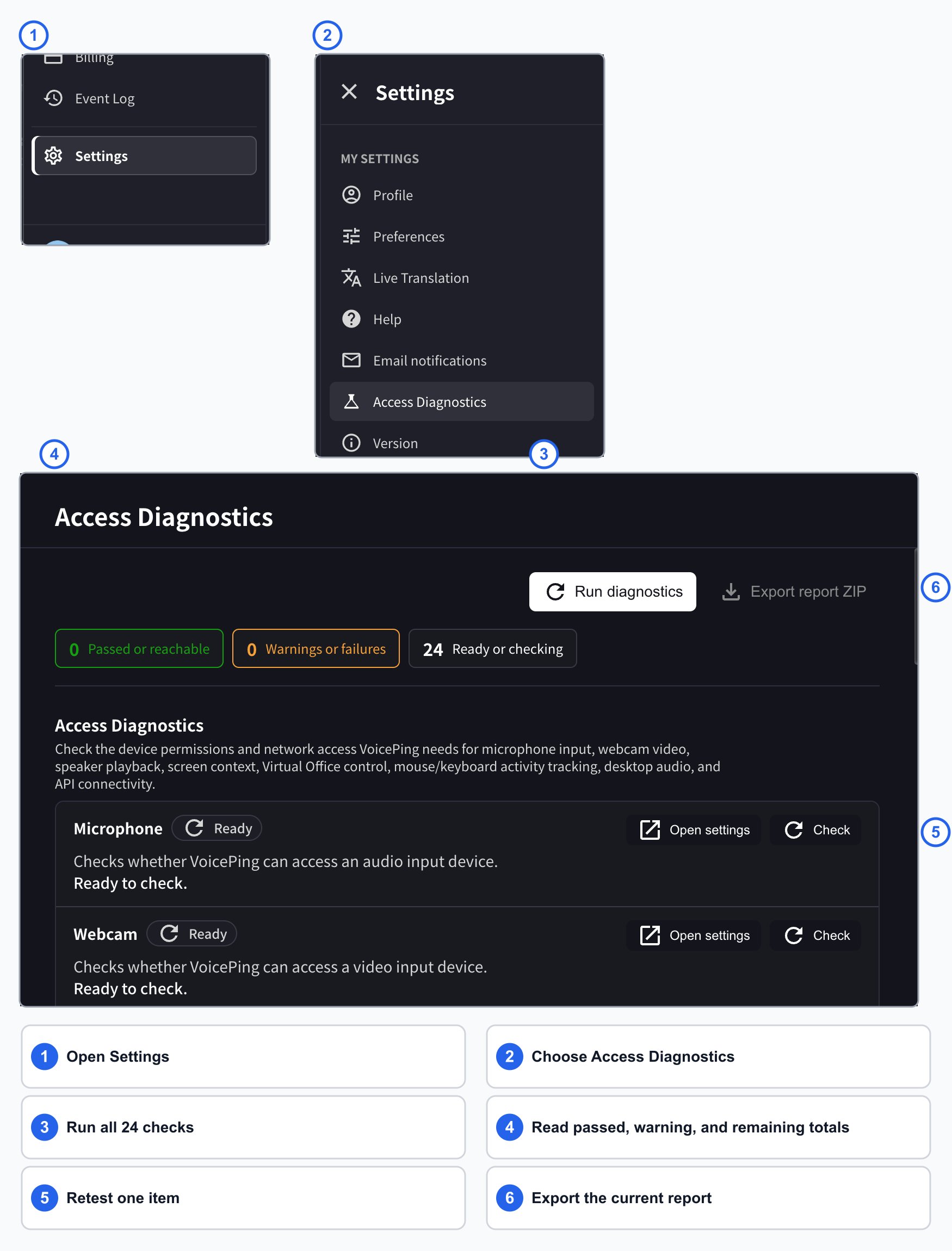 You can also select **Check** beside one item when you only need to retest a device, permission, endpoint, or LiveKit (Virtual Office) connection.
## Understand the summary
The counters at the top update as checks finish:
| Status | Meaning | What to do |
| ------------------------ | ------------------------------------------------------------------------------------- | ---------------------------------------------------------- |
| **Passed or reachable** | VoicePing can use the permission, device, or network destination. | No action is required. |
| **Warnings or failures** | A permission is blocked, a device is unavailable, or a destination cannot be reached. | Open the affected result and follow its message. |
| **Ready or checking** | The check has not started or is still running. | Wait for the run to finish, or run that item individually. |
You can also select **Check** beside one item when you only need to retest a device, permission, endpoint, or LiveKit (Virtual Office) connection.
## Understand the summary
The counters at the top update as checks finish:
| Status | Meaning | What to do |
| ------------------------ | ------------------------------------------------------------------------------------- | ---------------------------------------------------------- |
| **Passed or reachable** | VoicePing can use the permission, device, or network destination. | No action is required. |
| **Warnings or failures** | A permission is blocked, a device is unavailable, or a destination cannot be reached. | Open the affected result and follow its message. |
| **Ready or checking** | The check has not started or is still running. | Wait for the run to finish, or run that item individually. |
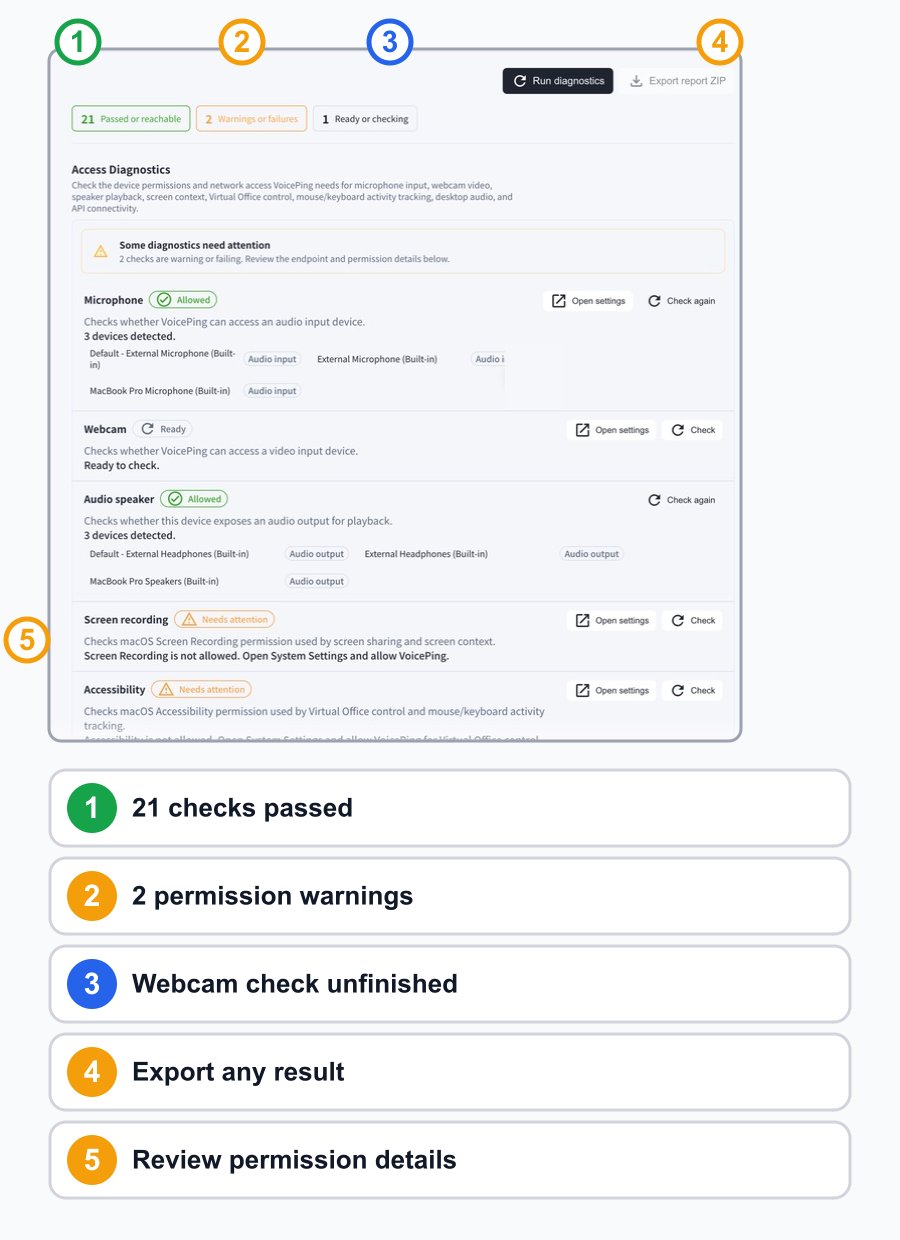 The screenshot shows an example with two missing macOS permissions and an unfinished webcam check. Your counters and device names will be different.
## Device, permission, and API checks
VoicePing checks the following items before it scans the network destinations:
| Check | What it verifies |
| -------------------------- | ------------------------------------------------------------------------------- |
| **Microphone** | VoicePing can access an audio input device. |
| **Webcam** | VoicePing can access a video input device. |
| **Audio speaker** | The computer exposes an audio output for playback. |
| **Screen recording** | VoicePing can capture screen content for screen sharing and screen context. |
| **Accessibility** | VoicePing can use Virtual Office controls and mouse/keyboard activity tracking. |
| **Screen audio recording** | VoicePing can capture desktop/system audio for translation. |
| **Main API access** | The VoicePing API status endpoint responds from the current network. |
When a permission needs attention, select **Open settings**, allow VoicePing in the operating-system settings, and return to select **Check** again.
### macOS permissions
Open **System Settings → Privacy & Security**, then check the relevant section:
* **Microphone**
* **Camera**
* **Screen & System Audio Recording**
* **Accessibility**
Changing Screen Recording or Accessibility permission may require you to quit and reopen VoicePing before the result changes.
On Windows, use the **Open settings** action beside the failed check and allow VoicePing in the corresponding Windows privacy or security page.
## Network allowlist checks
The **Network allowlist** section checks every documented VoicePing destination required by the core app, Live Translation, Virtual Office, assets, and authentication. Each result shows the destination, protocol, and response time.
The screenshot shows an example with two missing macOS permissions and an unfinished webcam check. Your counters and device names will be different.
## Device, permission, and API checks
VoicePing checks the following items before it scans the network destinations:
| Check | What it verifies |
| -------------------------- | ------------------------------------------------------------------------------- |
| **Microphone** | VoicePing can access an audio input device. |
| **Webcam** | VoicePing can access a video input device. |
| **Audio speaker** | The computer exposes an audio output for playback. |
| **Screen recording** | VoicePing can capture screen content for screen sharing and screen context. |
| **Accessibility** | VoicePing can use Virtual Office controls and mouse/keyboard activity tracking. |
| **Screen audio recording** | VoicePing can capture desktop/system audio for translation. |
| **Main API access** | The VoicePing API status endpoint responds from the current network. |
When a permission needs attention, select **Open settings**, allow VoicePing in the operating-system settings, and return to select **Check** again.
### macOS permissions
Open **System Settings → Privacy & Security**, then check the relevant section:
* **Microphone**
* **Camera**
* **Screen & System Audio Recording**
* **Accessibility**
Changing Screen Recording or Accessibility permission may require you to quit and reopen VoicePing before the result changes.
On Windows, use the **Open settings** action beside the failed check and allow VoicePing in the corresponding Windows privacy or security page.
## Network allowlist checks
The **Network allowlist** section checks every documented VoicePing destination required by the core app, Live Translation, Virtual Office, assets, and authentication. Each result shows the destination, protocol, and response time.
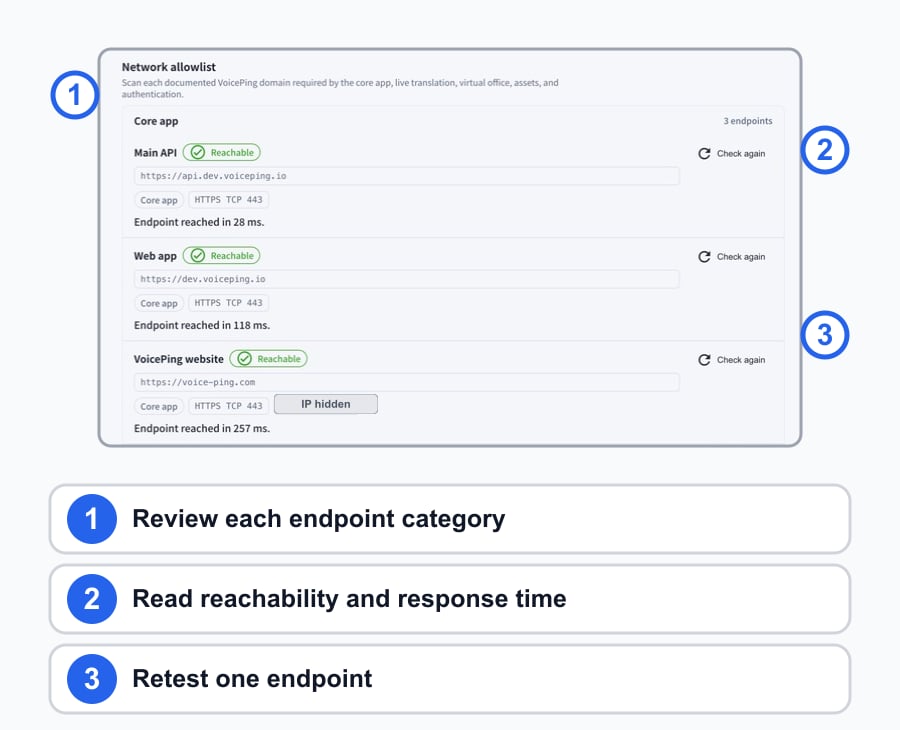 The image shows the first endpoint category. Continue scrolling in Access Diagnostics to review the Live translation, Virtual office, Assets, and Authentication categories.
If a destination is not reachable:
1. Disconnect from a VPN or proxy temporarily, when your organization permits it.
2. Try another network to identify whether the current network is blocking VoicePing.
3. Ask your IT administrator to review [Network Communication Protocol (Firewall)](/en/network-firewall).
4. Run the affected destination again after the network rule is updated.
## LiveKit (Virtual Office)
The **LiveKit media connectivity** check covers only the audio and video delivery used by Virtual Office. It does not test media delivery for other VoicePing features. The check creates a short diagnostic session and reports these subchecks:
The image shows the first endpoint category. Continue scrolling in Access Diagnostics to review the Live translation, Virtual office, Assets, and Authentication categories.
If a destination is not reachable:
1. Disconnect from a VPN or proxy temporarily, when your organization permits it.
2. Try another network to identify whether the current network is blocking VoicePing.
3. Ask your IT administrator to review [Network Communication Protocol (Firewall)](/en/network-firewall).
4. Run the affected destination again after the network rule is updated.
## LiveKit (Virtual Office)
The **LiveKit media connectivity** check covers only the audio and video delivery used by Virtual Office. It does not test media delivery for other VoicePing features. The check creates a short diagnostic session and reports these subchecks:
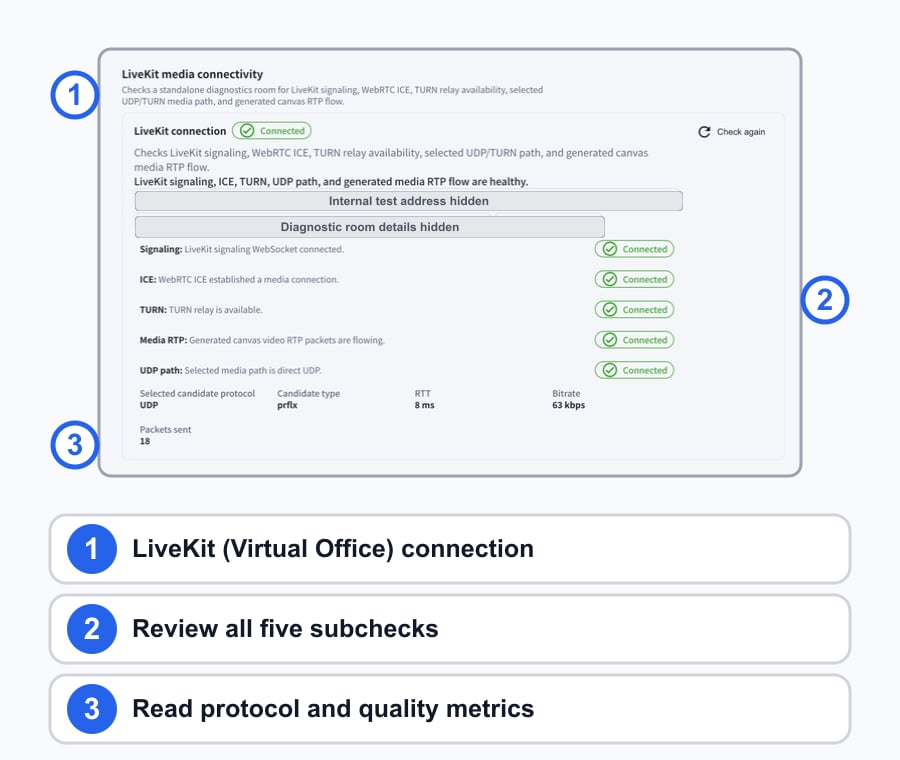 The screenshots show an example run in VoicePing STG. Destinations, response times, candidate types, and metrics vary by environment. Internal test addresses and diagnostic-room details are hidden in the manual.
| Subcheck | What a connected result confirms |
| ------------- | -------------------------------------------------------- |
| **Signaling** | The secure signaling connection opened. |
| **ICE** | WebRTC established a media connection. |
| **TURN** | A relay is available when a direct route cannot be used. |
| **Media RTP** | Generated test media packets are flowing. |
| **UDP path** | The selected media path can carry UDP traffic. |
The result can also show the selected protocol and candidate type, round-trip time, bitrate, and packets sent. Give these details to your IT administrator when Virtual Office audio or video performs poorly even though the main API is reachable.
## Export a report
**Export report ZIP** exports the current diagnostic report regardless of whether checks pass, warn, fail, or remain unfinished.
1. Run the checks you want included, or select **Run diagnostics** to check all 24 items at once.
2. Select **Export report ZIP**.
3. Save the ZIP and share it only with your authorized IT administrator or VoicePing support.
A diagnostic report can include device and network-connectivity details. Review your organization's support and privacy policy before sharing it.
## If a check does not finish
If a result remains **Checking**:
1. Select its individual **Check** action again.
2. Confirm the related operating-system permission is enabled.
3. Close other applications that may be using the same microphone or camera.
4. Quit and reopen VoicePing, then rerun the check.
5. Capture the visible result and contact your workspace administrator or [send product feedback](/en/product-feedback) if the status still does not change.
Do not treat an unfinished check as a pass. Export the report as-is so your administrator or VoicePing support can see the unfinished state.
The screenshots show an example run in VoicePing STG. Destinations, response times, candidate types, and metrics vary by environment. Internal test addresses and diagnostic-room details are hidden in the manual.
| Subcheck | What a connected result confirms |
| ------------- | -------------------------------------------------------- |
| **Signaling** | The secure signaling connection opened. |
| **ICE** | WebRTC established a media connection. |
| **TURN** | A relay is available when a direct route cannot be used. |
| **Media RTP** | Generated test media packets are flowing. |
| **UDP path** | The selected media path can carry UDP traffic. |
The result can also show the selected protocol and candidate type, round-trip time, bitrate, and packets sent. Give these details to your IT administrator when Virtual Office audio or video performs poorly even though the main API is reachable.
## Export a report
**Export report ZIP** exports the current diagnostic report regardless of whether checks pass, warn, fail, or remain unfinished.
1. Run the checks you want included, or select **Run diagnostics** to check all 24 items at once.
2. Select **Export report ZIP**.
3. Save the ZIP and share it only with your authorized IT administrator or VoicePing support.
A diagnostic report can include device and network-connectivity details. Review your organization's support and privacy policy before sharing it.
## If a check does not finish
If a result remains **Checking**:
1. Select its individual **Check** action again.
2. Confirm the related operating-system permission is enabled.
3. Close other applications that may be using the same microphone or camera.
4. Quit and reopen VoicePing, then rerun the check.
5. Capture the visible result and contact your workspace administrator or [send product feedback](/en/product-feedback) if the status still does not change.
Do not treat an unfinished check as a pass. Export the report as-is so your administrator or VoicePing support can see the unfinished state.