> ## Documentation Index
> Fetch the complete documentation index at: https://manual.voiceping.net/llms.txt
> Use this file to discover all available pages before exploring further.
# How to Change Account Settings
> Manage your VoicePing profile, avatar, password, two-step verification, login sessions, language, appearance, email notifications, and calendar integration.
export const FeedbackEn = () => <>
Have an idea or request about this feature? Send it to the team via Product Feedback.
Official Links
Visit our official website
Follow us on X
Like us on Facebook
Connect on LinkedIn
;
Open **Settings** from the **gear icon** at the bottom of the left sidebar. The Settings panel is split into two groups:
* **My Settings** — your personal profile and app preferences (Profile, Preferences, Live Translation, Email notifications, Version, and more).
* **Workspace Settings** — controls that apply to the whole workspace, shown to owners and admins.
## Profile
The **Profile** tab holds your avatar, display name, password, two-step verification, and login sessions.
### Change your avatar and display name
1. In **Profile**, click the **pencil (edit) icon** on your avatar.
2. Edit the **Display Name** field. This name is shown only in the current workspace.
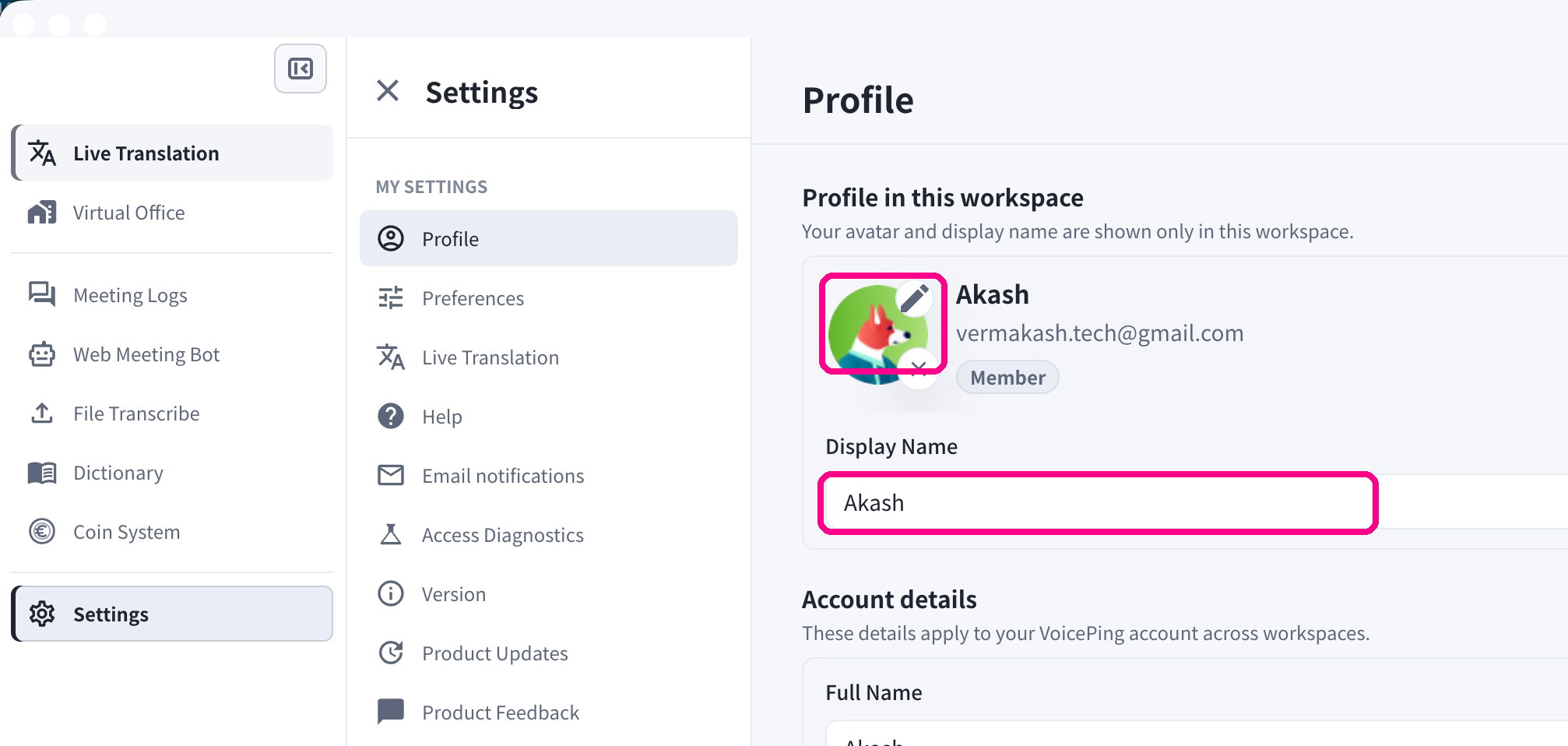 Your **Display Name** applies only to the current workspace. To change the name used across **all** your workspaces, edit **Full Name** under **Account details** on the same page.
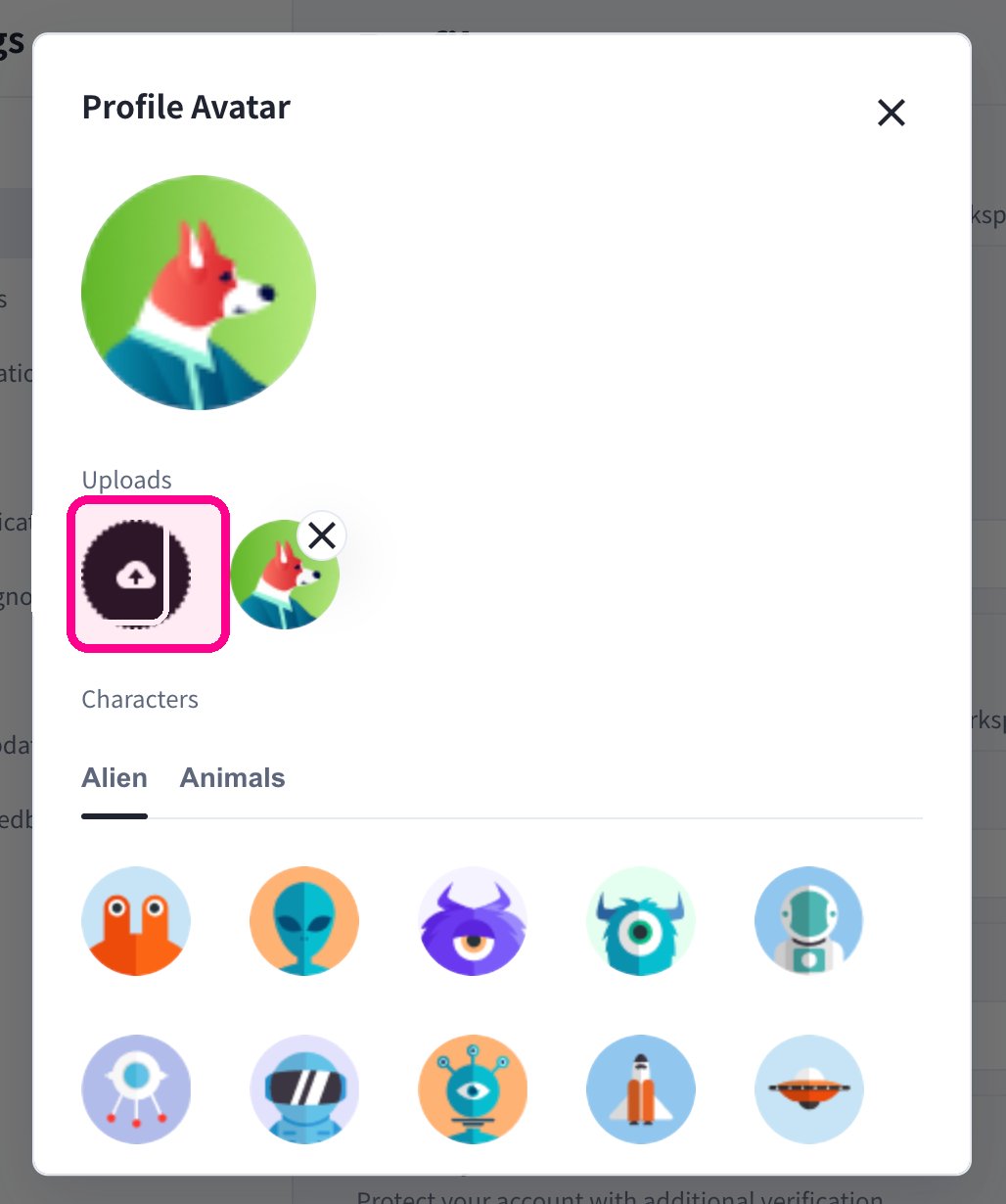
When you click the pencil icon, the **Profile Avatar** dialog opens. Either click **Upload** to use your own image, or pick a ready-made avatar from the **Characters** tabs (**Alien**, **Animals**).
Your **Display Name** applies only to the current workspace. To change the name used across **all** your workspaces, edit **Full Name** under **Account details** on the same page.
When you click the pencil icon, the **Profile Avatar** dialog opens. Either click **Upload** to use your own image, or pick a ready-made avatar from the **Characters** tabs (**Alien**, **Animals**).
 ### Set a password and two-step verification
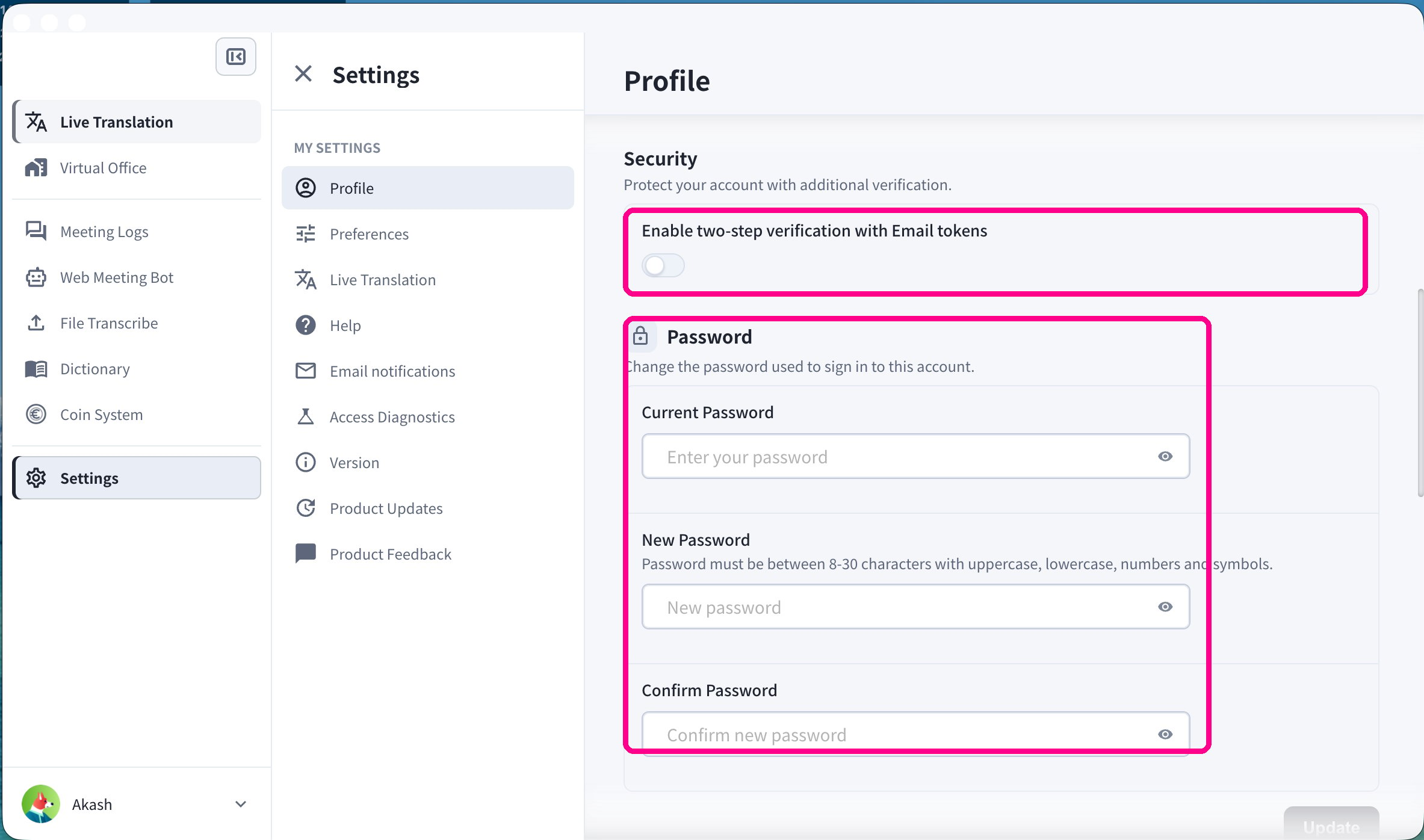
In the **Security** section, toggle **Enable two-step verification with Email tokens** to require an email token at sign-in.
To change your password, use the **Password** section: enter your **Current Password**, then a **New Password** (8–30 characters with uppercase, lowercase, numbers, and symbols), and confirm it.
### Set a password and two-step verification
In the **Security** section, toggle **Enable two-step verification with Email tokens** to require an email token at sign-in.
To change your password, use the **Password** section: enter your **Current Password**, then a **New Password** (8–30 characters with uppercase, lowercase, numbers, and symbols), and confirm it.
 ### Review login sessions
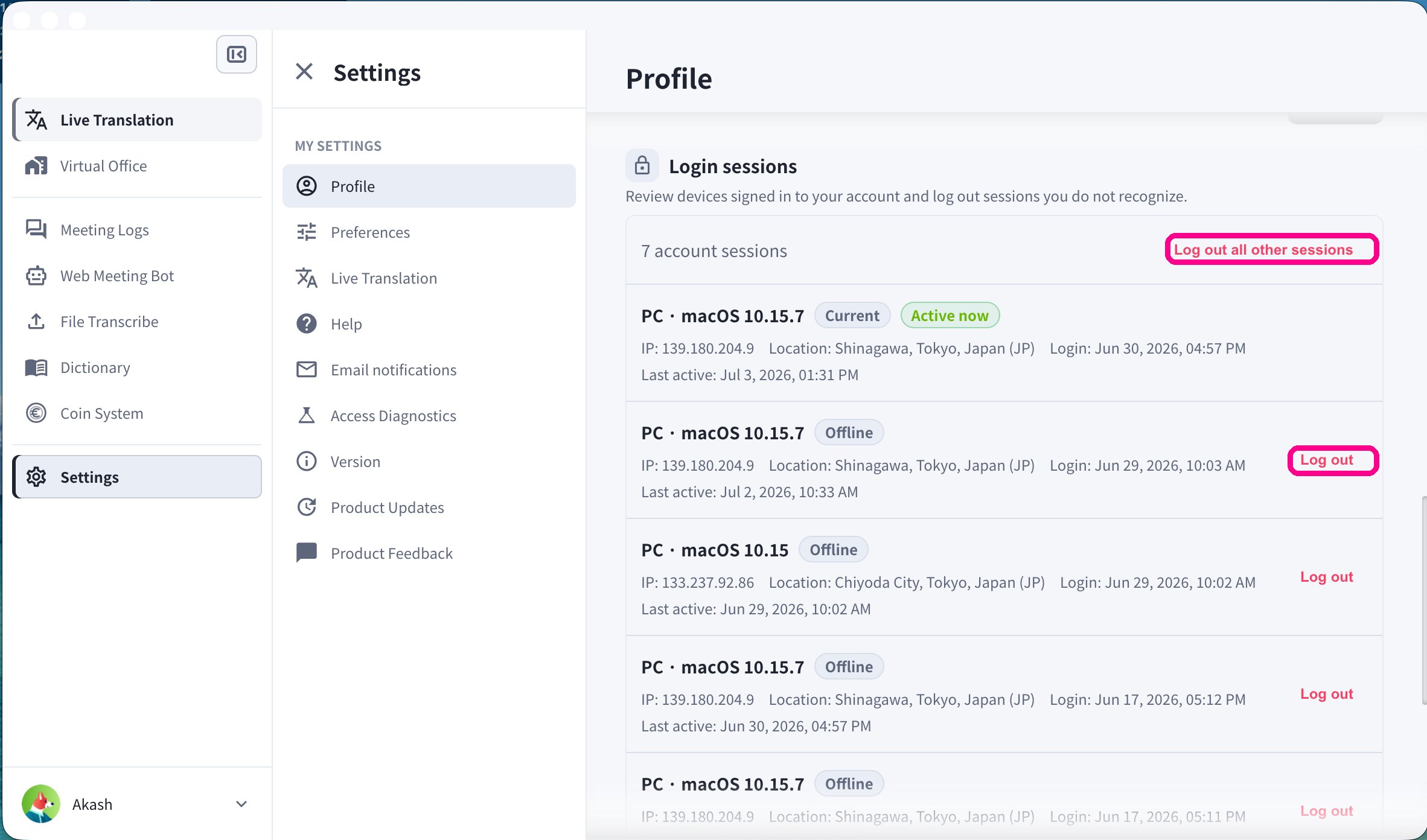
The **Login sessions** section lists every device signed in to your account, with IP address, location, login time, and last-active time.
* Click **Log out** on any session you don't recognize.
* Click **Log out all other sessions** to end every session except the one you're using now.
### Review login sessions
The **Login sessions** section lists every device signed in to your account, with IP address, location, login time, and last-active time.
* Click **Log out** on any session you don't recognize.
* Click **Log out all other sessions** to end every session except the one you're using now.
 ## Preferences
The **Preferences** tab controls app language, appearance, desktop behavior, and calendar integration.
### Display language
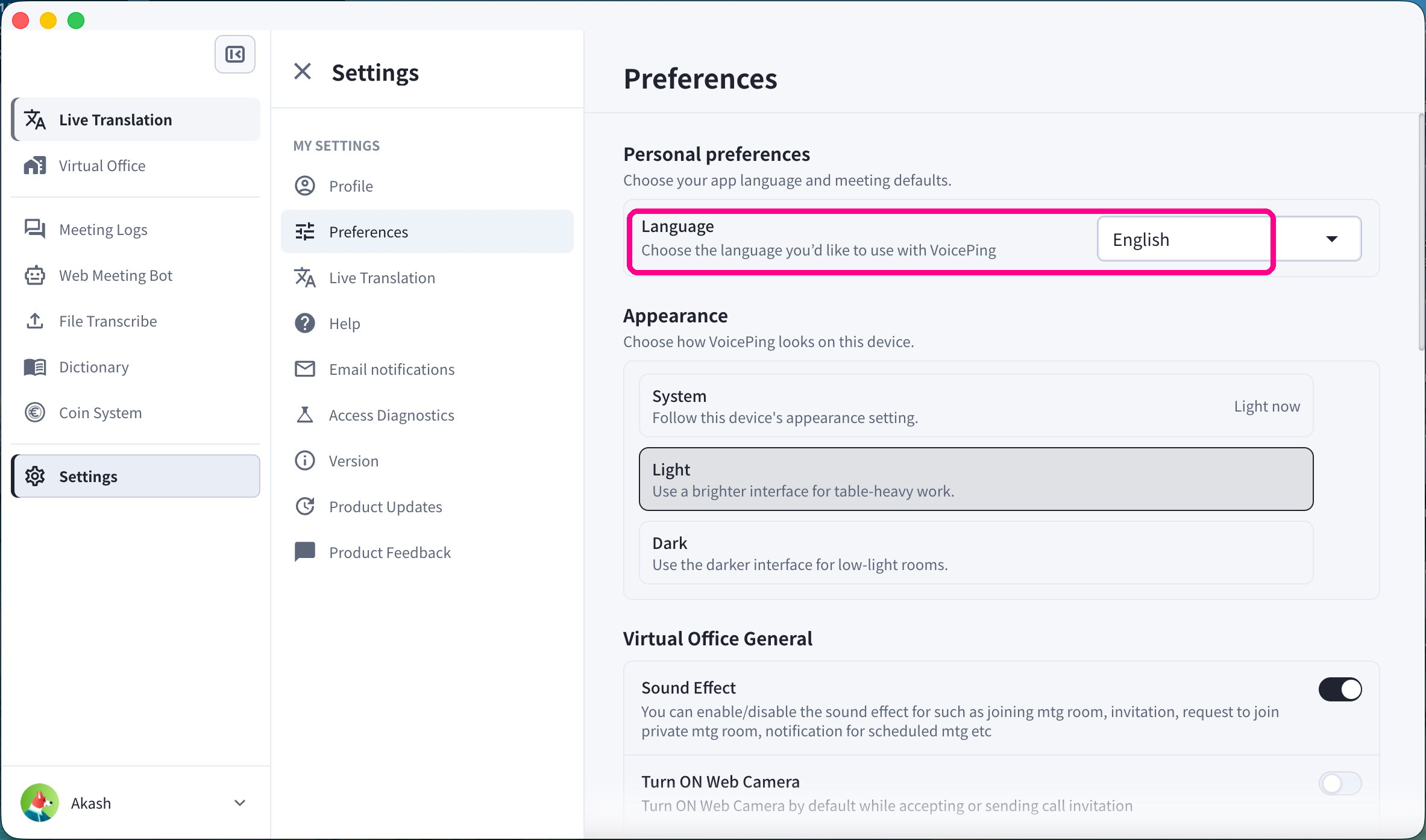
Under **Personal preferences**, open the **Language** dropdown and choose the language you'd like to use with VoicePing.
## Preferences
The **Preferences** tab controls app language, appearance, desktop behavior, and calendar integration.
### Display language
Under **Personal preferences**, open the **Language** dropdown and choose the language you'd like to use with VoicePing.
 ### Appearance (theme)
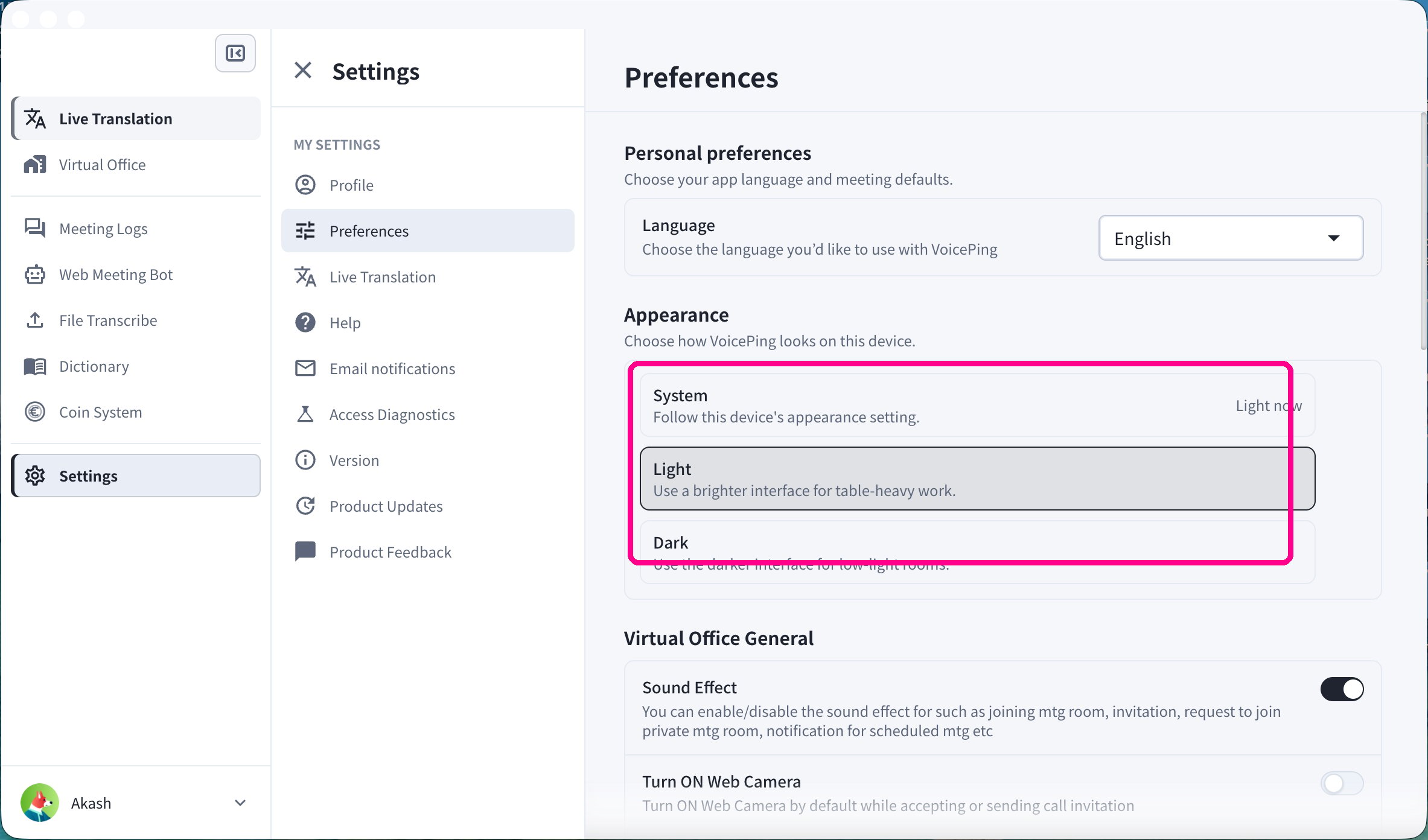
Under **Appearance**, choose how VoicePing looks on this device:
* **System** — follow your device's appearance setting
* **Light** — a brighter interface
* **Dark** — a darker interface for low-light rooms
### Appearance (theme)
Under **Appearance**, choose how VoicePing looks on this device:
* **System** — follow your device's appearance setting
* **Light** — a brighter interface
* **Dark** — a darker interface for low-light rooms
 ### Launch at login
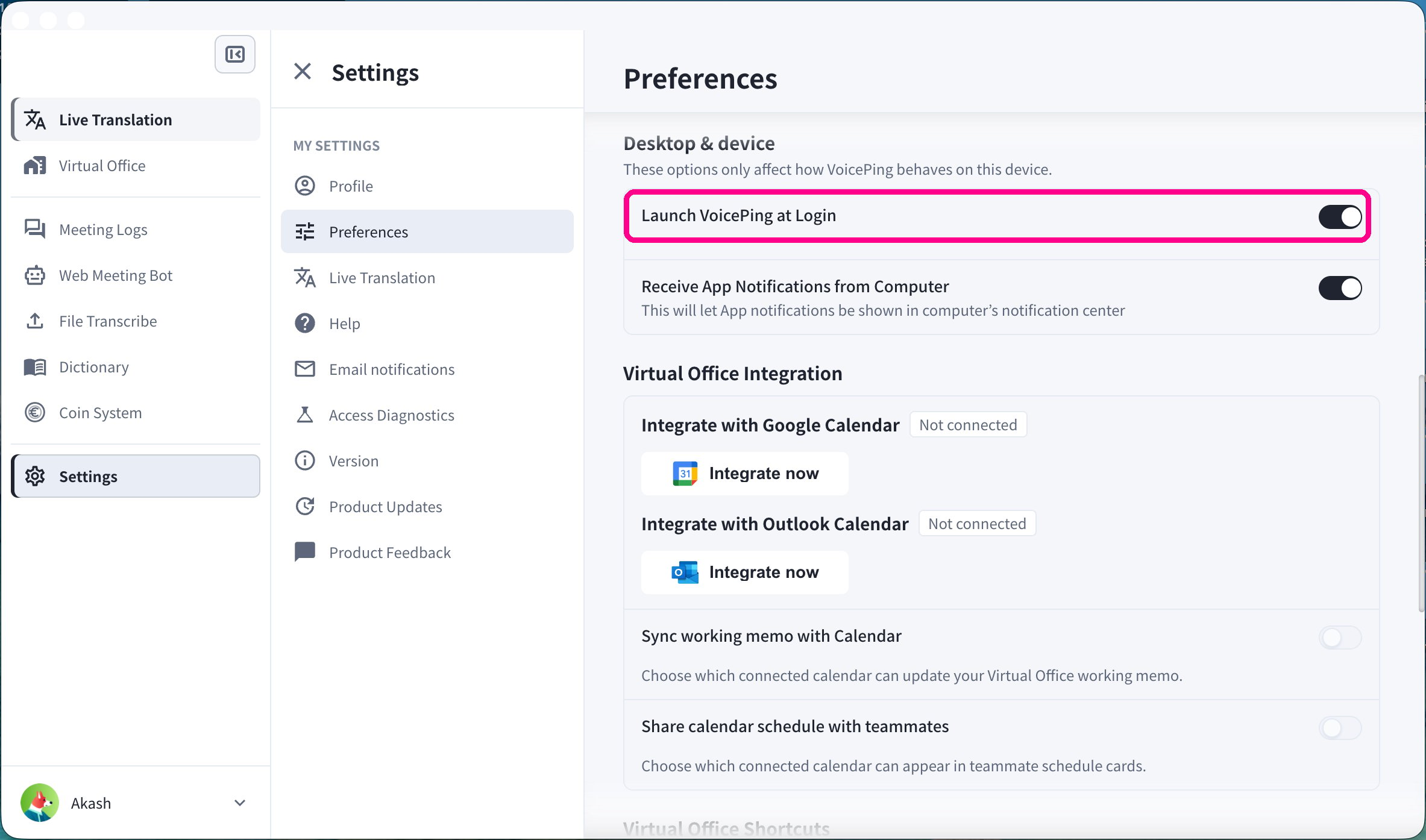
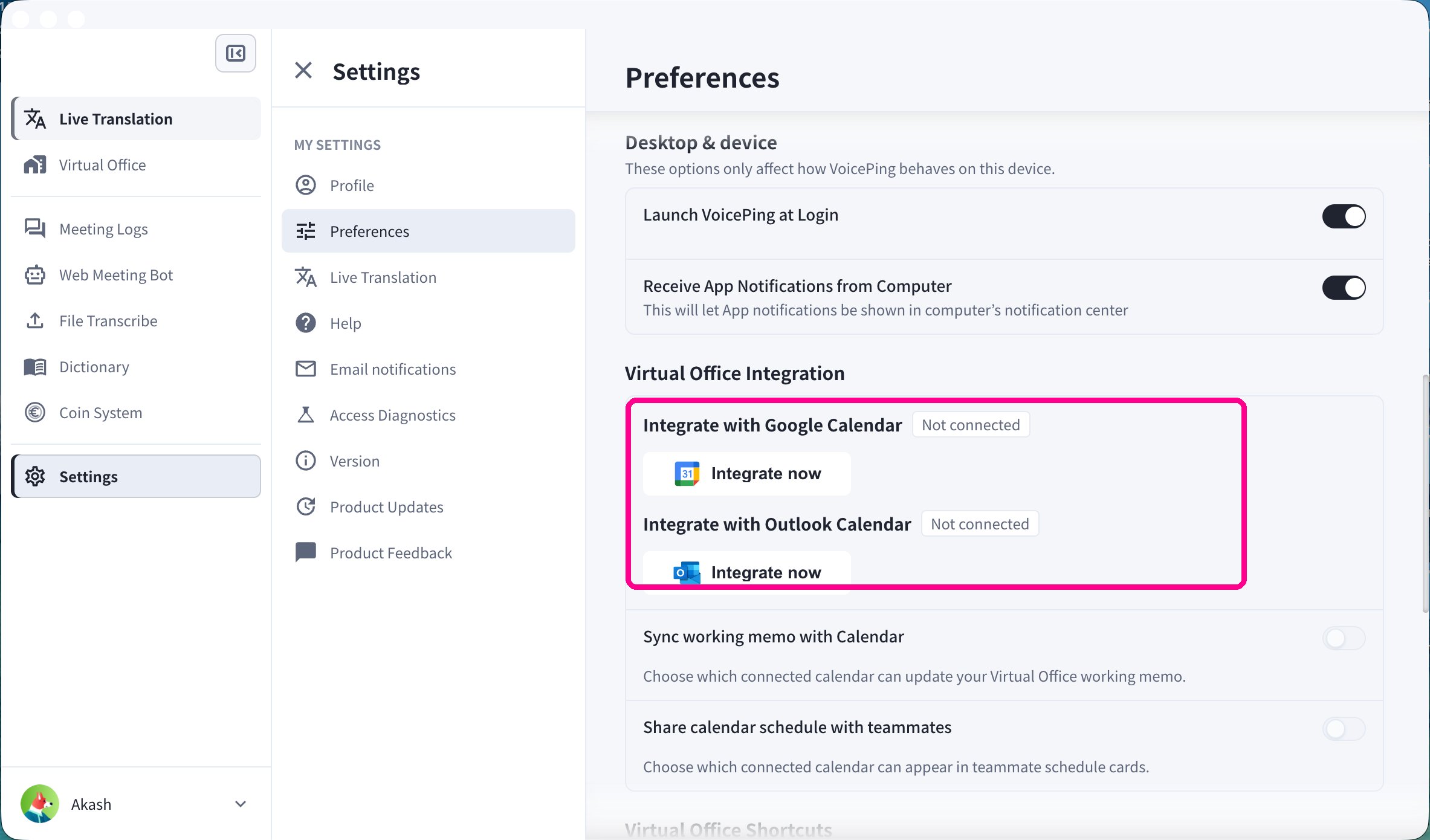
Under **Desktop & device**, turn on **Launch VoicePing at Login** to start VoicePing automatically when you sign in to your computer. You can also toggle **Receive App Notifications from Computer** here.
### Launch at login
Under **Desktop & device**, turn on **Launch VoicePing at Login** to start VoicePing automatically when you sign in to your computer. You can also toggle **Receive App Notifications from Computer** here.
 ### Calendar integration
Under **Virtual Office Integration**, connect **Google Calendar** or **Outlook Calendar** so VoicePing can detect meeting links in your upcoming events. Click **Integrate now** next to the calendar you use.
### Calendar integration
Under **Virtual Office Integration**, connect **Google Calendar** or **Outlook Calendar** so VoicePing can detect meeting links in your upcoming events. Click **Integrate now** next to the calendar you use.
 Calendar integration also powers the Web Meeting Bot's automatic scheduling. See [Web Meeting Bot](/en/web-meeting-bot).
## Email Notifications
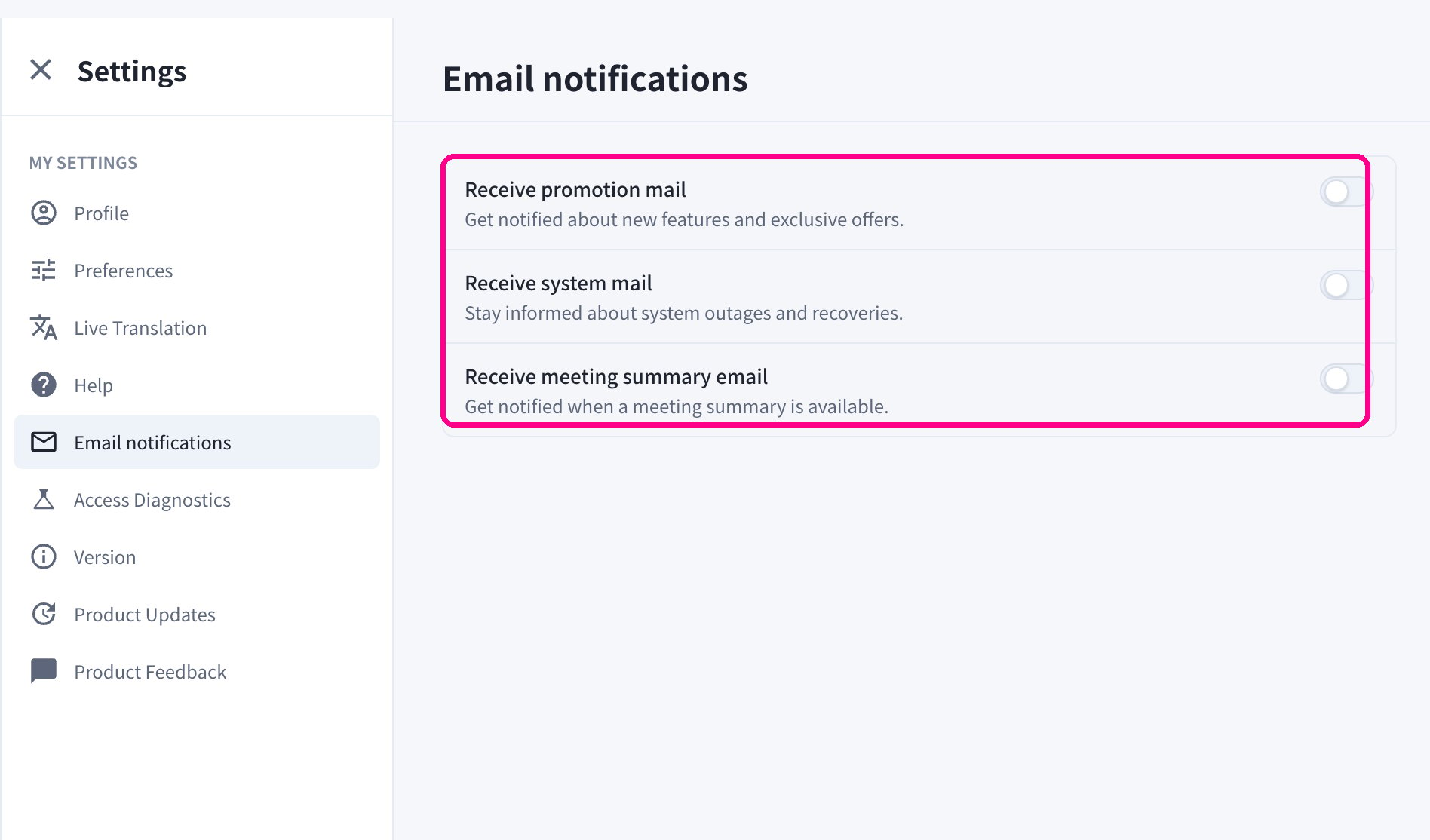
Open **Email notifications** in **My Settings** to control which emails you receive:
* **Receive promotion mail** — new features and exclusive offers
* **Receive system mail** — system outages and recoveries
* **Receive meeting summary email** — get notified when a meeting summary is available
Calendar integration also powers the Web Meeting Bot's automatic scheduling. See [Web Meeting Bot](/en/web-meeting-bot).
## Email Notifications
Open **Email notifications** in **My Settings** to control which emails you receive:
* **Receive promotion mail** — new features and exclusive offers
* **Receive system mail** — system outages and recoveries
* **Receive meeting summary email** — get notified when a meeting summary is available
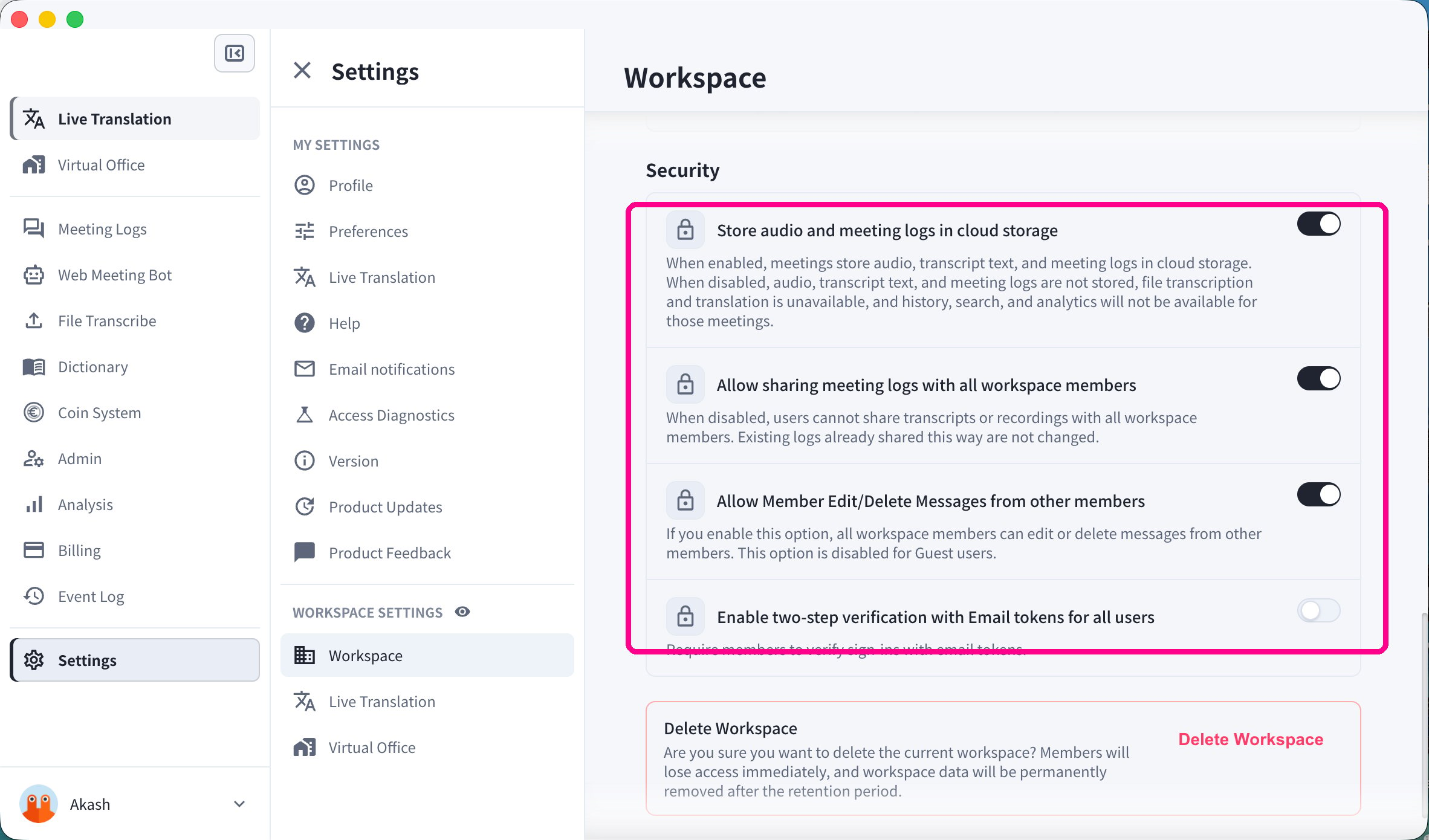
 ## Workspace Security (Owners & Admins)
Owners and admins can open **Workspace Settings → Workspace** to manage security for the entire workspace:
* **Store audio and meeting logs in cloud storage**
* **Allow sharing meeting logs with all workspace members**
* **Allow Member Edit/Delete Messages from other members**
* **Enable two-step verification with Email tokens for all users**
* **Delete Workspace**
These controls affect every member of the workspace and are only available to owners and admins.
## Workspace Security (Owners & Admins)
Owners and admins can open **Workspace Settings → Workspace** to manage security for the entire workspace:
* **Store audio and meeting logs in cloud storage**
* **Allow sharing meeting logs with all workspace members**
* **Allow Member Edit/Delete Messages from other members**
* **Enable two-step verification with Email tokens for all users**
* **Delete Workspace**
These controls affect every member of the workspace and are only available to owners and admins.