> ## Documentation Index
> Fetch the complete documentation index at: https://manual.voiceping.net/llms.txt
> Use this file to discover all available pages before exploring further.
# Logging Out & Quitting the App
> How to completely quit the VoicePing app (Windows & Mac)
export const FeedbackEn = () => <>
Have an idea or request about this feature? Send it to the team via Product Feedback.
Official Links
Visit our official website
Follow us on X
Like us on Facebook
Connect on LinkedIn
;
The VoicePing app is designed to allow members to "stay present" in the virtual space, so it will continue running in the background unless you completely quit the application.
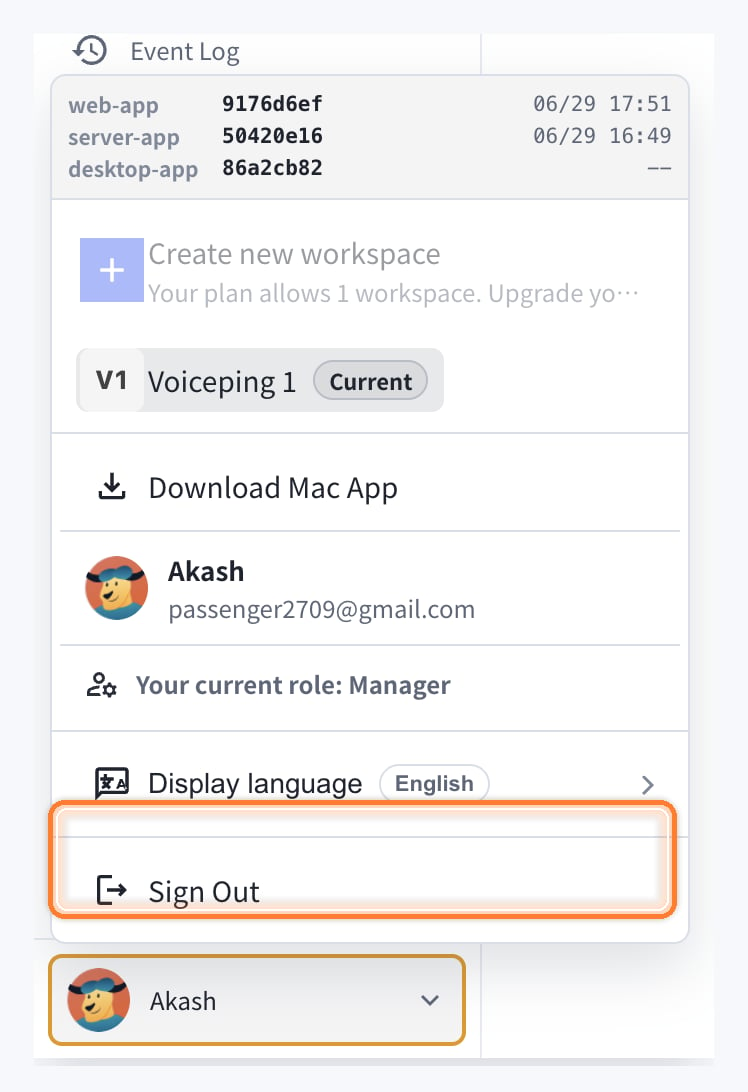
## Sign Out of Your Account
Use Sign Out when you want to leave the current VoicePing account or switch accounts. Signing out does not fully quit the desktop app.
1. Click your profile menu in the bottom-left corner.
2. Click "Sign Out".
 ## For Windows OS
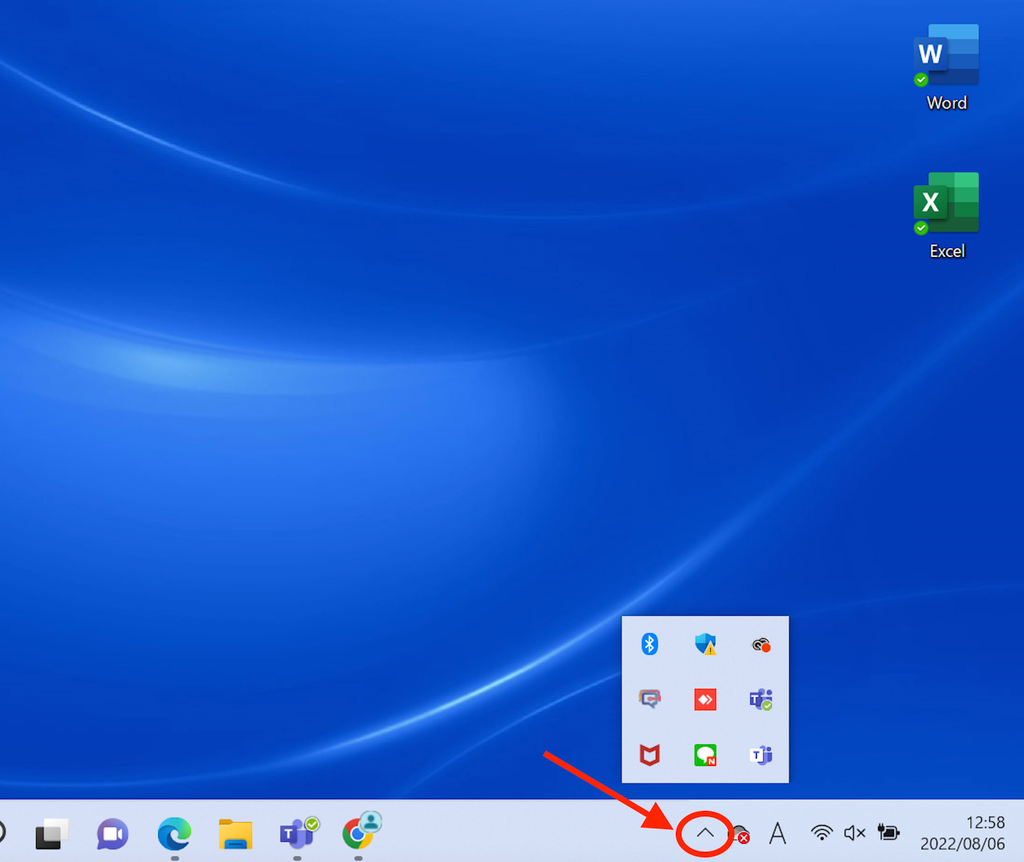
### Step 1: Open Hidden Indicators
Left-click the hidden indicators icon in the bottom right of the taskbar
## For Windows OS
### Step 1: Open Hidden Indicators
Left-click the hidden indicators icon in the bottom right of the taskbar
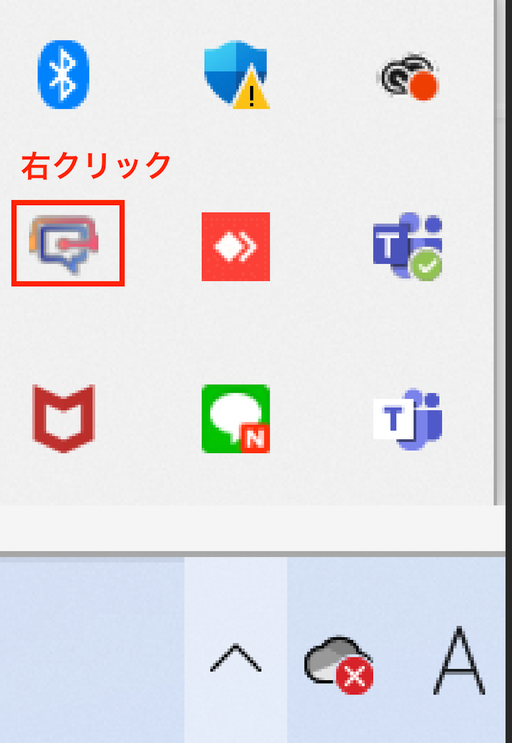
 ### Step 2: Right-Click the VoicePing App
Right-click the VoicePing app icon
### Step 2: Right-Click the VoicePing App
Right-click the VoicePing app icon
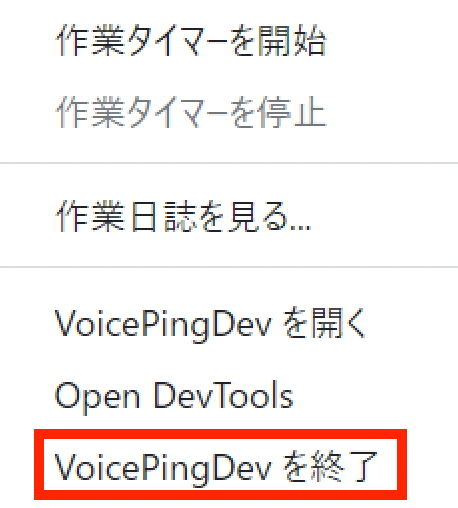
 ### Step 3: Quit the App
Click "Quit VoicePing"
### Step 3: Quit the App
Click "Quit VoicePing"
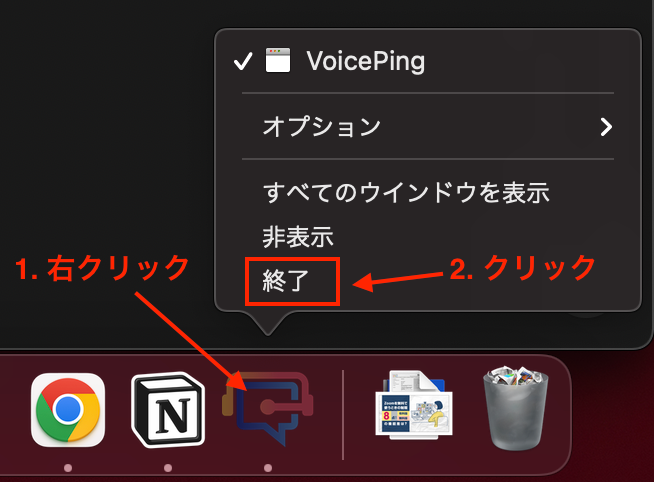
 ## For Mac OS
### Step 1: Right-Click the App
Right-click the VoicePing app from the Dock showing currently running applications at the bottom right
### Step 2: Click Quit
Click "Quit"
## For Mac OS
### Step 1: Right-Click the App
Right-click the VoicePing app from the Dock showing currently running applications at the bottom right
### Step 2: Click Quit
Click "Quit"