> ## Documentation Index
> Fetch the complete documentation index at: https://manual.voiceping.net/llms.txt
> Use this file to discover all available pages before exploring further.
# VoicePing External Access
> Connect VoicePing meeting transcripts to AI clients through MCP, or to your own backend through scoped API keys. Five example workflows, scopes, admin controls, and event logs.
export const FeedbackEn = () => <>
Have an idea or request about this feature? Send it to the team via Product Feedback.
Official Links
Visit our official website
Follow us on X
Like us on Facebook
Connect on LinkedIn
;
## Connect Meeting Transcripts to AI Clients and Your Backend
Your team is already generating the most valuable artifact in your company: **meeting transcripts**. Decisions, pain points, objections, deadlines, commitments — all recorded, all searchable.
**VoicePing External Access** makes that data usable outside the transcript page in two ways:
* **[MCP Access](/en/external-access/mcp)** — your AI client (Claude, ChatGPT, Codex, Claude Code, Gemini CLI, or any MCP-compatible tool) reads your transcripts directly, so your meeting history becomes a live source of answers, drafts, and insights.
* **[API Access](/en/external-access/api-access)** — your backend calls the VoicePing API with a scoped API key, so transcripts can flow into your CRM, reporting pipeline, dashboards, or internal tools.
Both are managed from **workspace settings → External Access** and share the same scopes, lifecycle controls, and event logs.
***
## Pick your path
Turn on MCP Access and connect ChatGPT, Claude, Claude Code, Codex CLI, or Gemini CLI. Step-by-step setup for every client.
Create an API key, authenticate with a bearer token, and call the API from TypeScript, Python, Java, or Go.
A simple rule if you're unsure which to use:
```text theme={null}
If a person is asking questions, use MCP Access.
If a server is fetching data, use API Access.
```
***
## Five example MCP workflows
These are the highest-leverage workflows teams run through MCP Access every week. Each has its own page with copy-paste prompts and real screenshots.
From the last 3–4 meetings with a customer, generate a practical, time-boxed agenda you can paste into a calendar invite.
Extract goals, pain points, objections, and timeline — then turn them into an executive-ready proposal draft.
Recap decisions, assign owners, and push a professional follow-up email before the meeting room has cleared.
Pull every meeting run by a set of teammates and produce a manager-ready KPI comparison report.
Surface recurring blockers, ownership gaps, and security delays — with a prioritized action plan.
**The common pattern across every workflow:** you don't start with "give me the answer." You start by asking the AI to **search your transcripts**, then you **narrow**, then you ask for the **output format** you actually need (agenda, email, proposal, report). Three prompts, every time — and the same pattern works for any workflow you invent.
***
## Transcript scopes
External Access is scoped — admins decide exactly what each MCP connection or API key is allowed to do.
| Scope | What it allows |
| ----------------------- | ----------------------------------------------------- |
| **transcripts.search** | Search transcript metadata and transcript lists |
| **transcripts.read** | Read transcript content |
| **transcripts.ai.read** | Read AI transcript summaries and structured AI output |
For API keys, you can also restrict access by **allowed IP address** so only your trusted server can use the key.
***
## Lifecycle controls
Lifecycle controls let you pause or remove access at any time, for both MCP connections and API keys:
| Action | Meaning |
| -------------- | ------------------------------------------------------- |
| **Deactivate** | Temporarily blocks access |
| **Reactivate** | Restores access if the connection or key is still valid |
| **Delete** | Permanently removes the connection or key |
***
## Event logs
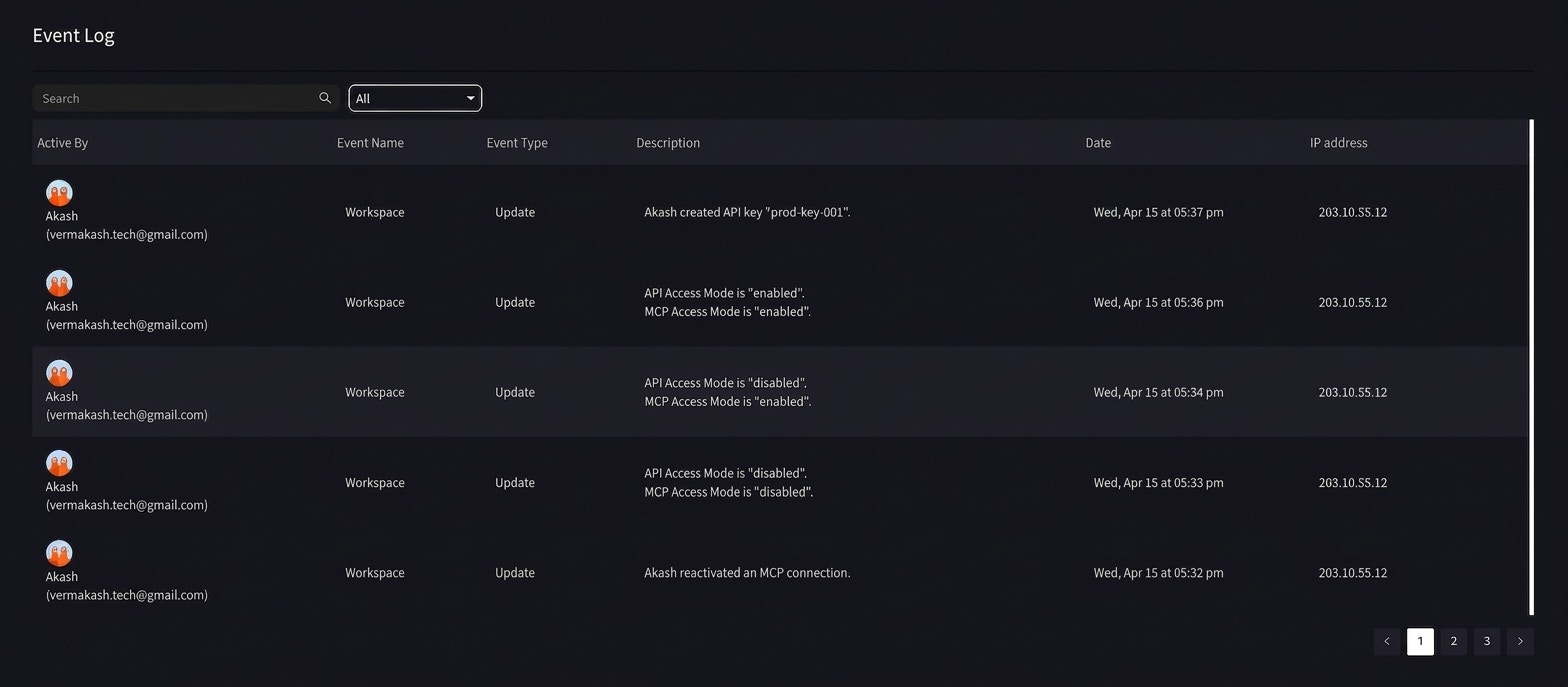
Every External Access change — key creation, connection approval, deactivation, deletion, mode toggles — lands in the workspace event log. Admins always know when, who, and from which IP.
***
## Start with one workflow this week
The teams that get the most out of External Access don't try everything at once. They pick **one workflow** — usually follow-up emails, because the time-save is immediate — and make it a habit. Then they add the next one.
Within a month, meeting transcripts stop being an archive and become an operating system.
Connect Claude, ChatGPT, Codex, Claude Code, or Gemini CLI and start with the five example workflows.
Jump to the TypeScript, Python, Java, and Go quickstart for the API.
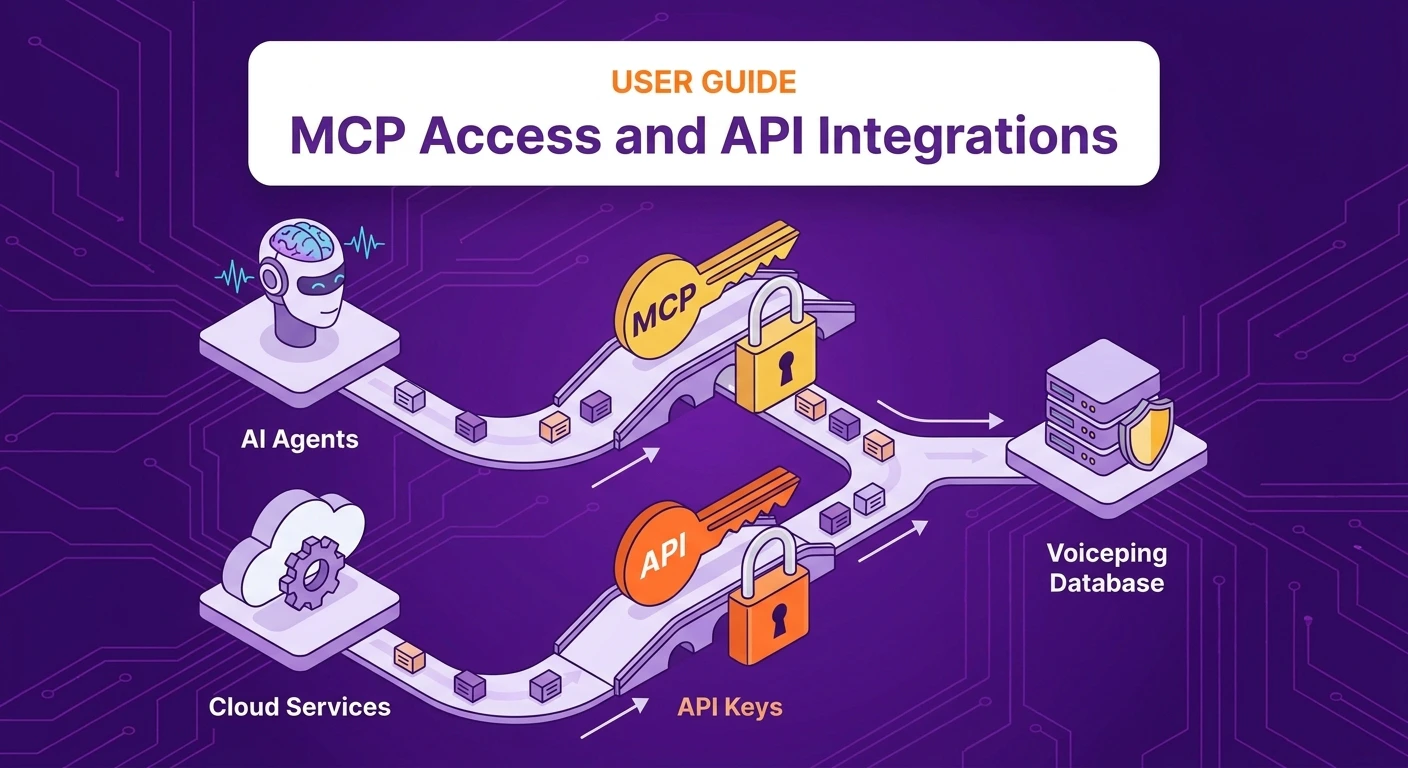 ## Connect Meeting Transcripts to AI Clients and Your Backend
Your team is already generating the most valuable artifact in your company: **meeting transcripts**. Decisions, pain points, objections, deadlines, commitments — all recorded, all searchable.
**VoicePing External Access** makes that data usable outside the transcript page in two ways:
* **[MCP Access](/en/external-access/mcp)** — your AI client (Claude, ChatGPT, Codex, Claude Code, Gemini CLI, or any MCP-compatible tool) reads your transcripts directly, so your meeting history becomes a live source of answers, drafts, and insights.
* **[API Access](/en/external-access/api-access)** — your backend calls the VoicePing API with a scoped API key, so transcripts can flow into your CRM, reporting pipeline, dashboards, or internal tools.
Both are managed from **workspace settings → External Access** and share the same scopes, lifecycle controls, and event logs.
***
## Pick your path
## Connect Meeting Transcripts to AI Clients and Your Backend
Your team is already generating the most valuable artifact in your company: **meeting transcripts**. Decisions, pain points, objections, deadlines, commitments — all recorded, all searchable.
**VoicePing External Access** makes that data usable outside the transcript page in two ways:
* **[MCP Access](/en/external-access/mcp)** — your AI client (Claude, ChatGPT, Codex, Claude Code, Gemini CLI, or any MCP-compatible tool) reads your transcripts directly, so your meeting history becomes a live source of answers, drafts, and insights.
* **[API Access](/en/external-access/api-access)** — your backend calls the VoicePing API with a scoped API key, so transcripts can flow into your CRM, reporting pipeline, dashboards, or internal tools.
Both are managed from **workspace settings → External Access** and share the same scopes, lifecycle controls, and event logs.
***
## Pick your path
 ***
## Start with one workflow this week
The teams that get the most out of External Access don't try everything at once. They pick **one workflow** — usually follow-up emails, because the time-save is immediate — and make it a habit. Then they add the next one.
Within a month, meeting transcripts stop being an archive and become an operating system.
***
## Start with one workflow this week
The teams that get the most out of External Access don't try everything at once. They pick **one workflow** — usually follow-up emails, because the time-save is immediate — and make it a habit. Then they add the next one.
Within a month, meeting transcripts stop being an archive and become an operating system.