> ## Documentation Index
> Fetch the complete documentation index at: https://manual.voiceping.net/llms.txt
> Use this file to discover all available pages before exploring further.
# Workflow — Build a Client-Ready Agenda From Past Meetings
> Turn the last 3–4 transcripts with a customer into a practical, time-boxed meeting agenda you can paste into a calendar invite. Uses VoicePing MCP Access with any compatible AI client.
export const FeedbackEn = () => <>
Have an idea or request about this feature? Send it to the team via Product Feedback.
Official Links
Visit our official website
Follow us on X
Like us on Facebook
Connect on LinkedIn
;
## Build a Client-Ready Agenda From Past Meetings
**The situation.** You have a follow-up meeting with a customer — say Northstar Capital — on Monday. You've had three prior calls with them over the last two weeks: discovery, security review, and an ROI conversation. You could re-read every transcript and piece together an agenda manually. Or you could ask.
This workflow assumes you've already enabled [MCP Access](/en/external-access/mcp) and connected your AI client.
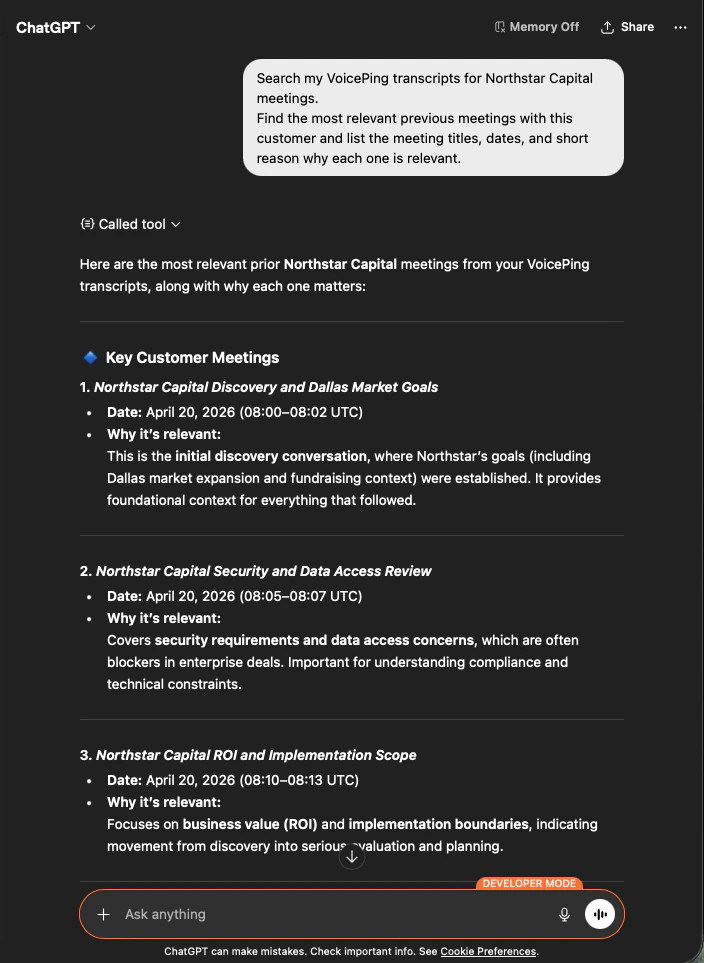
Point it at the customer name and let it surface the conversations that matter.
```text theme={null}
Search my VoicePing transcripts for Northstar Capital meetings.
Find the most relevant previous meetings with this customer and list the
meeting titles, dates, and short reason why each one is relevant.
```
The AI returns the three prior calls with dates and a one-line "why this matters" for each — you immediately see the thread of the relationship.
Now you ask it to turn those meetings into something you can actually send.
```text theme={null}
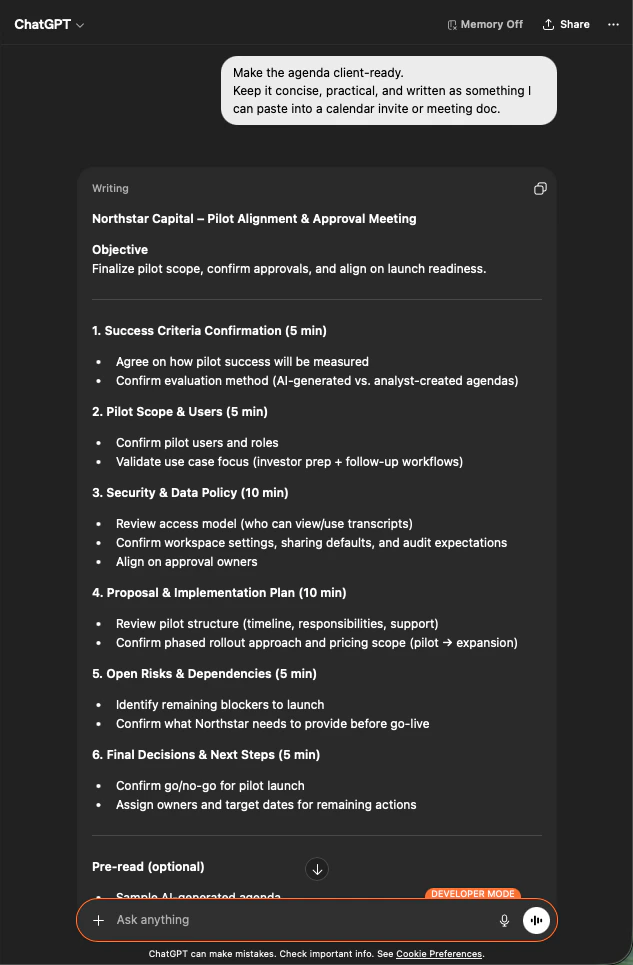
Make the agenda client-ready.
Keep it concise, practical, and written as something I can paste into
a calendar invite or meeting doc.
```
You get a six-section agenda with time boxes — Success Criteria, Pilot Scope, Security & Data Policy, Proposal Plan, Open Risks, and Final Decisions — built from what was actually discussed.
**Why this is useful.** A 20-minute prep task becomes 60 seconds. And the agenda actually reflects the customer's history — not a generic template.
**The common pattern:** search your transcripts → narrow to the meetings that matter → ask for the exact output format you need. The same three-prompt shape works for every workflow on this site — and any workflow you invent yourself.
***
## Next steps
Back to the hub for scopes, lifecycle controls, and event logs.
Setup guides for Claude, ChatGPT, Codex, Claude Code, and Gemini CLI.