> ## Documentation Index
> Fetch the complete documentation index at: https://manual.voiceping.net/llms.txt
> Use this file to discover all available pages before exploring further.

# Workflow — Draft a Customer Proposal From a Single Meeting

> Turn a proposal-review transcript into an executive-ready proposal draft — executive summary, customer situation, proposed solution, timeline, next steps. Uses VoicePing MCP Access.

export const FeedbackEn = () => <>
    <Tip>
      Have an idea or request about this feature? Send it to the team via <a href="/en/product-feedback">Product Feedback</a>.
    </Tip>

    <h2>Official Links</h2>

    <CardGroup cols={2}>
      <Card title="Official Website" icon="globe" href="https://voiceping.net/en/">
        Visit our official website
      </Card>
      <Card title="X (Twitter)" icon="x-twitter" href="https://x.com/VoicePingMedia">
        Follow us on X
      </Card>
      <Card title="Facebook" icon="facebook" href="https://www.facebook.com/voiceping.inc">
        Like us on Facebook
      </Card>
      <Card title="LinkedIn" icon="linkedin" href="https://www.linkedin.com/company/28684130/">
        Connect on LinkedIn
      </Card>
    </CardGroup>
  </>;

## Draft a Customer Proposal From a Single Meeting

**The situation.** A proposal-review meeting just wrapped. The customer laid out their goals, flagged two concerns about security, and asked for a phased timeline. Now you have to turn that conversation into a formal proposal. The trick isn't writing — it's not losing any of the signal.

This workflow assumes you've already enabled [MCP Access](/en/external-access/mcp) and connected your AI client.

<Steps>
  <Step title="Find the specific meeting">
    ```text theme={null}
    Search my VoicePing transcripts for the Northstar Capital proposal review meeting.
    Find the most relevant transcript and show me the title, date, participants
    if available, and why it matches.
    ```

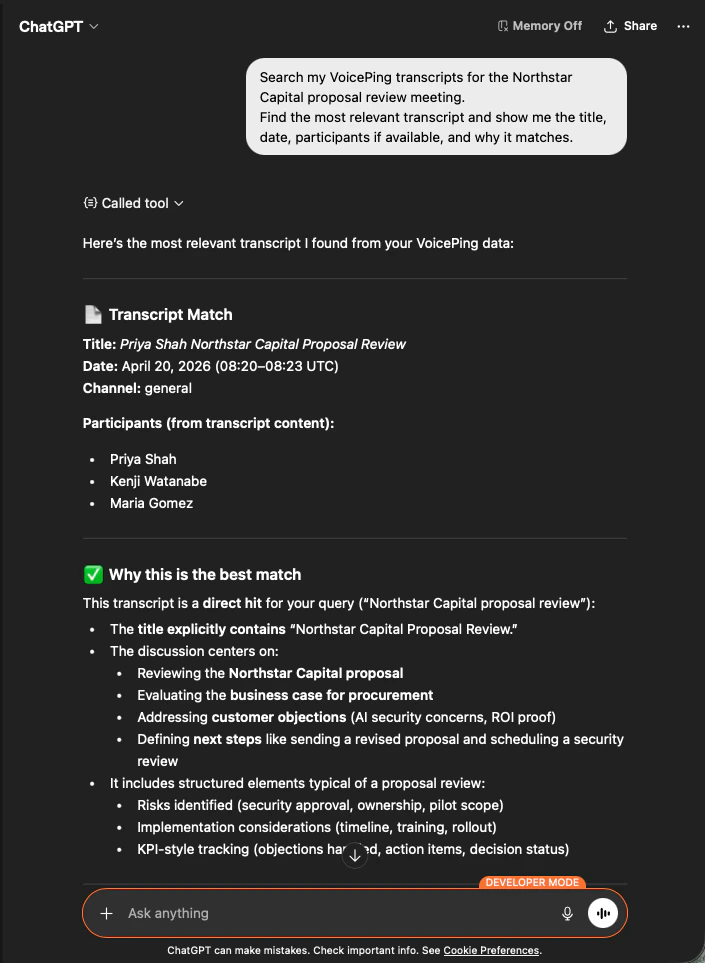
    The AI identifies the exact transcript, lists participants, and explains why it's the right match — so you know the proposal is grounded in the correct call.

    <div style={{maxWidth: "600px", margin: "0 auto"}}>
      <Frame>
        <img src="https://mintcdn.com/test-cf63e467/z13MfE0CikV5b-4X/en/images/external_access/proposal%20creation%201.png?fit=max&auto=format&n=z13MfE0CikV5b-4X&q=85&s=541234a4b6549b663c1410f3344d4edb" alt="ChatGPT identifying the Northstar Capital proposal review transcript with participants and match reasoning" width="705" height="963" data-path="en/images/external_access/proposal creation 1.png" />
      </Frame>
    </div>
  </Step>

  <Step title="Extract structured proposal inputs">
    ```text theme={null}
    Read that transcript and extract the key proposal inputs:
    - customer goals
    - pain points
    - requested solution
    - success criteria
    - objections or concerns
    - timeline
    - stakeholders
    - next steps
    ```

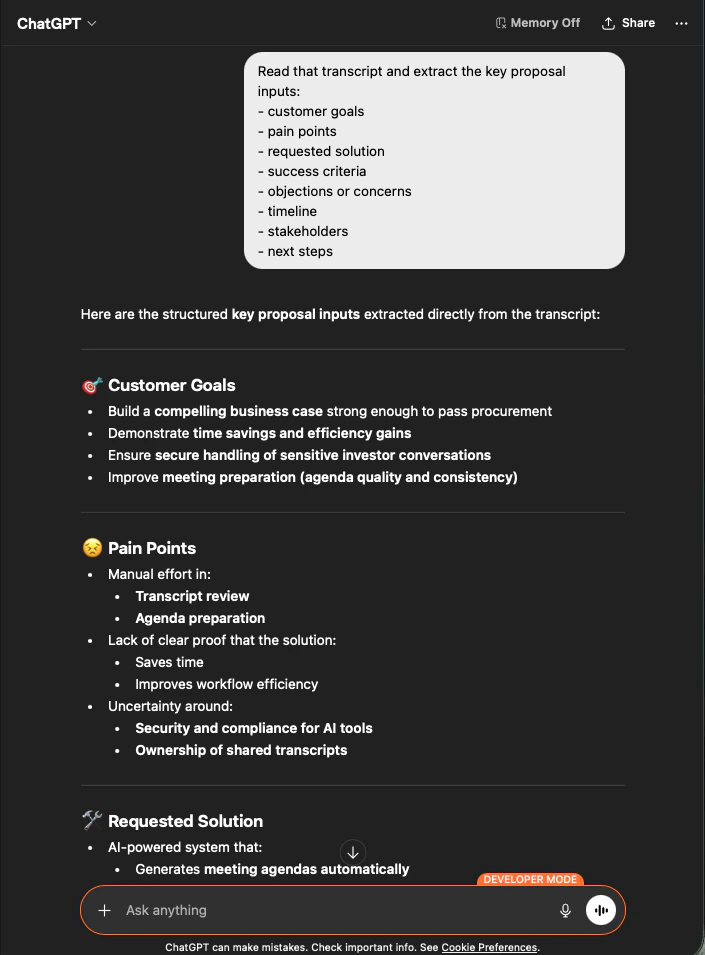
    The AI pulls out every input, grouped exactly the way you asked. This is your proposal skeleton — nothing invented, everything traceable to the transcript.

    <div style={{maxWidth: "600px", margin: "0 auto"}}>
      <Frame>
        <img src="https://mintcdn.com/test-cf63e467/z13MfE0CikV5b-4X/en/images/external_access/proposal%20creation%202.png?fit=max&auto=format&n=z13MfE0CikV5b-4X&q=85&s=65915e908ac022464f1668c6b920706e" alt="ChatGPT extracting structured proposal inputs — customer goals, pain points, requested solution — from a Northstar Capital transcript" width="705" height="955" data-path="en/images/external_access/proposal creation 2.png" />
      </Frame>
    </div>
  </Step>

  <Step title="Generate the proposal draft">
    ```text theme={null}
    Create a customer proposal draft based only on this meeting.
    Structure it with:
    - executive summary
    - customer situation
    - proposed solution
    - implementation scope
    - expected value
    - security or operational considerations
    - timeline
    - next steps
    ```

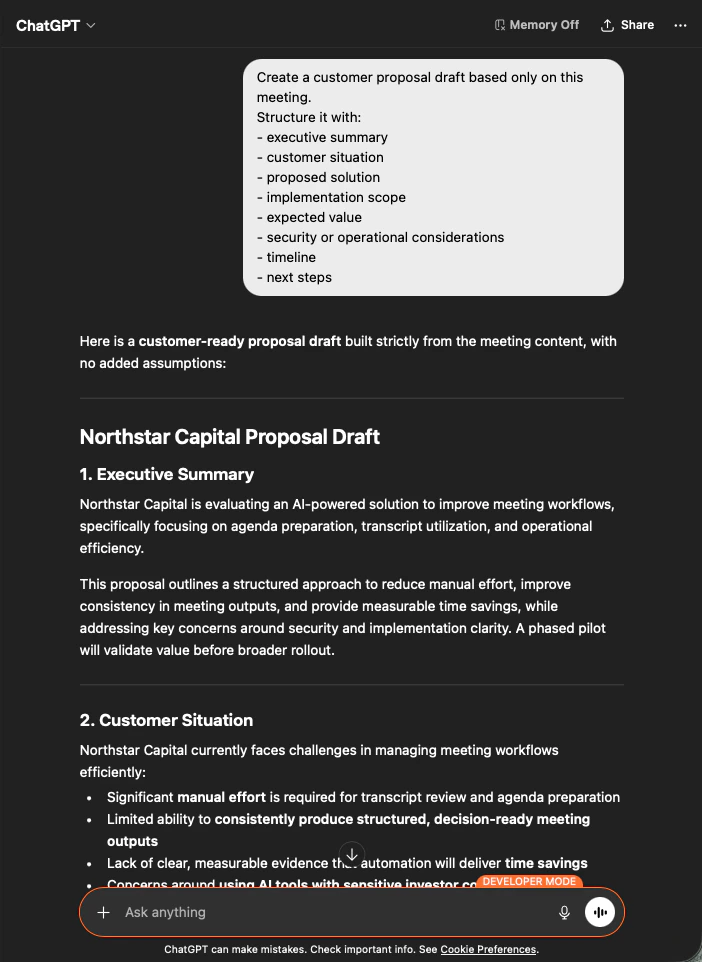
    The output is a full proposal draft — executive summary first, then each section populated strictly from meeting content. You edit for voice and send.

    <div style={{maxWidth: "600px", margin: "0 auto"}}>
      <Frame>
        <img src="https://mintcdn.com/test-cf63e467/z13MfE0CikV5b-4X/en/images/external_access/proposal%20creation%203.png?fit=max&auto=format&n=z13MfE0CikV5b-4X&q=85&s=9ef5ea2d403eadf232efd486e8c1a7c8" alt="ChatGPT producing a customer-ready Northstar Capital proposal draft built strictly from meeting content" width="702" height="962" data-path="en/images/external_access/proposal creation 3.png" />
      </Frame>
    </div>
  </Step>
</Steps>

<Note>
  Telling the AI to build **"based only on this meeting"** and **"with no added assumptions"** is the difference between a proposal you can actually send and one you have to fact-check line by line.
</Note>

***

## Next steps

<CardGroup cols={2}>
  <Card title="External Access overview" icon="arrow-left" href="/en/external-access">
    Back to the hub for scopes, lifecycle controls, and event logs.
  </Card>

  <Card title="How to enable MCP Access" icon="plug" href="/en/external-access/mcp">
    Setup guides for Claude, ChatGPT, Codex, Claude Code, and Gemini CLI.
  </Card>
</CardGroup>

<FeedbackEn />