> ## Documentation Index
> Fetch the complete documentation index at: https://manual.voiceping.net/llms.txt
> Use this file to discover all available pages before exploring further.

# Workflow — Track KPIs Across Your Team

> Pull every meeting run by a set of teammates and generate a manager-ready KPI comparison report — by focus area, with evidence and takeaways. Uses VoicePing MCP Access.

export const FeedbackEn = () => <>
    <Tip>
      Have an idea or request about this feature? Send it to the team via <a href="/en/product-feedback">Product Feedback</a>.
    </Tip>

    <h2>Official Links</h2>

    <CardGroup cols={2}>
      <Card title="Official Website" icon="globe" href="https://voiceping.net/en/">
        Visit our official website
      </Card>
      <Card title="X (Twitter)" icon="x-twitter" href="https://x.com/VoicePingMedia">
        Follow us on X
      </Card>
      <Card title="Facebook" icon="facebook" href="https://www.facebook.com/voiceping.inc">
        Like us on Facebook
      </Card>
      <Card title="LinkedIn" icon="linkedin" href="https://www.linkedin.com/company/28684130/">
        Connect on LinkedIn
      </Card>
    </CardGroup>
  </>;

## Track KPIs Across Your Team

**The situation.** You're a manager. You have four reports — Priya, Marcus, Hana, Daniel — all running customer meetings in the same VoicePing workspace. You want to know, without scheduling four 1:1s, where each person is spending their time, what deals they're working, and where the gaps are.

This workflow assumes you've already enabled [MCP Access](/en/external-access/mcp) and connected your AI client.

<Steps>
  <Step title="Resolve team members against the workspace">
    ```text theme={null}
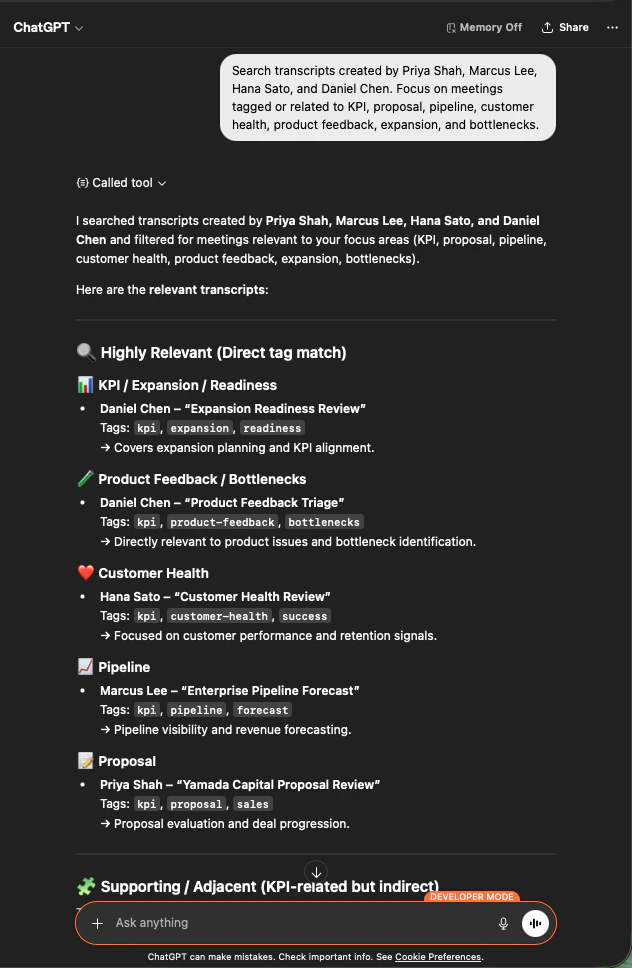
    List workspace users in VoicePing and identify these team members:
    Priya Shah, Marcus Lee, Hana Sato, and Daniel Chen.
    ```

    The AI pulls the workspace user list and confirms all four are present — with their user IDs — so you know the analysis will cover the right people.

    <div style={{maxWidth: "550px", margin: "0 auto"}}>
      <Frame>
        <img src="https://mintcdn.com/test-cf63e467/z13MfE0CikV5b-4X/en/images/external_access/KPIs%20tracking%201.png?fit=max&auto=format&n=z13MfE0CikV5b-4X&q=85&s=10ccb10ad84779822232446cc463adc8" alt="ChatGPT listing VoicePing workspace users and confirming Priya Shah, Marcus Lee, Hana Sato, and Daniel Chen as team members with their user IDs" width="634" height="580" data-path="en/images/external_access/KPIs tracking 1.png" />
      </Frame>
    </div>
  </Step>

  <Step title="Pull every meeting relevant to your KPIs">
    ```text theme={null}
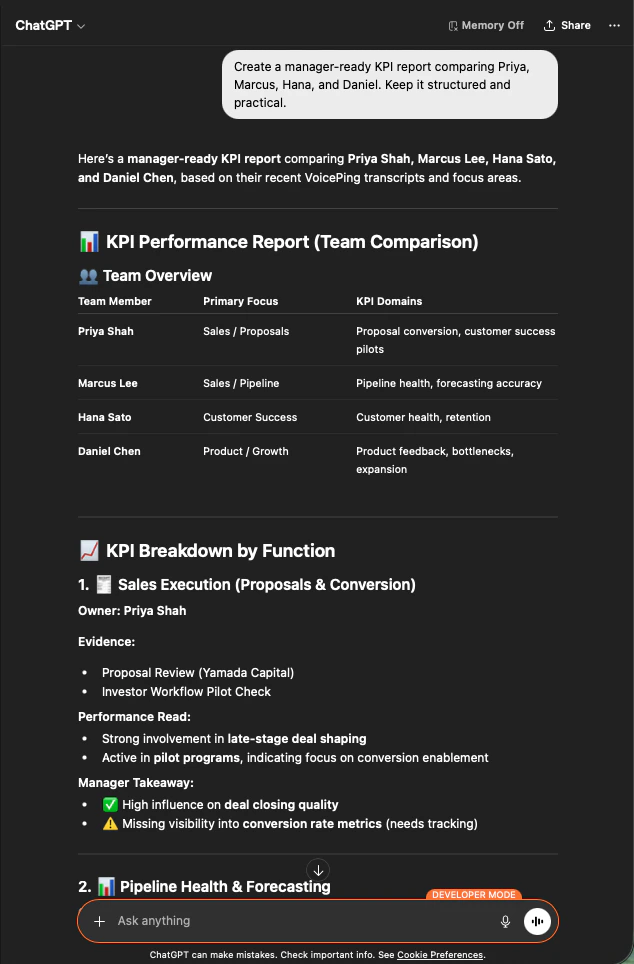
    Search transcripts created by Priya Shah, Marcus Lee, Hana Sato,
    and Daniel Chen. Focus on meetings tagged or related to KPI, proposal,
    pipeline, customer health, product feedback, expansion, and bottlenecks.
    ```

    You get a scoped list of the meetings that matter — grouped by focus area (KPI/Expansion, Product Feedback, Customer Health, Pipeline, Proposal) with the owning team member and the relevant tags.

    <div style={{maxWidth: "600px", margin: "0 auto"}}>
      <Frame>
        <img src="https://mintcdn.com/test-cf63e467/z13MfE0CikV5b-4X/en/images/external_access/KPIs%20tracking%202.png?fit=max&auto=format&n=z13MfE0CikV5b-4X&q=85&s=f7ccca133a82cab61b4d39c3c16d5955" alt="ChatGPT listing team transcripts grouped by focus area — KPI, Product Feedback, Customer Health, Pipeline, Proposal — with team owner and tags" width="632" height="968" data-path="en/images/external_access/KPIs tracking 2.png" />
      </Frame>
    </div>
  </Step>

  <Step title="Produce a manager-ready KPI report">
    ```text theme={null}
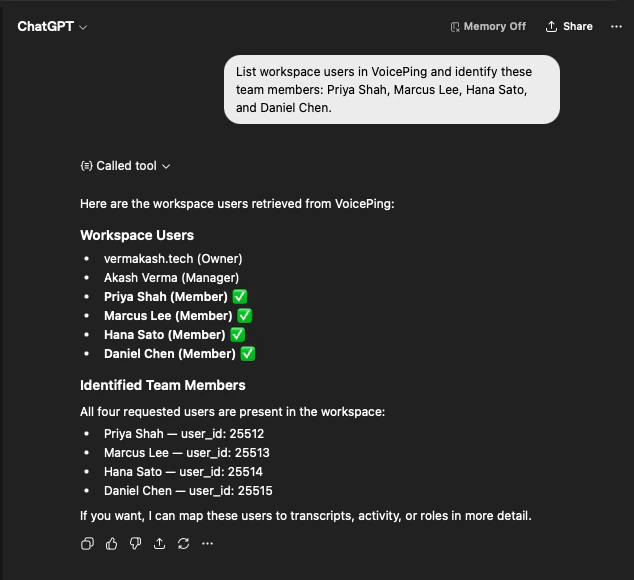
    Create a manager-ready KPI report comparing Priya, Marcus, Hana, and Daniel.
    Keep it structured and practical.
    ```

    The AI builds a team overview table, a KPI breakdown by function (Sales Execution, Pipeline Health, Customer Success, Product/Growth) with evidence, performance read, and a manager takeaway for each person.

    <div style={{maxWidth: "600px", margin: "0 auto"}}>
      <Frame>
        <img src="https://mintcdn.com/test-cf63e467/z13MfE0CikV5b-4X/en/images/external_access/KPIs%20tracking%203.png?fit=max&auto=format&n=z13MfE0CikV5b-4X&q=85&s=65c04fcccb097e24e0018e1ea869ac8c" alt="ChatGPT generating a manager-ready KPI report comparing four team members with primary focus, KPI domains, evidence, and takeaways" width="634" height="964" data-path="en/images/external_access/KPIs tracking 3.png" />
      </Frame>
    </div>
  </Step>
</Steps>

<Info>
  This works because MCP Access respects workspace scopes — the AI only sees transcripts the connection has permission to read, and only from users inside that workspace. Managers get visibility into their team, not into anyone else's.
</Info>

***

## Next steps

<CardGroup cols={2}>
  <Card title="External Access overview" icon="arrow-left" href="/en/external-access">
    Back to the hub for scopes, lifecycle controls, and event logs.
  </Card>

  <Card title="How to enable MCP Access" icon="plug" href="/en/external-access/mcp">
    Setup guides for Claude, ChatGPT, Codex, Claude Code, and Gemini CLI.
  </Card>
</CardGroup>

<FeedbackEn />