> ## Documentation Index
> Fetch the complete documentation index at: https://manual.voiceping.net/llms.txt
> Use this file to discover all available pages before exploring further.
# Invoice Management
> Member invoice management features for owners and managers
export const FeedbackEn = () => <>
Have an idea or request about this feature? Send it to the team via Product Feedback.
Official Links
Visit our official website
Follow us on X
Like us on Facebook
Connect on LinkedIn
;
## Invoices
VoicePing's time tracking feature automatically records user work logs, making it easy to create invoices.
Owners and managers can review invoices issued by members. Members can see and manage only their own invoices.
### Access Invoices
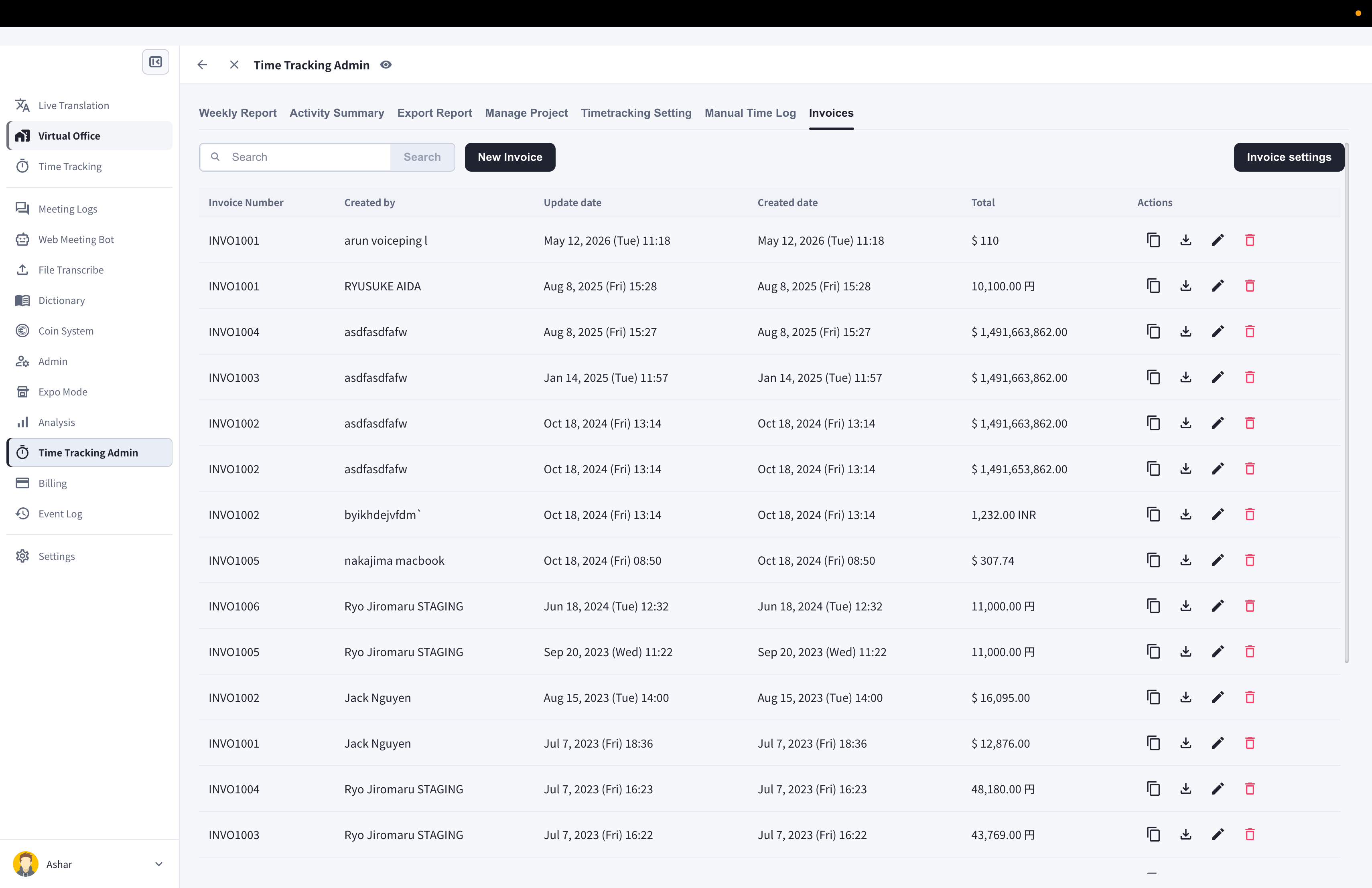
1. Open **Time Tracking Admin** from the left sidebar
2. Click the **Invoices** tab
 ### Invoice Settings
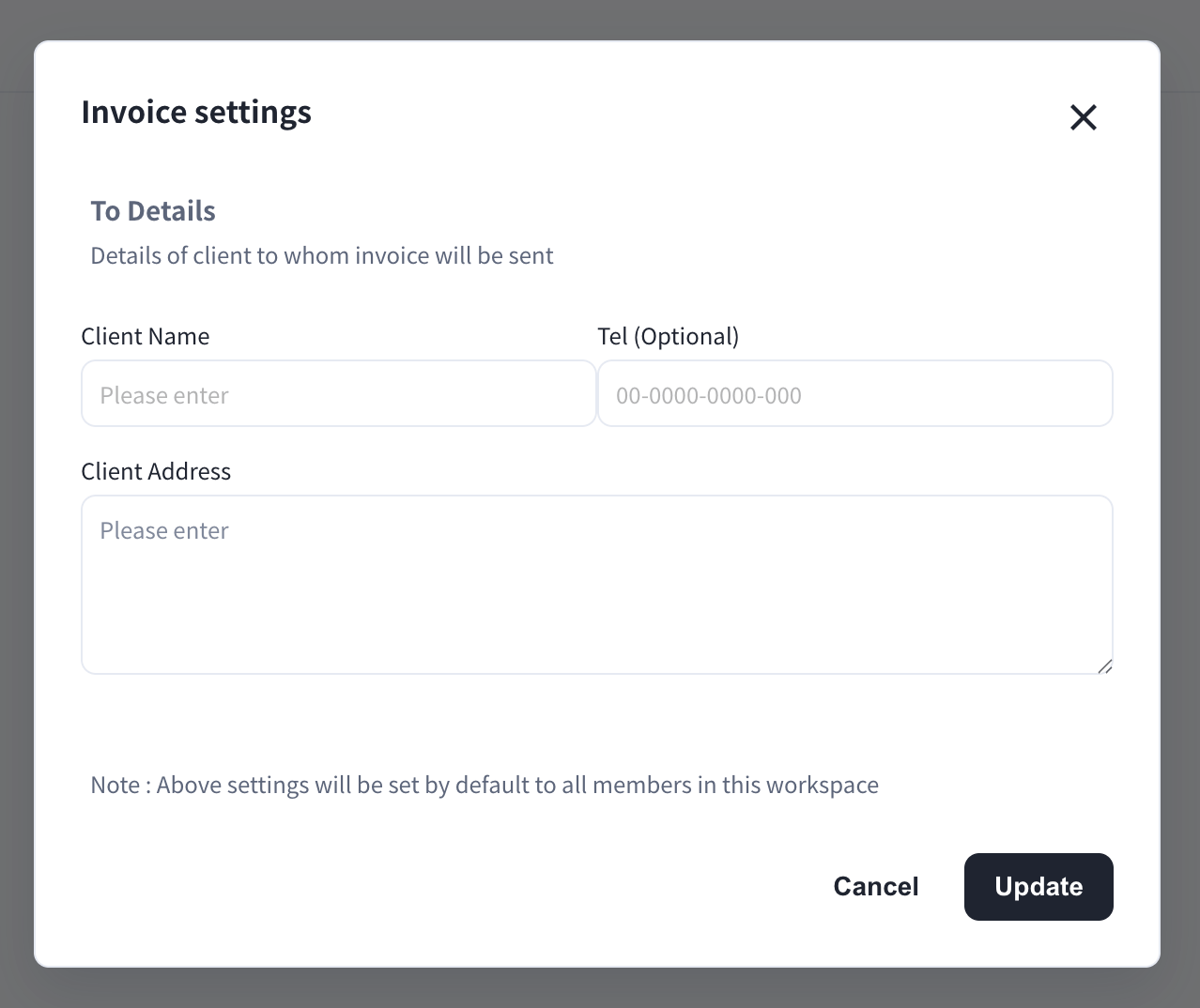
Managers can click the **Invoice settings** button to save default client billing details (client name, phone, address). These are applied by default to all members' new invoices in the workspace.
### Invoice Settings
Managers can click the **Invoice settings** button to save default client billing details (client name, phone, address). These are applied by default to all members' new invoices in the workspace.
 ### Create an Invoice
1. Click the **New Invoice** button
2. Fill in the invoice details: From/To information, issue and due dates, invoice number, and currency
3. Click **Generate Items from time tracking log**
4. Choose **Last Month** or **Current Month** and click **Generate** — line items are created from the work logs
### Create an Invoice
1. Click the **New Invoice** button
2. Fill in the invoice details: From/To information, issue and due dates, invoice number, and currency
3. Click **Generate Items from time tracking log**
4. Choose **Last Month** or **Current Month** and click **Generate** — line items are created from the work logs
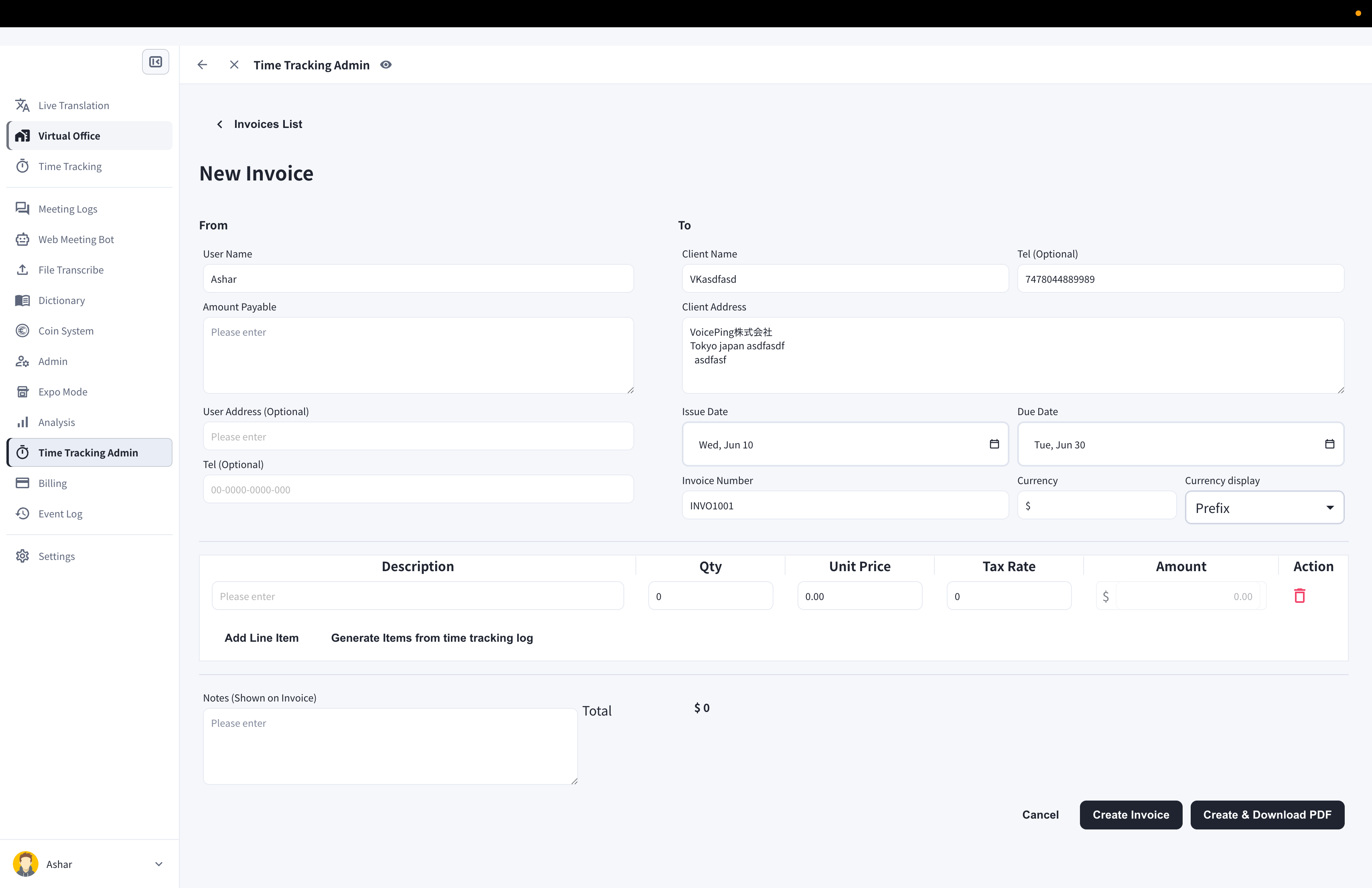 If you have working hours that were not recorded in the app, you can add them by clicking **Add Line Item**. Each line item supports quantity, unit price, and tax rate.
5. Click **Create Invoice** or **Create & Download PDF**
### Invoice: User Search Feature
Using the search field above the invoice list, managers can view invoices by member when organizing invoices.
### Duplicate an Invoice
1. Click the copy icon of the invoice you want to duplicate
### Download Invoice (PDF)
1. Click the download icon of the invoice you want to save
### Edit Invoice
1. Click the pen icon of the invoice you want to edit
2. After editing, click **Save Invoice** or **Save & Download PDF**
### Delete Invoice
1. Click the trash icon of the invoice you want to delete
2. Click the **Delete Invoice** button in the confirmation dialog
If you have working hours that were not recorded in the app, you can add them by clicking **Add Line Item**. Each line item supports quantity, unit price, and tax rate.
5. Click **Create Invoice** or **Create & Download PDF**
### Invoice: User Search Feature
Using the search field above the invoice list, managers can view invoices by member when organizing invoices.
### Duplicate an Invoice
1. Click the copy icon of the invoice you want to duplicate
### Download Invoice (PDF)
1. Click the download icon of the invoice you want to save
### Edit Invoice
1. Click the pen icon of the invoice you want to edit
2. After editing, click **Save Invoice** or **Save & Download PDF**
### Delete Invoice
1. Click the trash icon of the invoice you want to delete
2. Click the **Delete Invoice** button in the confirmation dialog