> ## Documentation Index
> Fetch the complete documentation index at: https://manual.voiceping.net/llms.txt
> Use this file to discover all available pages before exploring further.
# Live Audio Translation Subtitles for Seminars
> How to translate speaker audio in real-time and provide subtitles to participants
export const FeedbackEn = () => <>
Have an idea or request about this feature? Send it to the team via Product Feedback.
Official Links
Visit our official website
Follow us on X
Like us on Facebook
Connect on LinkedIn
;
* Both speaker and participant sides require an internet environment. internet speed verification is possible at [https://fast.com/](https://fast.com/). 30mbps or higher recommended (minimum 10mbps required)
* QR code image/URL is fixed and does not change even when you start/end sessions. Security can be enhanced by setting a password
* Microphone and translation text reading function on the participant side can be enabled/disabled
* You can hide the transcription language and display only the translation text, projecting it on the stage screen
* Text color and size can be changed
* Translation speed can be adjusted
* Presentation subtitles can be displayed. For details, see [Subtitle Mode (Transparent Background)](/en/transparent-presentation-subtitle-display-mode)
## \[For Host] How to Translate Speaker Audio
1. **Launch the VoicePing app and click "Start Translation".**
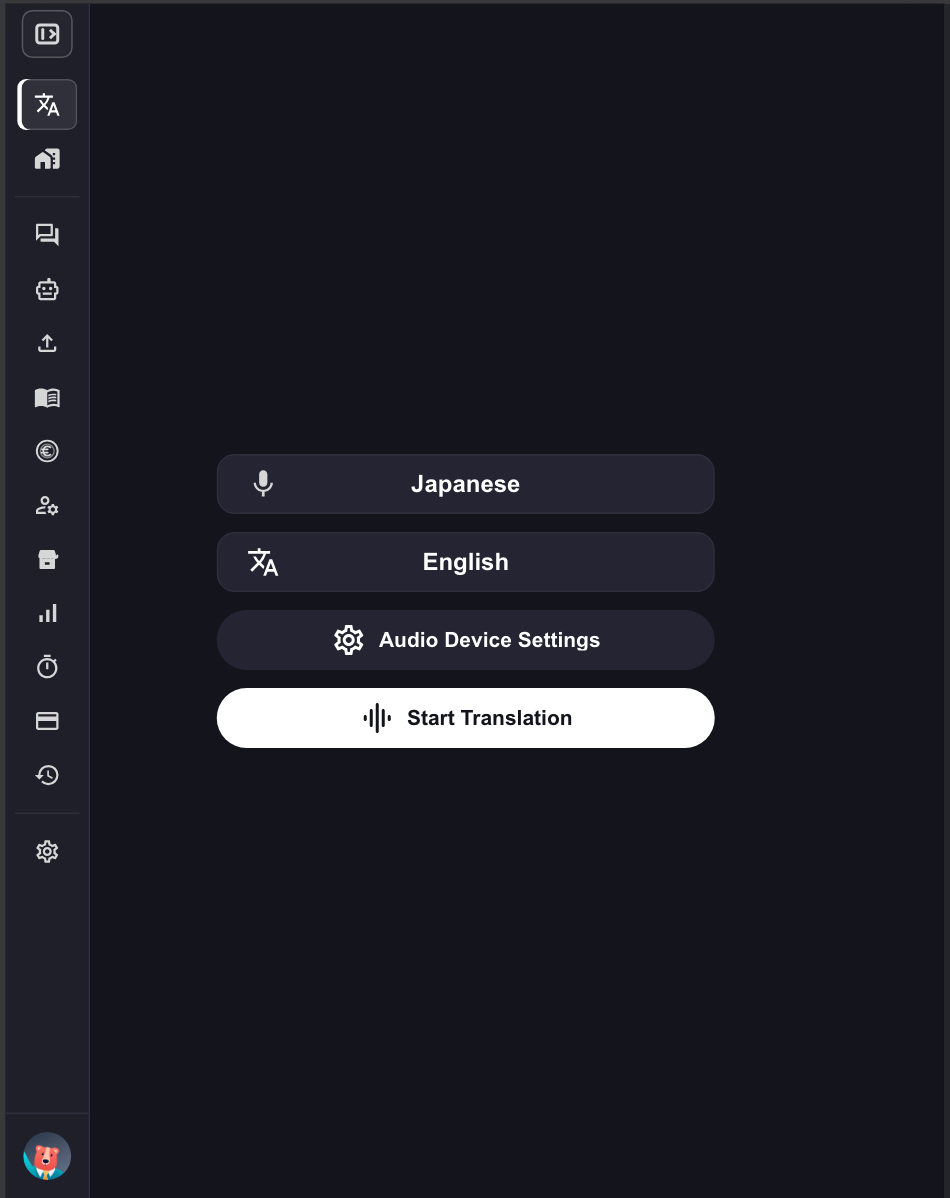 2. **Specify translation languages.**
* Microphone icon: Transcription language (speaker's language)
* "Text & A" icon: Translation language (language for participants)
2. **Specify translation languages.**
* Microphone icon: Transcription language (speaker's language)
* "Text & A" icon: Translation language (language for participants)
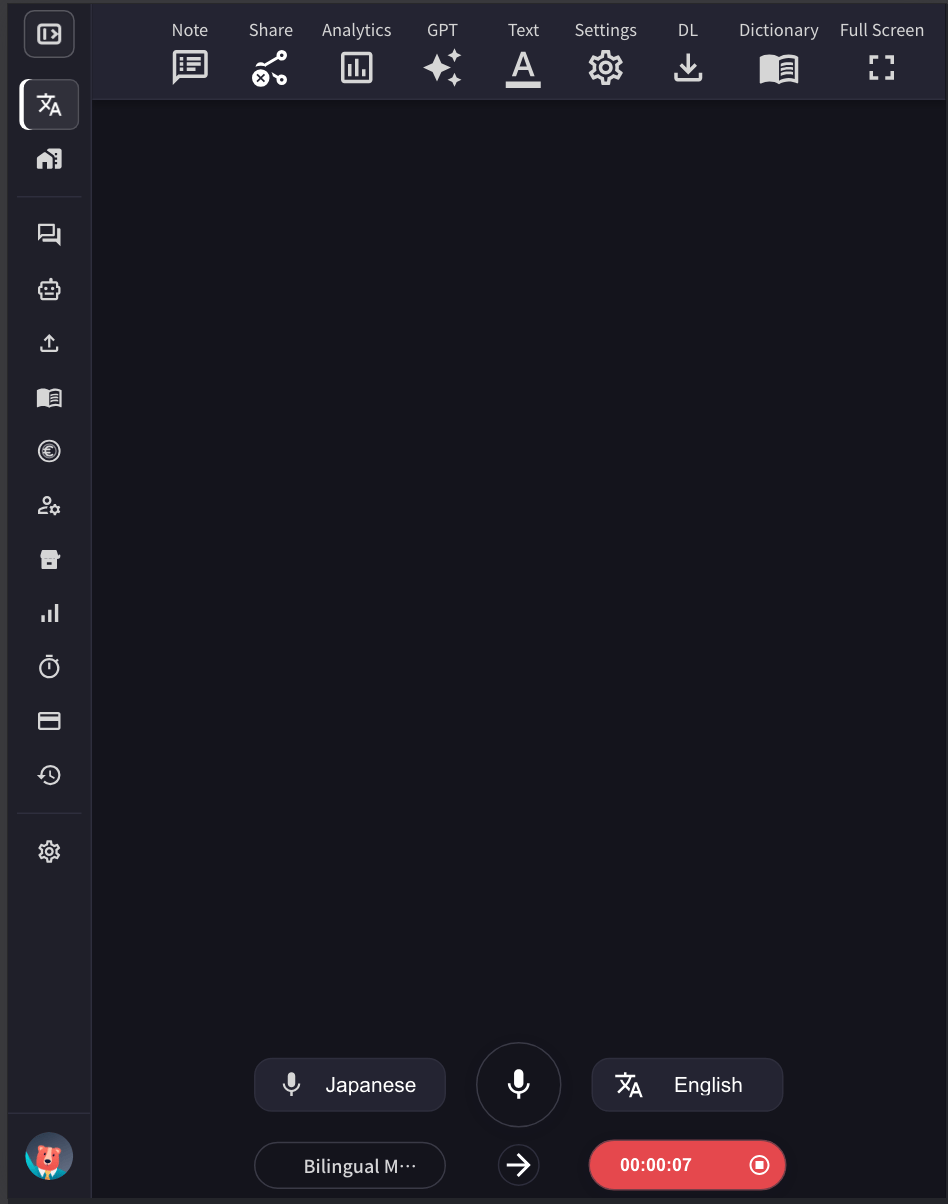 Example: To translate English to Japanese, set the microphone icon to "English" and the "Text & A" icon to "Japanese".
3. **Adjust the VoicePing translation screen size, text size, and color according to the venue screen size.**
* To set the **font size** and **text colors**, open the **Text** panel.
Example: To translate English to Japanese, set the microphone icon to "English" and the "Text & A" icon to "Japanese".
3. **Adjust the VoicePing translation screen size, text size, and color according to the venue screen size.**
* To set the **font size** and **text colors**, open the **Text** panel.
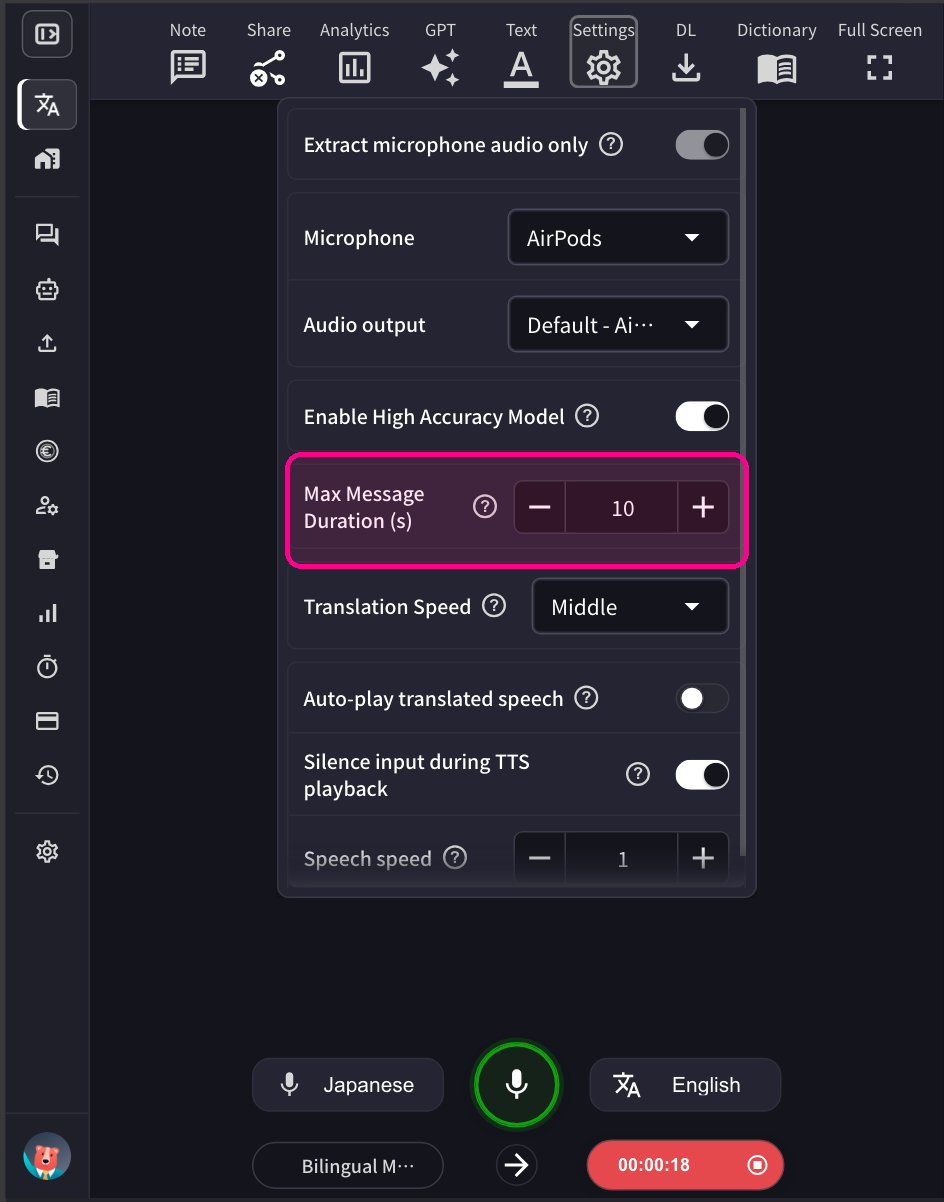
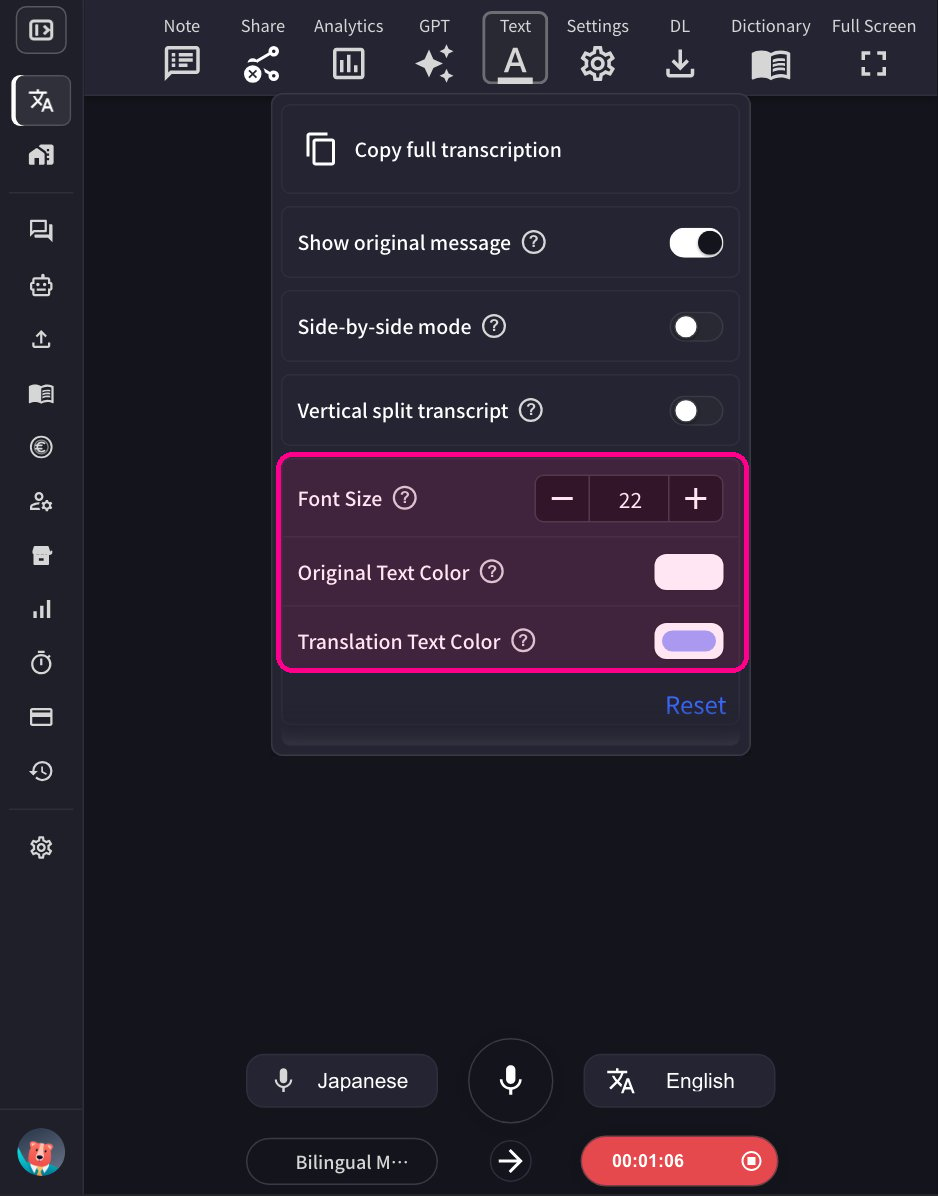 * To adjust the length of a single audio segment, adjust the **maximum message time** in the **Settings** panel.
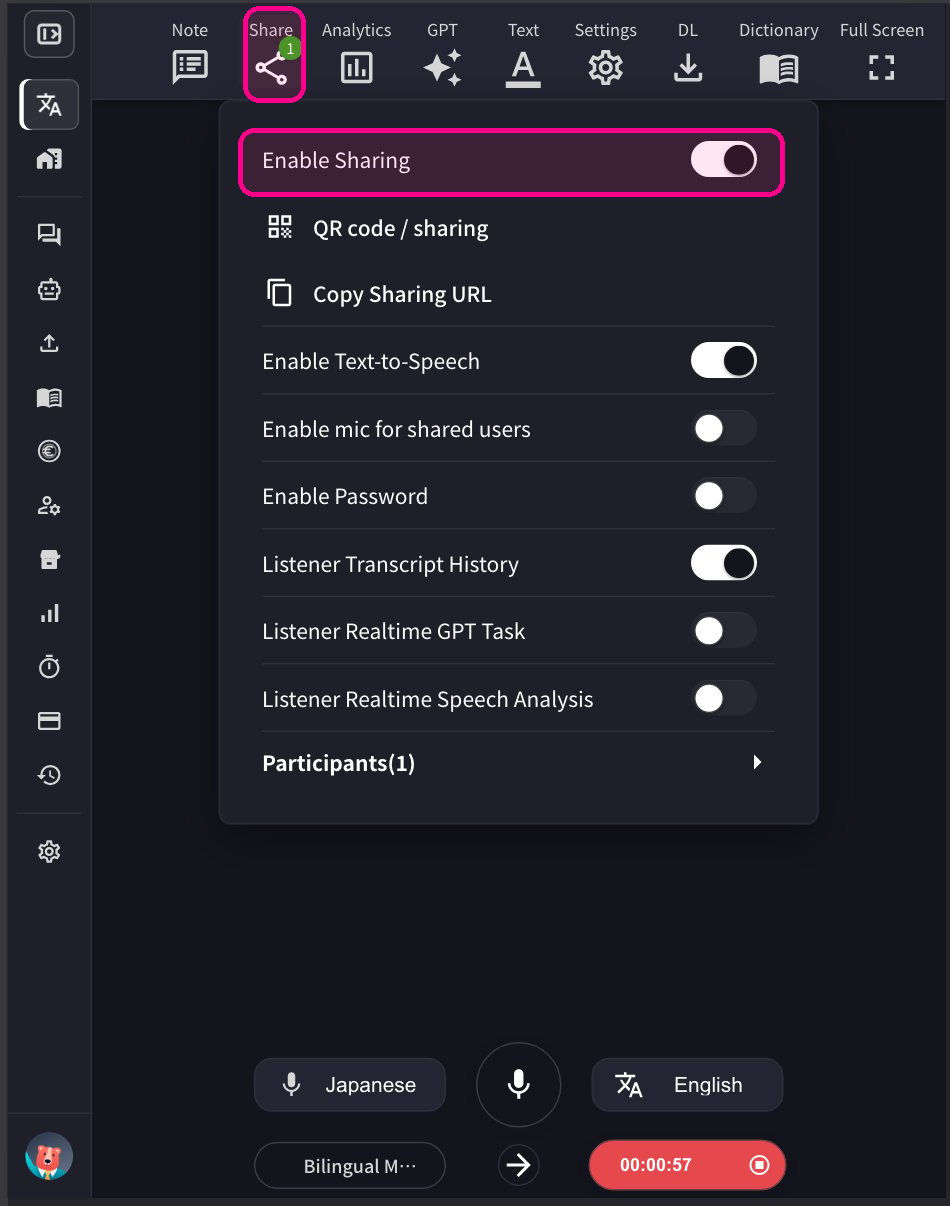
 4-1. **To share the session, click the Share icon at the top and enable sharing.**
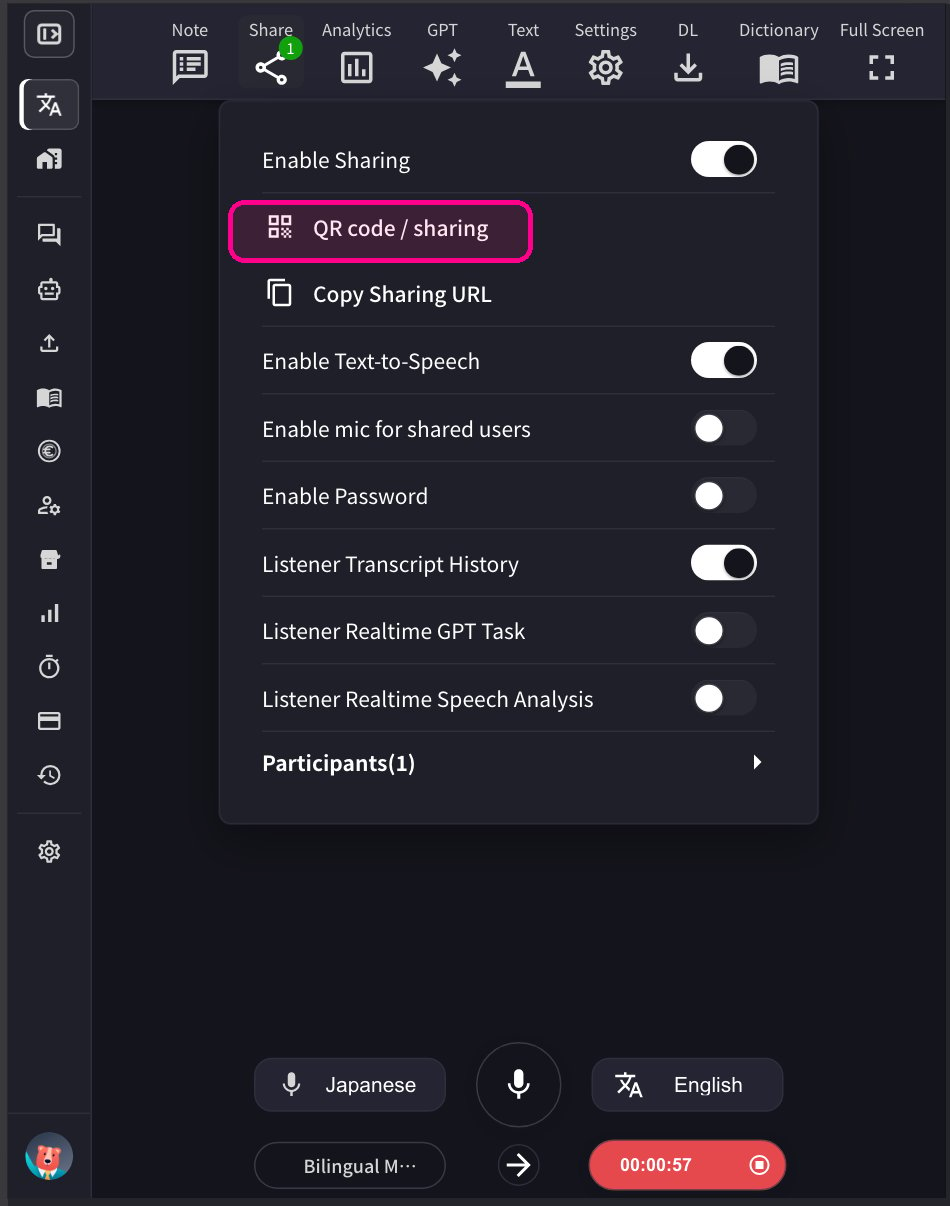
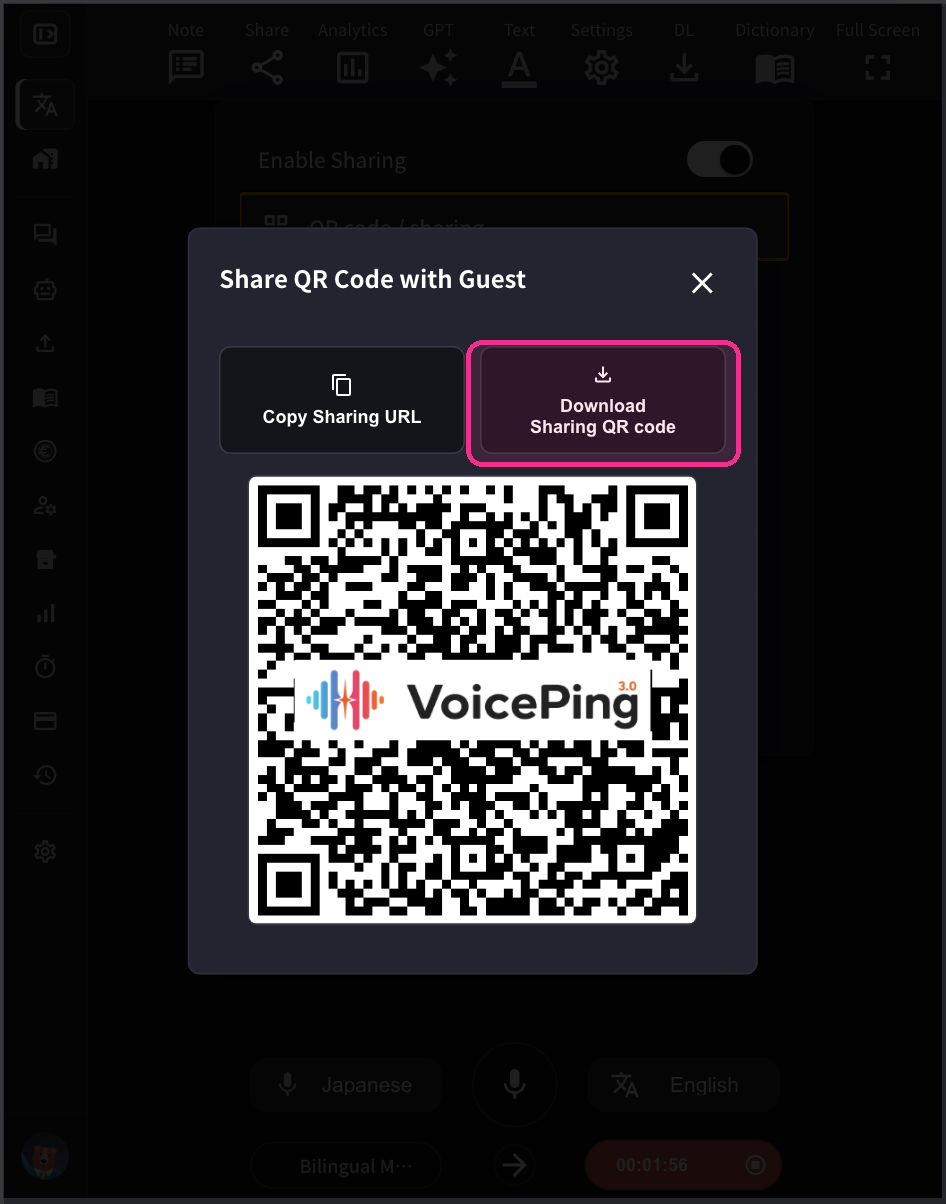
 4-2. **In order to share the QR code for the participant to join this session from their own mobile device, publish the QR image and share it with them.** This QR code is a static URL for each account. The QR code doesn't change permanently.
 Participant count is based on **simultaneous connections**, not cumulative access. When a participant leaves the session, the slot is freed. For example, if 50 people join via QR code and all leave, all 50 slots become available again.
## \[For Participants] How to Join
1. **Scan the QR code and access the translation channel from your mobile camera or clicking the above URL from PC Web Application.**
Participant count is based on **simultaneous connections**, not cumulative access. When a participant leaves the session, the slot is freed. For example, if 50 people join via QR code and all leave, all 50 slots become available again.
## \[For Participants] How to Join
1. **Scan the QR code and access the translation channel from your mobile camera or clicking the above URL from PC Web Application.**
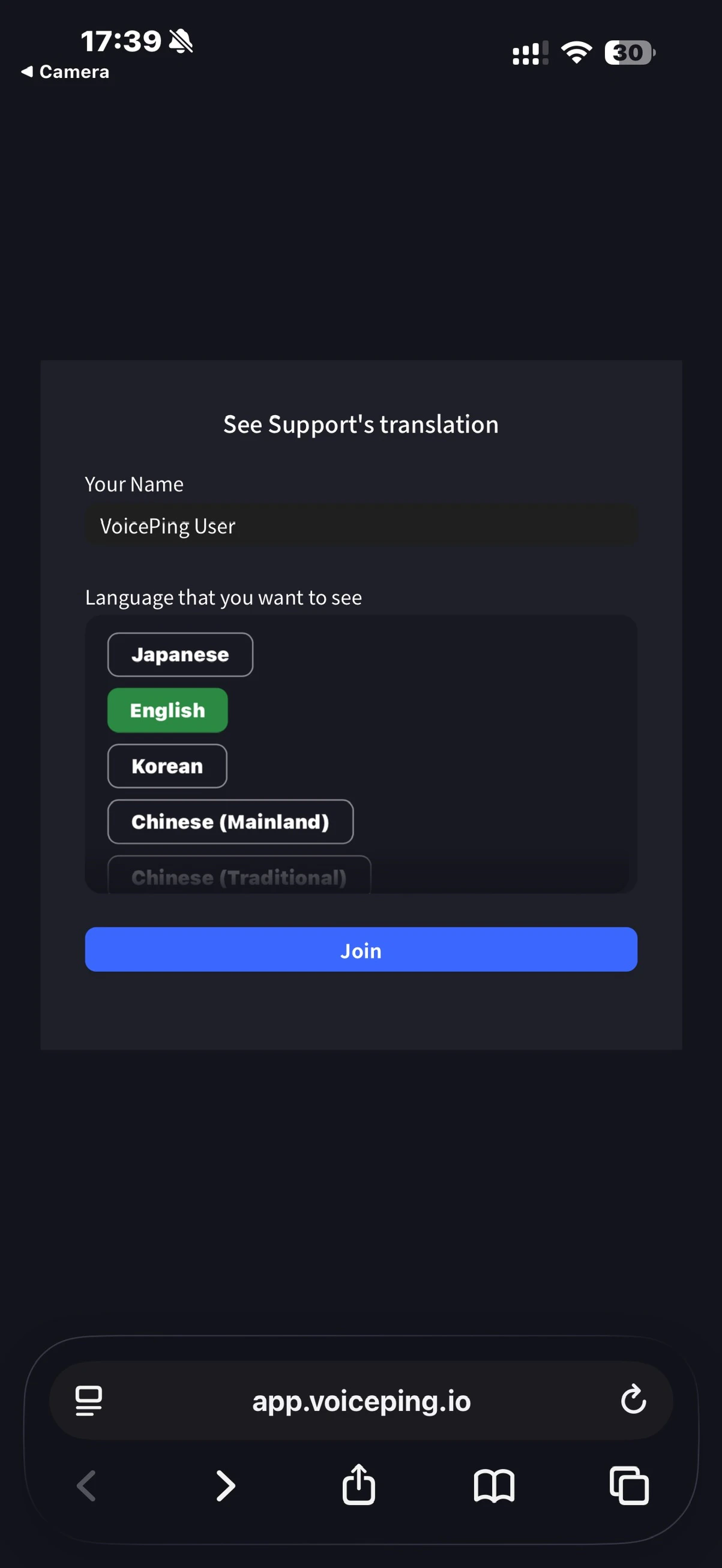 2. **Upon access, enter the following items:**
* Name: Enter participant's name
* Language you want to view: Select desired translation language
3. **Once entered, the following operations are available:**
* Change language
* Adjust translation appearance in "Settings"
* Adjust reading speed
* Turn reading function on/off
* Leave
2. **Upon access, enter the following items:**
* Name: Enter participant's name
* Language you want to view: Select desired translation language
3. **Once entered, the following operations are available:**
* Change language
* Adjust translation appearance in "Settings"
* Adjust reading speed
* Turn reading function on/off
* Leave