> ## Documentation Index
> Fetch the complete documentation index at: https://manual.voiceping.net/llms.txt
> Use this file to discover all available pages before exploring further.
# How to Create & Set Up Meeting Rooms
> How to create VoicePing meeting rooms and various setting options
export const FeedbackEn = () => <>
Have an idea or request about this feature? Send it to the team via Product Feedback.
Official Links
Visit our official website
Follow us on X
Like us on Facebook
Connect on LinkedIn
;
VoicePing meeting rooms are spaces for meetings and collaborative work with members, similar to a real office.
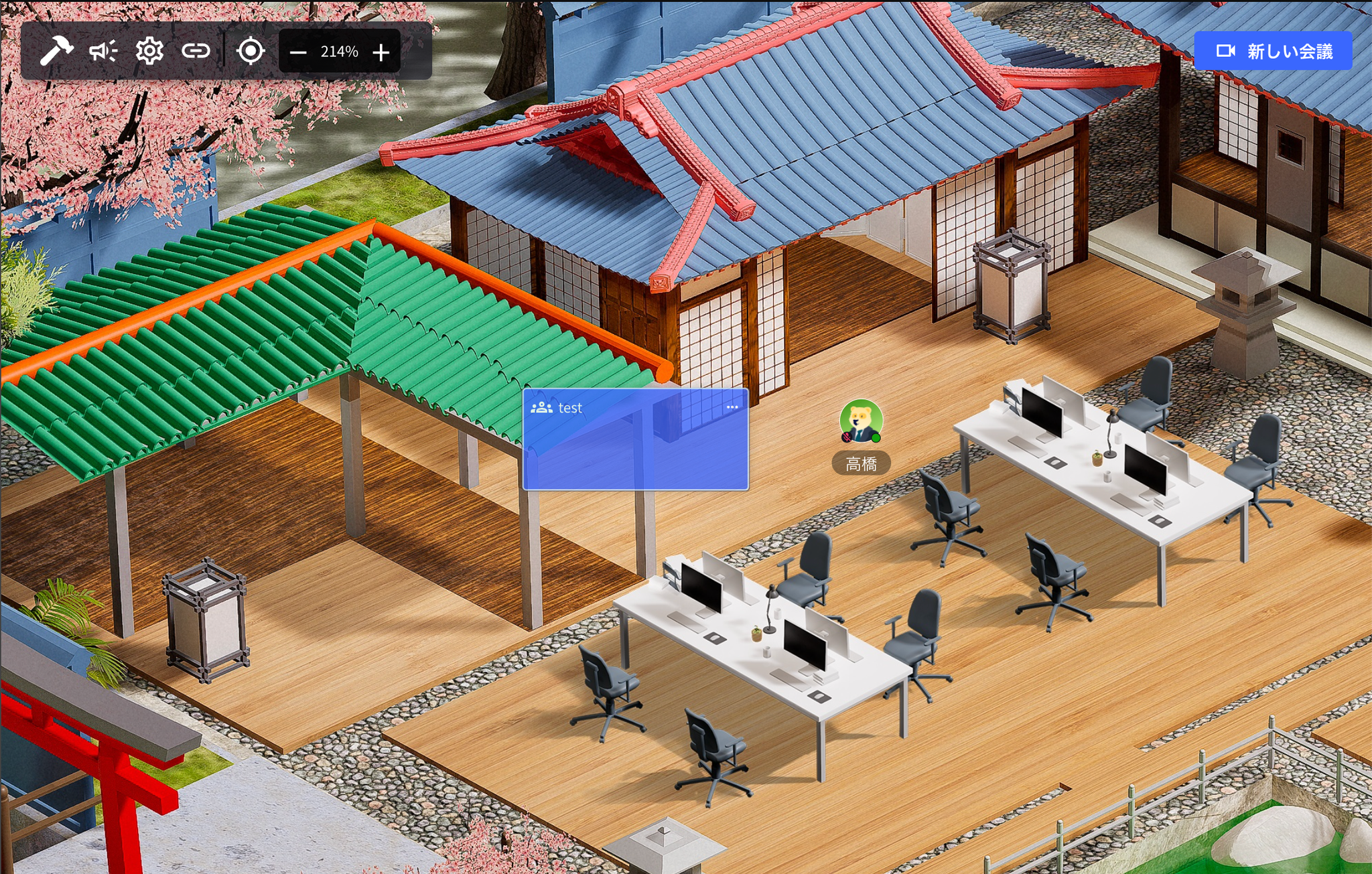 ## 1. Create a New Meeting Room
**Steps**
1. Click "New Meeting"
## 1. Create a New Meeting Room
**Steps**
1. Click "New Meeting"
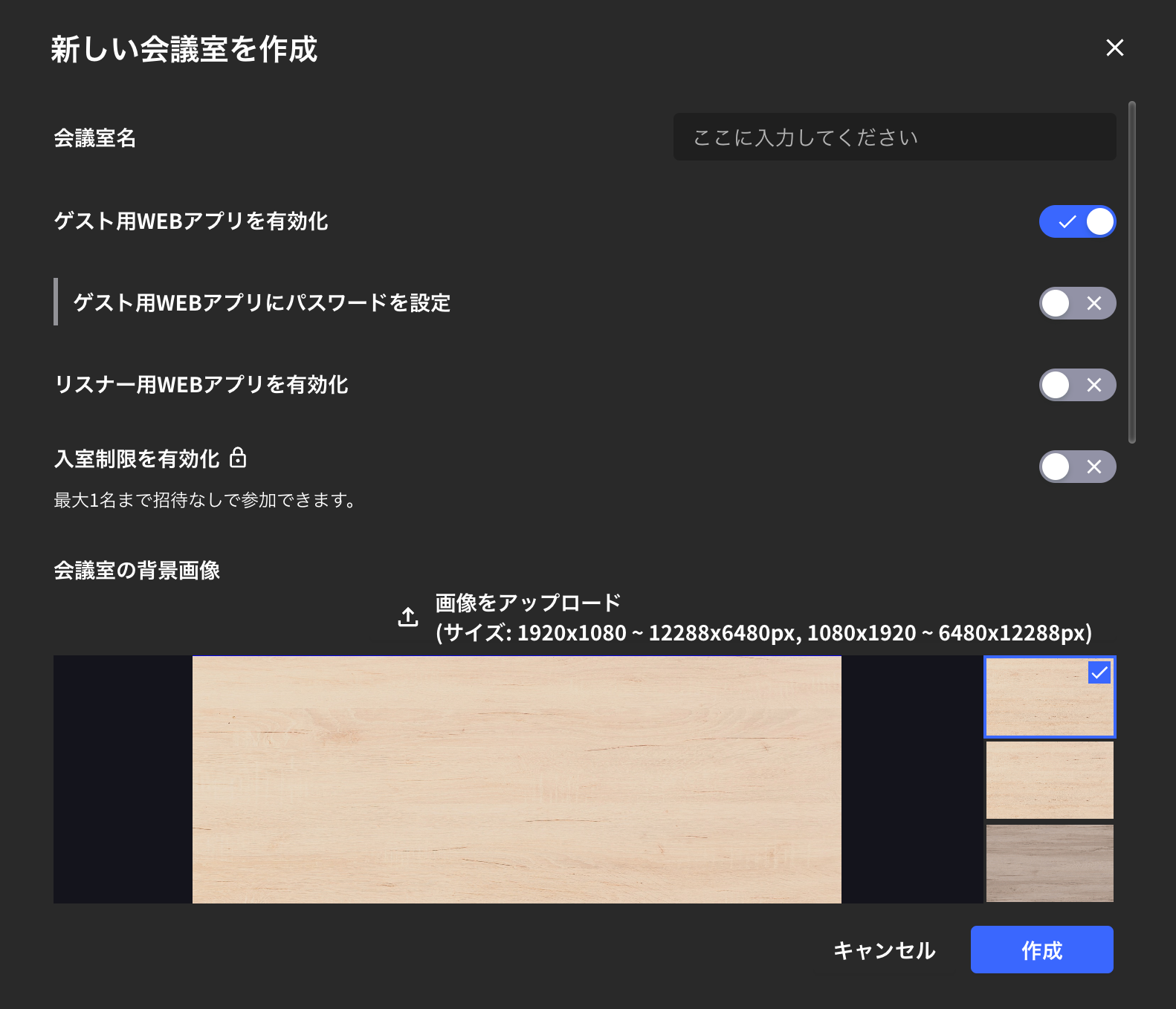 2. Enter meeting room name and click "Create"
 3. Enter the meeting room from the name bar on the left
 When you create a new meeting, a **meeting card (blue square)** is created on the floor. You can also enter the meeting room by clicking the meeting card.
## 2. Meeting Room Settings
This explains settings when creating a new meeting room & detailed settings for existing meeting rooms.
### How to Check Existing Meeting Room Settings
1. From inside the meeting room
2. From the name bar
3. From the meeting card
### Enable Guest Web App
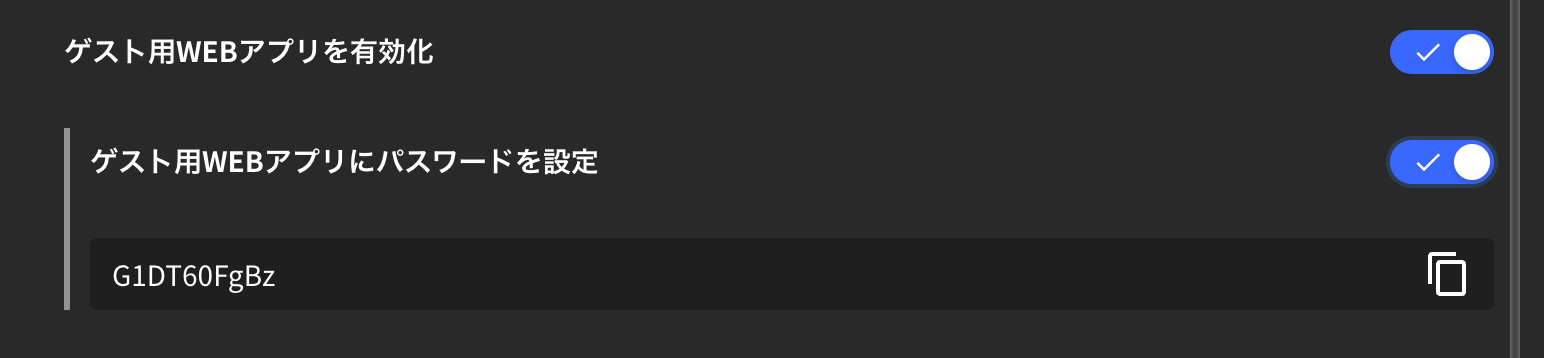
* When you "Enable guest web app", people who haven't installed the VoicePing app can access the meeting room from their browser.
* If you want to password-protect browser access to the meeting room, turn on "Password for guest web app".
When you create a new meeting, a **meeting card (blue square)** is created on the floor. You can also enter the meeting room by clicking the meeting card.
## 2. Meeting Room Settings
This explains settings when creating a new meeting room & detailed settings for existing meeting rooms.
### How to Check Existing Meeting Room Settings
1. From inside the meeting room
2. From the name bar
3. From the meeting card
### Enable Guest Web App
* When you "Enable guest web app", people who haven't installed the VoicePing app can access the meeting room from their browser.
* If you want to password-protect browser access to the meeting room, turn on "Password for guest web app".
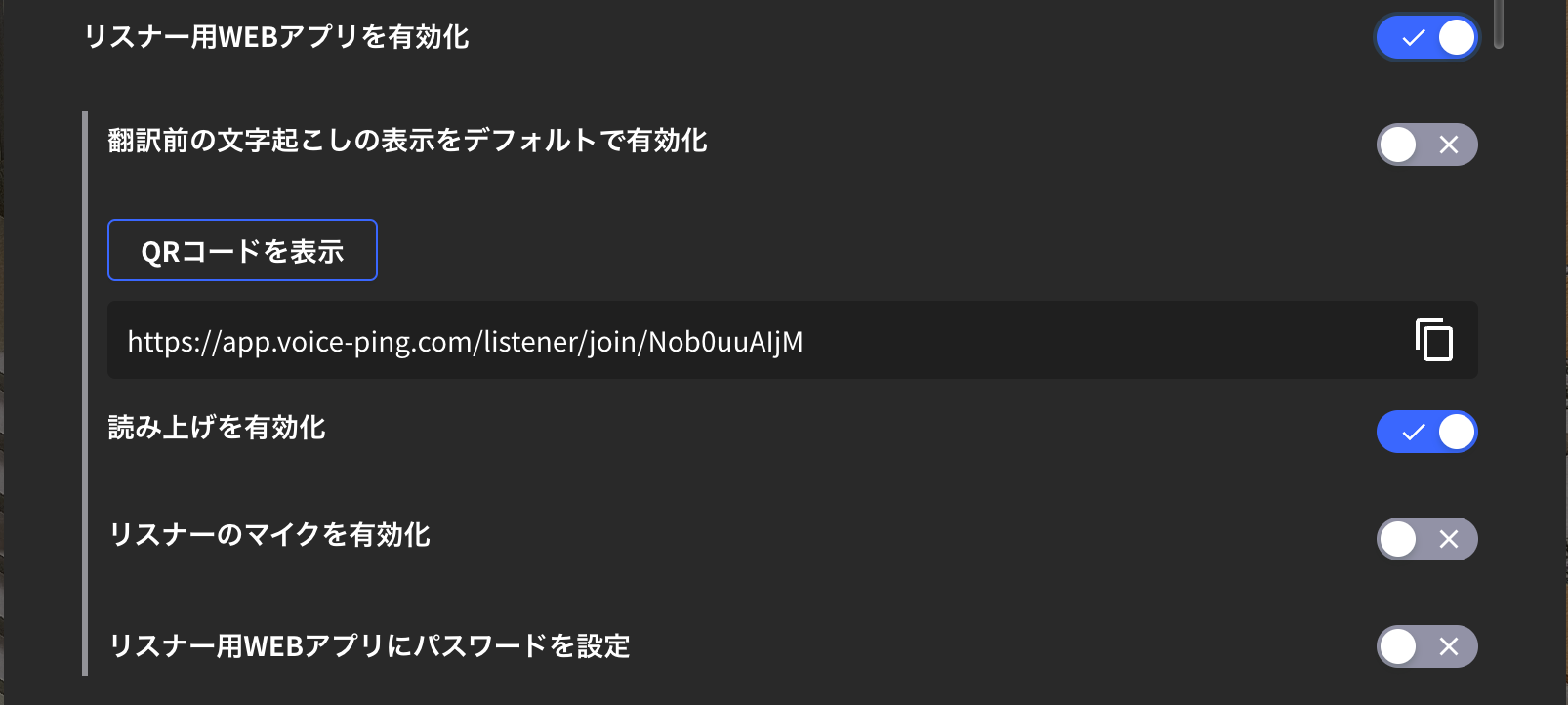 ### Enable Listener Web App
This setting issues a link to share the meeting room's transcription and translation pages with external guests.
### Set as Private Meeting Room
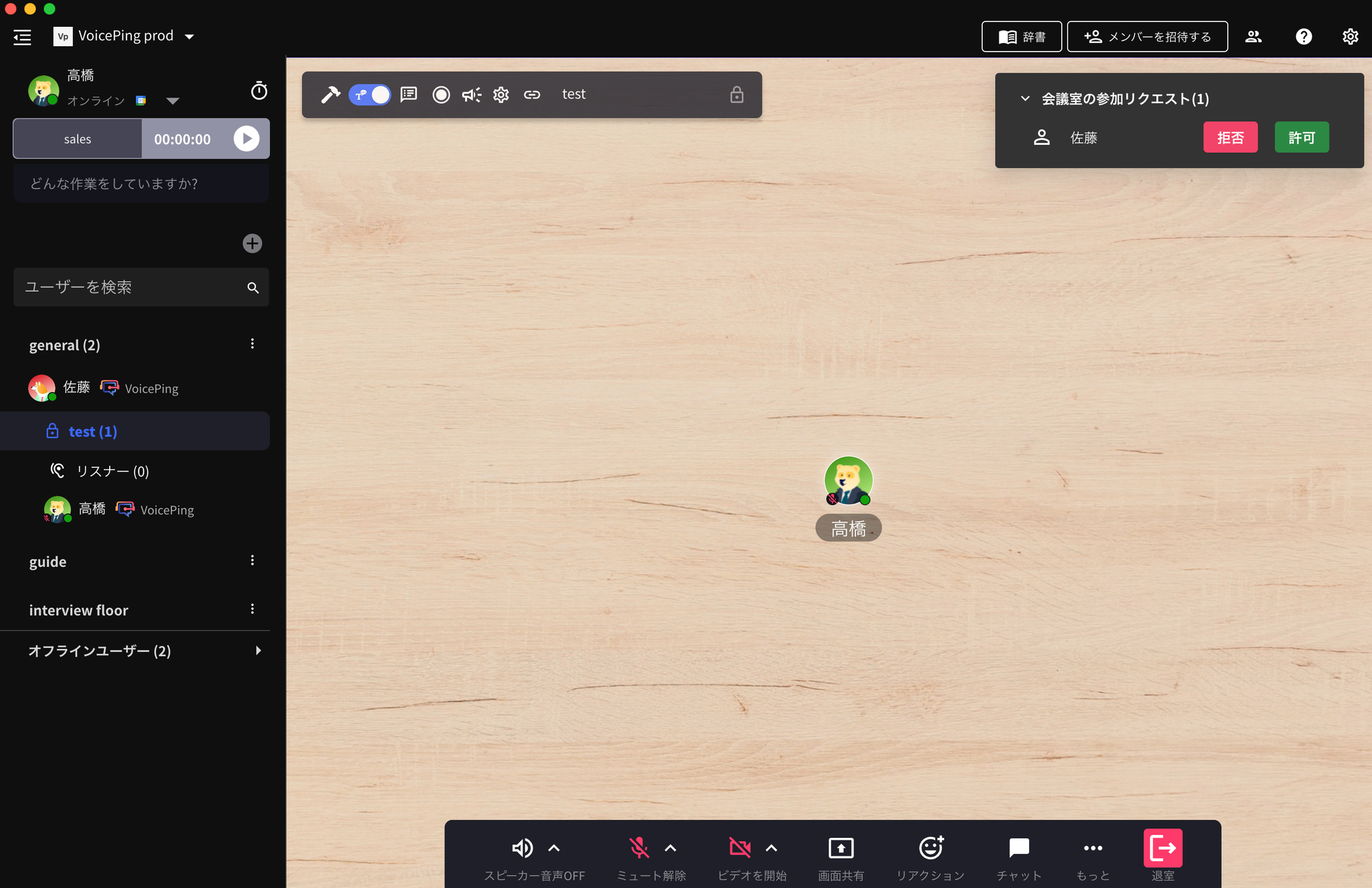
When this setting is turned on, it becomes a private meeting room and you can join the meeting room via participation request.
### Enable Listener Web App
This setting issues a link to share the meeting room's transcription and translation pages with external guests.
### Set as Private Meeting Room
When this setting is turned on, it becomes a private meeting room and you can join the meeting room via participation request.

 ### Recurring Meetings
By making the above settings, you can automatically call designated members when it's time for a recurring meeting.
### Enable Transcription Function
When transcription function is turned off, meeting transcription will not occur.
### Auto-Delete Data When User Is Absent
Meeting room data (objects and chat messages) will be automatically deleted after the meeting ends (when user is absent).
## Data Retention
Meeting room audio and transcripts follow the workspace plan retention period. Video recording is not documented as a standalone meeting-room feature. When a recording or Web Meeting Bot video is available for a session, download it before the 1 month video retention period ends.
### Recurring Meetings
By making the above settings, you can automatically call designated members when it's time for a recurring meeting.
### Enable Transcription Function
When transcription function is turned off, meeting transcription will not occur.
### Auto-Delete Data When User Is Absent
Meeting room data (objects and chat messages) will be automatically deleted after the meeting ends (when user is absent).
## Data Retention
Meeting room audio and transcripts follow the workspace plan retention period. Video recording is not documented as a standalone meeting-room feature. When a recording or Web Meeting Bot video is available for a session, download it before the 1 month video retention period ends.