> ## Documentation Index
> Fetch the complete documentation index at: https://manual.voiceping.net/llms.txt
> Use this file to discover all available pages before exploring further.
# Share Live Captions to Listeners (QR)
> Let the audience read live captions and translation on their own phones — no install, no account.
export const FeedbackEn = () => <>
Have an idea or request about this feature? Send it to the team via Product Feedback.
Official Links
Visit our official website
Follow us on X
Like us on Facebook
Connect on LinkedIn
;
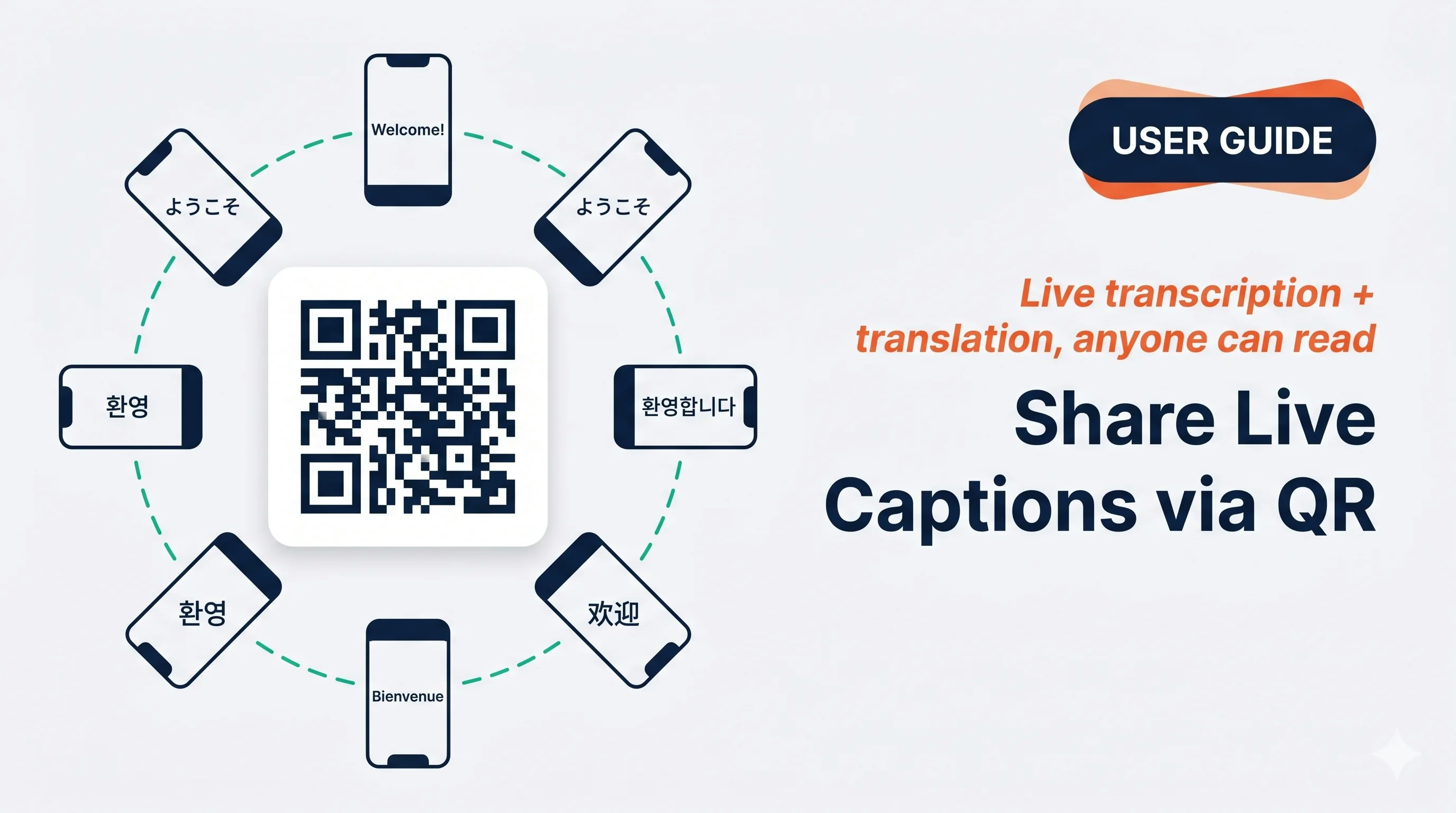 Show a QR code, the other person scans it with their phone camera, and they read the live captions in their own language on their device — no install, no account.
## Use this when…
Everyone at the table scans your QR and reads in their own language instead of everyone crowding around one screen.
You speak to the group; a handful of people follow along on their own phones as you walk.
Students scan once and each picks their preferred language; optionally enable mic so they can ask back.
Tap share to send the link via Slack / LINE / email — they read live from anywhere.
## Open the listener share sheet
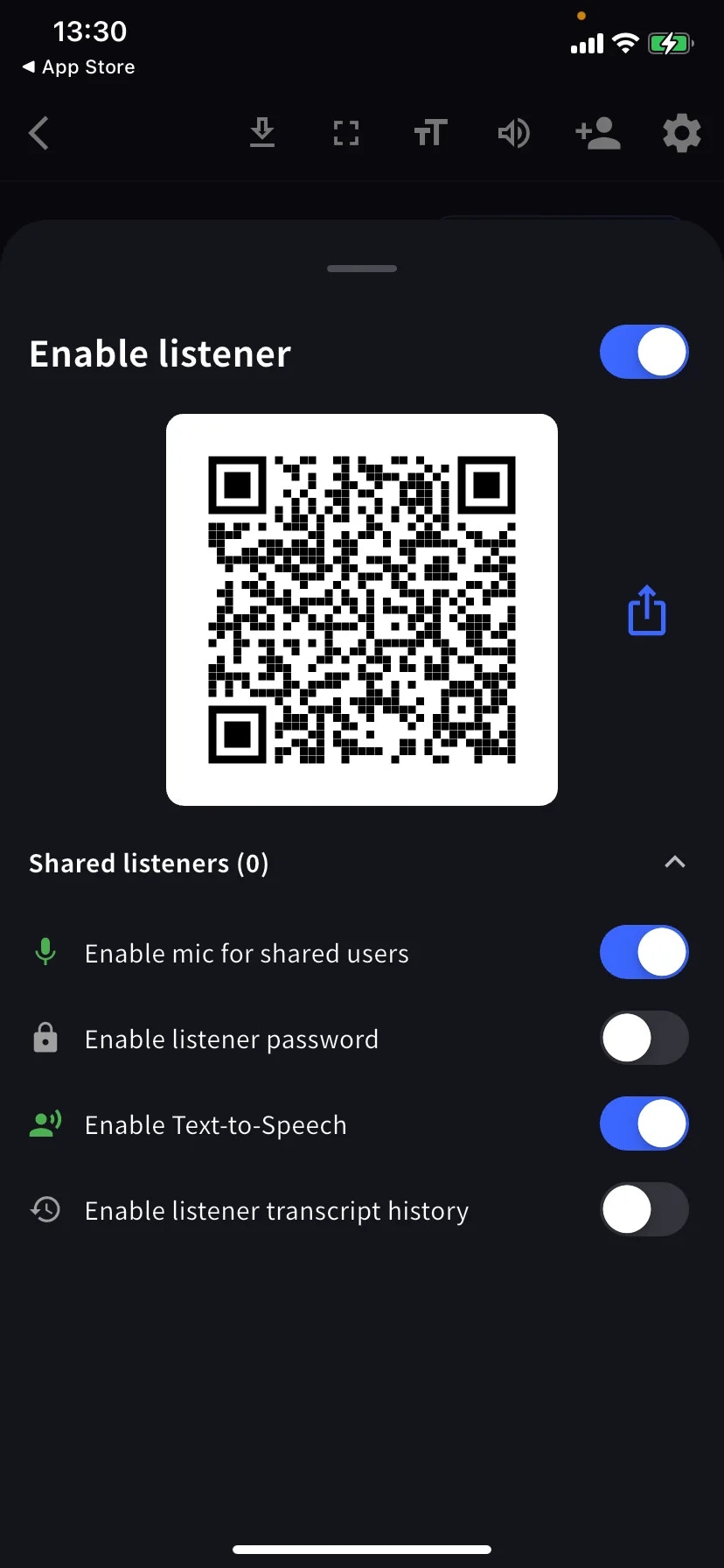
In a live session, tap **+👤** in the toolbar, then toggle **Enable listener** on.
Show the QR for people to scan, or tap the share icon to send the link via Slack / email / Teams. Listeners pick their translation language on the join page and start seeing captions immediately.
## Listener controls
| Toggle | What it does |
| -------------------------------------- | --------------------------------------------------------------- |
| **Enable mic for shared users** | Listeners can speak back; their words enter the transcript. |
| **Enable listener password** | Passcode gate before listeners can view. |
| **Enable Text-to-Speech** | Listeners can have the translation read aloud in their browser. |
| **Enable listener transcript history** | Each listener keeps a local copy on their device. |
The **Shared listeners (N)** row expands the current list.
## Scenario presets
Mic off · Password off · TTS off. Each person reads in their own language on their own phone.
Password on (share the code in a separate message) · Mic off · History off.
Mic on so students can ask back
Send the link directly via Slack / LINE / email instead of showing the QR.
## Tips
* Test the QR with a second device before the event.
* The QR stays valid until you End the meeting.
* Password gates entry but isn't end-to-end privacy — combine with restricted Share Scope for sensitive content.
## Related
* [Live Transcription on Mobile](/en/mobile-live-transcription) · [Settings](/en/mobile-live-transcription-settings)
* [Live Subtitles (PC)](/en/live-subtitles)
Show a QR code, the other person scans it with their phone camera, and they read the live captions in their own language on their device — no install, no account.
## Use this when…
Everyone at the table scans your QR and reads in their own language instead of everyone crowding around one screen.
You speak to the group; a handful of people follow along on their own phones as you walk.
Students scan once and each picks their preferred language; optionally enable mic so they can ask back.
Tap share to send the link via Slack / LINE / email — they read live from anywhere.
## Open the listener share sheet
In a live session, tap **+👤** in the toolbar, then toggle **Enable listener** on.
Show the QR for people to scan, or tap the share icon to send the link via Slack / email / Teams. Listeners pick their translation language on the join page and start seeing captions immediately.
## Listener controls
| Toggle | What it does |
| -------------------------------------- | --------------------------------------------------------------- |
| **Enable mic for shared users** | Listeners can speak back; their words enter the transcript. |
| **Enable listener password** | Passcode gate before listeners can view. |
| **Enable Text-to-Speech** | Listeners can have the translation read aloud in their browser. |
| **Enable listener transcript history** | Each listener keeps a local copy on their device. |
The **Shared listeners (N)** row expands the current list.
## Scenario presets
Mic off · Password off · TTS off. Each person reads in their own language on their own phone.
Password on (share the code in a separate message) · Mic off · History off.
Mic on so students can ask back
Send the link directly via Slack / LINE / email instead of showing the QR.
## Tips
* Test the QR with a second device before the event.
* The QR stays valid until you End the meeting.
* Password gates entry but isn't end-to-end privacy — combine with restricted Share Scope for sensitive content.
## Related
* [Live Transcription on Mobile](/en/mobile-live-transcription) · [Settings](/en/mobile-live-transcription-settings)
* [Live Subtitles (PC)](/en/live-subtitles)