> ## Documentation Index
> Fetch the complete documentation index at: https://manual.voiceping.net/llms.txt
> Use this file to discover all available pages before exploring further.
# Live Transcription on Mobile
> Real-time bilingual transcription on iOS and Android.
export const FeedbackEn = () => <>
Have an idea or request about this feature? Send it to the team via Product Feedback.
Official Links
Visit our official website
Follow us on X
Like us on Facebook
Connect on LinkedIn
;
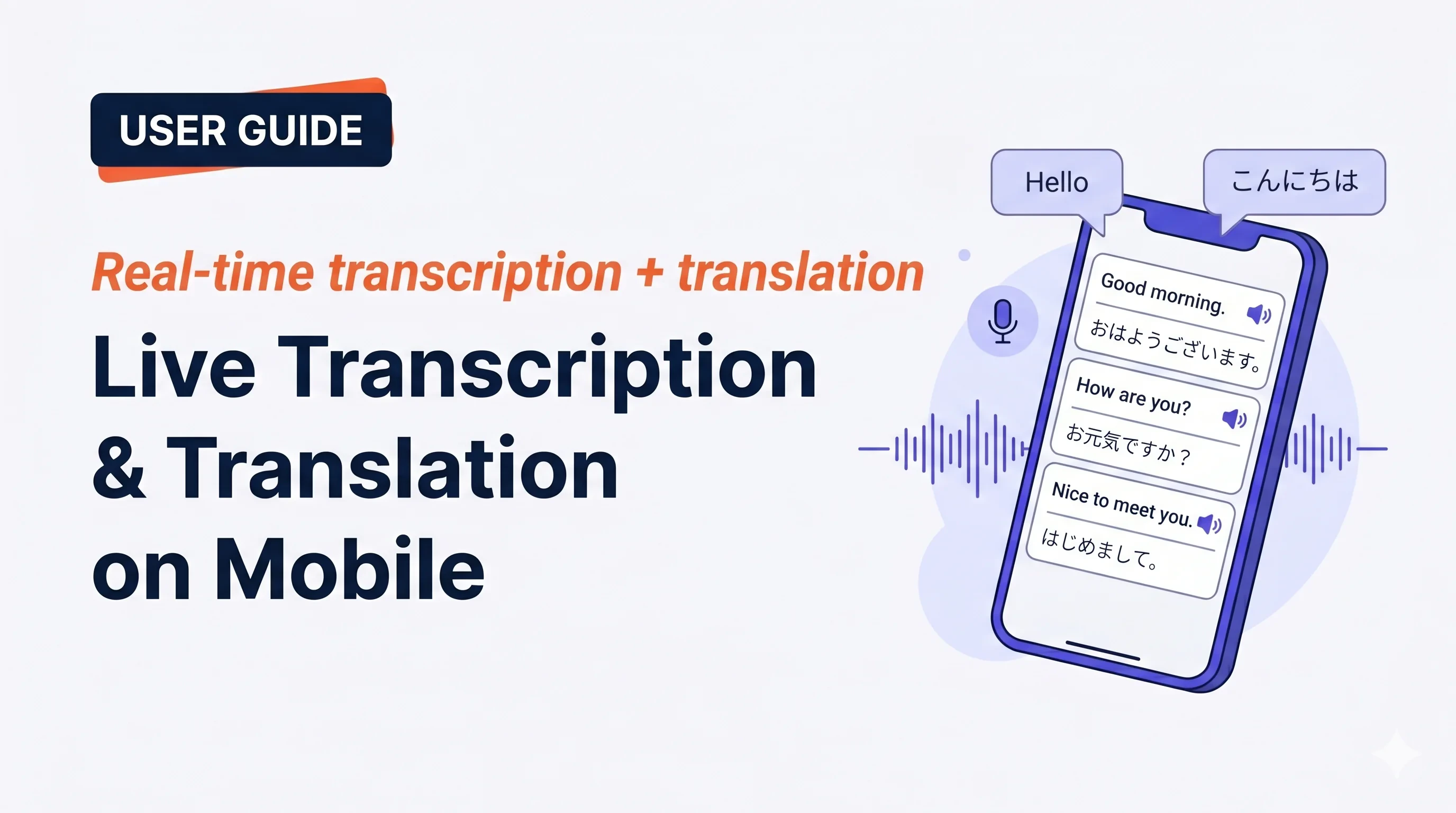 Tap **Start**, speak, and watch the transcript and translation appear in real time. End the session and it is saved to your workspace history.
## Use this when…
Phone between you and the other person in a cafe, taxi, or shop counter. Both read their own language with Face-to-face mode.
Hotel concierge, restaurant, clinic, customs — real two-way conversation with captions in both languages.
Chat with a tutor, exchange partner, or native speaker and keep captions as a safety net when you lose a word.
Walking between places — one-tap Start, speak your thought, End. Saved as a searchable bilingual transcript.
## Start a session
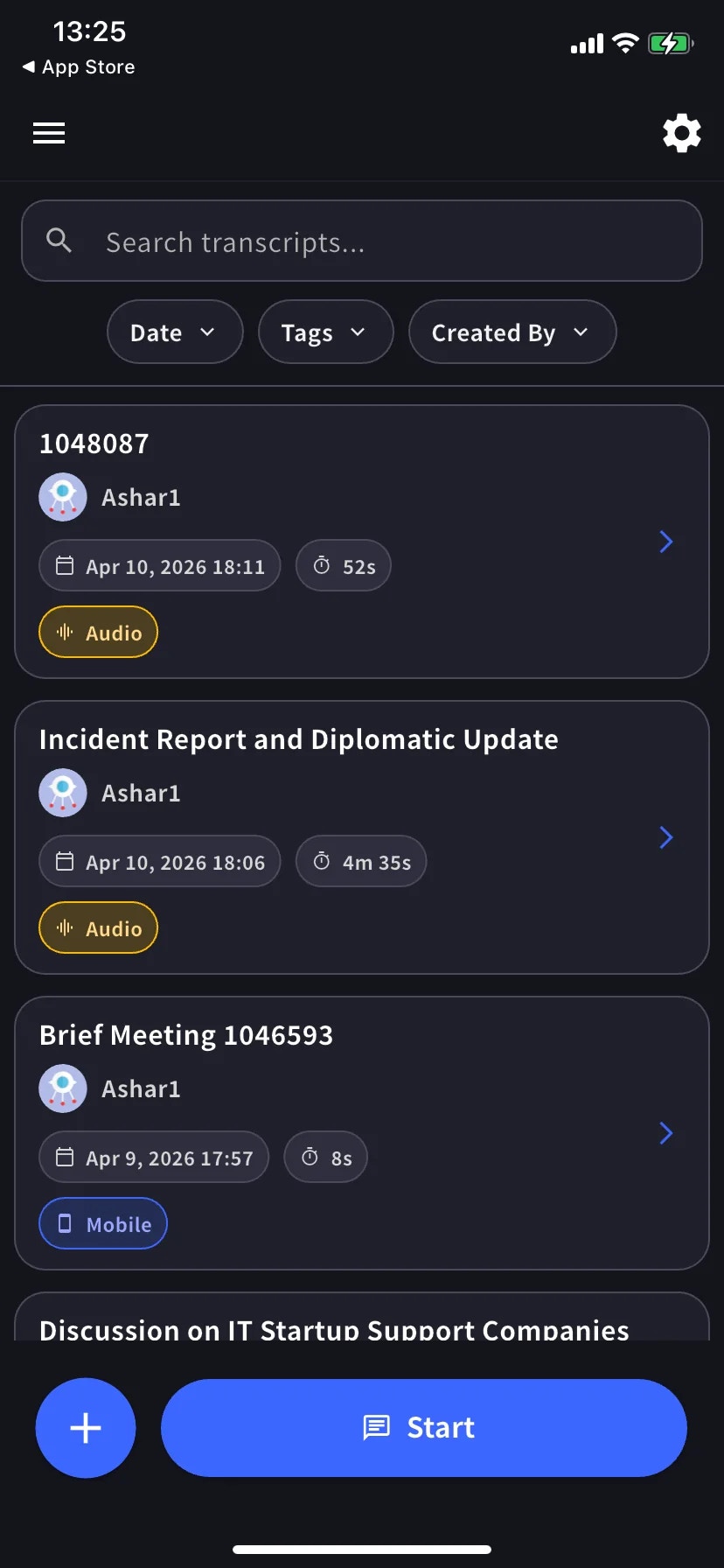
The home screen lists past transcripts and has **Start** at the bottom.
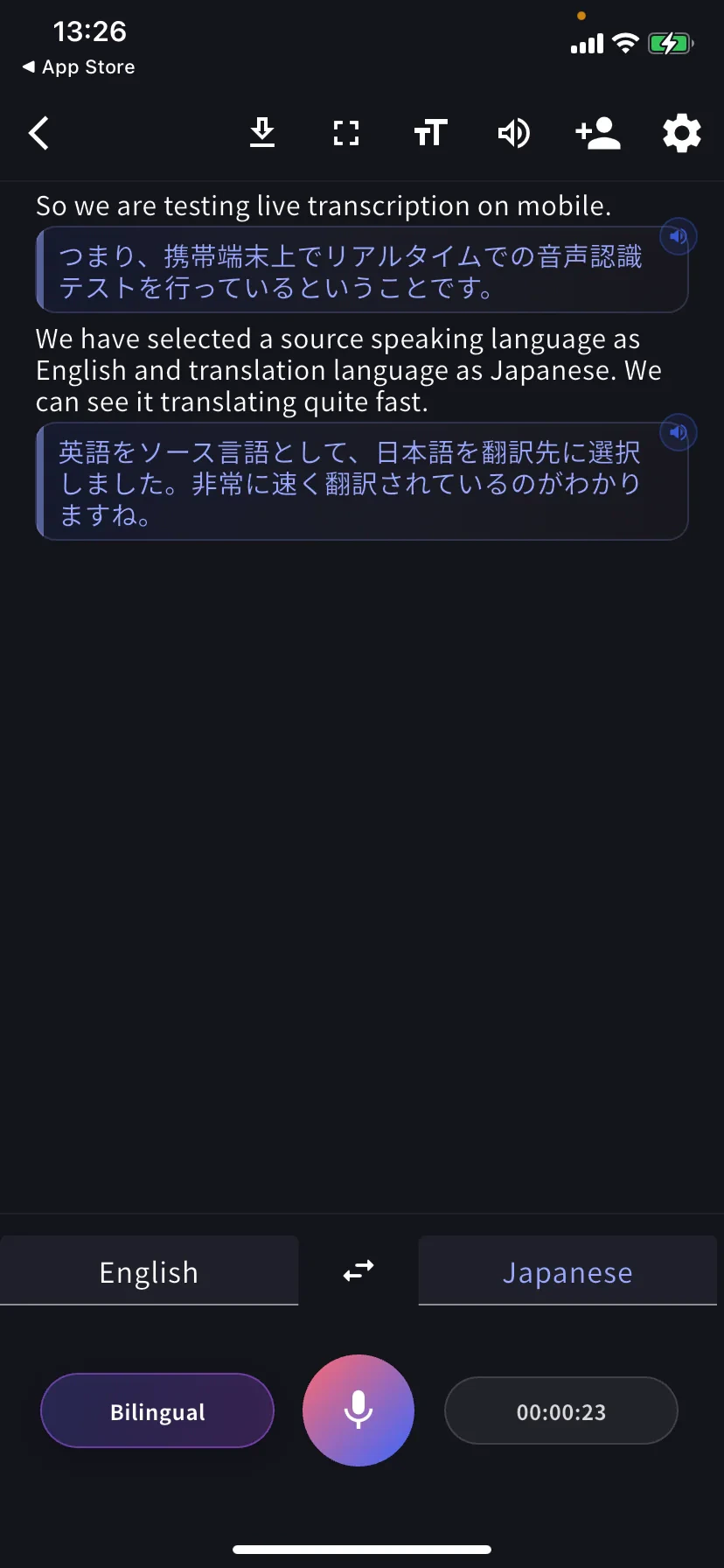
Each utterance becomes a row: original on top, translation below. Tap the speaker icon on a row to play the translated speech.
## Bottom controls
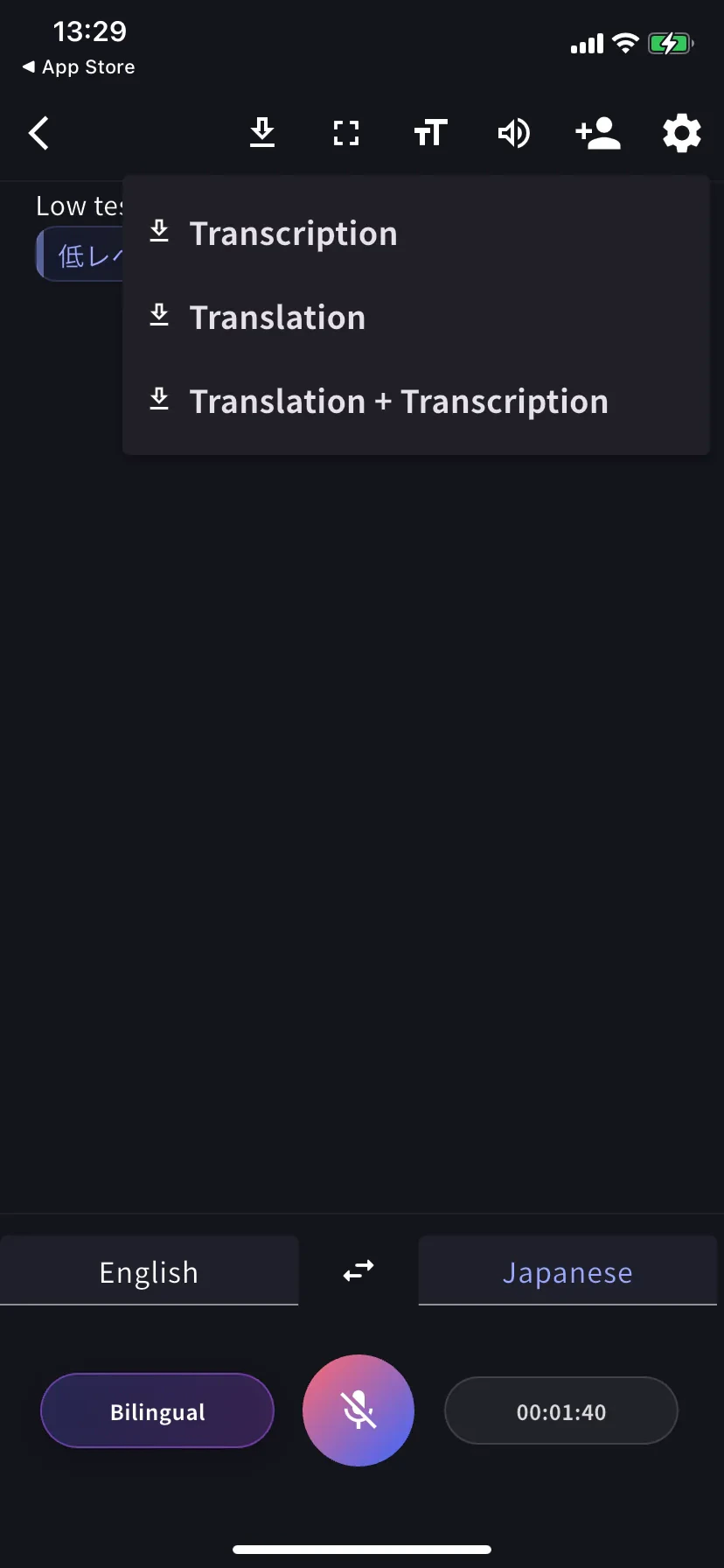
* **Left tab** — language you speak · **⇄** swap · **Right tab** — language to read in
* **Bilingual** pill — toggle bilingual vs translation-only view
* **Mic** — tap to mute / unmute
* **Timer** — current length; tap to end and save
## Play the translation aloud
Tap the any translated row to hear it read out in the target language. Useful when:
* You want the other person to **hear** the translation instead of reading it
* You're **learning the language** and want to hear pronunciation of what you just said
* The other person can't comfortably read from the screen
To have every translated row read automatically as it arrives, turn on **Auto-play speech** in [Audio settings](/en/mobile-live-transcription-settings) — and keep **Auto-mute mic** on so the playback isn't picked up by your own mic.
## Reading modes
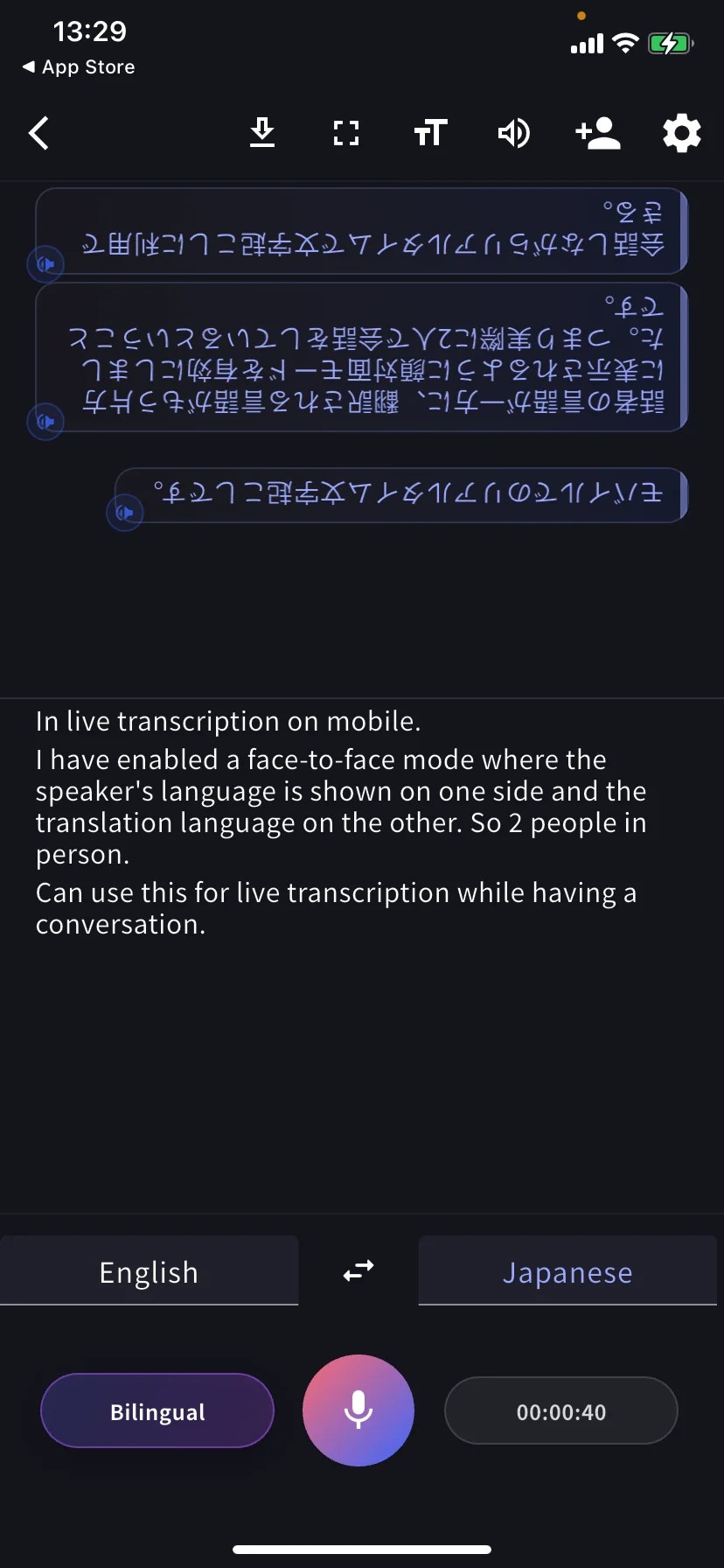
**Face-to-face mode** (TT → Text display) rotates the translation 180° so the person across the table can read it right-way-up from their side. Put the phone flat between you.
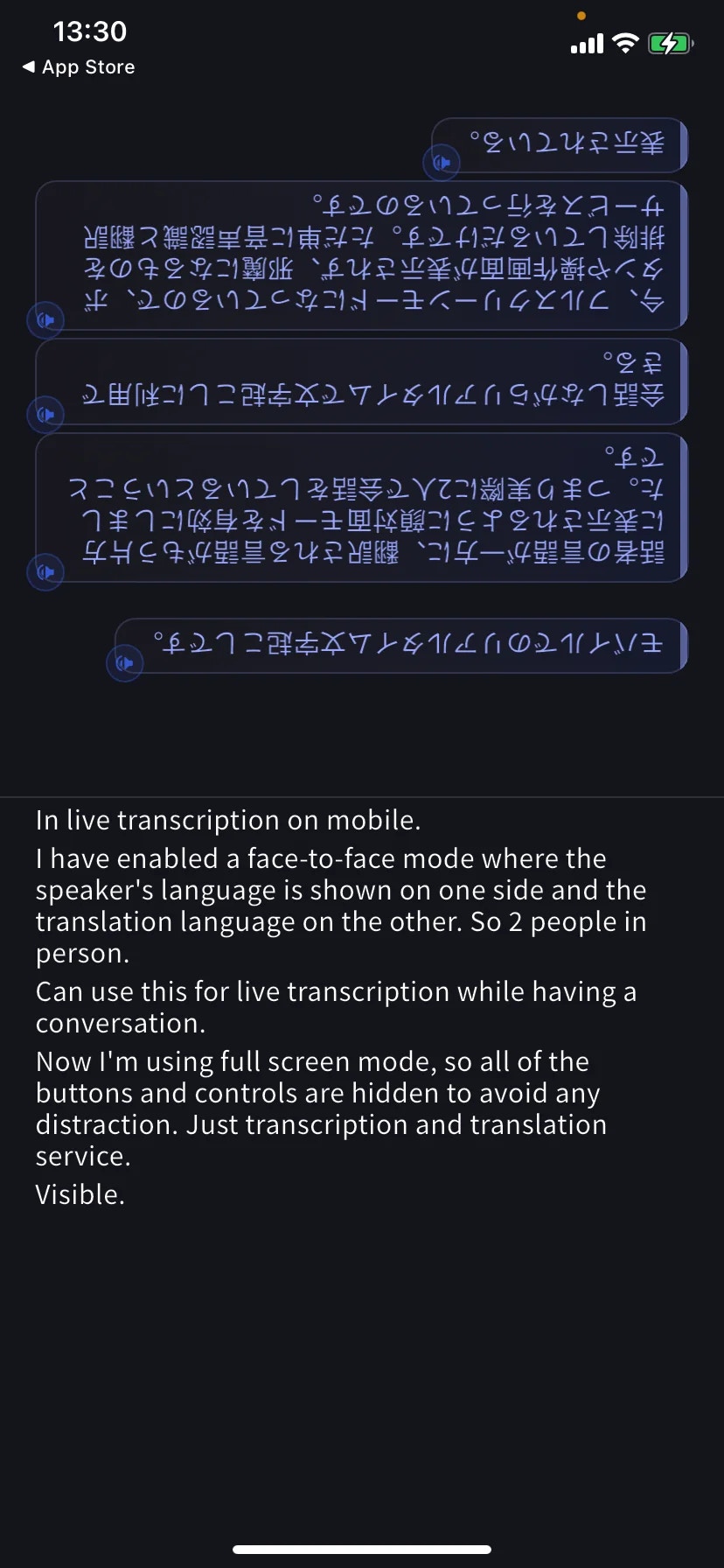
**Fullscreen mode** (⛶ in toolbar) hides the toolbar and buttons so nothing gets in the way of the conversation — and you won't accidentally tap a control while the phone is on the table.
## Download mid-session
Tap **⬇** in the toolbar to export without ending: Transcription, Translation, or both.
## End and save
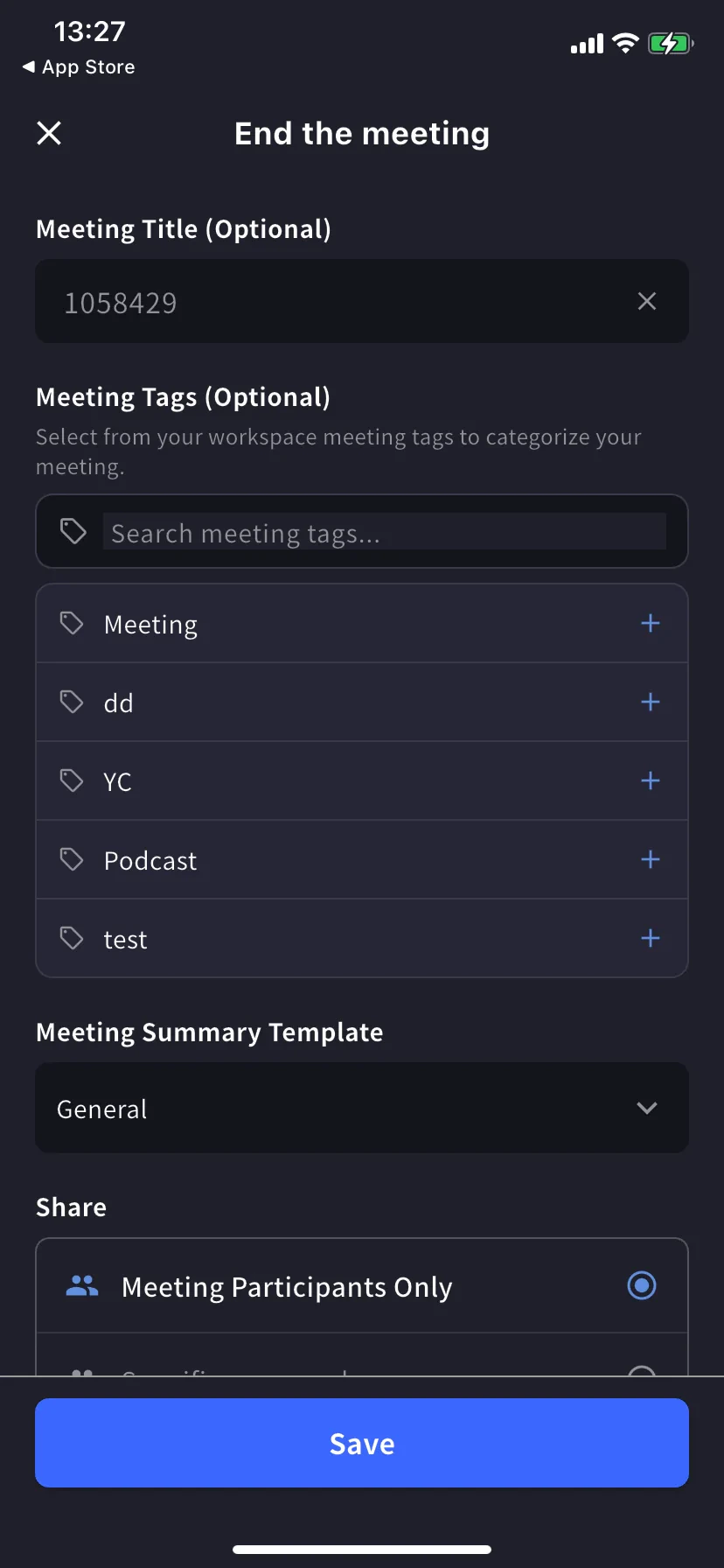
Tap the timer / stop to open the End-meeting form.
* **Title** — auto-numeric, rename if needed
* **Tags** — pick from workspace tags (used for filtering)
* **Summary template** — preset for the auto-generated minutes
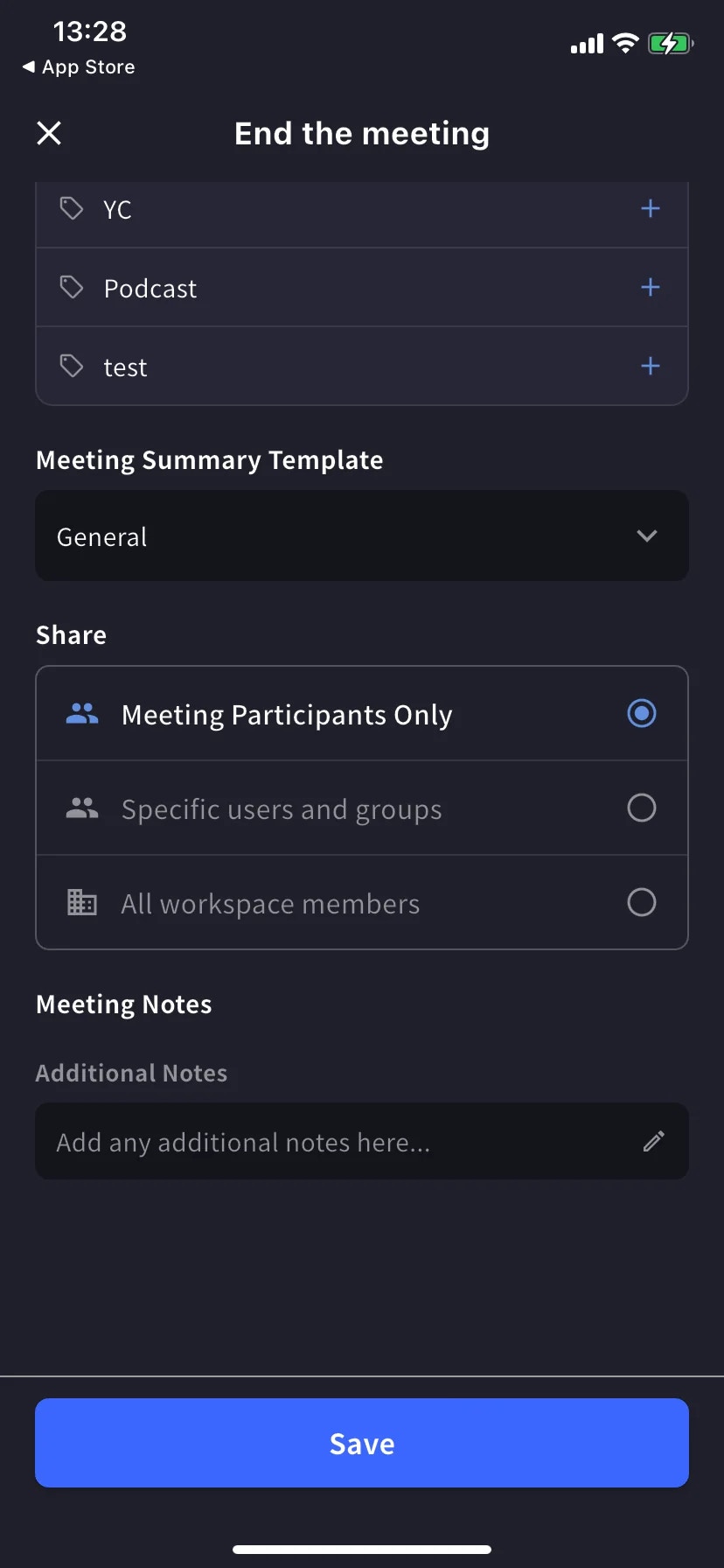
* **Share scope** — Participants only / Specific users / All workspace members
* **Notes** — free-form notes saved with the transcript
Tap **Save**. The session appears in the home history list — search by text, filter by Date / Tags / Created By.
## Tips
* Place the phone flat between you and the other person — the built-in mic picks up both sides better than holding it.
* In noisy cafes or on the street, plug in a wired or Bluetooth headset.
* Keep the app in the foreground — iOS can suspend capture if you switch apps.
* Pre-load [Dictionary](/en/dictionary) entries (personal or workspace, same as desktop) for names and words you know will come up.
## Related
* [Settings](/en/mobile-live-transcription-settings) — audio, text display, dictionary
* [Share to Listeners (QR)](/en/mobile-live-transcription-share)
* [Offline Translation](/en/mobile-offline-translation) · [Capture Other-App Audio](/en/mobile-screen-record) · [Upload Files](/en/mobile-upload-files)
Tap **Start**, speak, and watch the transcript and translation appear in real time. End the session and it is saved to your workspace history.
## Use this when…
Phone between you and the other person in a cafe, taxi, or shop counter. Both read their own language with Face-to-face mode.
Hotel concierge, restaurant, clinic, customs — real two-way conversation with captions in both languages.
Chat with a tutor, exchange partner, or native speaker and keep captions as a safety net when you lose a word.
Walking between places — one-tap Start, speak your thought, End. Saved as a searchable bilingual transcript.
## Start a session
The home screen lists past transcripts and has **Start** at the bottom.
Each utterance becomes a row: original on top, translation below. Tap the speaker icon on a row to play the translated speech.
## Bottom controls
* **Left tab** — language you speak · **⇄** swap · **Right tab** — language to read in
* **Bilingual** pill — toggle bilingual vs translation-only view
* **Mic** — tap to mute / unmute
* **Timer** — current length; tap to end and save
## Play the translation aloud
Tap the any translated row to hear it read out in the target language. Useful when:
* You want the other person to **hear** the translation instead of reading it
* You're **learning the language** and want to hear pronunciation of what you just said
* The other person can't comfortably read from the screen
To have every translated row read automatically as it arrives, turn on **Auto-play speech** in [Audio settings](/en/mobile-live-transcription-settings) — and keep **Auto-mute mic** on so the playback isn't picked up by your own mic.
## Reading modes
**Face-to-face mode** (TT → Text display) rotates the translation 180° so the person across the table can read it right-way-up from their side. Put the phone flat between you.
**Fullscreen mode** (⛶ in toolbar) hides the toolbar and buttons so nothing gets in the way of the conversation — and you won't accidentally tap a control while the phone is on the table.
## Download mid-session
Tap **⬇** in the toolbar to export without ending: Transcription, Translation, or both.
## End and save
Tap the timer / stop to open the End-meeting form.
* **Title** — auto-numeric, rename if needed
* **Tags** — pick from workspace tags (used for filtering)
* **Summary template** — preset for the auto-generated minutes
* **Share scope** — Participants only / Specific users / All workspace members
* **Notes** — free-form notes saved with the transcript
Tap **Save**. The session appears in the home history list — search by text, filter by Date / Tags / Created By.
## Tips
* Place the phone flat between you and the other person — the built-in mic picks up both sides better than holding it.
* In noisy cafes or on the street, plug in a wired or Bluetooth headset.
* Keep the app in the foreground — iOS can suspend capture if you switch apps.
* Pre-load [Dictionary](/en/dictionary) entries (personal or workspace, same as desktop) for names and words you know will come up.
## Related
* [Settings](/en/mobile-live-transcription-settings) — audio, text display, dictionary
* [Share to Listeners (QR)](/en/mobile-live-transcription-share)
* [Offline Translation](/en/mobile-offline-translation) · [Capture Other-App Audio](/en/mobile-screen-record) · [Upload Files](/en/mobile-upload-files)