> ## Documentation Index
> Fetch the complete documentation index at: https://manual.voiceping.net/llms.txt
> Use this file to discover all available pages before exploring further.
# Capture Audio from Other Apps on Mobile
> Live subtitles and translation for any audio playing on your phone — YouTube, podcasts, online courses and more.
export const FeedbackEn = () => <>
Have an idea or request about this feature? Send it to the team via Product Feedback.
Official Links
Visit our official website
Follow us on X
Like us on Facebook
Connect on LinkedIn
;
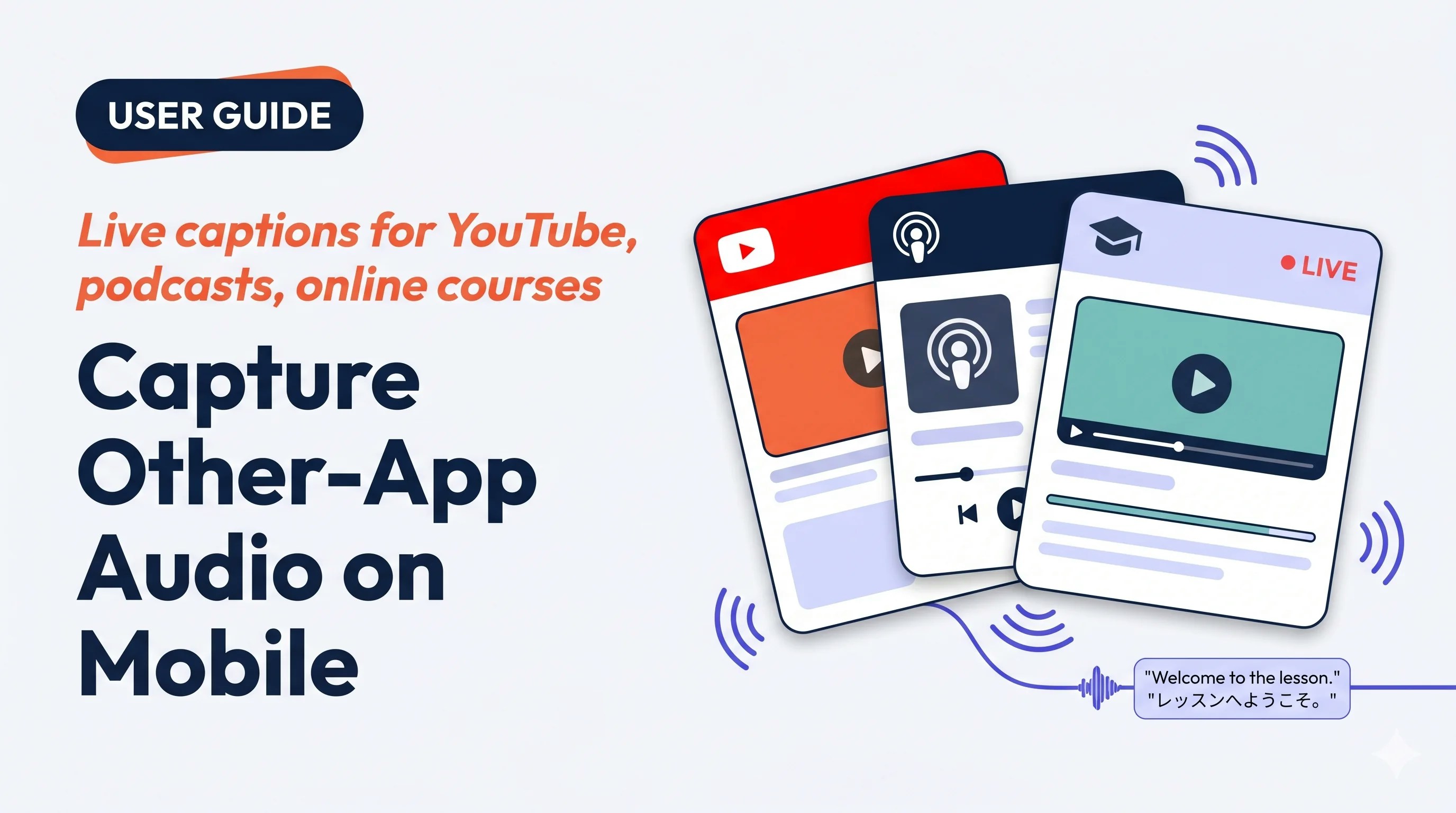 Point VoicePing at whatever is playing on your phone — a foreign-language YouTube video, a podcast, an online course, a saved audio clip — and read live bilingual captions in the normal session view.
## Use this when…
Foreign-language lectures, Udemy courses, or recorded webinars — read along while listening.
Translate a foreign-language YouTube or podcast on the go — no download needed.
Build listening skills with native-language podcasts and an always-on translator.
Open a saved audio file in another player and let VoicePing caption it as it plays.
## Highlights
* Works with **any app that plays audio** (subject to OS screen-capture rules)
* Same live meeting view as a VoicePing session — edits, minutes, export, dictionary all work
* Sessions save to workspace history — teammates can open them on PC afterwards
* **iOS (Screen Record)** and **Android (Device Audio)**
## Start a capture
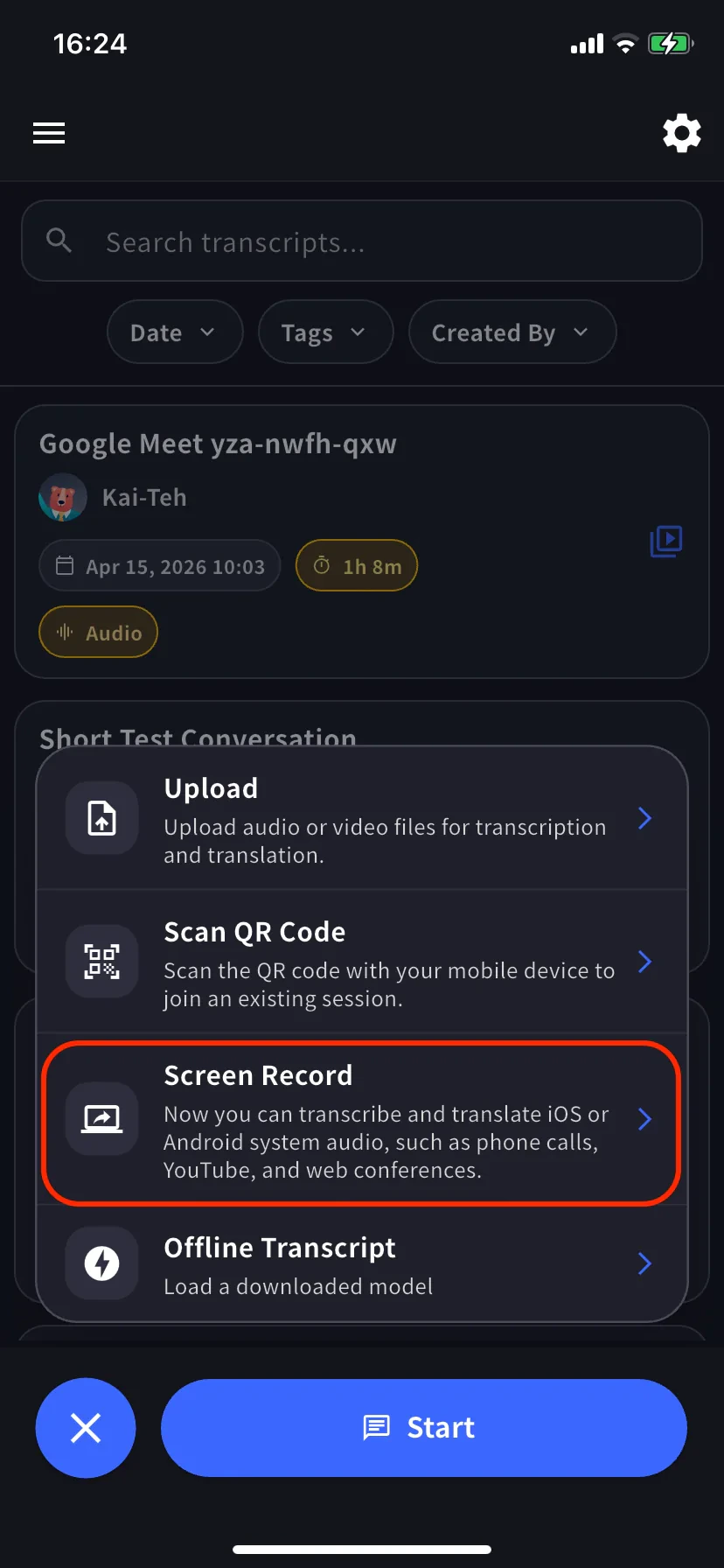
From the home screen, open the session menu. On Android the option is labelled **Device Audio**.
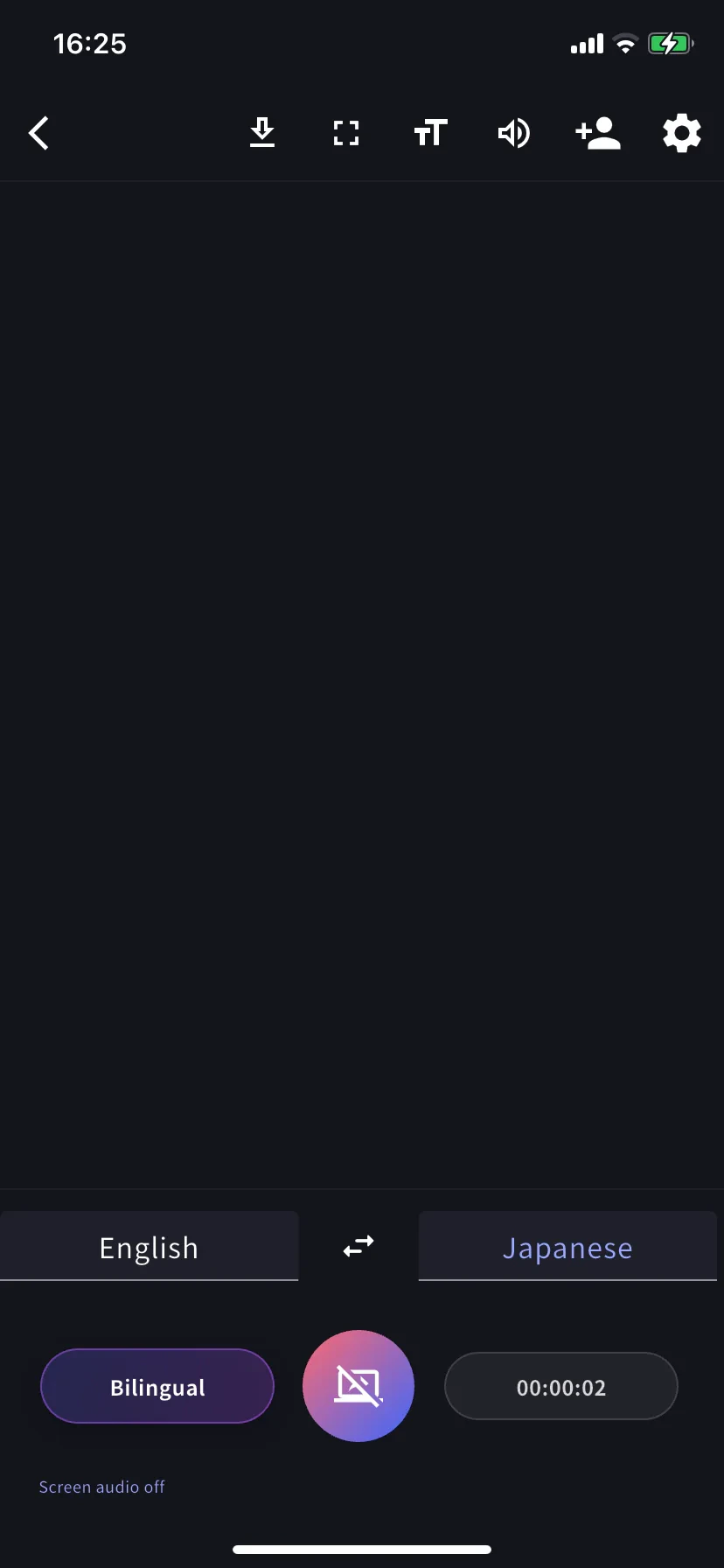
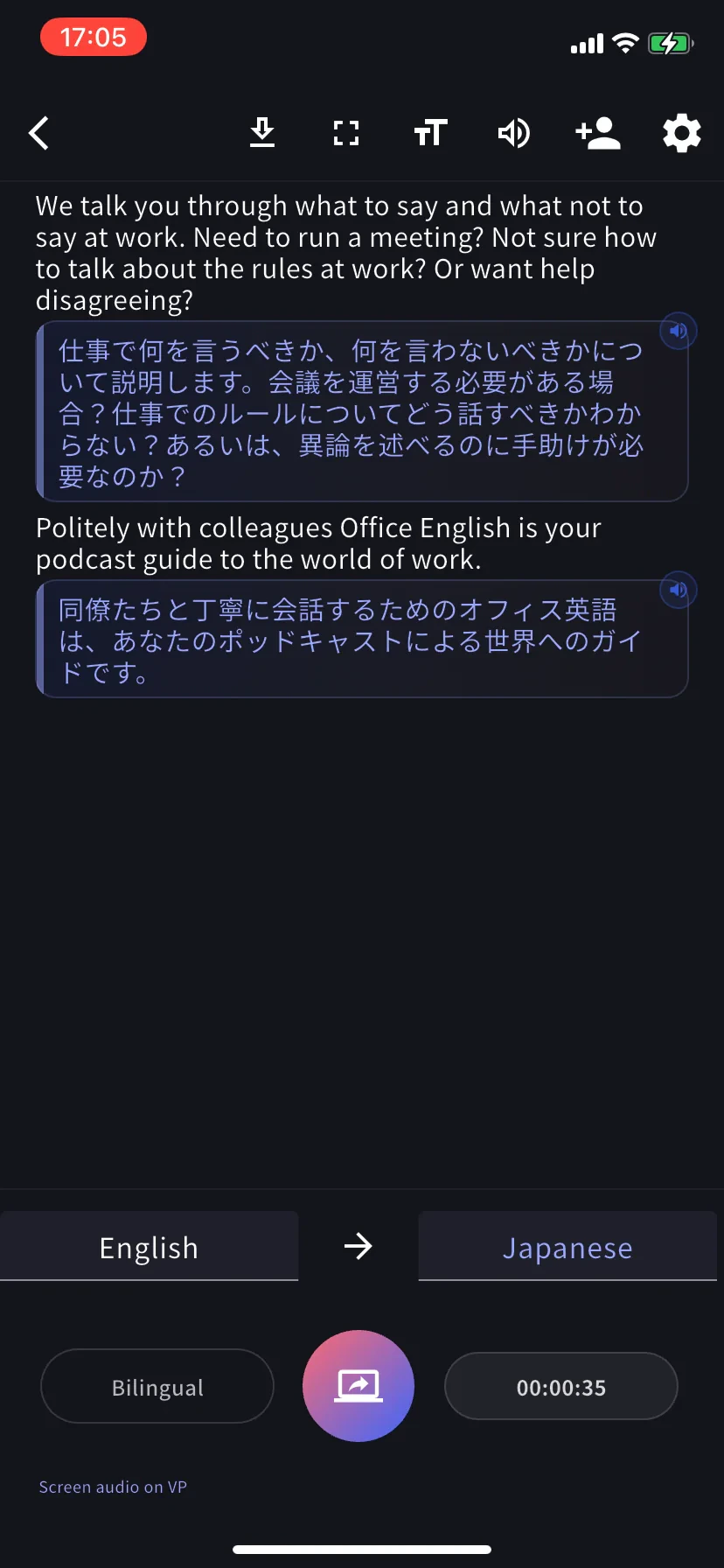
Set the transcription language (left tab) and translation language (right tab). Toggle **Bilingual** for both.
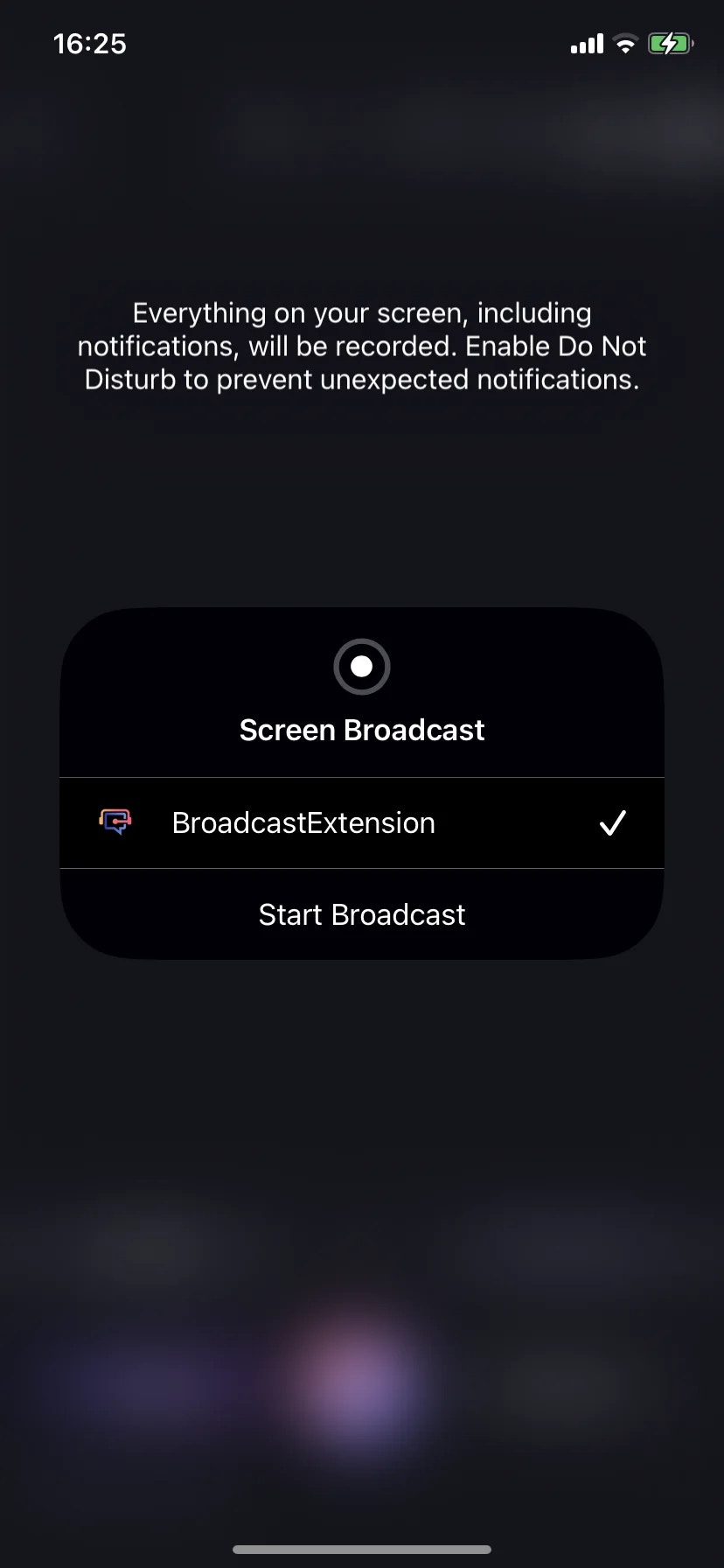
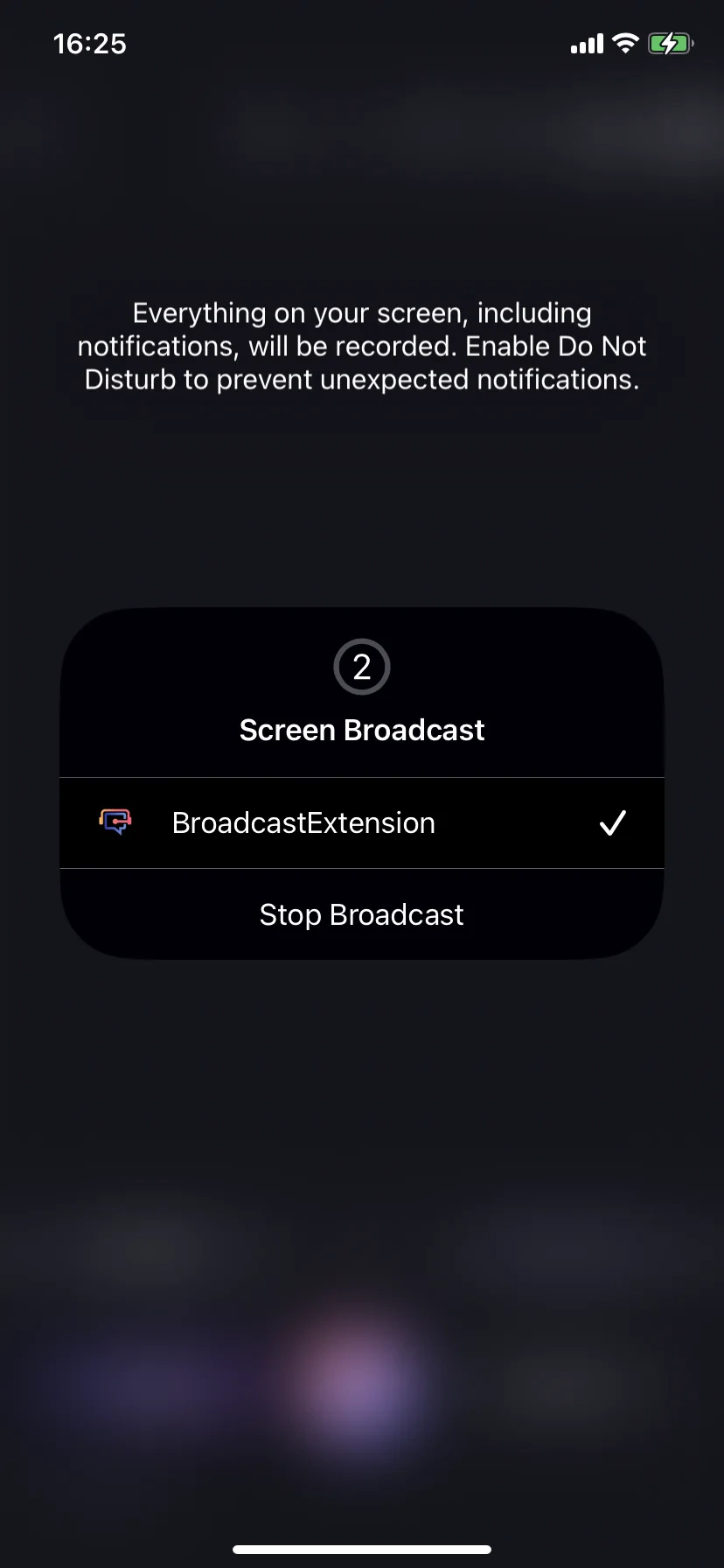
Tap the capture button. On iOS, pick **BroadcastExtension → Start Broadcast**. On Android, accept the media-projection prompt. The sheet switches to **Stop Broadcast** once active.
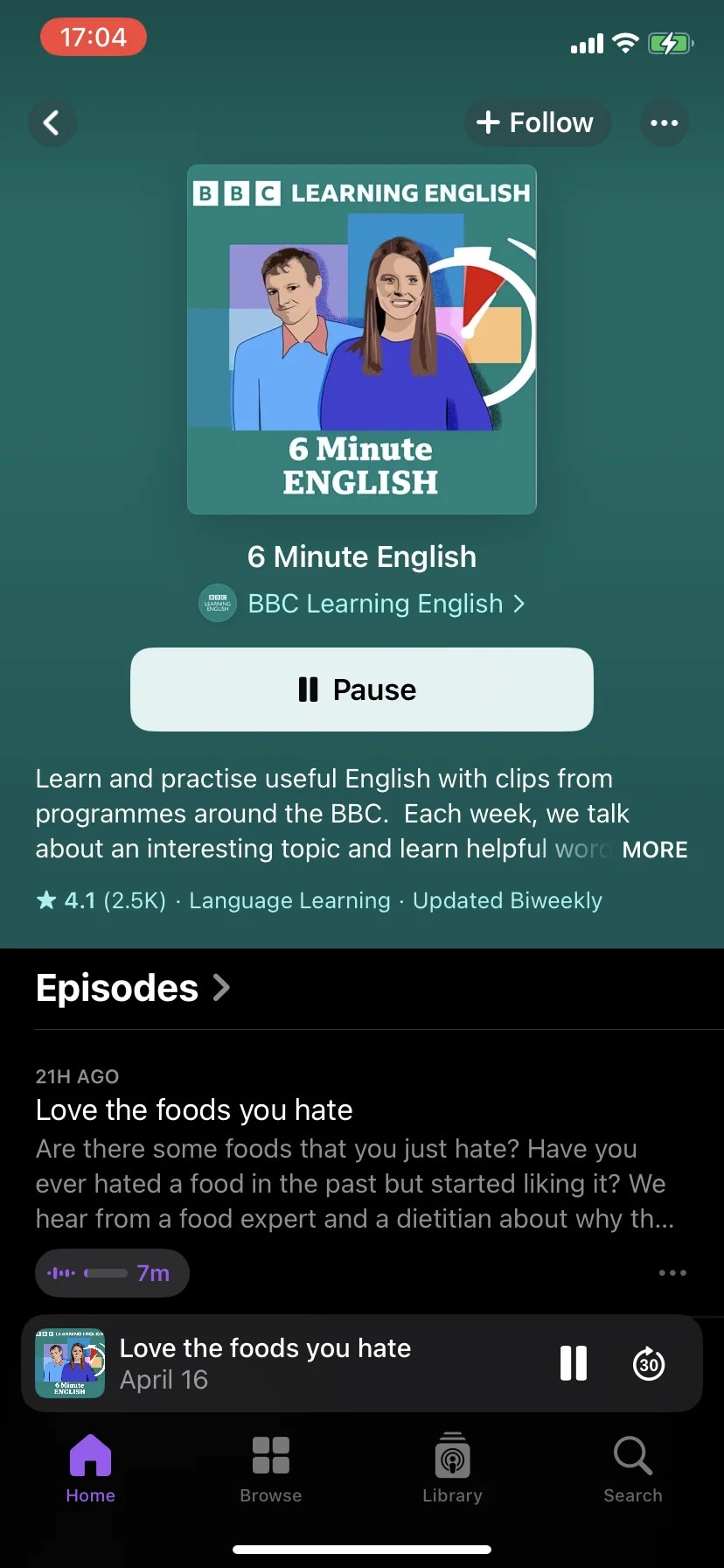
Leave VoicePing in the background, open the source app (YouTube, a podcast app, Safari, an online course, etc.) and play. Switch back to VoicePing — bilingual subtitles stream in with a running timer.
## Stop
* **iOS** — tap the broadcasting indicator in the status bar → **Stop Broadcast**, or tap the capture button inside VoicePing.
* **Android** — tap the projection notification or the capture button in VoicePing.
Stopping finalises the session and saves it to workspace history like any other meeting.
## Tips
* Use **headphones** when you're speaking too — otherwise the captured audio loops back into your mic.
* Turn on **Do Not Disturb** before starting — iOS warns that notifications are captured.
* Plug in a charger for long sessions (CPU + network intensive).
* Some apps block capture (DRM-protected streaming, some banking apps). Empty transcript = source is blocking it.
* Auto-detect wrong? Set the transcription language manually from the left tab.
## After the session
Behaves like any VoicePing meeting: [edit transcript](/en/realtime-edit), [generate minutes](/en/meeting-minutes), export, search. Pre-load workspace [Dictionary](/en/dictionary) entries for better accuracy on product terms.
Point VoicePing at whatever is playing on your phone — a foreign-language YouTube video, a podcast, an online course, a saved audio clip — and read live bilingual captions in the normal session view.
## Use this when…
Foreign-language lectures, Udemy courses, or recorded webinars — read along while listening.
Translate a foreign-language YouTube or podcast on the go — no download needed.
Build listening skills with native-language podcasts and an always-on translator.
Open a saved audio file in another player and let VoicePing caption it as it plays.
## Highlights
* Works with **any app that plays audio** (subject to OS screen-capture rules)
* Same live meeting view as a VoicePing session — edits, minutes, export, dictionary all work
* Sessions save to workspace history — teammates can open them on PC afterwards
* **iOS (Screen Record)** and **Android (Device Audio)**
## Start a capture
From the home screen, open the session menu. On Android the option is labelled **Device Audio**.
Set the transcription language (left tab) and translation language (right tab). Toggle **Bilingual** for both.
Tap the capture button. On iOS, pick **BroadcastExtension → Start Broadcast**. On Android, accept the media-projection prompt. The sheet switches to **Stop Broadcast** once active.
Leave VoicePing in the background, open the source app (YouTube, a podcast app, Safari, an online course, etc.) and play. Switch back to VoicePing — bilingual subtitles stream in with a running timer.
## Stop
* **iOS** — tap the broadcasting indicator in the status bar → **Stop Broadcast**, or tap the capture button inside VoicePing.
* **Android** — tap the projection notification or the capture button in VoicePing.
Stopping finalises the session and saves it to workspace history like any other meeting.
## Tips
* Use **headphones** when you're speaking too — otherwise the captured audio loops back into your mic.
* Turn on **Do Not Disturb** before starting — iOS warns that notifications are captured.
* Plug in a charger for long sessions (CPU + network intensive).
* Some apps block capture (DRM-protected streaming, some banking apps). Empty transcript = source is blocking it.
* Auto-detect wrong? Set the transcription language manually from the left tab.
## After the session
Behaves like any VoicePing meeting: [edit transcript](/en/realtime-edit), [generate minutes](/en/meeting-minutes), export, search. Pre-load workspace [Dictionary](/en/dictionary) entries for better accuracy on product terms.