> ## Documentation Index
> Fetch the complete documentation index at: https://manual.voiceping.net/llms.txt
> Use this file to discover all available pages before exploring further.
# Upload Audio or Video Files
> Turn recordings you already have into searchable bilingual transcripts.
export const FeedbackEn = () => <>
Have an idea or request about this feature? Send it to the team via Product Feedback.
Official Links
Visit our official website
Follow us on X
Like us on Facebook
Connect on LinkedIn
;
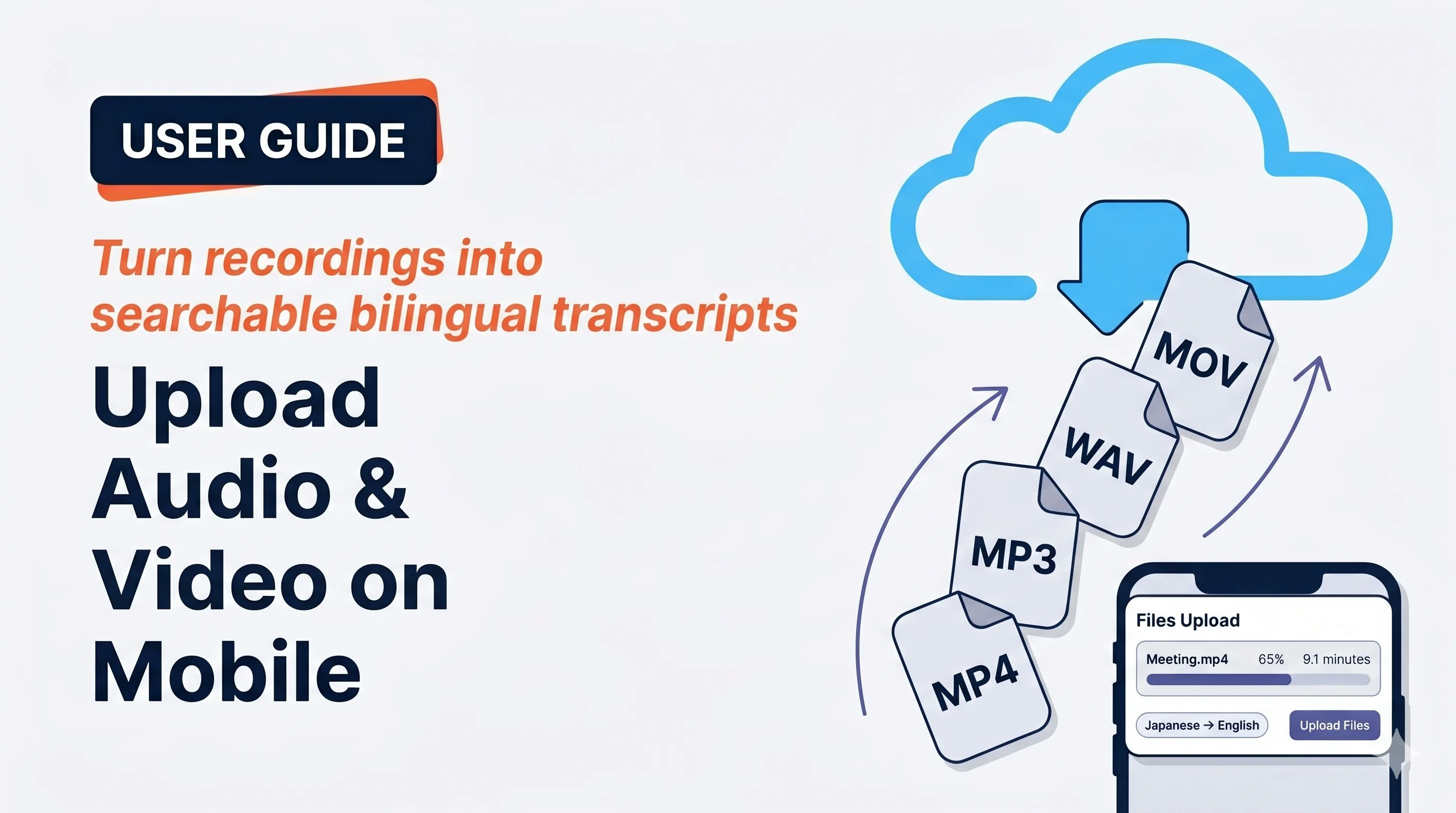 Upload any audio or video file you already have and VoicePing turns it into a bilingual transcript — great for recordings made outside VoicePing, batch processing, or recovering a meeting where live capture failed.
## Use this when…
Meeting recorded in Zoom or Teams cloud — upload for a searchable, editable bilingual transcript.
Stack of interview MP3s — upload overnight and review summaries and quotes the next morning.
Recorded sales call — review talk-time, objections, and follow-ups with a written record.
Foreign-language training / product-demo video — transcript + translation for reuse.
HR, compliance, or legal recordings — searchable and exportable.
Live transcription dropped mid-meeting — upload the local recording to recover the transcript.
One team records, another reviews later with translation — no scheduling across time zones.
Repurpose podcast / event audio into blog posts and social content from the transcript.
## Highlights
* **iOS and Android** · upload **multiple files** in one batch (reorderable, renameable)
* Results appear in the **normal transcript history** alongside live meetings
* Same feature set as live sessions: edits, minutes, translation, dictionary, export
* Processing runs server-side — close the app and come back later
## Upload a file
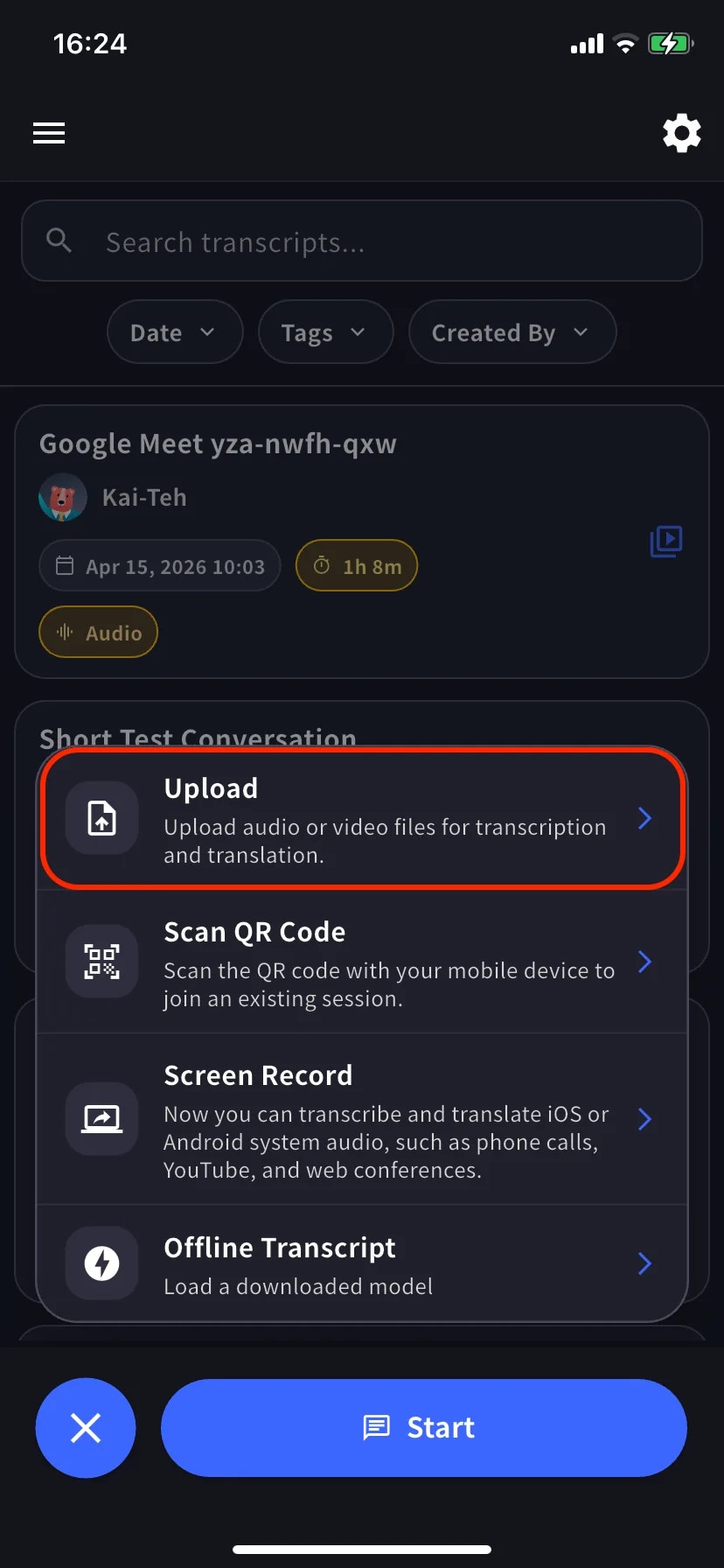
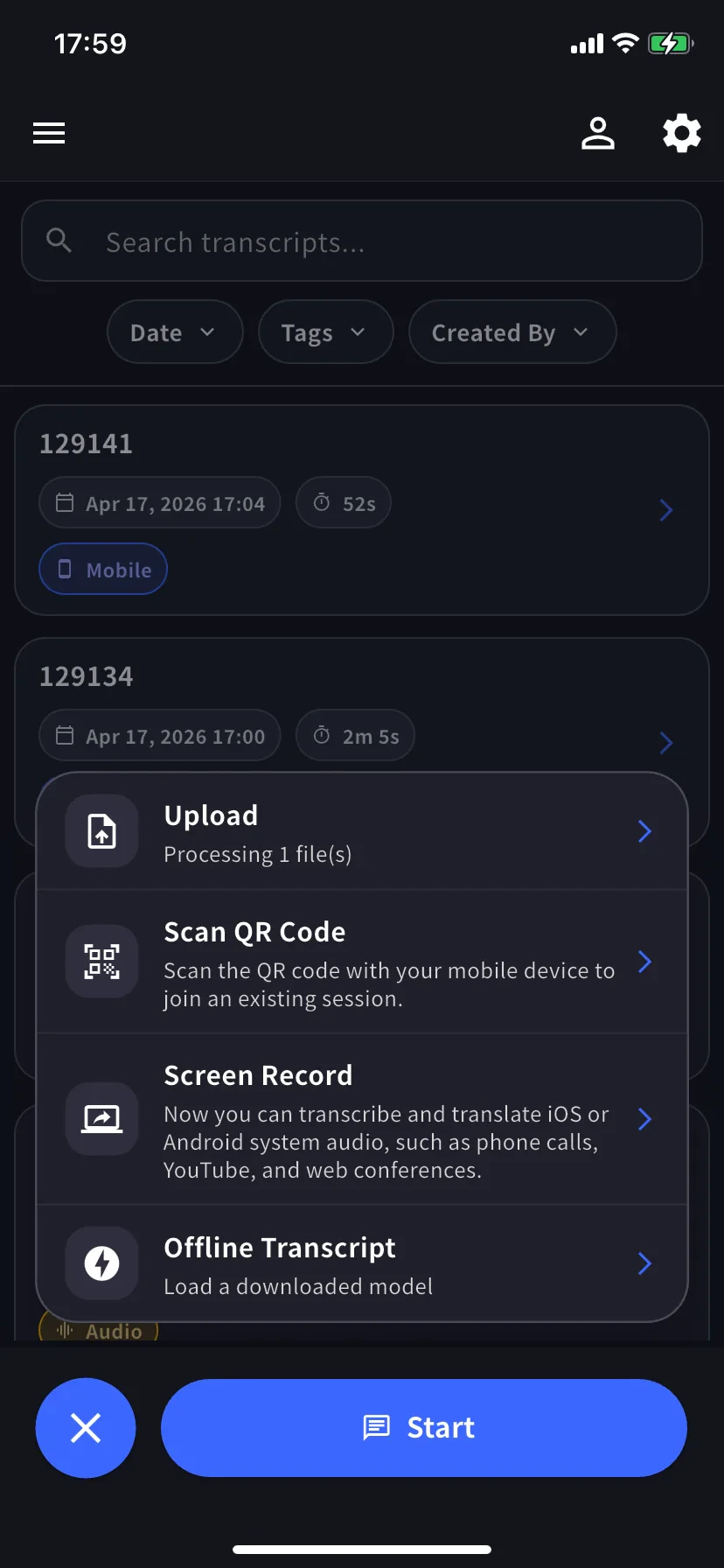
From the home screen, open the session menu and choose **Upload** — *"Upload audio or video files for transcription and translation."*
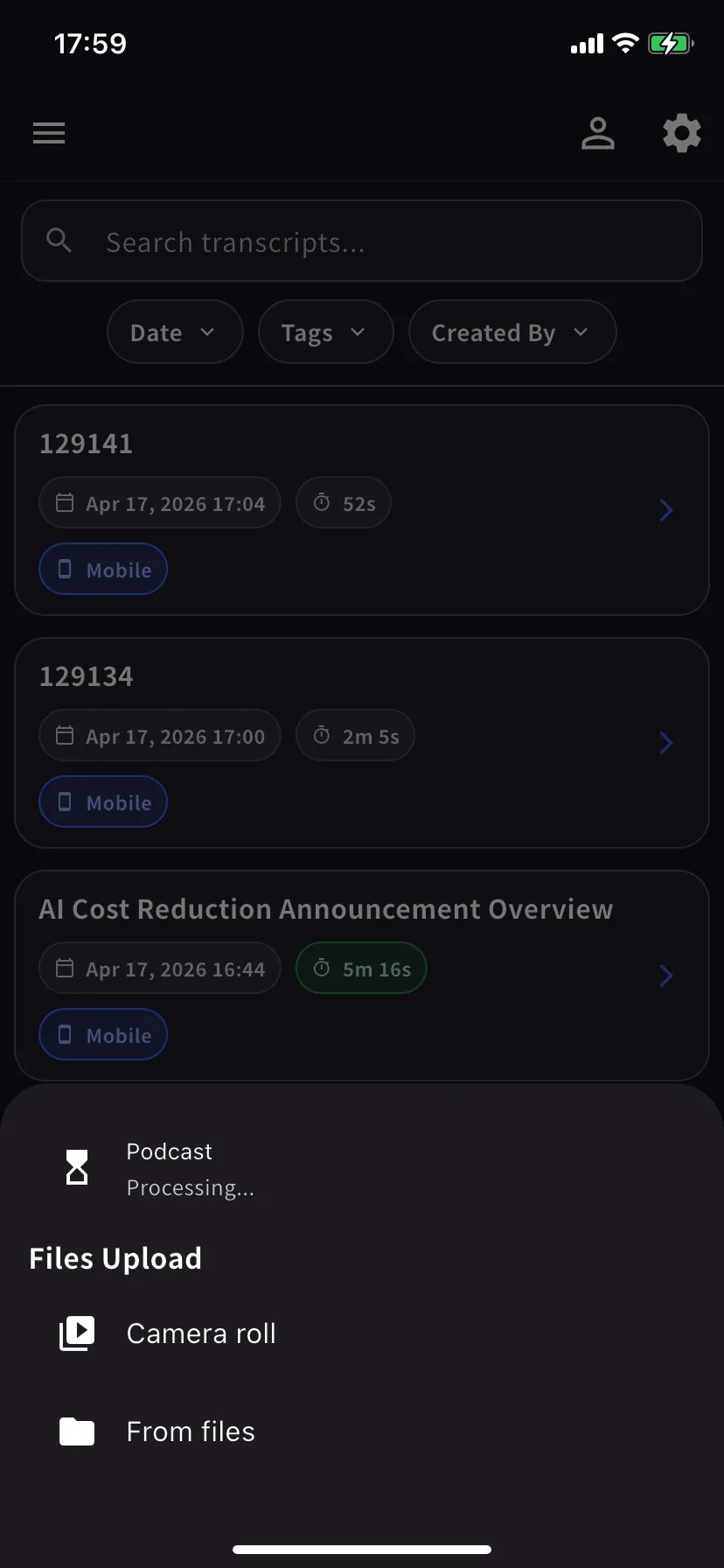
Pick a source: **Camera roll** (Photos) or **From files** (iCloud, Google Drive, Dropbox, OneDrive, local Files app).
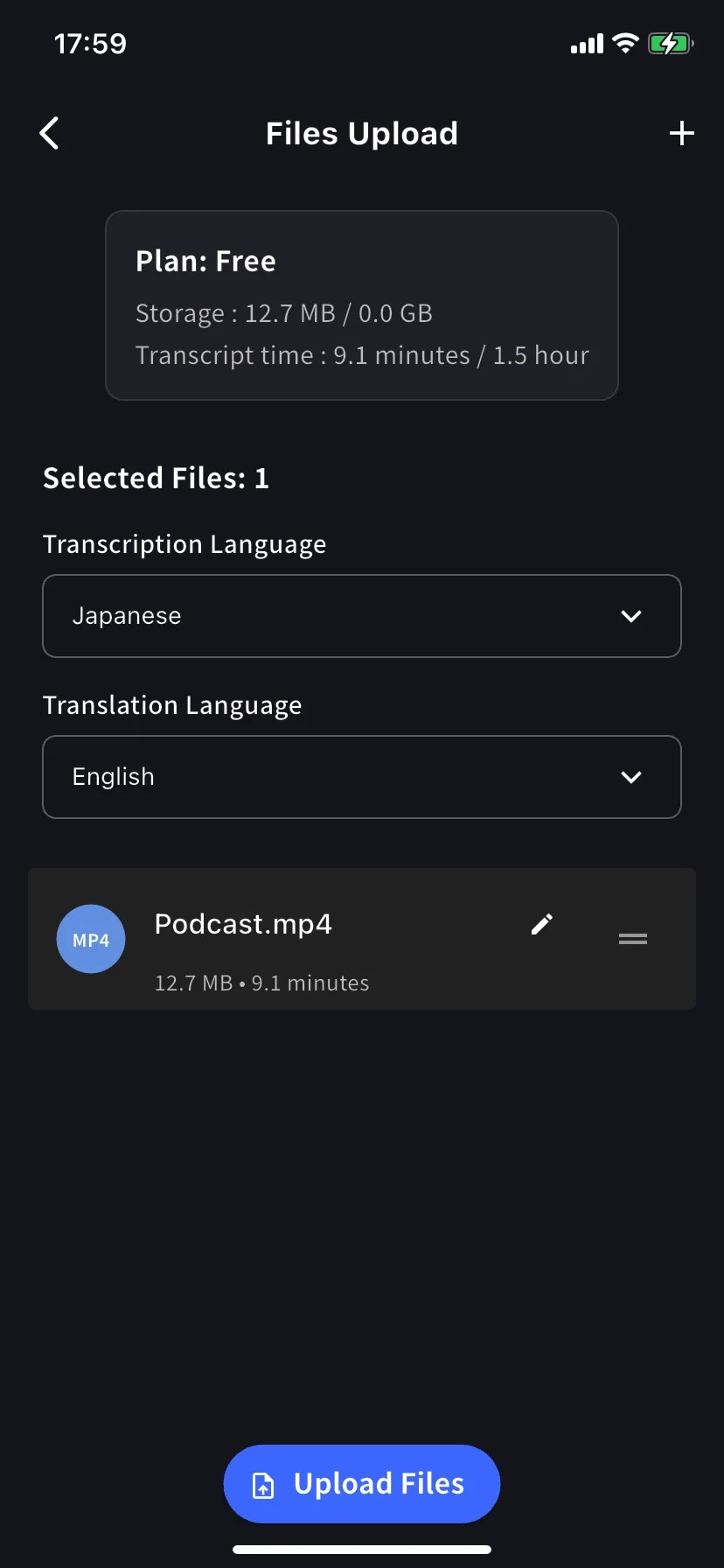
On the **Files Upload** screen, set transcription + translation languages, optionally rename files (pencil icon) or reorder (drag handle), and tap **Upload Files**. Add more files with the **+** in the top right.
The plan card shows this month's **storage** and **transcript time** usage. Long files fail if they exceed your transcript-time allowance — upgrade or split the file if needed.
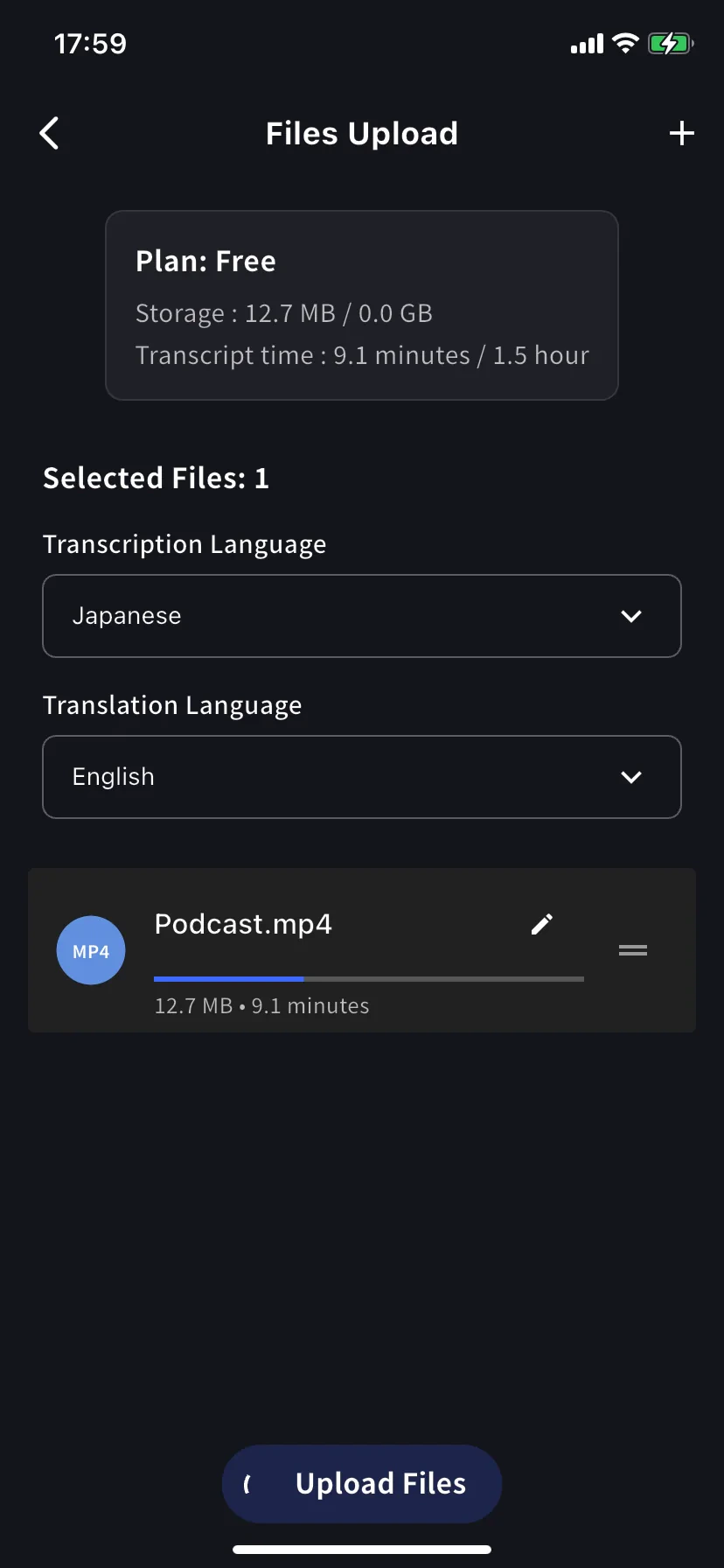
A progress bar shows the upload. Once complete, the **+** menu's Upload row shows `Processing N file(s)` — that's the signal you can safely close the app. Processing continues server-side.
When processing completes, the session appears in the history list — tap to open the bilingual transcript with per-row audio playback.
## Working with the result
Same as any VoicePing meeting:
* [Edit rows, speakers](/en/realtime-edit) · [Speaker ID](/en/speaker-id)
* [Generate meeting minutes](/en/meeting-minutes)
* Search across every transcript (live + uploaded)
* Export or share with the team
* Pre-load workspace [Dictionary](/en/dictionary) entries before upload for better accuracy on product/brand terms
## Tips
* **Audio quality matters** — headset / direct recordings beat a phone held up to a speaker.
* **Be explicit about the transcription language** for mixed-language recordings — better than auto-detect.
* **Rename before you upload** — the pencil-icon name becomes the transcript title.
* **Watch the quota card** — upload fails if the file pushes you past the monthly transcript-time limit.
* Trim leading / trailing silence for a cleaner transcript.
## Upload vs live capture
* Already have a recording → **Upload** (this page)
* Audio playing on your phone right now → [Screen Record / Device Audio](/en/mobile-screen-record)
* In-person conversation with no network → [Offline Translation](/en/mobile-offline-translation)
Upload any audio or video file you already have and VoicePing turns it into a bilingual transcript — great for recordings made outside VoicePing, batch processing, or recovering a meeting where live capture failed.
## Use this when…
Meeting recorded in Zoom or Teams cloud — upload for a searchable, editable bilingual transcript.
Stack of interview MP3s — upload overnight and review summaries and quotes the next morning.
Recorded sales call — review talk-time, objections, and follow-ups with a written record.
Foreign-language training / product-demo video — transcript + translation for reuse.
HR, compliance, or legal recordings — searchable and exportable.
Live transcription dropped mid-meeting — upload the local recording to recover the transcript.
One team records, another reviews later with translation — no scheduling across time zones.
Repurpose podcast / event audio into blog posts and social content from the transcript.
## Highlights
* **iOS and Android** · upload **multiple files** in one batch (reorderable, renameable)
* Results appear in the **normal transcript history** alongside live meetings
* Same feature set as live sessions: edits, minutes, translation, dictionary, export
* Processing runs server-side — close the app and come back later
## Upload a file
From the home screen, open the session menu and choose **Upload** — *"Upload audio or video files for transcription and translation."*
Pick a source: **Camera roll** (Photos) or **From files** (iCloud, Google Drive, Dropbox, OneDrive, local Files app).
On the **Files Upload** screen, set transcription + translation languages, optionally rename files (pencil icon) or reorder (drag handle), and tap **Upload Files**. Add more files with the **+** in the top right.
The plan card shows this month's **storage** and **transcript time** usage. Long files fail if they exceed your transcript-time allowance — upgrade or split the file if needed.
A progress bar shows the upload. Once complete, the **+** menu's Upload row shows `Processing N file(s)` — that's the signal you can safely close the app. Processing continues server-side.
When processing completes, the session appears in the history list — tap to open the bilingual transcript with per-row audio playback.
## Working with the result
Same as any VoicePing meeting:
* [Edit rows, speakers](/en/realtime-edit) · [Speaker ID](/en/speaker-id)
* [Generate meeting minutes](/en/meeting-minutes)
* Search across every transcript (live + uploaded)
* Export or share with the team
* Pre-load workspace [Dictionary](/en/dictionary) entries before upload for better accuracy on product/brand terms
## Tips
* **Audio quality matters** — headset / direct recordings beat a phone held up to a speaker.
* **Be explicit about the transcription language** for mixed-language recordings — better than auto-detect.
* **Rename before you upload** — the pencil-icon name becomes the transcript title.
* **Watch the quota card** — upload fails if the file pushes you past the monthly transcript-time limit.
* Trim leading / trailing silence for a cleaner transcript.
## Upload vs live capture
* Already have a recording → **Upload** (this page)
* Audio playing on your phone right now → [Screen Record / Device Audio](/en/mobile-screen-record)
* In-person conversation with no network → [Offline Translation](/en/mobile-offline-translation)