> ## Documentation Index
> Fetch the complete documentation index at: https://manual.voiceping.net/llms.txt
> Use this file to discover all available pages before exploring further.
# Project Creation & Management
> How to manage members and working hours by project
export const FeedbackEn = () => <>
Have an idea or request about this feature? Send it to the team via Product Feedback.
Official Links
Visit our official website
Follow us on X
Like us on Facebook
Connect on LinkedIn
;
## What is a Project
Projects are a categorization feature to check the members involved and working hours for each internal project.
You can also check member working hours and work details by project from the time tracking logs.
## 1. How to Create Projects & Assign Members
1. Open **Time Tracking Admin** from the left sidebar (managers only)
2. Click the **Manage Project** tab
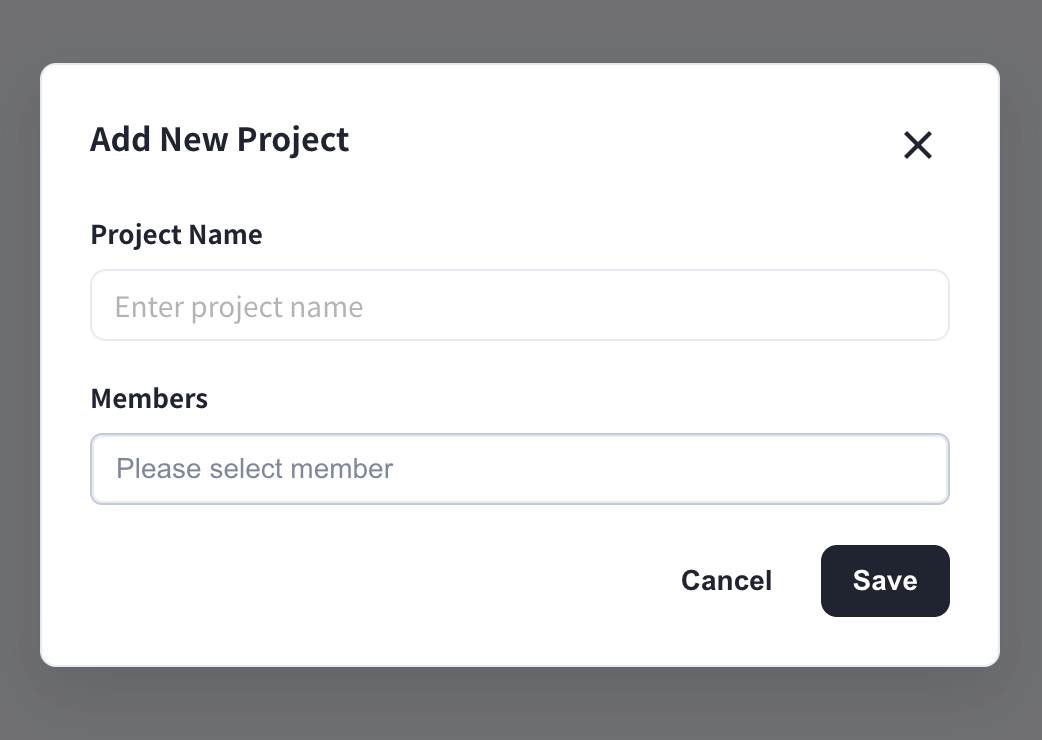
3. Click **Add Project**
4. Enter the project name and select members
5. Click **Save**
 ## 2. Project Management
All projects are listed on the **Manage Project** tab.
## 2. Project Management
All projects are listed on the **Manage Project** tab.
 ### What You Can Do on the Manage Project Tab
1. **Change the project name**: click the pencil icon next to the name
2. **Add or remove members**: click the pencil icon in the Members column
3. **Assign groups** to a project: click the pencil icon in the Groups column
4. **Delete a project**: click the trash icon in the Actions column
5. **Export the project list** to CSV with the **Export to CSV** button
Assigning a group to a project keeps project membership in sync with the group, so you don't need to add each member individually.
### What You Can Do on the Manage Project Tab
1. **Change the project name**: click the pencil icon next to the name
2. **Add or remove members**: click the pencil icon in the Members column
3. **Assign groups** to a project: click the pencil icon in the Groups column
4. **Delete a project**: click the trash icon in the Actions column
5. **Export the project list** to CSV with the **Export to CSV** button
Assigning a group to a project keeps project membership in sync with the group, so you don't need to add each member individually.