> ## Documentation Index
> Fetch the complete documentation index at: https://manual.voiceping.net/llms.txt
> Use this file to discover all available pages before exploring further.
# Transcribe & Translate Audio/Video Files
> Upload recorded audio or video files to VoicePing to transcribe, translate, summarize, and generate subtitled or dubbed videos — then open the Meeting Log or download the results.
export const FeedbackEn = () => <>
Have an idea or request about this feature? Send it to the team via Product Feedback.
Official Links
Visit our official website
Follow us on X
Like us on Facebook
Connect on LinkedIn
;
VoicePing does more than real-time translation — you can also upload existing audio and video files (MP3, MP4, and more) to **transcribe**, **translate**, **summarize**, and even generate **subtitled** or **dubbed** versions. This is handled by the **File Transcribe** tool.
## Submit a File
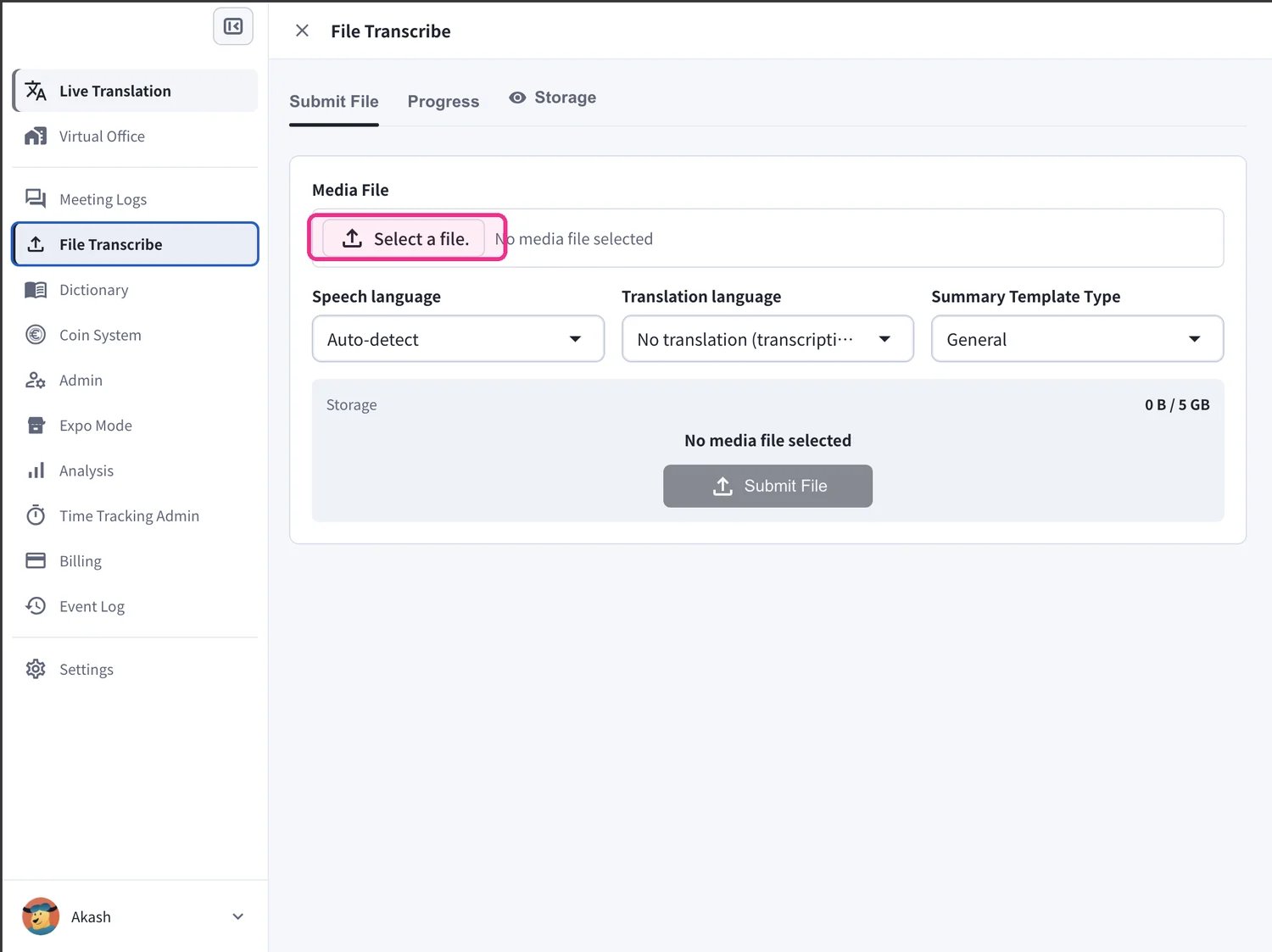
Open **File Transcribe** from the left sidebar and stay on the **Submit File** tab.
1. Under **Media File**, click **Select a file.** and choose the audio or video file you want to process.
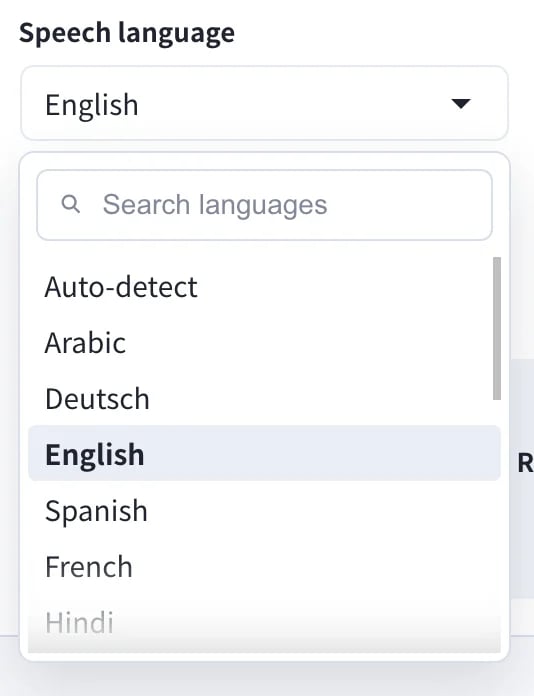
2. Set the **Speech language** — the language spoken in your file. Leave it on **Auto-detect** to let VoicePing identify it for you.
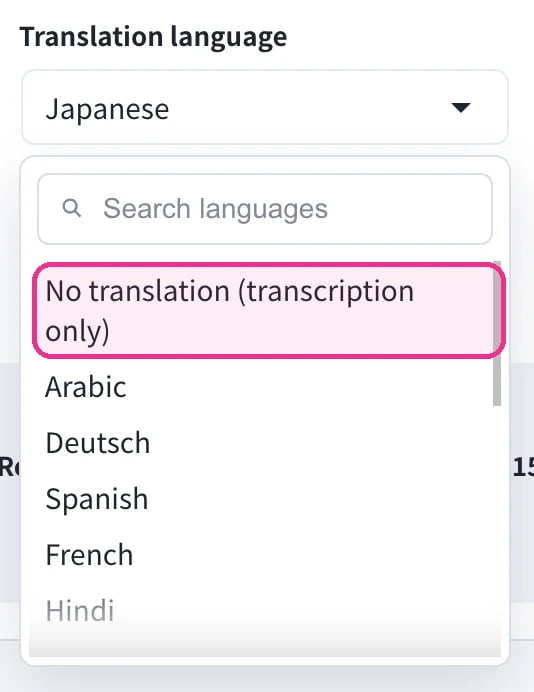
3. Set the **Translation language**. Choose a target language to translate into, or pick **No translation (transcription only)** if you only need the transcript.
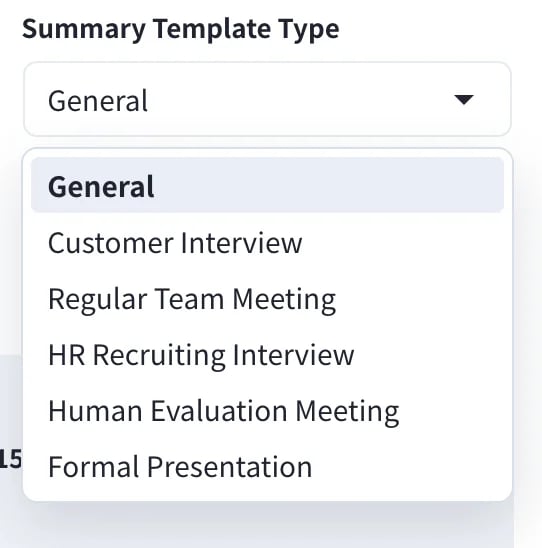
4. Choose a **Summary Template Type** so the AI summary matches your content — for example **General**, **Customer Interview**, **Regular Team Meeting**, **HR Recruiting Interview**, **Human Evaluation Meeting**, or **Formal Presentation**.
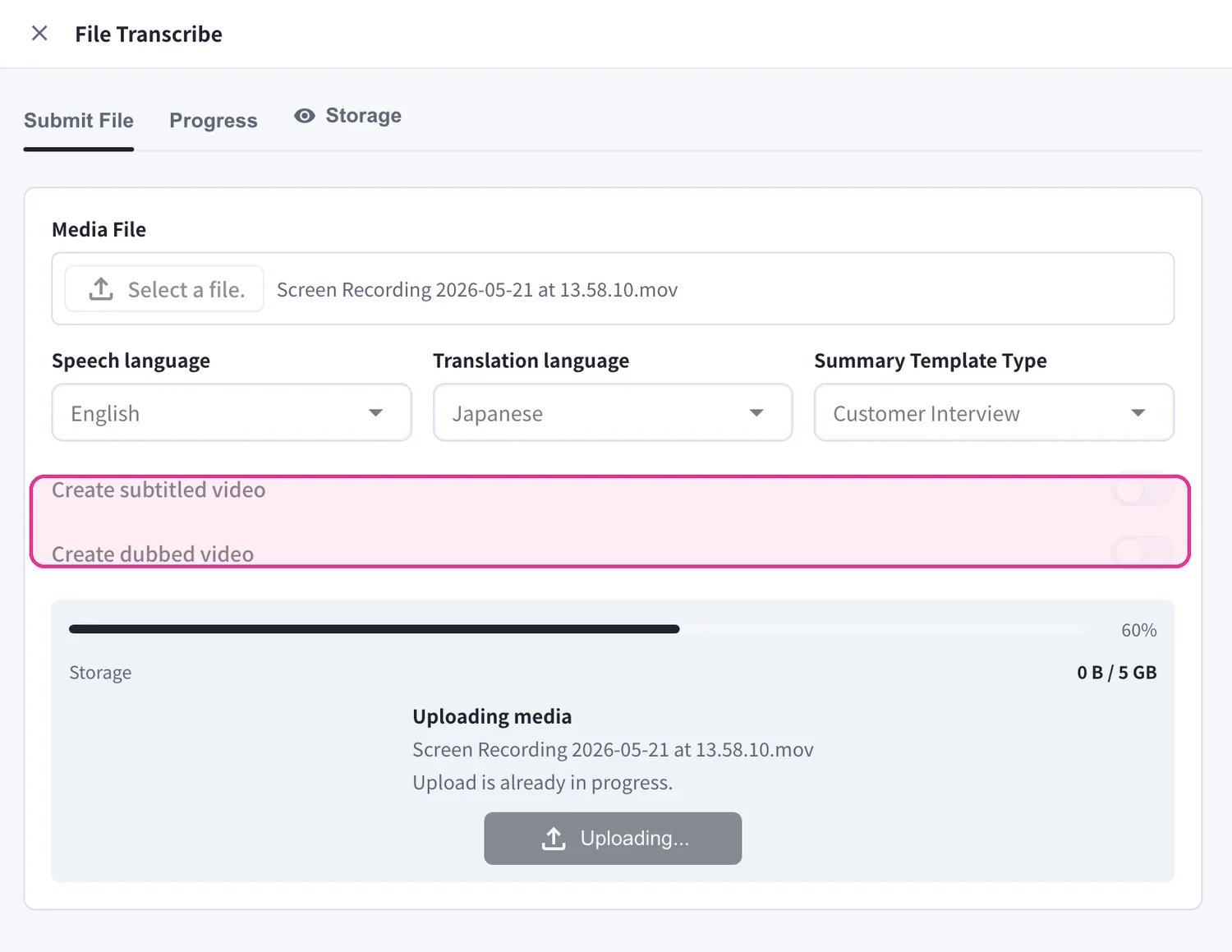
5. Optionally turn on **Create subtitled video** and/or **Create dubbed video** to also produce a video with burned-in subtitles or a translated voice-over. Then click **Submit File** to start processing.
* Leave **Translation language** on **No translation (transcription only)** to get just the transcript and summary.
* **Create subtitled video** and **Create dubbed video** require a **Translation language** and take extra processing time.
* You can submit several files, one after another — each becomes its own job.
## Track Progress
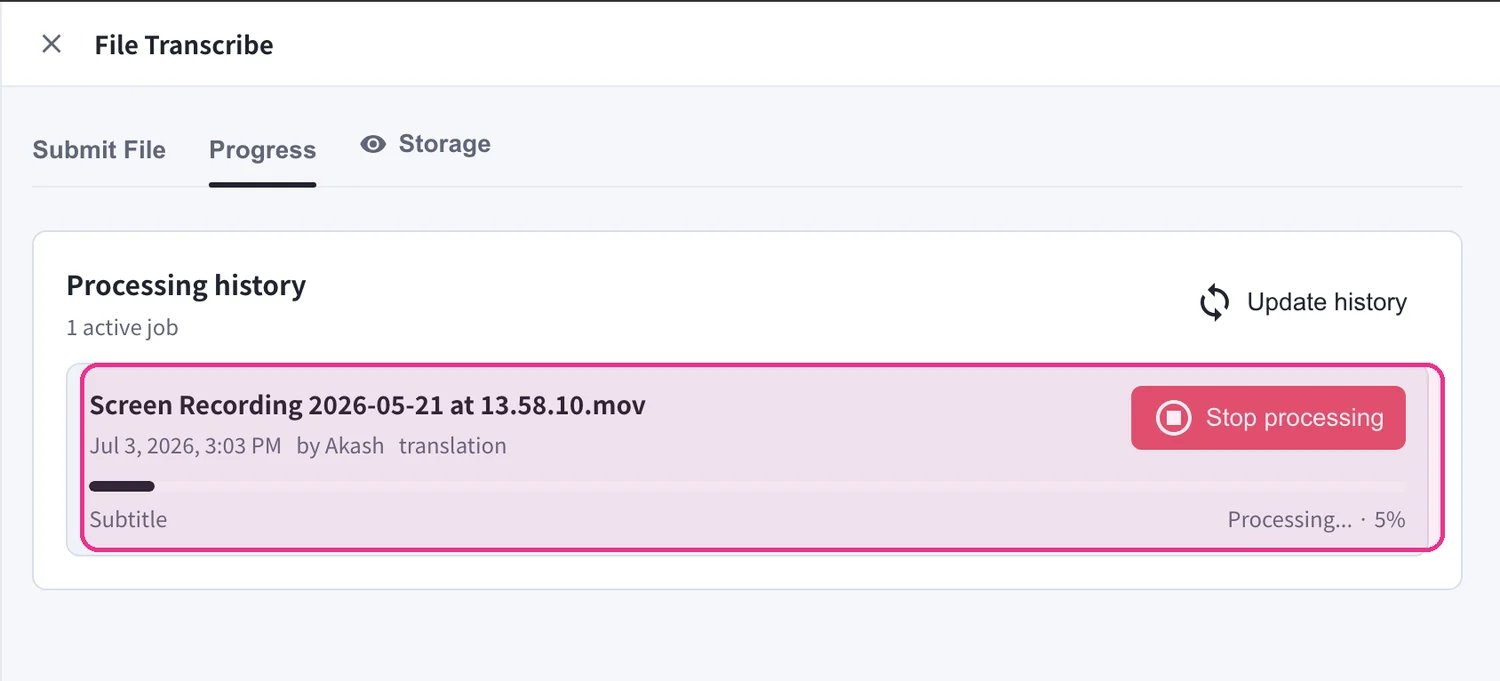
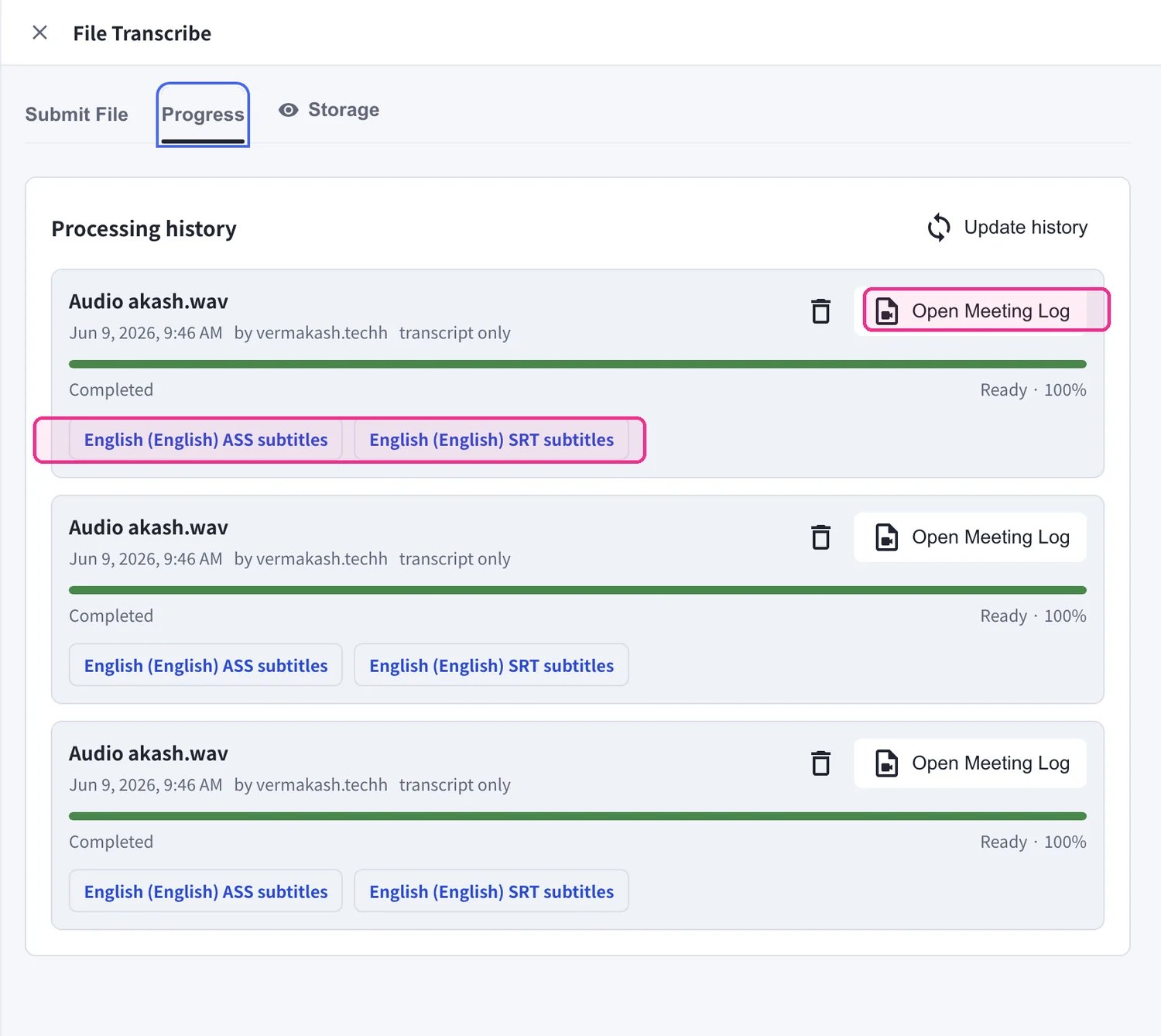
Open the **Progress** tab to watch your files being processed. Each job in **Processing history** shows a progress bar and status (for example *Processing… 5%*). Use **Stop processing** to cancel a running job, or **Update history** to refresh the list.
## Get Your Results
When a job is **Completed**, it stays in **Processing history** with everything it produced:
* Click **Open Meeting Log** to read the full transcript, translation, and AI summary.
* If you generated subtitles, download them directly — the **ASS subtitles** and **SRT subtitles** buttons appear on the completed job.
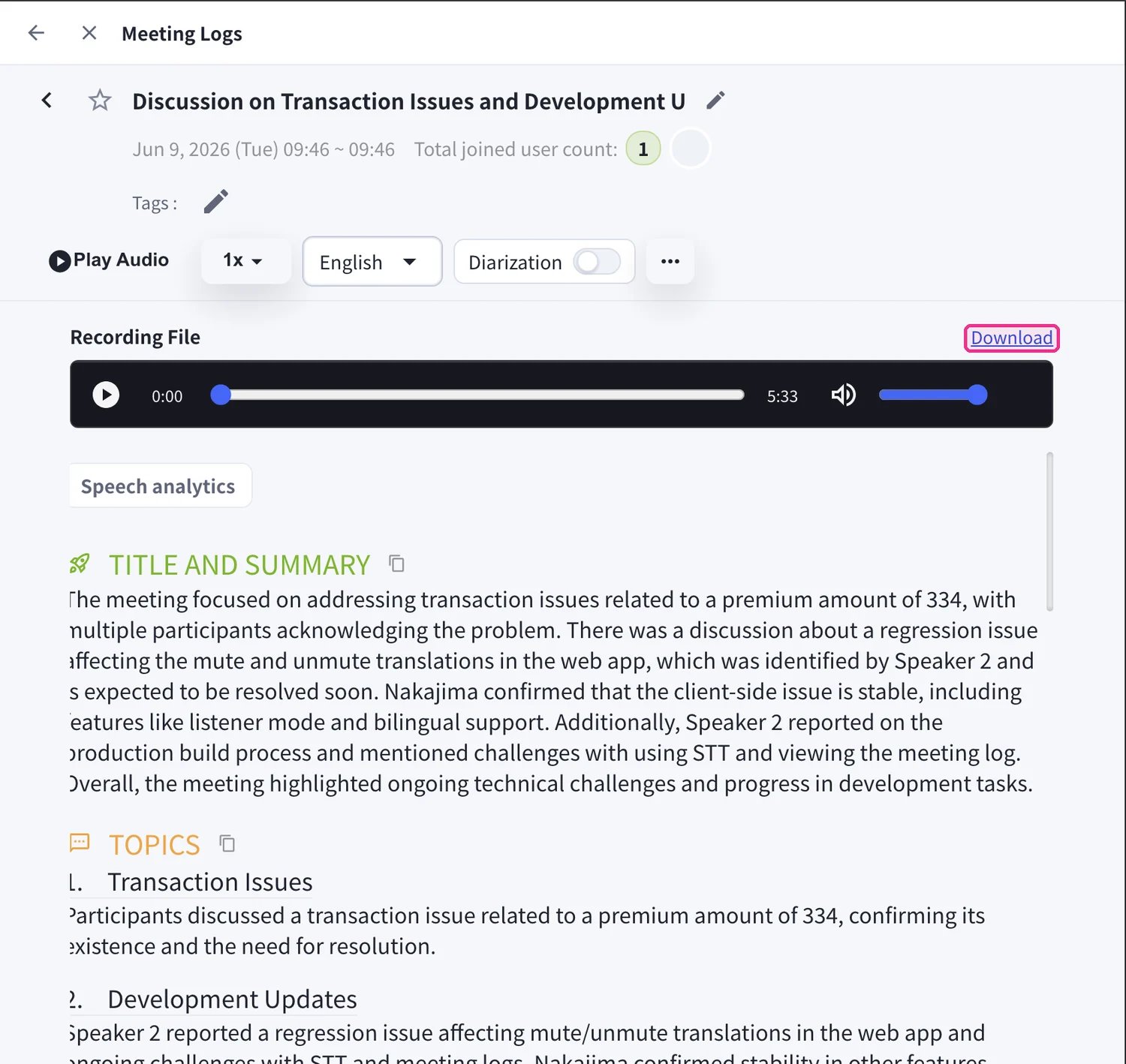
The **Meeting Log** opens the same view as a live meeting: play back the audio, switch the display language, toggle **Diarization** (speaker separation), and read the **Title and Summary** and **Topics**. Use **Download** next to **Recording File** to save the original media.
Subtitled and dubbed videos come from the **Create subtitled video** / **Create dubbed video** options at submission — turn them on before you click **Submit File** if you need burned-in subtitles or a translated voice-over.
## Manage Storage
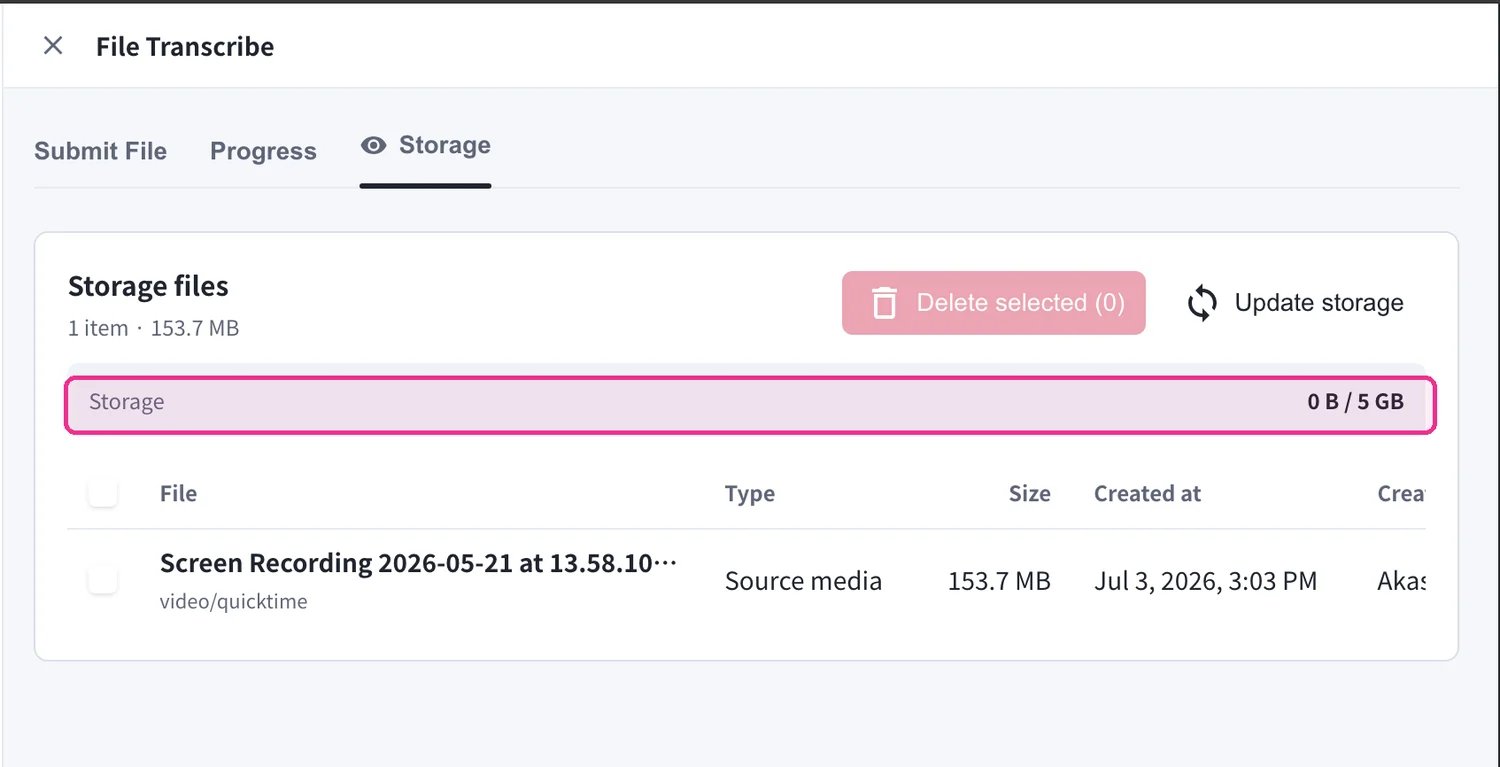
Uploaded media counts against your workspace's File Transcribe storage. Open the **Storage** tab to see every stored file with its **Type**, **Size**, and **Created at** date. Each workspace includes **5 GB**. Select files and click **Delete selected** to free space, or **Update storage** to refresh the totals.
When storage is full, new uploads are blocked until you delete existing files. Download anything you want to keep before removing it — deletion is permanent.
## Supported File Formats
**Audio Files**
* MP3
* WAV
* M4A
* Other common audio formats
**Video Files**
* MP4
* MOV
* AVI
* Other common video formats
## Use Cases
**Multilingual Seminars & Lectures**
Add subtitles or dubbed audio to recorded seminars and lectures to create multilingual content.
**Meeting Minutes Creation**
Automatically create transcriptions and AI summaries from recorded meeting audio, significantly reducing the time for creating meeting minutes.
**Multilingual YouTube Video Expansion**
Add subtitles in multiple languages to existing video content to reach a global audience.
 2. Set the **Speech language** — the language spoken in your file. Leave it on **Auto-detect** to let VoicePing identify it for you.
 3. Set the **Translation language**. Choose a target language to translate into, or pick **No translation (transcription only)** if you only need the transcript.
 4. Choose a **Summary Template Type** so the AI summary matches your content — for example **General**, **Customer Interview**, **Regular Team Meeting**, **HR Recruiting Interview**, **Human Evaluation Meeting**, or **Formal Presentation**.
 5. Optionally turn on **Create subtitled video** and/or **Create dubbed video** to also produce a video with burned-in subtitles or a translated voice-over. Then click **Submit File** to start processing.
 ## Get Your Results
When a job is **Completed**, it stays in **Processing history** with everything it produced:
* Click **Open Meeting Log** to read the full transcript, translation, and AI summary.
* If you generated subtitles, download them directly — the **ASS subtitles** and **SRT subtitles** buttons appear on the completed job.
## Get Your Results
When a job is **Completed**, it stays in **Processing history** with everything it produced:
* Click **Open Meeting Log** to read the full transcript, translation, and AI summary.
* If you generated subtitles, download them directly — the **ASS subtitles** and **SRT subtitles** buttons appear on the completed job.
 The **Meeting Log** opens the same view as a live meeting: play back the audio, switch the display language, toggle **Diarization** (speaker separation), and read the **Title and Summary** and **Topics**. Use **Download** next to **Recording File** to save the original media.