> ## Documentation Index
> Fetch the complete documentation index at: https://manual.voiceping.net/llms.txt
> Use this file to discover all available pages before exploring further.
# Check Time Tracking Logs
> How to check member working hours, activity, and change history
export const FeedbackEn = () => <>
Have an idea or request about this feature? Send it to the team via Product Feedback.
Official Links
Visit our official website
Follow us on X
Like us on Facebook
Connect on LinkedIn
;
Managers can check all members' time tracking logs from **Time Tracking Admin** in the left sidebar.
## 1. Weekly Report
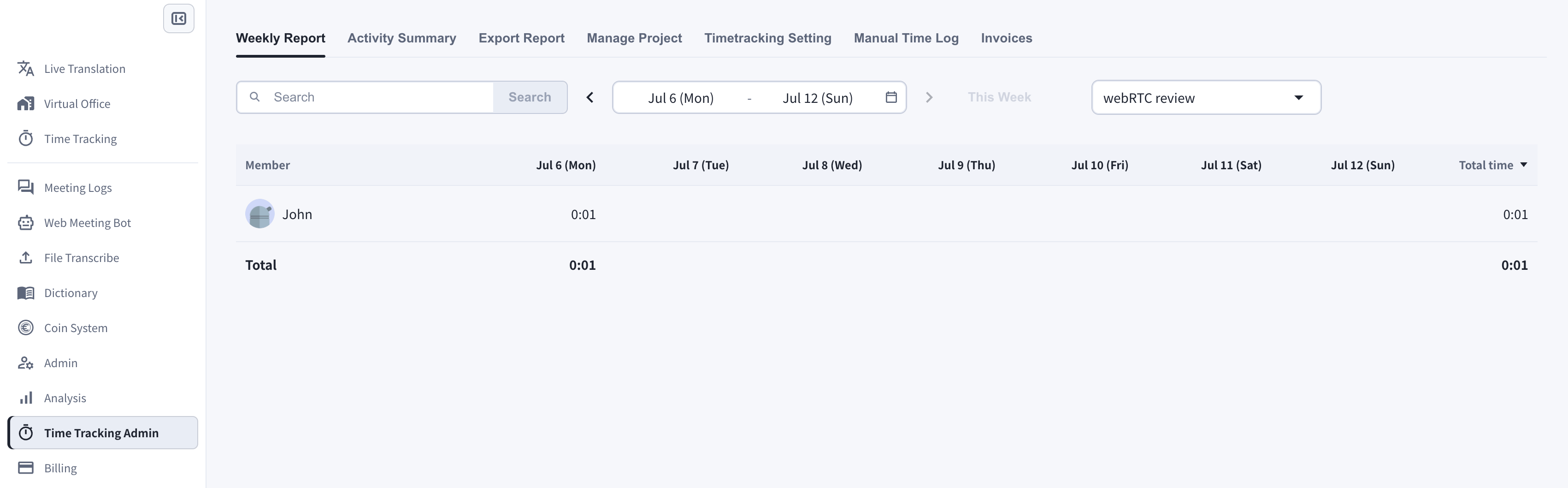
The **Weekly Report** tab shows each member's tracked hours per day over a week. You can search for members, move between weeks, and filter by project.
 ## 2. Activity Summary
The **Activity Summary** tab shows one member's day as a timeline: work time and memos by project, and — when enabled in the [time tracking settings](/en/time-tracking-management) — desktop screenshots, webcam shots, and input activity levels for each 10-minute slot.
## 2. Activity Summary
The **Activity Summary** tab shows one member's day as a timeline: work time and memos by project, and — when enabled in the [time tracking settings](/en/time-tracking-management) — desktop screenshots, webcam shots, and input activity levels for each 10-minute slot.
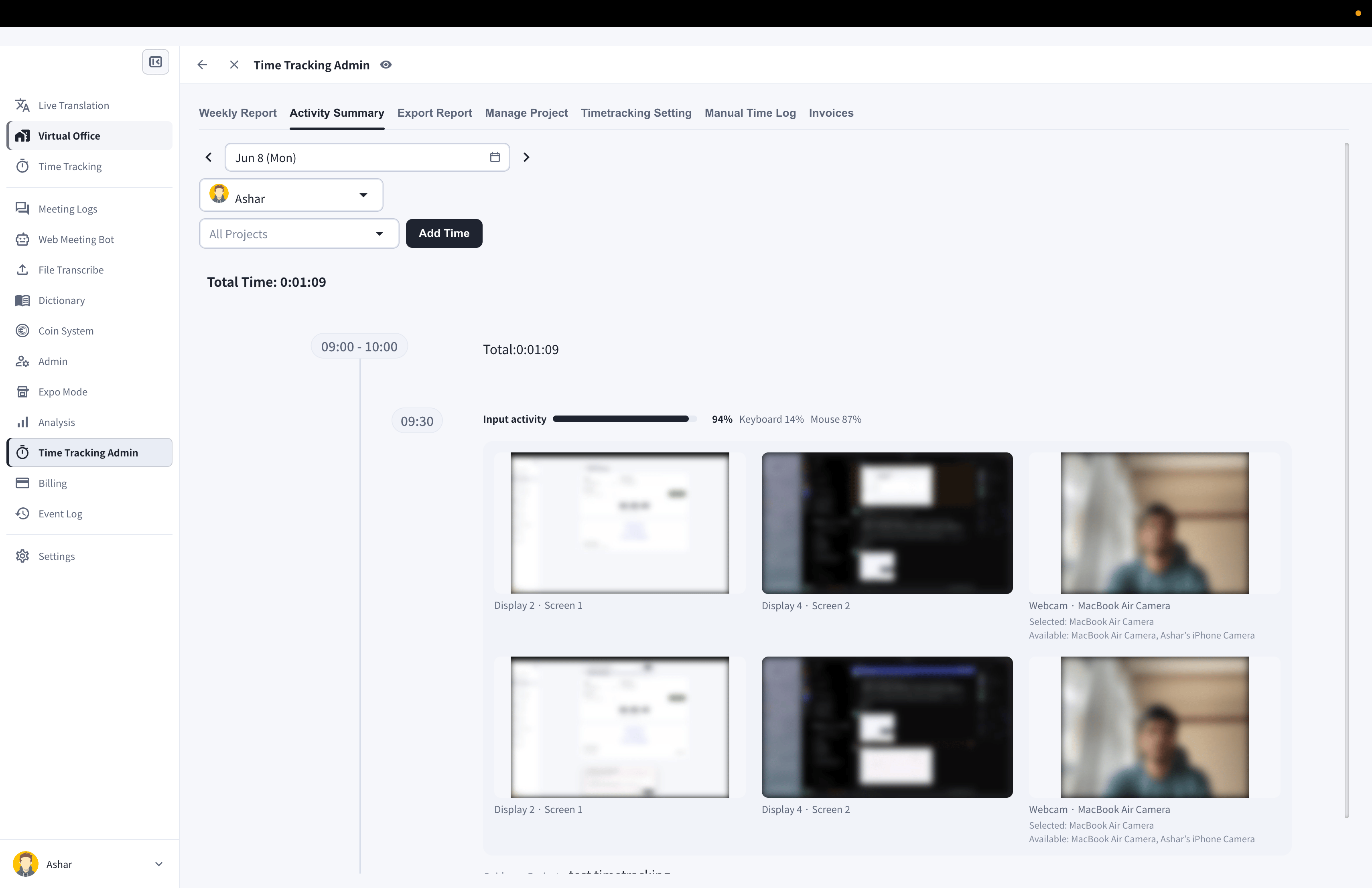 You can also add time for a member here with the **Add Time** button.
## 3. Manual Time Log
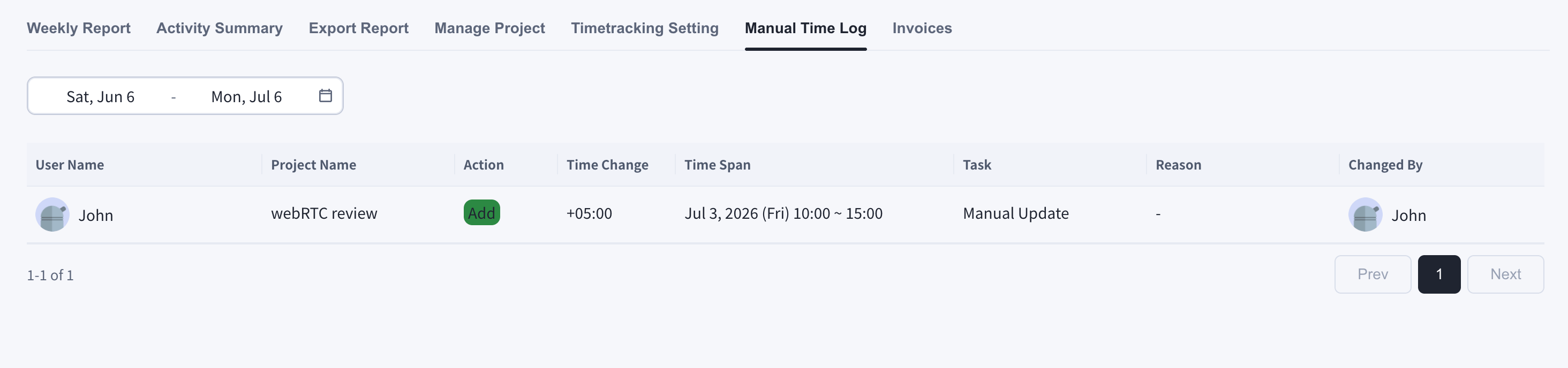
The **Manual Time Log** tab shows the change history of members' work logs: every manual addition or deletion, with the time change, time span, task, reason, and who made the change.
You can also add time for a member here with the **Add Time** button.
## 3. Manual Time Log
The **Manual Time Log** tab shows the change history of members' work logs: every manual addition or deletion, with the time change, time span, task, reason, and who made the change.
 ## 4. Export Report
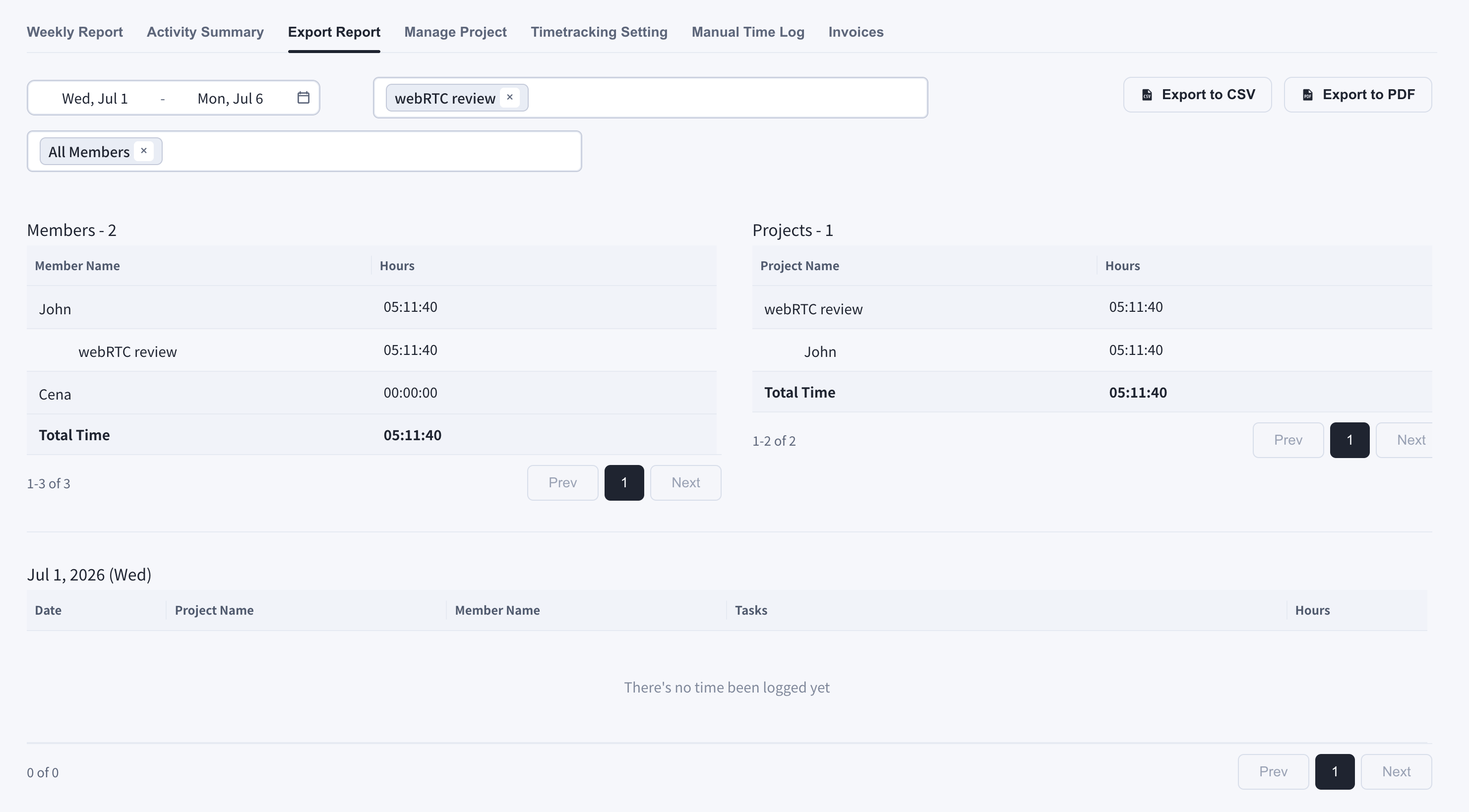
The **Export Report** tab summarizes tracked hours by member and by project for any date range, and exports the report to CSV or PDF.
## 4. Export Report
The **Export Report** tab summarizes tracked hours by member and by project for any date range, and exports the report to CSV or PDF.
 ## 5. Time Tracking Analysis
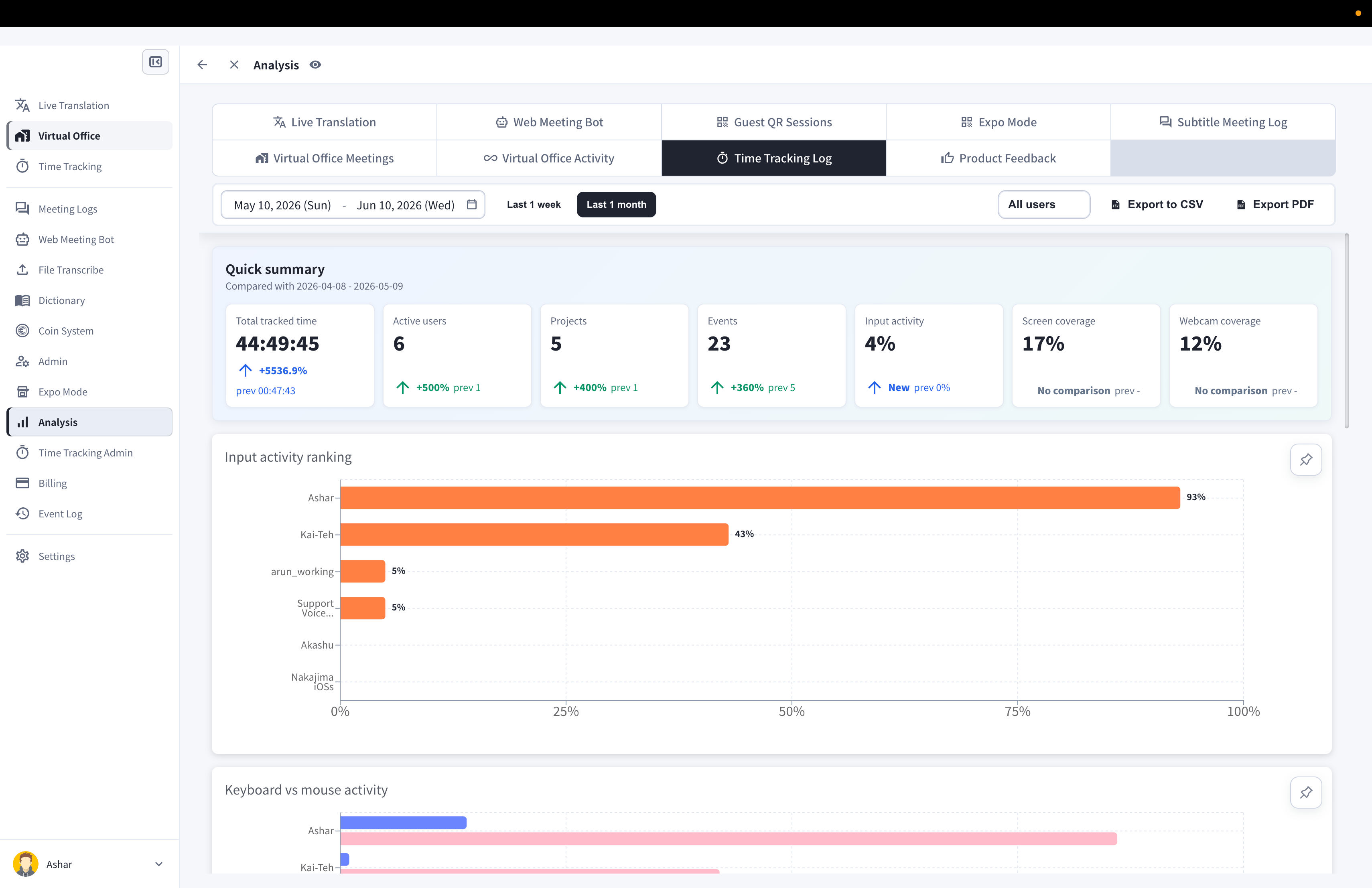
For a workspace-wide view, open **Analysis** from the left sidebar and select the **Time Tracking Log** tab. It shows total tracked time, active users, projects, input activity, and screen/webcam coverage, with rankings and per-project breakdowns.
## 5. Time Tracking Analysis
For a workspace-wide view, open **Analysis** from the left sidebar and select the **Time Tracking Log** tab. It shows total tracked time, active users, projects, input activity, and screen/webcam coverage, with rankings and per-project breakdowns.
 ## Online Log (Optional Feature)
In workspaces where the Virtual Office and the online log are enabled, an **Online Logs** item appears in the sidebar. There you can check:
* **Weekly Online Log Report**: each member's login time over a week
* **Daily Online Log Event**: the history of [user status](/en/user-status) changes for a member in one day
## Online Log (Optional Feature)
In workspaces where the Virtual Office and the online log are enabled, an **Online Logs** item appears in the sidebar. There you can check:
* **Weekly Online Log Report**: each member's login time over a week
* **Daily Online Log Event**: the history of [user status](/en/user-status) changes for a member in one day