> ## Documentation Index
> Fetch the complete documentation index at: https://manual.voiceping.net/llms.txt
> Use this file to discover all available pages before exploring further.
# Time Tracking
> How to use the time tracking feature to record work hours
export const FeedbackEn = () => <>
Have an idea or request about this feature? Send it to the team via Product Feedback.
Official Links
Visit our official website
Follow us on X
Like us on Facebook
Connect on LinkedIn
;
Work recorded with the time tracking feature is organized by project and hours, with an optional working memo, and saved as logs.
## How to Track Your Work Time
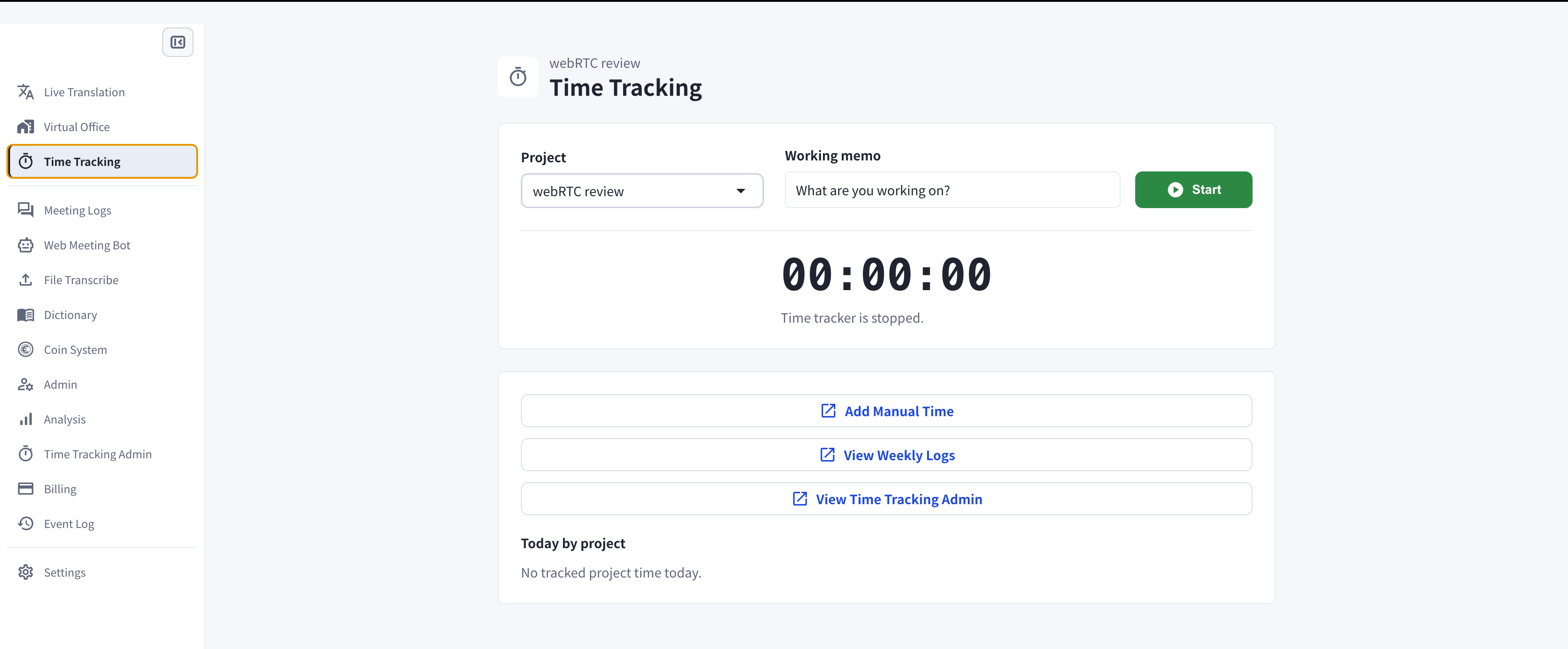
1. Open **Time Tracking** from the left sidebar
2. Select the project you will work on from the projects assigned by your manager
3. Enter a working memo (optional)
4. Click **Start** to begin tracking
5. After work, click **Stop** to end tracking
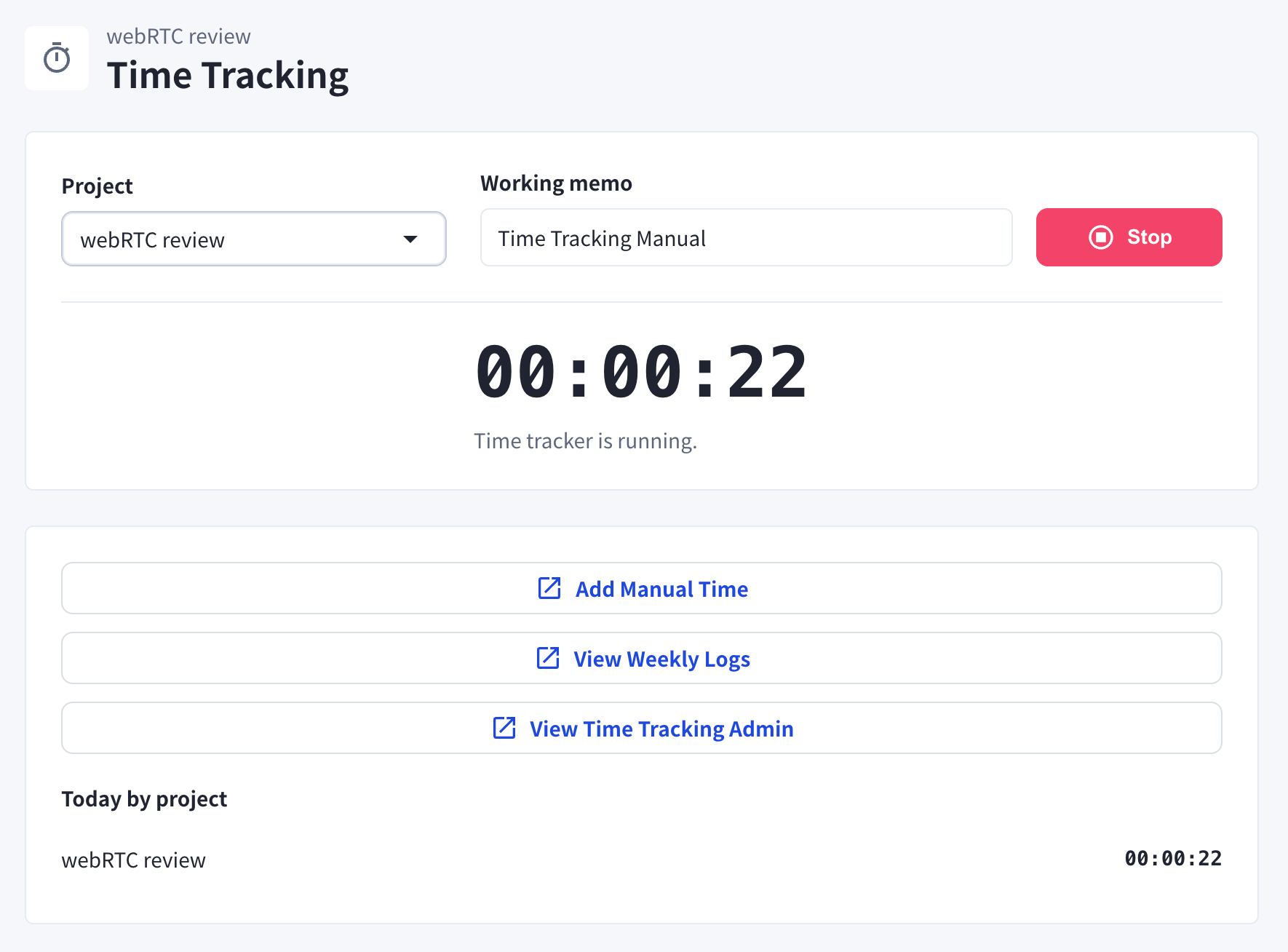 **Cases When the Timer Stops Automatically**
1. When you enter away status
* When you return to your seat and resume PC operation, the timer will automatically resume.
2. When the PC enters sleep mode
## Add Work Hours Manually
If you have working hours that were not recorded, you can add them manually.
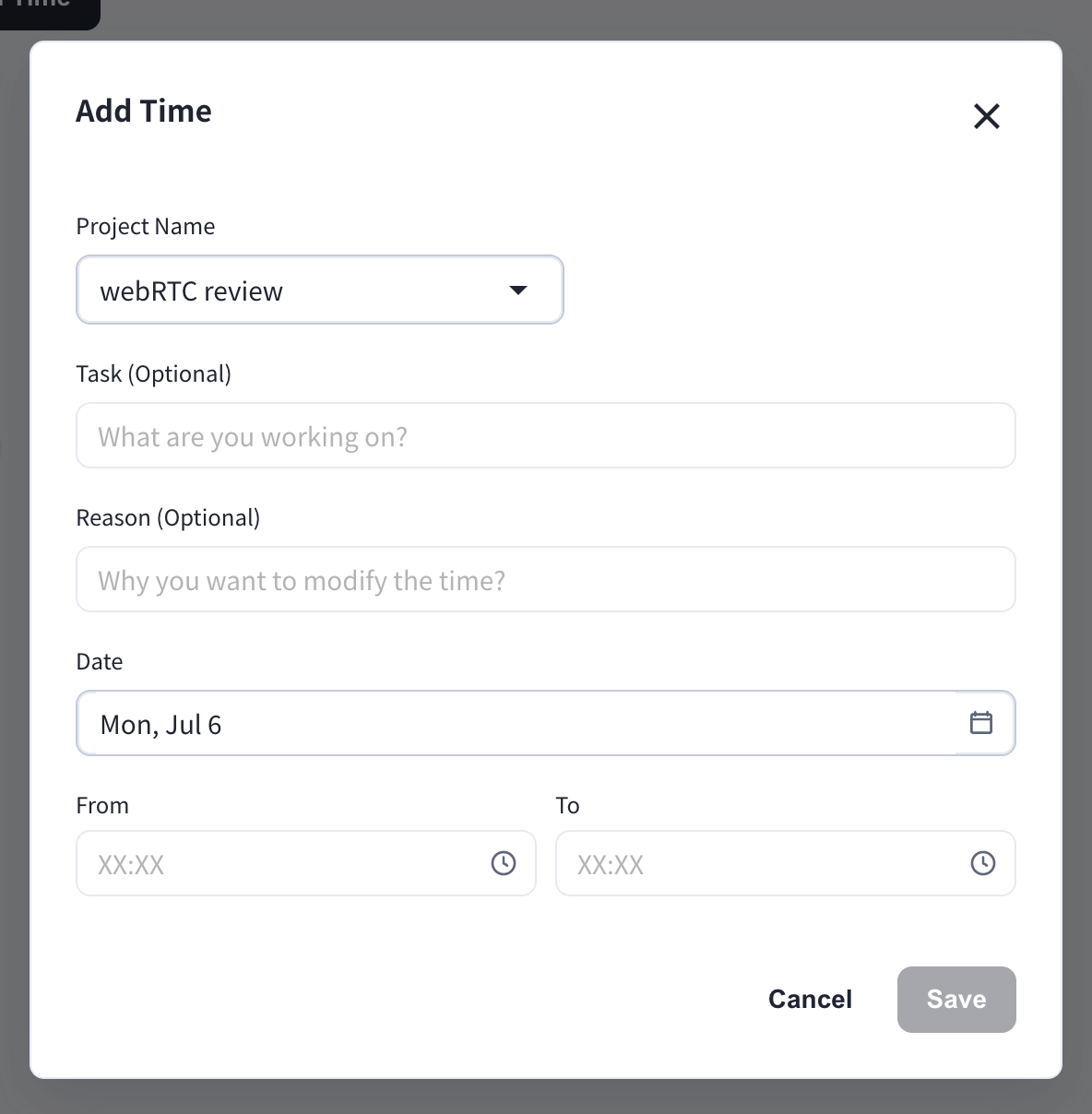
1. On the **Time Tracking** page, click **Add Manual Time**
2. Select the project, and optionally enter the task and the reason for the change
3. Select the date and the time range (From / To)
4. Click **Save**
**Cases When the Timer Stops Automatically**
1. When you enter away status
* When you return to your seat and resume PC operation, the timer will automatically resume.
2. When the PC enters sleep mode
## Add Work Hours Manually
If you have working hours that were not recorded, you can add them manually.
1. On the **Time Tracking** page, click **Add Manual Time**
2. Select the project, and optionally enter the task and the reason for the change
3. Select the date and the time range (From / To)
4. Click **Save**
 Manual additions and deletions are recorded in the **Manual Time Log**, which managers can review.
## Check Your Time Tracking
Members can only check their own logs. Managers can check logs for all members.
### 1. Weekly Report
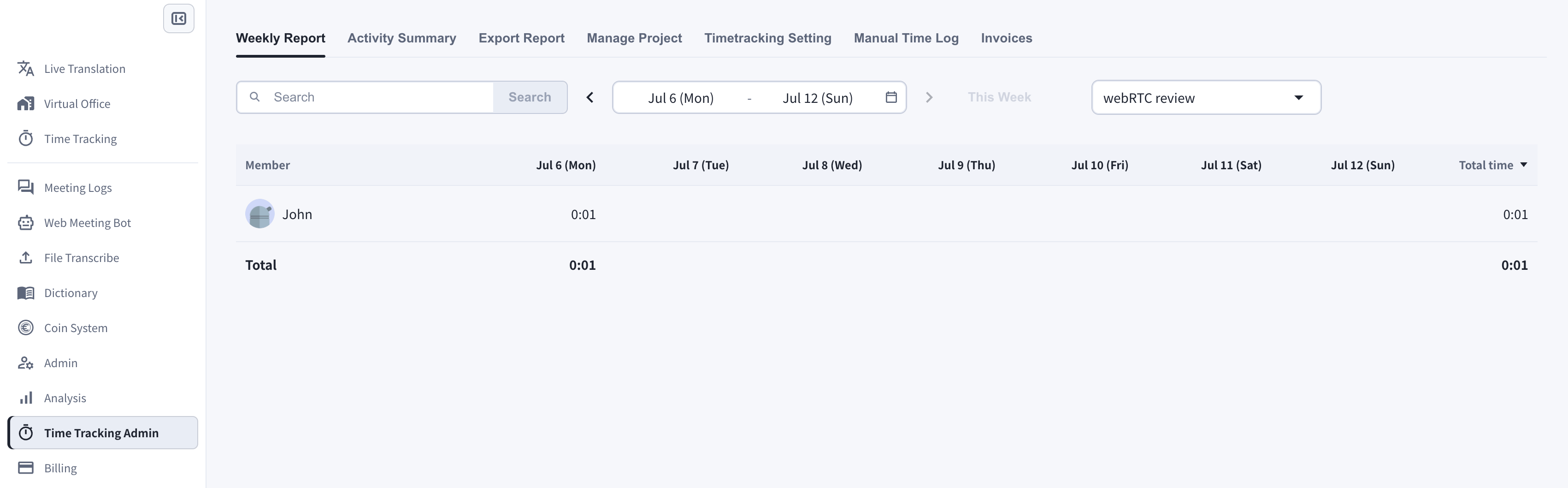
1. On the **Time Tracking** page, click **View Weekly Logs**
2. Select the week and the project
3. Check your daily and weekly totals
Manual additions and deletions are recorded in the **Manual Time Log**, which managers can review.
## Check Your Time Tracking
Members can only check their own logs. Managers can check logs for all members.
### 1. Weekly Report
1. On the **Time Tracking** page, click **View Weekly Logs**
2. Select the week and the project
3. Check your daily and weekly totals
 ### 2. Activity Summary
The **Activity Summary** tab shows your tracked time for one day as a timeline, together with your working memos.
### 2. Activity Summary
The **Activity Summary** tab shows your tracked time for one day as a timeline, together with your working memos.
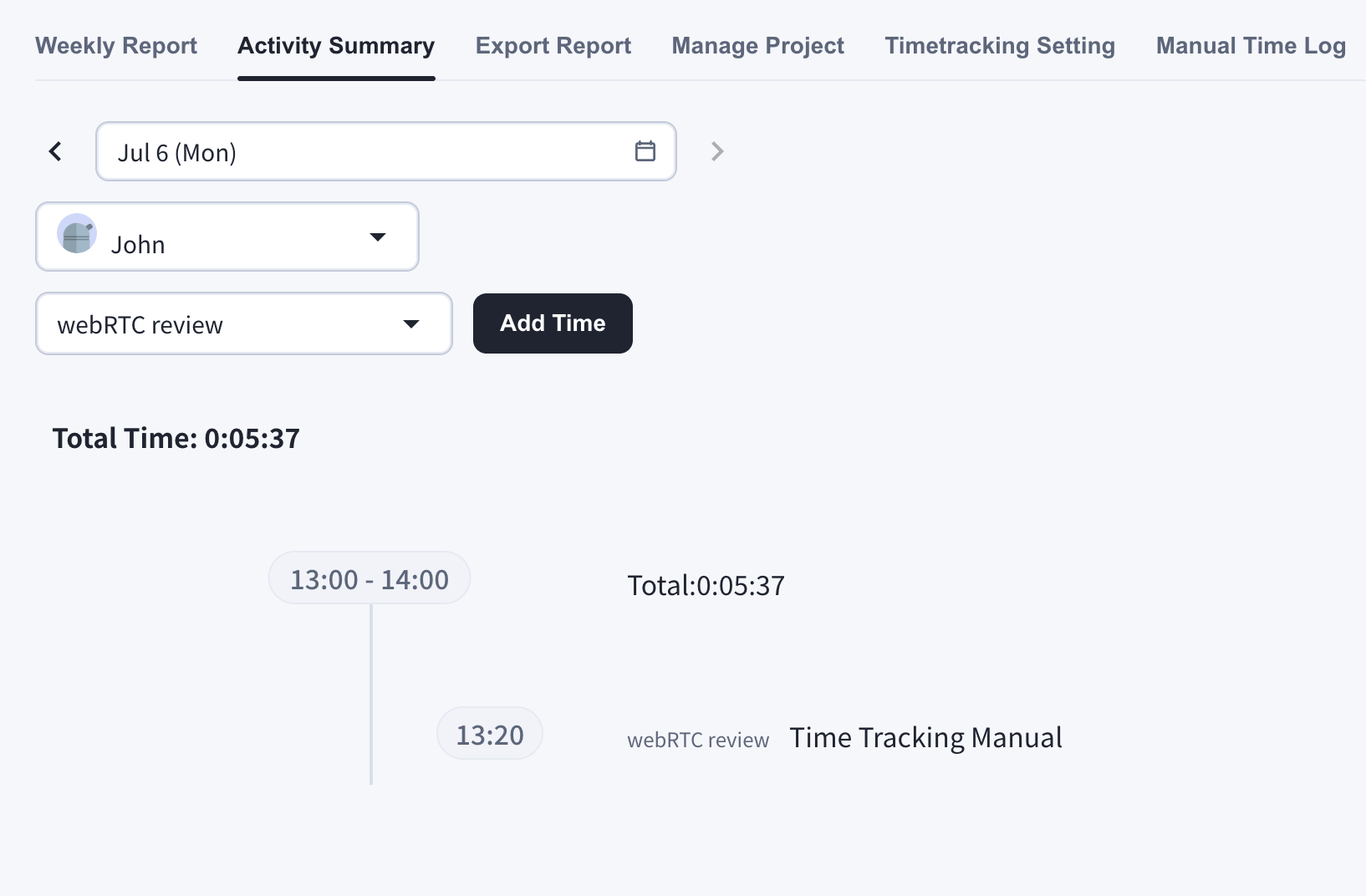 If your manager has enabled desktop screenshots, webcam shots, or input activity tracking, they also appear in the Activity Summary. A camera selector appears on the Time Tracking page when webcam capture is enabled.
### Delete Tracked Time
You can delete tracked time from the Activity Summary by clicking the trash icon.
You can delete in the following ranges:
* Delete all for one day
* Delete for one hour
* Delete a 10-minute slot
If your manager has enabled desktop screenshots, webcam shots, or input activity tracking, they also appear in the Activity Summary. A camera selector appears on the Time Tracking page when webcam capture is enabled.
### Delete Tracked Time
You can delete tracked time from the Activity Summary by clicking the trash icon.
You can delete in the following ranges:
* Delete all for one day
* Delete for one hour
* Delete a 10-minute slot