> ## Documentation Index
> Fetch the complete documentation index at: https://manual.voiceping.net/llms.txt
> Use this file to discover all available pages before exploring further.
# Subtitle Mode (Transparent Background)
> Overlay live, transparent AI subtitles on top of your slides, PDFs, or video during presentations and webinars — real-time bilingual captions with adjustable text, color, and full-screen display.
export const FeedbackEn = () => <>
Have an idea or request about this feature? Send it to the team via Product Feedback.
Official Links
Visit our official website
Follow us on X
Like us on Facebook
Connect on LinkedIn
;
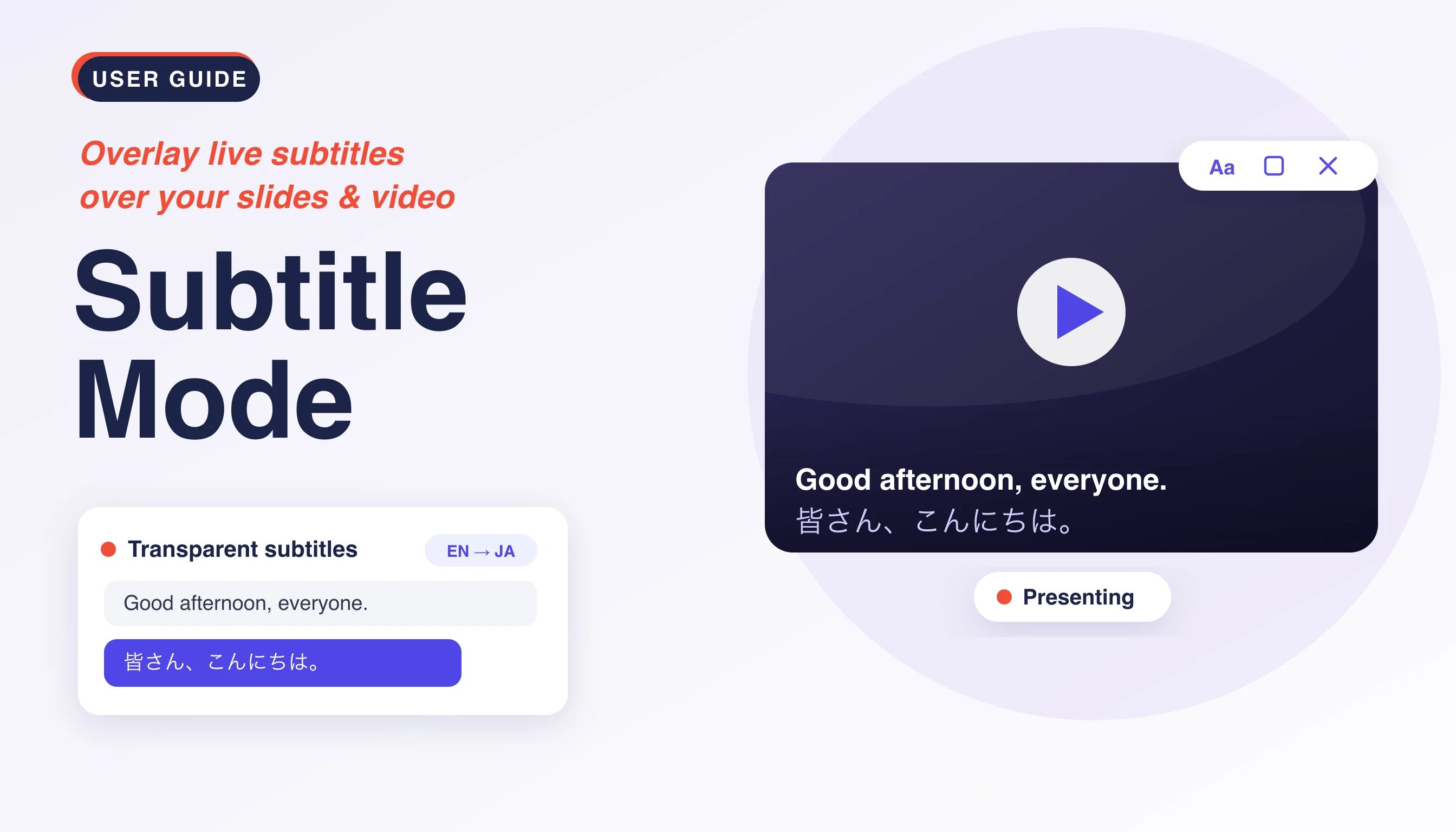 Subtitle Mode displays VoicePing's live transcription and translation as subtitles with a **transparent background**, so the captions float directly over whatever you are sharing — slides, a PDF, or a video (YouTube, movies, and more). It is ideal for presentations and webinars where the audience should read along without hiding your content.
## How to Use
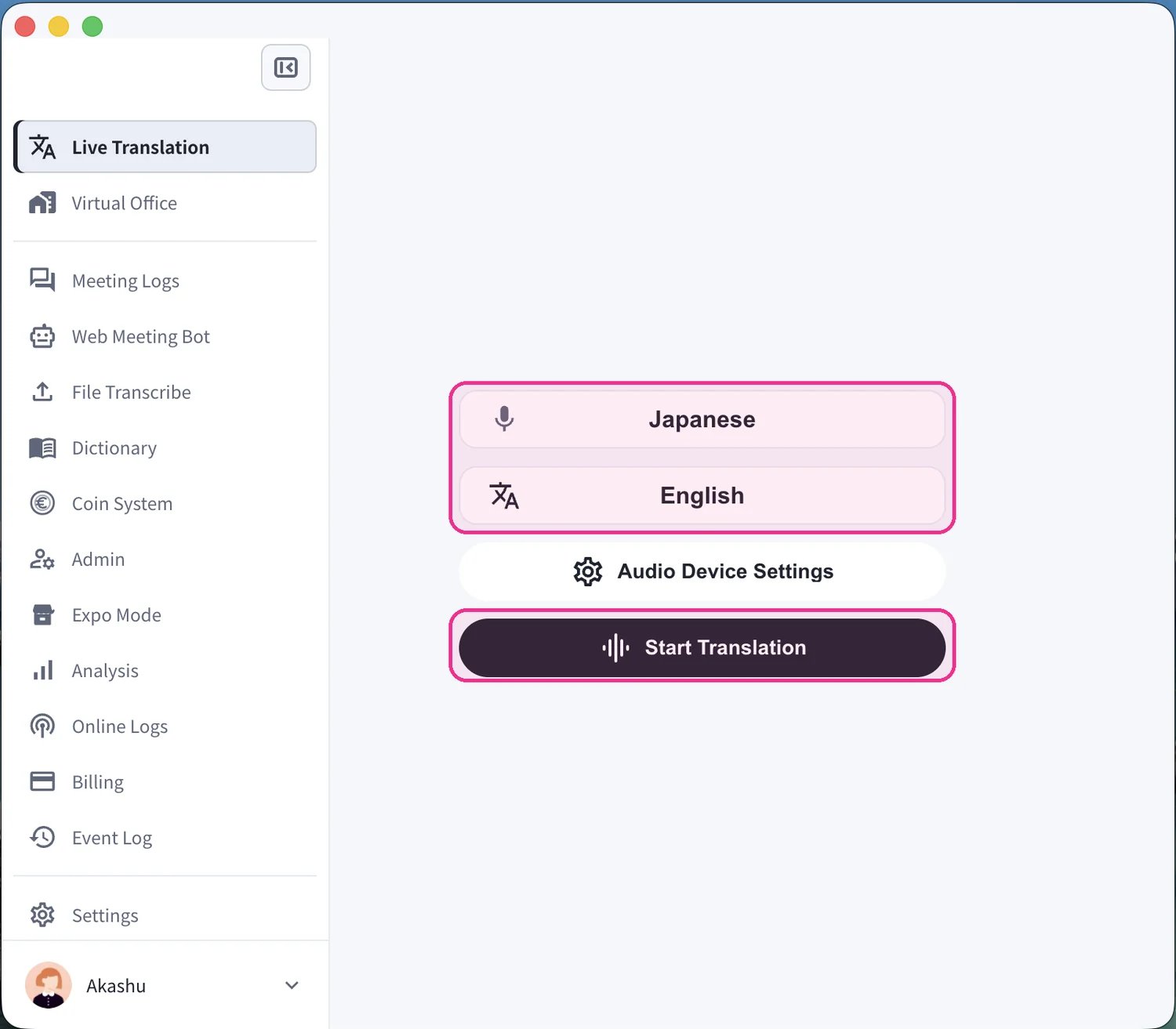
1. **Start a translation.** On the **Live Translation** screen, set your spoken language (microphone icon) and the translation language ("Text & A" icon), then click **Start Translation**.
Subtitle Mode displays VoicePing's live transcription and translation as subtitles with a **transparent background**, so the captions float directly over whatever you are sharing — slides, a PDF, or a video (YouTube, movies, and more). It is ideal for presentations and webinars where the audience should read along without hiding your content.
## How to Use
1. **Start a translation.** On the **Live Translation** screen, set your spoken language (microphone icon) and the translation language ("Text & A" icon), then click **Start Translation**.
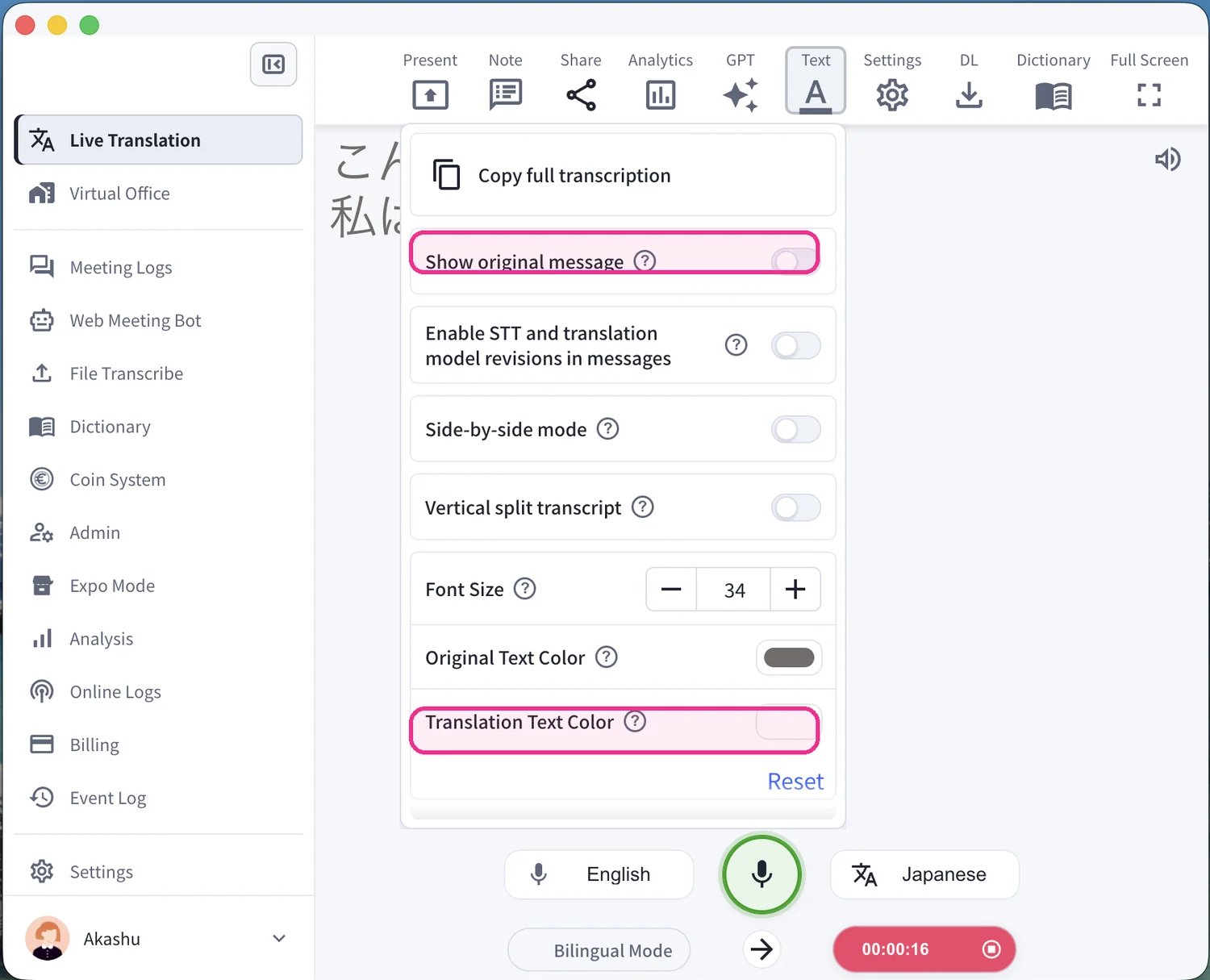
 2. **Set up how the subtitles look.** Before presenting, open the **Text** panel in the top toolbar to adjust the view. Toggle **Show original message** to show or hide the source language, and set the **Translation Text Color** (and font size) so the captions read clearly over your content.
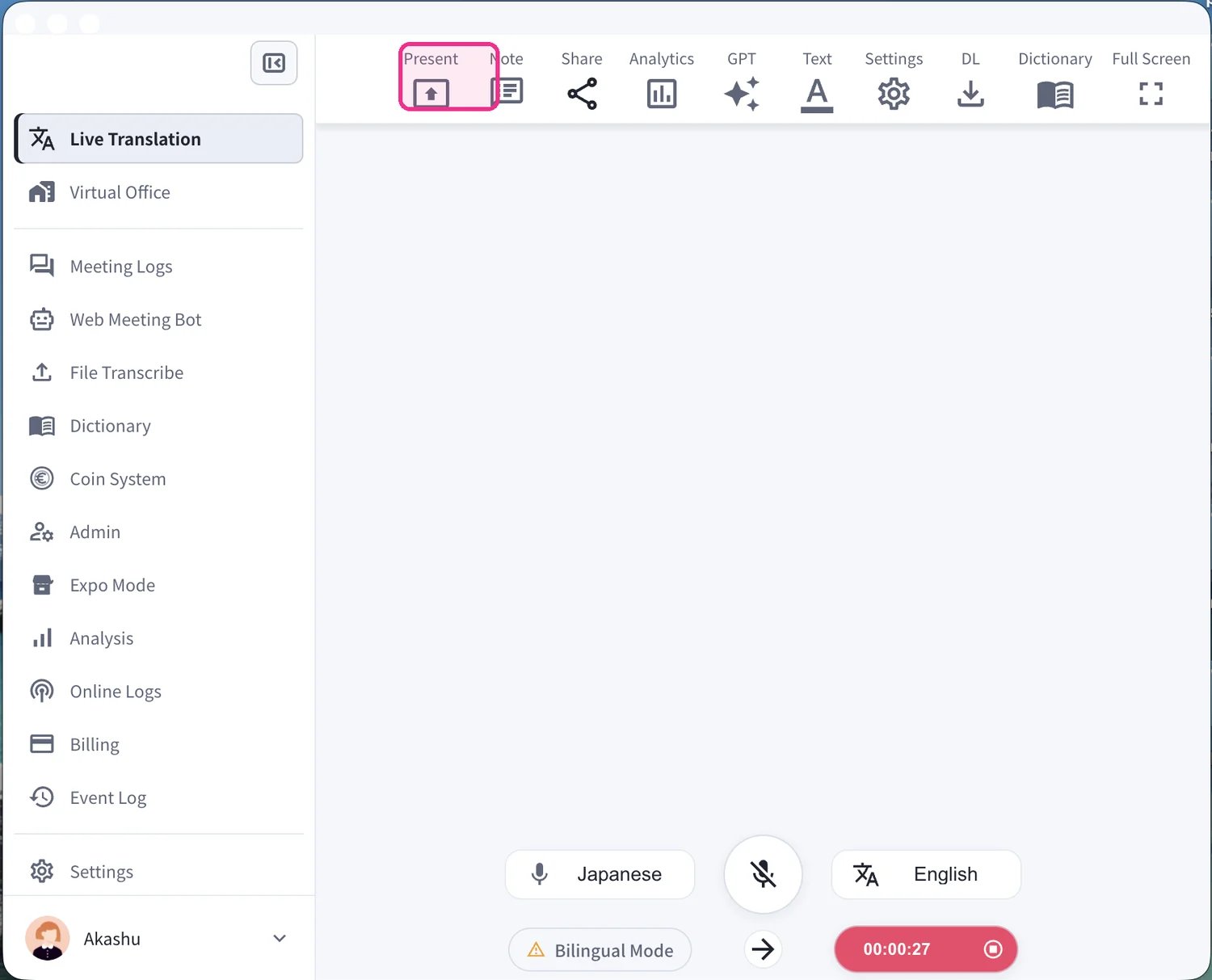
 3. **Open Present mode.** Click **Present** in the top toolbar to launch the presentation subtitle window.
 4. **Overlay the subtitles on your content.** The subtitle window opens with a transparent background. Place it over your slides, PDF, or video and the live captions — source text and translation — appear on top of your material in real time.
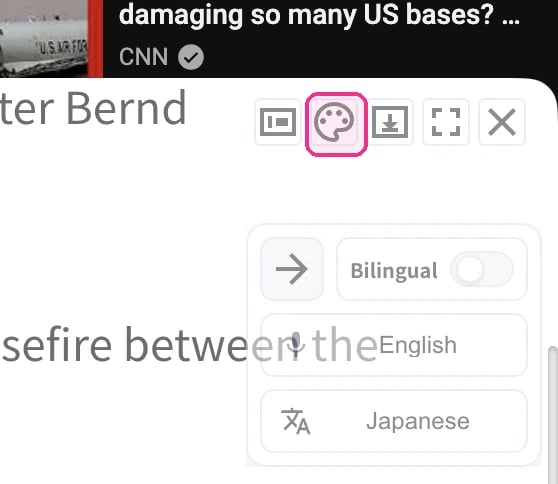
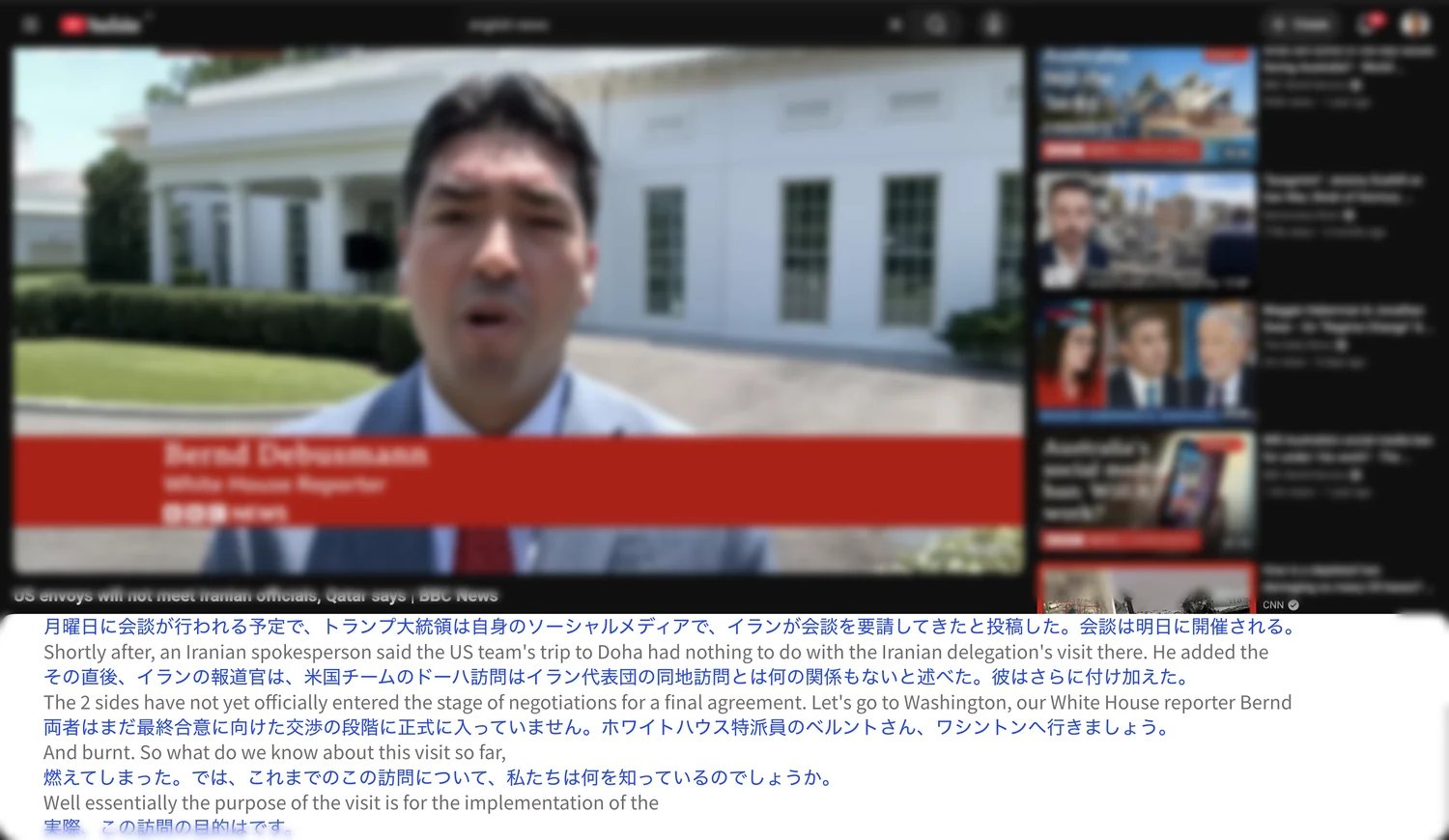 5. **Toggle transparent mode.** In the floating subtitle window, click the **palette icon** to switch between transparent mode — where the subtitles overlay your content with a see-through background — and a solid, non-transparent background. You can also toggle **Bilingual**, or switch the transcription and translation languages.
 6. **Present with clean overlaid captions.** Switch to full screen for the final look — transparent subtitles sit directly over your video or slides with no background box.
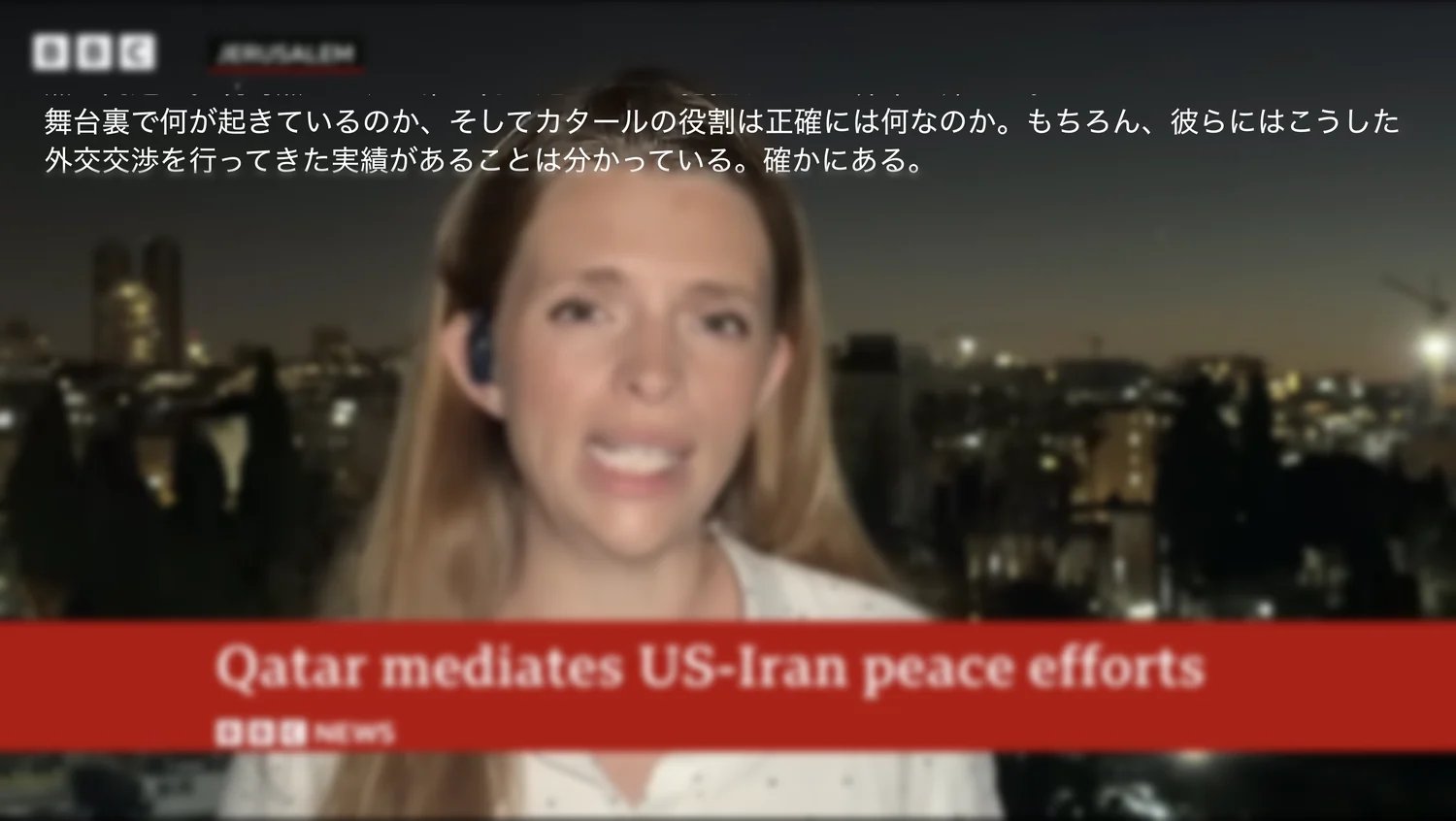 You can adjust the subtitle text size and color, and hide the transcription language to show only the translation. For the full speaker and participant setup, see [Live Audio Translation Subtitles for Seminars](/en/live-subtitles).