> ## Documentation Index
> Fetch the complete documentation index at: https://manual.voiceping.net/llms.txt
> Use this file to discover all available pages before exploring further.
# User Status
> User status management within the virtual office
export const FeedbackEn = () => <>
Have an idea or request about this feature? Send it to the team via Product Feedback.
Official Links
Visit our official website
Follow us on X
Like us on Facebook
Connect on LinkedIn
;
# 1. What is User Status
You can see what members in the virtual office are currently doing.
# 2. Three Types of Status
1. Online
 2. Busy
 3. Away
 ## 1. How to Change Basic Status
1. Click the status button below your name in the upper left corner of the app
2. Select the status you want
## 2. Set "Away" Status Change Time (Owner & Manager)
The PC idle time that will trigger the status switch can be selected and set by the workspace administrator from the following times.
## 1. How to Change Basic Status
1. Click the status button below your name in the upper left corner of the app
2. Select the status you want
## 2. Set "Away" Status Change Time (Owner & Manager)
The PC idle time that will trigger the status switch can be selected and set by the workspace administrator from the following times.
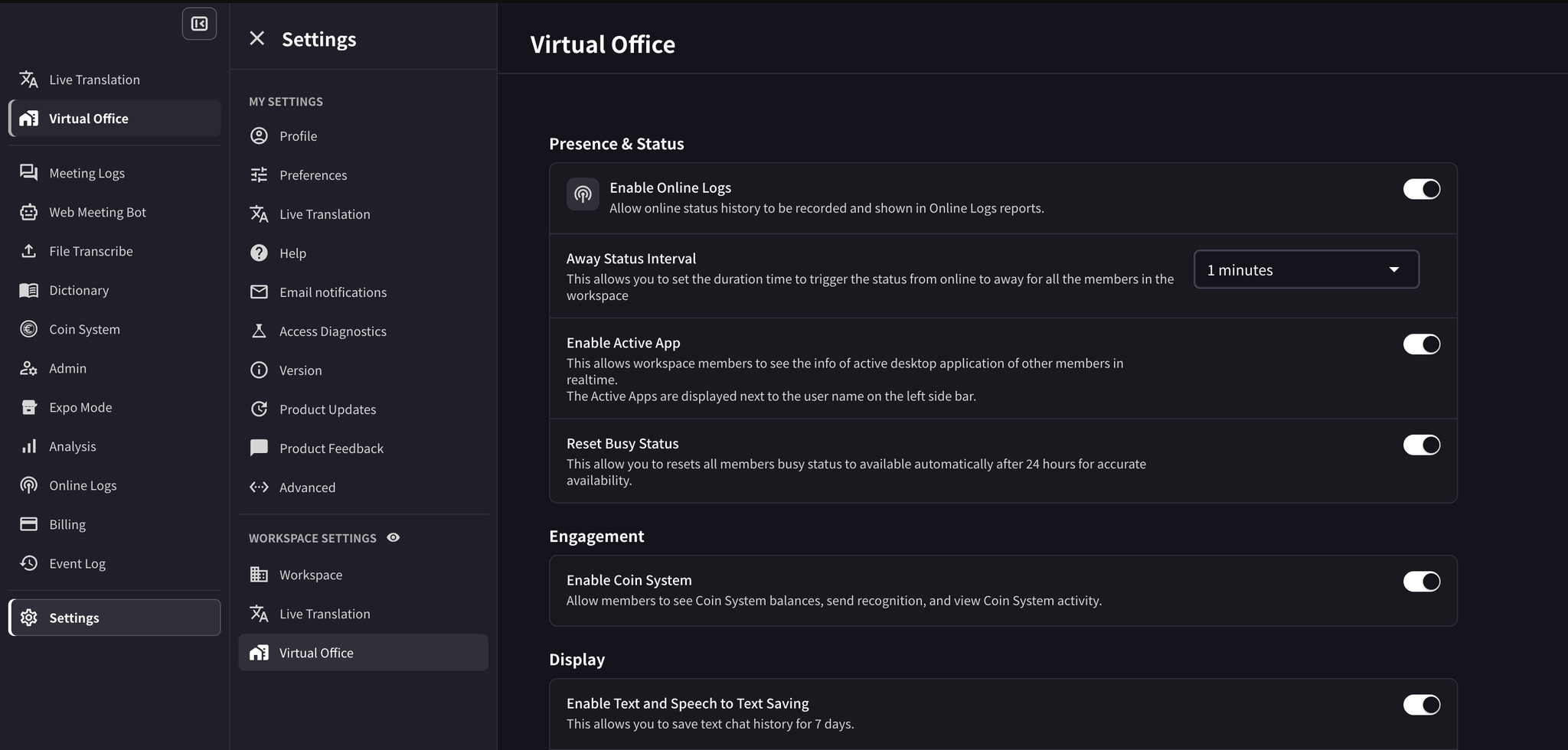 1. Click **Settings** in the left sidebar
2. Under **Workspace Settings**, click **Virtual Office**
3. In **Presence & Status**, set **Away Status Interval**
4. The setting is saved automatically
## 3. Automatically Reset "Busy" Status
You can automatically reset all workspace users' "Busy" status back to "Online".
Use the same **Presence & Status** screen shown above.
1. Click **Settings** in the left sidebar
2. Under **Workspace Settings**, click **Virtual Office**
3. In **Presence & Status**, turn on **Reset Busy Status**
4. The setting is saved automatically; there is no **Update** button
## 4. Work Memo
Use the work memo field in the Virtual Office left sidebar to show what you are currently working on.
1. Click **Settings** in the left sidebar
2. Under **Workspace Settings**, click **Virtual Office**
3. In **Presence & Status**, set **Away Status Interval**
4. The setting is saved automatically
## 3. Automatically Reset "Busy" Status
You can automatically reset all workspace users' "Busy" status back to "Online".
Use the same **Presence & Status** screen shown above.
1. Click **Settings** in the left sidebar
2. Under **Workspace Settings**, click **Virtual Office**
3. In **Presence & Status**, turn on **Reset Busy Status**
4. The setting is saved automatically; there is no **Update** button
## 4. Work Memo
Use the work memo field in the Virtual Office left sidebar to show what you are currently working on.
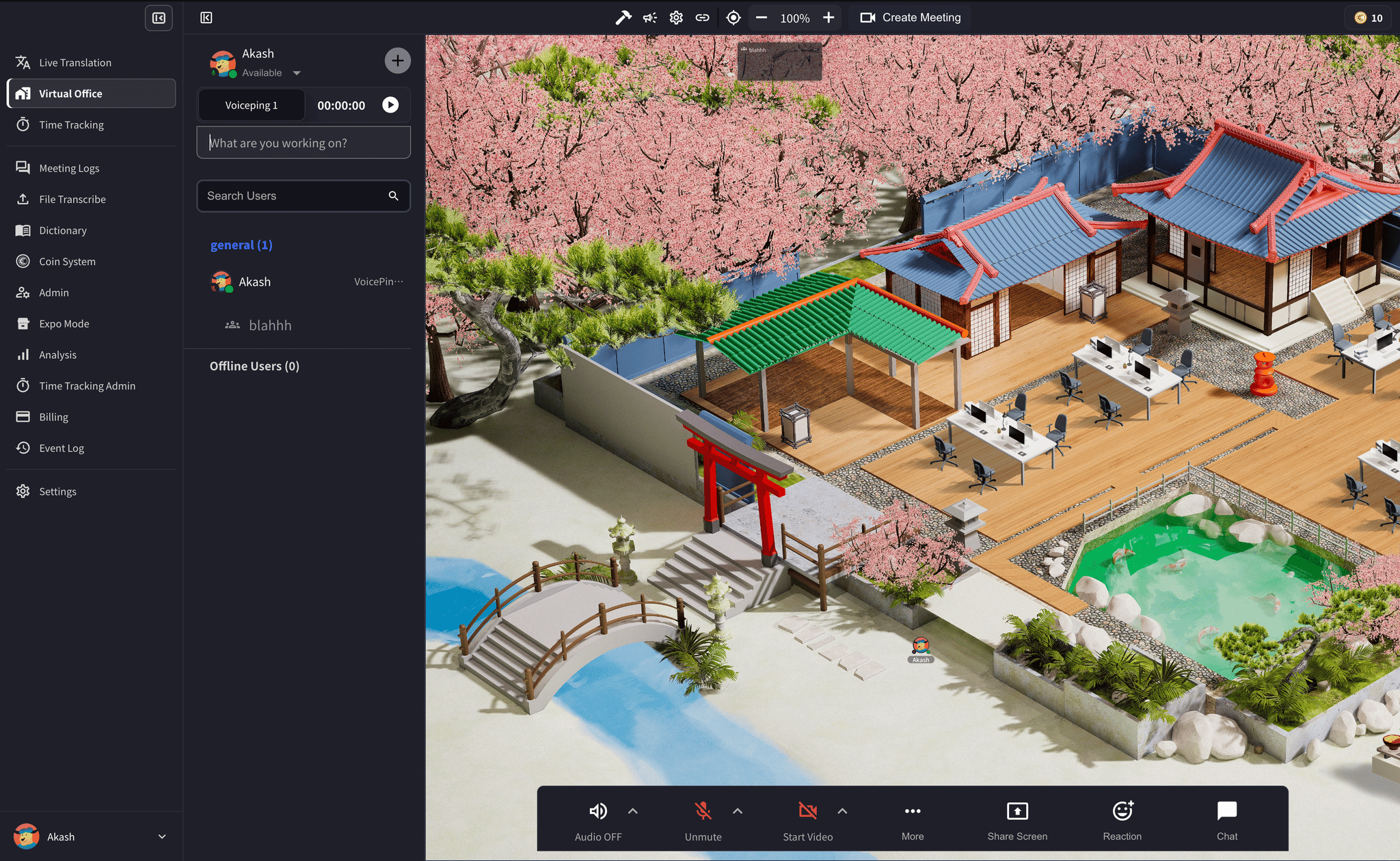 1. Open **Virtual Office**
2. In the left sidebar, click the field below your status or work timer
3. Enter your current work memo
1. Open **Virtual Office**
2. In the left sidebar, click the field below your status or work timer
3. Enter your current work memo