> ## Documentation Index
> Fetch the complete documentation index at: https://manual.voiceping.net/llms.txt
> Use this file to discover all available pages before exploring further.
# Virtual Office
> Team communication in the virtual office using mobile app
export const FeedbackEn = () => <>
Have an idea or request about this feature? Send it to the team via Product Feedback.
Official Links
Visit our official website
Follow us on X
Like us on Facebook
Connect on LinkedIn
;
VoicePing users can use the mobile app in addition to the desktop app. Like the desktop app, the mobile app has voice call features, voice translation, and meeting rooms, so you can communicate with your team even when you can't open your computer.
## Switch to Virtual Office Mode
You can switch between Virtual Office mode and Voice Translation mode from the main screen. Click on "Switch to Virtual Office Mode" at the top of the menu to enter the virtual office.
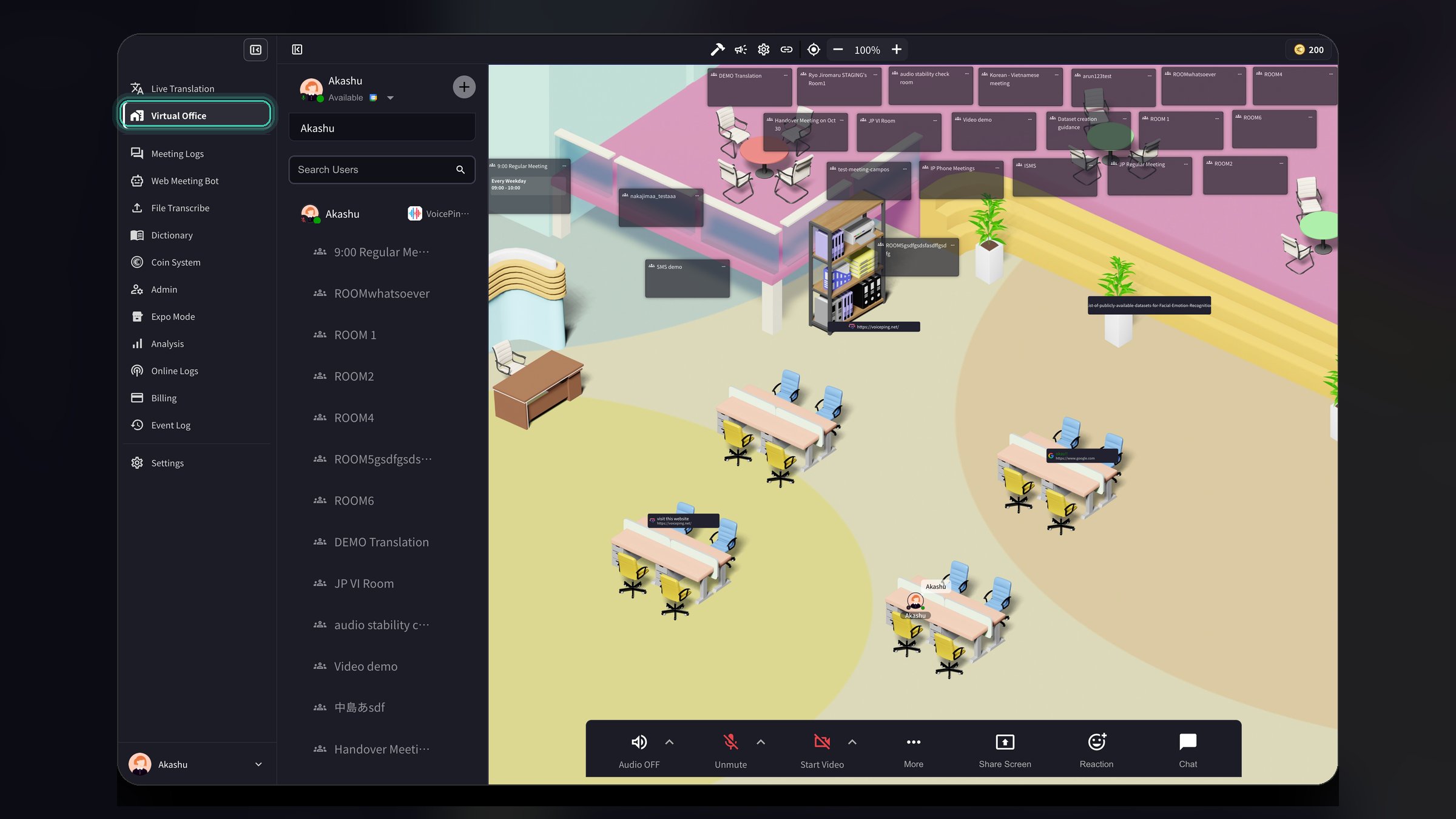 When switching modes, you'll also see several options:
* **Extract only Mic Audio**: When enabled, only microphone input will be extracted and translated, ignoring other audio
* **Detect meetings**: Sends a notification when it detects a meeting from apps selected in settings
* **Enable Mic on default**: Automatically turns on your microphone when you start translation
* **Presentation Subtitle**: Display a transparent text chat window for presentations with highlighted subtitles
## Enable or Disable Virtual Office
Workspace administrators can enable or disable the Virtual Office feature for all members in the workspace.
1. Open **Preferences** (click the gear icon in the top right corner)
2. Select **Workspace** from the left sidebar
3. Find the **Enable Virtual Office** toggle
4. Turn it on or off to enable/disable the virtual office for all workspace members
5. Click **Update** to save changes
When switching modes, you'll also see several options:
* **Extract only Mic Audio**: When enabled, only microphone input will be extracted and translated, ignoring other audio
* **Detect meetings**: Sends a notification when it detects a meeting from apps selected in settings
* **Enable Mic on default**: Automatically turns on your microphone when you start translation
* **Presentation Subtitle**: Display a transparent text chat window for presentations with highlighted subtitles
## Enable or Disable Virtual Office
Workspace administrators can enable or disable the Virtual Office feature for all members in the workspace.
1. Open **Preferences** (click the gear icon in the top right corner)
2. Select **Workspace** from the left sidebar
3. Find the **Enable Virtual Office** toggle
4. Turn it on or off to enable/disable the virtual office for all workspace members
5. Click **Update** to save changes
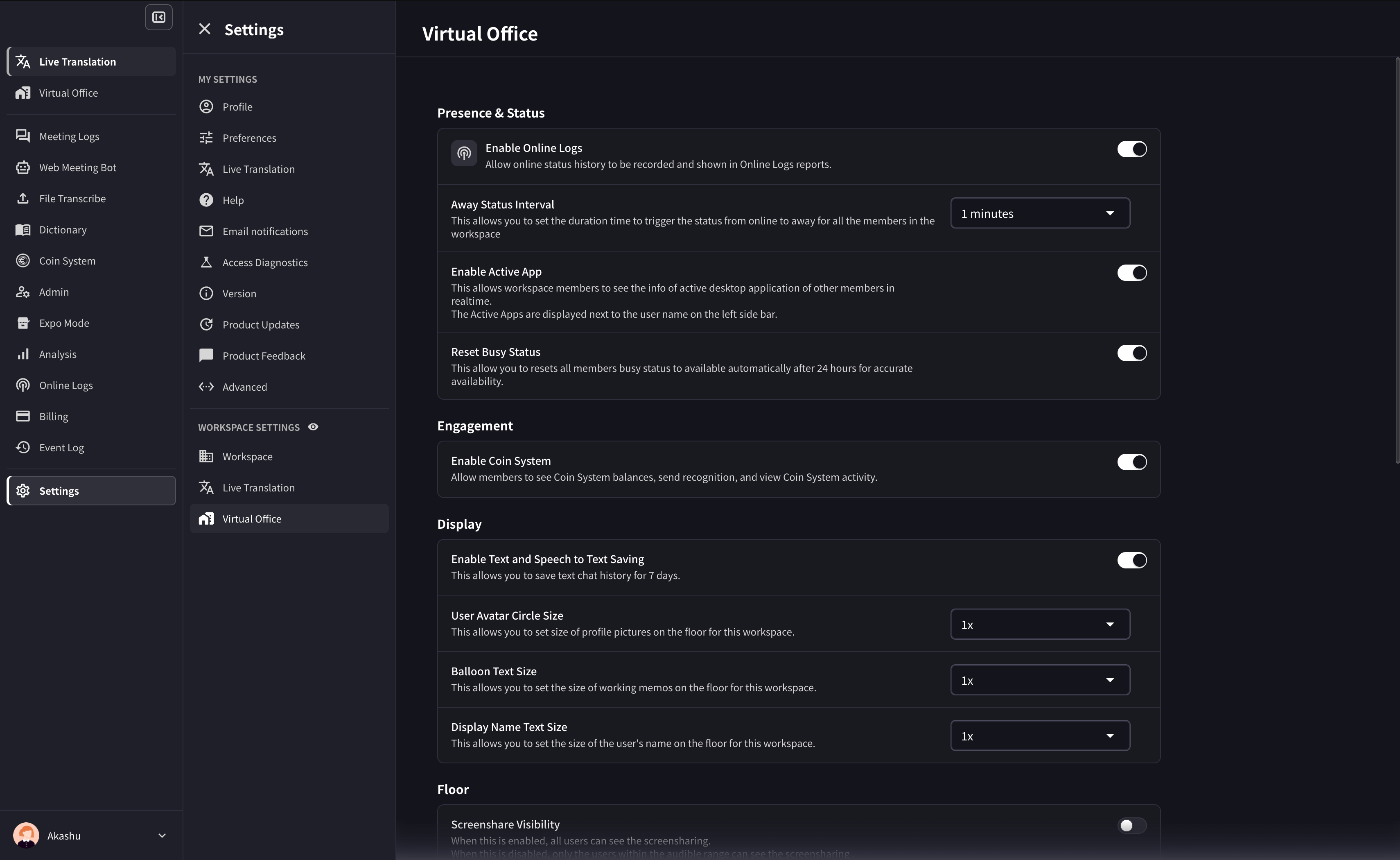 You can also configure:
* **Away Status Interval**: Set the duration before a member's status automatically changes to "Away"
* **Enable Active App**: Allow workspace members to see the active desktop application of other members in real-time
## 1. Create VoicePing Account/Workspace
If you don't have a VoicePing account/workspace yet, download the VoicePing app from the app store. After downloading the app, start using it and create an account and new workspace. See [here](/en/owner-signup) for how to create one.
## 2. Invite Team Members
While the VoicePing desktop app has [3 ways to invite people in your company to the VoicePing workspace](/en/invite-members), the mobile app has only one way to invite team members to the workspace.
Click the profile icon in the upper left corner of the app to display the sidebar. Go to \[Settings] > \[Invite by URL] to display the invitation link.
## Talk with Your Team on the Floor
While web conferencing is becoming standard for remote work communication, there are many cases where communication has decreased due to reasons such as the hassle of scheduling.
To solve this problem, the VoicePing virtual office has a "voice call" feature that allows you to easily talk with your team.
First, check from the user status if the other person is available to talk.
### User Status
### Voice Call
If the other person is available to talk, use the "voice call" feature.
In the mobile app, you can call the other person by clicking on their user icon or the handset icon from the sidebar.
### Text Chat
In addition to the "voice call" feature, a chat box is provided as a tool to talk with others.
In the mobile app, send a message by clicking the text icon at the bottom of the screen or the text icon from the user's avatar.
You can show/hide the message box by clicking the keyboard icon in the upper right corner of the screen.
## Hold a Meeting
You can also hold meetings in the VoicePing mobile app. If there is no meeting room on the floor, create one.
### Create a Meeting Room
Click the "+" button on the floor to create a new meeting room.
Enter the meeting room name and choose a design.
## Voice Translation (Optional)
The voice translation feature is also available in the VoicePing mobile app. First, select the translatable languages from settings.
### Set Translatable Languages
Click the user icon in the upper left corner of the app to display the sidebar. Go to \[Settings] > \[Workspace] to find the \[Transcription & Translation] settings. Click the arrow icon and select the languages to use in your workspace.
### Specify Languages
When using the voice translation feature, select the spoken language and translation language.
## Data Retention
Audio data on paid self-service plans is retained for up to 3 months. Meeting logs are retained according to the workspace plan or managed contract. Web Meeting Bot or recording video is documented only where that video is available for a session and is retained for up to 1 month. Download needed data before the retention period ends.
## VoicePing 3.0 Virtual Office Notes
* Floor access can be affected by member, group, and policy settings. If assignment fails, check [Member Management](/en/member-management) and group settings.
* Meeting rooms support card position lock, grid/presenter video layouts, and member-managed meeting rooms where permitted.
* Floor text chat can default to nearby users as the receiver.
* Custom objects support text editing, URLs, YouTube, and iframe embeds.
You can also configure:
* **Away Status Interval**: Set the duration before a member's status automatically changes to "Away"
* **Enable Active App**: Allow workspace members to see the active desktop application of other members in real-time
## 1. Create VoicePing Account/Workspace
If you don't have a VoicePing account/workspace yet, download the VoicePing app from the app store. After downloading the app, start using it and create an account and new workspace. See [here](/en/owner-signup) for how to create one.
## 2. Invite Team Members
While the VoicePing desktop app has [3 ways to invite people in your company to the VoicePing workspace](/en/invite-members), the mobile app has only one way to invite team members to the workspace.
Click the profile icon in the upper left corner of the app to display the sidebar. Go to \[Settings] > \[Invite by URL] to display the invitation link.
## Talk with Your Team on the Floor
While web conferencing is becoming standard for remote work communication, there are many cases where communication has decreased due to reasons such as the hassle of scheduling.
To solve this problem, the VoicePing virtual office has a "voice call" feature that allows you to easily talk with your team.
First, check from the user status if the other person is available to talk.
### User Status
### Voice Call
If the other person is available to talk, use the "voice call" feature.
In the mobile app, you can call the other person by clicking on their user icon or the handset icon from the sidebar.
### Text Chat
In addition to the "voice call" feature, a chat box is provided as a tool to talk with others.
In the mobile app, send a message by clicking the text icon at the bottom of the screen or the text icon from the user's avatar.
You can show/hide the message box by clicking the keyboard icon in the upper right corner of the screen.
## Hold a Meeting
You can also hold meetings in the VoicePing mobile app. If there is no meeting room on the floor, create one.
### Create a Meeting Room
Click the "+" button on the floor to create a new meeting room.
Enter the meeting room name and choose a design.
## Voice Translation (Optional)
The voice translation feature is also available in the VoicePing mobile app. First, select the translatable languages from settings.
### Set Translatable Languages
Click the user icon in the upper left corner of the app to display the sidebar. Go to \[Settings] > \[Workspace] to find the \[Transcription & Translation] settings. Click the arrow icon and select the languages to use in your workspace.
### Specify Languages
When using the voice translation feature, select the spoken language and translation language.
## Data Retention
Audio data on paid self-service plans is retained for up to 3 months. Meeting logs are retained according to the workspace plan or managed contract. Web Meeting Bot or recording video is documented only where that video is available for a session and is retained for up to 1 month. Download needed data before the retention period ends.
## VoicePing 3.0 Virtual Office Notes
* Floor access can be affected by member, group, and policy settings. If assignment fails, check [Member Management](/en/member-management) and group settings.
* Meeting rooms support card position lock, grid/presenter video layouts, and member-managed meeting rooms where permitted.
* Floor text chat can default to nearby users as the receiver.
* Custom objects support text editing, URLs, YouTube, and iframe embeds.