> ## Documentation Index
> Fetch the complete documentation index at: https://manual.voiceping.net/llms.txt
> Use this file to discover all available pages before exploring further.
# Vocabulary Builder
> Automatically extract custom phrases from PDFs and text to improve transcription accuracy
export const FeedbackEn = () => <>
Have an idea or request about this feature? Send it to the team via Product Feedback.
Official Links
Visit our official website
Follow us on X
Like us on Facebook
Connect on LinkedIn
;
This feature is available on paid plans only. Please upgrade your plan if you are on the free plan. This feature is not available for guest users.
## Prepare for Any Meeting or Event in Minutes
You have an important meeting tomorrow. The agenda is full of client names, product terms, and technical vocabulary that generic speech-to-text will get wrong. Normally, you'd spend time manually adding each term to the dictionary one by one — or worse, you'd skip it and deal with messy transcripts after.
**Vocabulary Builder lets you skip all of that.** Upload the meeting agenda, slide deck, speaker list, or any relevant PDF — and AI automatically extracts the terms most likely to be misrecognized, generates the correction variants, and adds them to your dictionary in bulk. What used to take an hour of manual preparation now takes a few minutes.
### When to use it
* **Before a multilingual conference** — upload the speaker list and program PDF to get names and session titles right
* **Before an investor or client meeting** — upload the earnings report or proposal to catch financial terms, product names, and people's names
* **Before a technical workshop** — upload the spec document or training materials to handle industry jargon
* **When joining a new project** — paste meeting notes from previous sessions to learn the team's vocabulary fast
* **Before a product demo** — upload the feature documentation so product names and technical terms appear correctly in live captions
### How big is the difference?
Here's a real example. We spoke this sentence during a live VoicePing session — once **without** preparation, and once **after** uploading a single PDF through Vocabulary Builder:
> "On a non-GAAP basis, we filed the Form 10-Q with updated Llama 4.1 performance metrics."
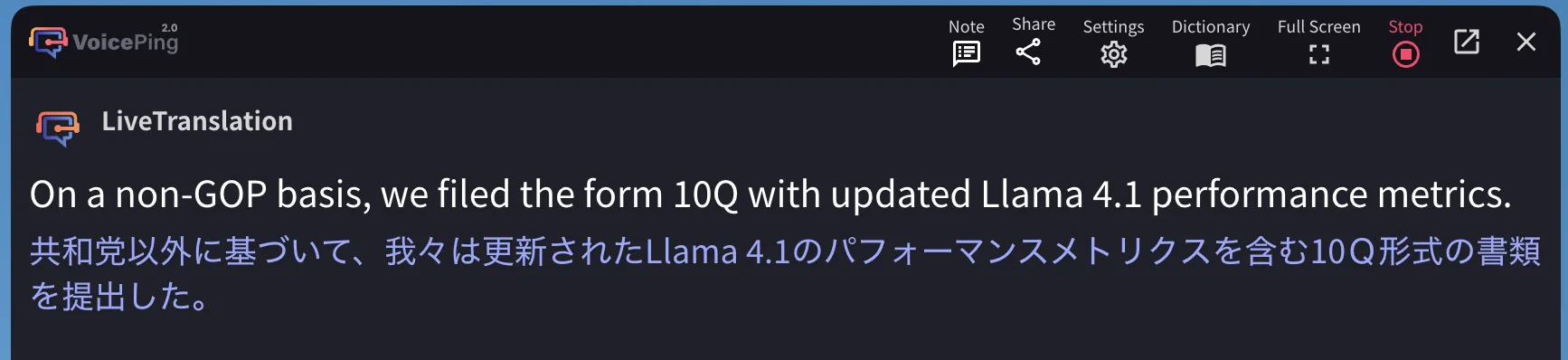 `non-GOP` ... `form 10Q`
JP translation: 「共和党以外に基づいて」— "based on non-Republican party"
`non-GOP` ... `form 10Q`
JP translation: 「共和党以外に基づいて」— "based on non-Republican party"
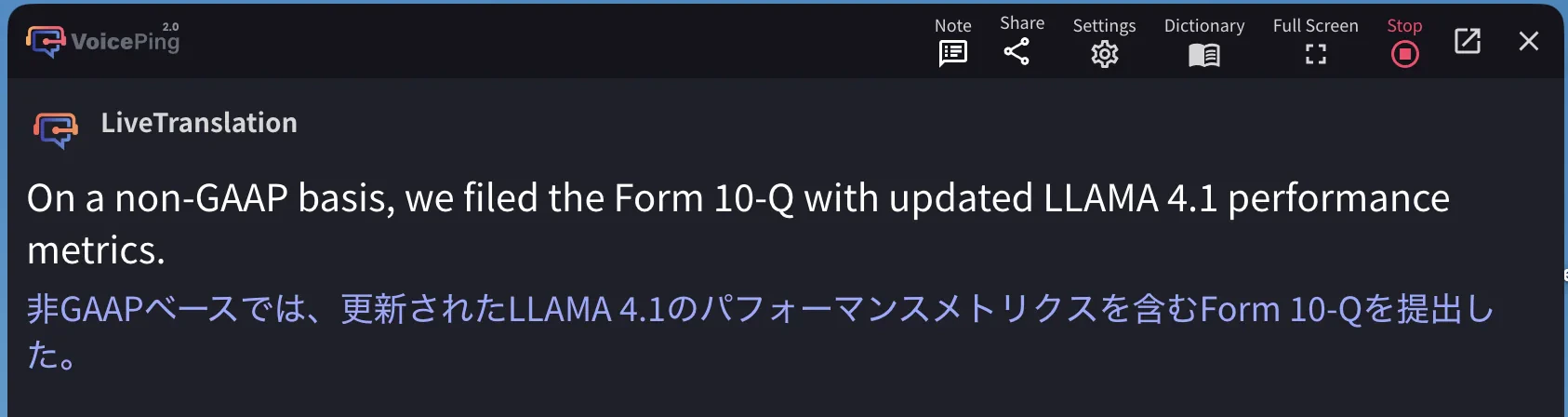 `non-GAAP` ... `Form 10-Q` ✓
JP translation: 「非GAAPベースでは...Form 10-Qを提出した。」 ✓
`GAAP` (an accounting standard) was misheard as `GOP` (a political party). One wrong word made the entire Japanese translation nonsensical. One PDF upload fixed it — no manual dictionary work required.
***
## Step-by-Step: Preparing for a Meeting with a Real Document
Let's walk through the full process using Meta's Q2 2025 earnings call transcript — a real PDF full of product names, executive names, and financial terminology. The same workflow applies to any document in any language.
### 1. Open Vocabulary Builder
Open the Dictionary from any of these entry points, then select the **Vocabulary Builder** tab:
Click the Dictionary icon (top-right) before starting a session.
Click the Settings icon (top-right) → **Dictionary** in the left sidebar.
Click **Dictionary** in the top toolbar during transcription.
Once the modal opens, select **My Dictionary** or **Workspace Dictionary** at the top — this determines where extracted phrases will be saved. Then select the **Vocabulary Builder** tab.
Choose **Workspace Dictionary** if you want the extracted phrases to improve accuracy for all team members. Choose **My Dictionary** if you want to test terms privately first.
`non-GAAP` ... `Form 10-Q` ✓
JP translation: 「非GAAPベースでは...Form 10-Qを提出した。」 ✓
`GAAP` (an accounting standard) was misheard as `GOP` (a political party). One wrong word made the entire Japanese translation nonsensical. One PDF upload fixed it — no manual dictionary work required.
***
## Step-by-Step: Preparing for a Meeting with a Real Document
Let's walk through the full process using Meta's Q2 2025 earnings call transcript — a real PDF full of product names, executive names, and financial terminology. The same workflow applies to any document in any language.
### 1. Open Vocabulary Builder
Open the Dictionary from any of these entry points, then select the **Vocabulary Builder** tab:
Click the Dictionary icon (top-right) before starting a session.
Click the Settings icon (top-right) → **Dictionary** in the left sidebar.
Click **Dictionary** in the top toolbar during transcription.
Once the modal opens, select **My Dictionary** or **Workspace Dictionary** at the top — this determines where extracted phrases will be saved. Then select the **Vocabulary Builder** tab.
Choose **Workspace Dictionary** if you want the extracted phrases to improve accuracy for all team members. Choose **My Dictionary** if you want to test terms privately first.
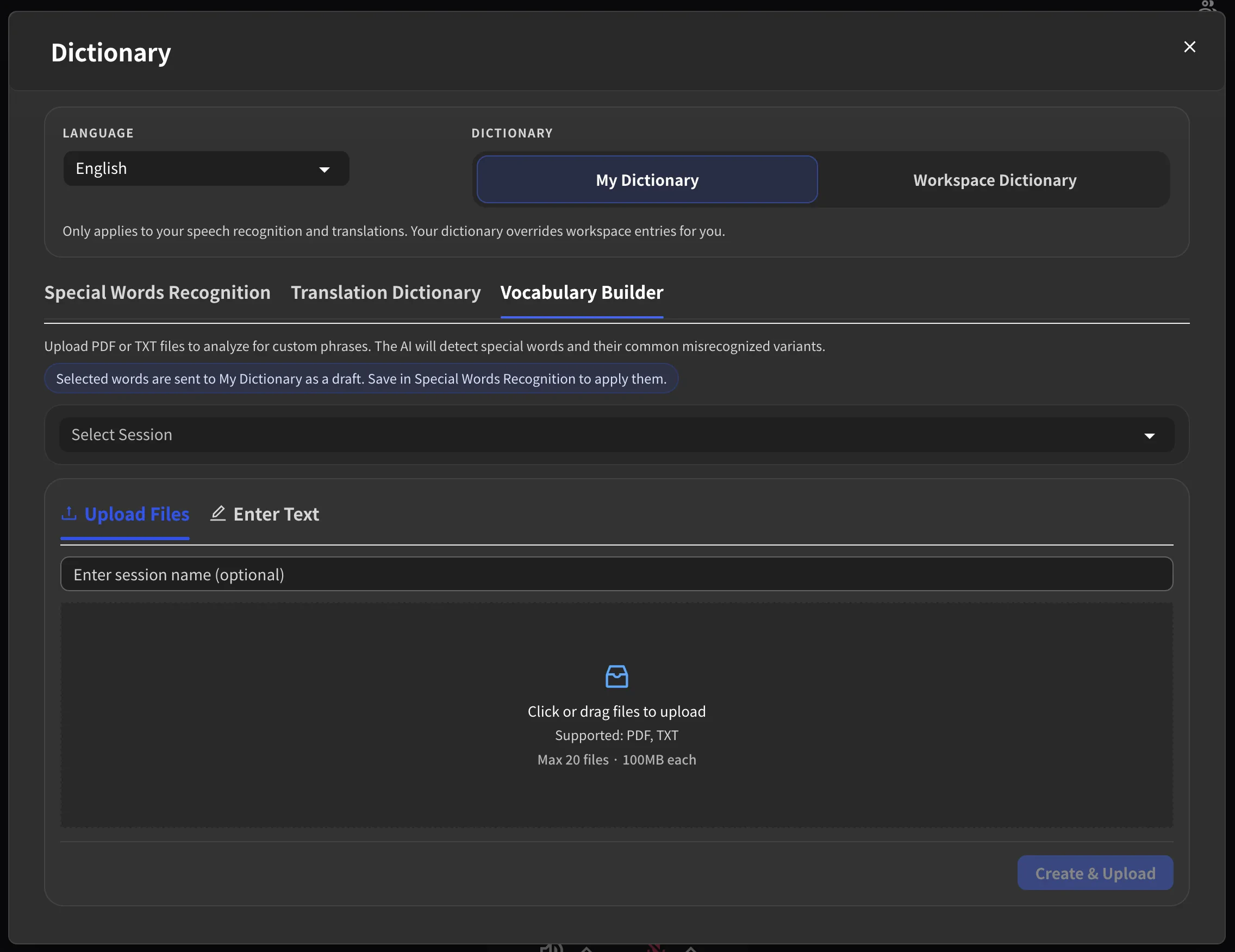 ### 2. Upload Your Document
Select the language that matches your document, then upload it. You can drag and drop files or click to browse. Enter a session name if you want — otherwise one is generated automatically.
We uploaded Meta's earnings call PDF and clicked **Create & Upload**.
### 2. Upload Your Document
Select the language that matches your document, then upload it. You can drag and drop files or click to browse. Enter a session name if you want — otherwise one is generated automatically.
We uploaded Meta's earnings call PDF and clicked **Create & Upload**.
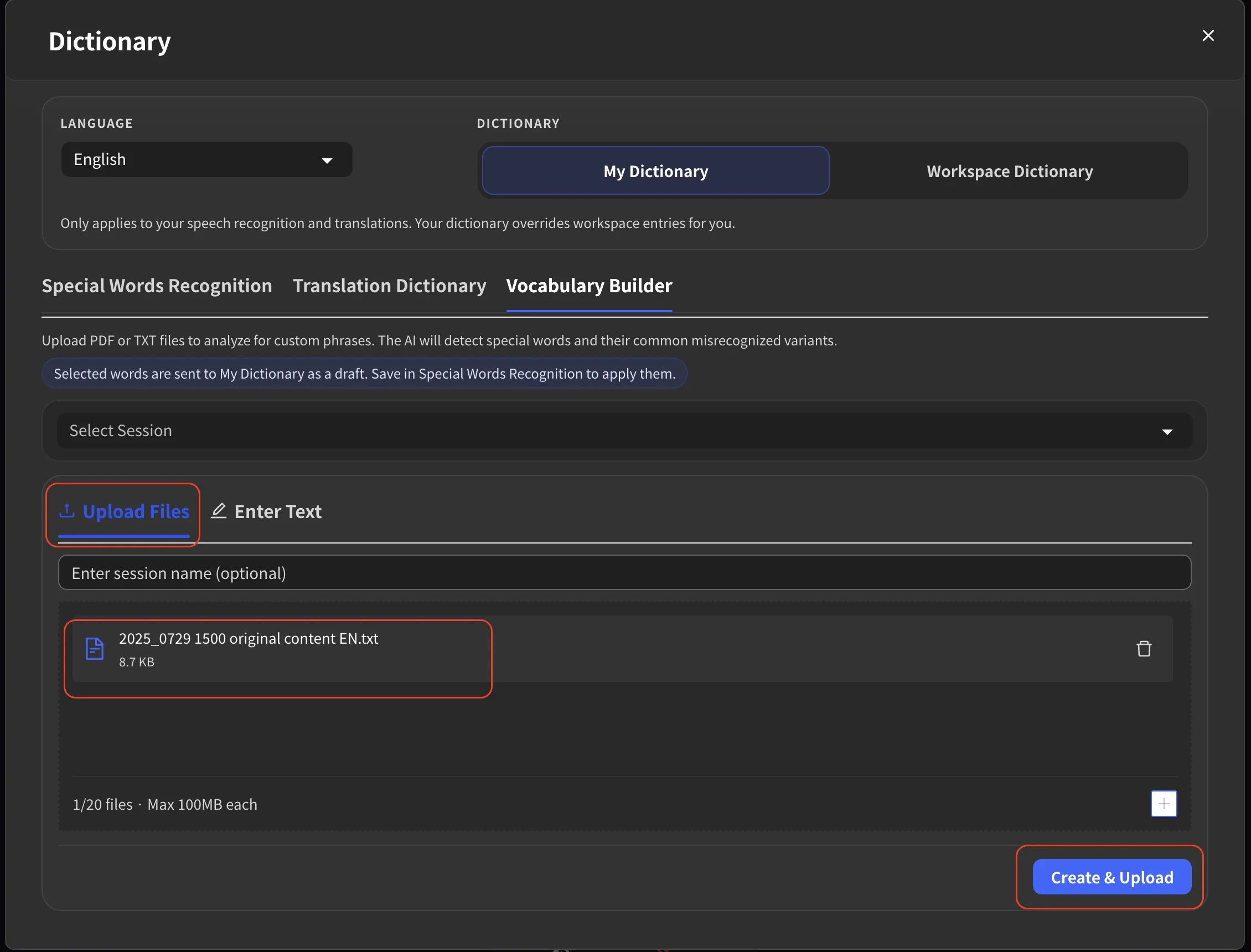 You can also switch to the **Enter Text** tab and paste text directly (up to 50,000 characters) instead of uploading a file.
**File Limits:**
| Item | Limit |
| --------------------- | -------------- |
| Supported formats | PDF, TXT |
| Max files per session | 20 |
| Max file size | 100MB per file |
### 3. Wait for AI to Analyze
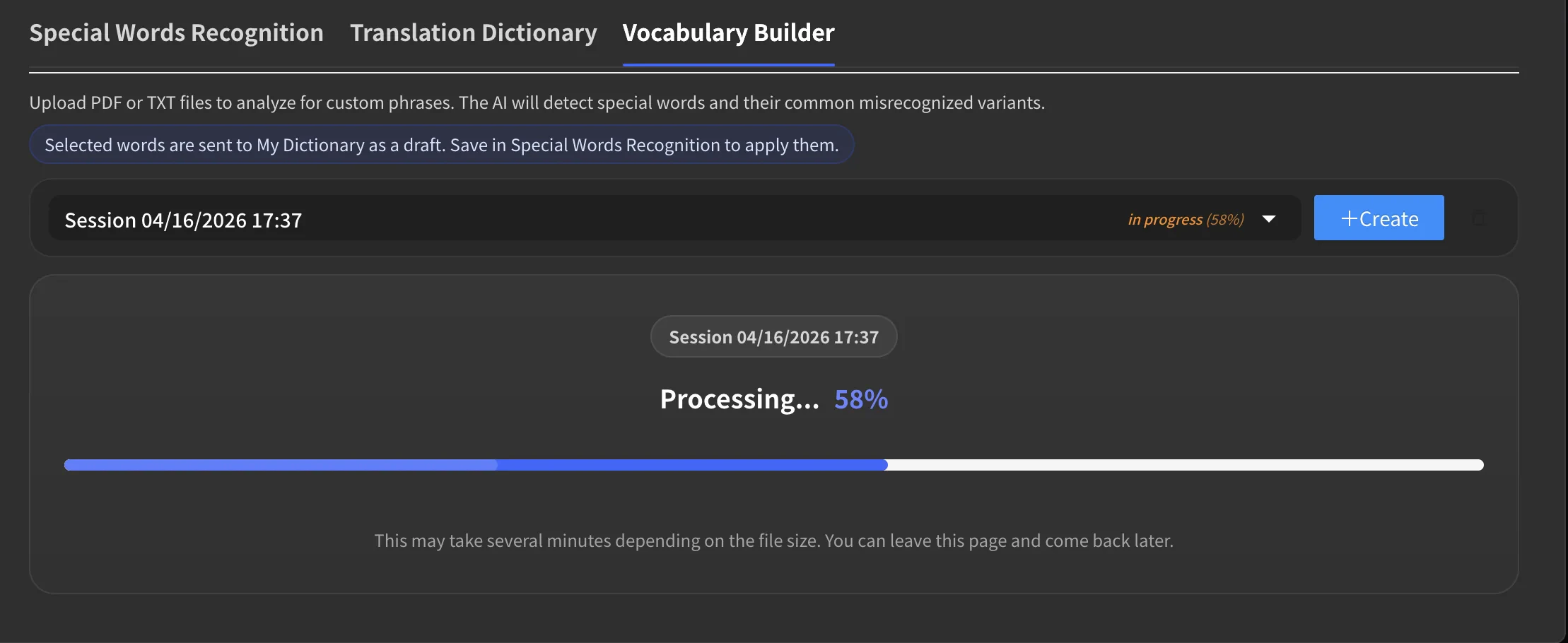
After uploading, the session appears in the **session dropdown** with an "in progress" label and a percentage. Click on it to see the full progress bar.
You can also switch to the **Enter Text** tab and paste text directly (up to 50,000 characters) instead of uploading a file.
**File Limits:**
| Item | Limit |
| --------------------- | -------------- |
| Supported formats | PDF, TXT |
| Max files per session | 20 |
| Max file size | 100MB per file |
### 3. Wait for AI to Analyze
After uploading, the session appears in the **session dropdown** with an "in progress" label and a percentage. Click on it to see the full progress bar.
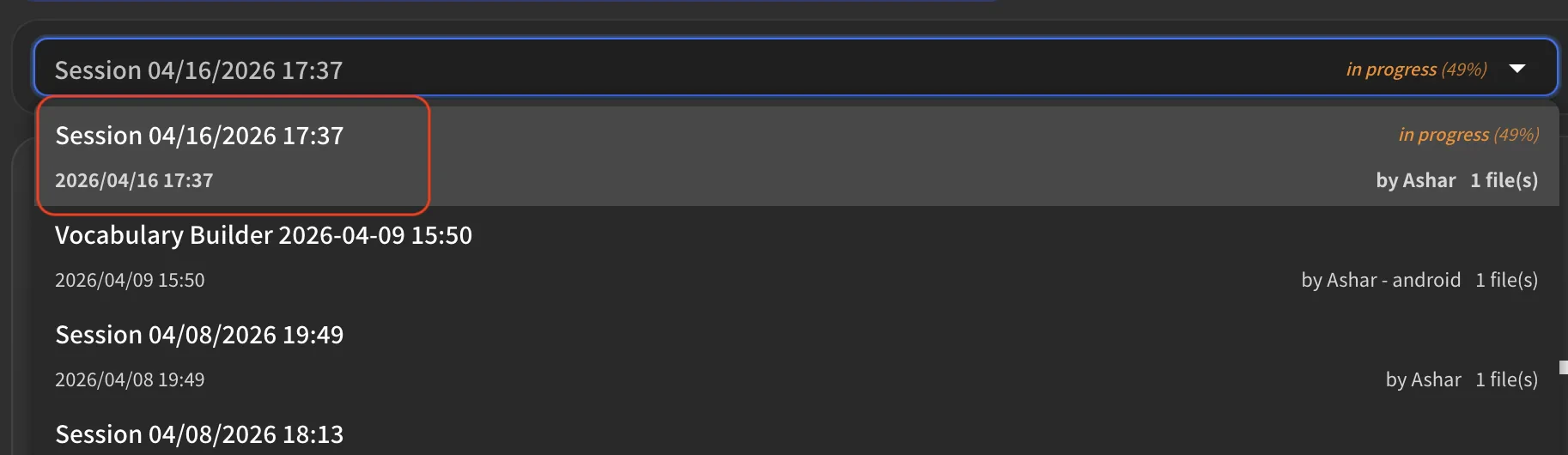 This may take several minutes depending on the file size. You can close the modal and come back later — processing continues in the background. Click **+ Create** to start another session while this one is still running.
 ### 4. Review What AI Found
Once processing completes, the results appear. From the Meta earnings call PDF, Vocabulary Builder extracted **14 terms** that speech-to-text is likely to get wrong — including executive names, financial terms, and product names:
### 4. Review What AI Found
Once processing completes, the results appear. From the Meta earnings call PDF, Vocabulary Builder extracted **14 terms** that speech-to-text is likely to get wrong — including executive names, financial terms, and product names:
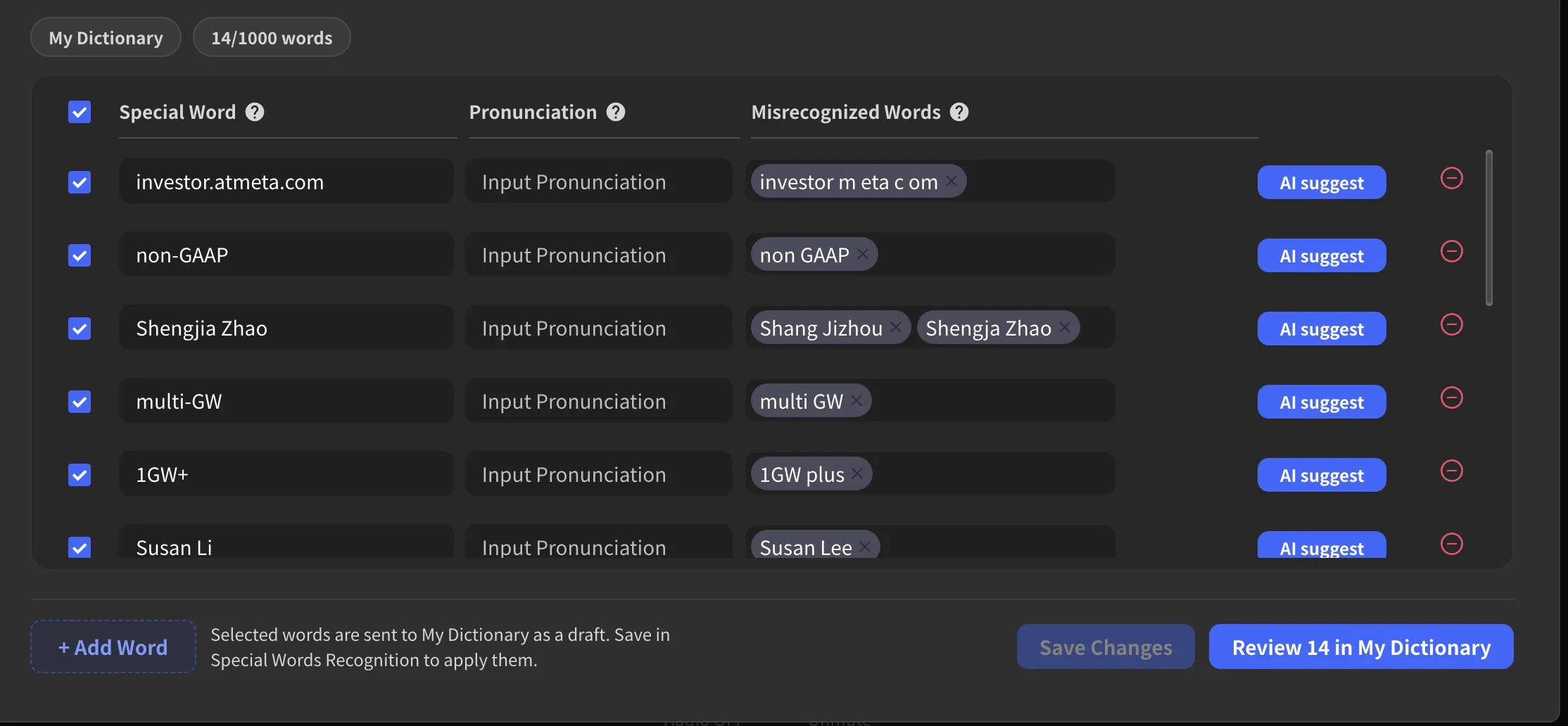 For each term, the AI has already generated:
* **Special Word** — the correct spelling
* **Pronunciation** — how it sounds when spoken
* **Misrecognized Words** — the incorrect transcriptions VoicePing should auto-correct
You can edit any of these, remove variants that don't apply, click **AI suggest** for more variants, or uncheck terms you don't need.
For each term, the AI has already generated:
* **Special Word** — the correct spelling
* **Pronunciation** — how it sounds when spoken
* **Misrecognized Words** — the incorrect transcriptions VoicePing should auto-correct
You can edit any of these, remove variants that don't apply, click **AI suggest** for more variants, or uncheck terms you don't need.
 ### 5. Save to Your Dictionary
Once you're satisfied with the list, click **Review X in My Dictionary** (or **Review X in Workspace Dictionary**). This takes you to the **Special Words Recognition** tab where the phrases appear as a draft. Review them one more time, then click **Save** to apply.
### 5. Save to Your Dictionary
Once you're satisfied with the list, click **Review X in My Dictionary** (or **Review X in Workspace Dictionary**). This takes you to the **Special Words Recognition** tab where the phrases appear as a draft. Review them one more time, then click **Save** to apply.
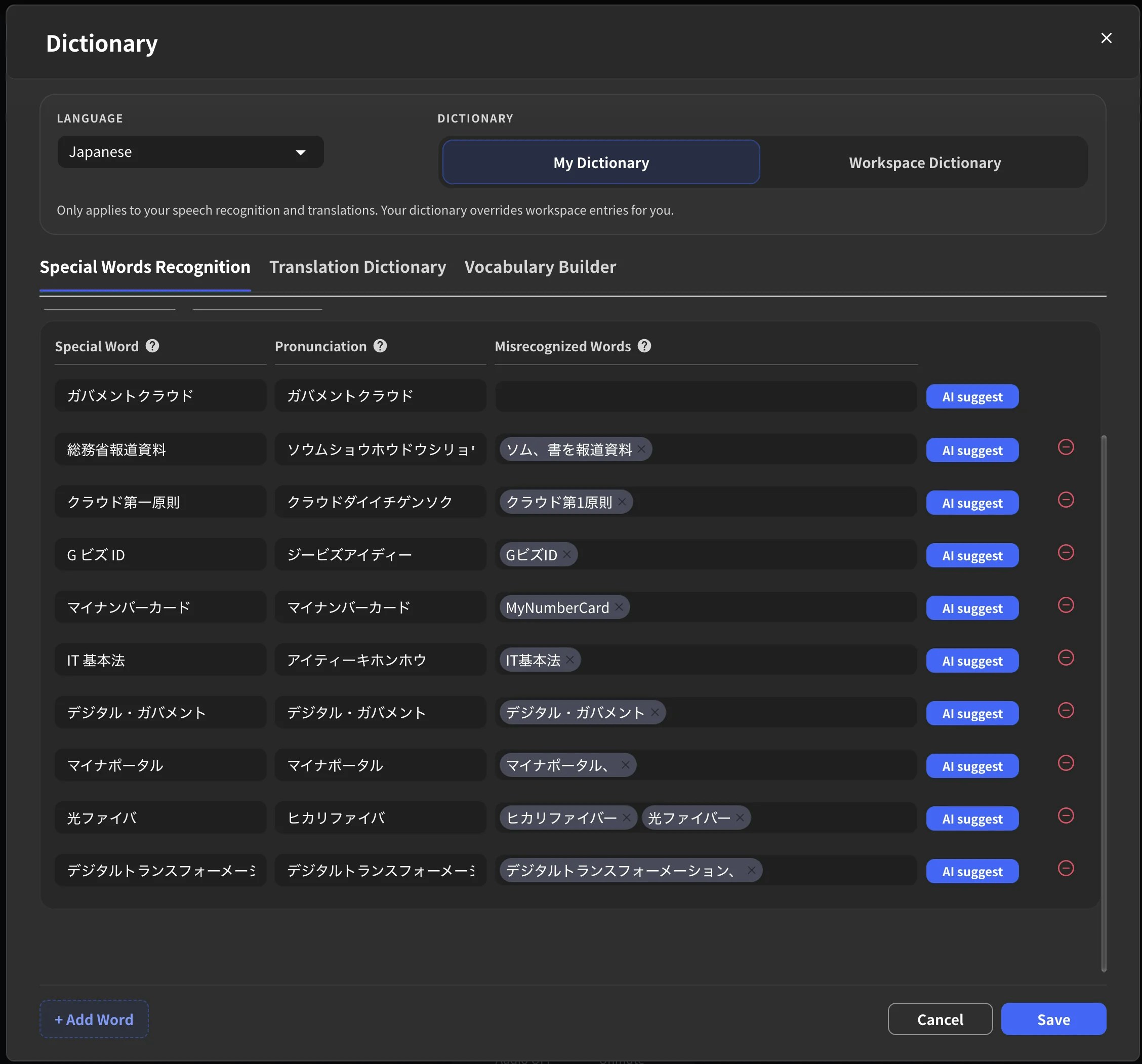 That's it — from PDF upload to fully prepared dictionary in a few minutes. No manual entry, no guessing which terms might fail. The next time someone speaks these terms in a meeting, VoicePing gets them right.
***
## The Difference It Makes
We spoke two sentences from the earnings call — once **before** uploading the PDF, and once **after**. Same speaker, same microphone, same VoicePing session. The only difference: a few minutes of preparation.
### English Example 1: "Meta Quest" misheard as "met a Quest"
> "Alexandr Wang from Scale AI asked about Llama 4.2 and Meta Quest 3S during the earnings call."
That's it — from PDF upload to fully prepared dictionary in a few minutes. No manual entry, no guessing which terms might fail. The next time someone speaks these terms in a meeting, VoicePing gets them right.
***
## The Difference It Makes
We spoke two sentences from the earnings call — once **before** uploading the PDF, and once **after**. Same speaker, same microphone, same VoicePing session. The only difference: a few minutes of preparation.
### English Example 1: "Meta Quest" misheard as "met a Quest"
> "Alexandr Wang from Scale AI asked about Llama 4.2 and Meta Quest 3S during the earnings call."
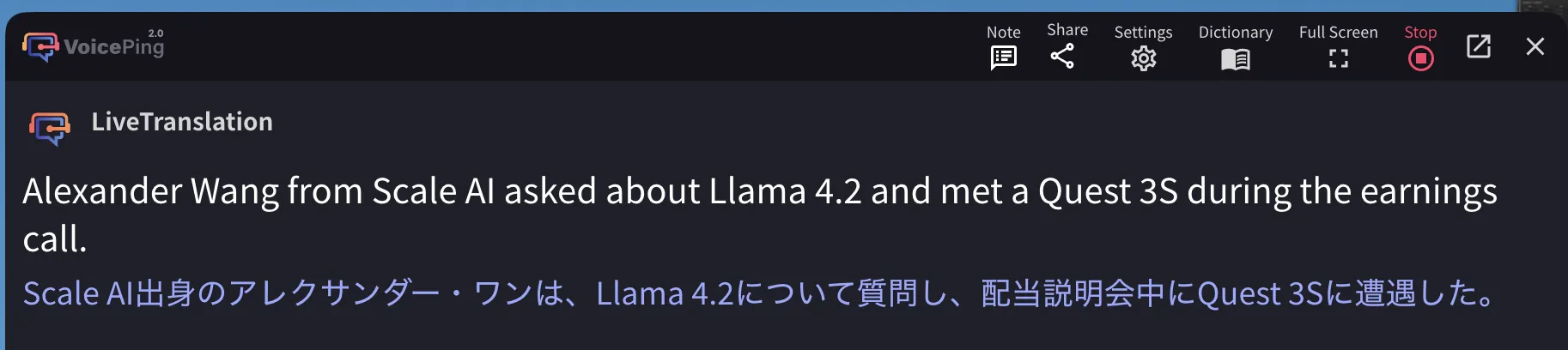 `Alexander Wang` ... `met a Quest 3S`
JP: 「配当説明会中にQuest 3Sに遭遇した」— "encountered Quest 3S during a dividend briefing"
`Alexander Wang` ... `met a Quest 3S`
JP: 「配当説明会中にQuest 3Sに遭遇した」— "encountered Quest 3S during a dividend briefing"
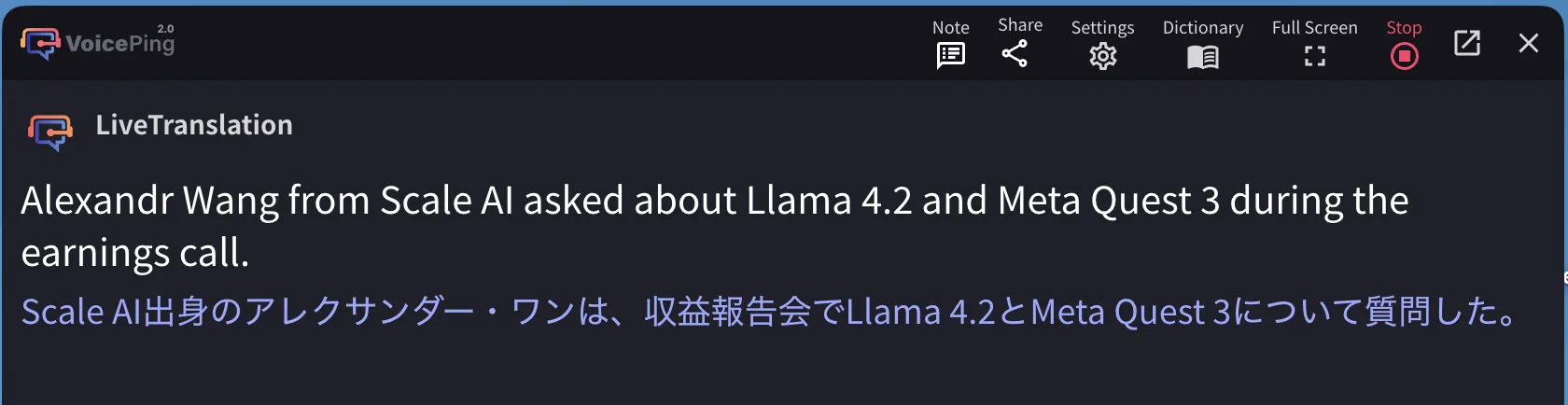 `Alexandr Wang` ... `Meta Quest 3` ✓
JP: 「収益報告会でLlama 4.2とMeta Quest 3について質問した。」 ✓
"Meta" was misheard as "met a" — turning a product name into a random verb. The name `Alexander` was also corrected to `Alexandr`. Both fixes rippled into the Japanese translation, turning nonsense into an accurate sentence.
### English Example 2: "GAAP" misheard as "GOP"
This is the example from the top of this page — `GAAP` (accounting standard) heard as `GOP` (political party), with the Japanese translation going from "non-Republican party" to the correct financial term. A few minutes of preparation prevented a completely wrong transcript.
***
## Same Preparation, Different Language: Japanese Government Document
The same workflow applies to any language. We uploaded the Digital Agency's (デジタル庁) Priority Plan PDF before a session about Japanese government digital policy. The document is dense with formal terminology that speech-to-text would normally mangle.
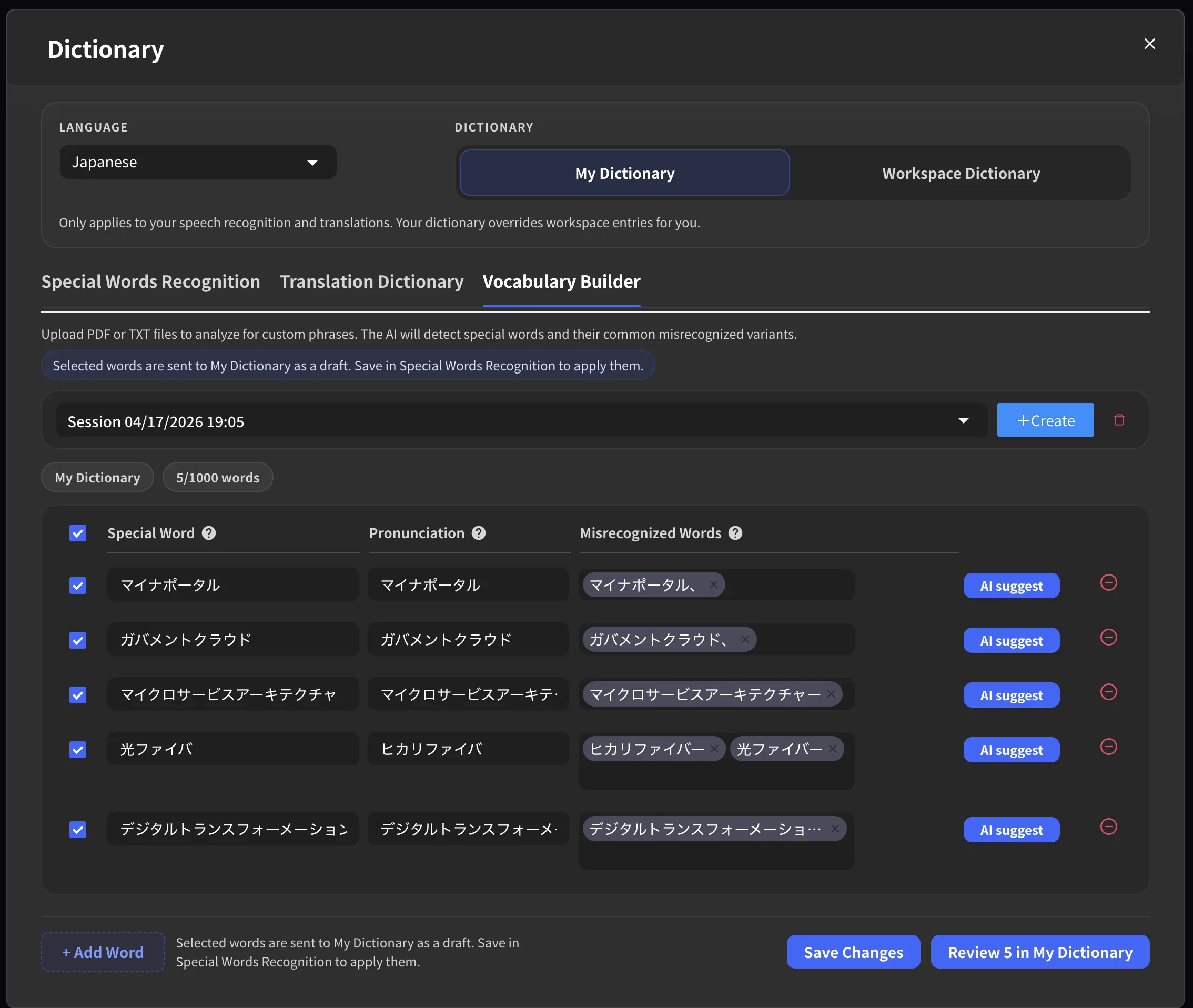
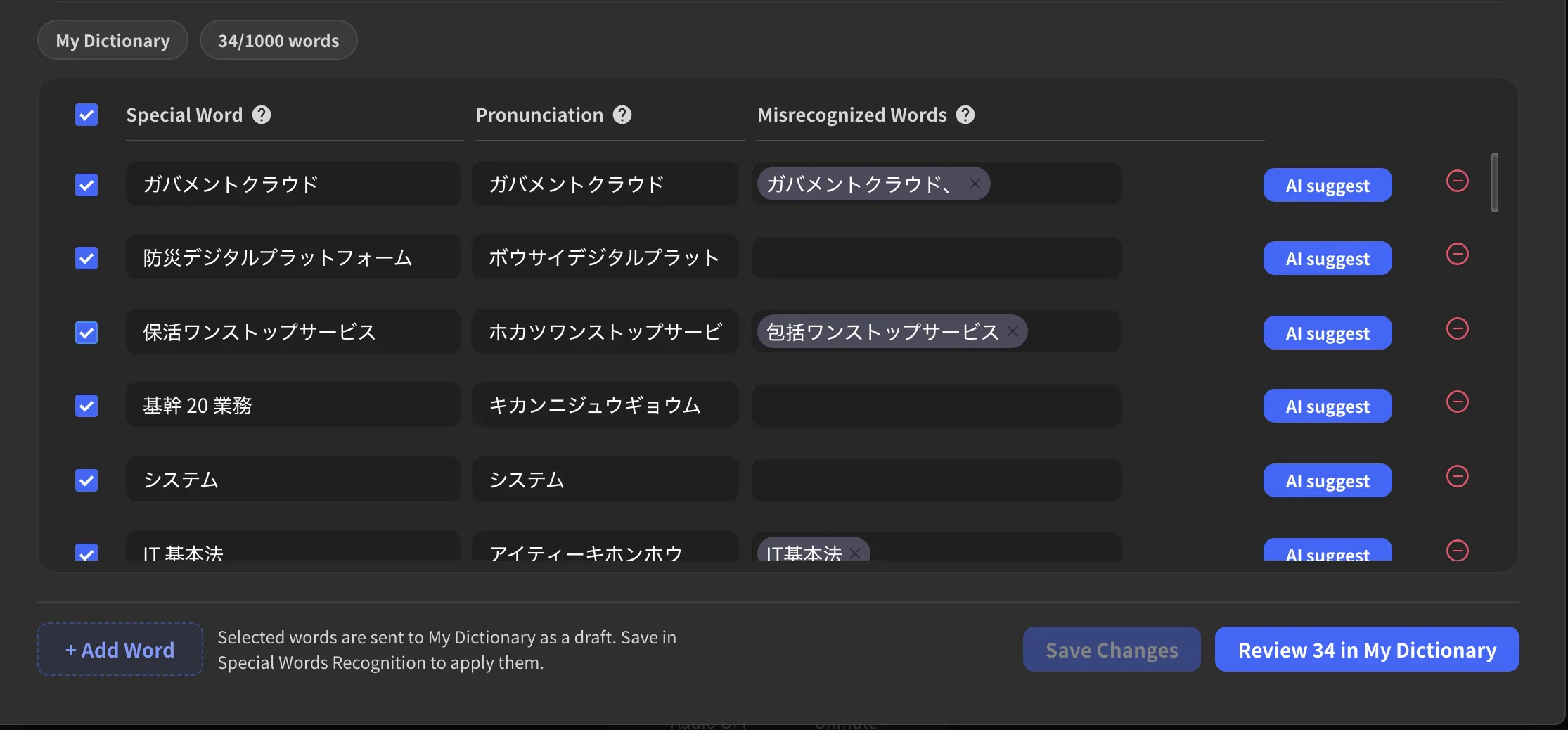
Vocabulary Builder extracted **34 terms** in minutes — including `ガバメントクラウド`, `防災デジタルプラットフォーム`, `保活ワンストップサービス`, `IT 基本法`, and `クラウド第一原則`. Manually building this list from scratch would have taken far longer.
`Alexandr Wang` ... `Meta Quest 3` ✓
JP: 「収益報告会でLlama 4.2とMeta Quest 3について質問した。」 ✓
"Meta" was misheard as "met a" — turning a product name into a random verb. The name `Alexander` was also corrected to `Alexandr`. Both fixes rippled into the Japanese translation, turning nonsense into an accurate sentence.
### English Example 2: "GAAP" misheard as "GOP"
This is the example from the top of this page — `GAAP` (accounting standard) heard as `GOP` (political party), with the Japanese translation going from "non-Republican party" to the correct financial term. A few minutes of preparation prevented a completely wrong transcript.
***
## Same Preparation, Different Language: Japanese Government Document
The same workflow applies to any language. We uploaded the Digital Agency's (デジタル庁) Priority Plan PDF before a session about Japanese government digital policy. The document is dense with formal terminology that speech-to-text would normally mangle.
Vocabulary Builder extracted **34 terms** in minutes — including `ガバメントクラウド`, `防災デジタルプラットフォーム`, `保活ワンストップサービス`, `IT 基本法`, and `クラウド第一原則`. Manually building this list from scratch would have taken far longer.
 ### Japanese Example 1: クラウド第一原則
> 「総務省報道資料によると、クラウド第一原則の適用が進んでいます。」
### Japanese Example 1: クラウド第一原則
> 「総務省報道資料によると、クラウド第一原則の適用が進んでいます。」
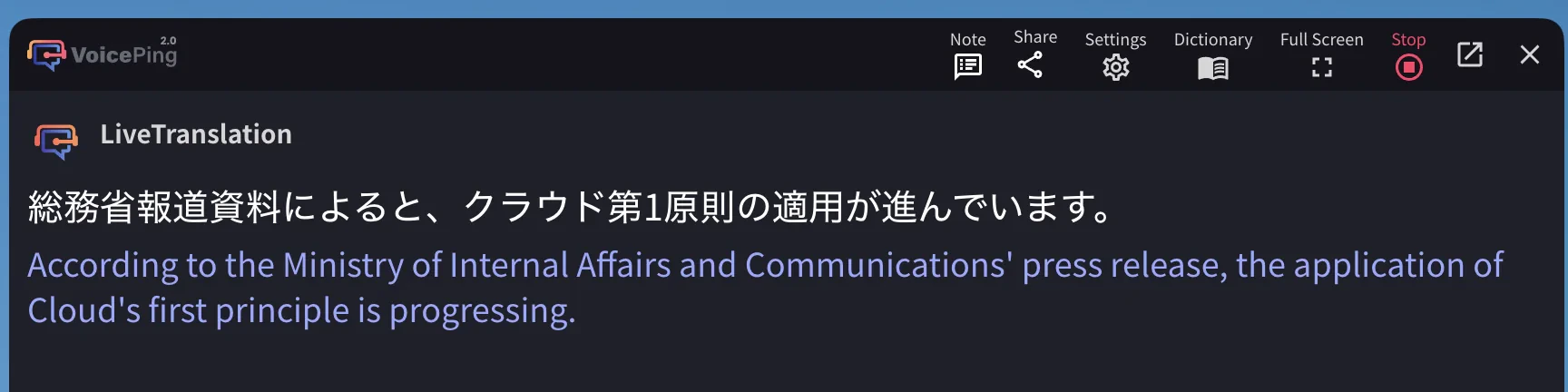 `クラウド第1原則` → "Cloud's first principle is progressing"
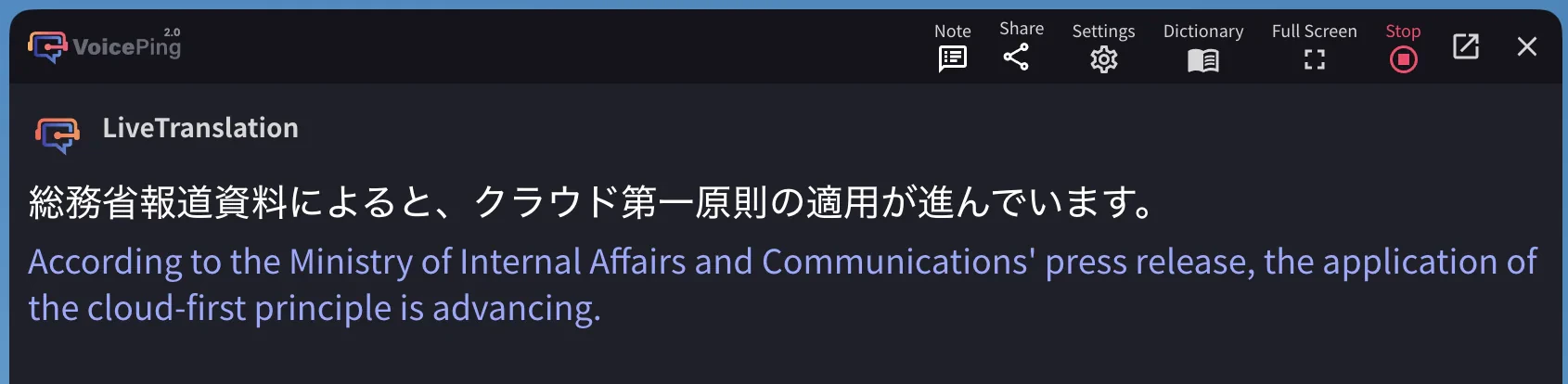 `クラウド第一原則` → "the cloud-first principle is advancing" ✓
The dictionary corrected `第1` to the formal kanji `第一`, and the English translation shifted from the awkward "Cloud's first principle" to the accurate "cloud-first principle."
### Japanese Example 2: デジタル・ガバメント
> 「IT基本法に基づき、デジタル・ガバメントの推進を加速させます。」
`クラウド第一原則` → "the cloud-first principle is advancing" ✓
The dictionary corrected `第1` to the formal kanji `第一`, and the English translation shifted from the awkward "Cloud's first principle" to the accurate "cloud-first principle."
### Japanese Example 2: デジタル・ガバメント
> 「IT基本法に基づき、デジタル・ガバメントの推進を加速させます。」
 `デジタルガバメントの推進を加速させます`
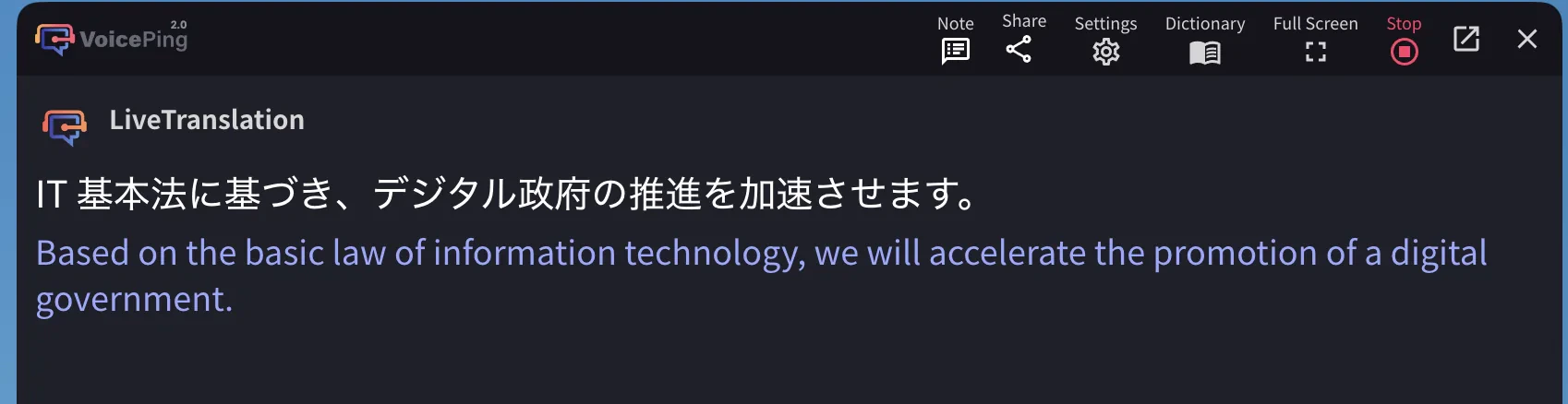 `デジタル政府の推進を加速させます` ✓
***
## Managing Sessions
### View Past Sessions
Use the session dropdown to see all your previous analysis sessions. Each session shows the session name, date, processing status, creator name, and number of files.
### Delete Sessions
Select a session and click the delete option to remove it. Deleted sessions cannot be recovered.
`デジタル政府の推進を加速させます` ✓
***
## Managing Sessions
### View Past Sessions
Use the session dropdown to see all your previous analysis sessions. Each session shows the session name, date, processing status, creator name, and number of files.
### Delete Sessions
Select a session and click the delete option to remove it. Deleted sessions cannot be recovered.