
1. PC
- Apri barra superiore → Billing → Payment methods e registra una nuova carta.
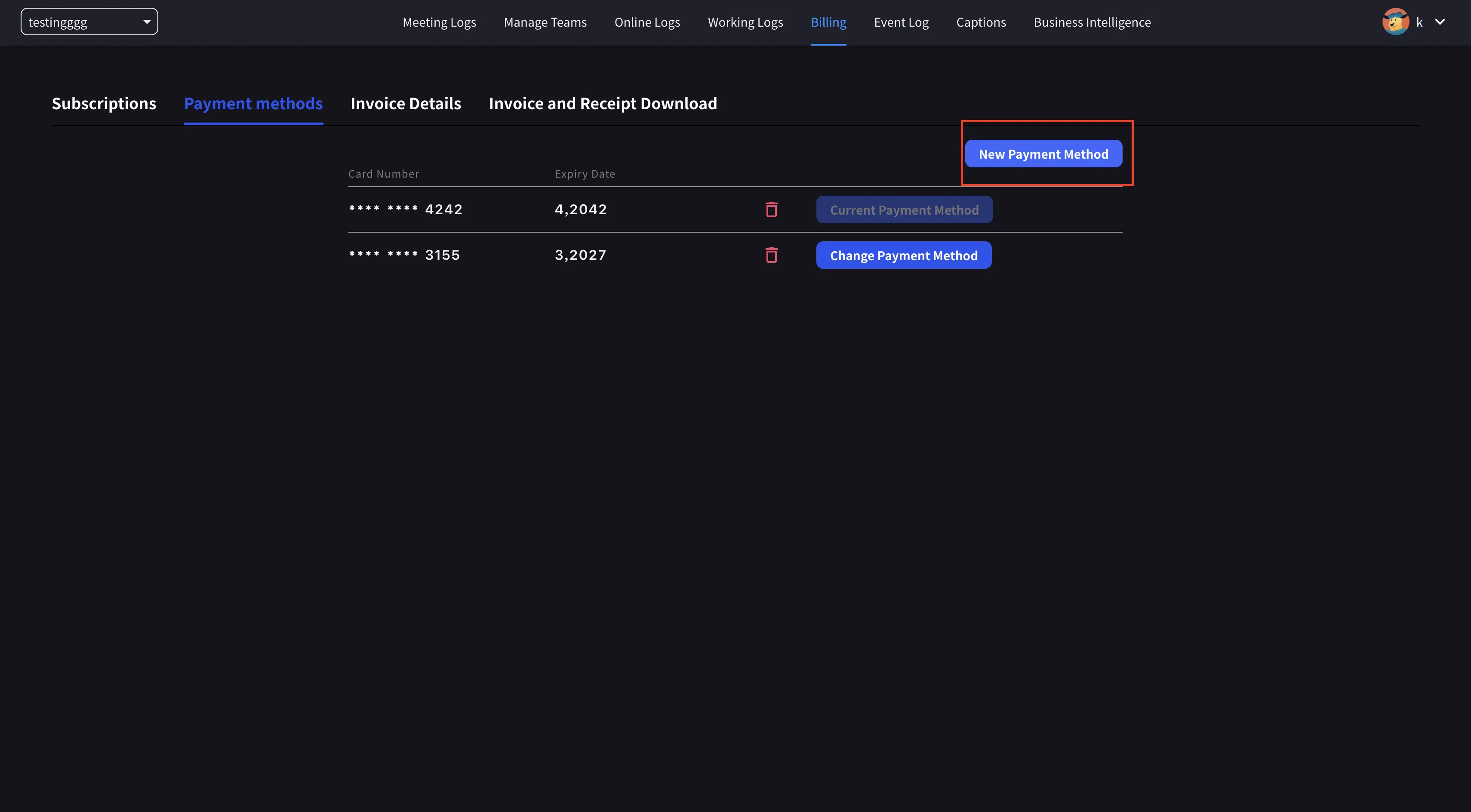
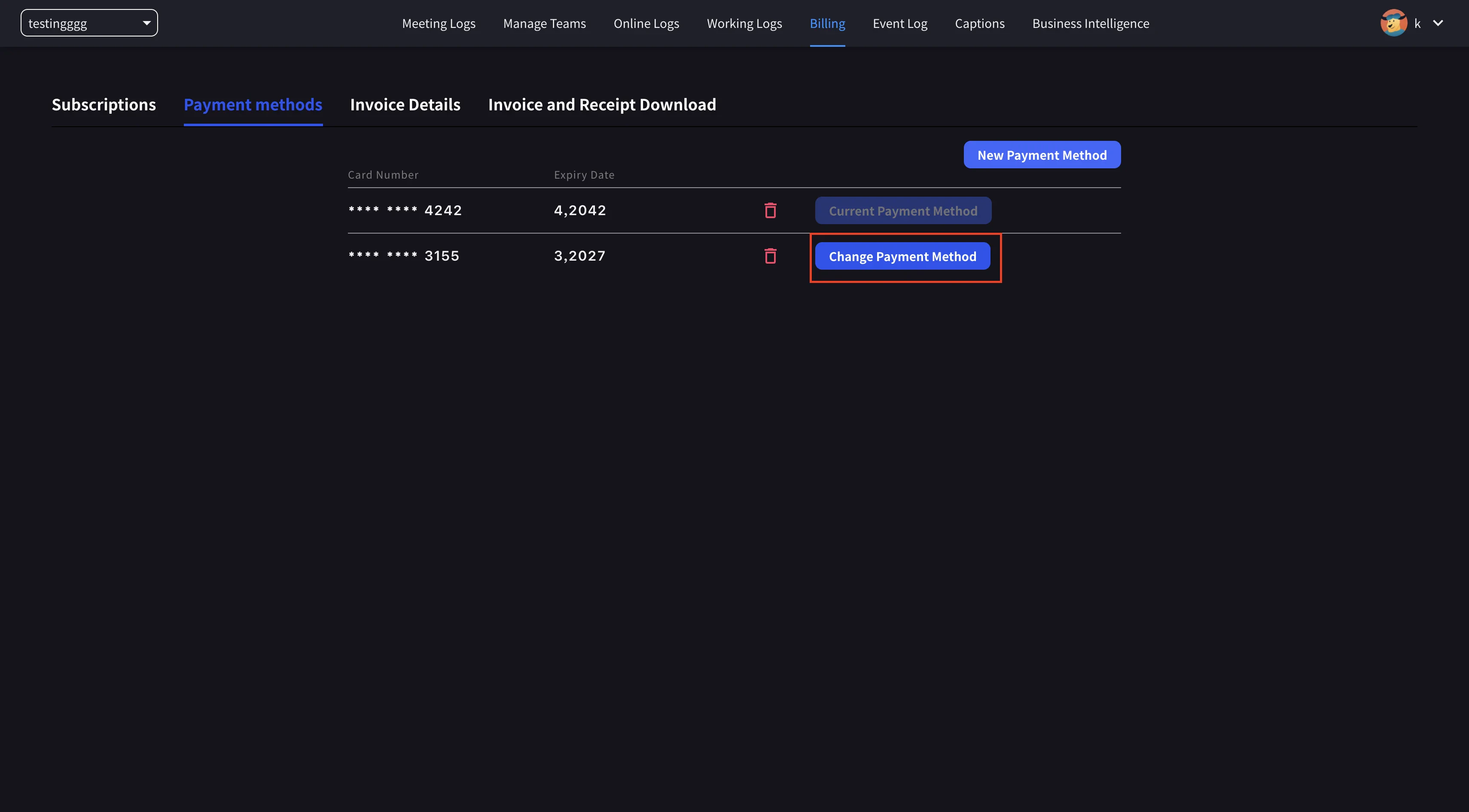
- Fai clic su Set as Payment Method sulla nuova carta per completare la modifica.
2. Mobile
Nell’app mobile, la gestione carte è in Billing → Manage Cards.Apri Manage Cards
Apri il menu laterale → User Settings → Billing → Manage Cards. Sono elencate tutte le carte salvate. Quella in uso mostra il badge Using Now.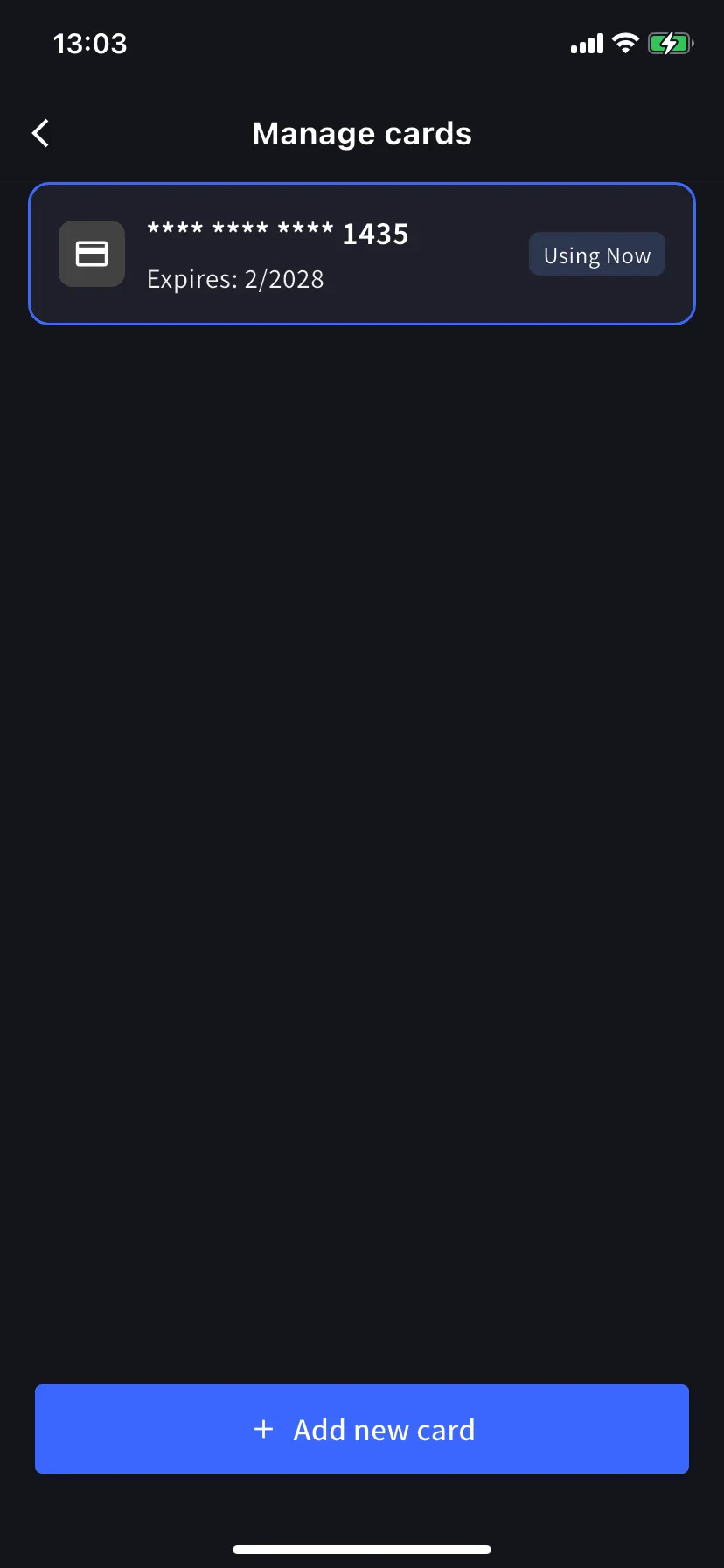
Aggiungi una nuova carta
Tocca il pulsante blu + Add new card in basso. Il foglio di aggiunta offre due percorsi: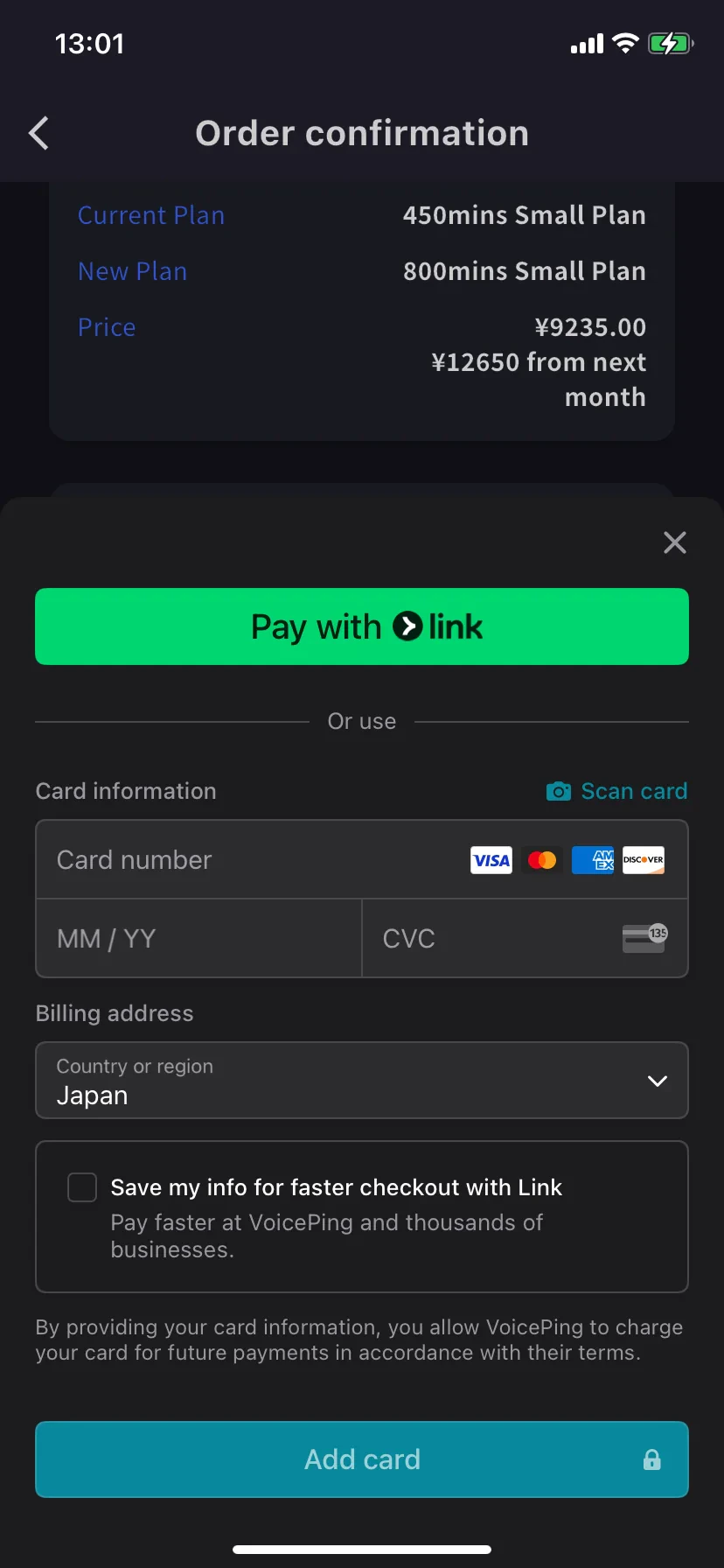
- Pay with Link — Stripe Link in un tocco se il telefono è già collegato.
- Manual card — inserisci numero, MM/YY e CVC oppure tocca 📷 Scan card per compilare con la fotocamera. Scegli il paese di fatturazione e tocca Add card.
Le carte sono tokenizzate da Stripe; VoicePing non salva mai il numero grezzo.
Related
- Plan Changes, Cancellation & Trial End — upgrade, downgrade e annullamento
- Invoices, Receipts & Billing Activity — PDF fatture, ricevute e registro eventi