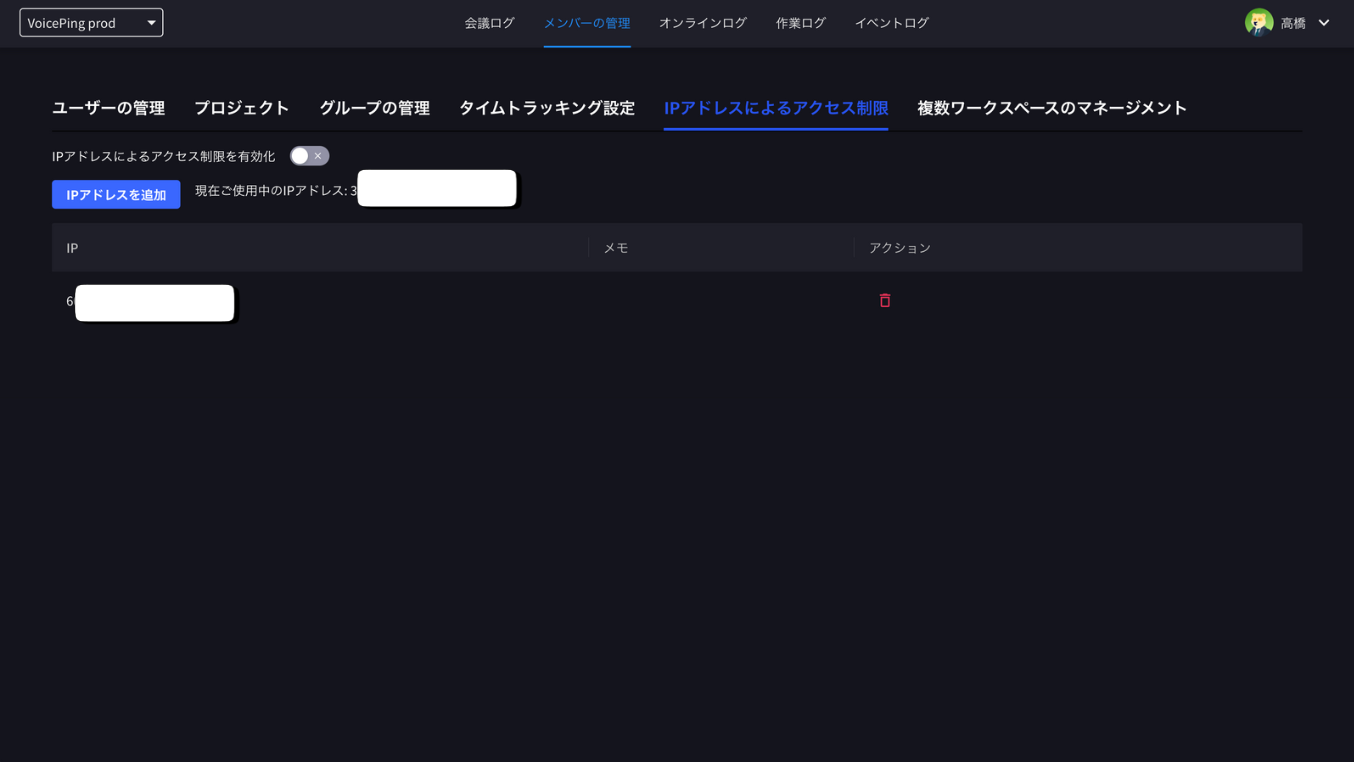
IP Restriction limits workspace access to registered IP addresses. The route is still named ip-whitelist for compatibility, but the current product label is IP Restriction.
IP Restriction is available on paid plans and is hidden on Free workspaces.

Open IP Restriction

  1. Open Admin.
  2. Select IP Restriction.
  3. Review the current IP shown on the screen.
IP Restriction မျက်နှာပြင် — Enable IP Filtering ခလုတ်၊ လက်ရှိ IP လိပ်စာနှင့် ခွင့်ပြုထားသော IP စာရင်း

Enable Filtering

  1. Add at least one allowed IP address.
  2. Turn on Enable IP Filtering.
  3. Confirm the warning dialog.
Enable IP Filtering အတည်ပြုချက် — workspace ပိုင်ရှင်များ မထိခိုက်သော်လည်း မန်နေဂျာများနှင့် အဖွဲ့ဝင်များသည် ခွင့်ပြုထားသော IP မှ ချိတ်ဆက်ရမည်

Manage Allowed IP Addresses

  • Add an IP address with an optional memo or description.
  • Delete IP addresses that should no longer be allowed.
  • Export the list as CSV when needed.
Add IP to White List ဒိုင်ယာလော့ — IP လိပ်စာ သို့မဟုတ် CIDR အပိုင်းအခြား၊ ပံ့ပိုးထားသော ဖော်မတ်များနှင့် ရွေးချယ်နိုင်သော ဖော်ပြချက်
Confirm the allowed IP list before enabling filtering. Users outside the allowed IP range may lose access.