- Speaker နှင့် participant နှစ်ဖက်စလုံး internet ပတ်ဝန်းကျင် လိုအပ်ပါသည်။ Internet speed ကို https://fast.com/ တွင် စစ်ဆေးနိုင်ပါသည်။ 30mbps သို့မဟုတ် ထို့ထက်မြင့် အကြံပြုပါသည် (အနည်းဆုံး 10mbps လိုအပ်ပါသည်)
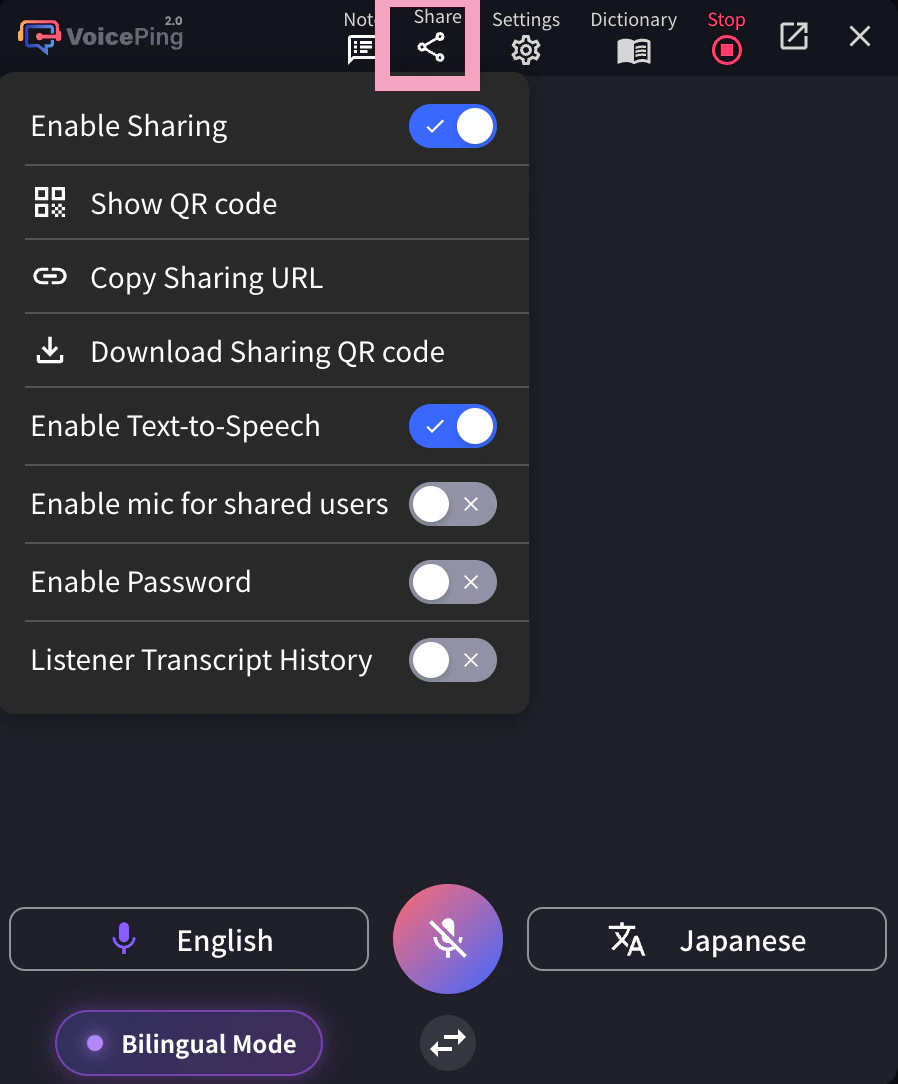
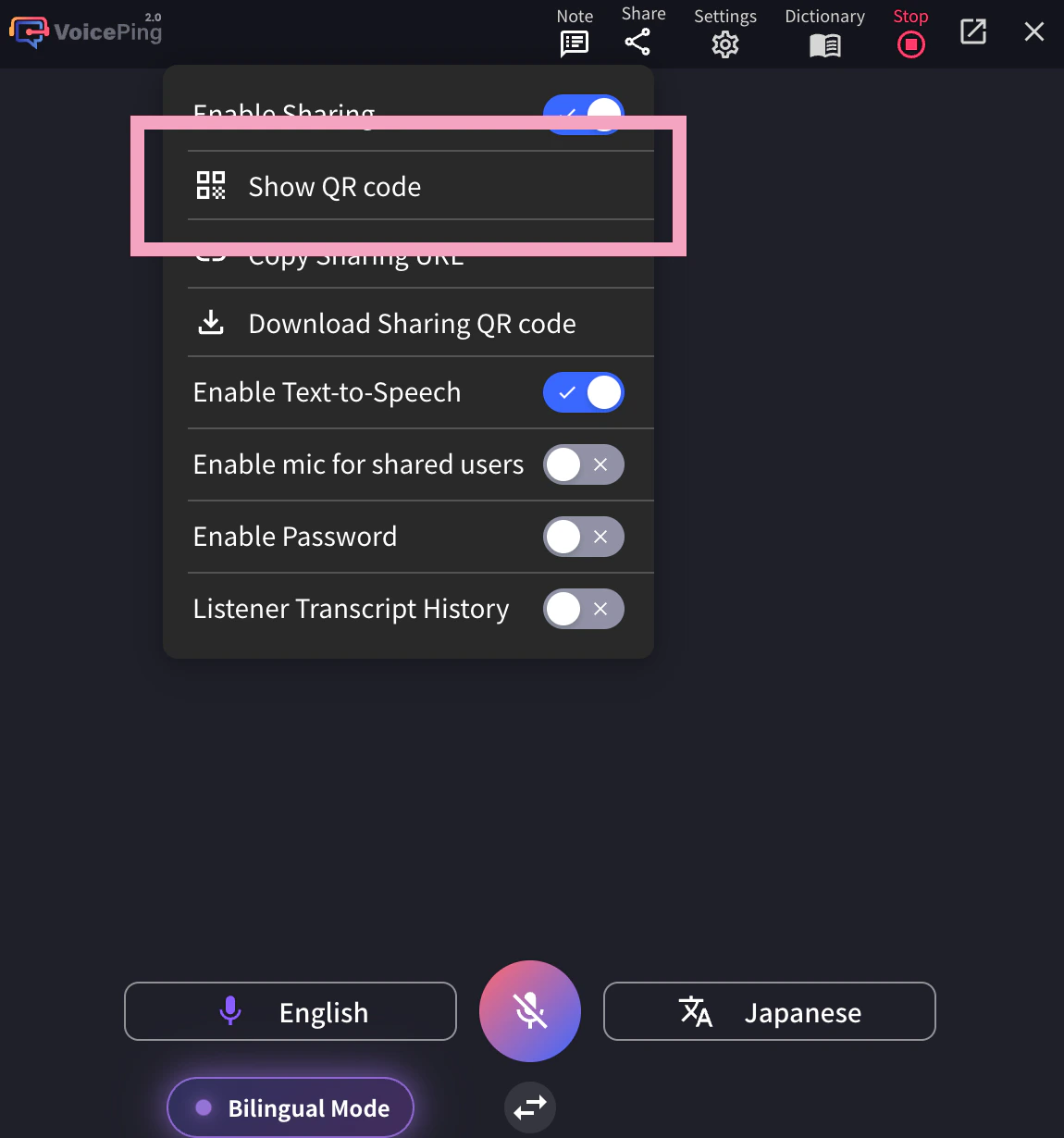
- QR code image/URL သည် fixed ဖြစ်ပြီး sessions စတင်/ပြီးဆုံးသောအခါ ပြောင်းလဲမည် မဟုတ်ပါ။ Password သတ်မှတ်ခြင်းဖြင့် လုံခြုံရေး မြှင့်တင်နိုင်ပါသည်
- Participant ဘက်ရှိ Microphone နှင့် translation text reading function ကို enable/disable လုပ်နိုင်ပါသည်
- Transcription language ကို ဖုံးကွယ်ပြီး translation text သာ ပြသနိုင်ပြီး stage screen တွင် project လုပ်နိုင်ပါသည်
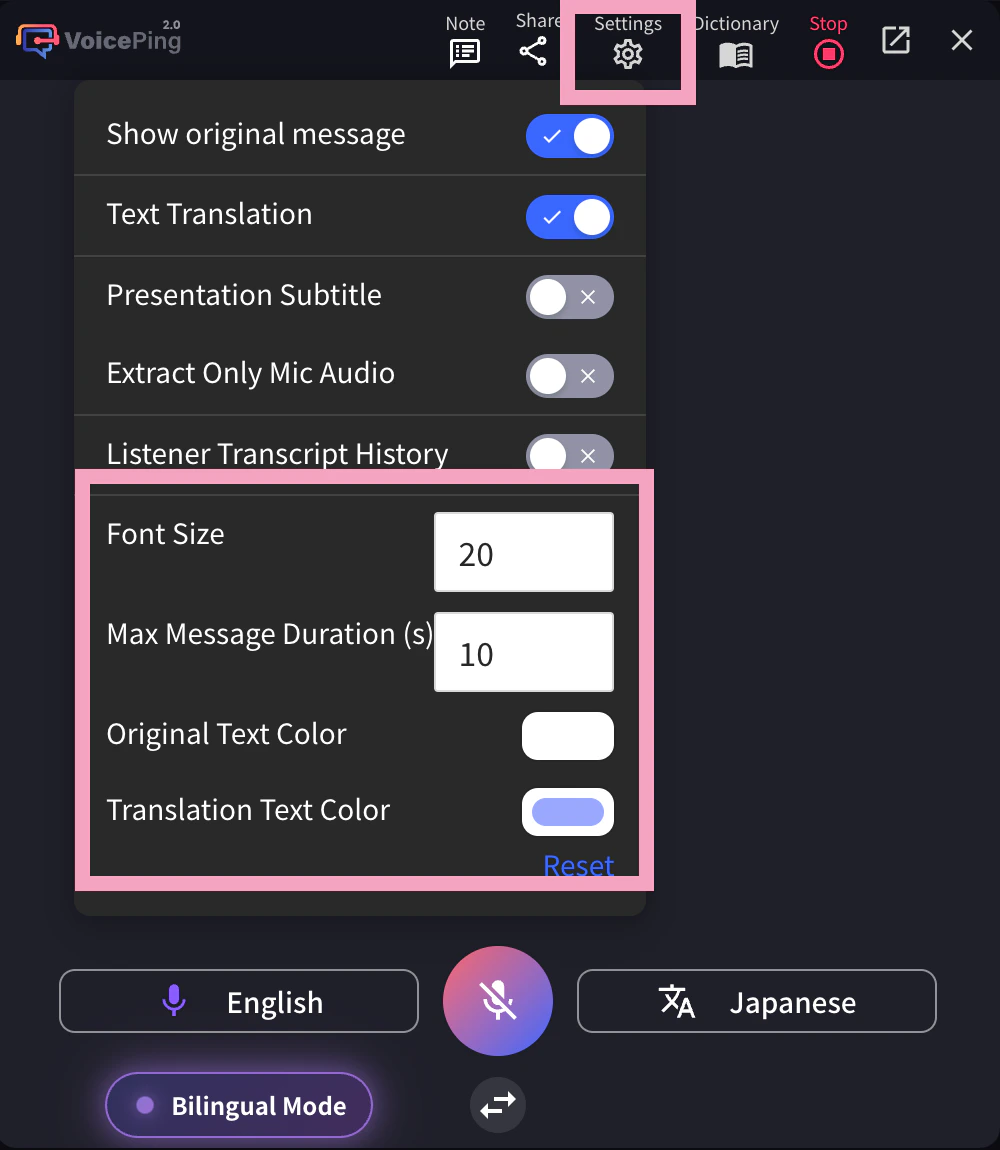
- Text color နှင့် size ကို ပြောင်းလဲနိုင်ပါသည်
- Translation speed ကို ချိန်ညှိနိုင်ပါသည်
- Presentation subtitles ပြသနိုင်ပါသည်။ အသေးစိတ်အတွက် Subtitle Mode (Transparent Background) ကို ကြည့်ပါ
[Host အတွက်] Speaker Audio Translate လုပ်နည်း
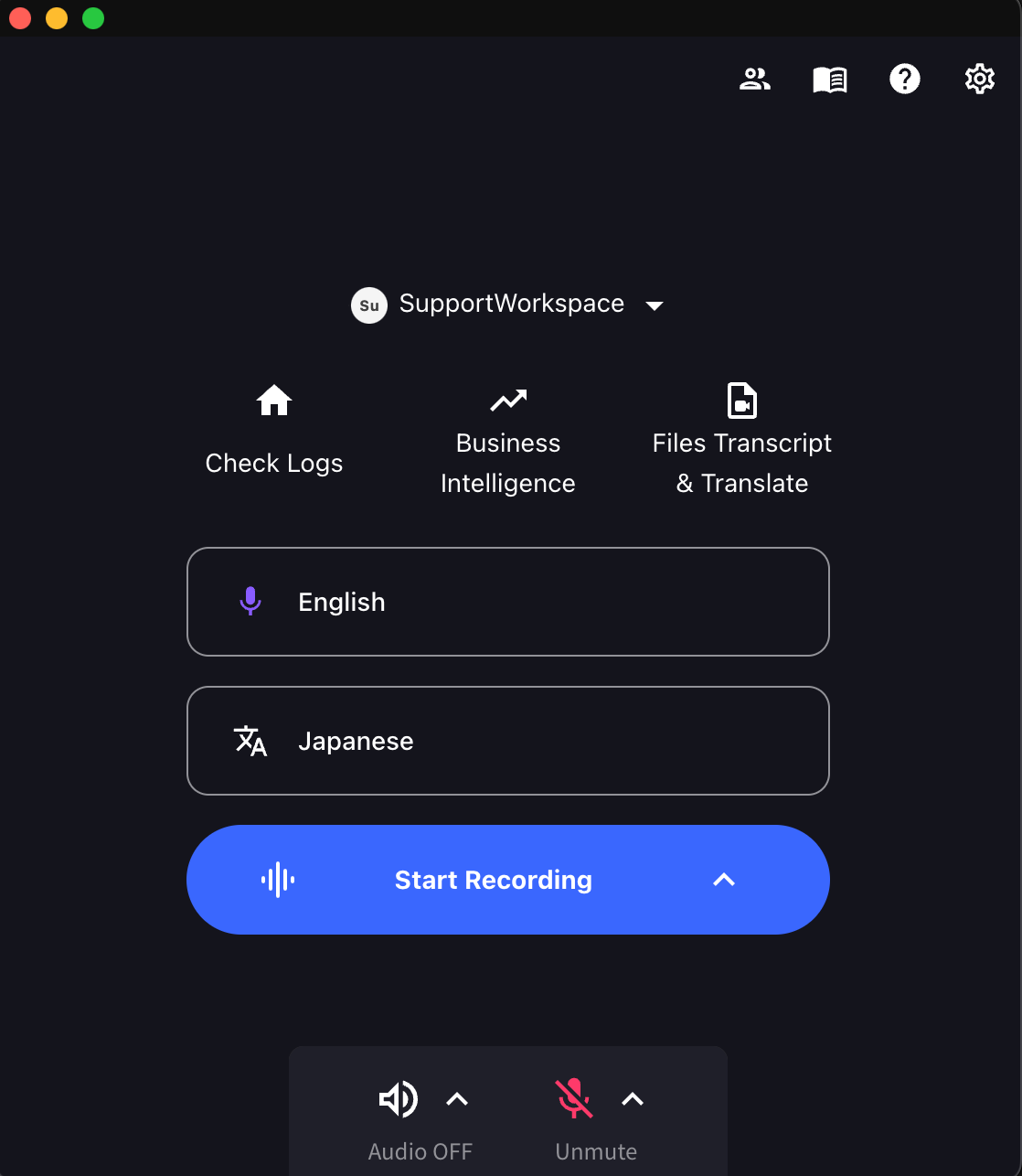
- VoicePing app ကို ဖွင့်ပြီး “Start Recording” ကို နှိပ်ပါ။
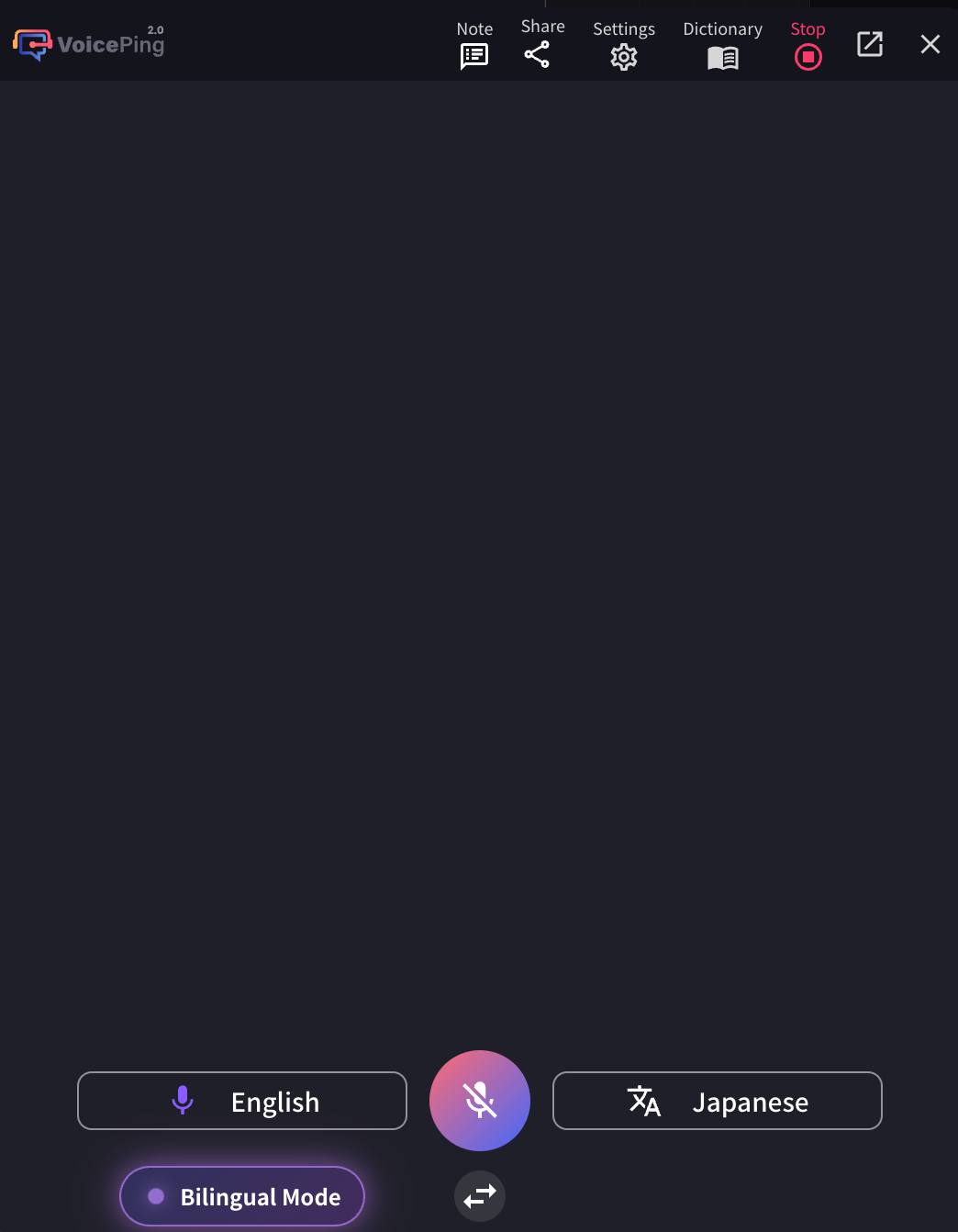
- Translation languages များ သတ်မှတ်ပါ။
- Microphone icon: Transcription language (speaker ၏ ဘာသာစကား)
- “Text & A” icon: Translation language (participants များအတွက် ဘာသာစကား)
ဥပမာ: English ကို Japanese သို့ translate လုပ်ရန် microphone icon ကို “English” နှင့် “Text & A” icon ကို “Japanese” သတ်မှတ်ပါ။
- ပွဲကျင်းပရာနေရာ screen အရွယ်အစားအလိုက် VoicePing translation screen အရွယ်အစား၊ text အရွယ်အစားနှင့် color ကို ချိန်ညှိပါ။
- Audio segment တစ်ခု၏ အရှည်ကို ချိန်ညှိရန် maximum message time ကို ချိန်ညှိပါ
4-1. Session share လုပ်ရန် အပေါ်ရှိ Share icon ကို နှိပ်ပြီး sharing ကို enable လုပ်ပါ။
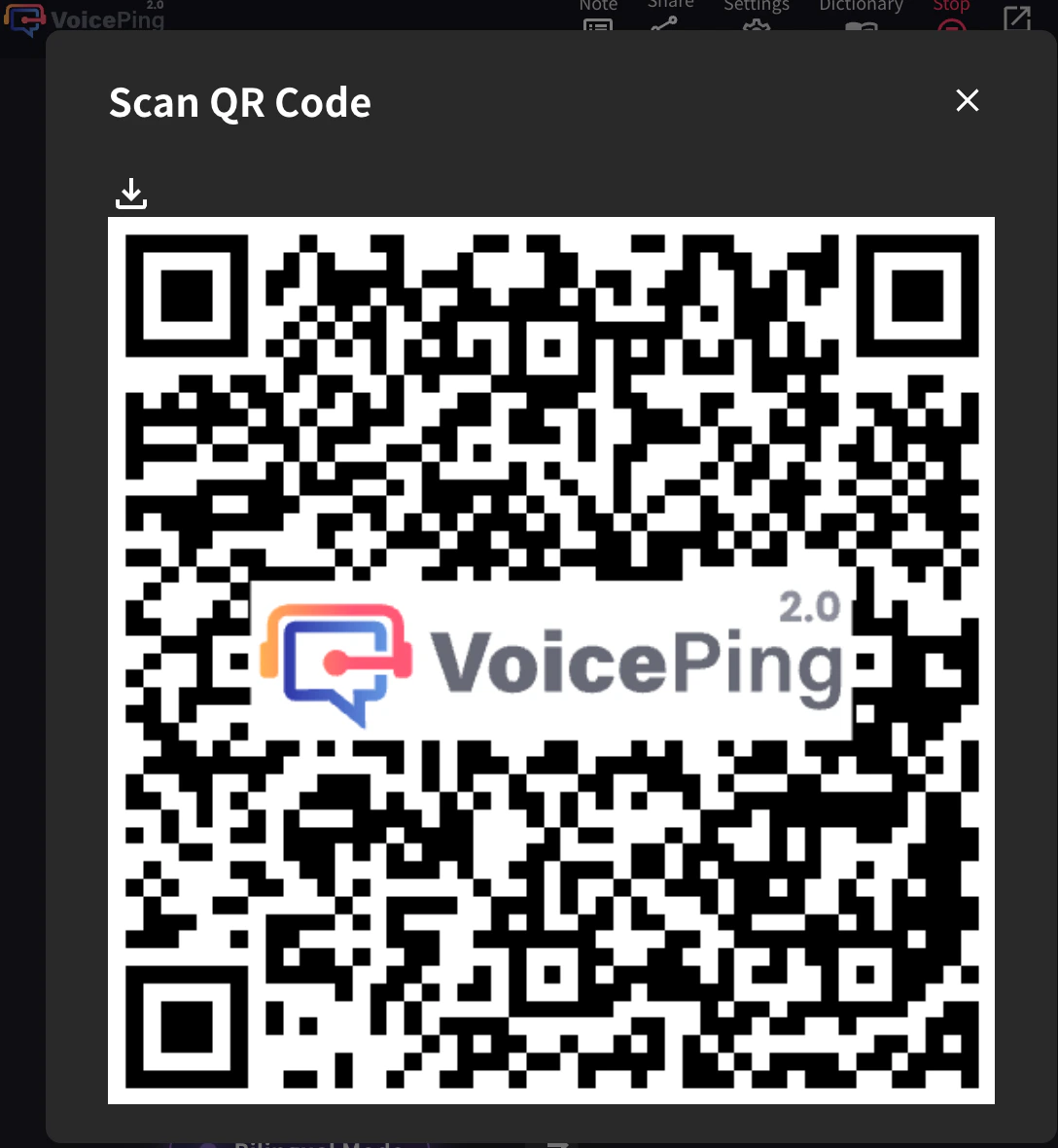
4-2. Participants များ ၎င်းတို့၏ mobile devices မှ ဤ session သို့ ဝင်ရောက်ရန် QR code share လုပ်ရန် QR image ကို publish လုပ်ပြီး ၎င်းတို့နှင့် share ပါ။ ဤ QR code သည် account တစ်ခုစီအတွက် static URL ဖြစ်ပါသည်။ QR code သည် အမြဲတမ်း မပြောင်းလဲပါ။
ပါဝင်သူအရေအတွက်ကို စုစုပေါင်းဝင်ရောက်မှုမဟုတ်ဘဲ တစ်ပြိုင်နက်ချိတ်ဆက်မှုကို အခြေခံ၍ ရေတွက်ပါသည်။ ပါဝင်သူတစ်ဦး ထွက်ခွာသောအခါ နေရာလွတ်သွားပါမည်။ ဥပမာ၊ QR ကုဒ်မှ ၅၀ ဦးဝင်ရောက်ပြီး အားလုံးထွက်ခွာပါက နေရာ ၅၀ လုံး ပြန်လည်ရရှိနိုင်ပါသည်။
[Participants များအတွက်] ဝင်ရောက်နည်း
- သင့် mobile camera ဖြင့် QR code scan လုပ်ပါ သို့မဟုတ် PC Web Application မှ အထက်ပါ URL ကို နှိပ်ပြီး translation channel သို့ ဝင်ရောက်ပါ။
-
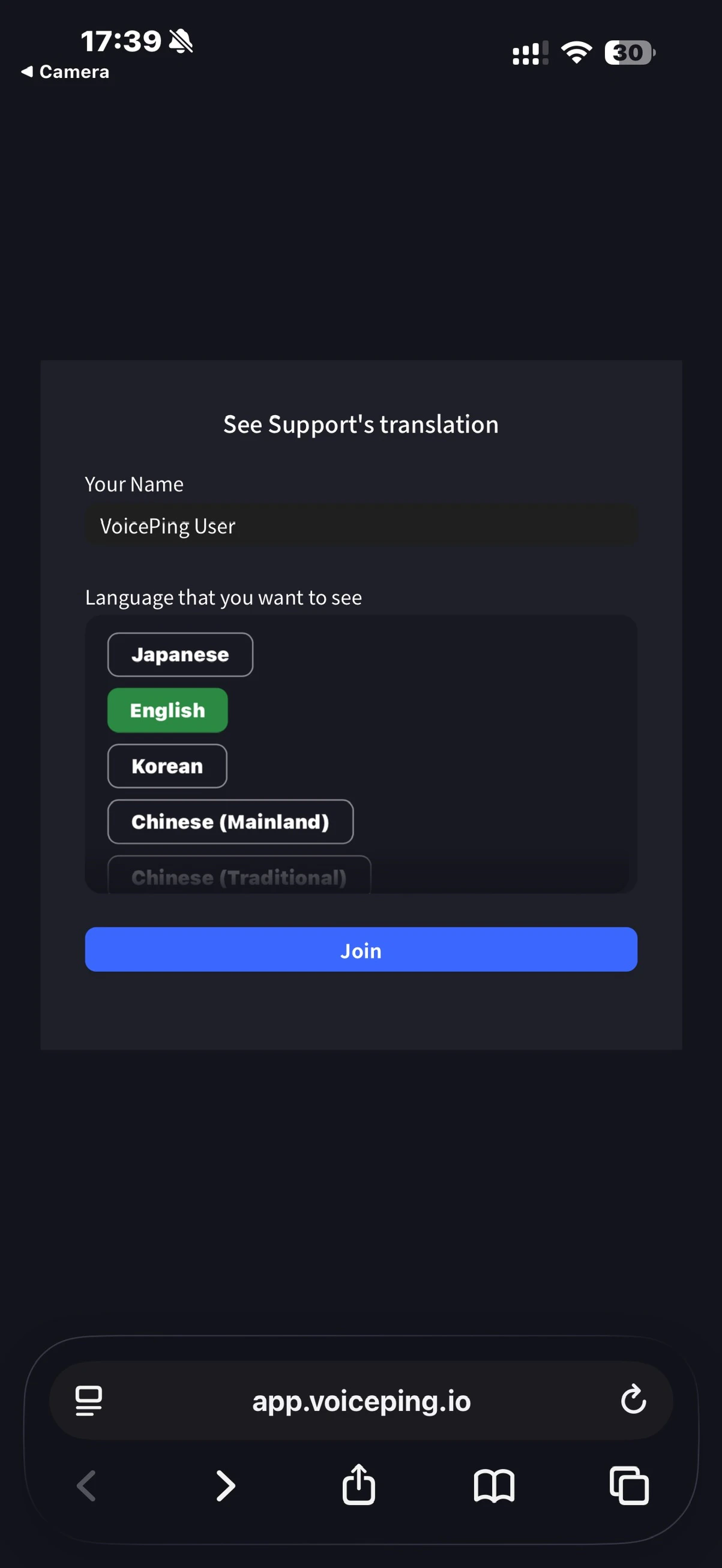
ဝင်ရောက်သောအခါ အောက်ပါအချက်များ ထည့်သွင်းပါ:
- Name: Participant ၏ အမည် ထည့်သွင်းပါ
- ကြည့်လိုသော Language: လိုချင်သော translation language ရွေးချယ်ပါ
-
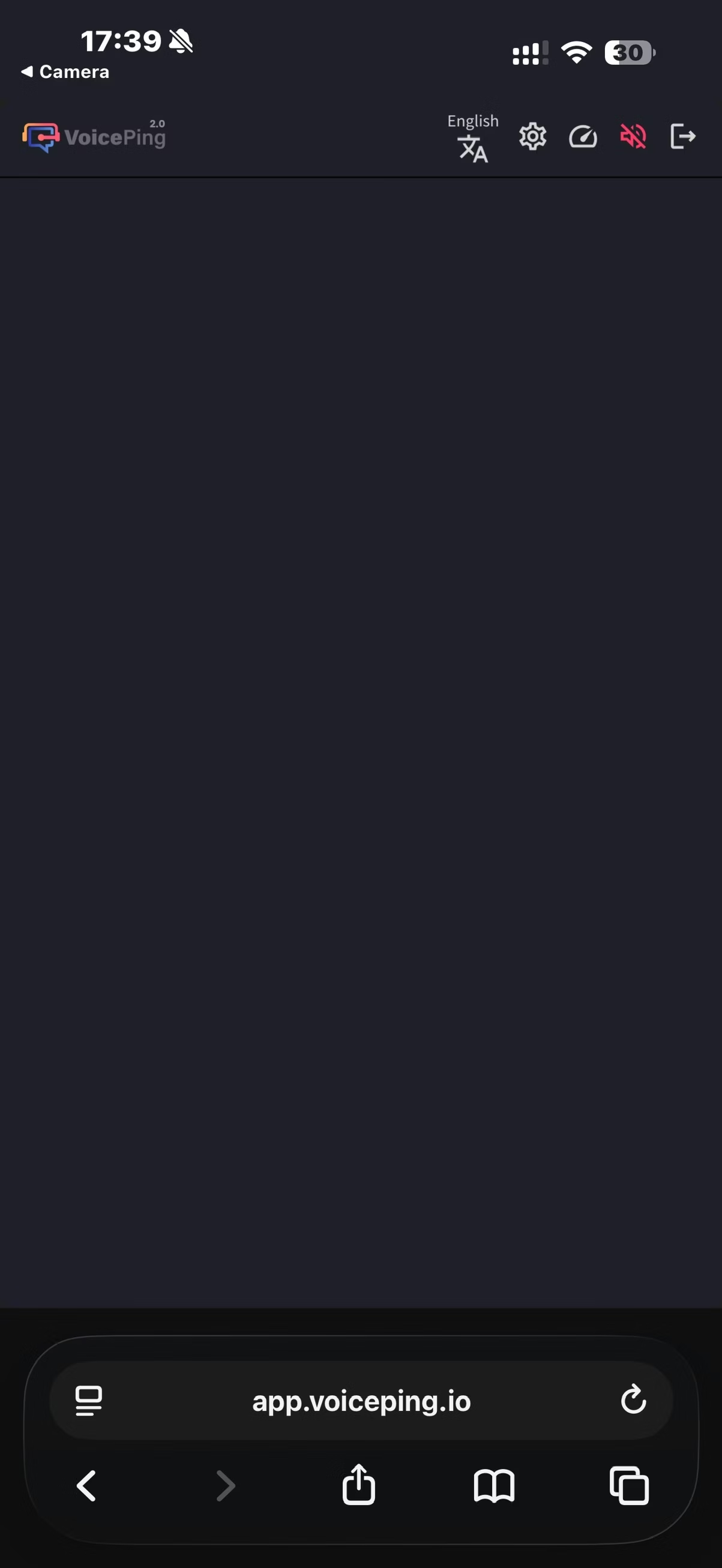
ထည့်သွင်းပြီးသောအခါ အောက်ပါ operations များ ဆောင်ရွက်နိုင်ပါသည်:
- Language ပြောင်းလဲခြင်း
- “Settings” တွင် translation appearance ချိန်ညှိခြင်း
- Reading speed ချိန်ညှိခြင်း
- Reading function ဖွင့်/ပိတ်ခြင်း
- ထွက်ခွာခြင်း