
適用於 VoicePing 3.0。預約前,請準備 Zoom、Google Meet 或 Microsoft Teams 會議連結,確認主持人能夠允許機器人入會,並檢查工作區是否還有可用的同時執行名額。
快速開始
1
開啟 Web Meeting Bot
在 VoicePing 中前往 Meeting Logs > Web Meeting Bot,開啟 Schedule。
2
新增會議
貼上會議連結,選擇會議語言並設定開始時間。
3
預約並允許入會
選擇 Schedule bot。會議開始時,如平台要求主持人允許,請允許機器人加入。
4
分享即時轉錄
在 Live 中使用 Copy listener link,向參與者分享轉錄與翻譯。
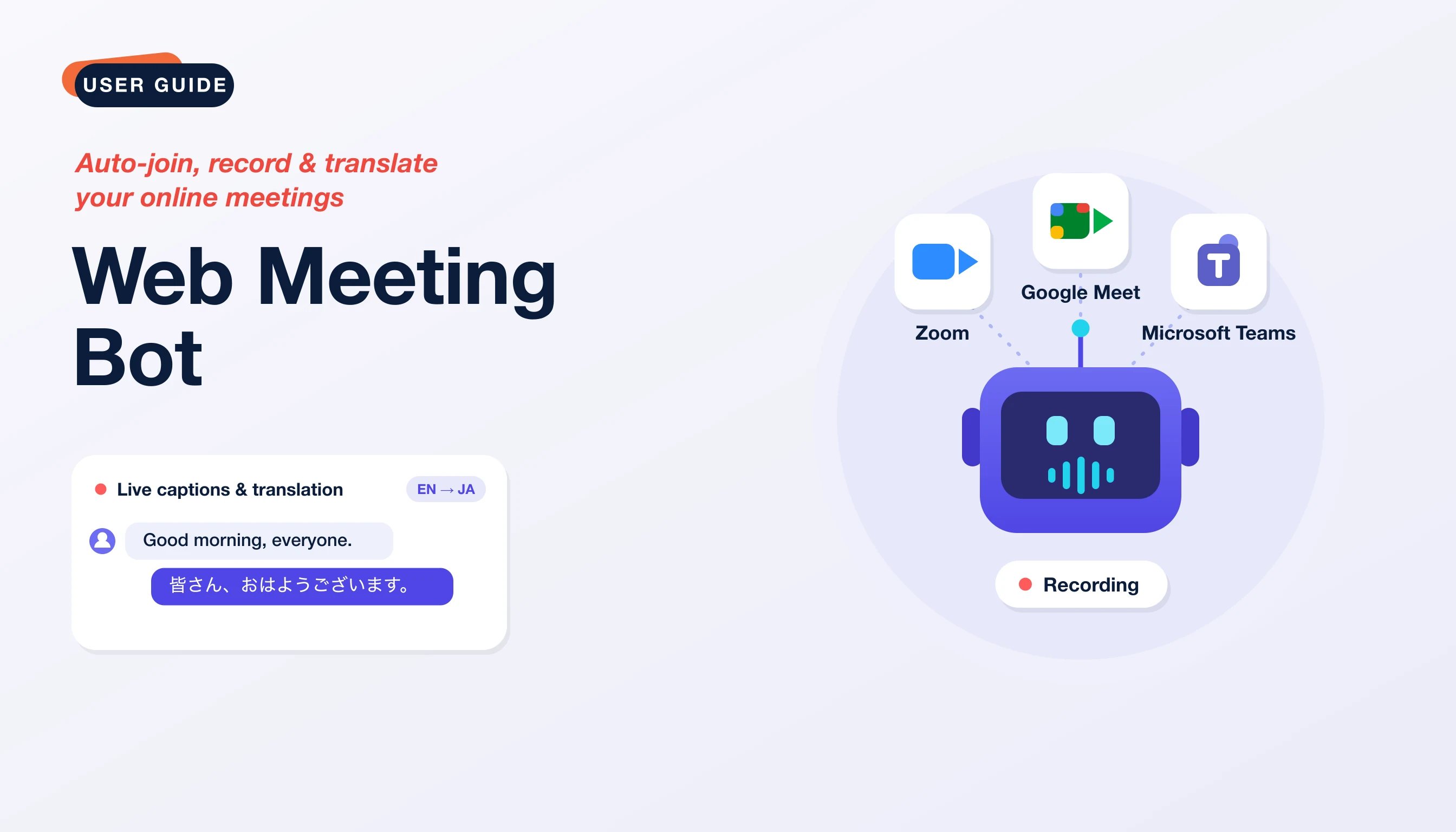
支援的會議平台
- Zoom
- Google Meet
- Microsoft Teams
開啟 Web Meeting Bot
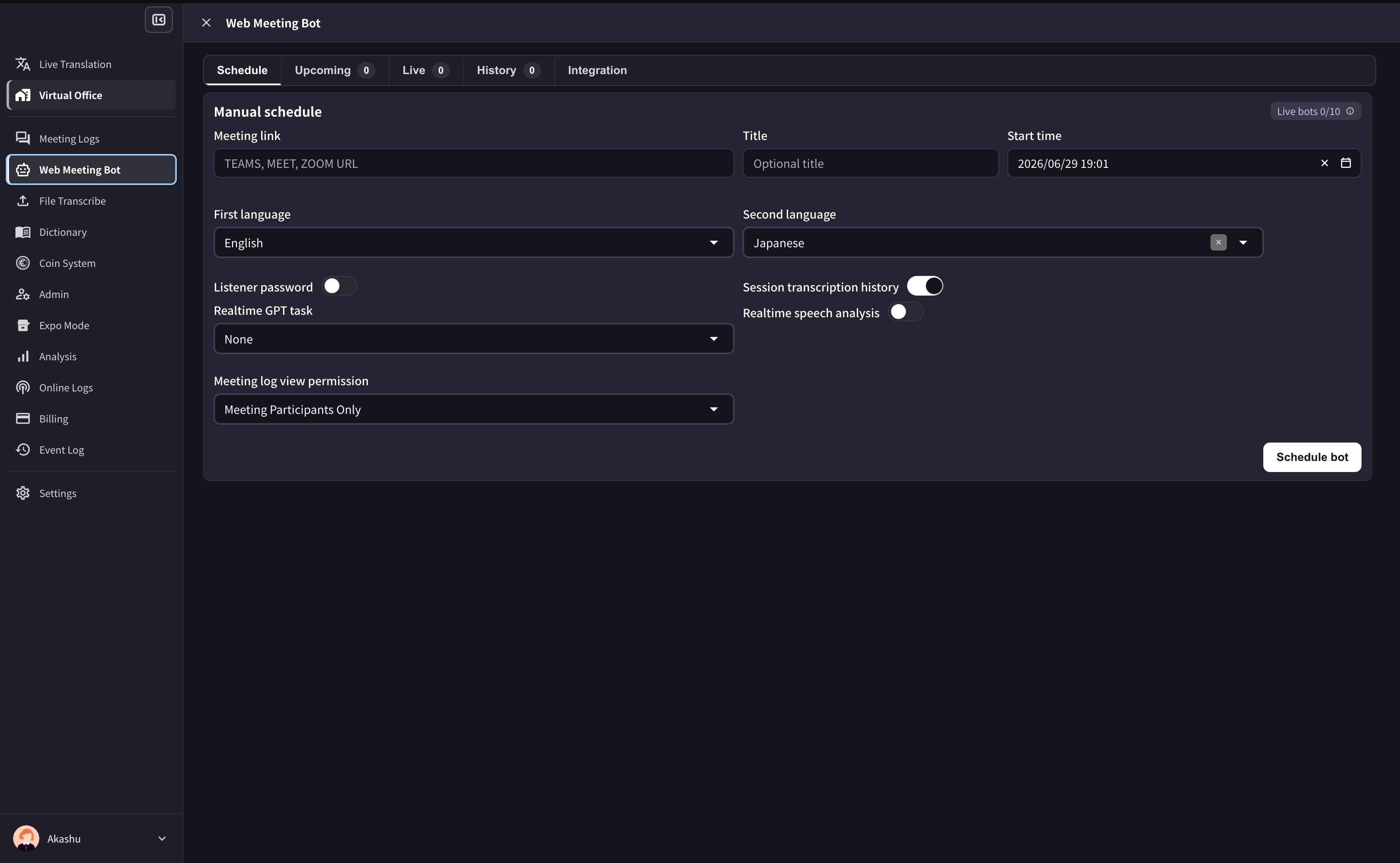
前往 Meeting Logs > Web Meeting Bot。頁面包含以下五個分頁。截圖和按鈕名稱以英文介面為準。手動預約機器人
- 開啟 Schedule。
- 貼上 Zoom、Google Meet 或 Microsoft Teams 會議連結。
- 視需要新增標題與開始時間。
- 選擇第一種語言;需要翻譯時,再選擇第二種語言。
- 視需要啟用聽眾密碼、工作階段轉錄紀錄、即時語音分析和即時 GPT 任務。
- 選擇會議紀錄的檢視權限。
- 點選 Schedule bot。
行事曆整合
在 Integration 中連結 Google Calendar 或 Outlook Calendar。VoicePing 可偵測即將開始的行事曆事件中的受支援會議連結,自動準備機器人工作階段。 連線後,開啟 Auto-join calendar meetings,設定預設機器人名稱、語言、聽眾密碼、語音朗讀、即時 GPT 任務、即時語音分析、工作階段轉錄紀錄及預設會議紀錄檢視權限。使用 Check now 重新整理即將開始的行事曆會議。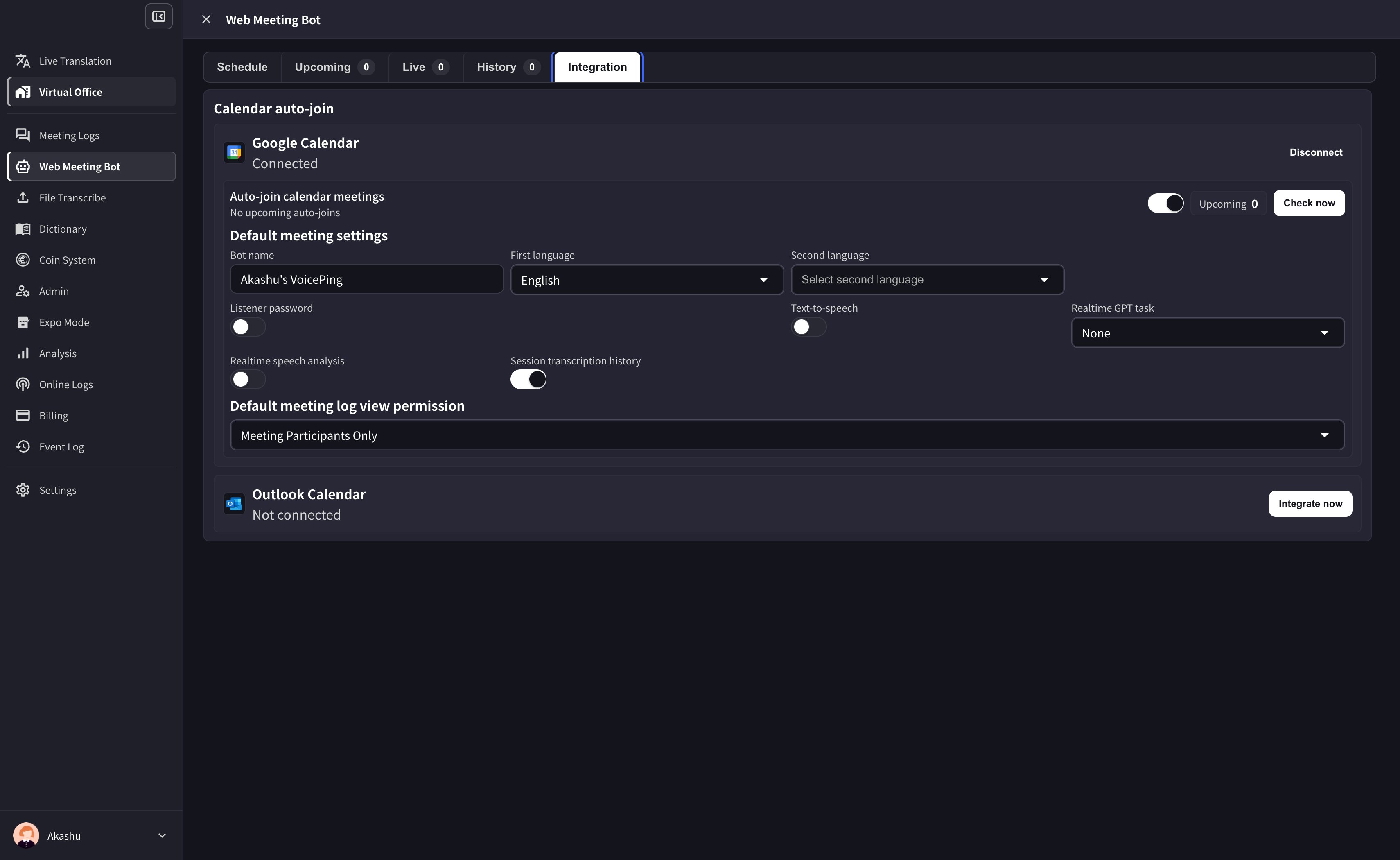
行事曆工作階段使用行事曆事件的時間範圍。手動工作階段則使用預約時設定的時間長度。
即時工作階段與聽眾存取
Live 列出目前執行的機器人。使用 Copy listener link 分享聽眾頁面,使用 Setting 調整語言與聽眾選項,或使用 Kick out bot 將機器人移出會議。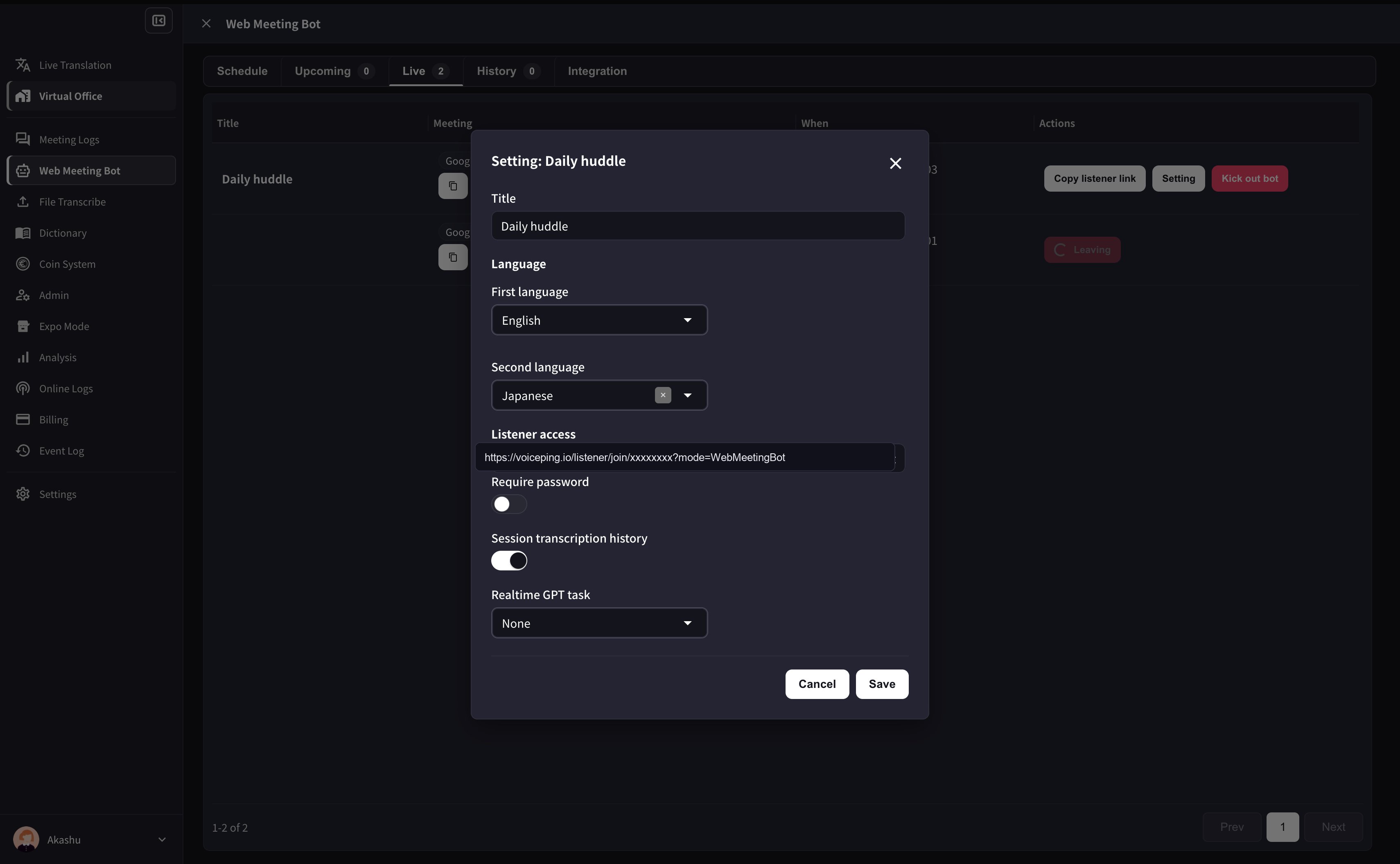
透過會議聊天控制口譯
機器人加入會議後,在會議聊天中向所有人傳送指令。每則訊息只輸入一條指令。中文與英文指令皆可使用。
音量請輸入0到100的整數,也可使用
音量 50% 或 volume 50%。請在口譯開啟時調整音量;關閉口譯後,音量設定仍會保留。
指令已接收不代表語音已就緒。如果沒有聲音,請檢查機器人的靜音狀態、語言與音量,解決錯誤後重新傳送 tts 開啟。重新開啟後只朗讀新的發言。支援的語言與自動音訊調整請參閱 AI 口譯。
狀態說明
- Scheduled:等待預約的開始時間
- Launching / Joining:機器人正在啟動並加入會議
- Waiting for admit:等待主持人允許入會
- Recording:機器人已入會,正在擷取音訊
- Uploading / Transcribing / Diarizing / Summarizing:正在上傳、轉錄、區分說話者或產生摘要
- Completed:轉錄與摘要已就緒
- Failed / Canceled:工作階段未完成
使用限制
工作區同時執行的機器人數量按方案設定:Free 1 個、Small 3 個、Premium 5 個、Enterprise 10 個。請在應用程式中檢視工作區目前的限制。Free 工作區每月嘗試加入會議的次數也有限制。機器人影片與會後錄影
機器人以會議參與者的身分顯示。機器人影片可用時,畫面可以顯示原文、譯文與 VoicePing 聽眾頁面的 QR 碼。參與者也可以掃描 QR 碼,在瀏覽器中檢視即時轉錄與翻譯。關閉口譯語音後,字幕仍會繼續顯示。 會後,可從 Web Meeting Bot 錄影或會議紀錄中開啟機器人影片。影片可能處於處理中、就緒、過期、取消、失敗或不可用狀態。請在保留期限結束前下載所需影片。另請參閱會議紀錄與資料保留期限。問題排解
- 如果機器人停留在等候室,請使用主持人帳號允許入會。
- 如果 Zoom 密碼或權限有誤,請更新會議連結並重新預約。
- 如果缺少行事曆事件,請確認 Google 或 Outlook 已連結,且事件包含受支援的會議連結。
- 如果已達到同時執行上限,請等待其他機器人結束,或移出一個執行中的機器人,再預約新的即時工作階段。