
Connect Your AI Client to VoicePing Transcripts
MCP Access turns your VoicePing workspace into a data source any MCP-compatible AI client can read from. Connect once, approve the scopes, and any question you’d normally answer by opening transcripts manually, you can ask in chat. This page covers only the setup. Once you’re connected, see the workflow pages for copy-paste prompt flows:Build a client-ready agenda
Turn the last 3–4 meetings with a customer into a time-boxed agenda.
Draft a proposal from one meeting
Extract goals, pain points, timeline — produce an executive-ready proposal draft.
Send a follow-up email in 30 seconds
Recap decisions, assign owners, push a professional follow-up.
Track team KPIs across members
Pull every meeting run by a set of teammates and produce a KPI report.
Find bottlenecks across deals
Surface recurring blockers and produce a prioritized action plan.
How to enable MCP Access
You need to turn MCP Access on once in your VoicePing workspace, then connect it to the AI client of your choice.1
Turn on MCP Access in VoicePing
Open workspace settings → External Access, and enable MCP Access. You’ll see the active connections area where every client that connects will appear.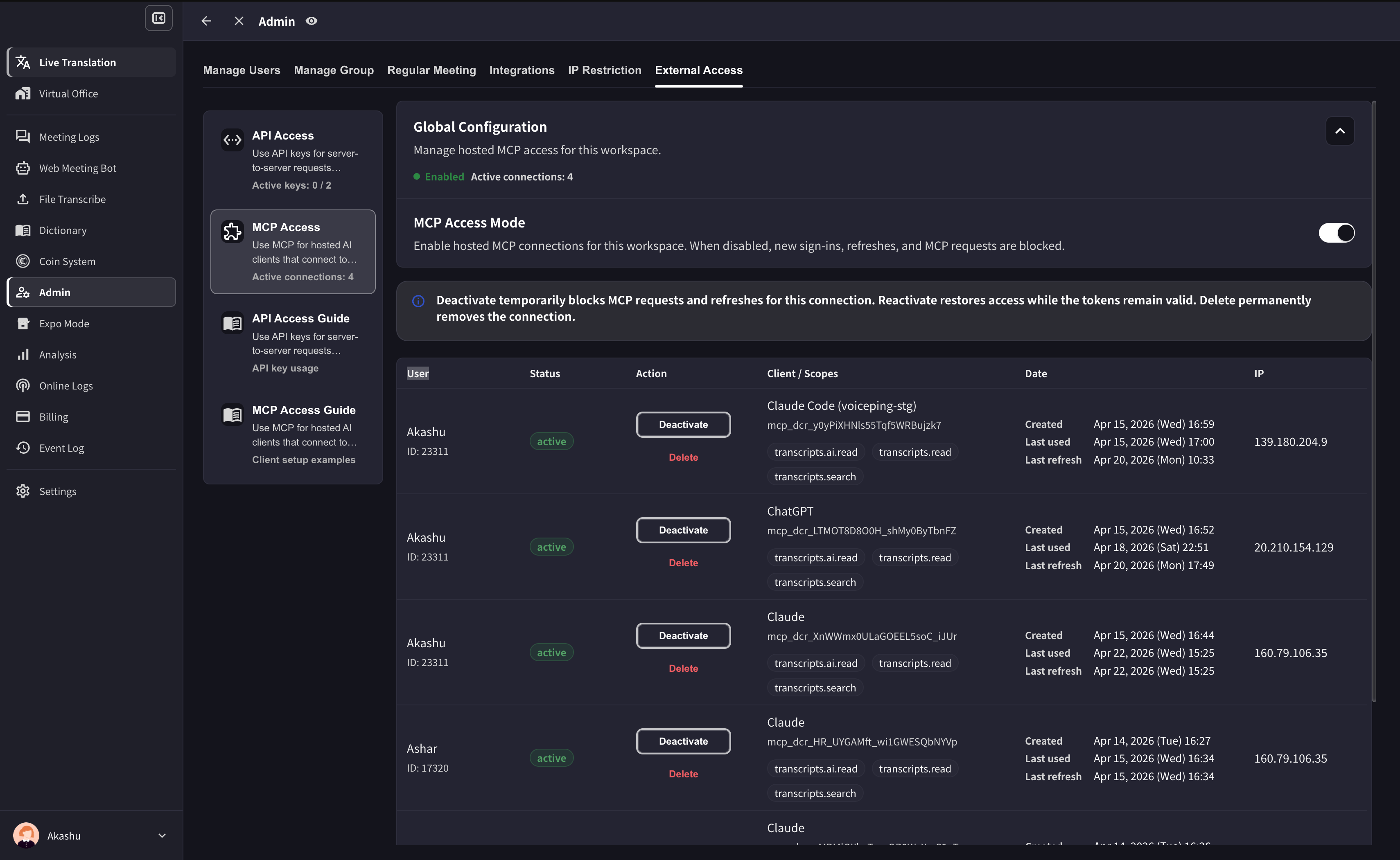
2
Connect your AI client
Open your MCP-compatible AI client (Claude, ChatGPT, Codex, Claude Code, Gemini CLI, or another MCP tool) and add the VoicePing MCP server.The VoicePing MCP server URL is:Expand the guide for your tool — ChatGPT and Claude are covered below with step-by-step screenshots. For other clients, use the official docs table that follows.
For every other supported client, use its official guide:
ChatGPT — add VoicePing as a custom MCP app
ChatGPT — add VoicePing as a custom MCP app
Prerequisite: ChatGPT Pro or Plus with Developer Mode enabled (Settings → Connectors → Advanced → Developer Mode).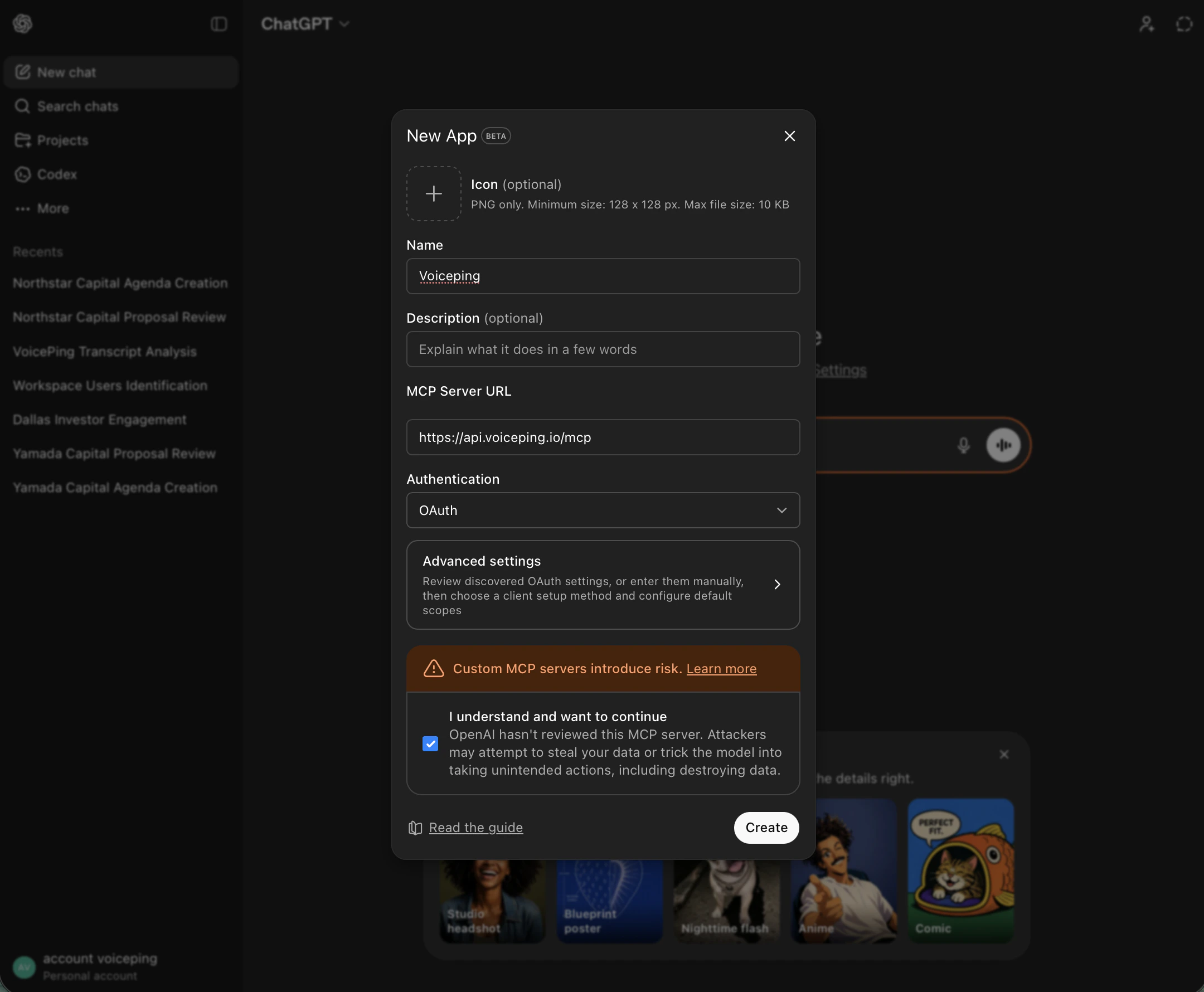
1
Open Settings from the account menu
In ChatGPT (Developer Mode), click your account avatar in the bottom-left and choose Settings.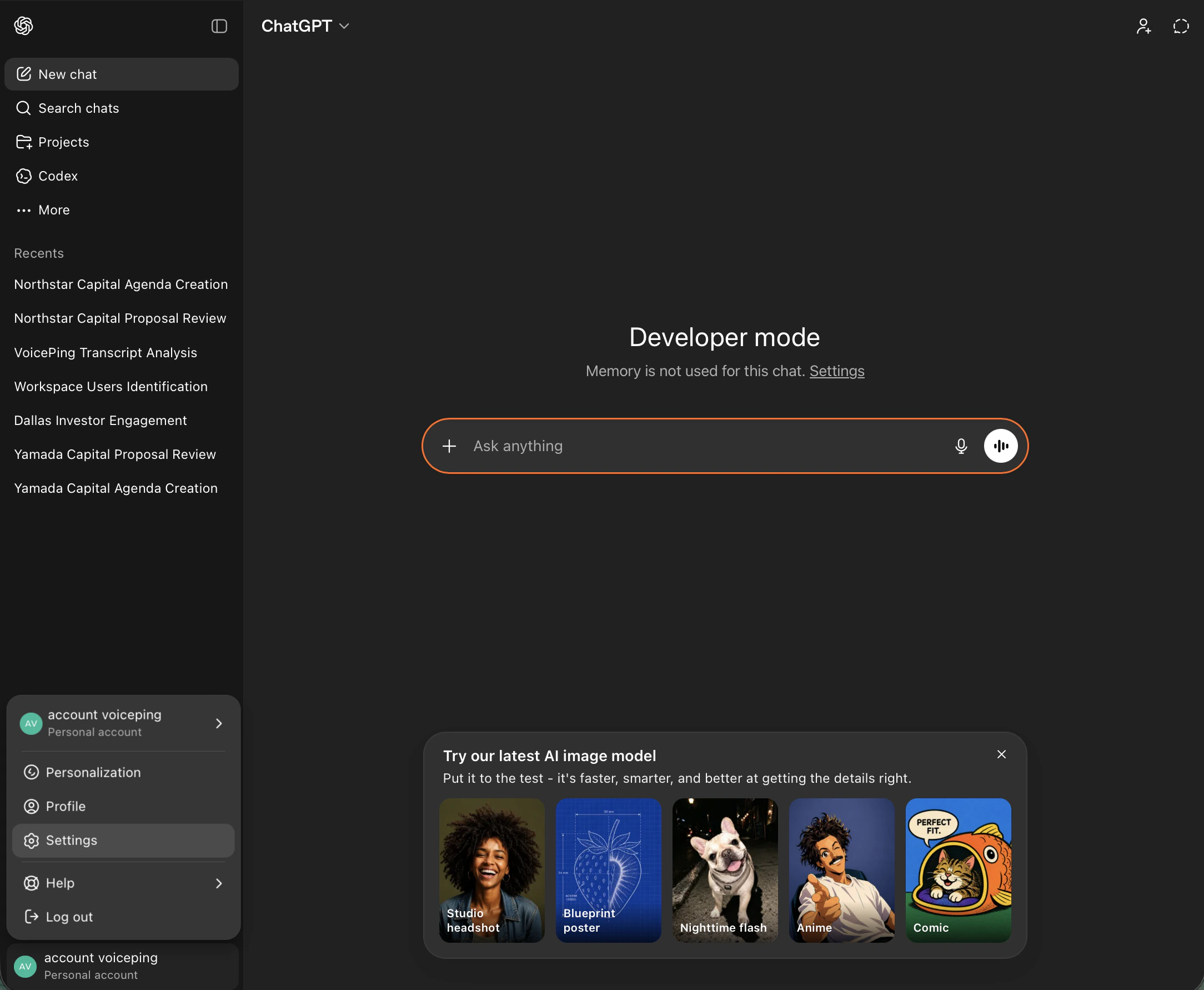
2
Go to Apps → Create app
In Settings, open the Apps tab, then under Advanced settings click Create app.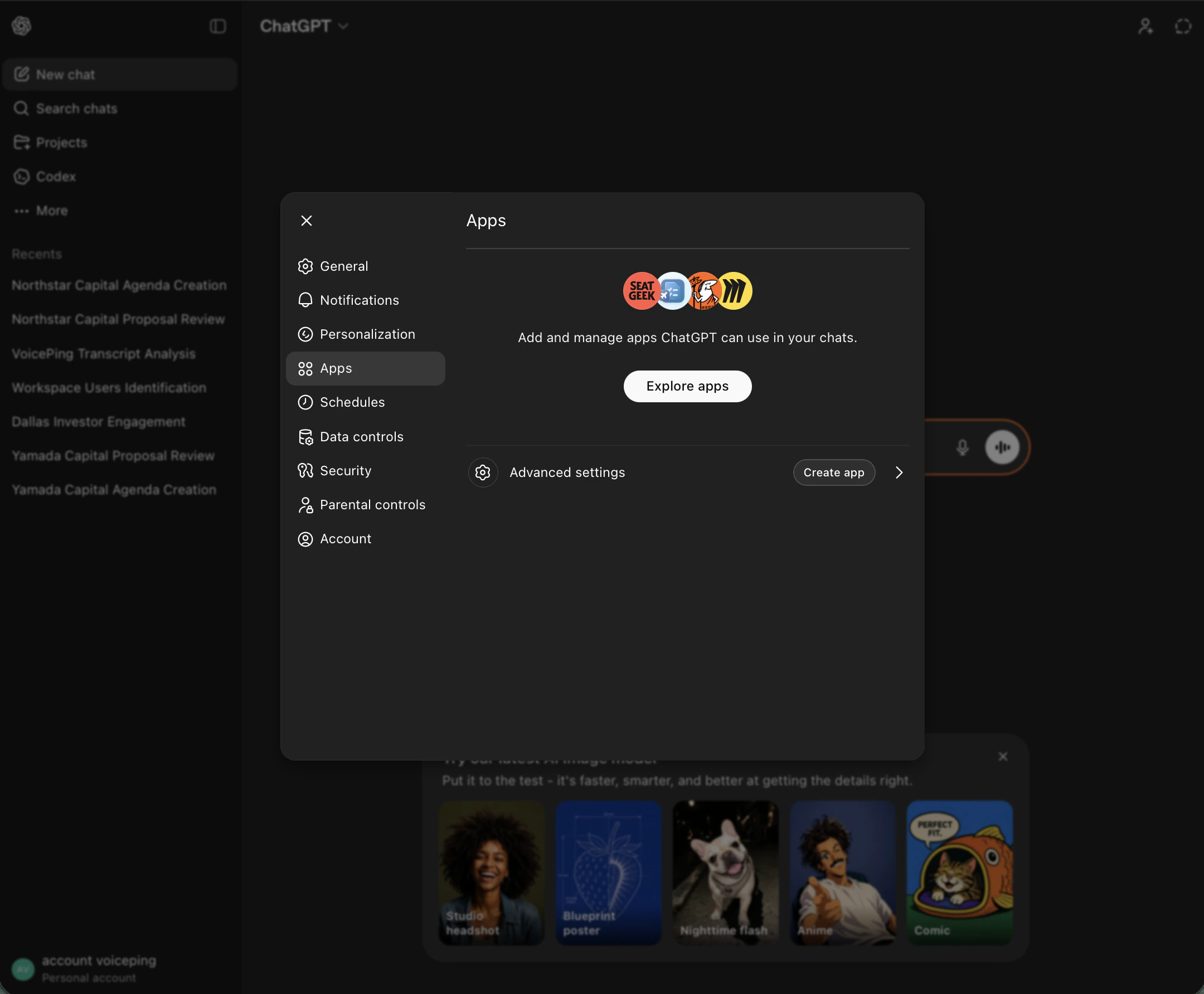
3
Fill in the New App form and click Create
- Name:
Voiceping - MCP Server URL:
https://api.voiceping.io/mcp - Authentication:
OAuth - Tick the “I understand and want to continue” checkbox
- Click Create
Claude — add VoicePing as a custom connector
Claude — add VoicePing as a custom connector
Works in Claude Desktop and Claude on the web.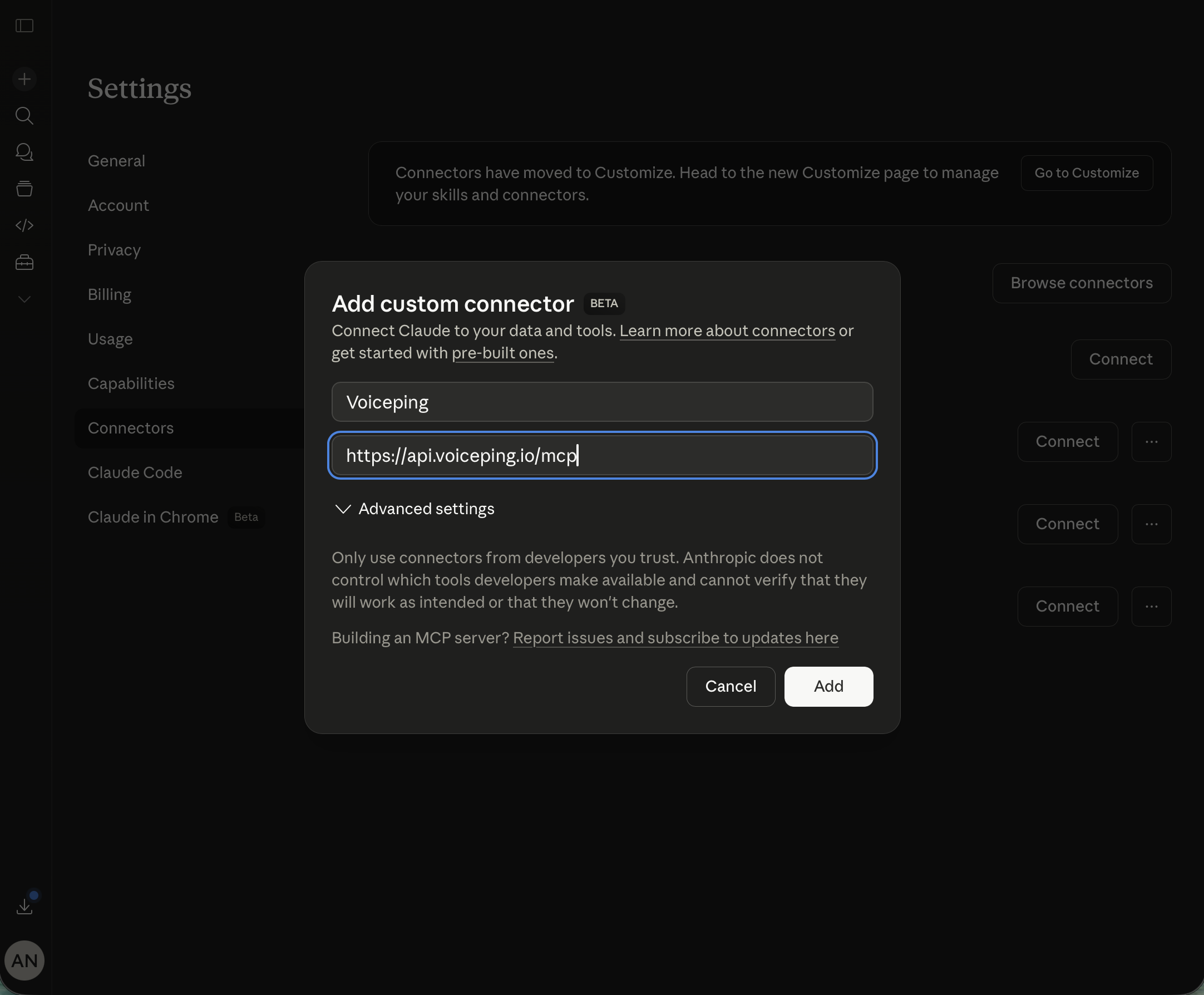
1
Open Settings from the account menu
Click your account avatar in the bottom-left and choose Settings.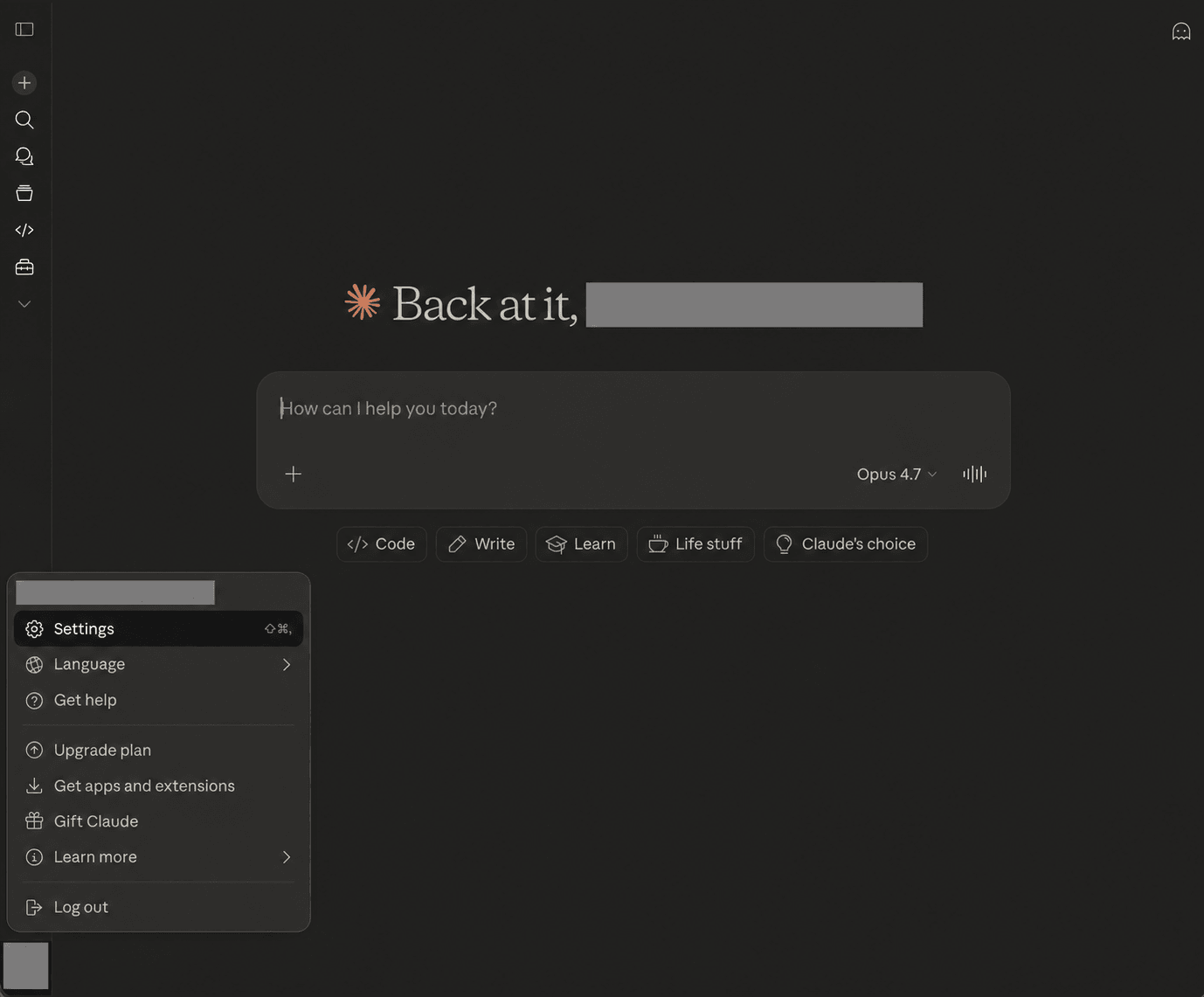
2
Open Connectors → Add custom connector
In Settings, open the Connectors tab. Scroll to the bottom and click Add custom connector.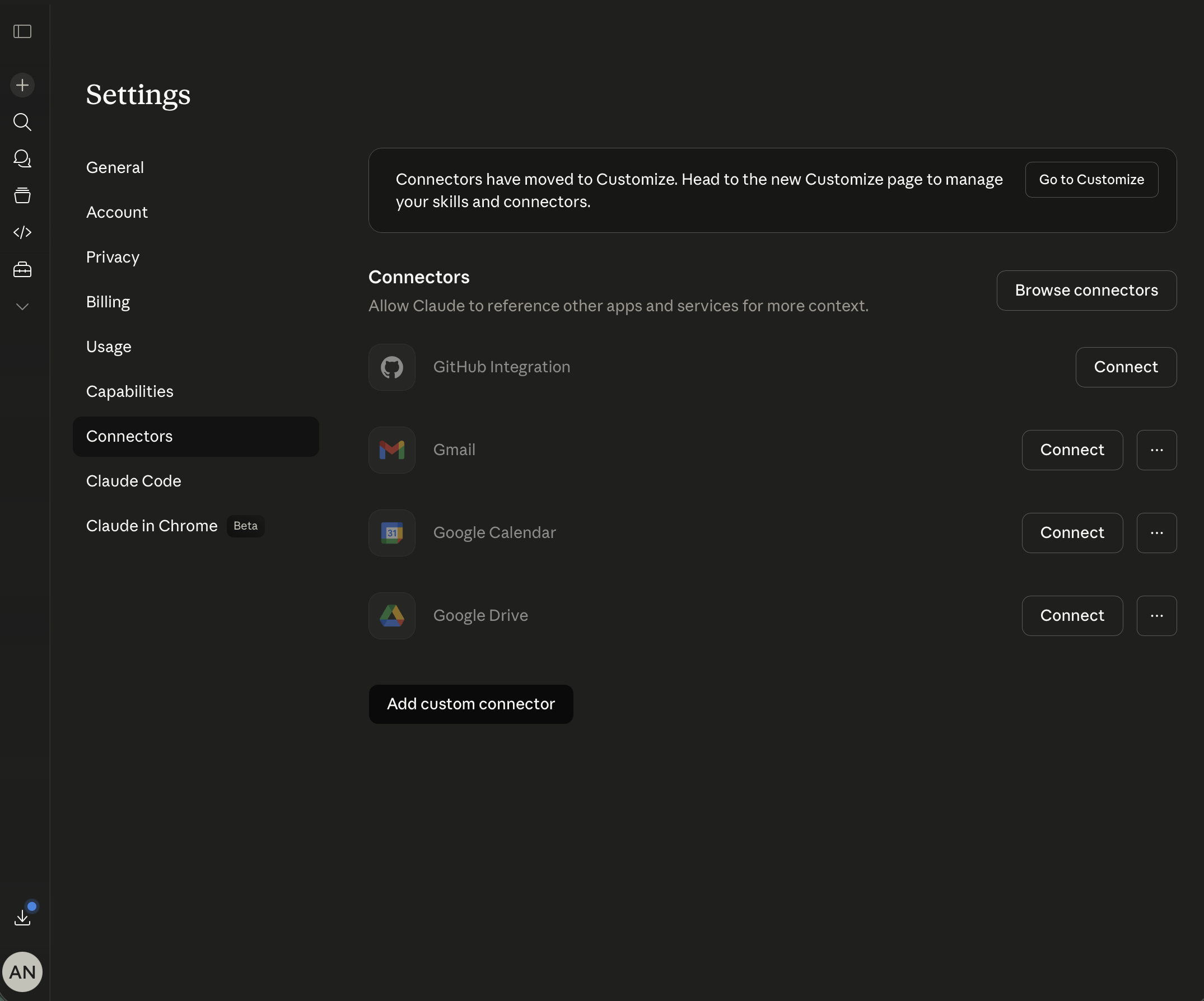
3
Fill in the connector details and click Add
- Name:
Voiceping - URL:
https://api.voiceping.io/mcp
4
Click Connect next to Voiceping
Unlike ChatGPT, Claude needs one extra click: find the new Voiceping entry in the connectors list and click Connect to start the OAuth flow. Approve the transcript scopes in your VoicePing workspace to finish.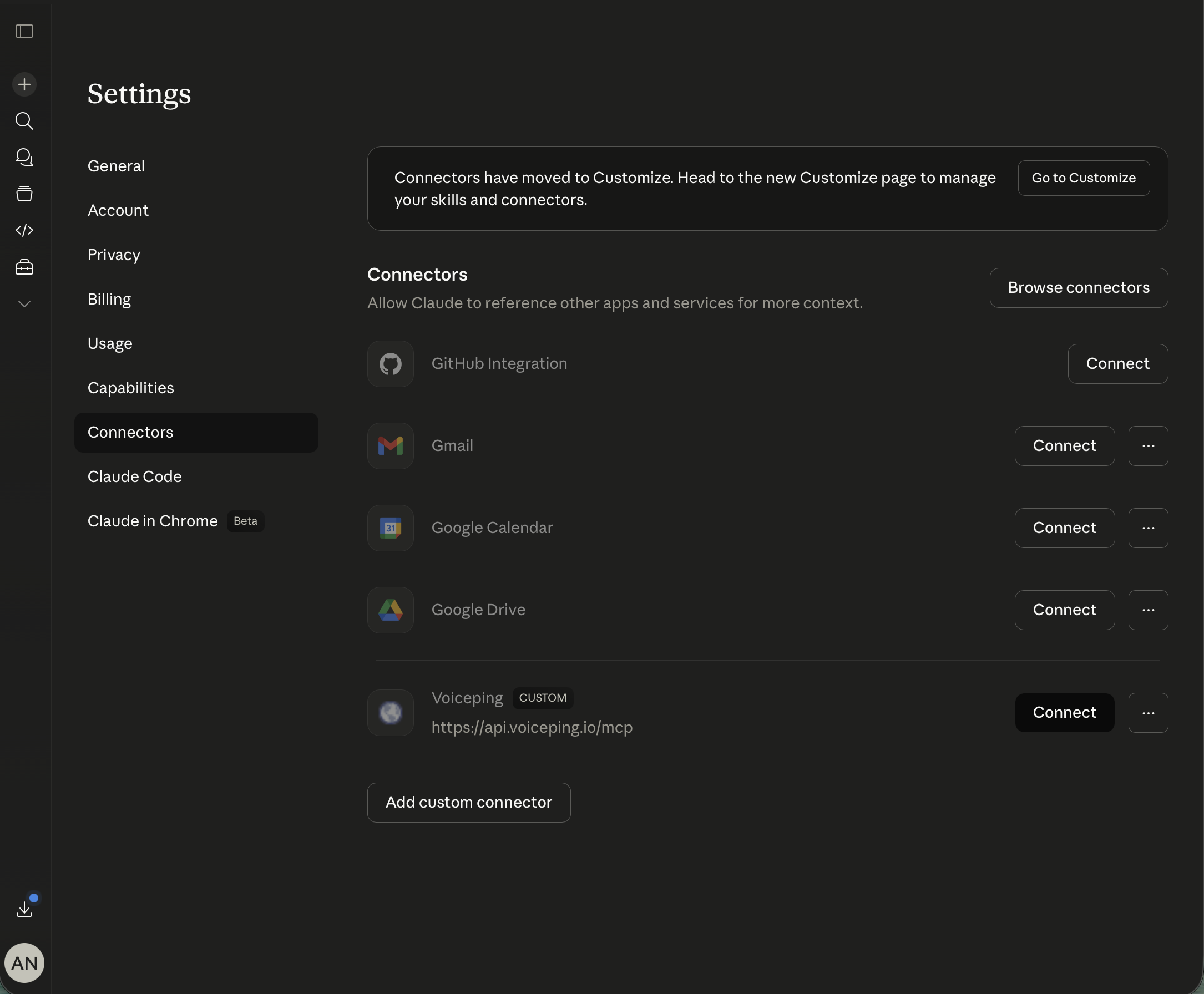
3
Approve transcript scopes
Sign in, select your VoicePing workspace, and approve the transcript scopes the client is requesting. Only the scopes you approve are granted.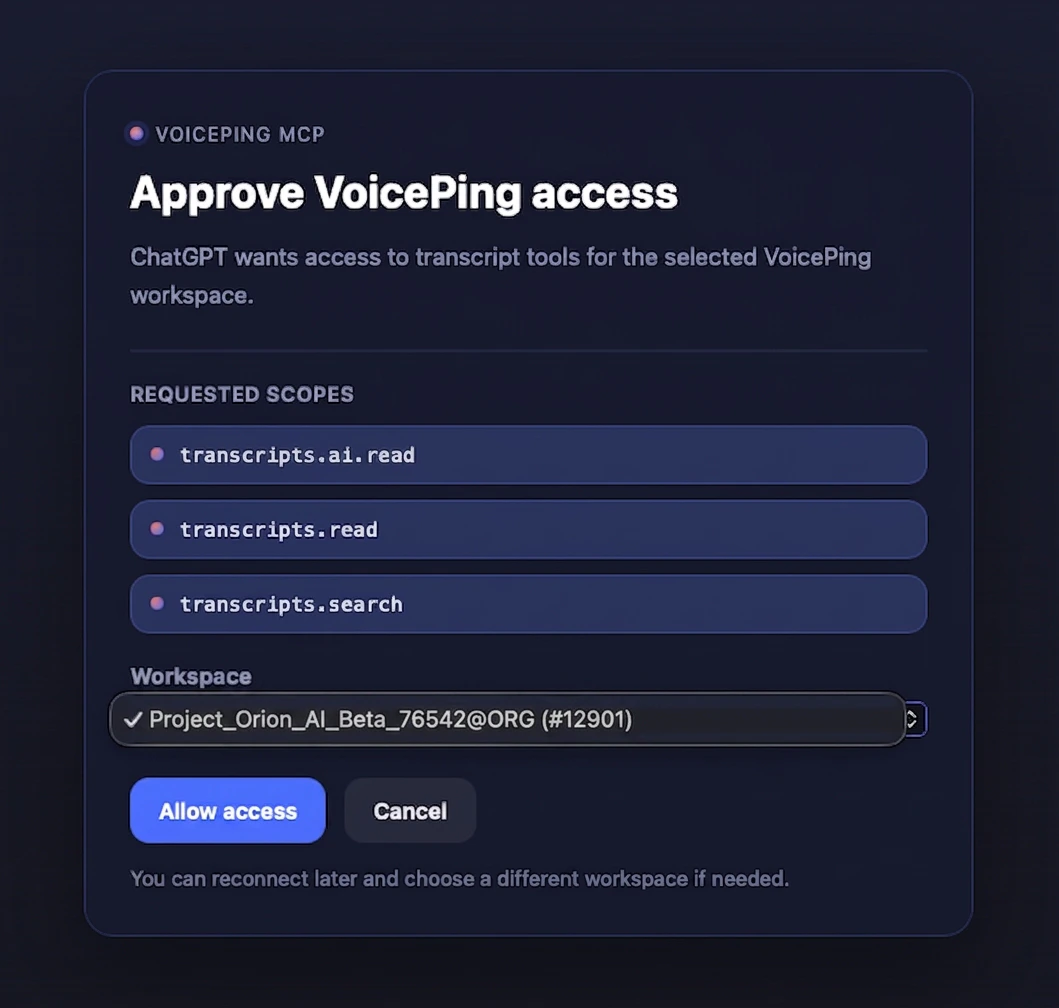
4
Ask your first question
You’re connected. Open any of the five workflow pages linked above and copy-paste the first prompt.
Next steps
External Access overview
Back to scopes, lifecycle controls, and event logs that apply to both MCP and API.
Use the API from your code
If a server (not a person) is fetching transcripts, use API Access with a bearer token instead.