
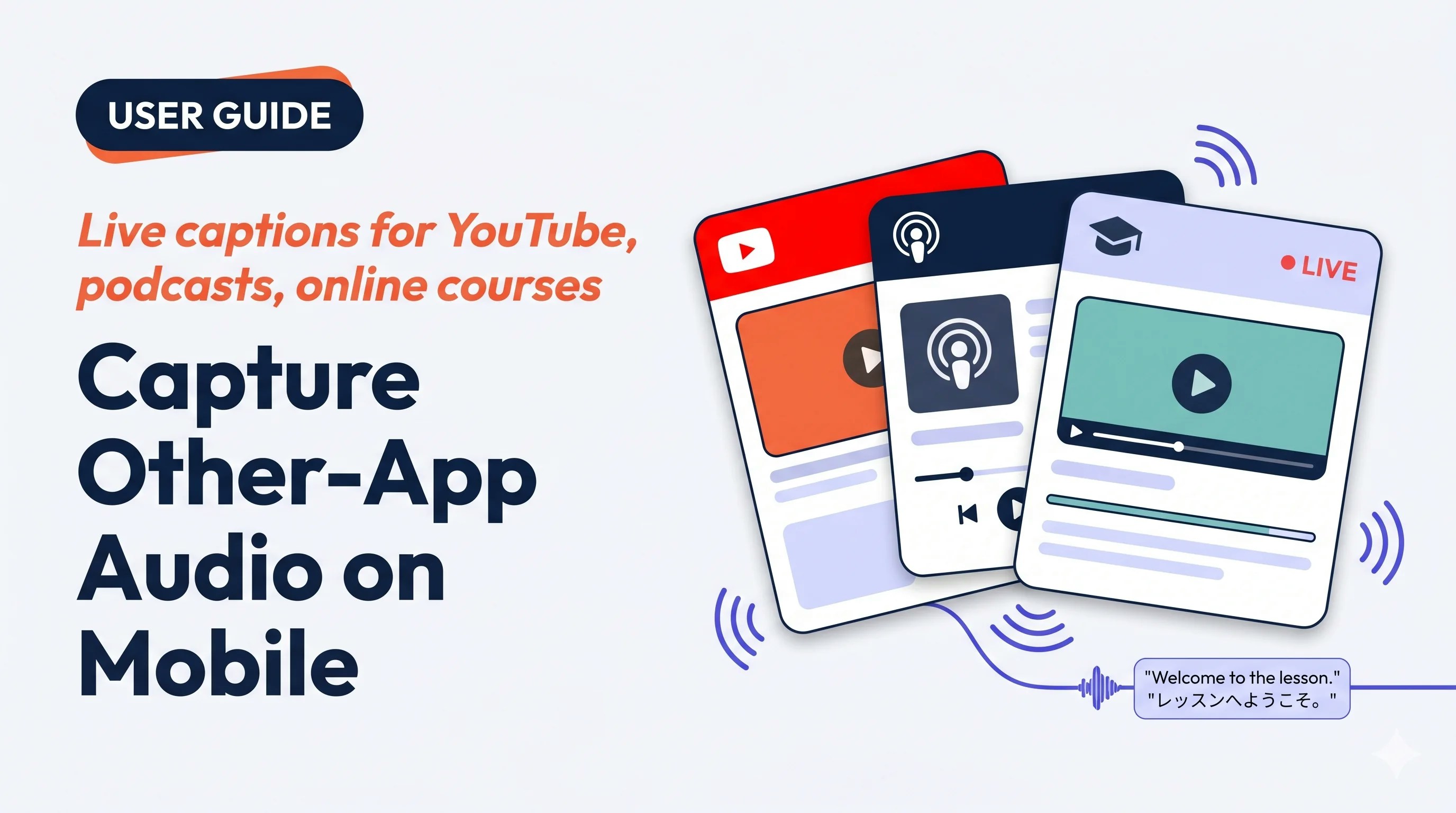
Use this when…
Foreign-language lectures, Udemy courses, or recorded webinars — read along while listening.
Translate a foreign-language YouTube or podcast on the go — no download needed.
Build listening skills with native-language podcasts and an always-on translator.
Open a saved audio file in another player and let VoicePing caption it as it plays.
Highlights
- Works with any app that plays audio (subject to OS screen-capture rules)
- Same live meeting view as a VoicePing session — edits, minutes, export, dictionary all work
- Sessions save to workspace history — teammates can open them on PC afterwards
- iOS (Screen Record) and Android (Device Audio)
Start a capture
1
Tap + → Screen Record
From the home screen, open the session menu. On Android the option is labelled Device Audio.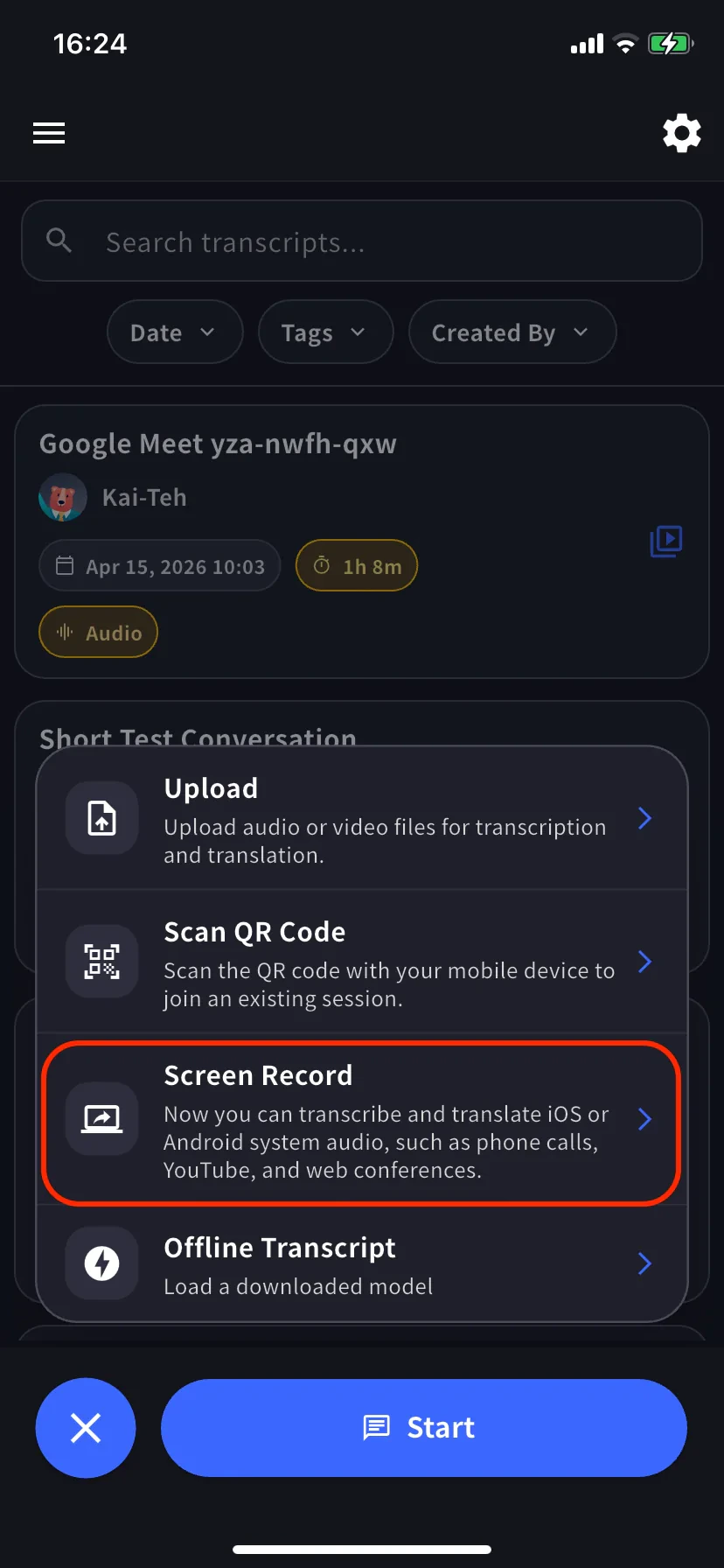
2
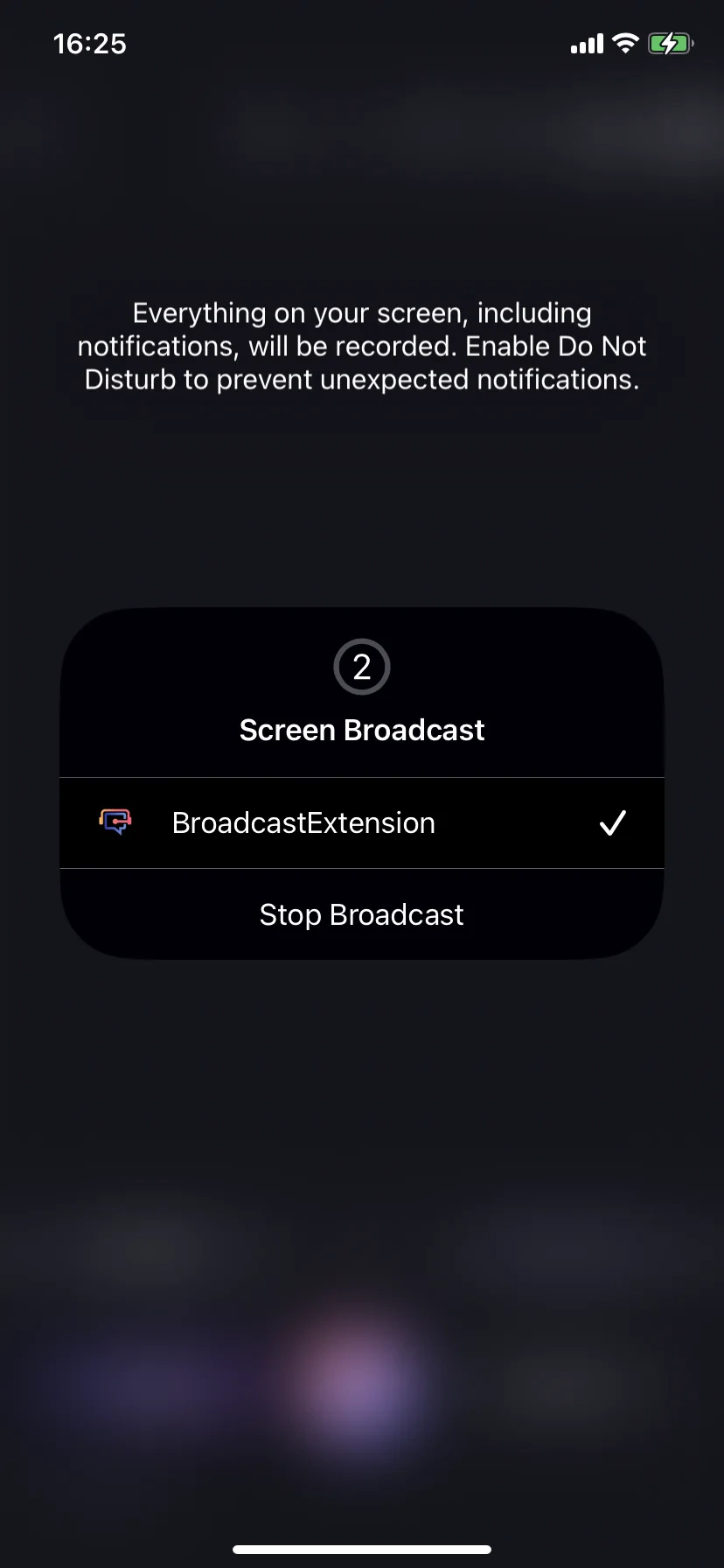
Start broadcast
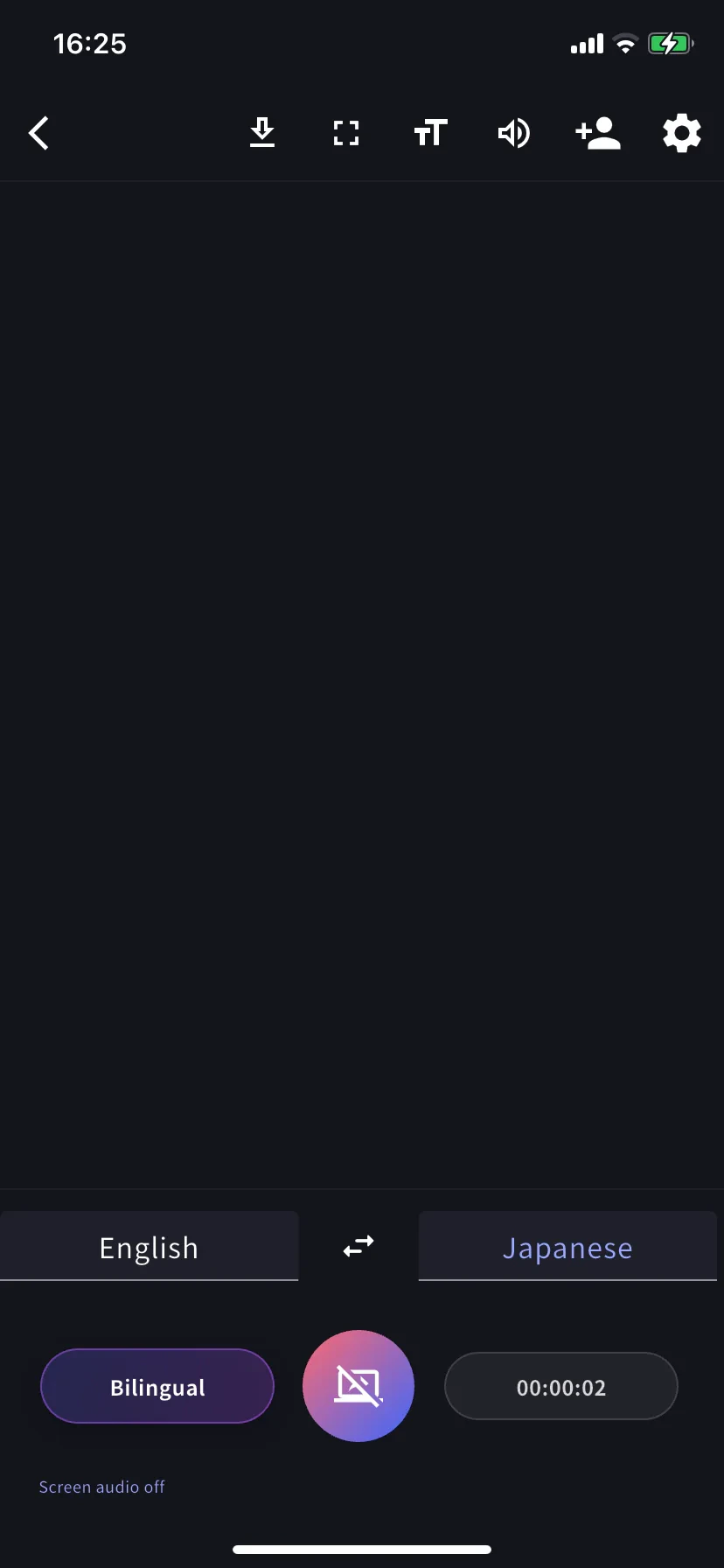
Tap the capture button. On iOS, pick BroadcastExtension → Start Broadcast. On Android, accept the media-projection prompt. The sheet switches to Stop Broadcast once active.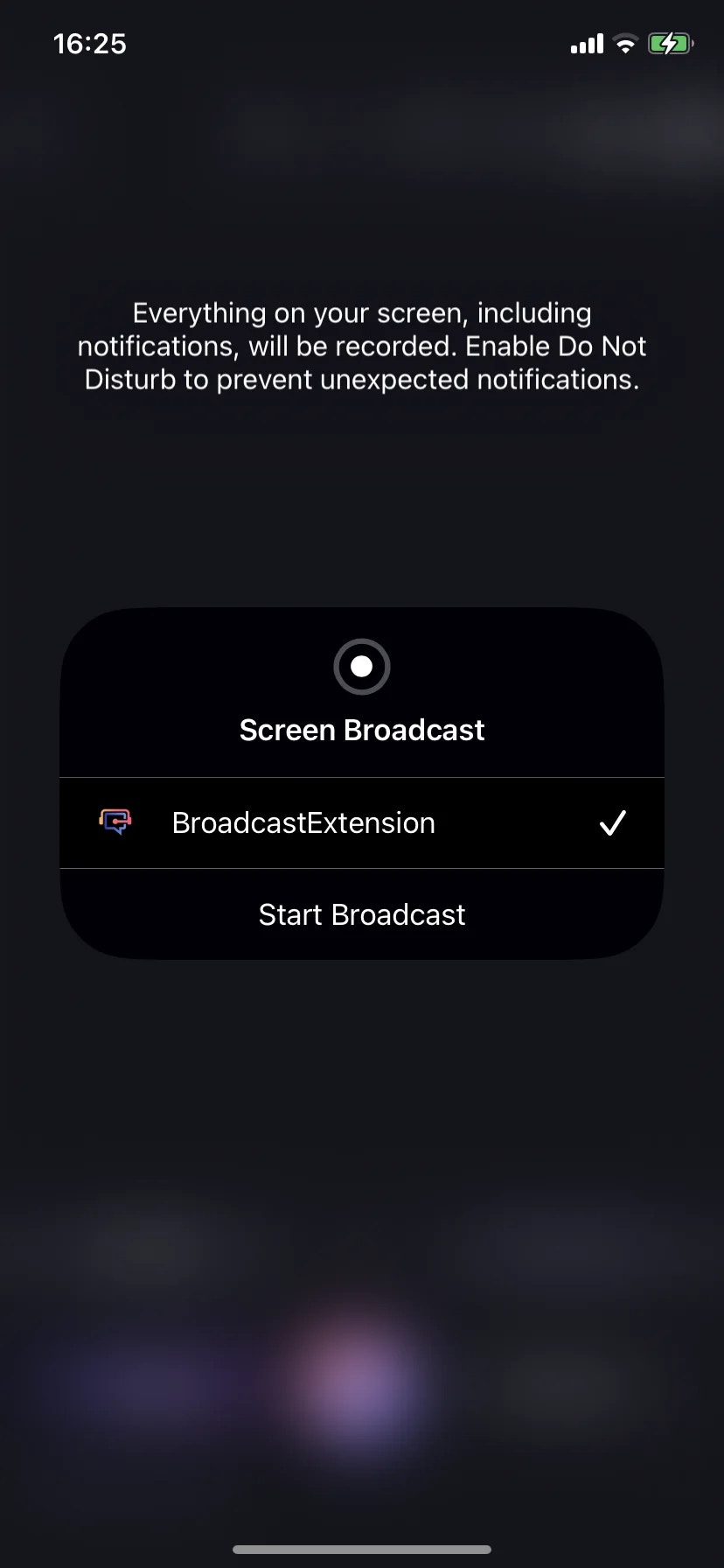
3
Play audio in the source app, then return
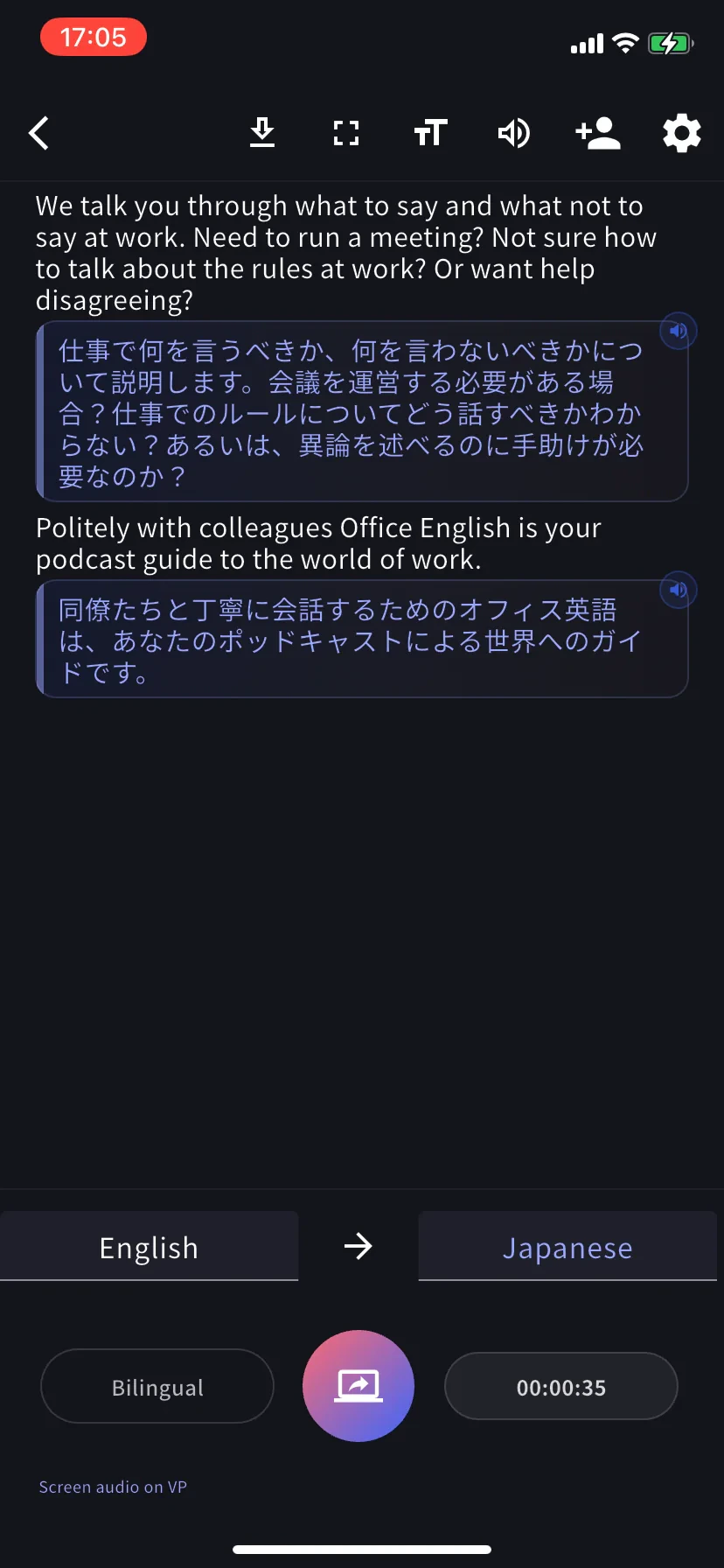
Leave VoicePing in the background, open the source app (YouTube, a podcast app, Safari, an online course, etc.) and play. Switch back to VoicePing — bilingual subtitles stream in with a running timer.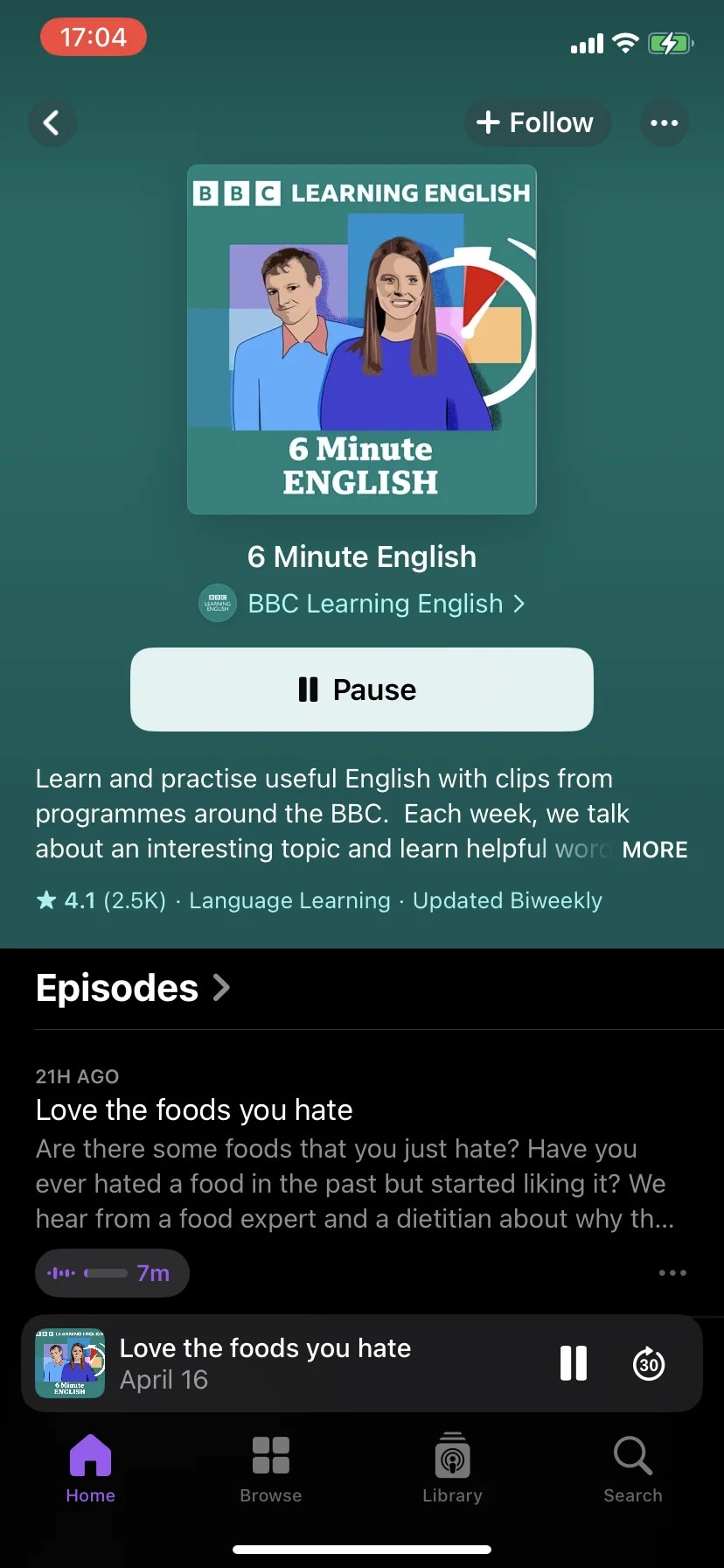
Stop
- iOS — tap the broadcasting indicator in the status bar → Stop Broadcast, or tap the capture button inside VoicePing.
- Android — tap the projection notification or the capture button in VoicePing.
Tips
- Use headphones when you’re speaking too — otherwise the captured audio loops back into your mic.
- Turn on Do Not Disturb before starting — iOS warns that notifications are captured.
- Plug in a charger for long sessions (CPU + network intensive).
- Some apps block capture (DRM-protected streaming, some banking apps). Empty transcript = source is blocking it.
- Auto-detect wrong? Set the transcription language manually from the left tab.