
This feature is available on paid plans only. Please upgrade your plan if you are on the free plan. This feature is not available for guest users.
Prepare for Any Meeting or Event in Minutes
You have an important meeting tomorrow. The agenda is full of client names, product terms, and technical vocabulary that generic speech-to-text will get wrong. Normally, you’d spend time manually adding each term to the dictionary one by one — or worse, you’d skip it and deal with messy transcripts after. Vocabulary Builder lets you skip all of that. Upload the meeting agenda, slide deck, speaker list, or any relevant PDF — and AI automatically extracts the terms most likely to be misrecognized, generates the correction variants, and adds them to your dictionary in bulk. What used to take an hour of manual preparation now takes a few minutes.When to use it
- Before a multilingual conference — upload the speaker list and program PDF to get names and session titles right
- Before an investor or client meeting — upload the earnings report or proposal to catch financial terms, product names, and people’s names
- Before a technical workshop — upload the spec document or training materials to handle industry jargon
- When joining a new project — paste meeting notes from previous sessions to learn the team’s vocabulary fast
- Before a product demo — upload the feature documentation so product names and technical terms appear correctly in live captions
How big is the difference?
Here’s a real example. We spoke this sentence during a live VoicePing session — once without preparation, and once after uploading a single PDF through Vocabulary Builder:“On a non-GAAP basis, we filed the Form 10-Q with updated Llama 4.1 performance metrics.”
Without Preparation
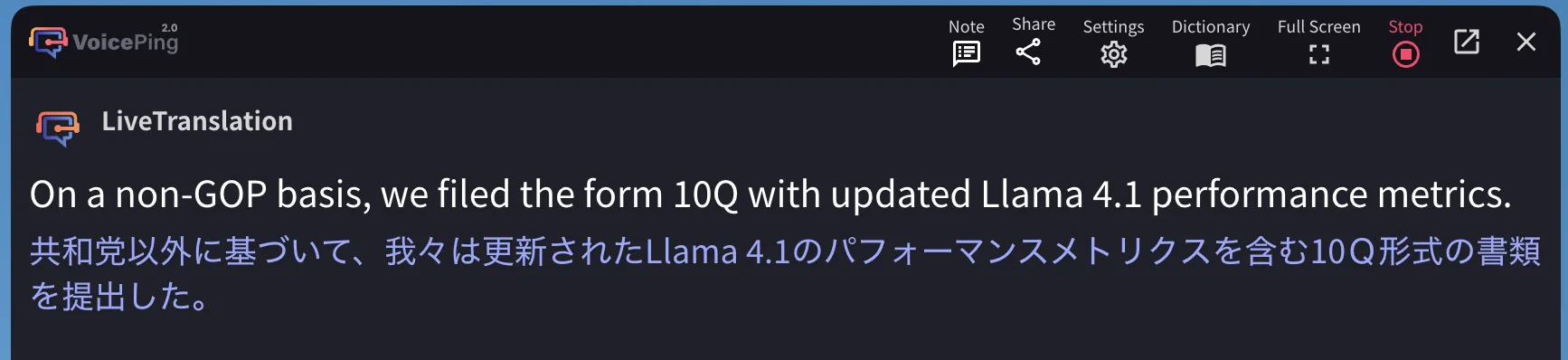
non-GOP … form 10QJP translation: 「共和党以外に基づいて」— “based on non-Republican party”After Uploading 1 PDF
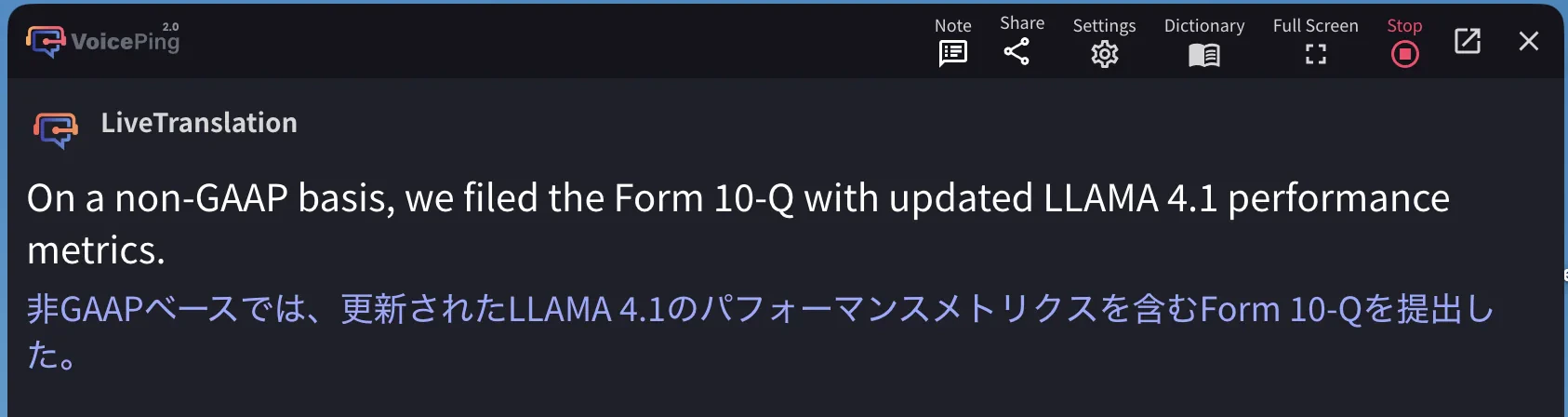
non-GAAP … Form 10-Q ✓JP translation: 「非GAAPベースでは…Form 10-Qを提出した。」 ✓GAAP (an accounting standard) was misheard as GOP (a political party). One wrong word made the entire Japanese translation nonsensical. One PDF upload fixed it — no manual dictionary work required.
Step-by-Step: Preparing for a Meeting with a Real Document
Let’s walk through the full process using Meta’s Q2 2025 earnings call transcript — a real PDF full of product names, executive names, and financial terminology. The same workflow applies to any document in any language.1. Open Vocabulary Builder
Open the Dictionary from any of these entry points, then select the Vocabulary Builder tab: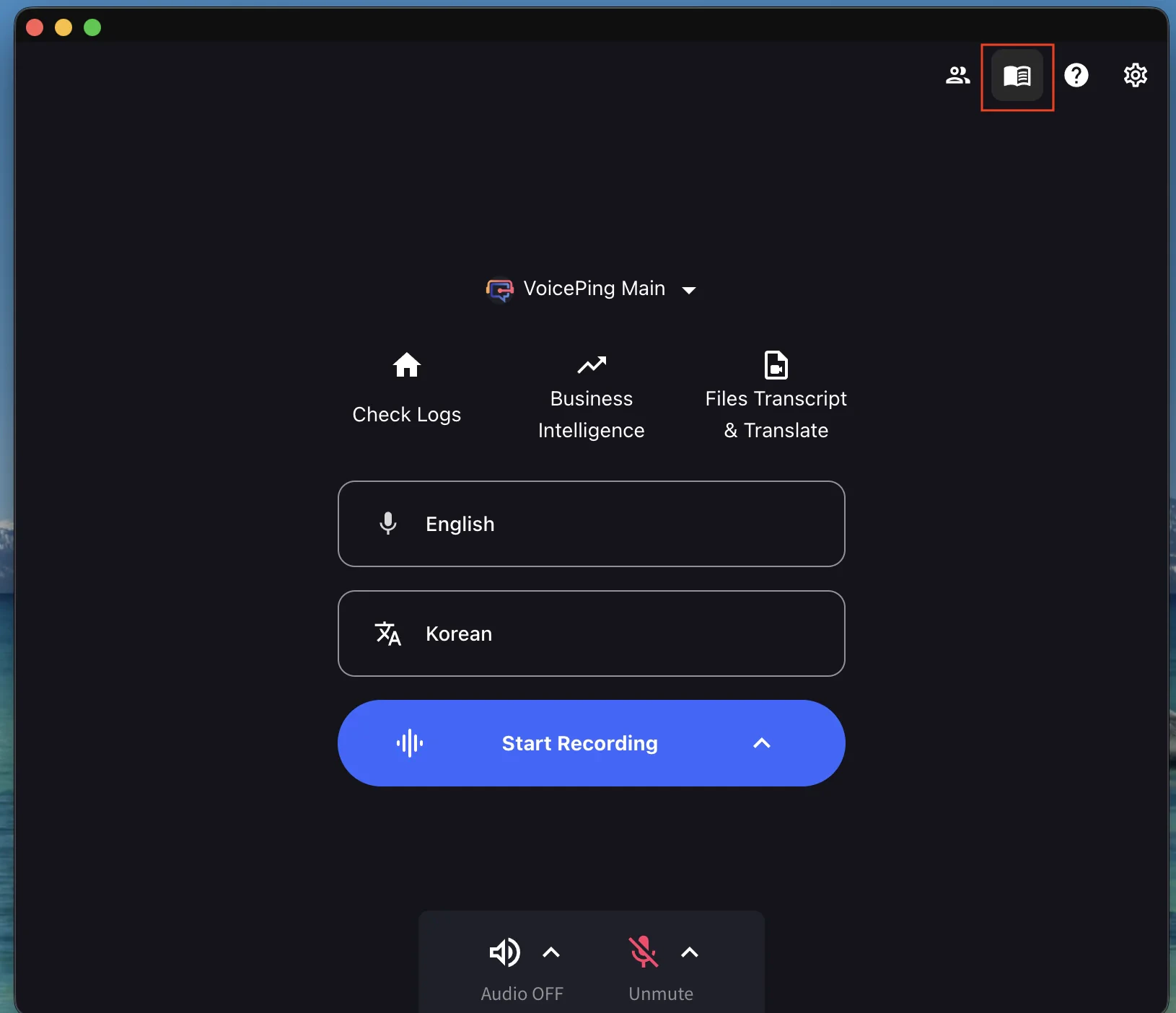
Home Screen
Click the Dictionary icon (top-right) before starting a session.
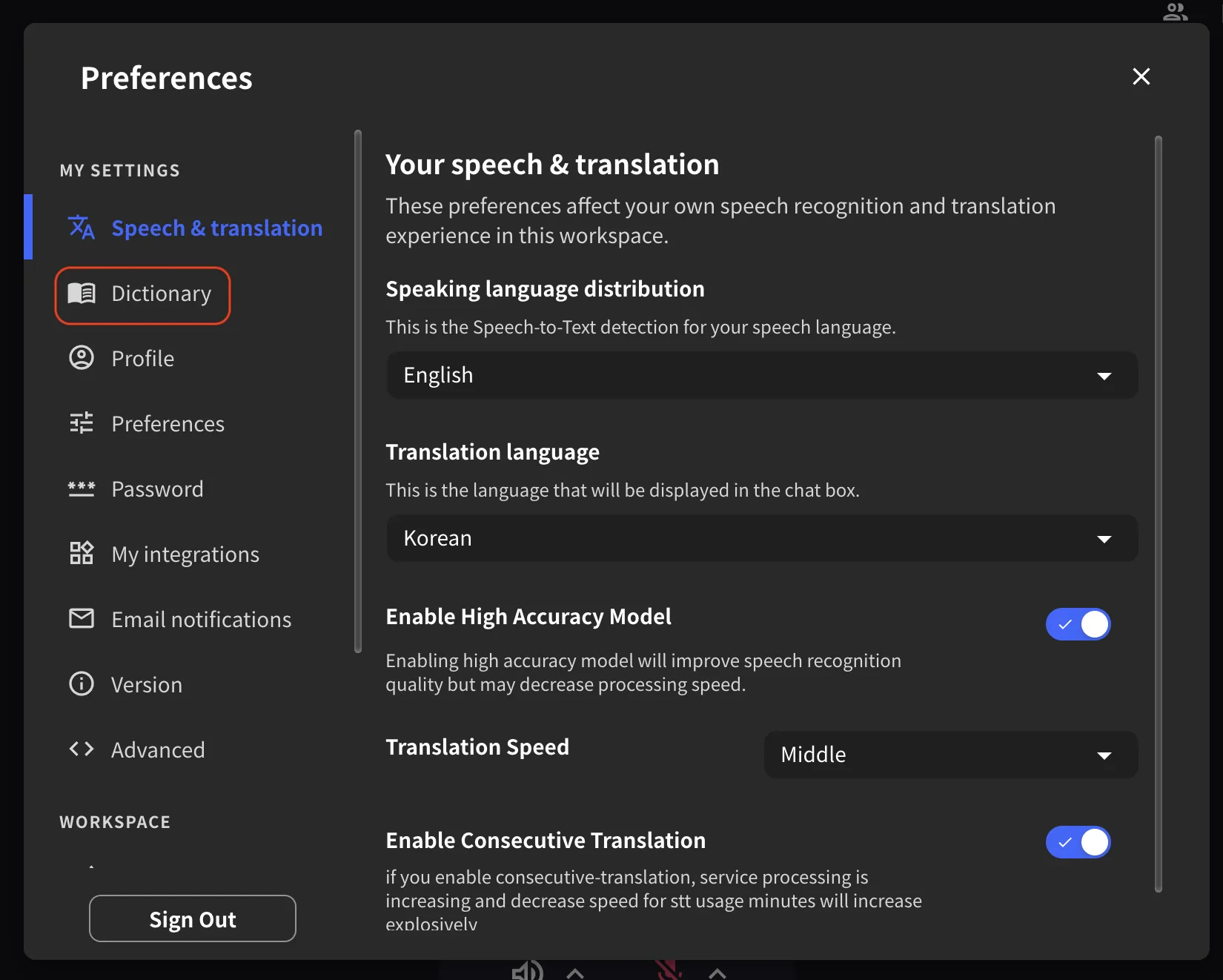
Settings
Click the Settings icon (top-right) → Dictionary in the left sidebar.
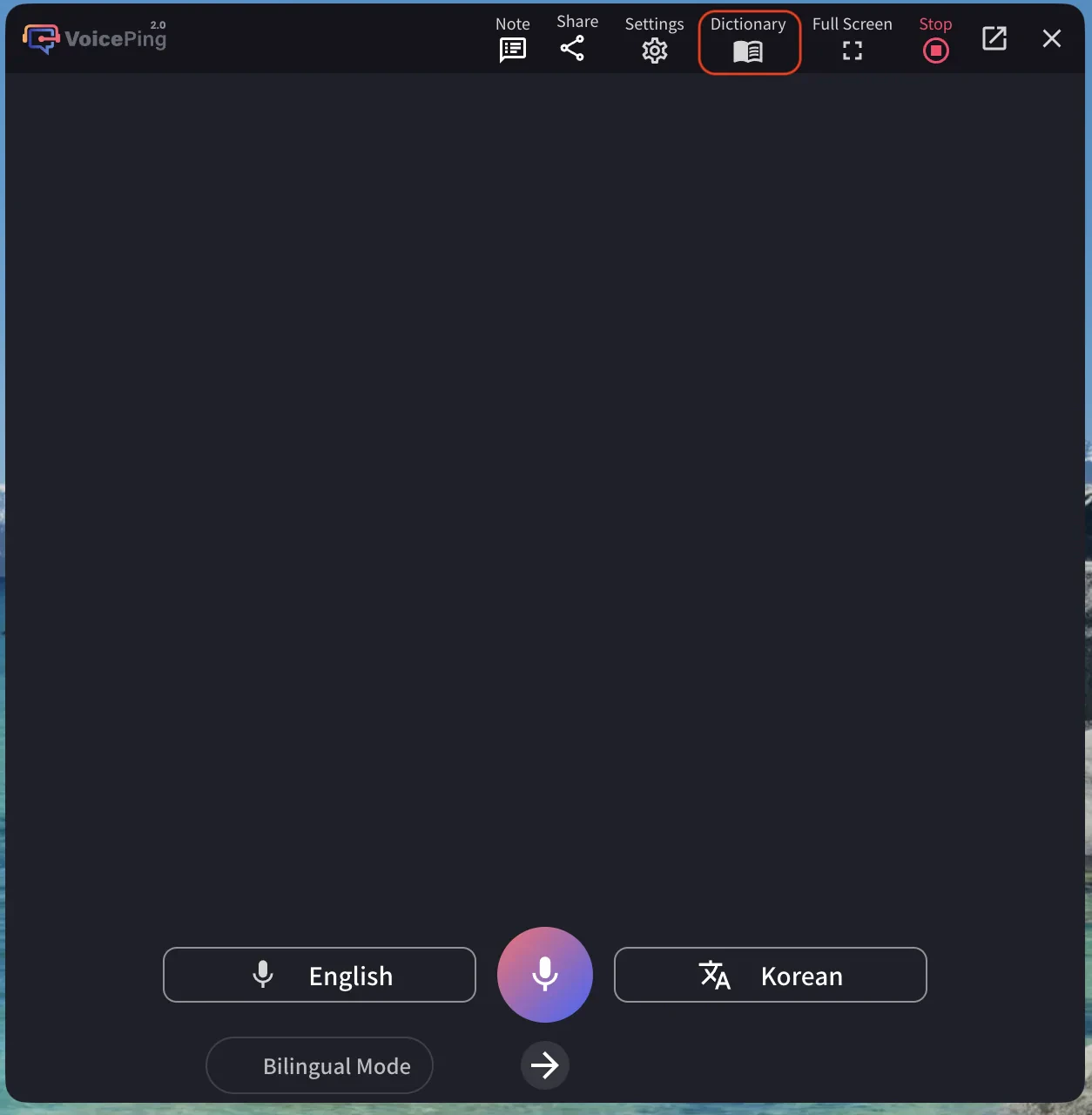
Live Session
Click Dictionary in the top toolbar during transcription.
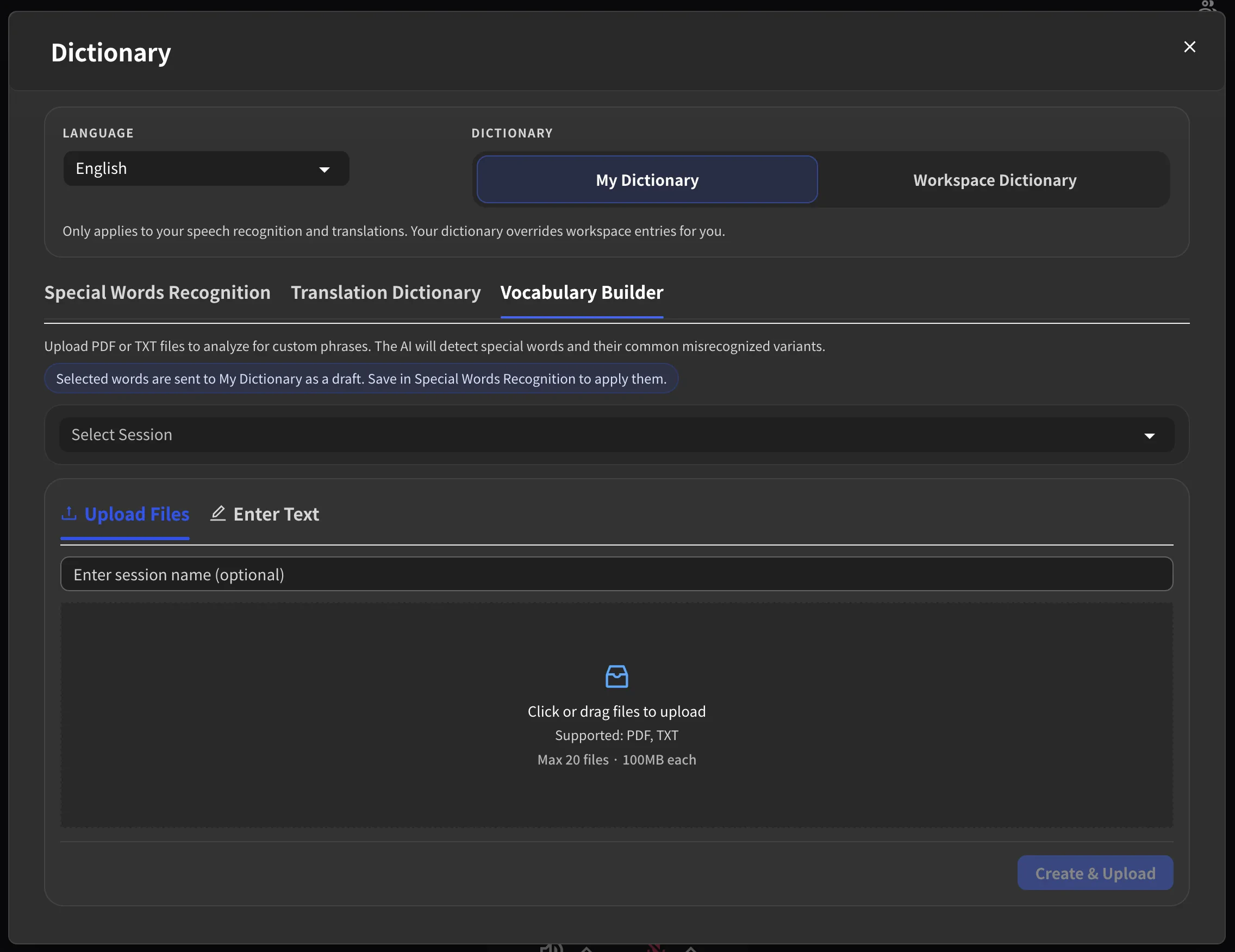
2. Upload Your Document
Select the language that matches your document, then upload it. You can drag and drop files or click to browse. Enter a session name if you want — otherwise one is generated automatically. We uploaded Meta’s earnings call PDF and clicked Create & Upload.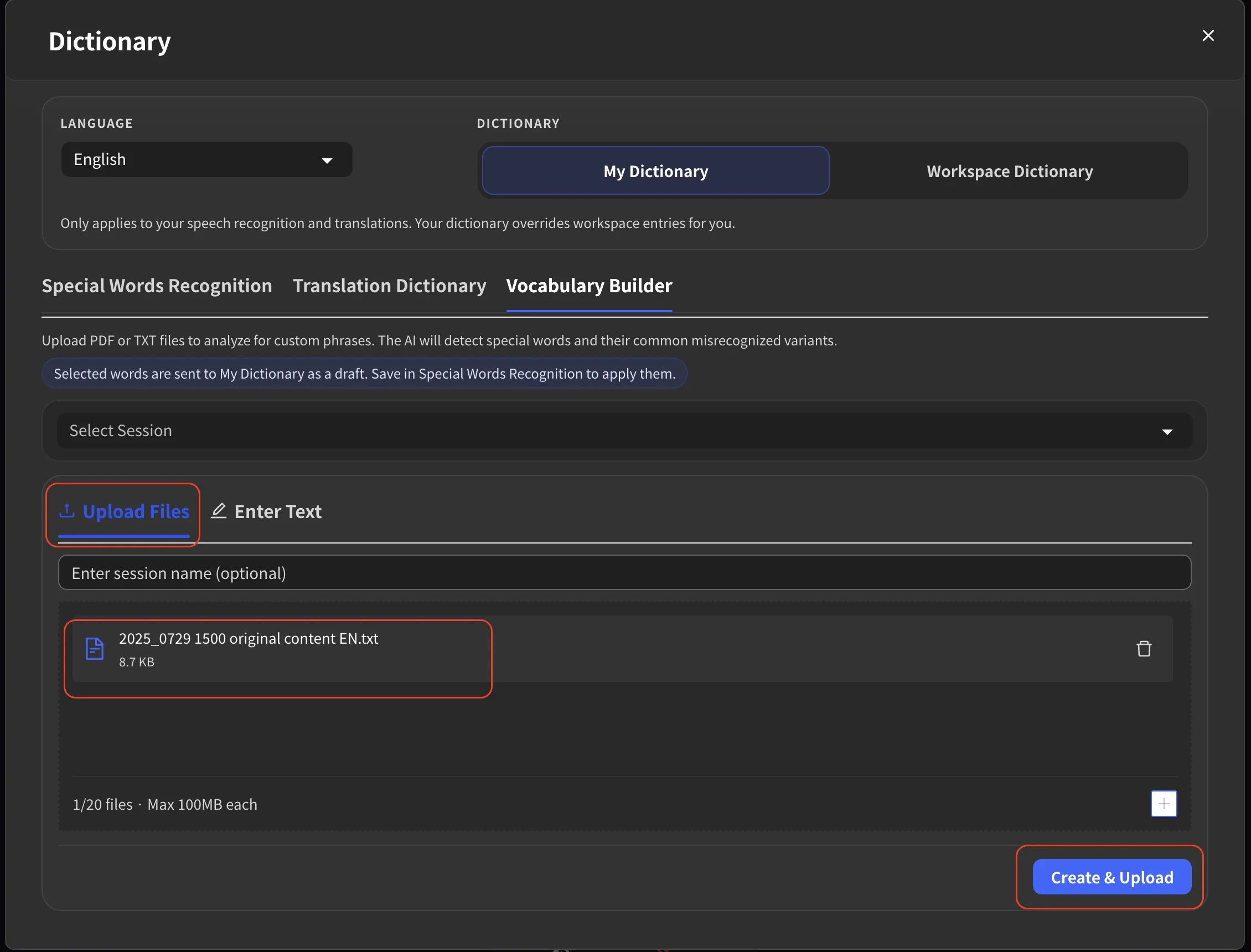
3. Wait for AI to Analyze
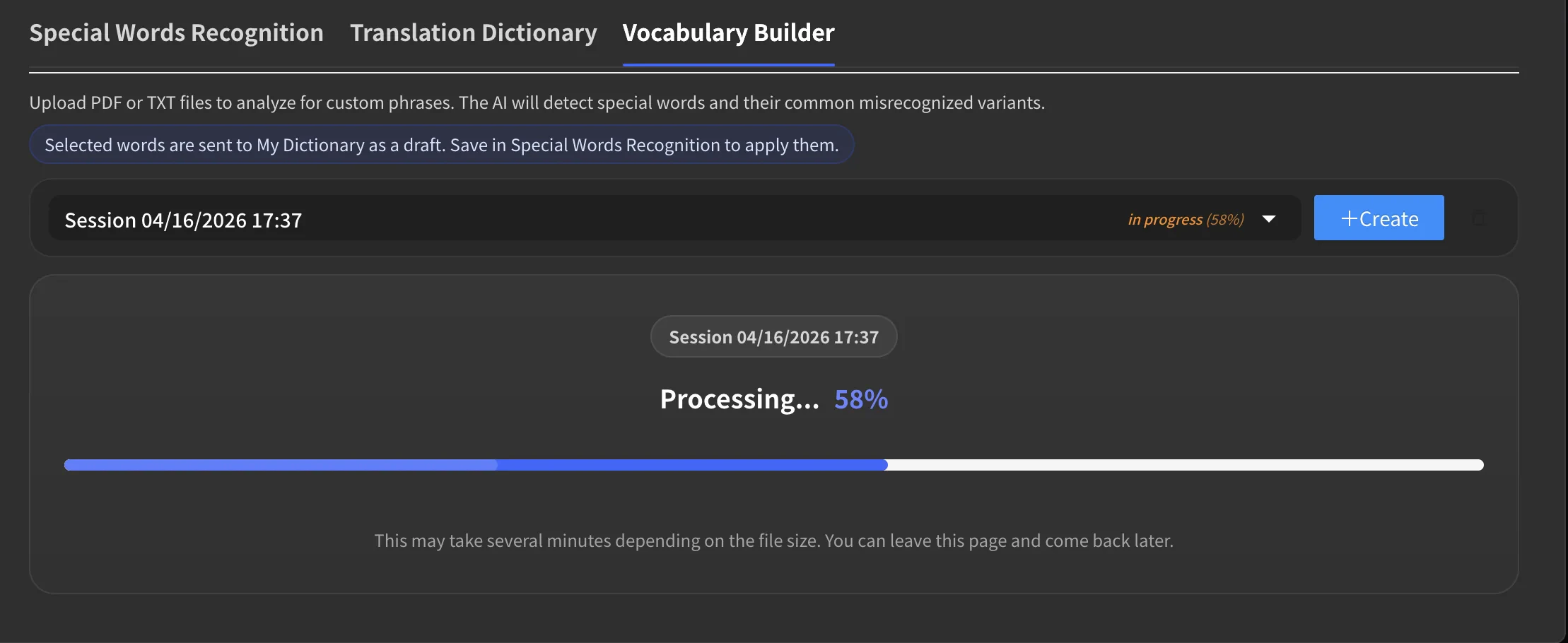
After uploading, the session appears in the session dropdown with an “in progress” label and a percentage. Click on it to see the full progress bar.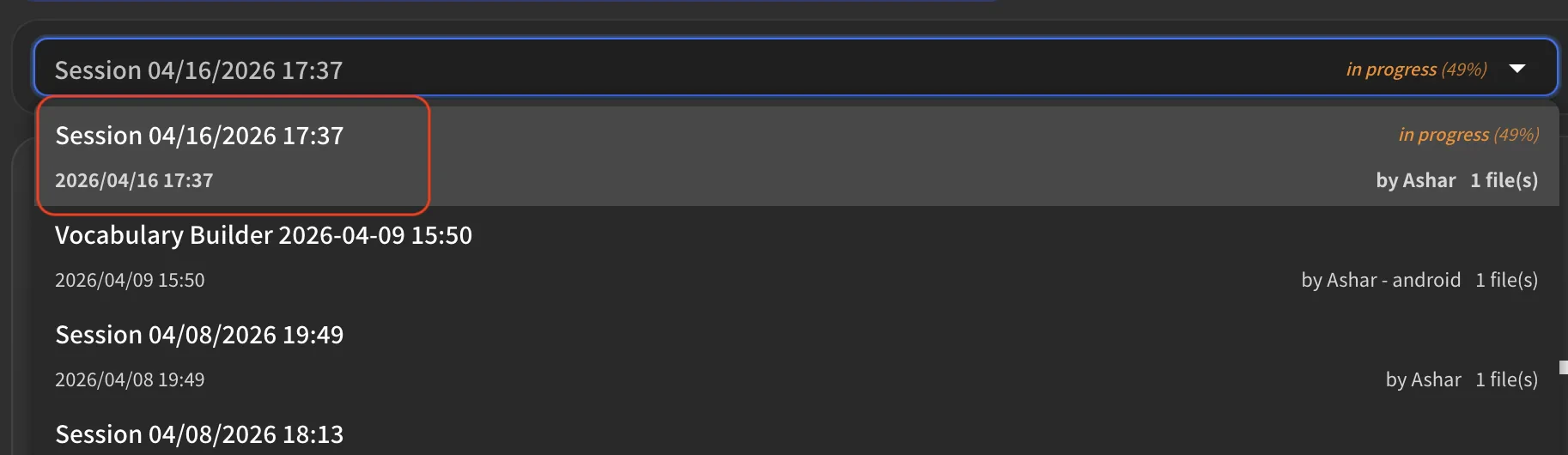
4. Review What AI Found
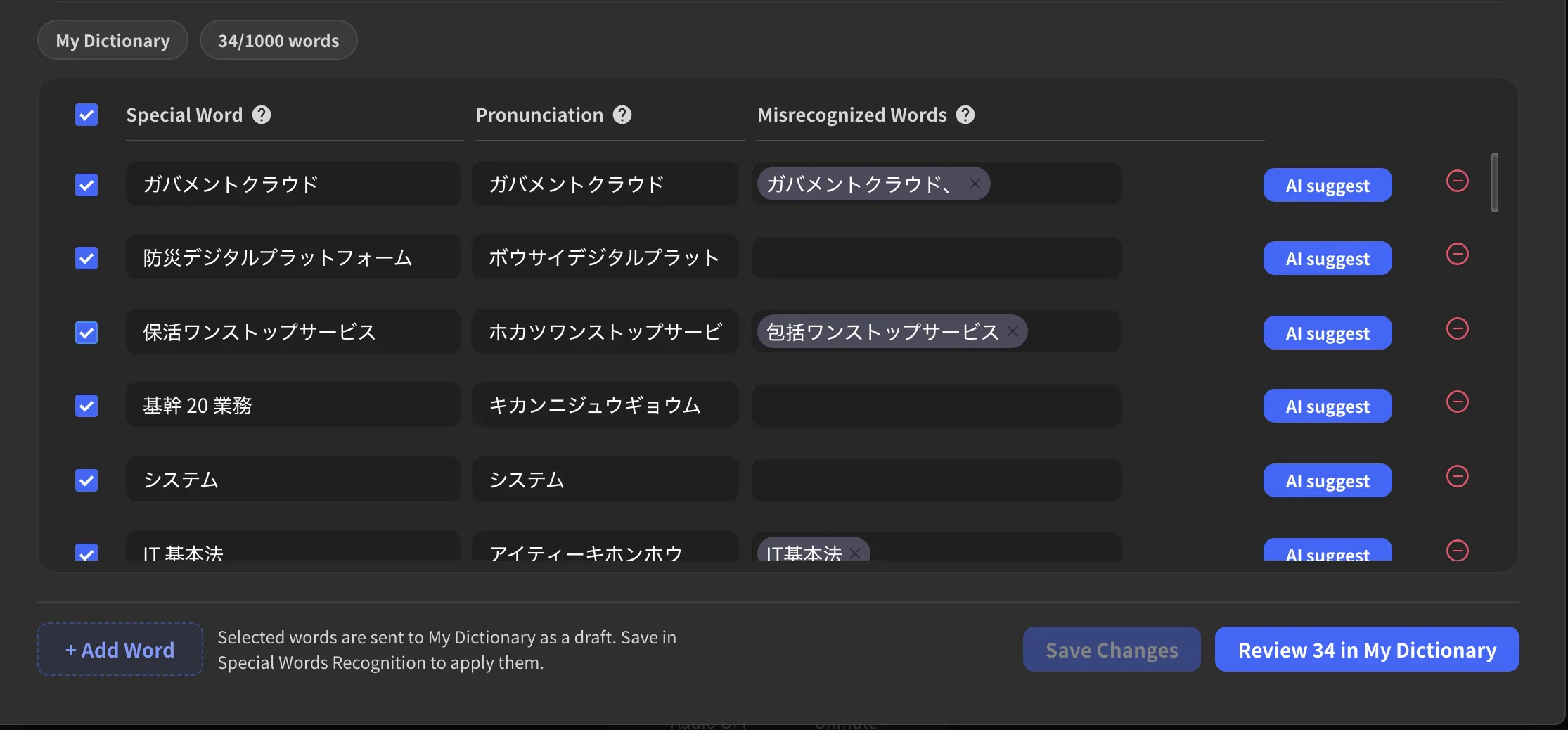
Once processing completes, the results appear. From the Meta earnings call PDF, Vocabulary Builder extracted 14 terms that speech-to-text is likely to get wrong — including executive names, financial terms, and product names: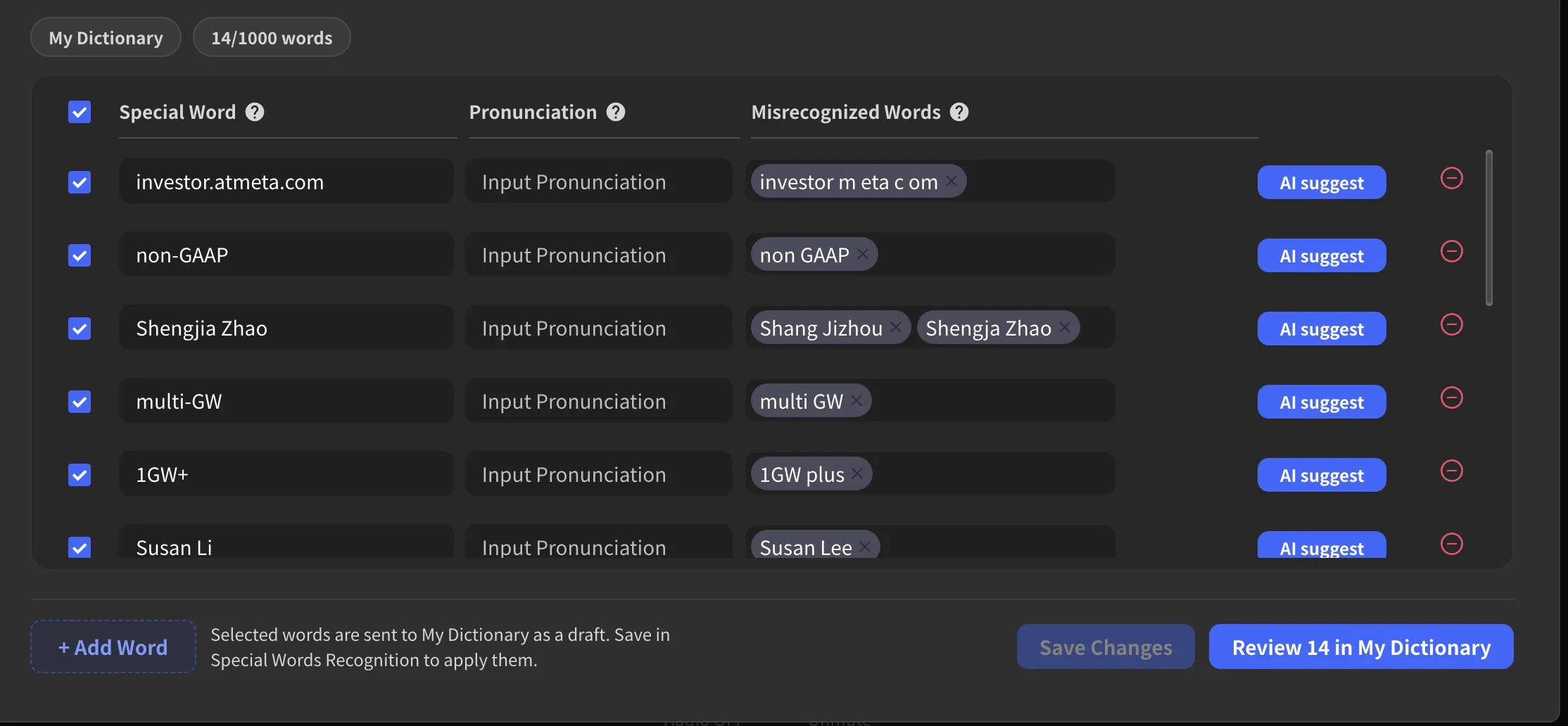
- Special Word — the correct spelling
- Pronunciation — how it sounds when spoken
- Misrecognized Words — the incorrect transcriptions VoicePing should auto-correct
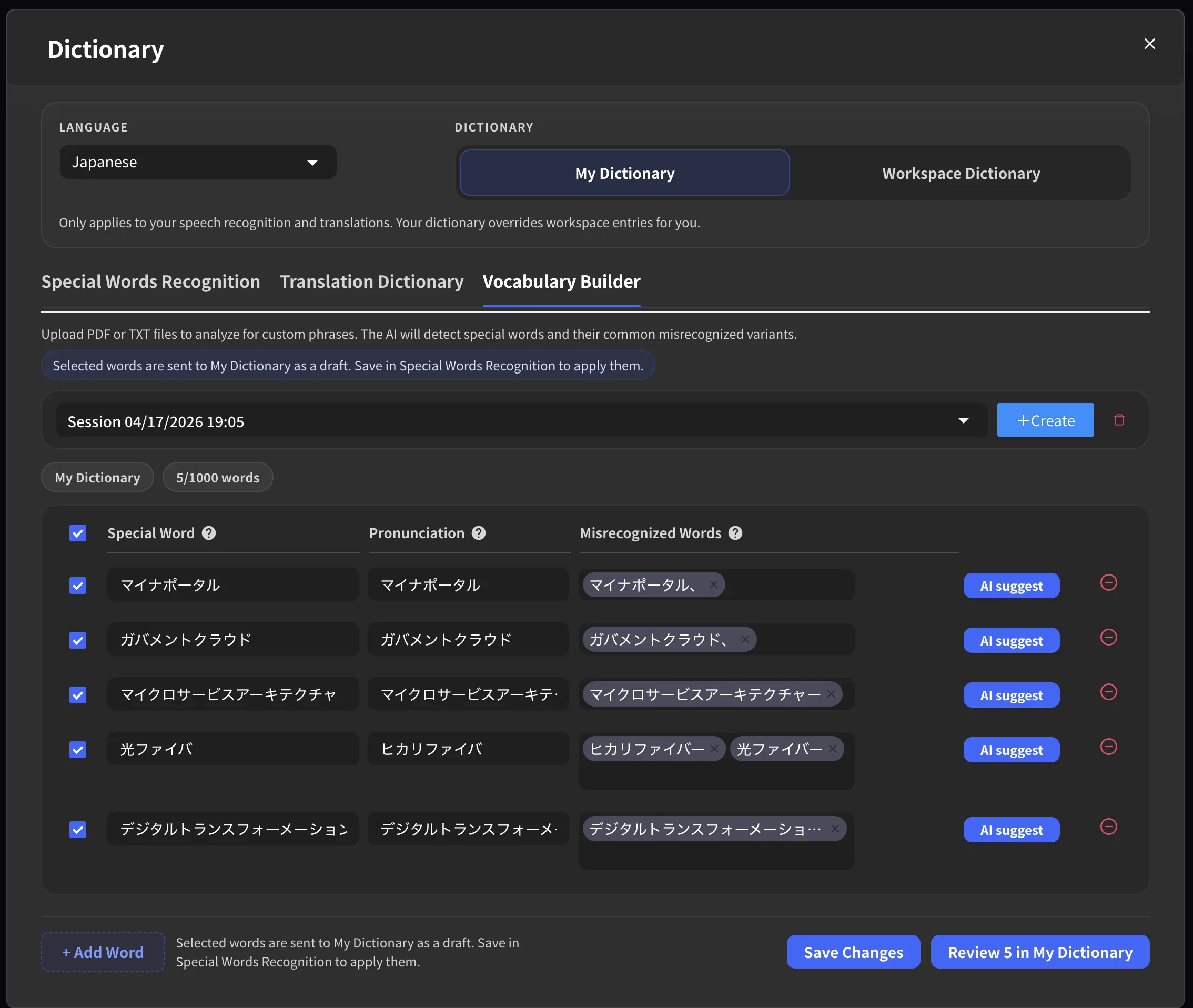
5. Save to Your Dictionary
Once you’re satisfied with the list, click Review X in My Dictionary (or Review X in Workspace Dictionary). This takes you to the Special Words Recognition tab where the phrases appear as a draft. Review them one more time, then click Save to apply.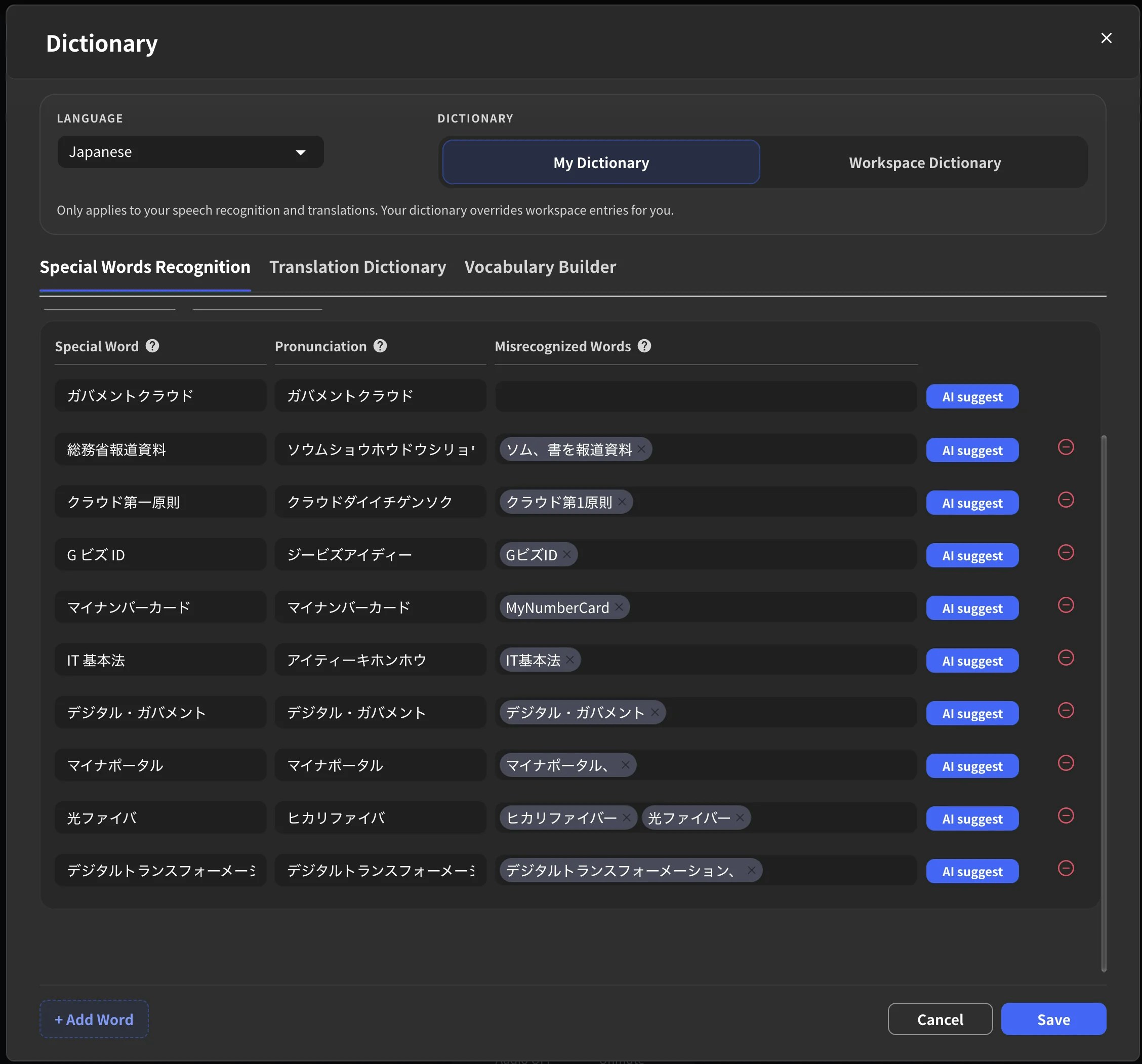
The Difference It Makes
We spoke two sentences from the earnings call — once before uploading the PDF, and once after. Same speaker, same microphone, same VoicePing session. The only difference: a few minutes of preparation.English Example 1: “Meta Quest” misheard as “met a Quest”
“Alexandr Wang from Scale AI asked about Llama 4.2 and Meta Quest 3S during the earnings call.”
Before Dictionary
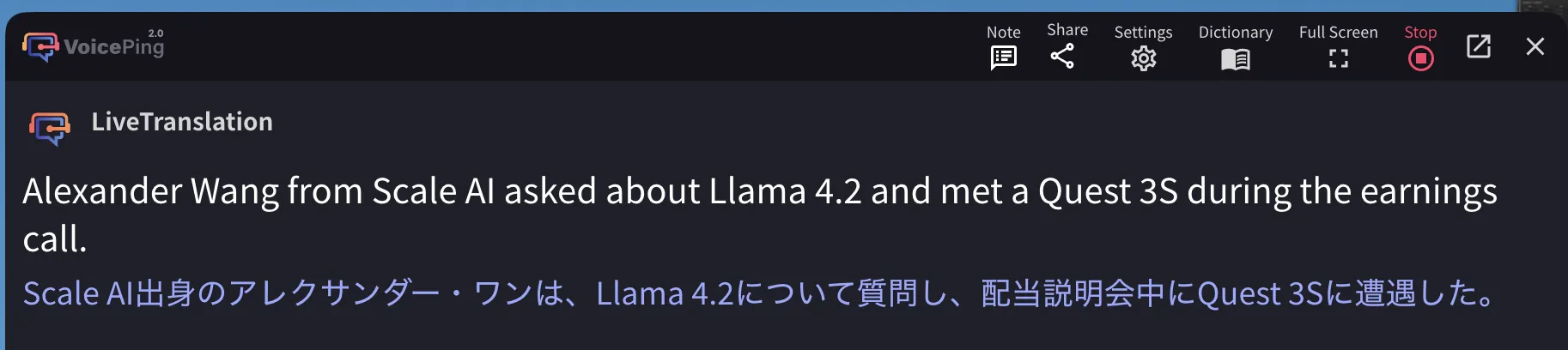
Alexander Wang … met a Quest 3SJP: 「配当説明会中にQuest 3Sに遭遇した」— “encountered Quest 3S during a dividend briefing”After Dictionary
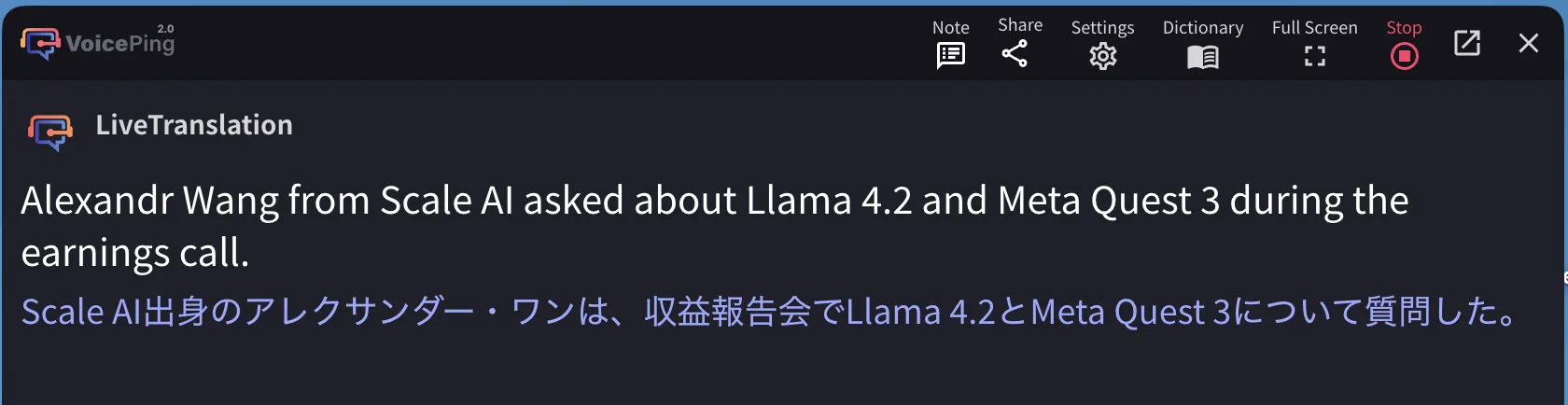
Alexandr Wang … Meta Quest 3 ✓JP: 「収益報告会でLlama 4.2とMeta Quest 3について質問した。」 ✓Alexander was also corrected to Alexandr. Both fixes rippled into the Japanese translation, turning nonsense into an accurate sentence.
English Example 2: “GAAP” misheard as “GOP”
This is the example from the top of this page —GAAP (accounting standard) heard as GOP (political party), with the Japanese translation going from “non-Republican party” to the correct financial term. A few minutes of preparation prevented a completely wrong transcript.
Same Preparation, Different Language: Japanese Government Document
The same workflow applies to any language. We uploaded the Digital Agency’s (デジタル庁) Priority Plan PDF before a session about Japanese government digital policy. The document is dense with formal terminology that speech-to-text would normally mangle. Vocabulary Builder extracted 34 terms in minutes — includingガバメントクラウド, 防災デジタルプラットフォーム, 保活ワンストップサービス, IT 基本法, and クラウド第一原則. Manually building this list from scratch would have taken far longer.
Japanese Example 1: クラウド第一原則
「総務省報道資料によると、クラウド第一原則の適用が進んでいます。」
Before Dictionary
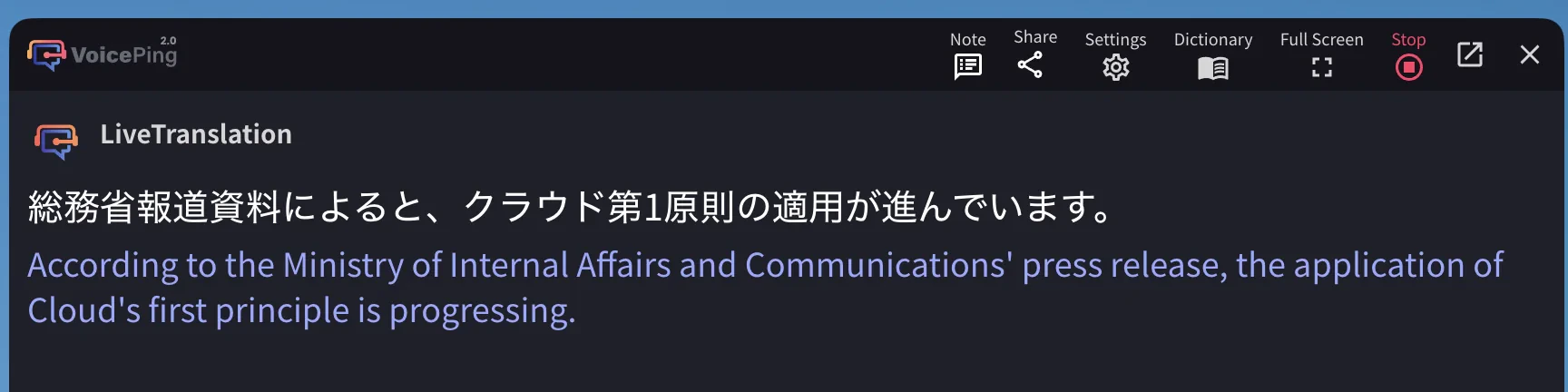
クラウド第1原則 → “Cloud’s first principle is progressing”After Dictionary
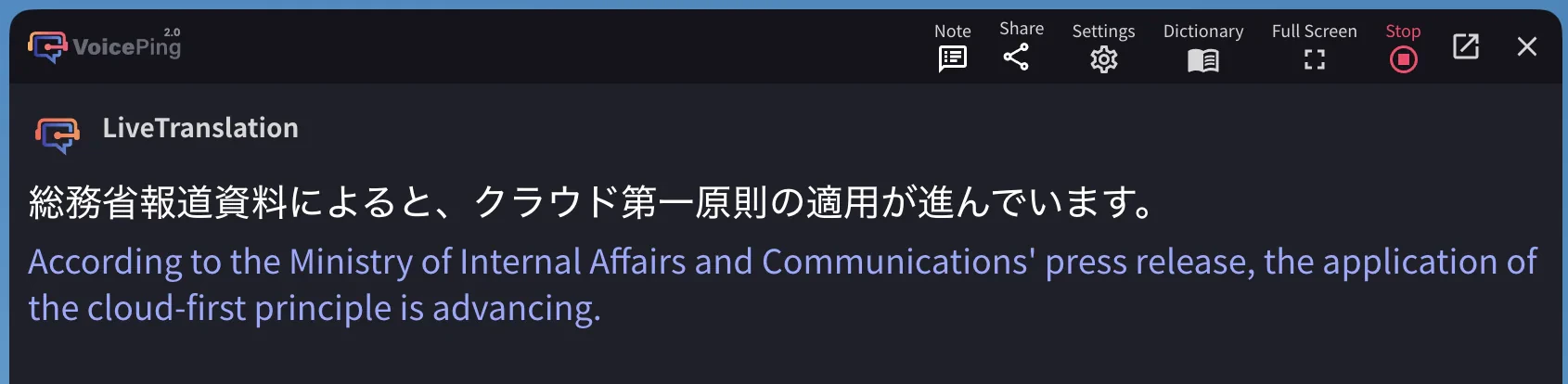
クラウド第一原則 → “the cloud-first principle is advancing” ✓第1 to the formal kanji 第一, and the English translation shifted from the awkward “Cloud’s first principle” to the accurate “cloud-first principle.”
Japanese Example 2: デジタル・ガバメント
「IT基本法に基づき、デジタル・ガバメントの推進を加速させます。」
Before Dictionary

デジタルガバメントの推進を加速させますAfter Dictionary
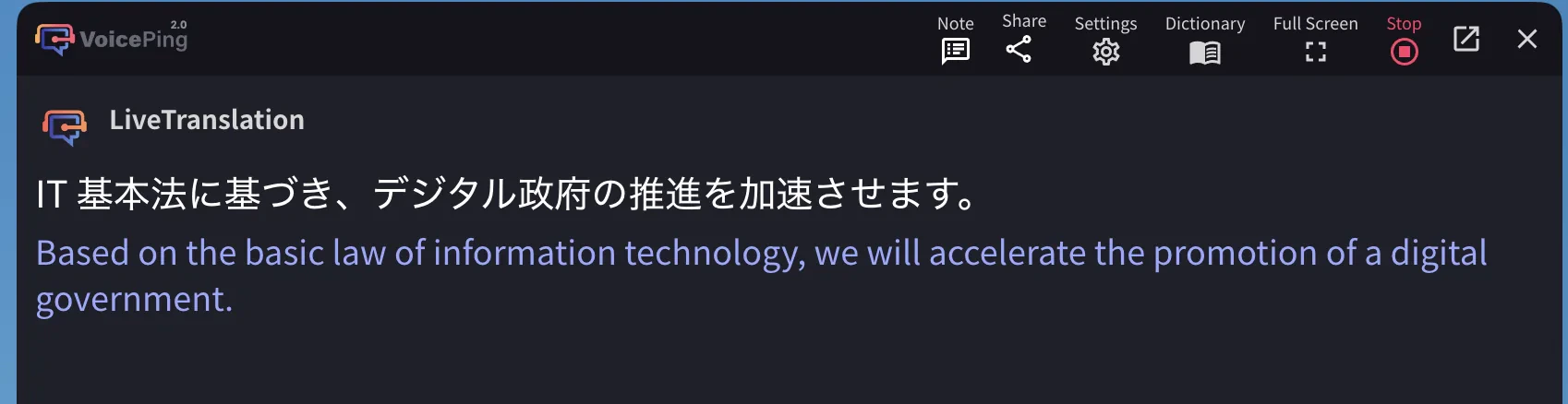
デジタル政府の推進を加速させます ✓Managing Sessions
View Past Sessions
Use the session dropdown to see all your previous analysis sessions. Each session shows the session name, date, processing status, creator name, and number of files.Delete Sessions
Select a session and click the delete option to remove it. Deleted sessions cannot be recovered.Official Links
Official Website
Visit our official website
X (Twitter)
Follow us on X
Like us on Facebook
Connect on LinkedIn