
About Single Sign-On (SSO) Feature
Workspaces using the Enterprise plan can enable single sign-on (SSO) to allow login using HENNGE One. By setting up SSO, you can smoothly log in to VoicePing using an account registered in HENNGE One. This manual explains:- How to enable SSO in the workspace
- Steps to configure HENNGE One as the Identity Provider (IdP)
Frequently Asked Questions
I want existing users to only be able to log in with SSO when SSO is set up later
I want existing users to only be able to log in with SSO when SSO is set up later
This is possible.When SSO is enabled, existing users will automatically be unable to log in without SSO. If they are already logged in, they will need to log out once.
HENNGE One Configuration
Prerequisites
Have a VoicePing Enterprise plan contract
Have an account with HENNGE One administrator privileges
Steps
1
Go to HENNGE One Admin Screen
Click “Service Provider Settings”.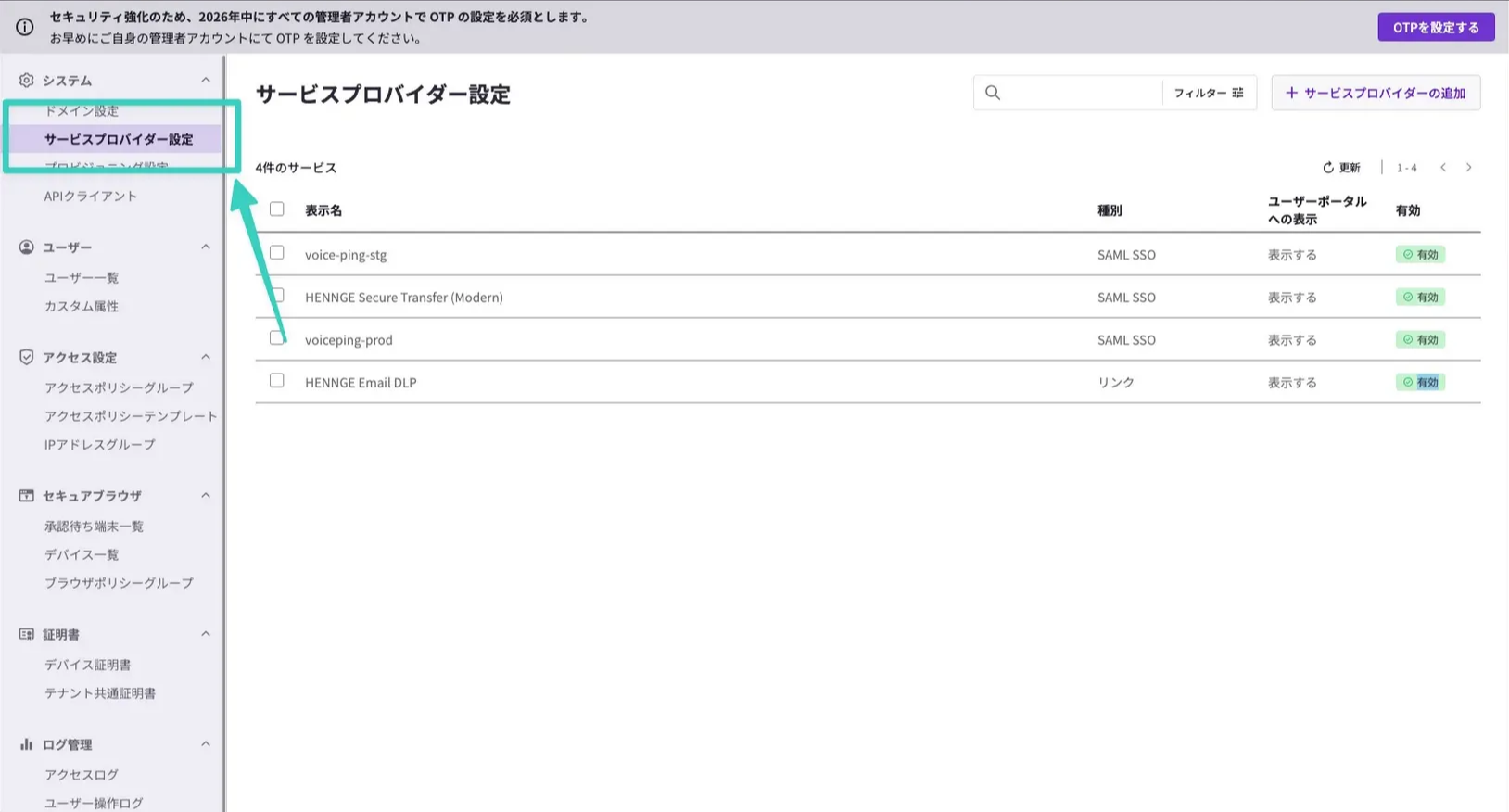
2
Add Service Provider
Click “Add Service Provider”.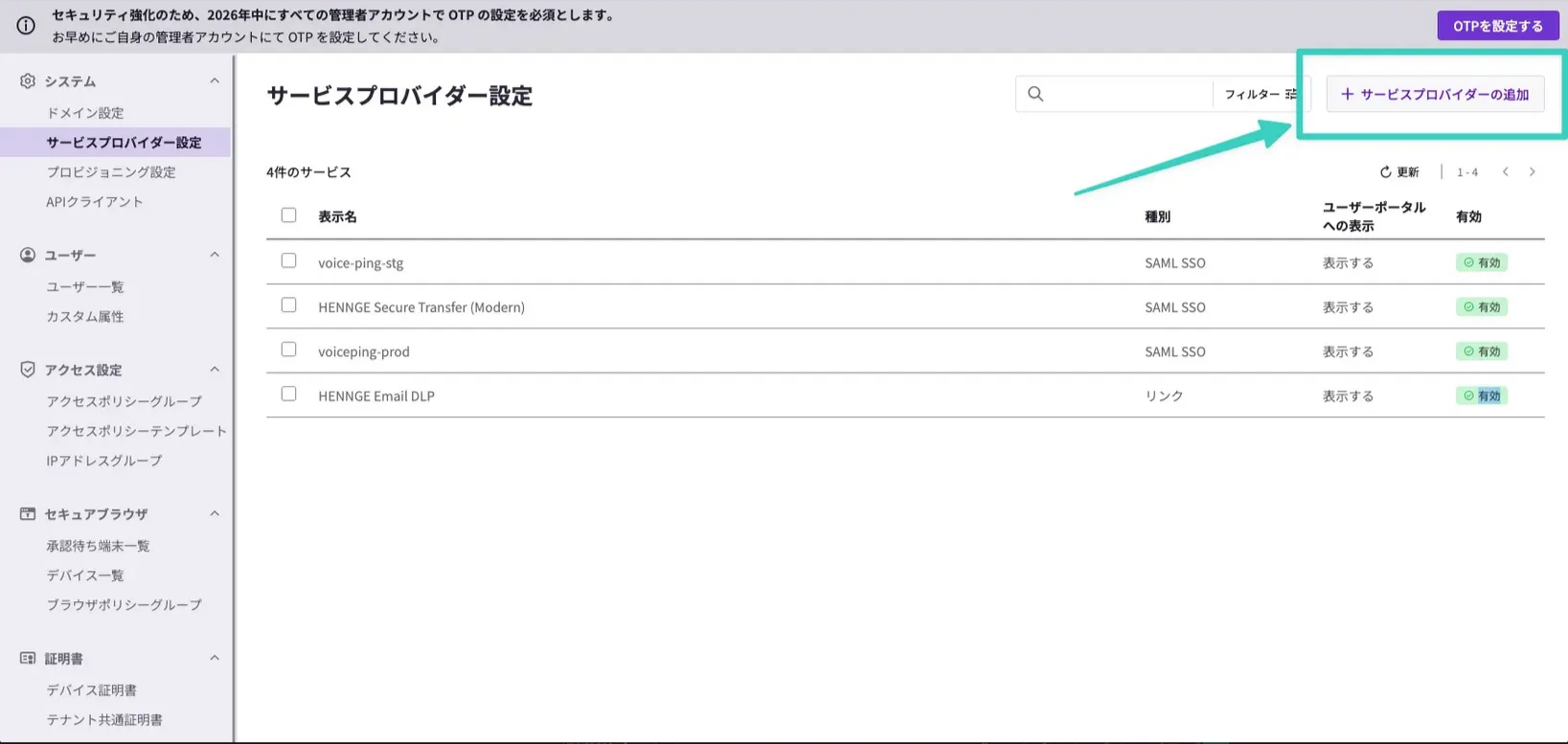
3
Add SSO Service
Select “Add service for SSO”.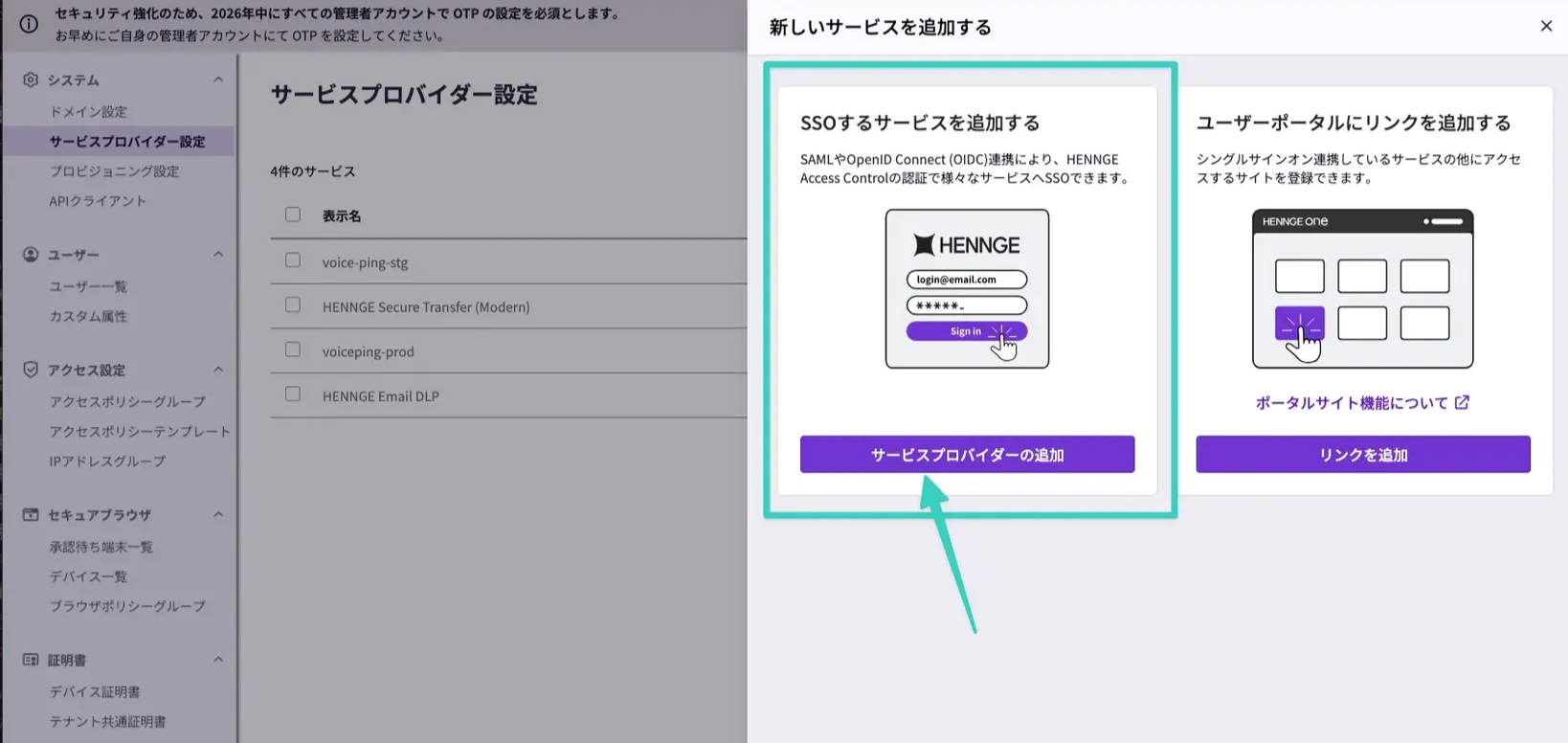
4
Select Manual SAML Configuration
Select “Manual SAML Configuration”.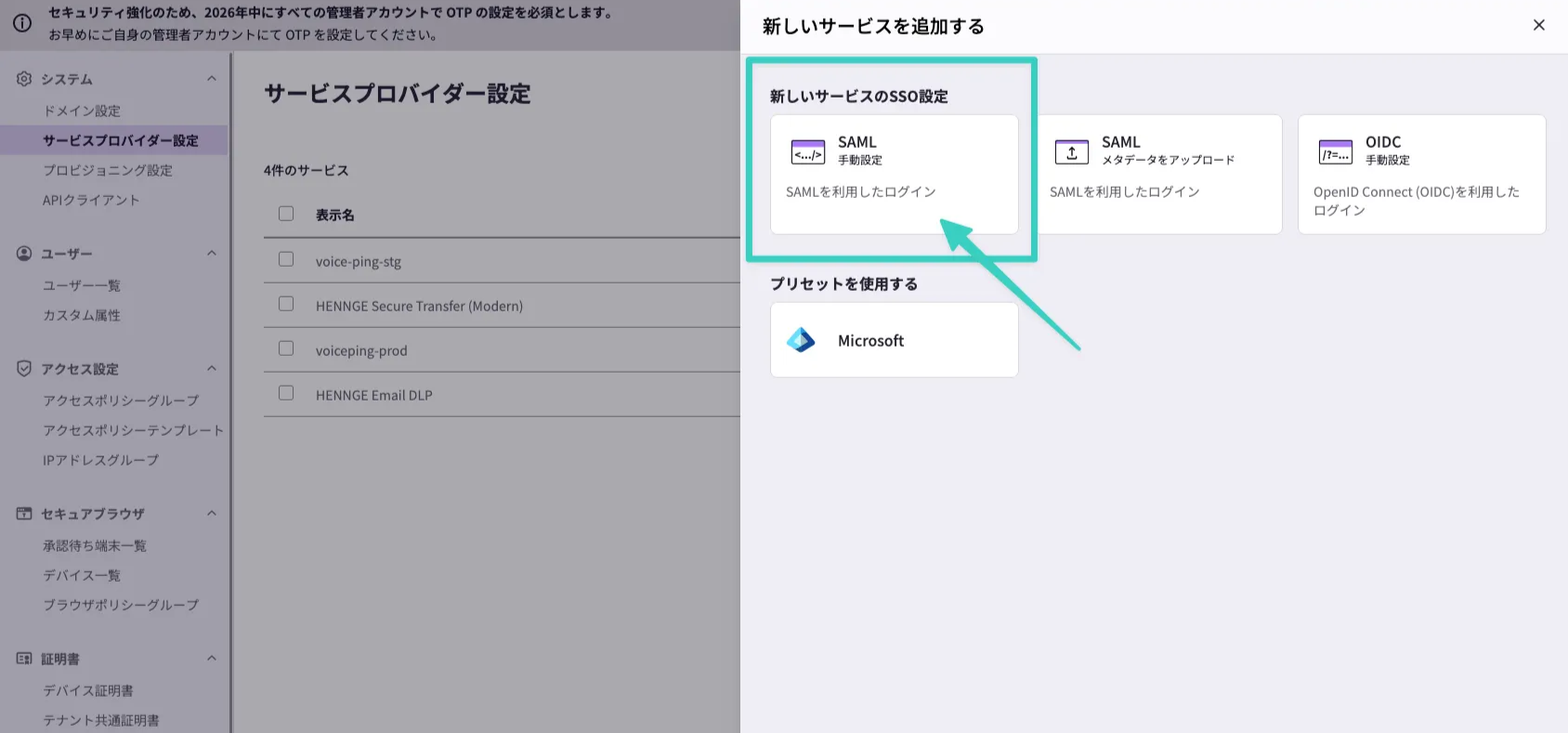
5
Enter Required Information
Enter the following information and save.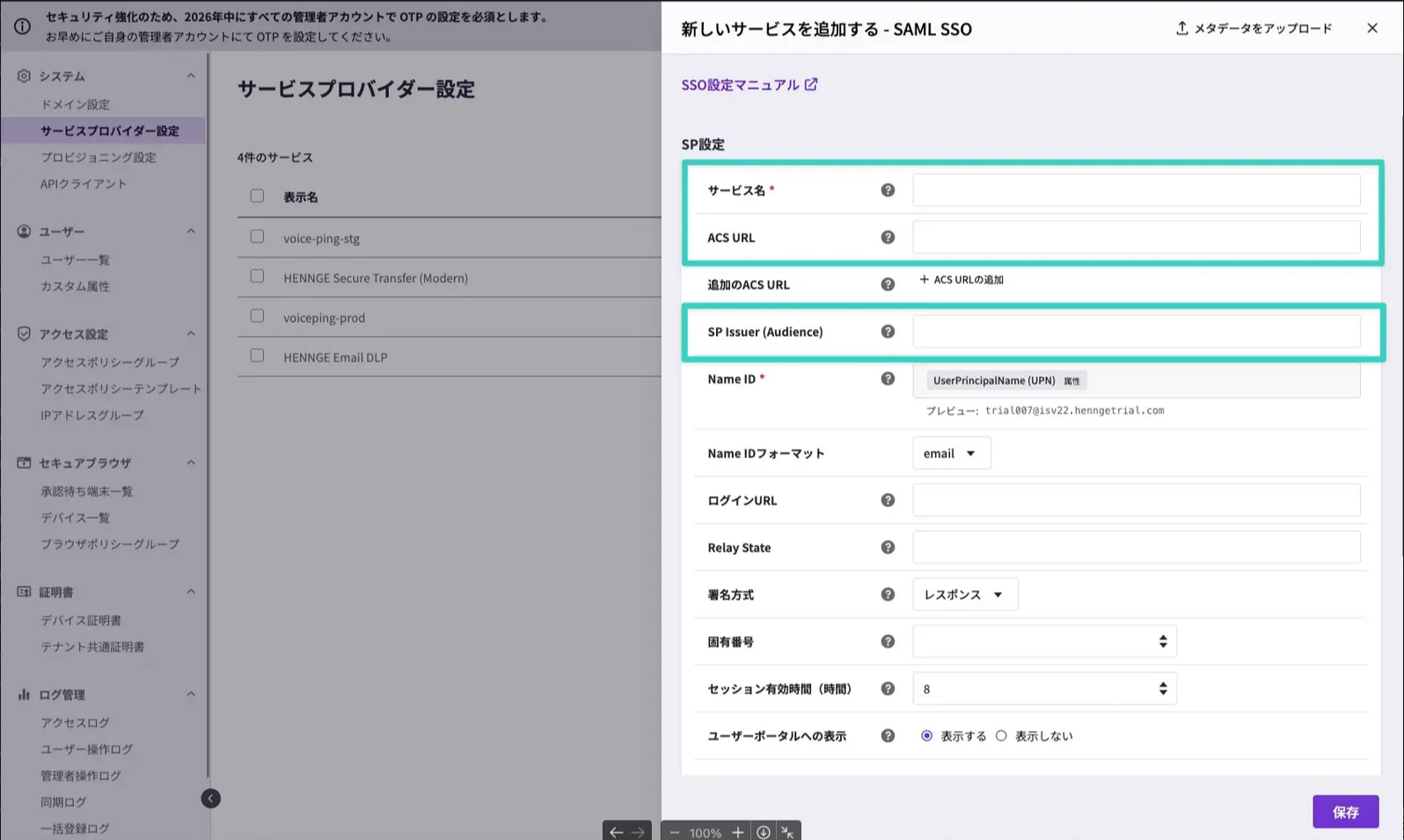
6
Download IdP Metadata
Click the created provider and click “Metadata”.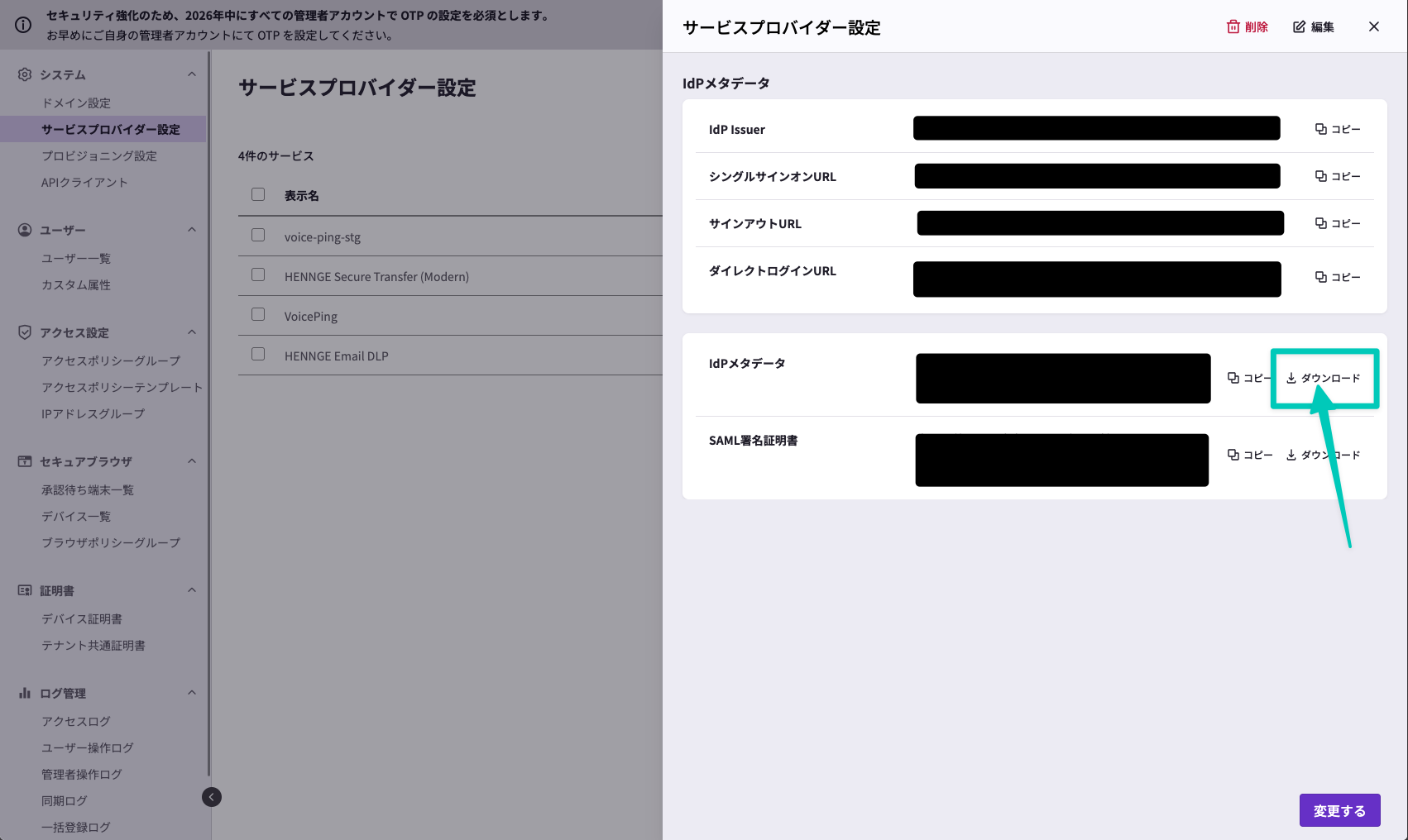
7
Update Access Policy
Update the access policy for target users.
VoicePing Configuration
Prerequisites
Have a VoicePing Enterprise plan contract
Have an account with workspace owner privileges
Steps
1
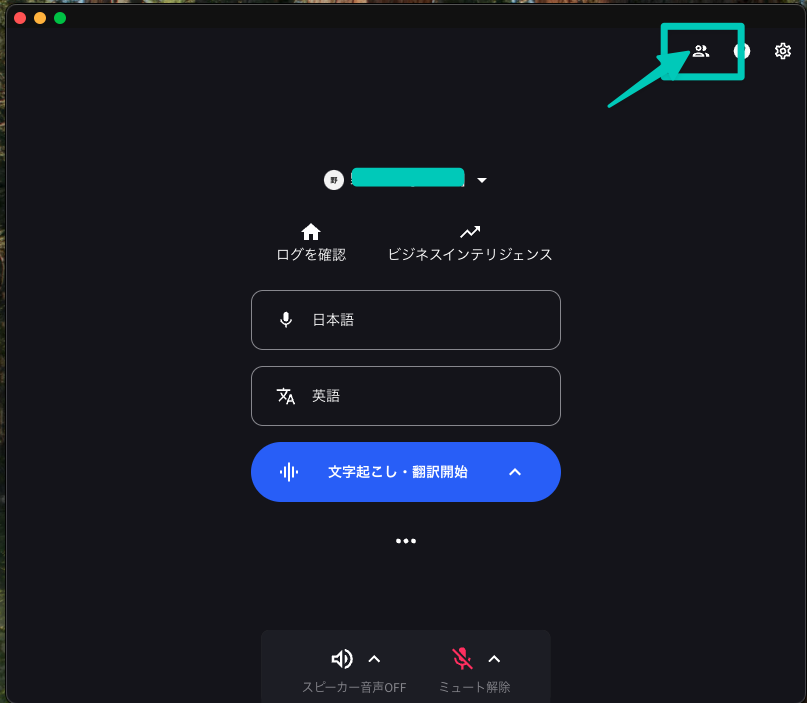
Open Admin Dashboard
2
Click Member Management Tab

3
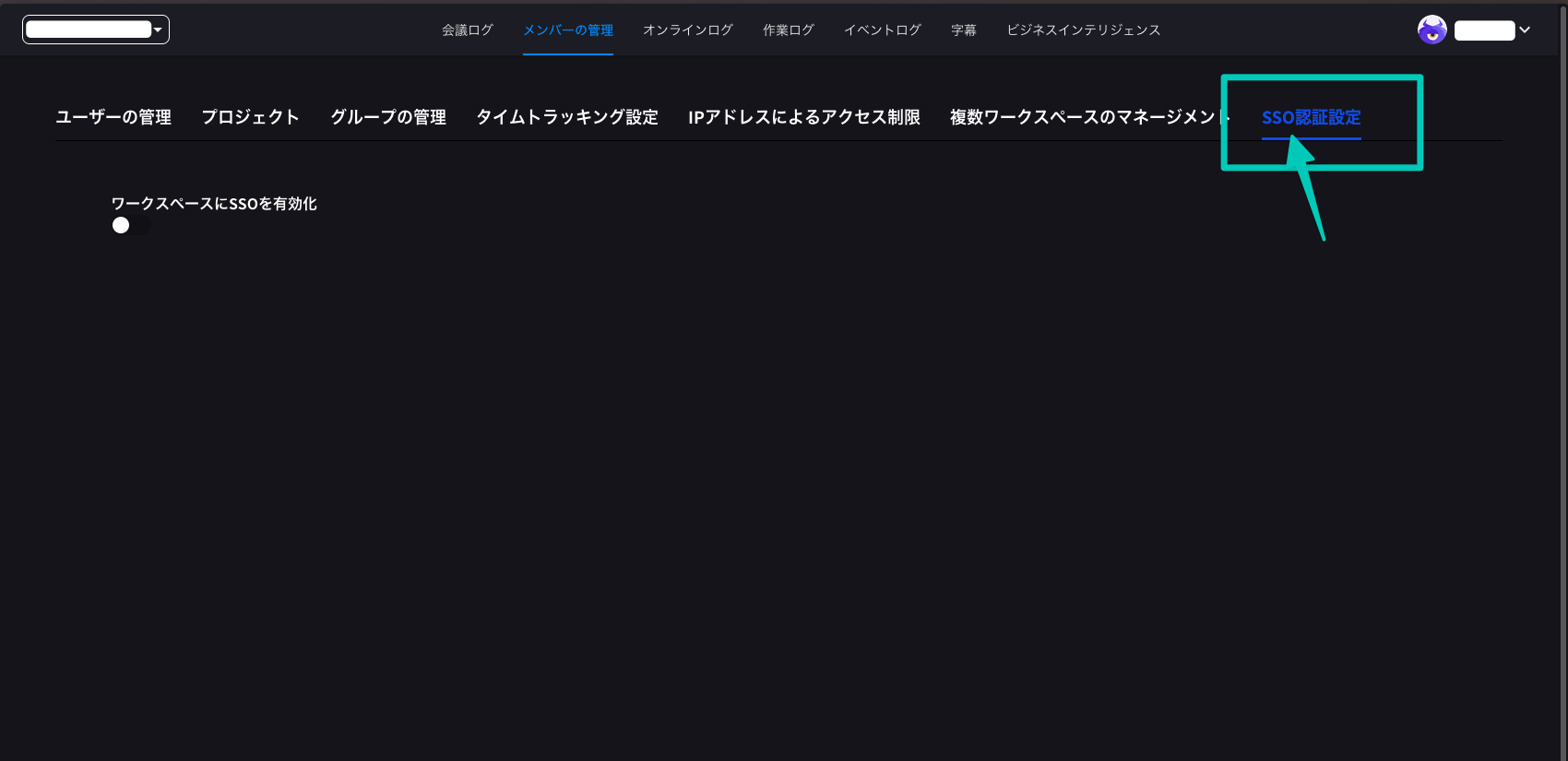
Click SSO Authentication Settings
4
Enable SSO
Turn on “Enable SSO for workspace”.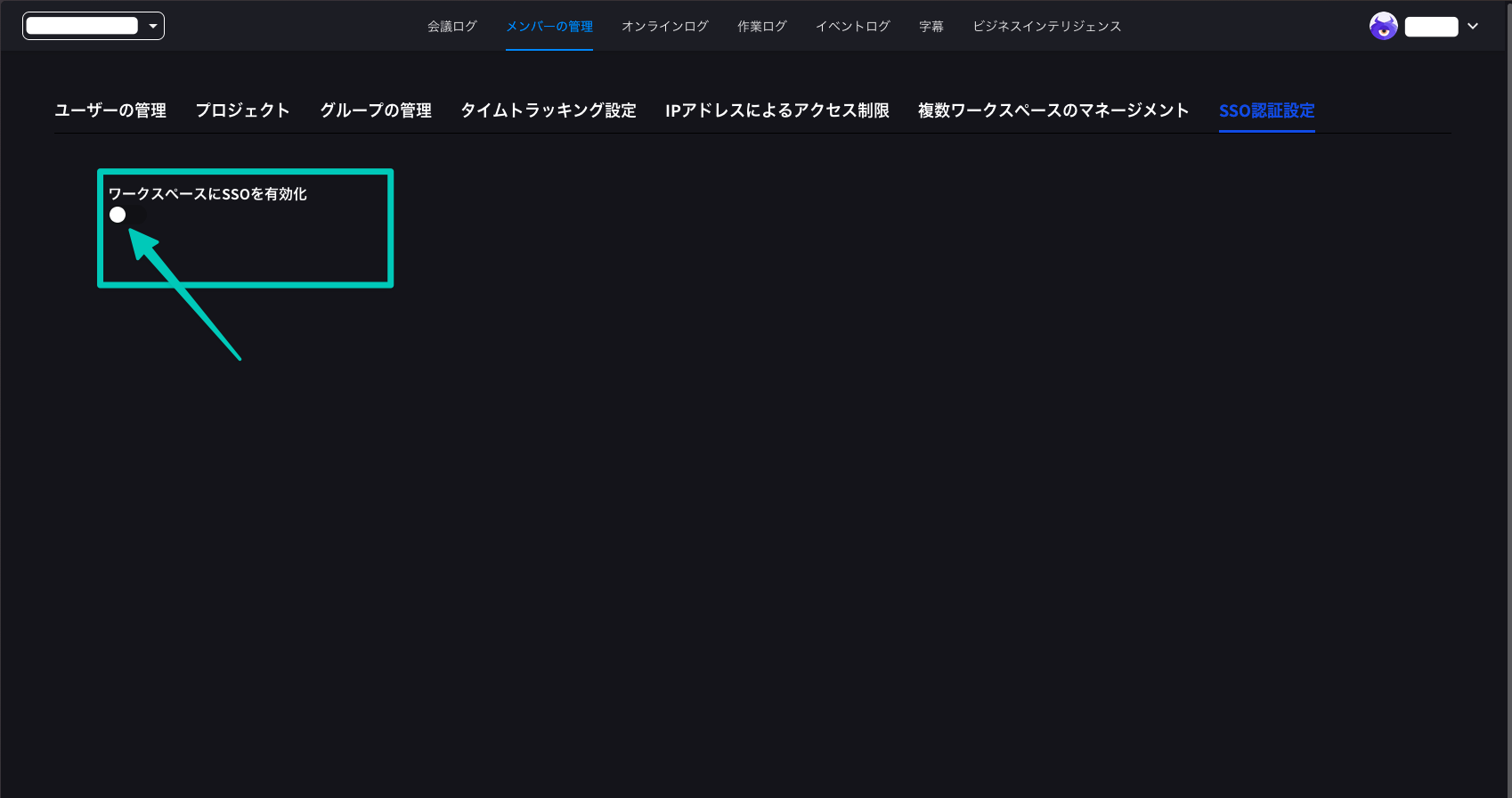
5
Check Organization ID
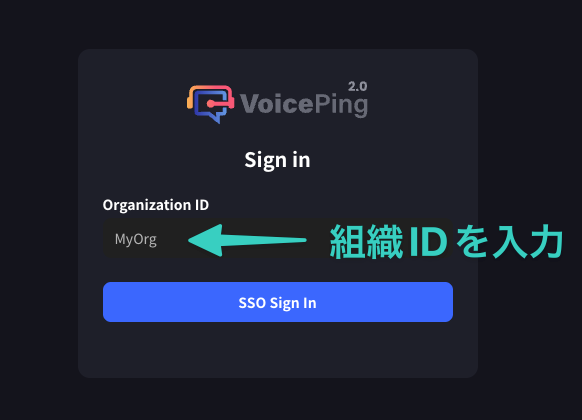
Select “Organization ID” and check the organization ID.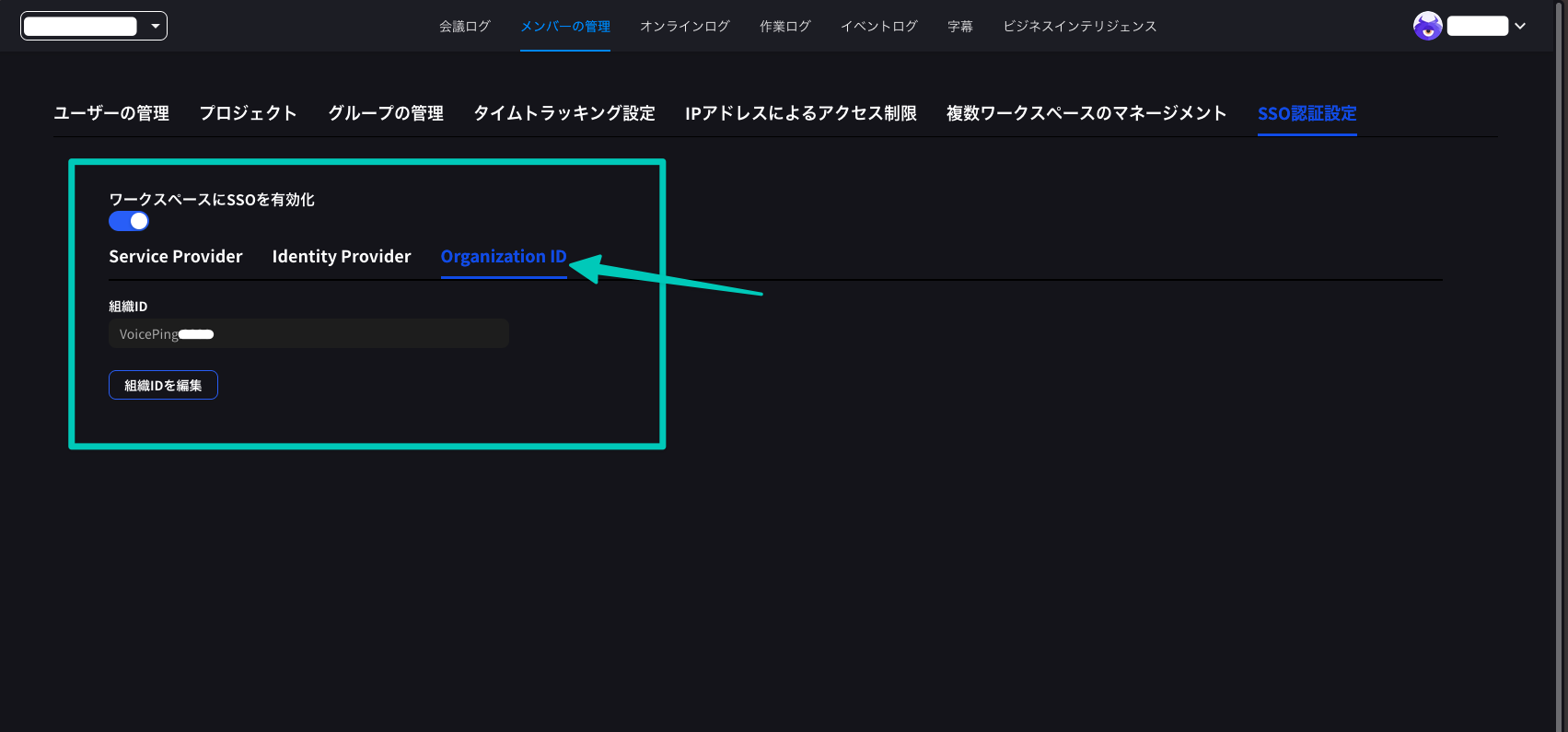
The organization ID will be needed later during login operations.
6
Select HENNGE One
Click the “Identity Provider” tab and select HENNGE One.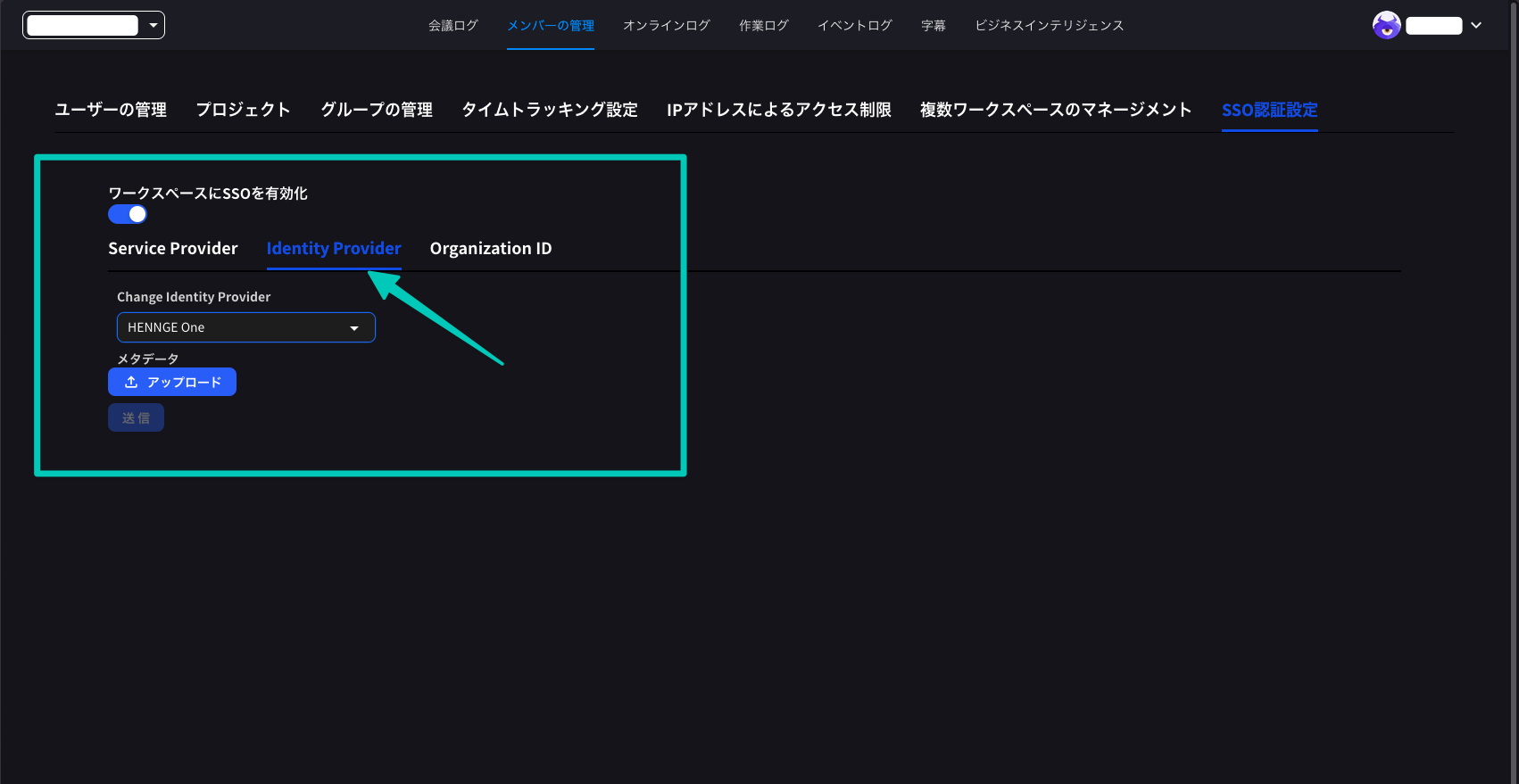
7
Upload Metadata
Upload the file (.xml extension) downloaded from HENNGE One configuration and submit.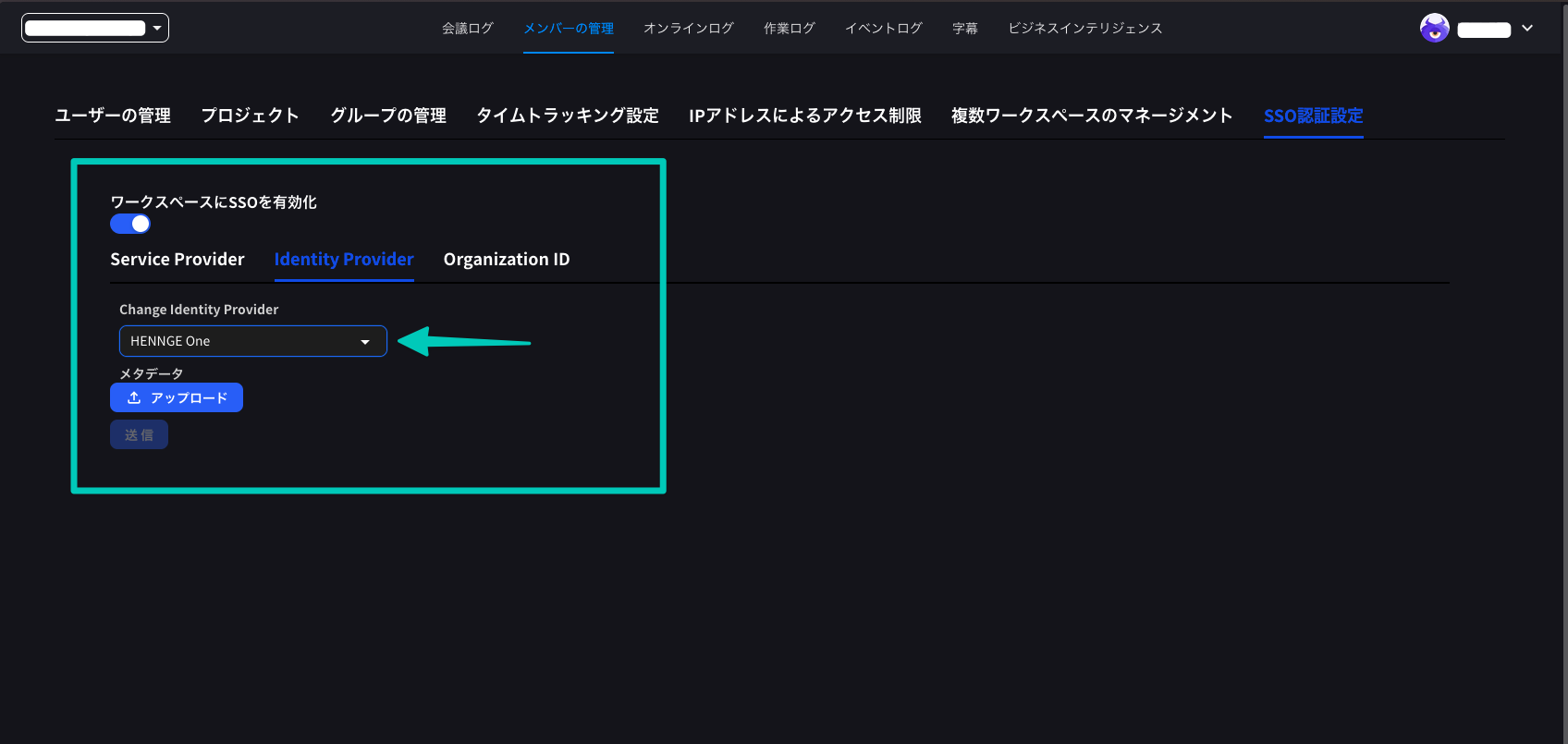
8
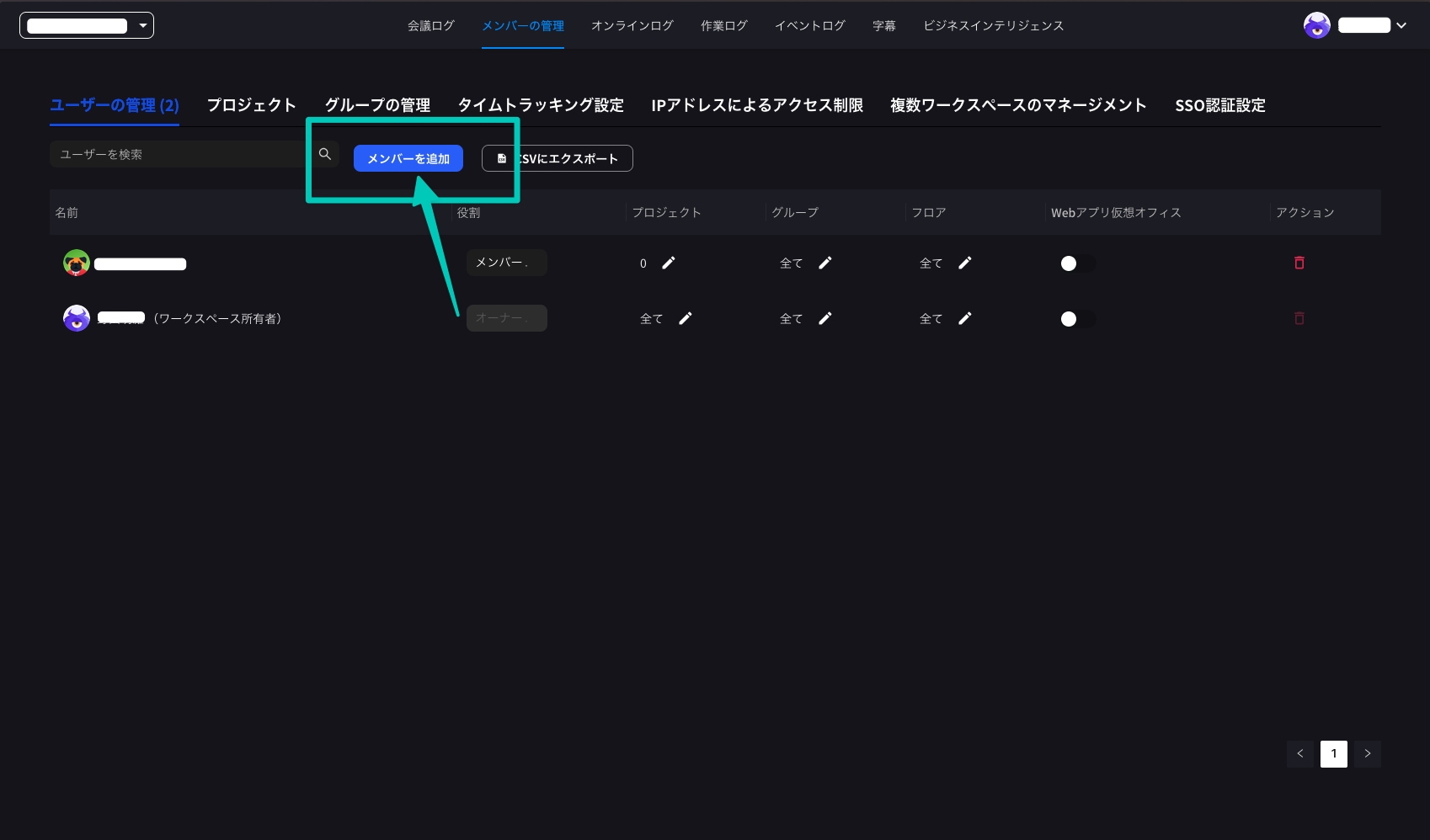
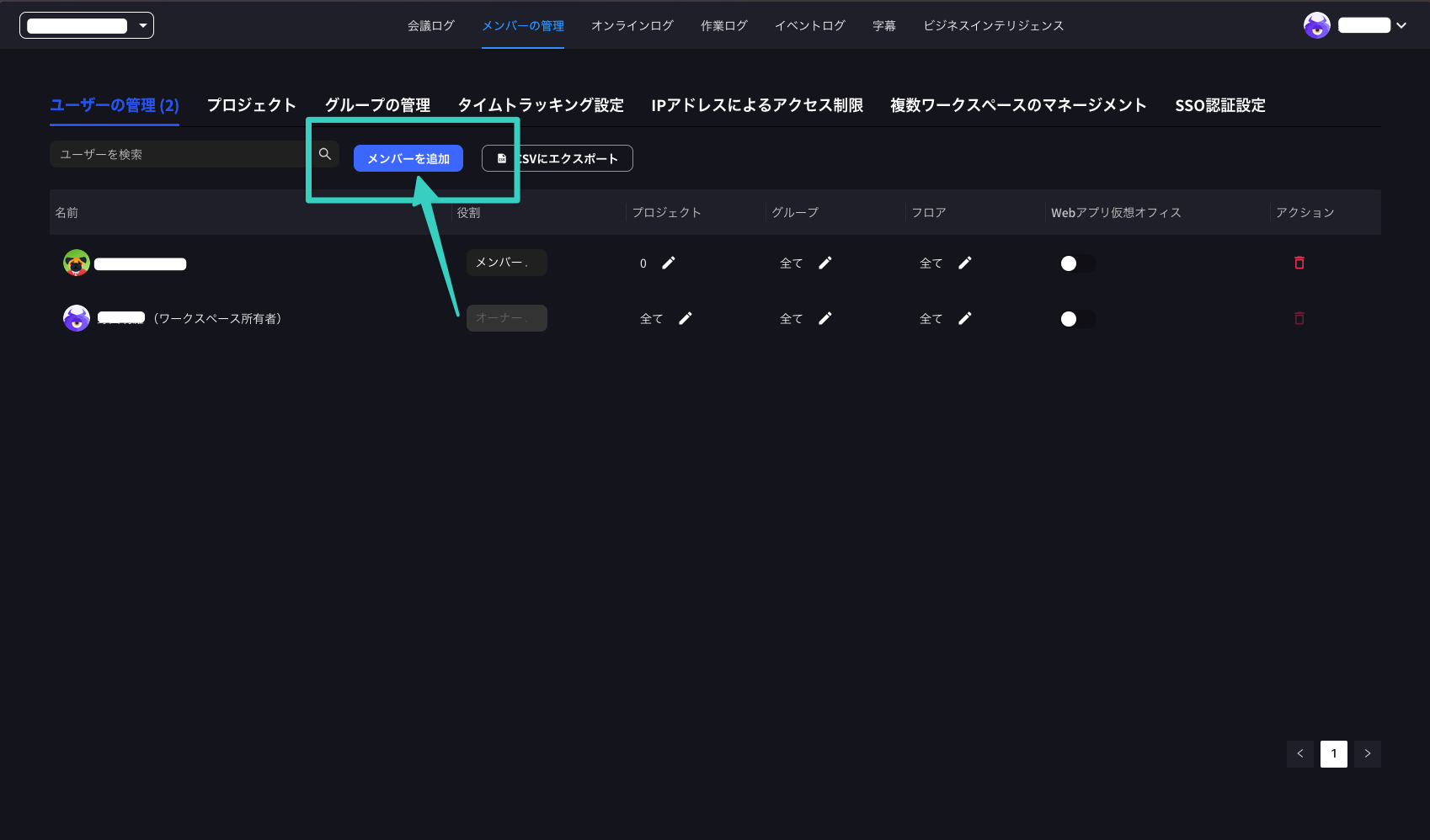
Add Users
Click the “User Management” tab and click the “Add Members” button.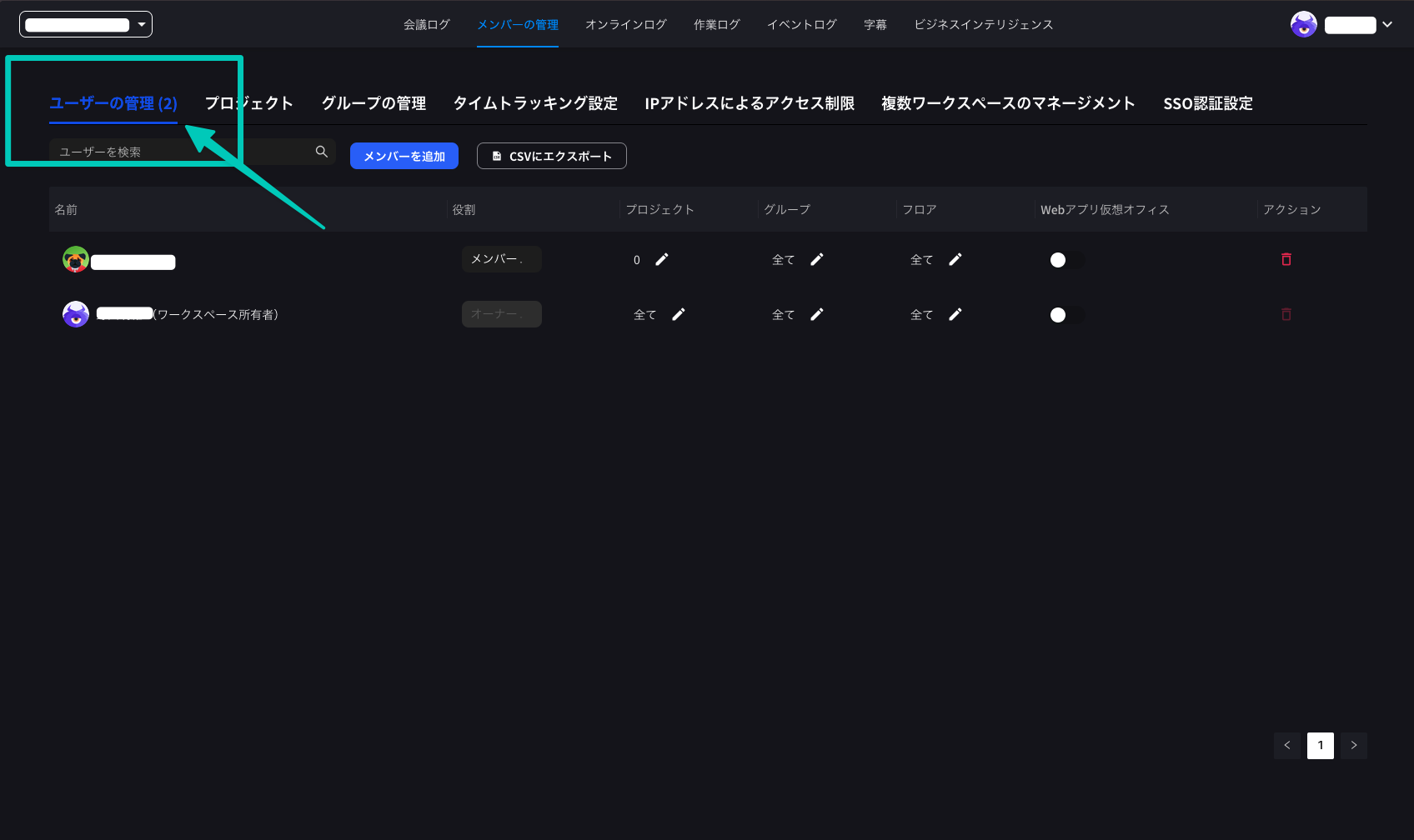
Logging in with SSO
Web Version
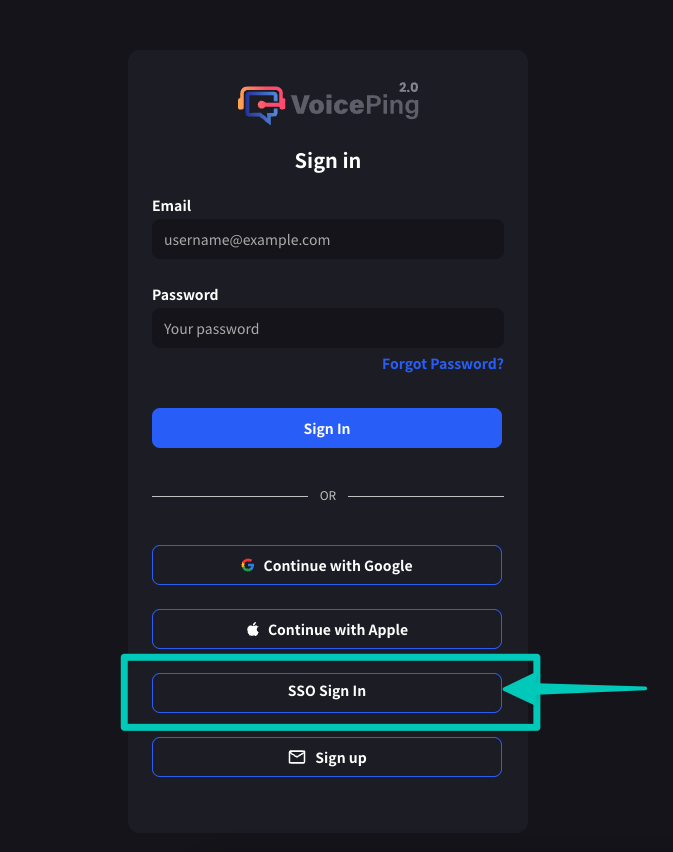
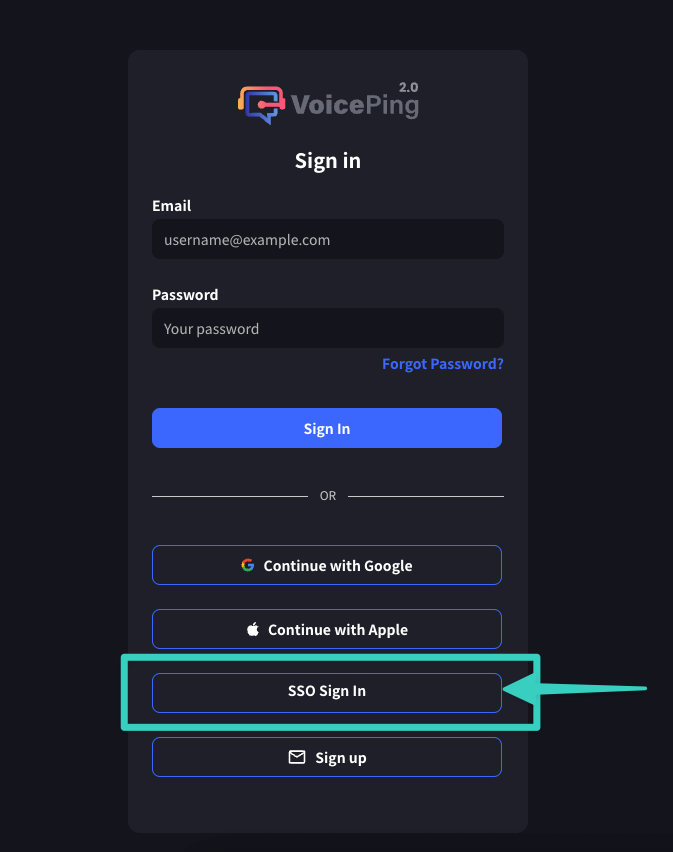
- Access the VoicePing login screen (app.voiceping.io)
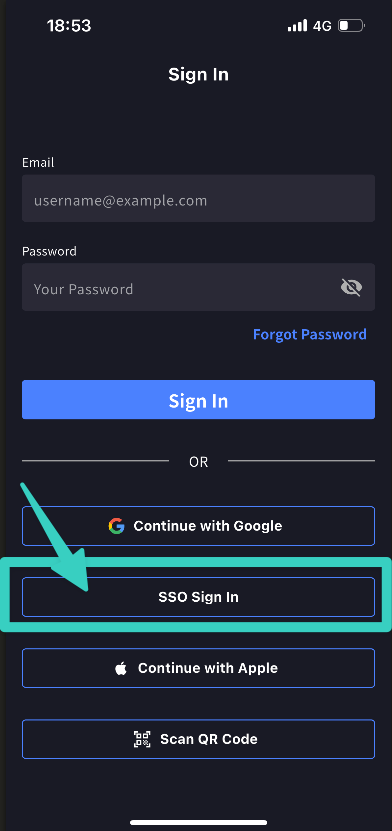
- Click “SSO Sign In”
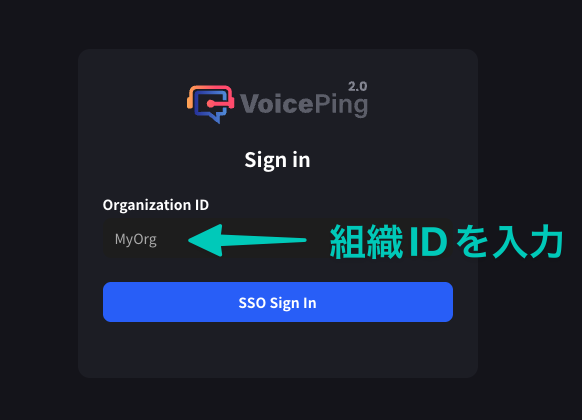
- Enter organization ID

- Enter HENNGE One credentials and log in

- After authentication is complete, you will be redirected to VoicePing
Mobile Version
You can log in from desktop app or mobile app using the same steps.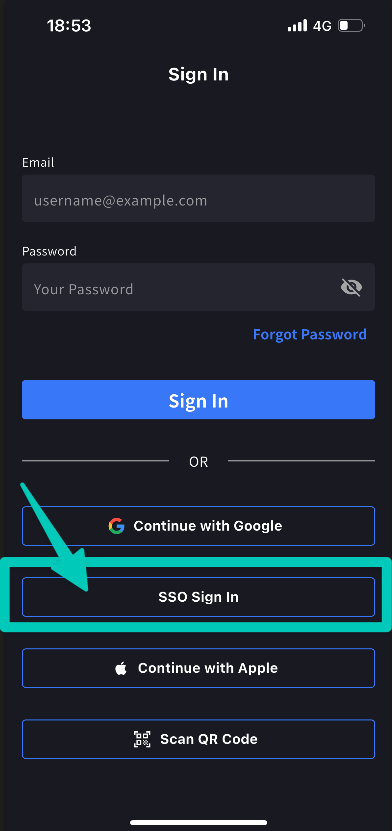
Official Links
Official Website
Visit our official website
X (Twitter)
Follow us on X
Like us on Facebook
Connect on LinkedIn