
- My Settings — your personal profile and app preferences (Profile, Preferences, Live Translation, Email notifications, Version, and more).
- Workspace Settings — controls that apply to the whole workspace, shown to owners and admins.
Profile
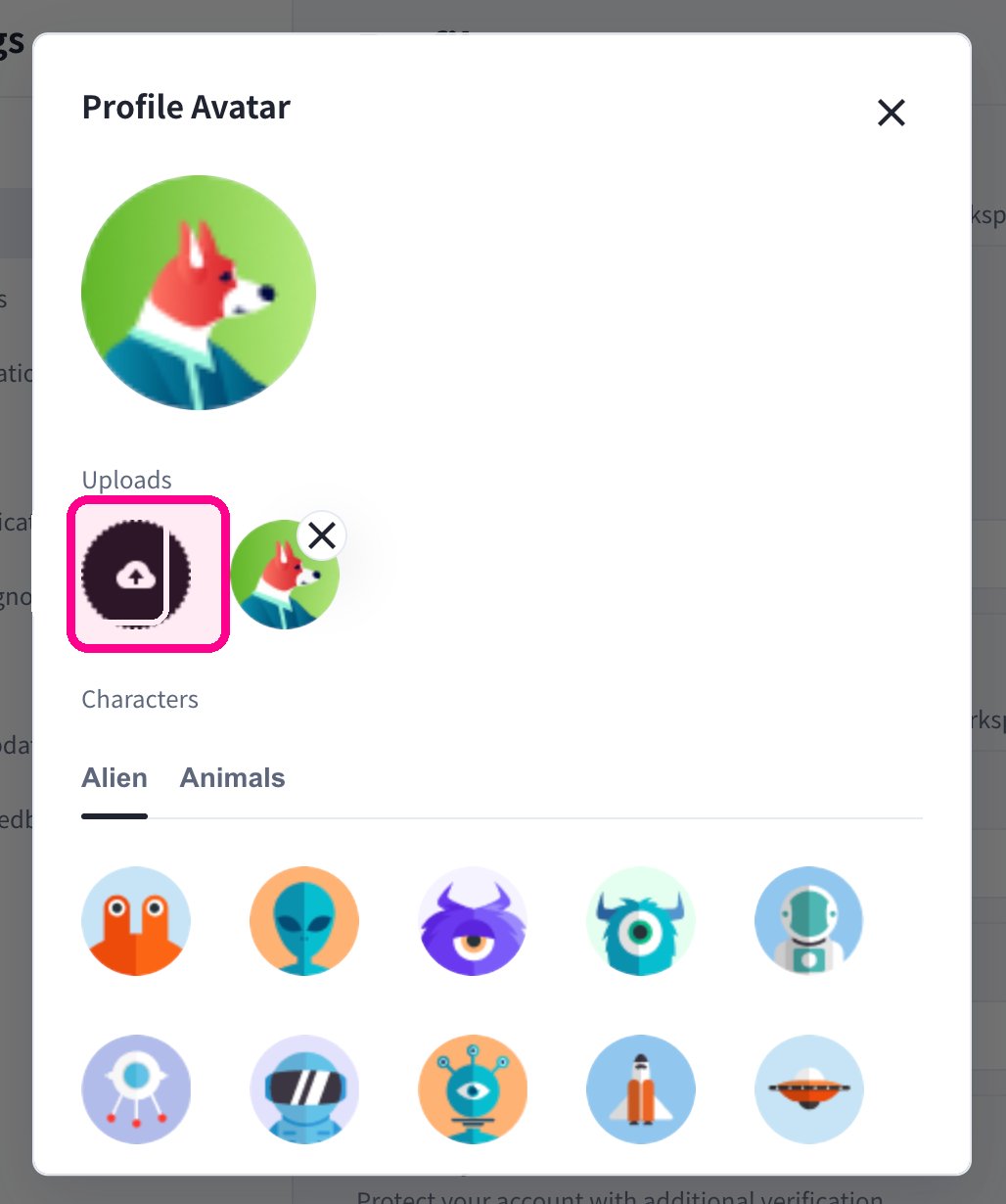
The Profile tab holds your avatar, display name, password, two-step verification, and login sessions.Change your avatar and display name
- In Profile, click the pencil (edit) icon on your avatar.
- Edit the Display Name field. This name is shown only in the current workspace.
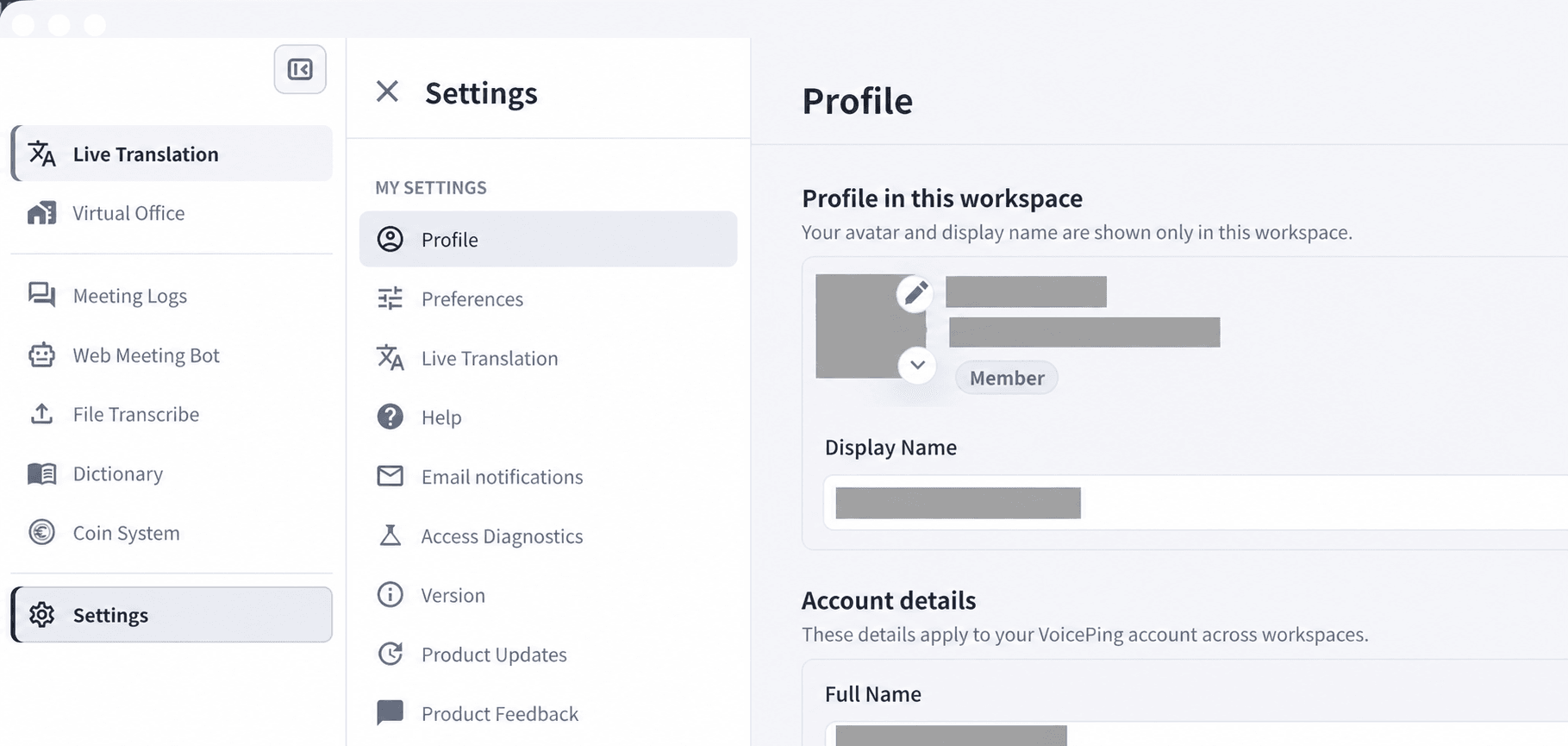
Your Display Name applies only to the current workspace. To change the name used across all your workspaces, edit Full Name under Account details on the same page.
Set a password and two-step verification
In the Security section, toggle Enable two-step verification with Email tokens to require an email token at sign-in. To change your password, use the Password section: enter your Current Password, then a New Password (8–30 characters with uppercase, lowercase, numbers, and symbols), and confirm it.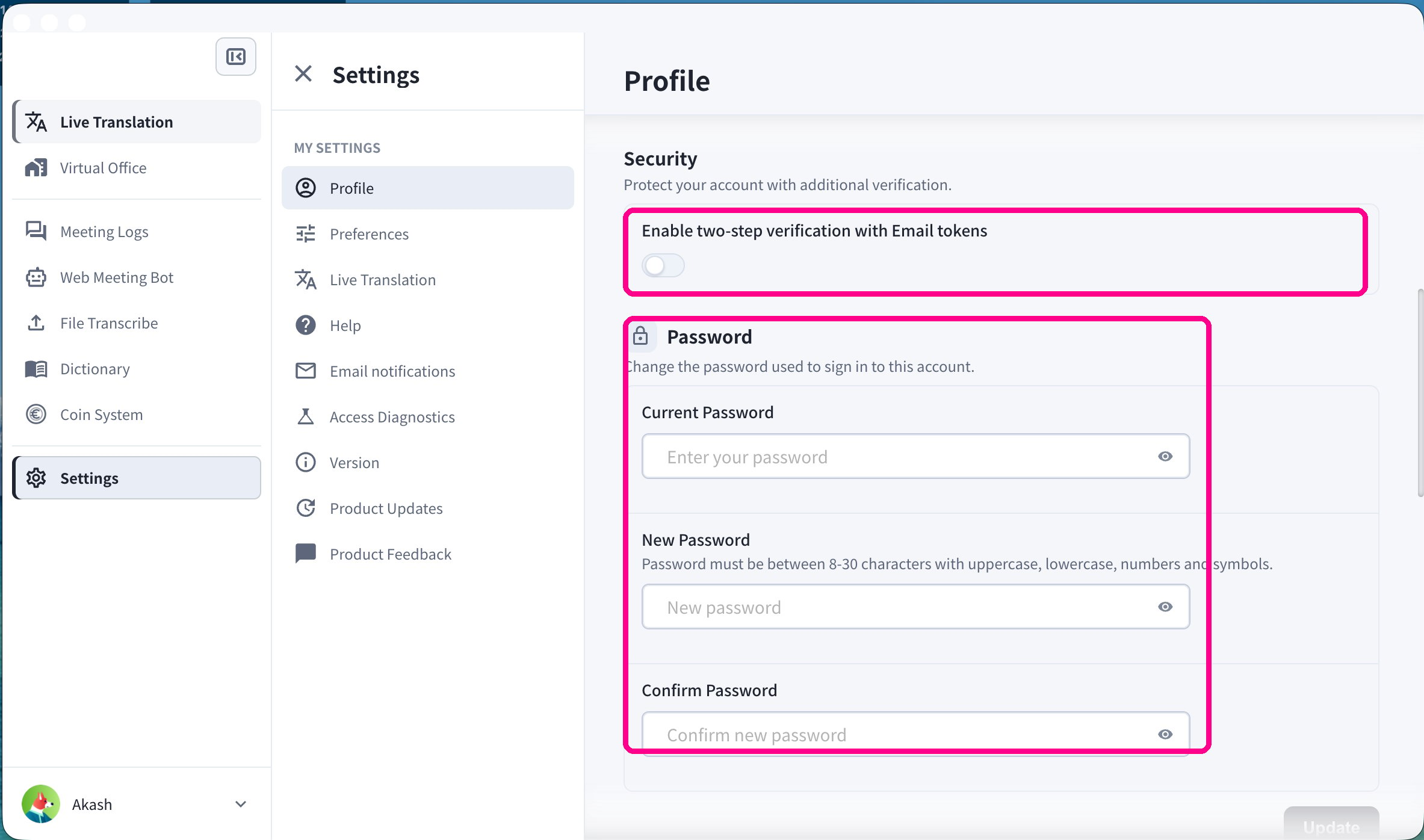
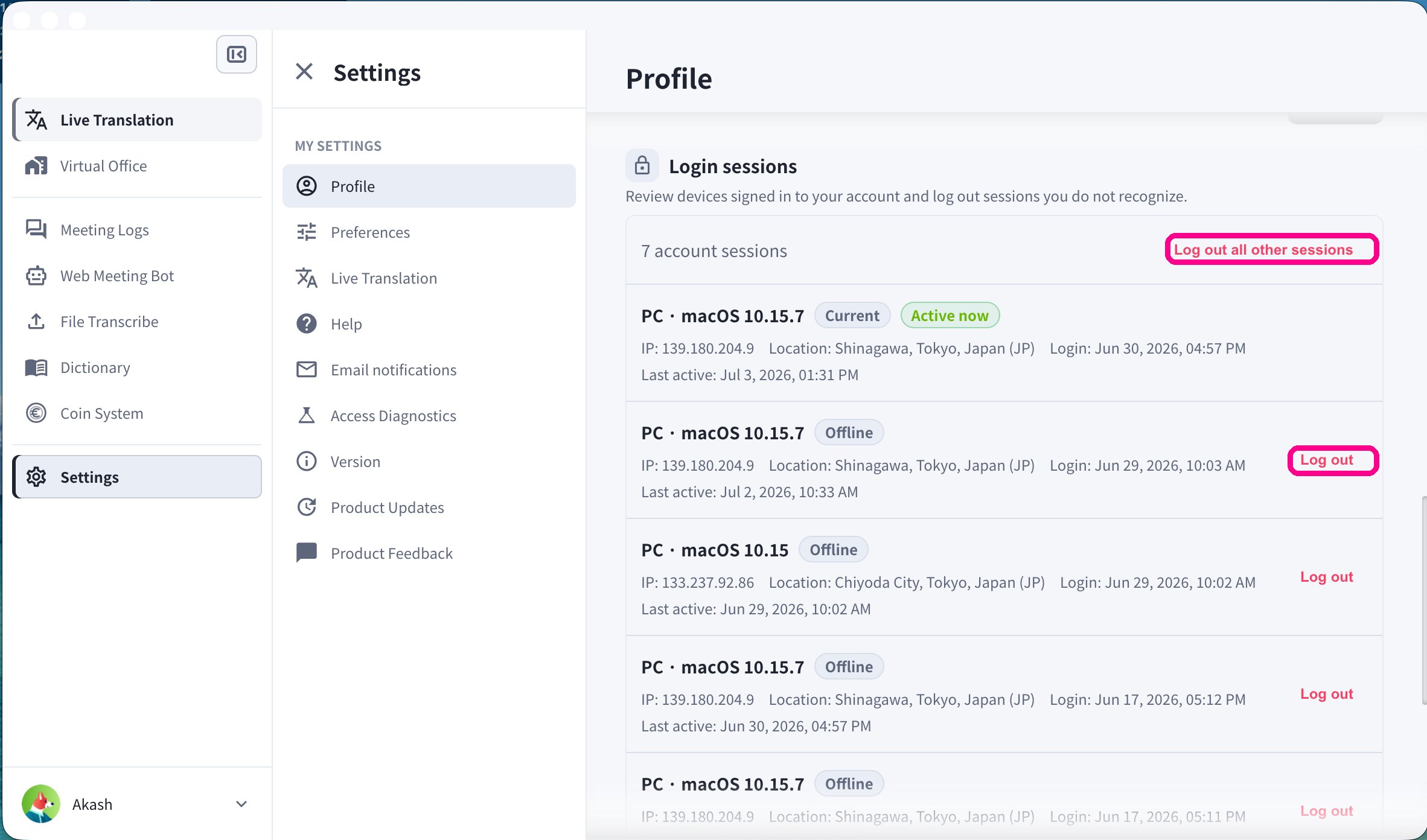
Review login sessions
The Login sessions section lists every device signed in to your account, with IP address, location, login time, and last-active time.- Click Log out on any session you don’t recognize.
- Click Log out all other sessions to end every session except the one you’re using now.
Preferences
The Preferences tab controls app language, appearance, desktop behavior, and calendar integration.Display language
Under Personal preferences, open the Language dropdown and choose the language you’d like to use with VoicePing.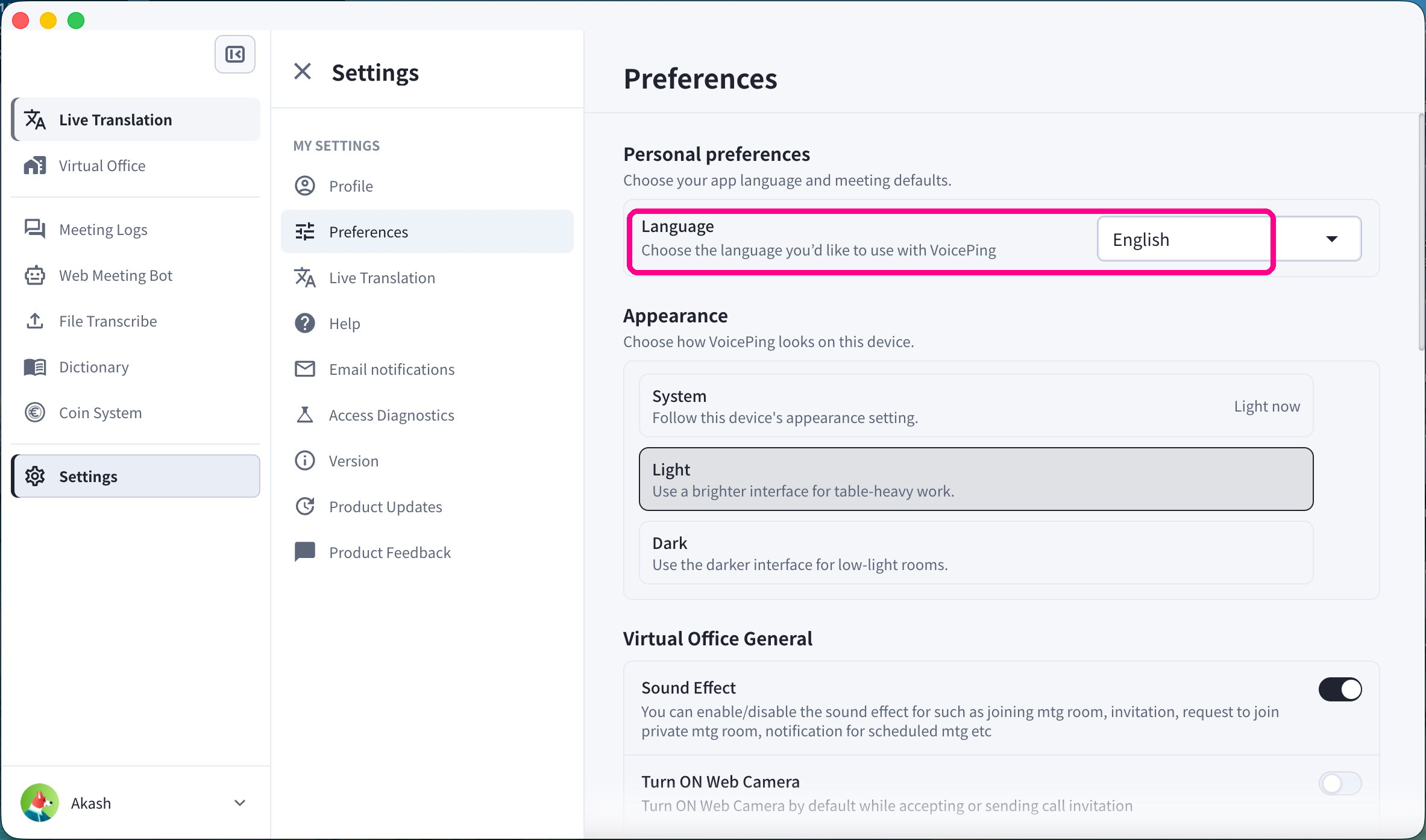
Appearance (theme)
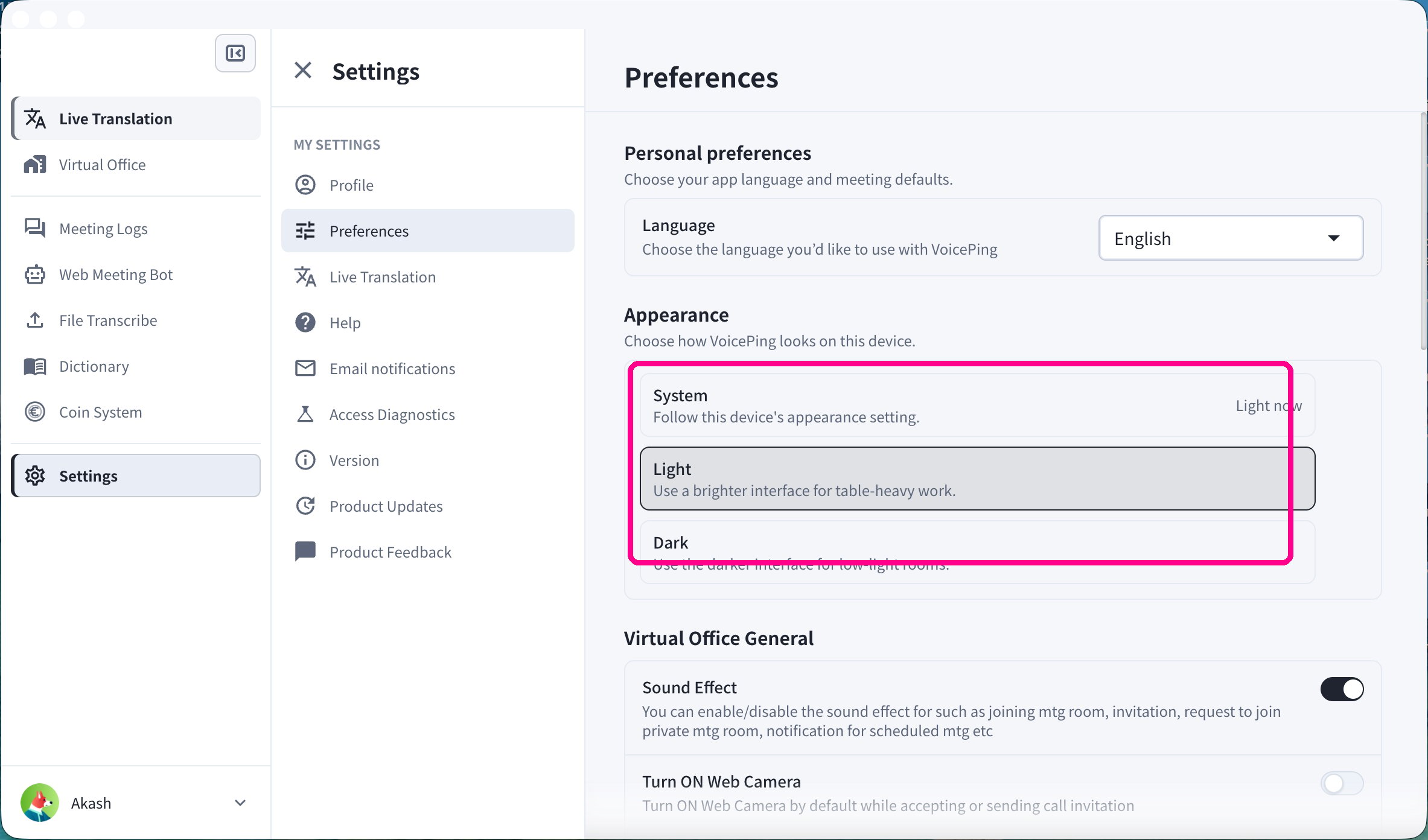
Under Appearance, choose how VoicePing looks on this device:- System — follow your device’s appearance setting
- Light — a brighter interface
- Dark — a darker interface for low-light rooms
Launch at login
Under Desktop & device, turn on Launch VoicePing at Login to start VoicePing automatically when you sign in to your computer. You can also toggle Receive App Notifications from Computer here.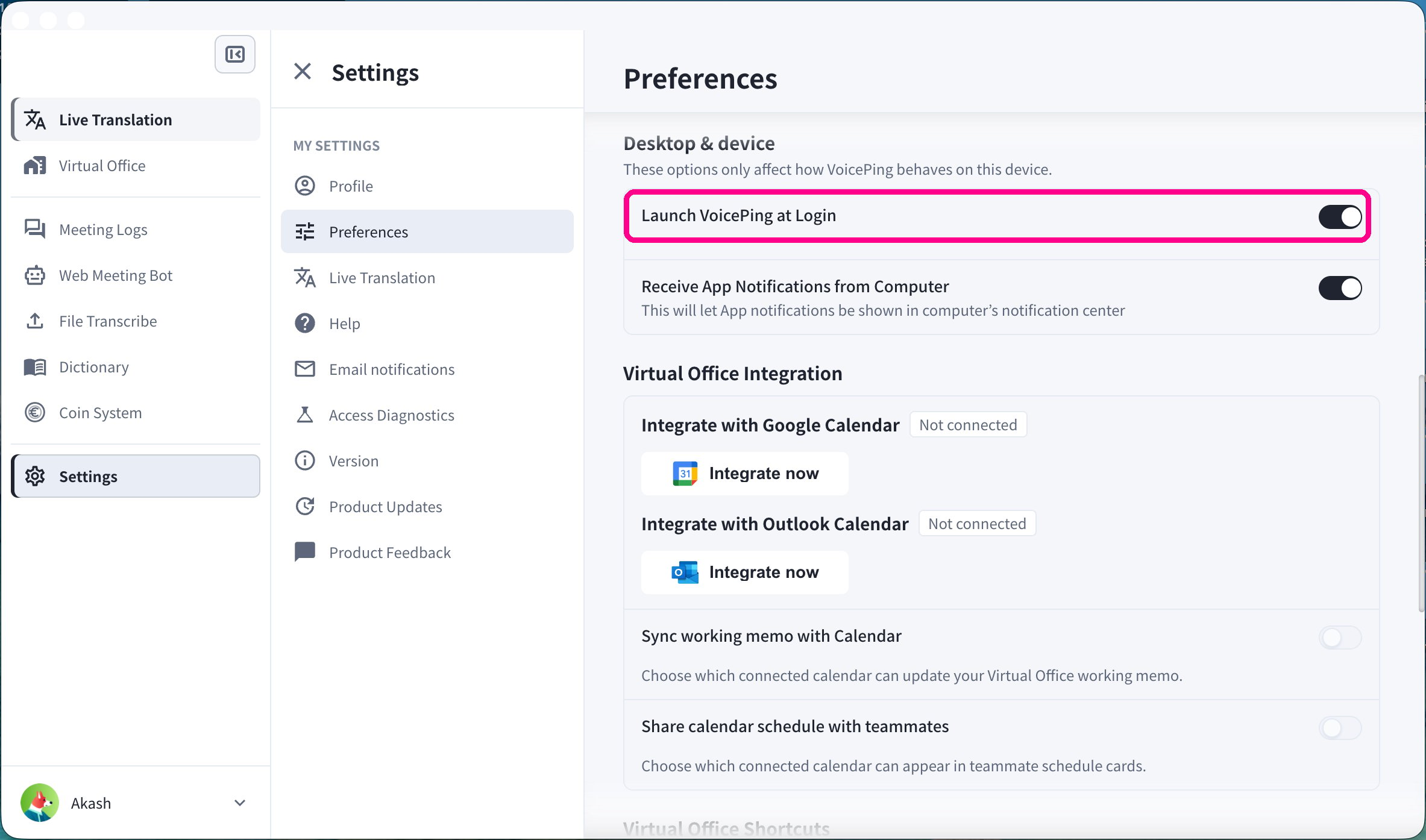
Calendar integration
Under Virtual Office Integration, connect Google Calendar or Outlook Calendar so VoicePing can detect meeting links in your upcoming events. Click Integrate now next to the calendar you use.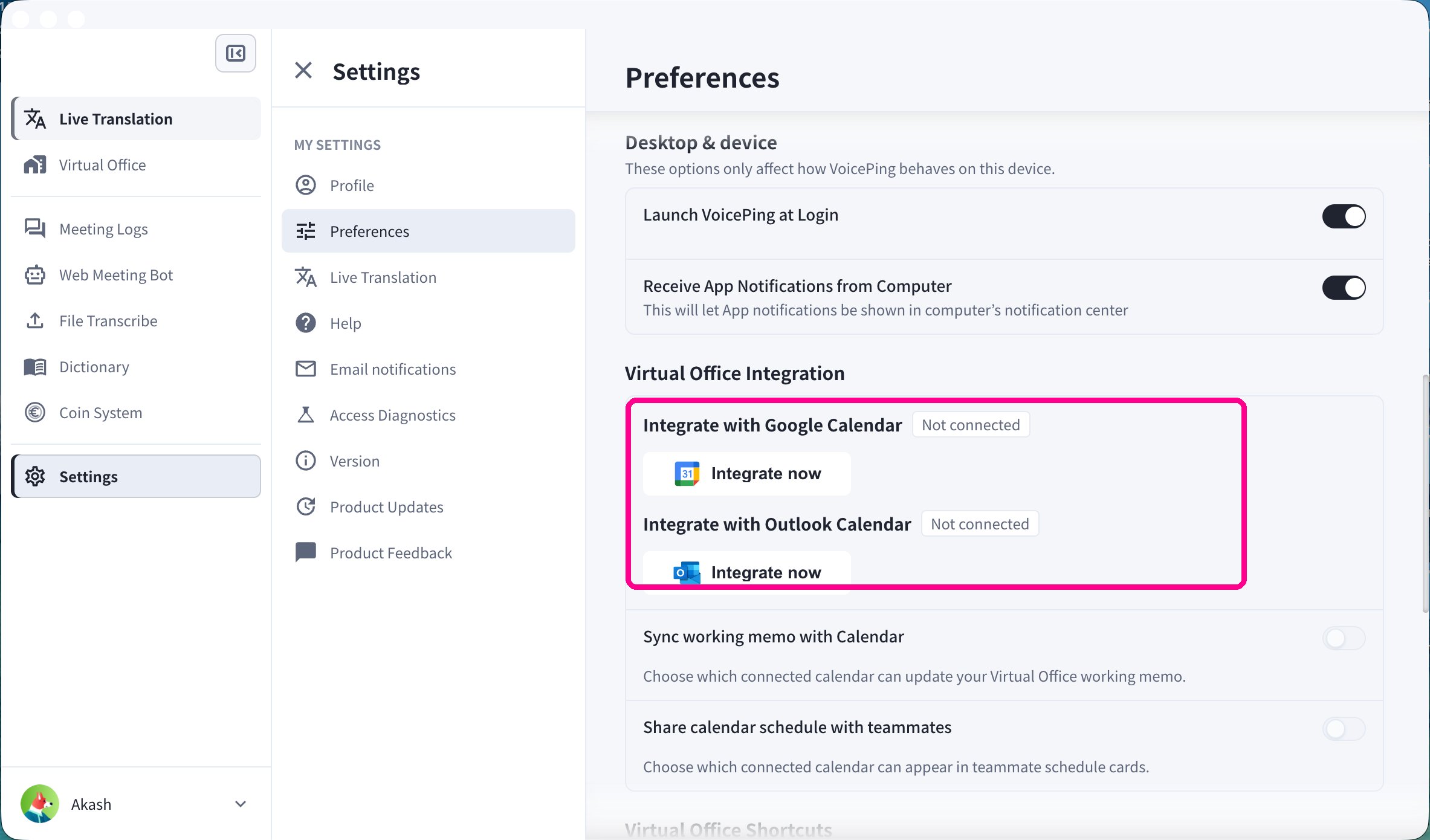
Calendar integration also powers the Web Meeting Bot’s automatic scheduling. See Web Meeting Bot.
Email Notifications
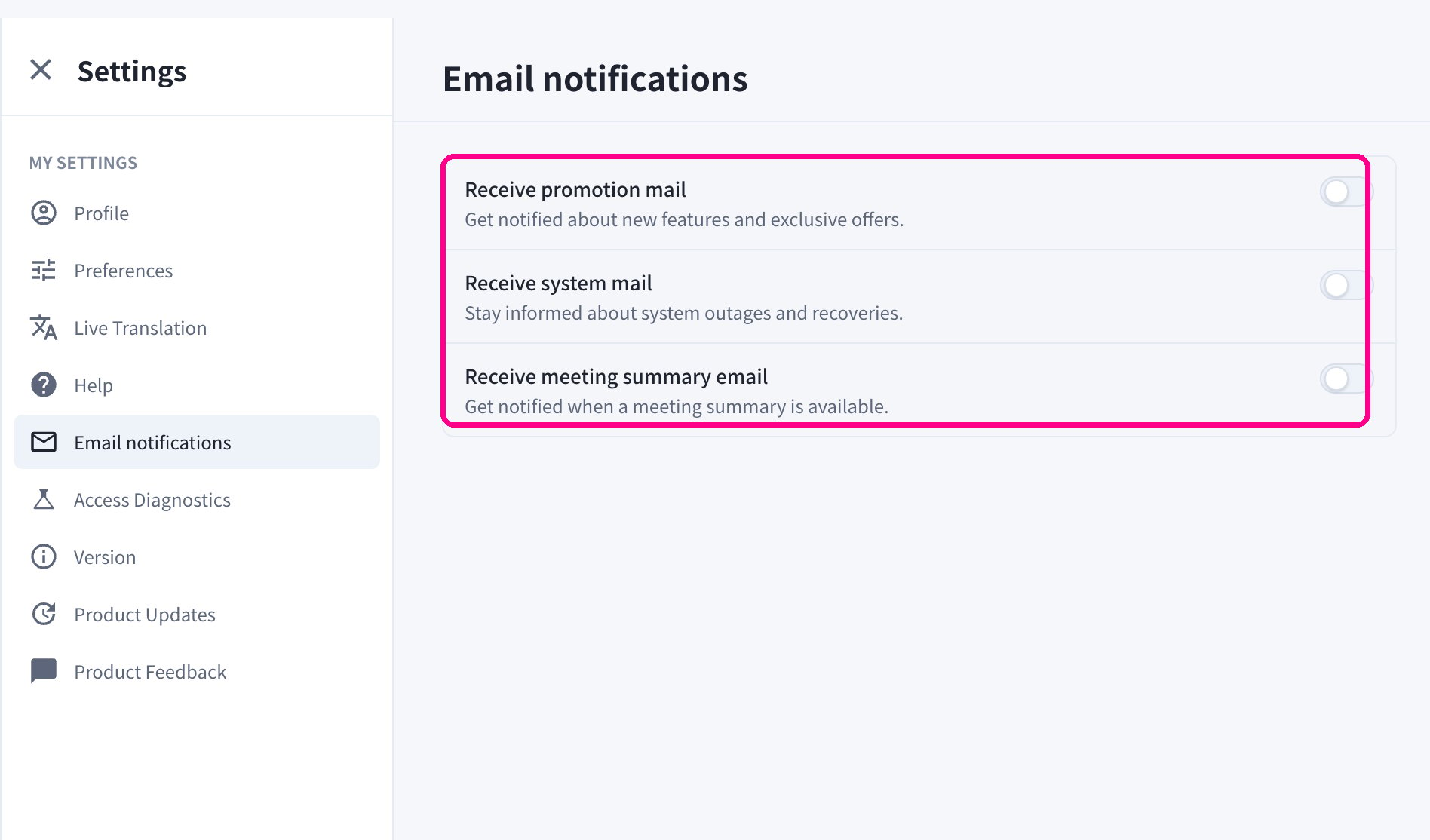
Open Email notifications in My Settings to control which emails you receive:- Receive promotion mail — new features and exclusive offers
- Receive system mail — system outages and recoveries
- Receive meeting summary email — get notified when a meeting summary is available
Workspace Security (Owners & Admins)
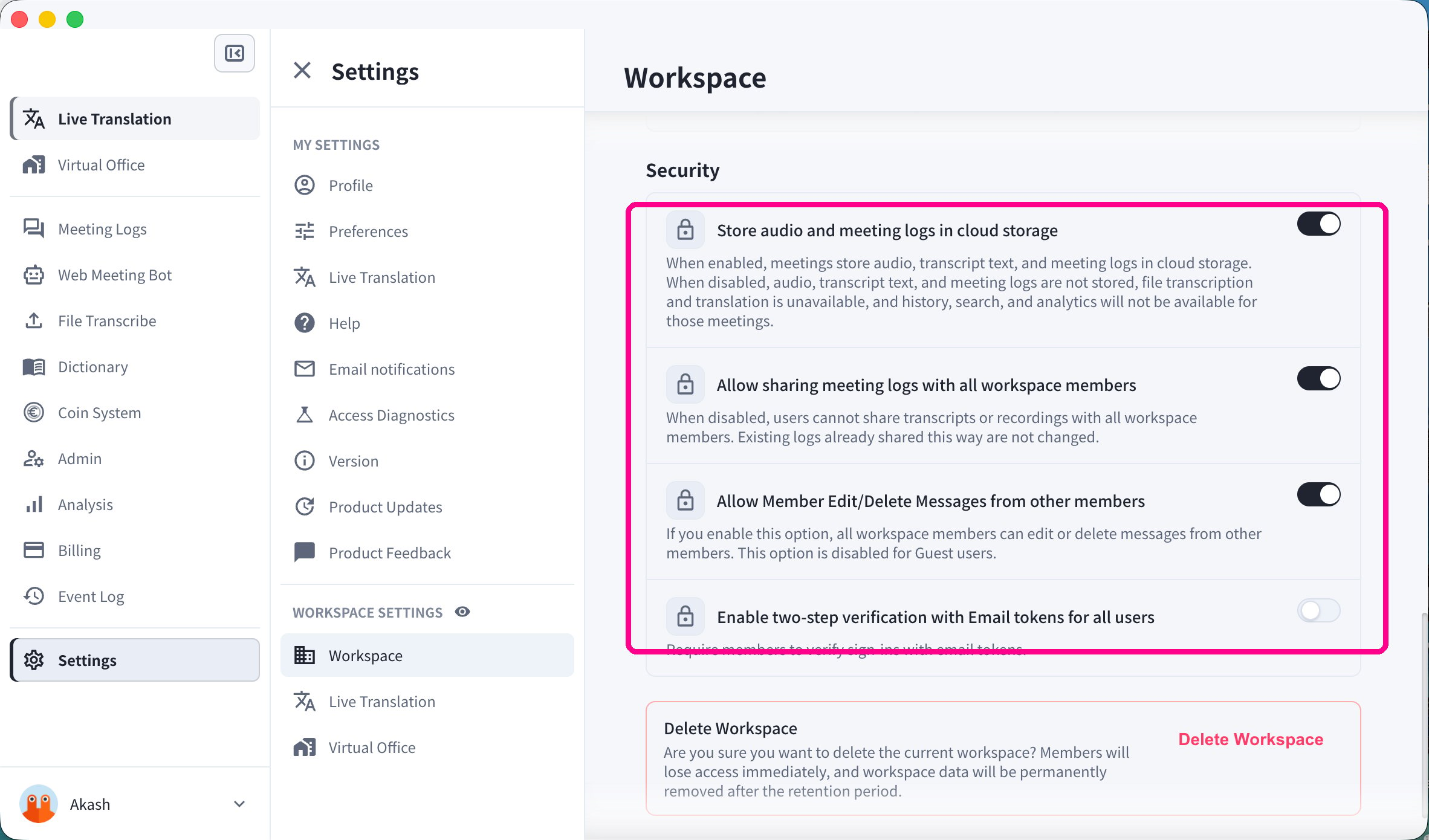
Owners and admins can open Workspace Settings → Workspace to manage security for the entire workspace:- Store audio and meeting logs in cloud storage
- Allow sharing meeting logs with all workspace members
- Allow Member Edit/Delete Messages from other members
- Enable two-step verification with Email tokens for all users
- Delete Workspace
These controls affect every member of the workspace and are only available to owners and admins.
Related Pages
Official Links
Official Website
Visit our official website
X (Twitter)
Follow us on X
Like us on Facebook
Connect on LinkedIn