
- Both speaker and participant sides require an internet environment. internet speed verification is possible at https://fast.com/. 30mbps or higher recommended (minimum 10mbps required)
- QR code image/URL is fixed and does not change even when you start/end sessions. Security can be enhanced by setting a password
- Microphone and translation text reading function on the participant side can be enabled/disabled
- You can hide the transcription language and display only the translation text, projecting it on the stage screen
- Text color and size can be changed
- Translation speed can be adjusted
- Presentation subtitles can be displayed. For details, see Subtitle Mode (Transparent Background)
[For Host] How to Translate Speaker Audio
- Launch the VoicePing app and click “Start Translation”.
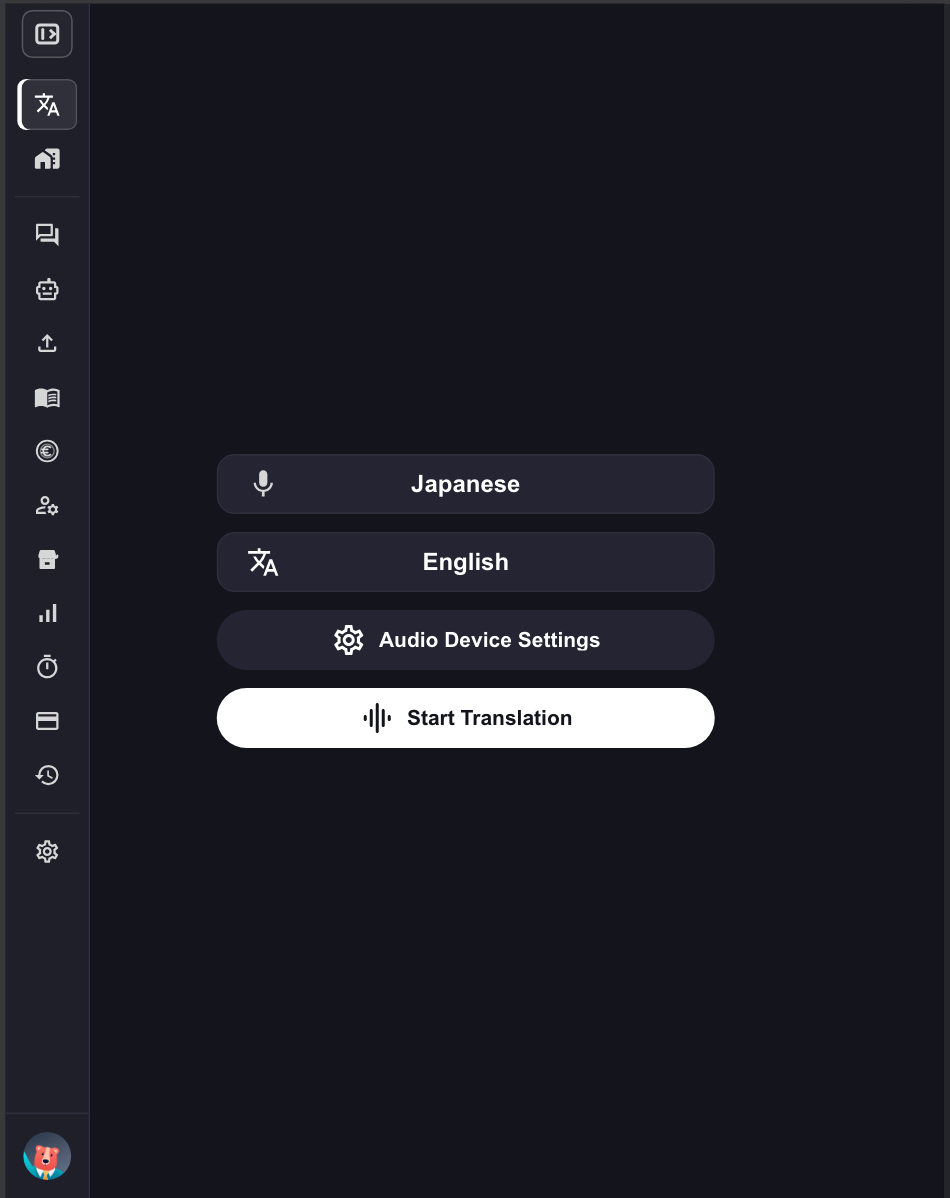
- Specify translation languages.
- Microphone icon: Transcription language (speaker’s language)
- “Text & A” icon: Translation language (language for participants)
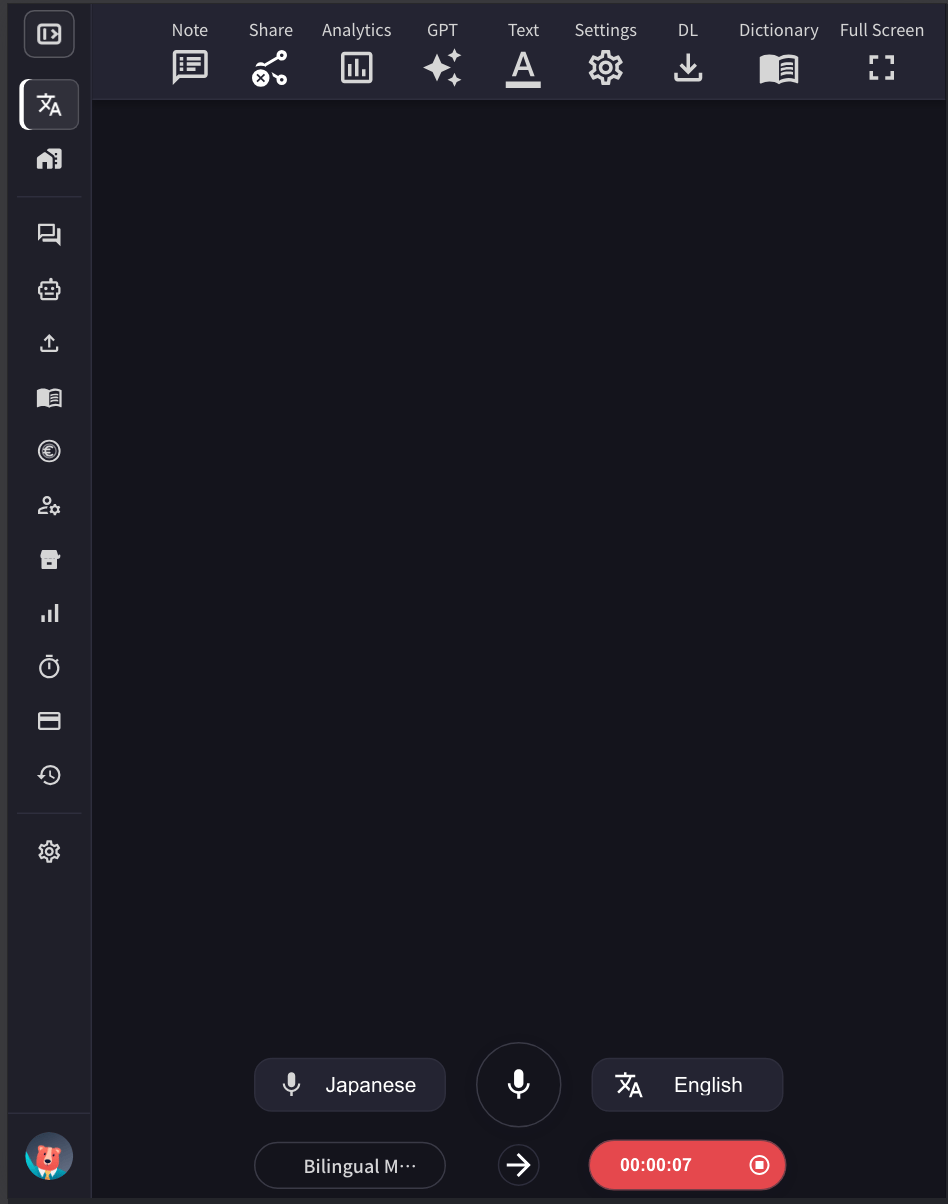
-
Adjust the VoicePing translation screen size, text size, and color according to the venue screen size.
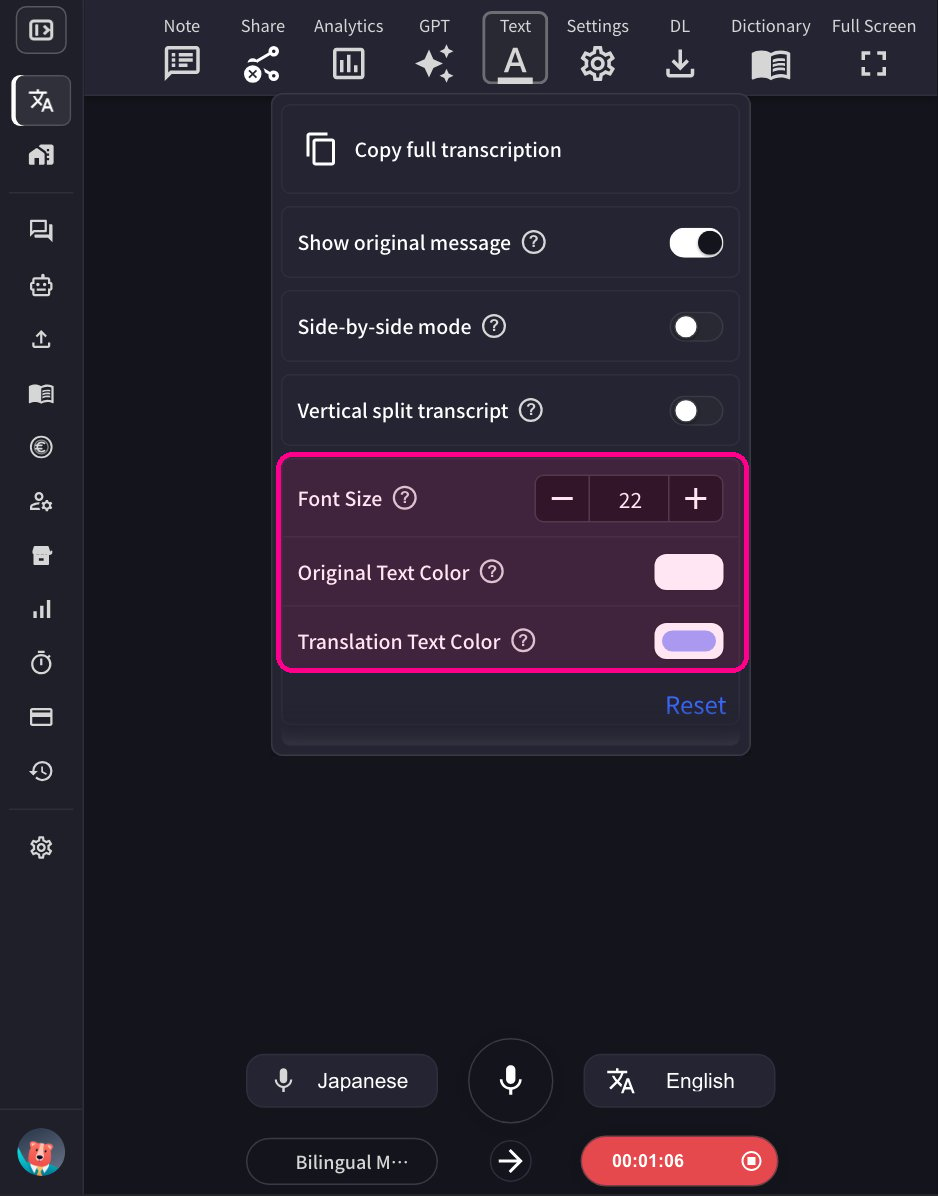
- To set the font size and text colors, open the Text panel.
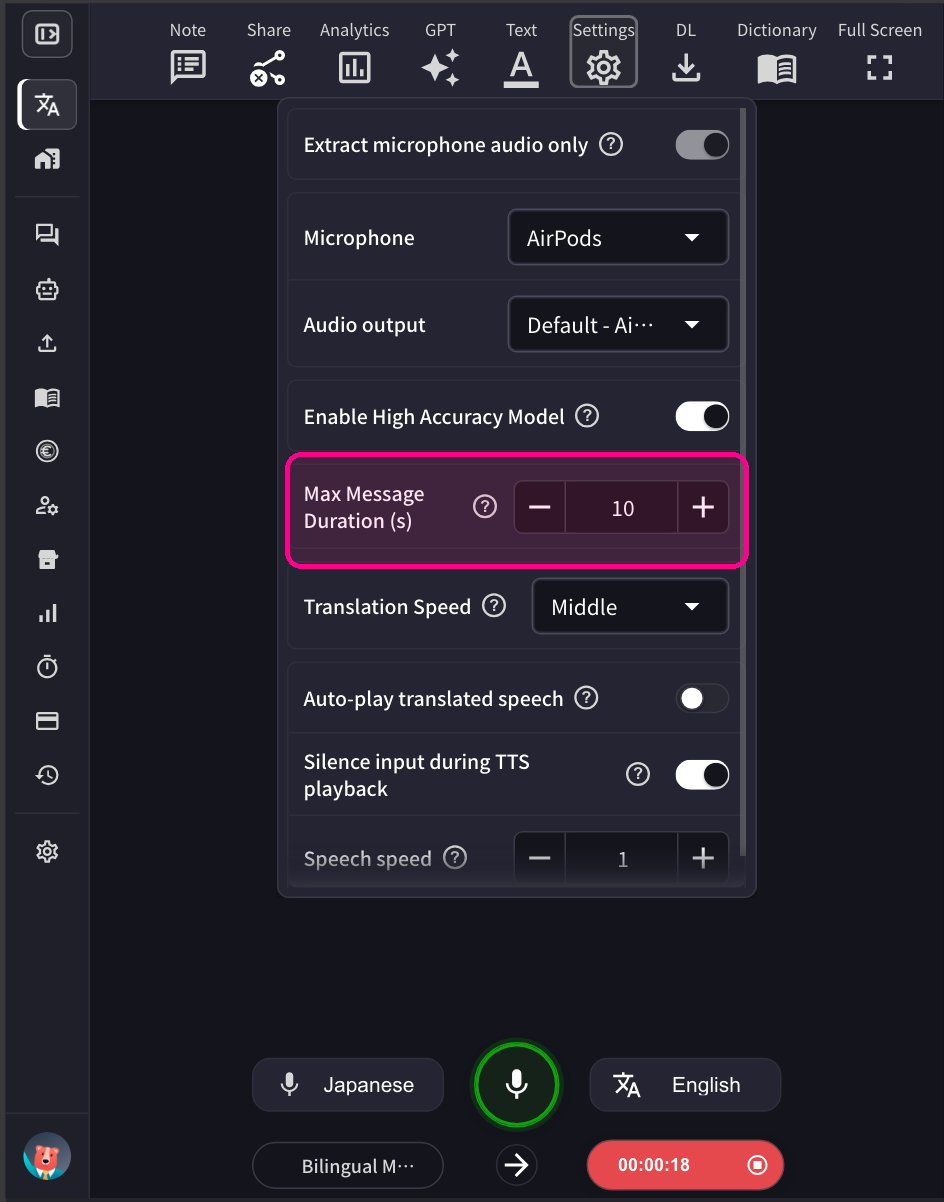
- To adjust the length of a single audio segment, adjust the maximum message time in the Settings panel.
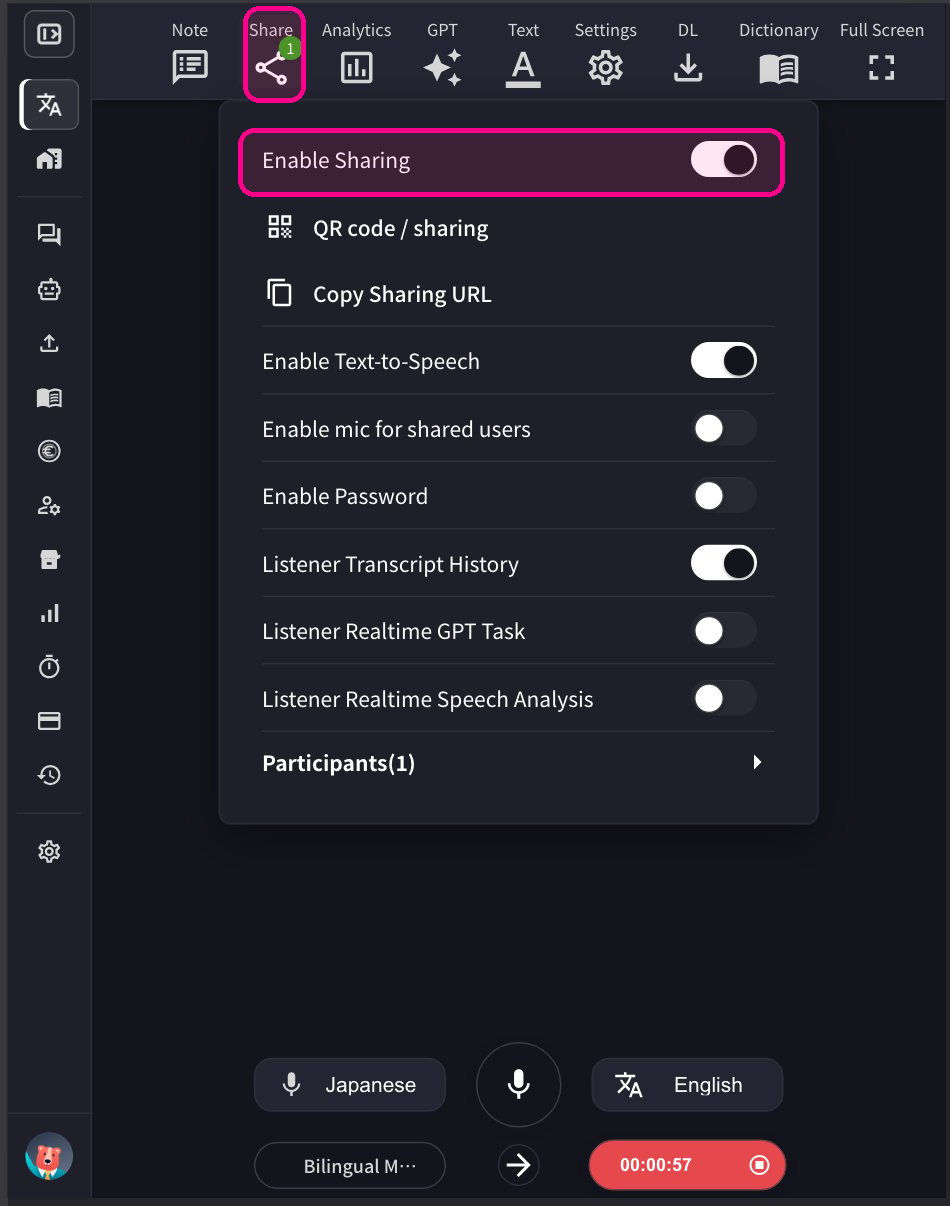
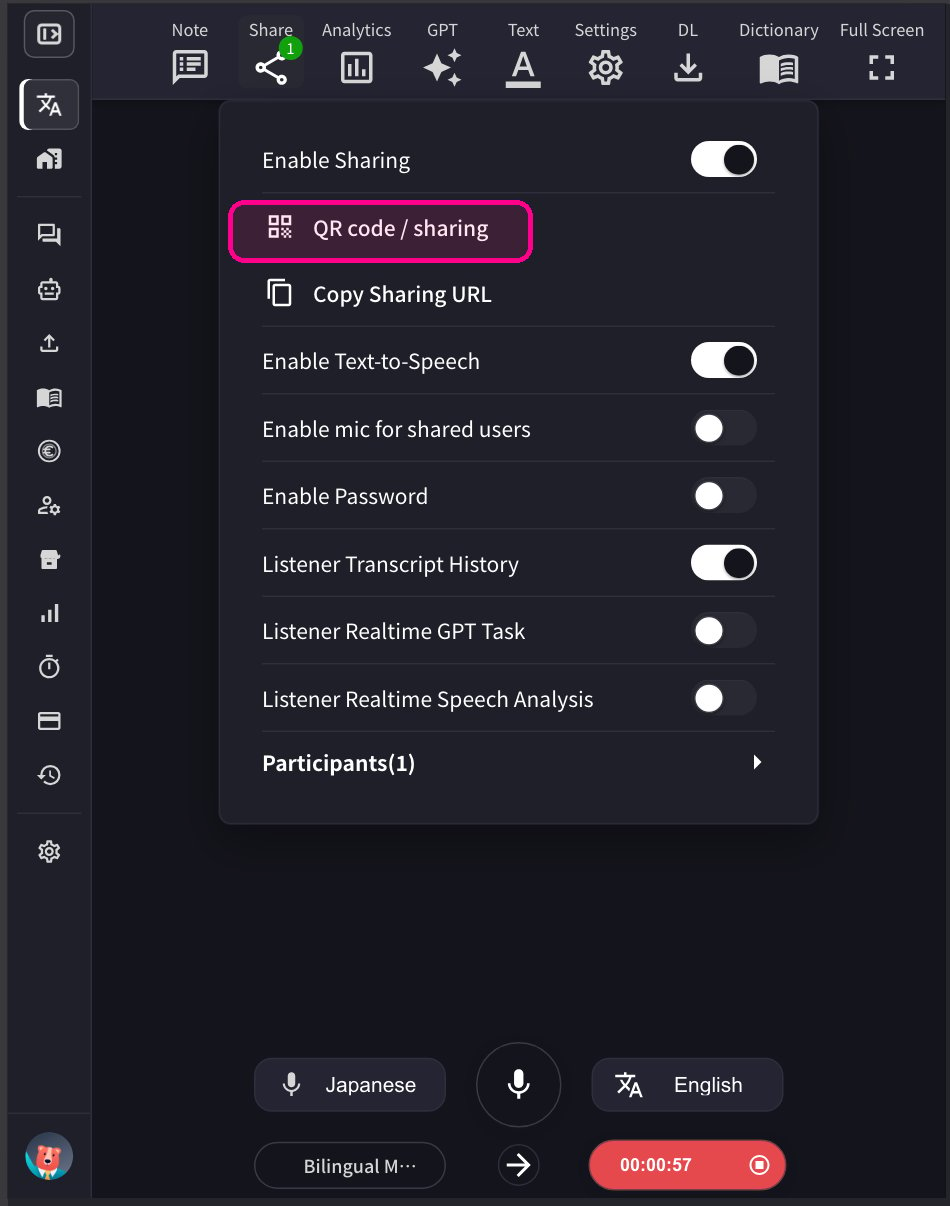
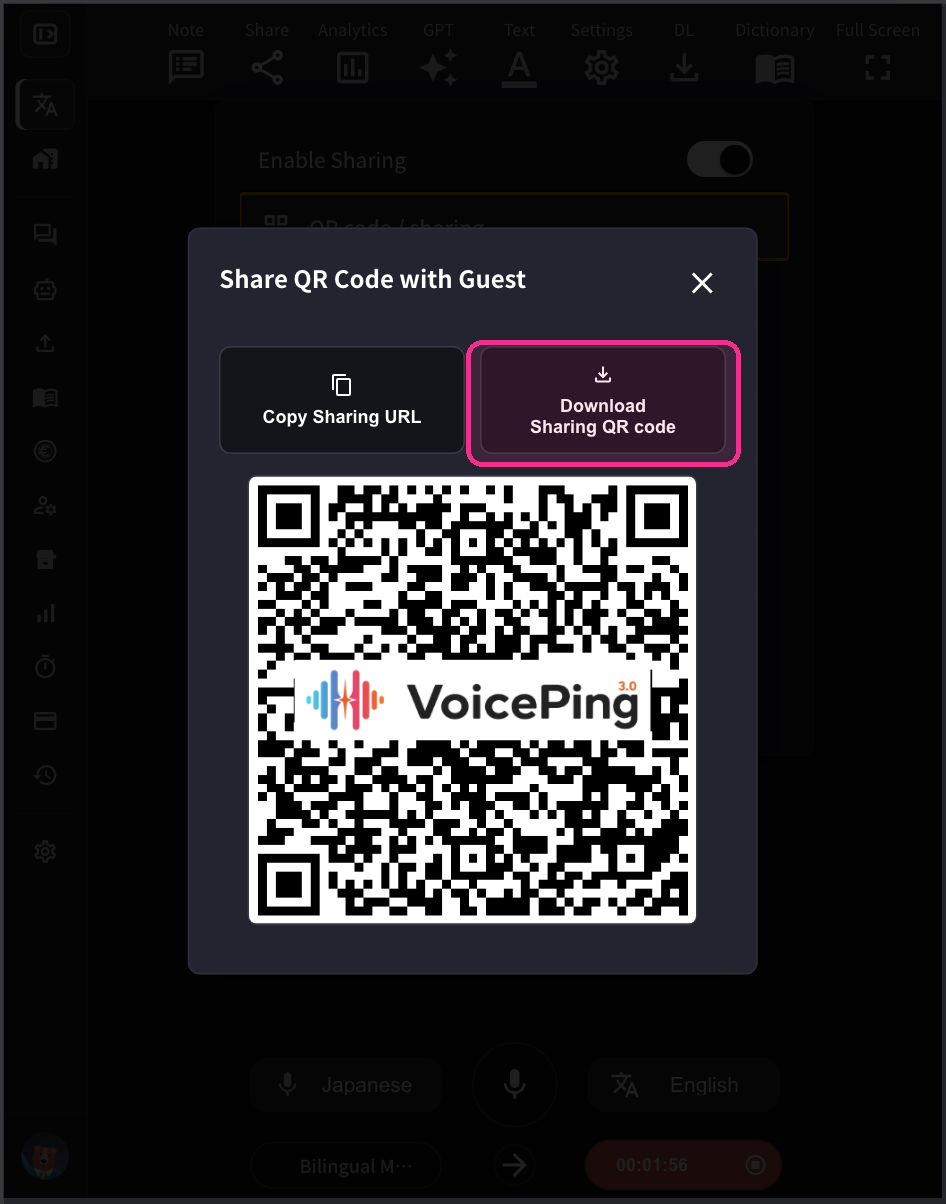
[For Participants] How to Join
- Scan the QR code and access the translation channel from your mobile camera or clicking the above URL from PC Web Application.
-
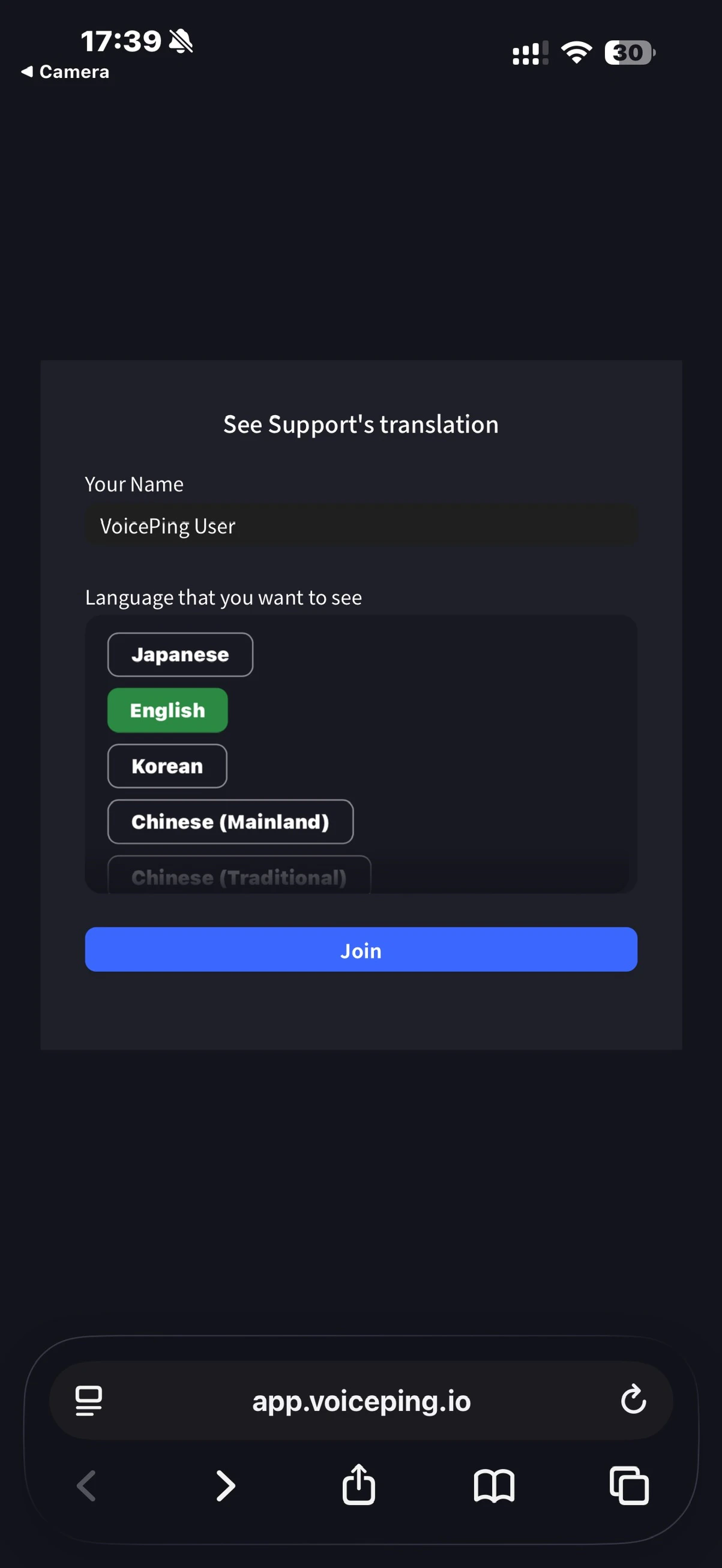
Upon access, enter the following items:
- Name: Enter participant’s name
- Language you want to view: Select desired translation language
-
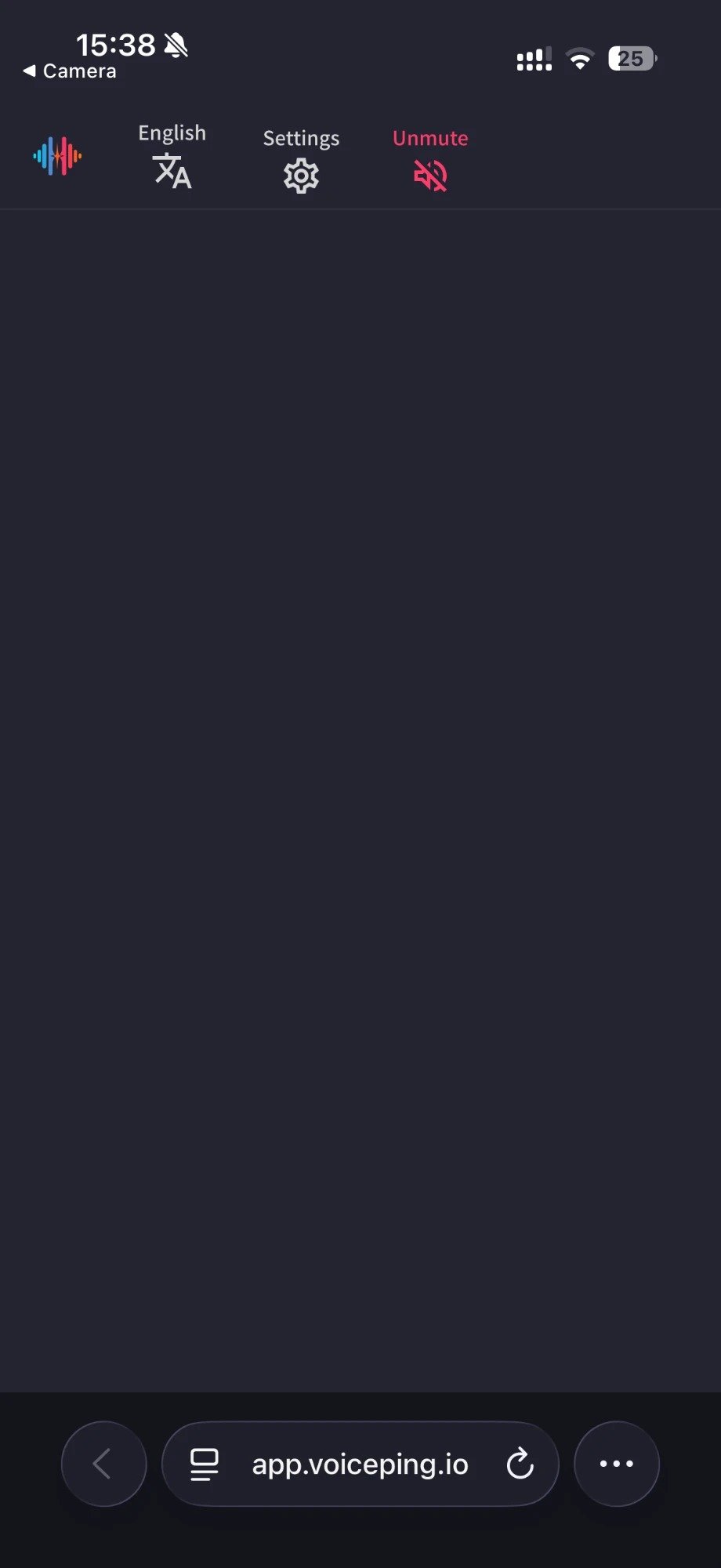
Once entered, the following operations are available:
- Change language
- Adjust translation appearance in “Settings”
- Adjust reading speed
- Turn reading function on/off
- Leave
Official Links
Official Website
Visit our official website
X (Twitter)
Follow us on X
Like us on Facebook
Connect on LinkedIn