
How to Track Your Work Time
- Open Time Tracking from the left sidebar
- Select the project you will work on from the projects assigned by your manager
- Enter a working memo (optional)
- Click Start to begin tracking
- After work, click Stop to end tracking
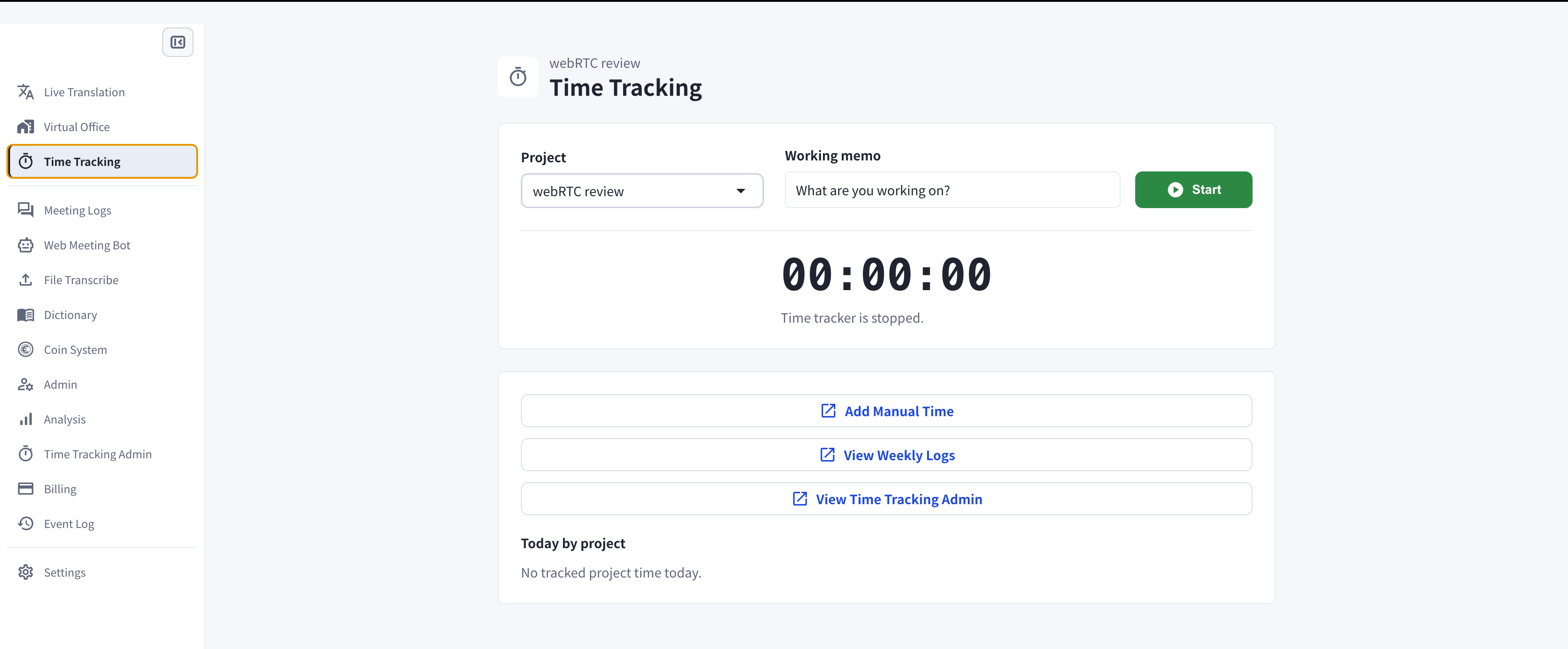
Time Tracking page before starting the timer
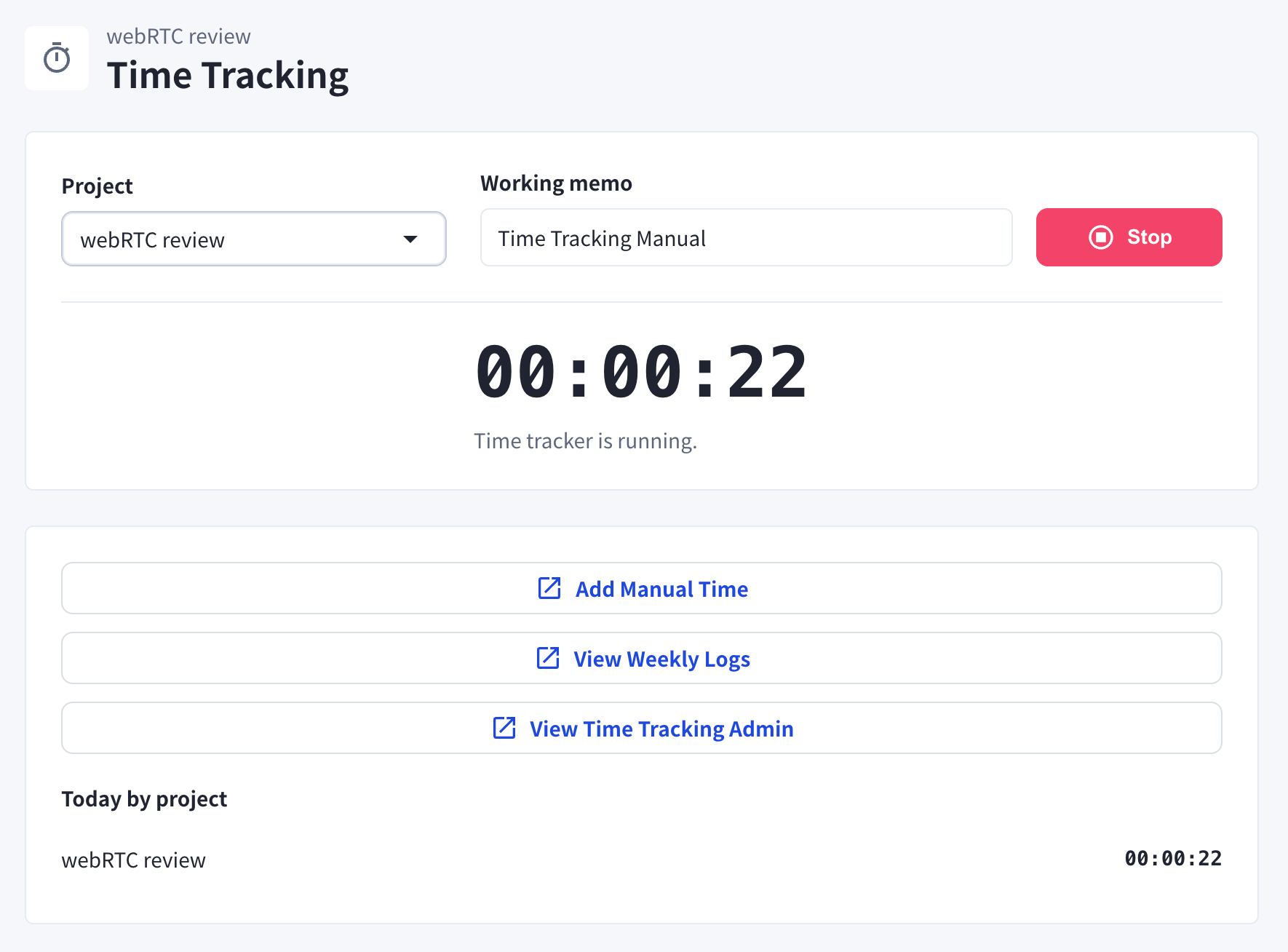
While tracking, the page shows the running timer and today's total by project
Cases When the Timer Stops Automatically
-
When you enter away status
- When you return to your seat and resume PC operation, the timer will automatically resume.
- When the PC enters sleep mode
Add Work Hours Manually
If you have working hours that were not recorded, you can add them manually.- On the Time Tracking page, click Add Manual Time
- Select the project, and optionally enter the task and the reason for the change
- Select the date and the time range (From / To)
- Click Save
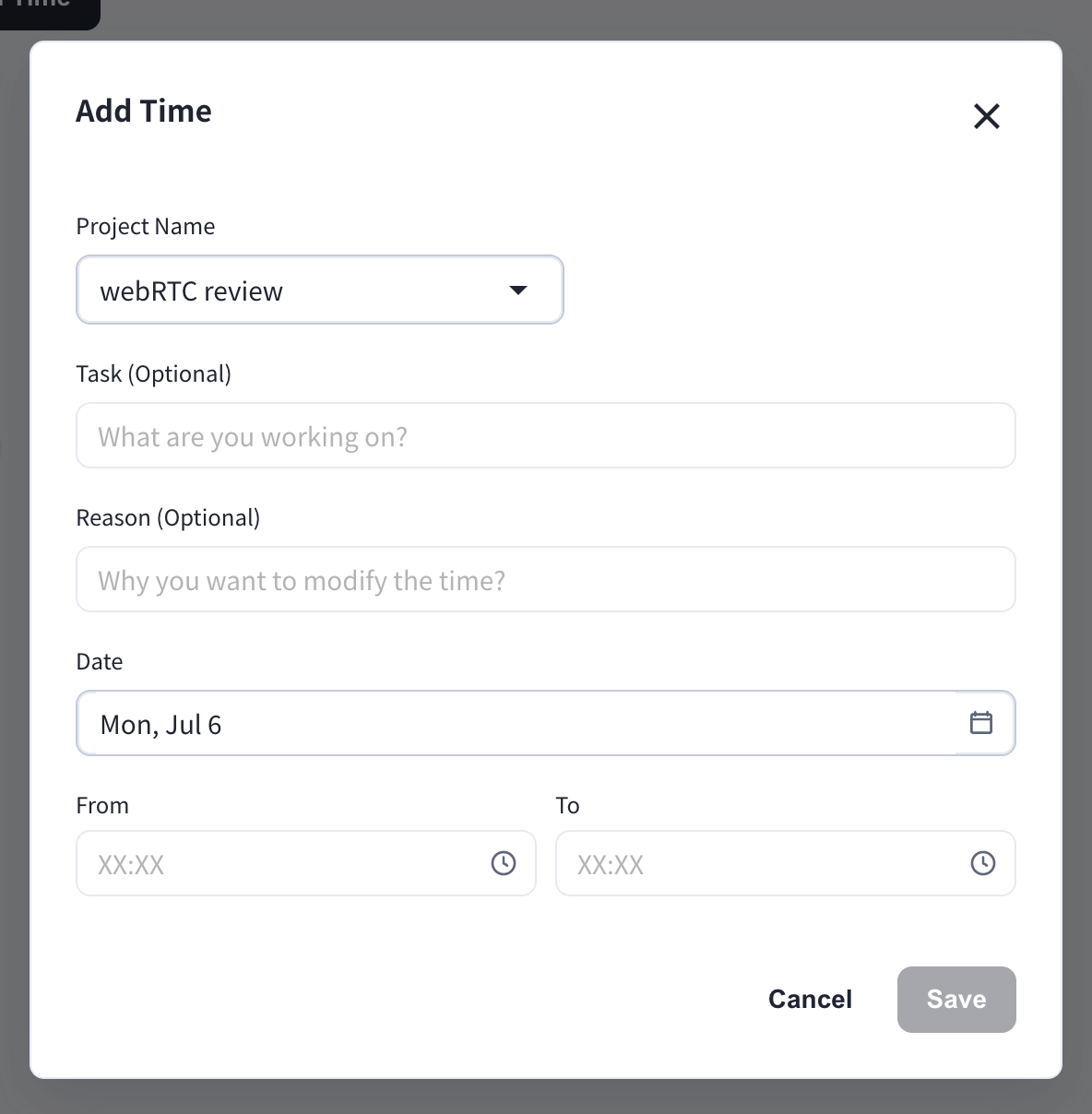
Manual additions and deletions are recorded in the Manual Time Log, which managers can review.
Check Your Time Tracking
Members can only check their own logs. Managers can check logs for all members.
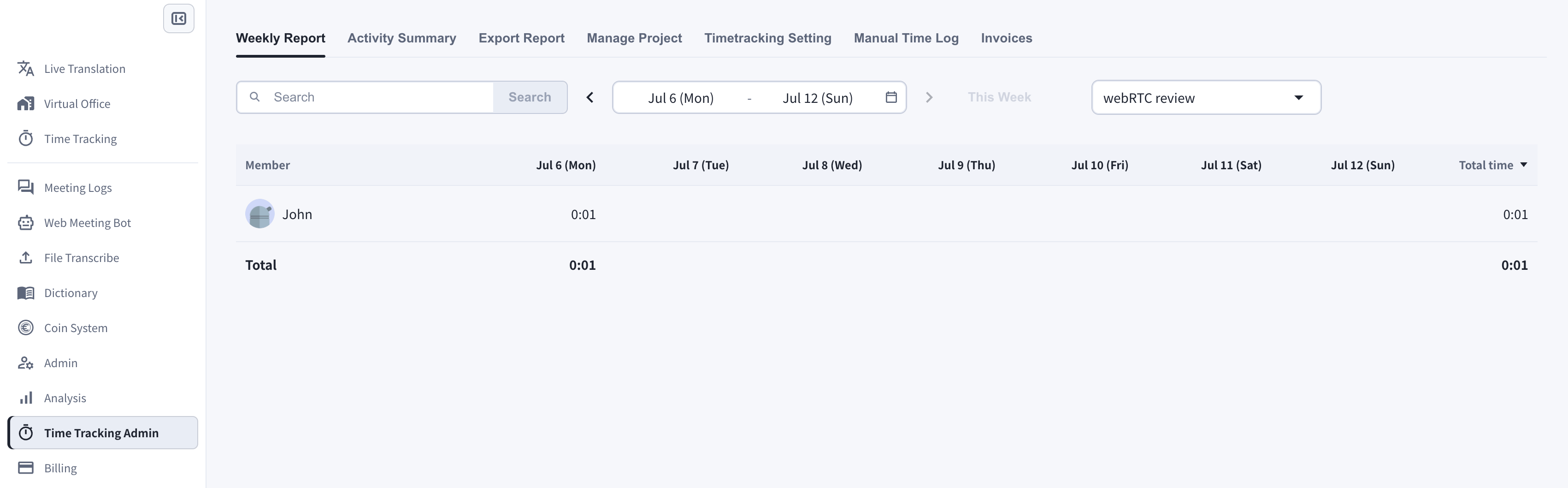
1. Weekly Report
- On the Time Tracking page, click View Weekly Logs
- Select the week and the project
- Check your daily and weekly totals
2. Activity Summary
The Activity Summary tab shows your tracked time for one day as a timeline, together with your working memos.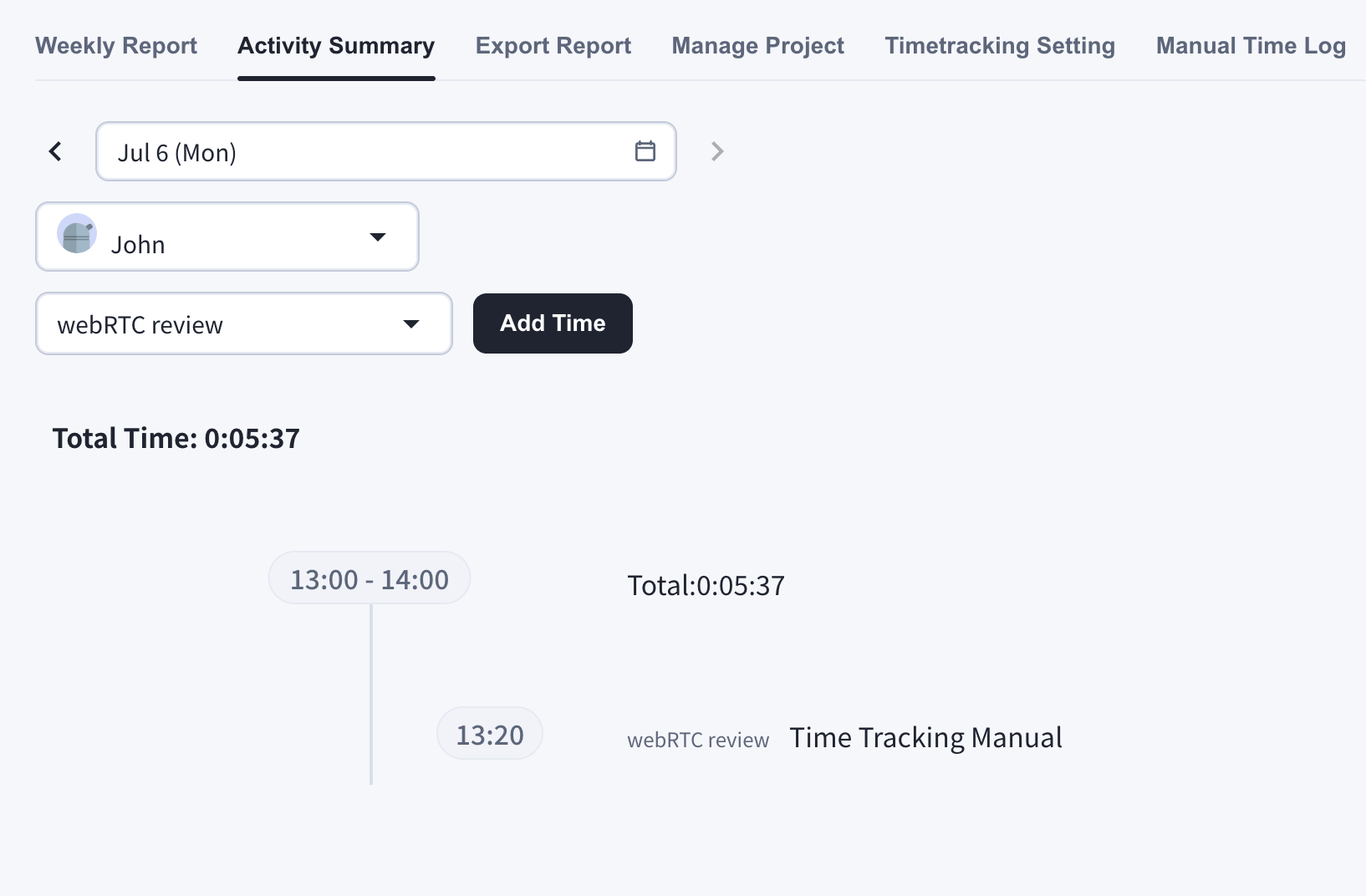
Delete Tracked Time
You can delete tracked time from the Activity Summary by clicking the trash icon.You can delete in the following ranges:
- Delete all for one day
- Delete for one hour
- Delete a 10-minute slot
Official Links
Official Website
Visit our official website
X (Twitter)
Follow us on X
Like us on Facebook
Connect on LinkedIn