
How to Achieve Accurate Transcription and Translation Using Equipment
Accuracy may decrease due to noise and howling at the venue, so we recommend using an audio interface.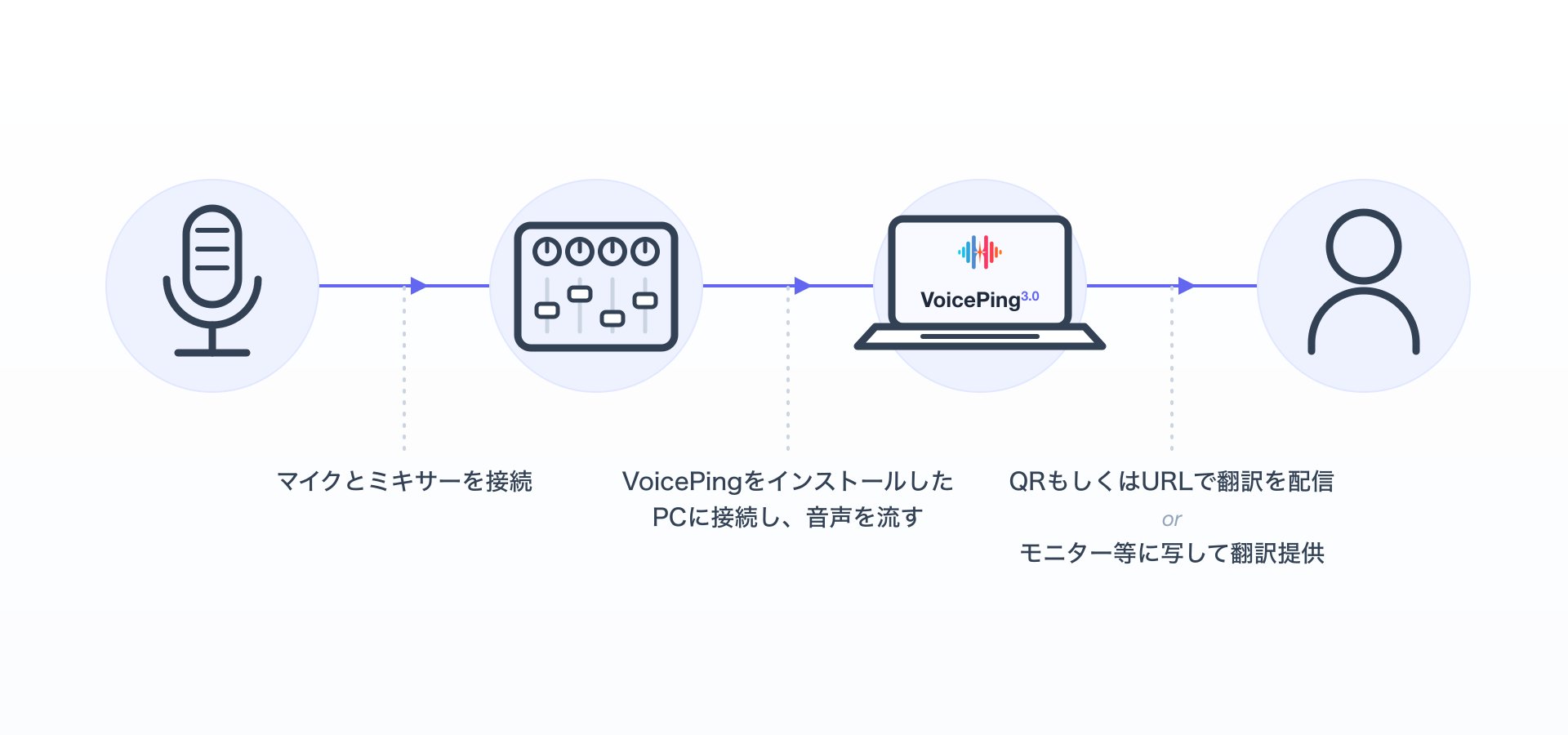
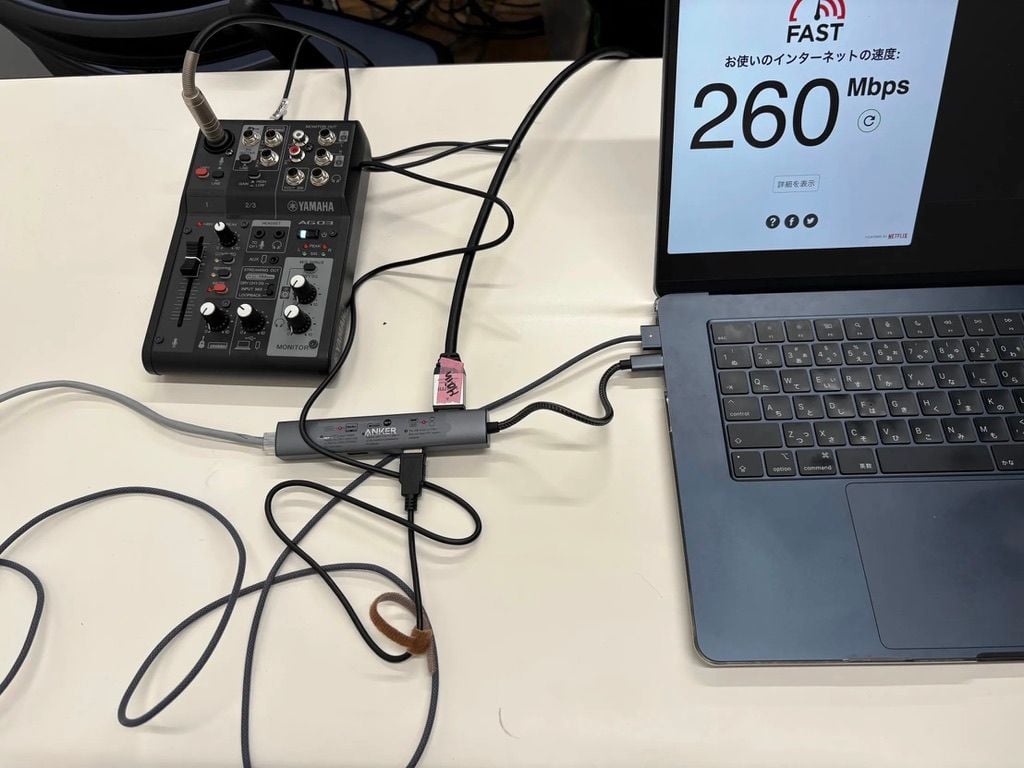
Recommended Equipment List
Below is a list of equipment that has been actually used at past events and confirmed to work (we do not provide these):For Seminars (When There Is 1 Speaker)
Preparation
- Please refer to Live Translation Subtitles for Seminars.
- If an audio interface or similar is connected, please select the microphone from the main screen.
For Panel Discussions (When There Are 2 or More Speakers)
Precautions
Configuration Patterns
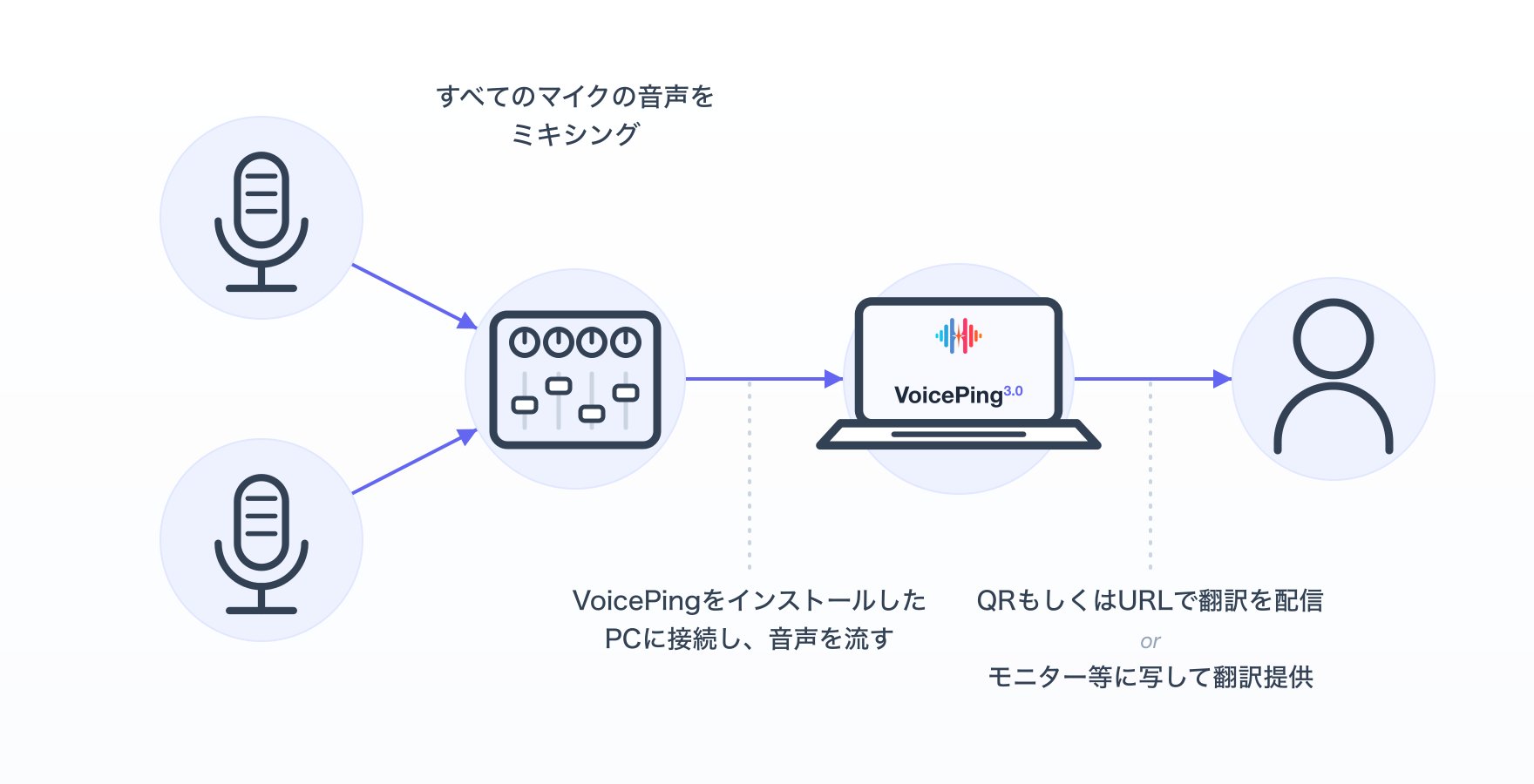
Pattern 1: When Speaker Separation Is Not Needed Mix audio from all microphones into one audio source using an audio interface, and connect it to a PC with VoicePing installed to provide real-time translation. Pattern 2: When Speaker Separation Is Needed Prepare as many PCs as there are speakers, and connect each microphone’s audio to each respective PC to enable real-time speaker-separated translation.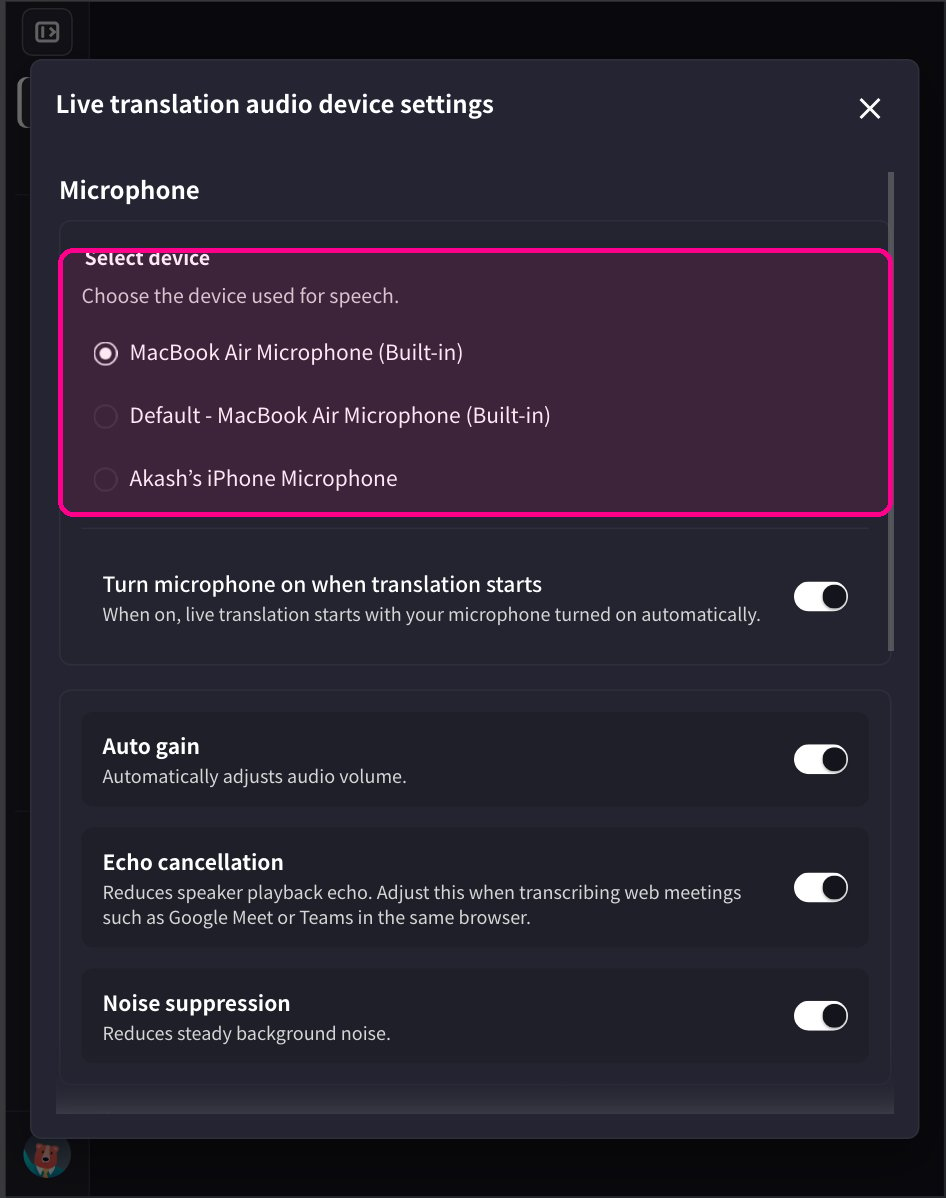
Operation Method
Select the microphone each PC will use. When connecting an audio interface, choose the input from the audio device settings (Select device). Distribute translation to your audience via QR code / link. To let listeners follow the translation on their own devices, share a listener QR code or link — for example via Expo Mode, which publishes an audience QR code for standalone live translation sessions. Display subtitles on venue monitors/screens. Open the live subtitle view in full screen using the full‑screen icon, then project it onto the venue monitor.Official Links
Official Website
Visit our official website
X (Twitter)
Follow us on X
Like us on Facebook
Connect on LinkedIn