
1. Weekly Report
The Weekly Report tab shows each member’s tracked hours per day over a week. You can search for members, move between weeks, and filter by project.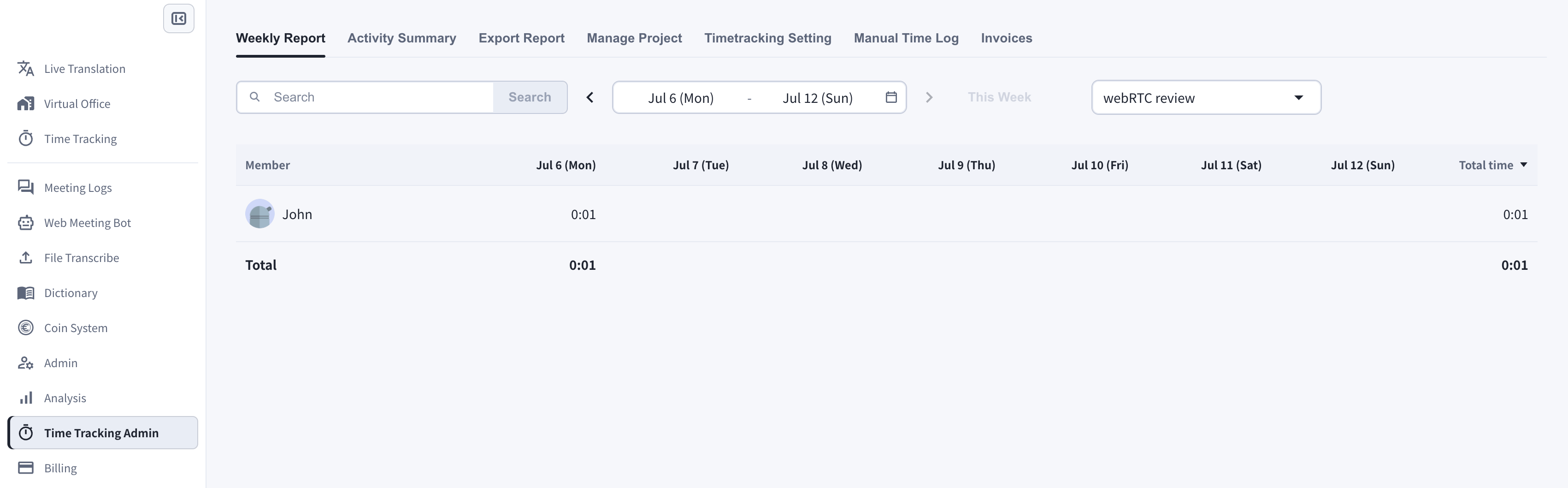
2. Activity Summary
The Activity Summary tab shows one member’s day as a timeline: work time and memos by project, and — when enabled in the time tracking settings — desktop screenshots, webcam shots, and input activity levels for each 10-minute slot.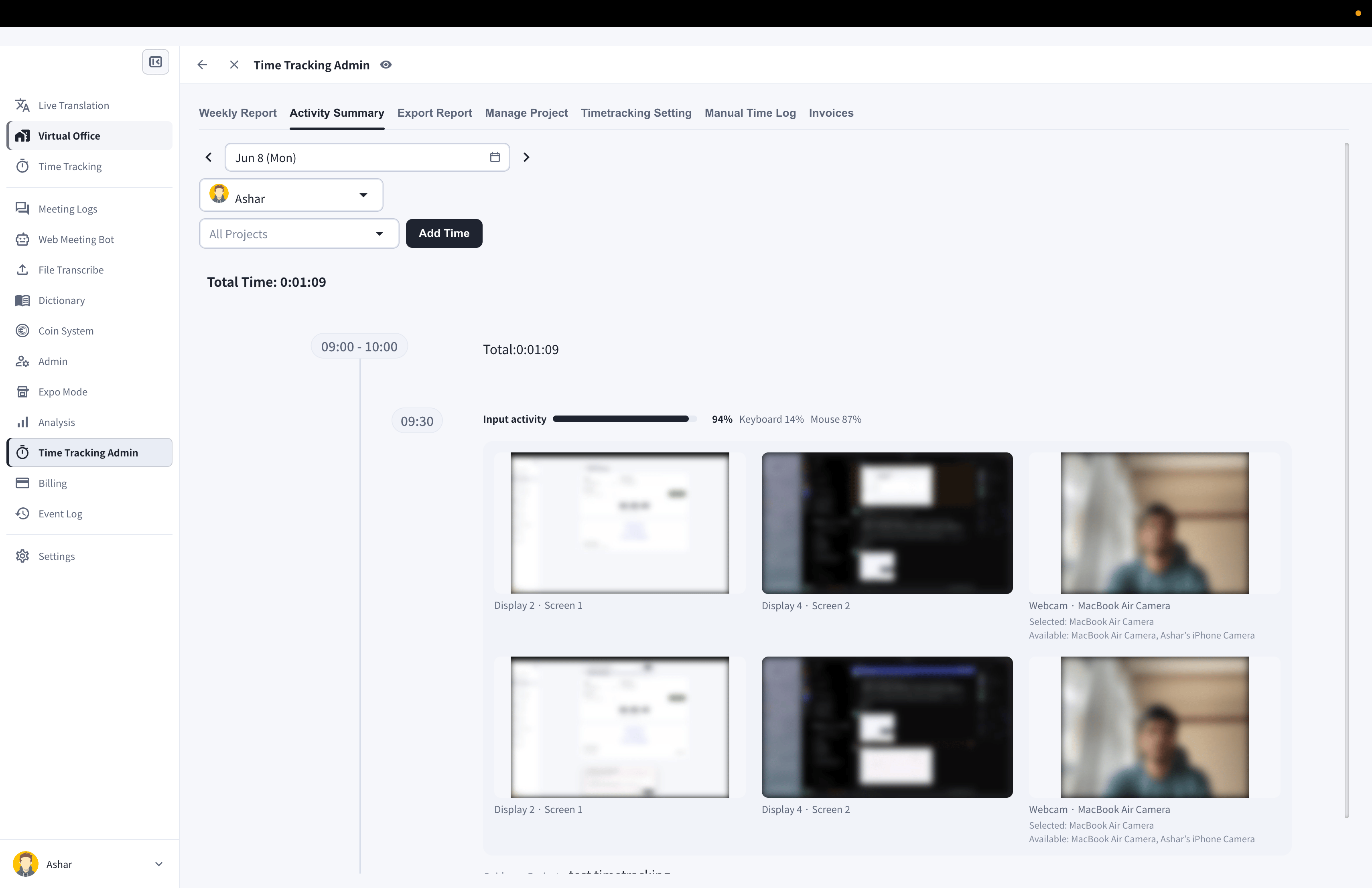
3. Manual Time Log
The Manual Time Log tab shows the change history of members’ work logs: every manual addition or deletion, with the time change, time span, task, reason, and who made the change.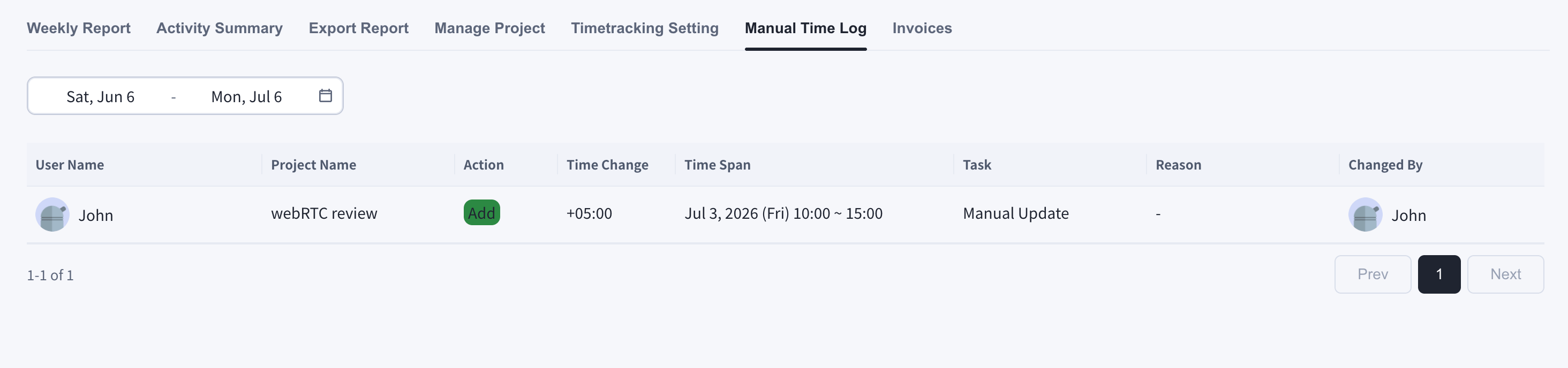
4. Export Report
The Export Report tab summarizes tracked hours by member and by project for any date range, and exports the report to CSV or PDF.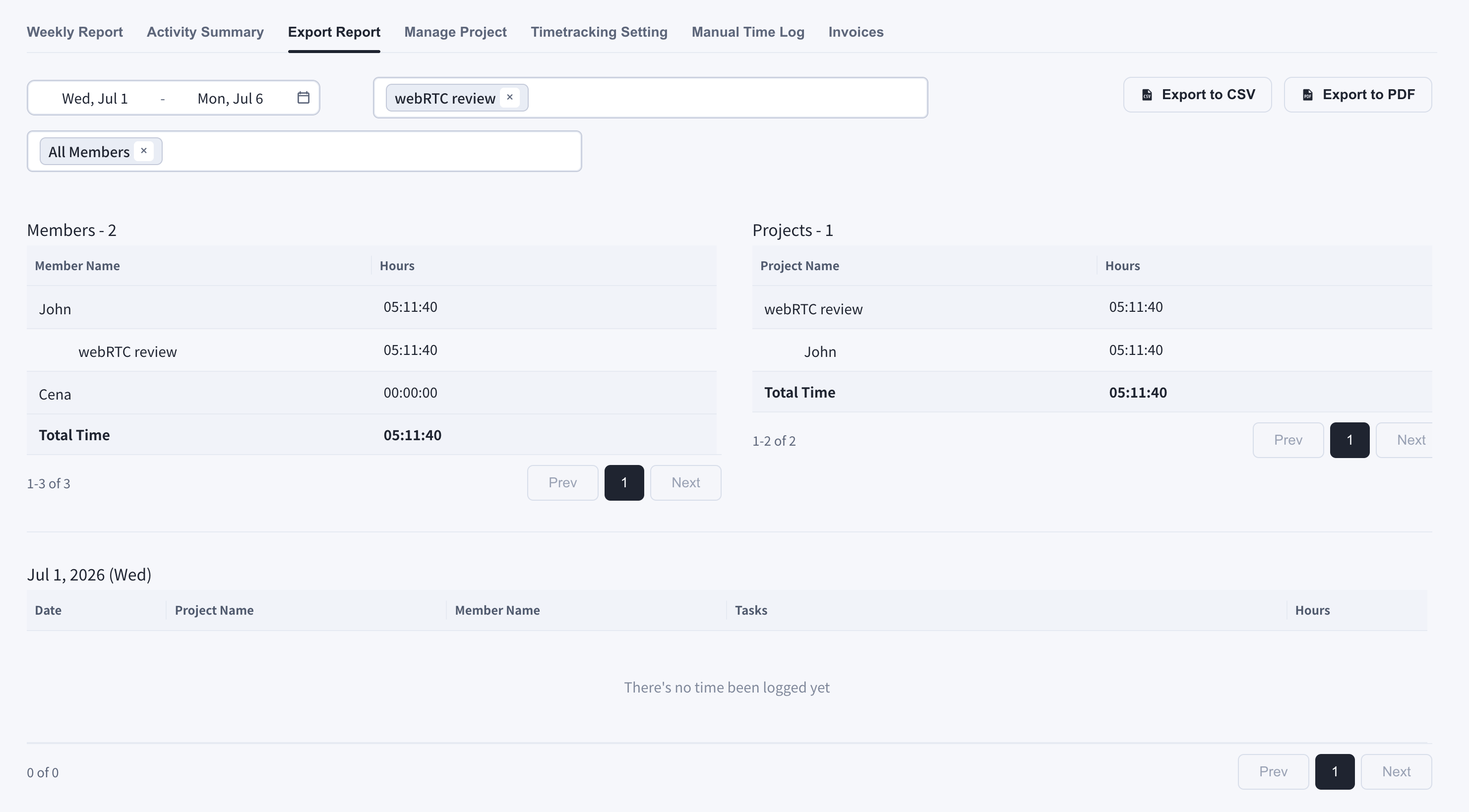
5. Time Tracking Analysis
For a workspace-wide view, open Analysis from the left sidebar and select the Time Tracking Log tab. It shows total tracked time, active users, projects, input activity, and screen/webcam coverage, with rankings and per-project breakdowns.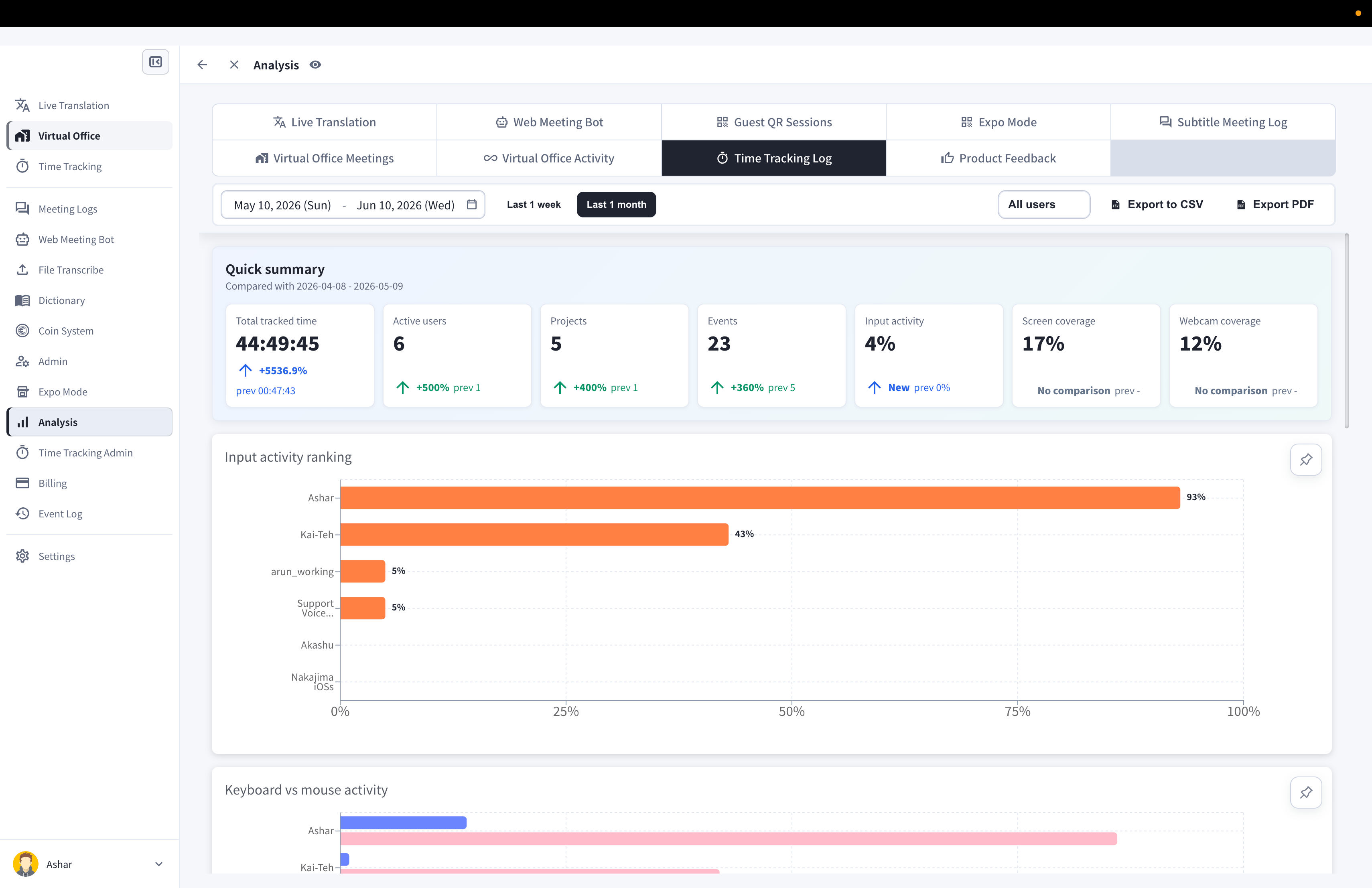
Online Log (Optional Feature)
In workspaces where the Virtual Office and the online log are enabled, an Online Logs item appears in the sidebar. There you can check:- Weekly Online Log Report: each member’s login time over a week
- Daily Online Log Event: the history of user status changes for a member in one day
Official Links
Official Website
Visit our official website
X (Twitter)
Follow us on X
Like us on Facebook
Connect on LinkedIn