
Use this when…
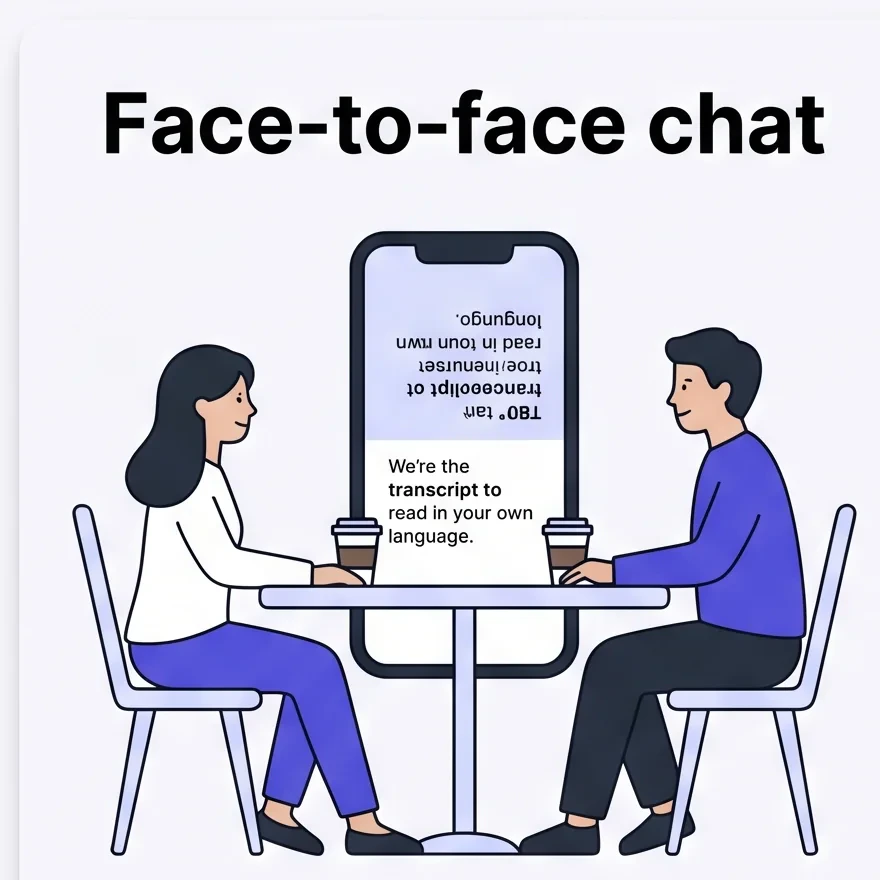
Phone between you and the other person in a cafe, taxi, or shop counter. Both read their own language with Face-to-face mode.
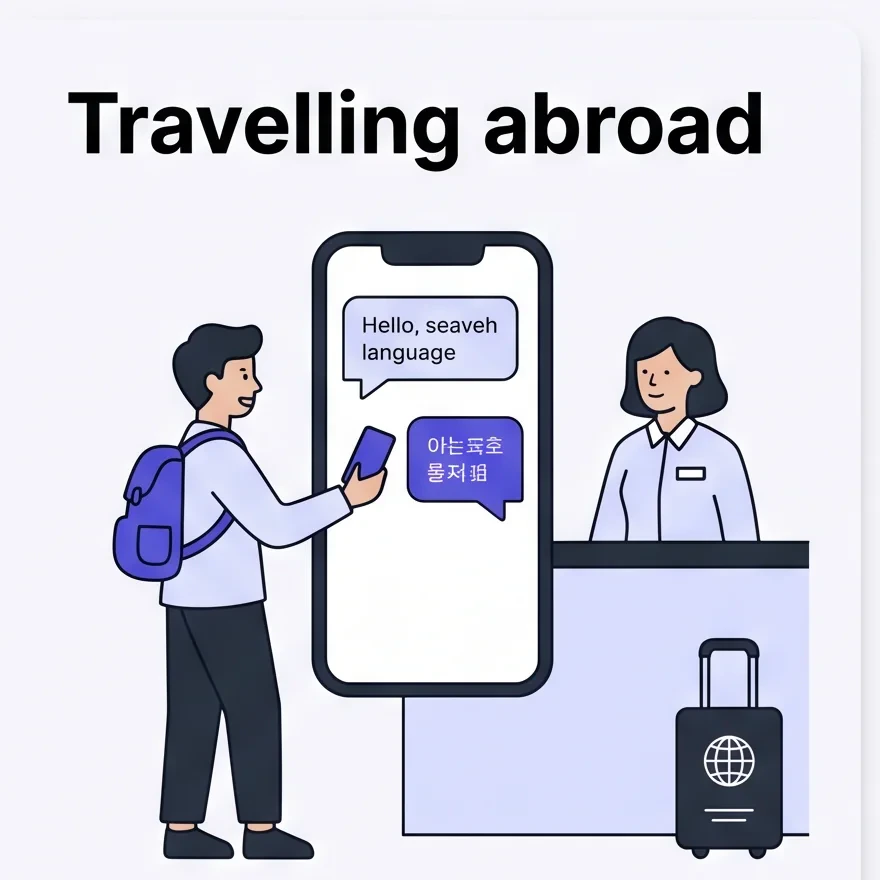
Hotel concierge, restaurant, clinic, customs — real two-way conversation with captions in both languages.
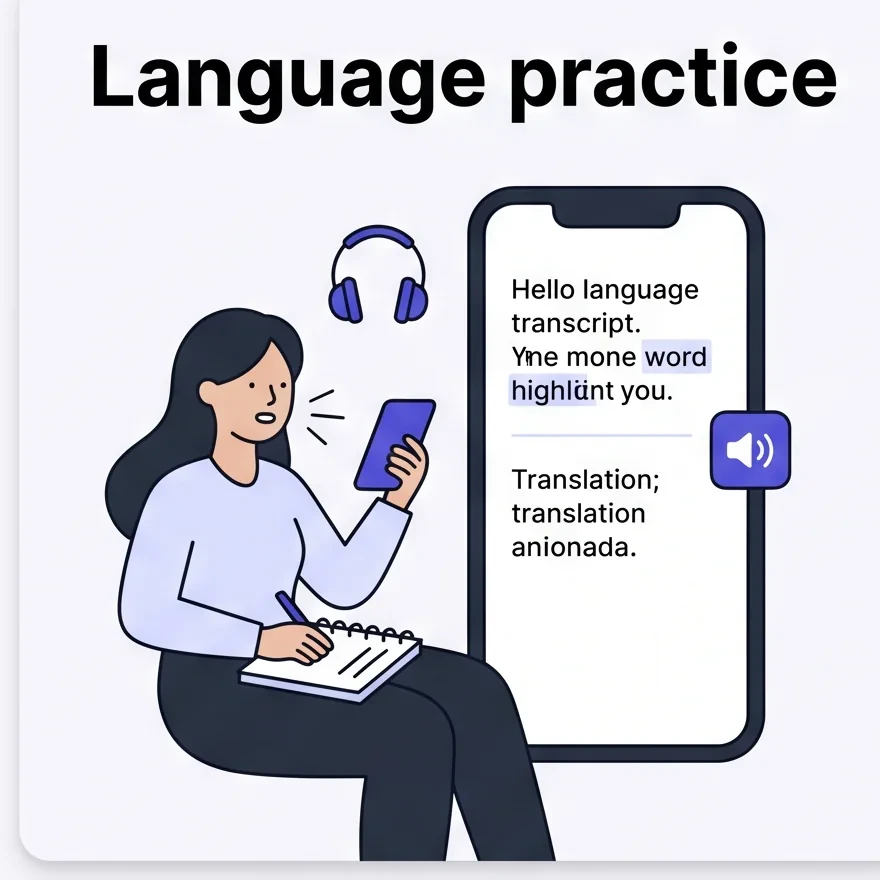
Chat with a tutor, exchange partner, or native speaker and keep captions as a safety net when you lose a word.
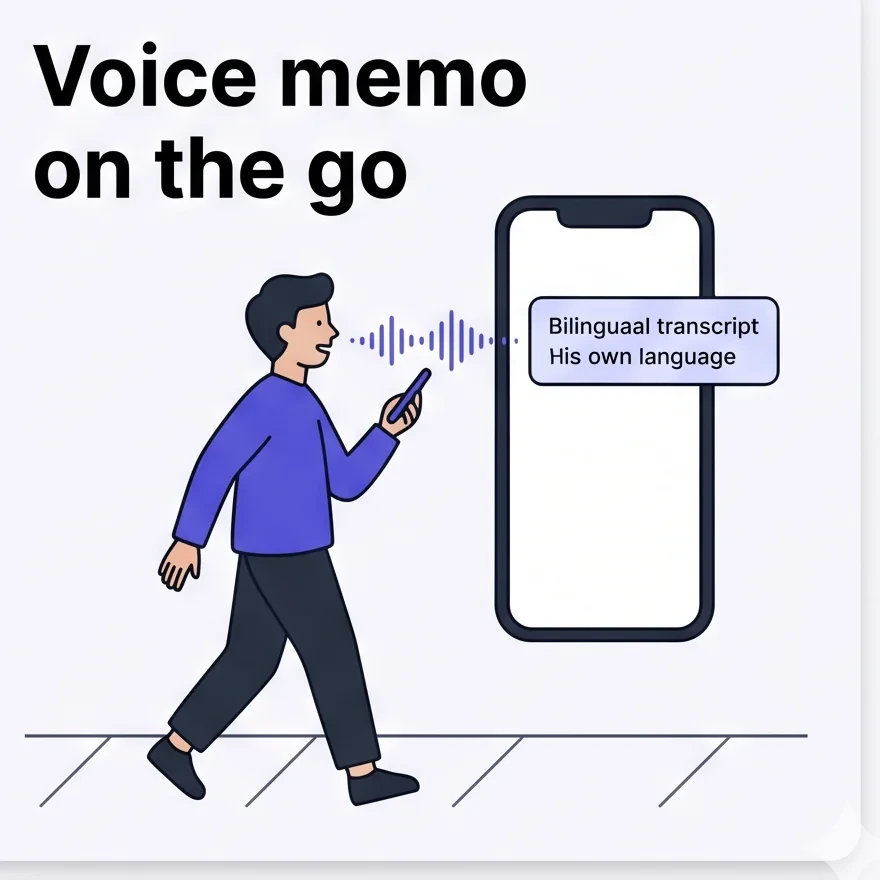
Walking between places — one-tap Start, speak your thought, End. Saved as a searchable bilingual transcript.
Start a session
1
Tap Start on the home screen
The home screen lists past transcripts and has Start at the bottom.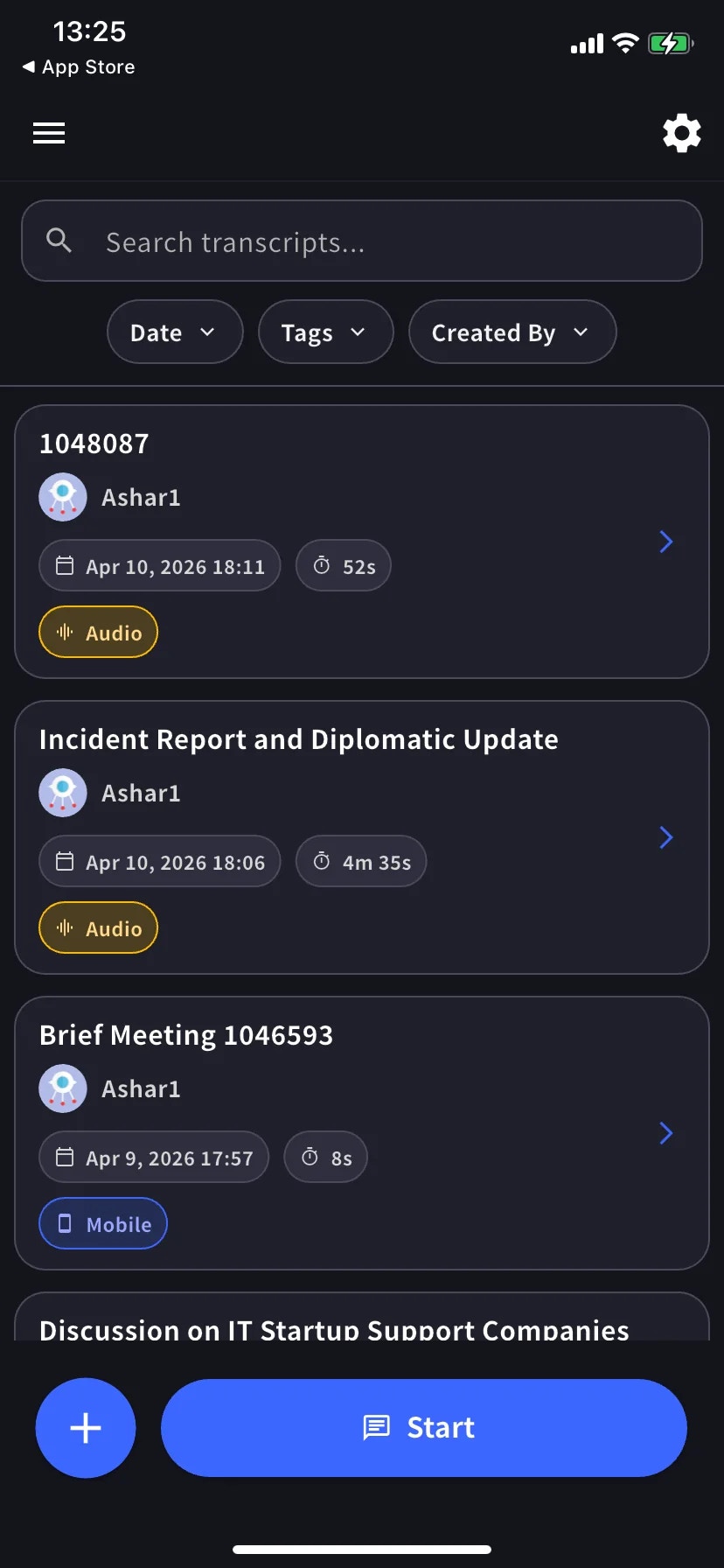
2
Speak
Each utterance becomes a row: original on top, translation below. Tap the speaker icon on a row to play the translated speech.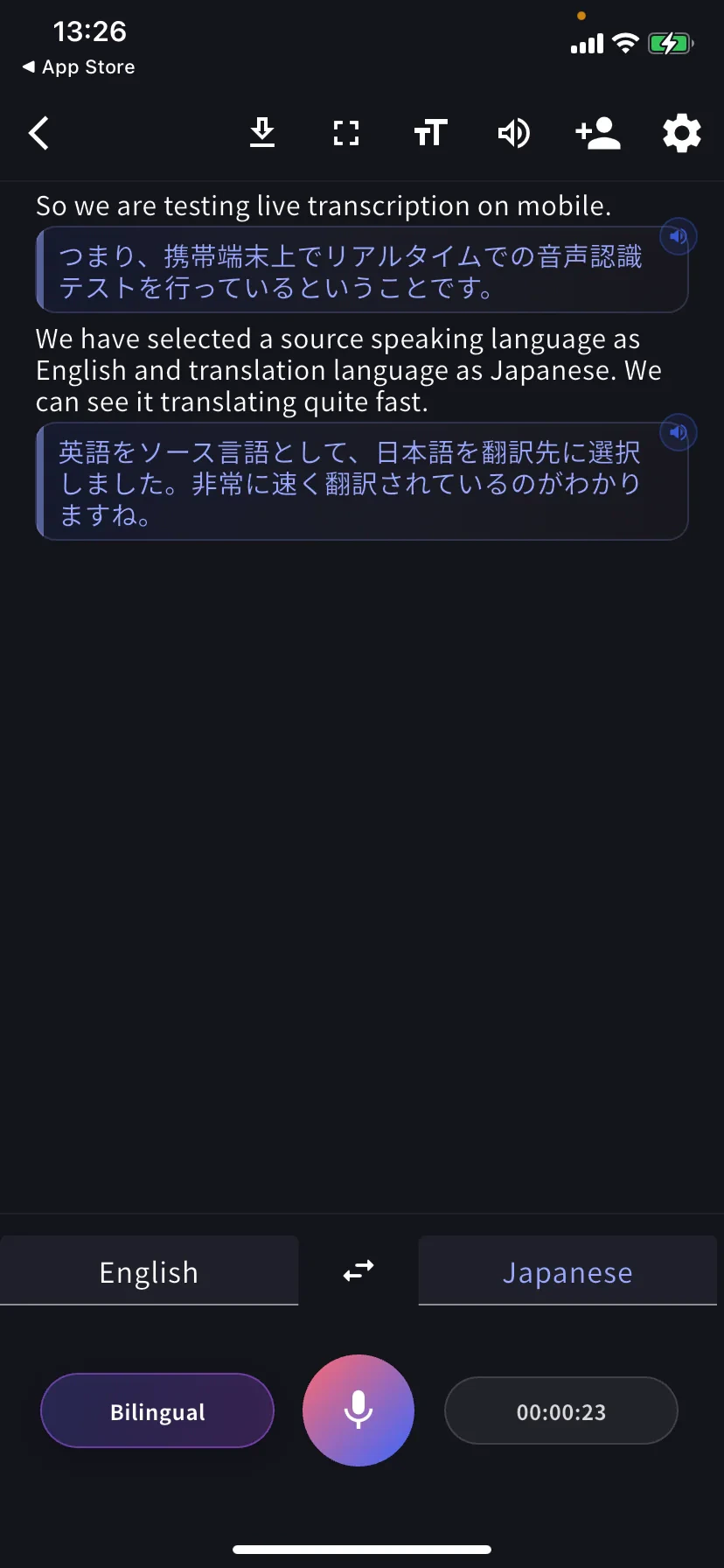
Bottom controls
- Left tab — language you speak · ⇄ swap · Right tab — language to read in
- Bilingual pill — toggle bilingual vs translation-only view
- Mic — tap to mute / unmute
- Timer — current length; tap to end and save
Play the translation aloud
Tap the any translated row to hear it read out in the target language. Useful when:- You want the other person to hear the translation instead of reading it
- You’re learning the language and want to hear pronunciation of what you just said
- The other person can’t comfortably read from the screen
Reading modes
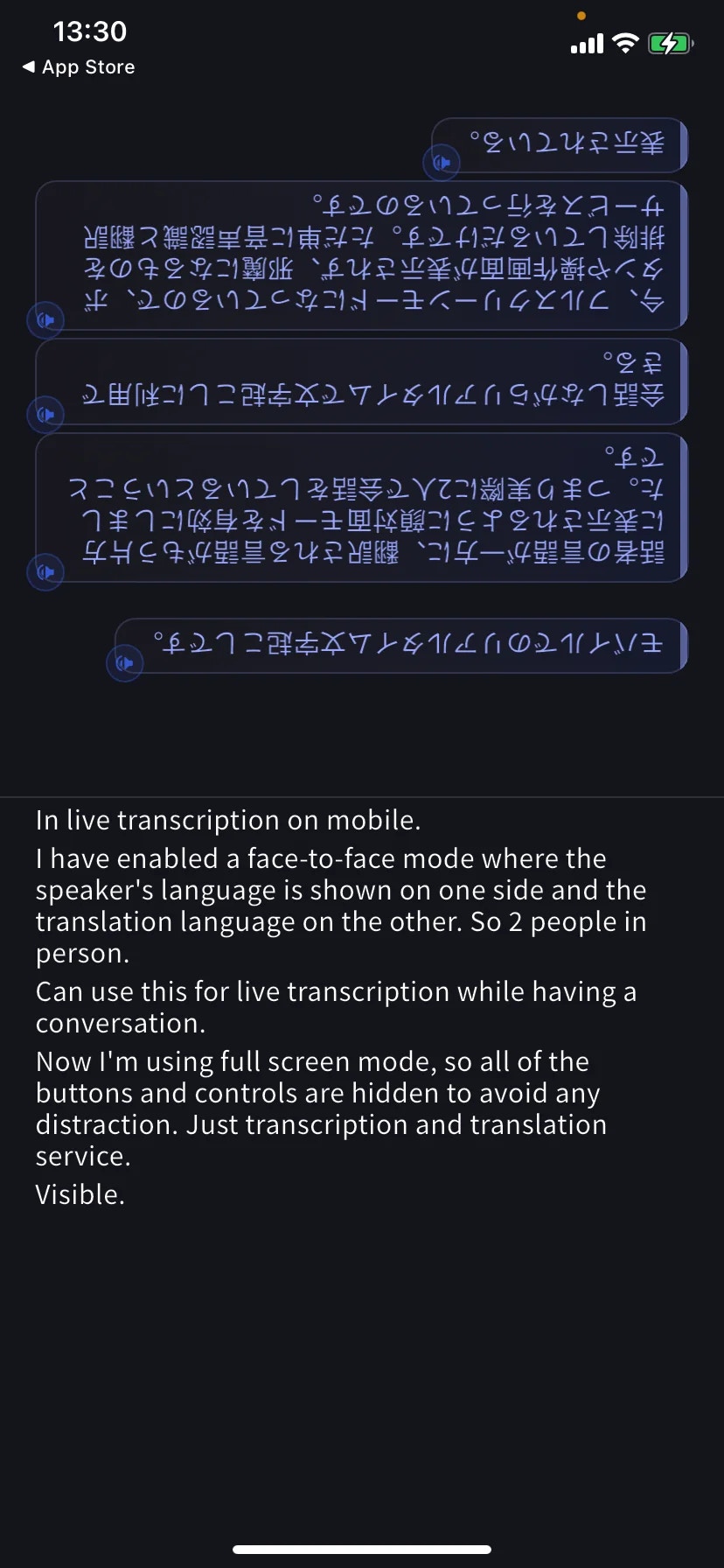
Face-to-face mode (TT → Text display) rotates the translation 180° so the person across the table can read it right-way-up from their side. Put the phone flat between you.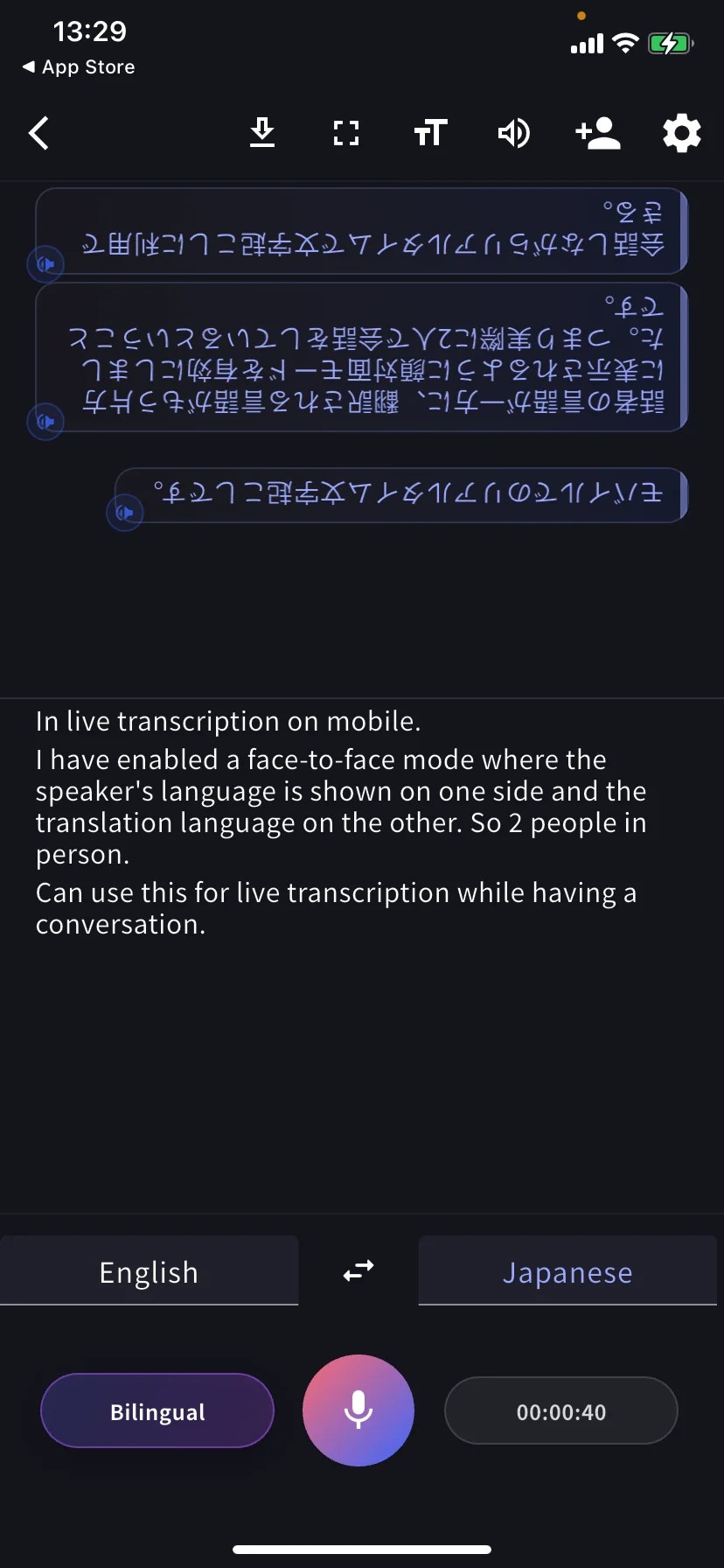
Download mid-session
Tap ⬇ in the toolbar to export without ending: Transcription, Translation, or both.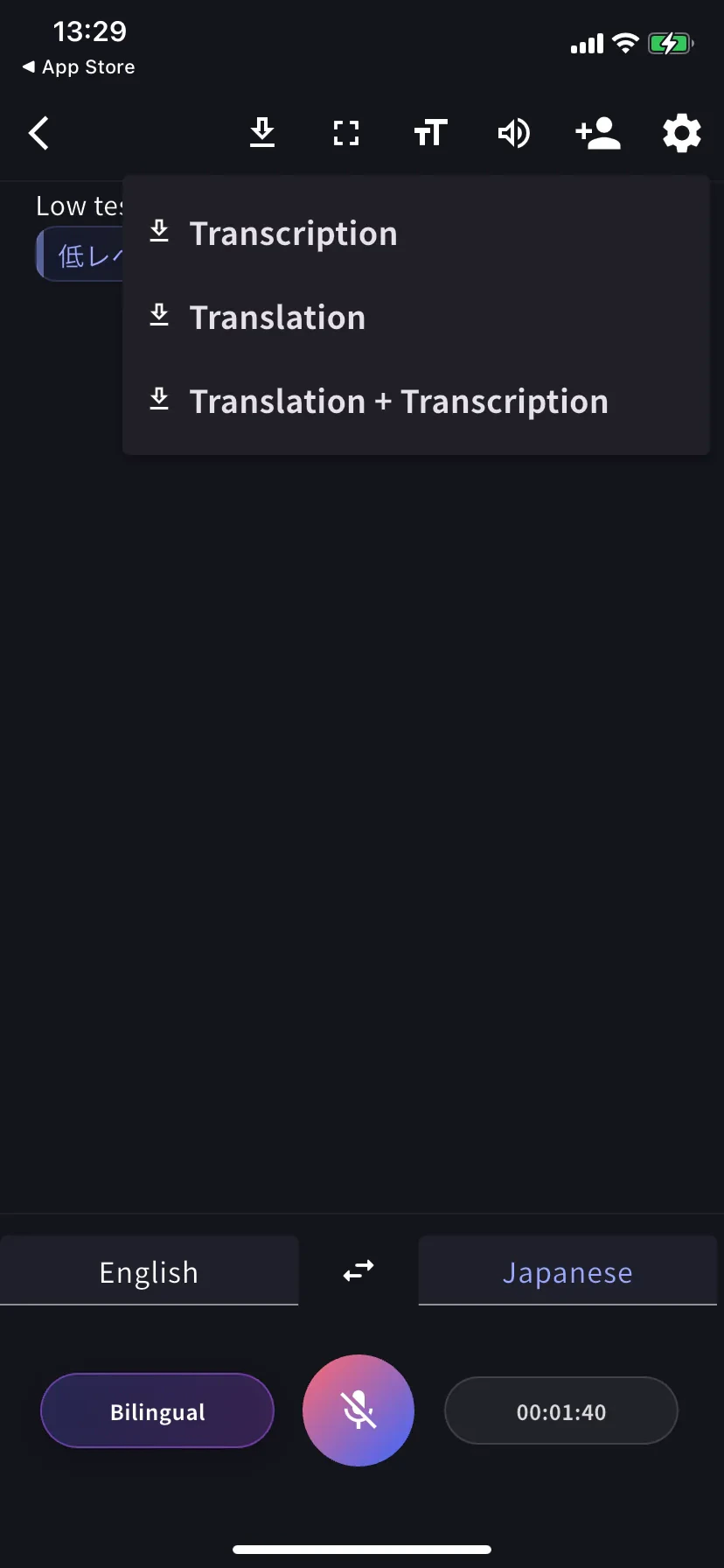
End and save
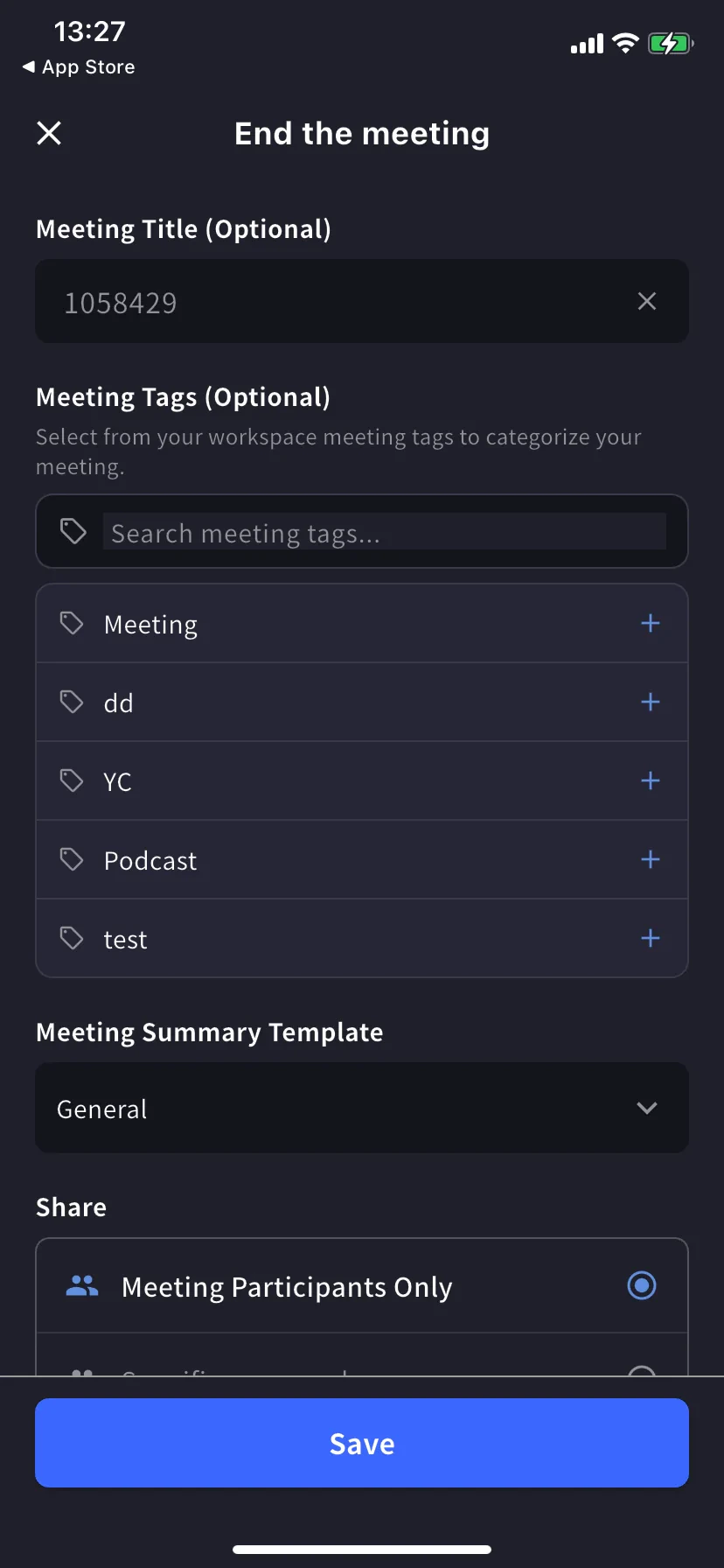
Tap the timer / stop to open the End-meeting form.- Title — auto-numeric, rename if needed
- Tags — pick from workspace tags (used for filtering)
- Summary template — preset for the auto-generated minutes
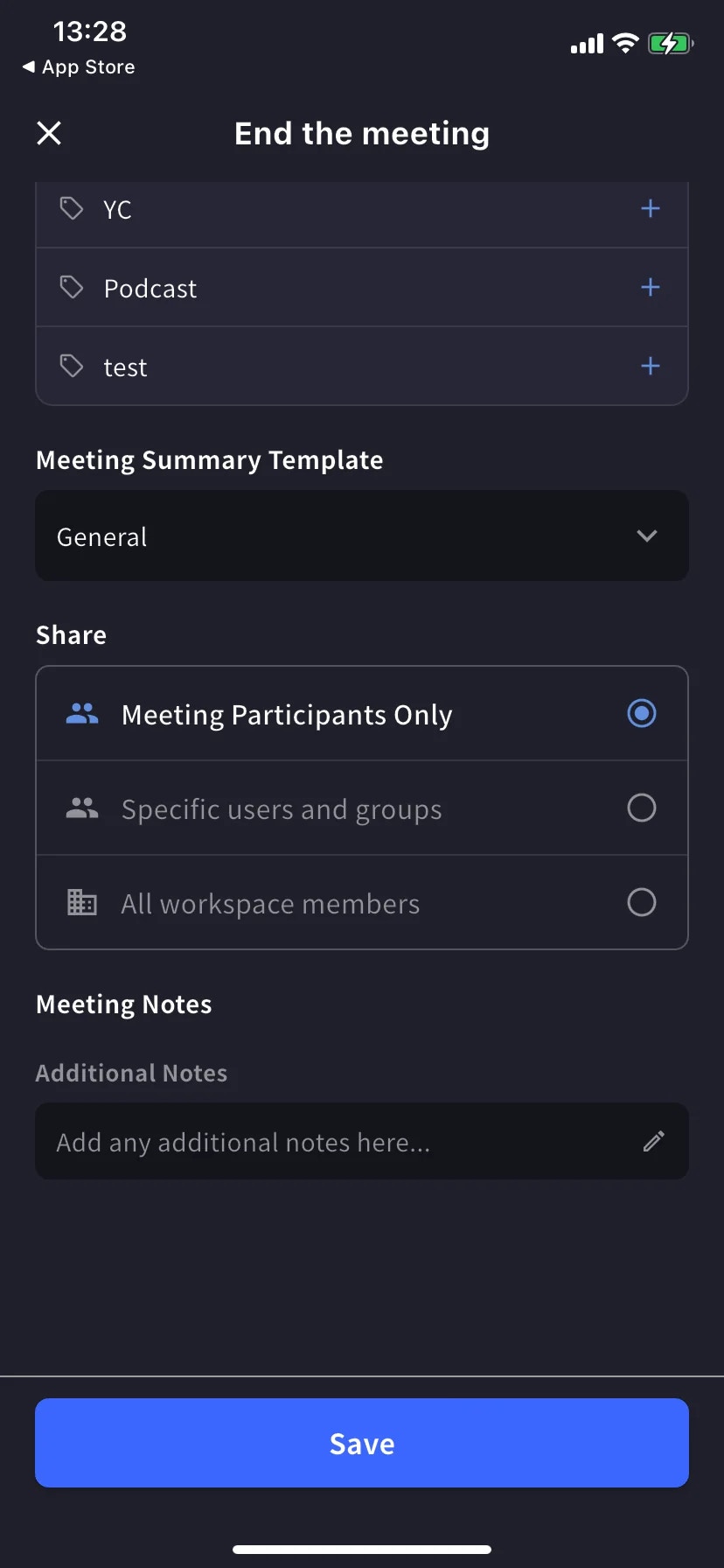
- Share scope — Participants only / Specific users / All workspace members
- Notes — free-form notes saved with the transcript
Tips
- Place the phone flat between you and the other person — the built-in mic picks up both sides better than holding it.
- In noisy cafes or on the street, plug in a wired or Bluetooth headset.
- Keep the app in the foreground — iOS can suspend capture if you switch apps.
- Pre-load Dictionary entries (personal or workspace, same as desktop) for names and words you know will come up.
Related
- Settings — audio, text display, dictionary
- Share to Listeners (QR)
- Offline Translation · Capture Other-App Audio · Upload Files