
Query VoicePing Transcripts From Your Backend
API Access is for server-to-server workflows — scheduled exports, CRM sync, dashboards, compliance archives. You create an API key in your workspace, grant it a set of scopes, and your backend calls the VoicePing API with a standard bearer token. If a person is asking questions through an AI client, use MCP Access instead.When to use API Access
Create an API key
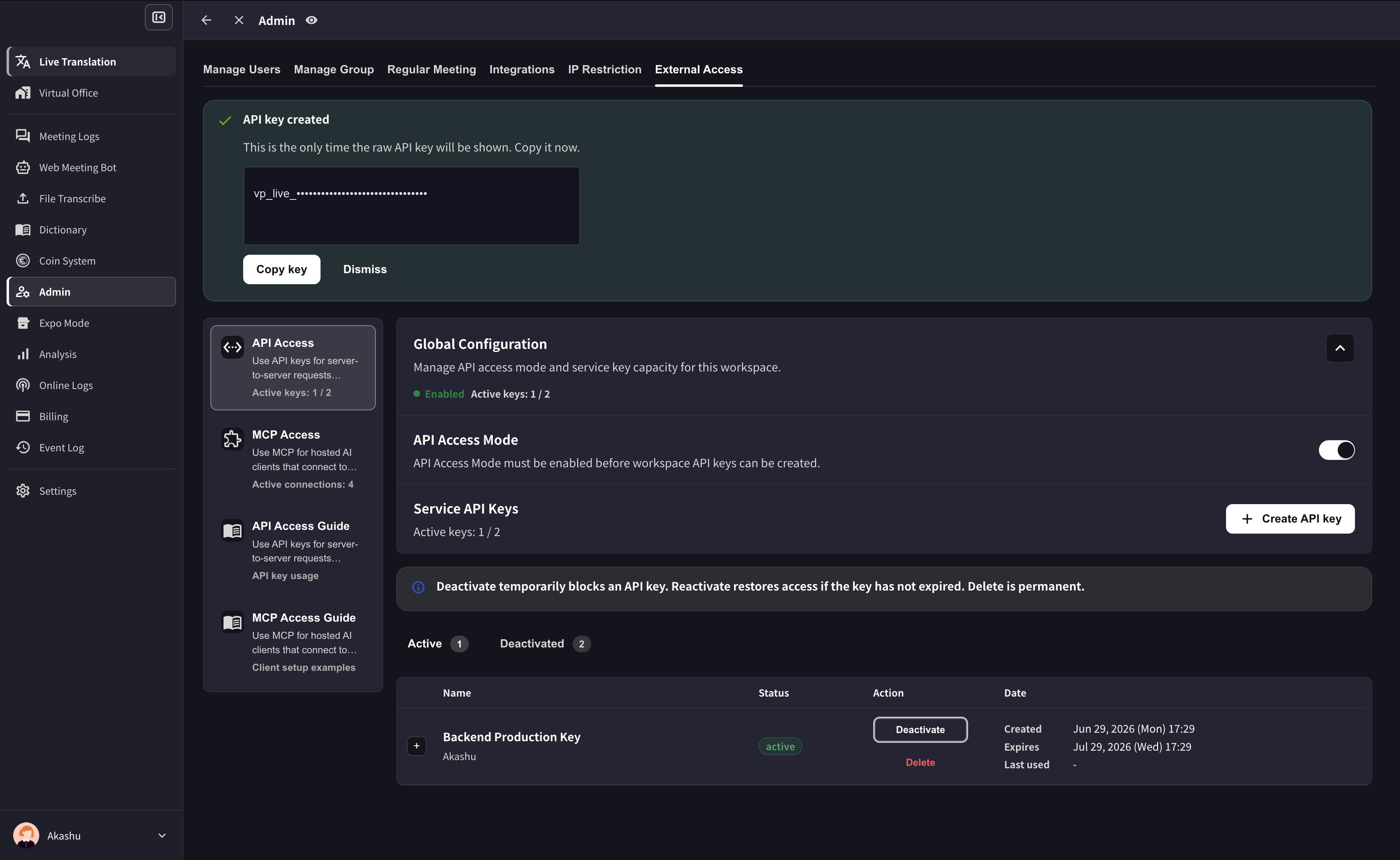
- Open workspace settings → External Access → API Access.
- Enable API Access Mode if it’s not already on.
- Click Create API key.
- Choose a name, the allowed IP address (recommended), the scopes the key needs, and a validity period.
- Copy the generated key immediately and store it in your secret manager. The full key is shown only once.
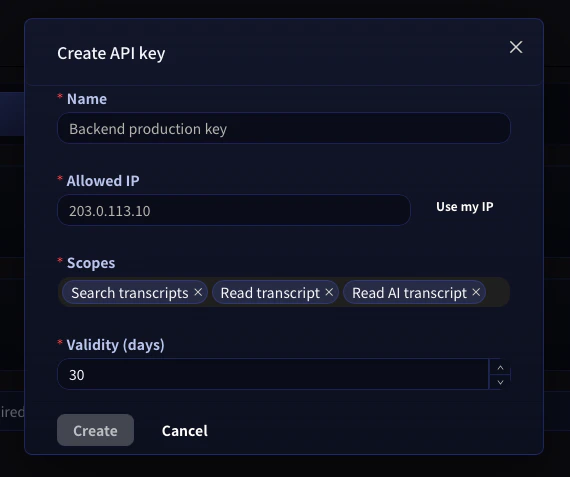
Never commit API keys. Keep them in environment variables or your secret manager. For extra safety, lock each key to a specific allowed IP address in the create-key modal — any request from another IP will be rejected even if the key is leaked.
Authenticate requests
Every request authenticates with a bearer token againsthttps://api.voiceping.io:
VOICEPING_API_KEY environment variable, and the samples below will pick it up automatically.
Quickstart — call the API in your language
The same two-step flow — search transcripts, then fetch one — in four languages. TypeScript is shown first; switch tabs for your stack.Next steps
External Access overview
Back to scopes, lifecycle controls, and event logs that apply to both MCP and API.
MCP Access for AI clients
If a person is asking questions through Claude, ChatGPT, Codex, Claude Code, or Gemini CLI, use MCP Access instead.