
Invoices
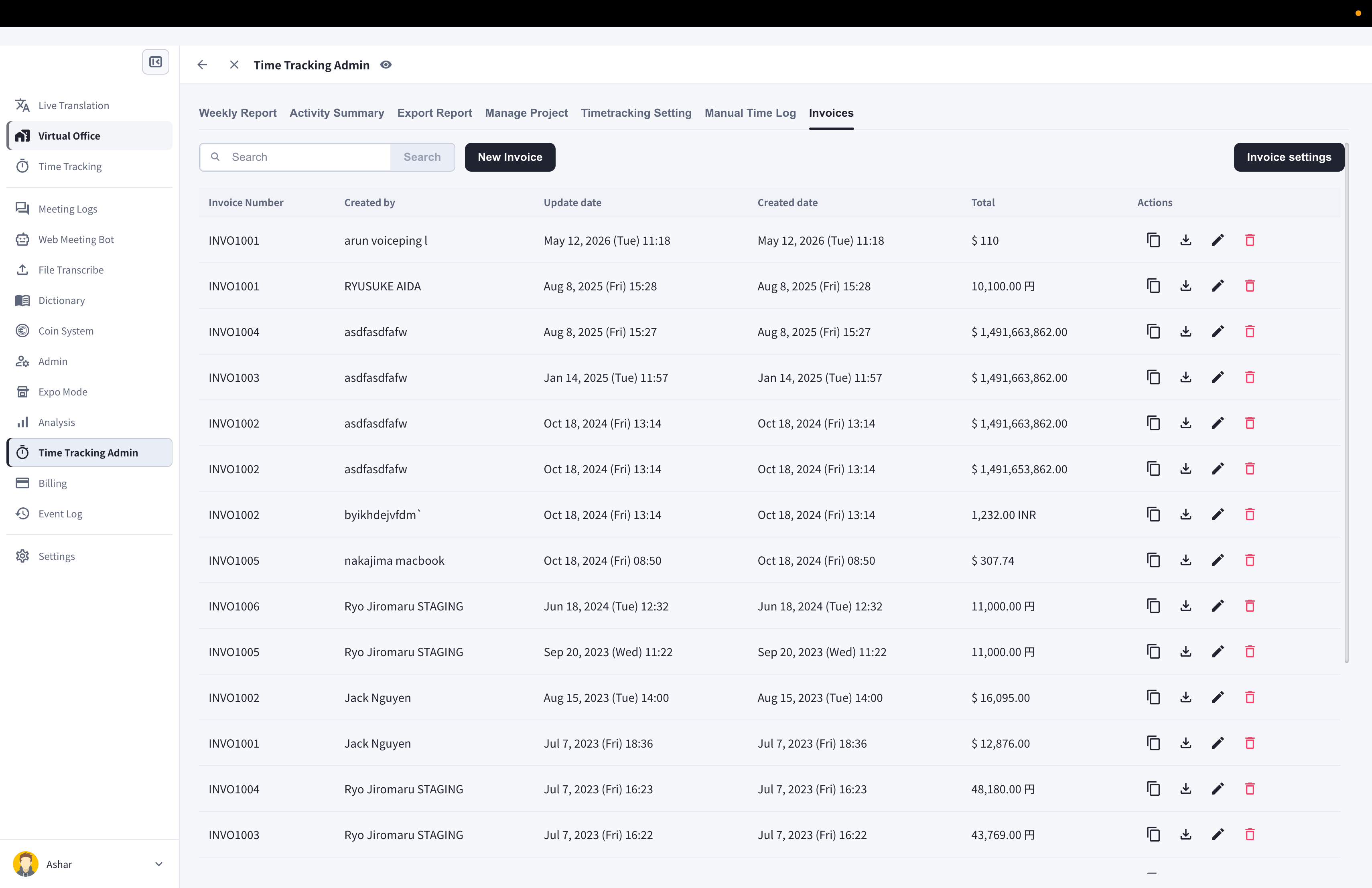
VoicePing’s time tracking feature automatically records user work logs, making it easy to create invoices. Owners and managers can review invoices issued by members. Members can see and manage only their own invoices.Access Invoices
- Open Time Tracking Admin from the left sidebar
- Click the Invoices tab
Invoice Settings
Managers can click the Invoice settings button to save default client billing details (client name, phone, address). These are applied by default to all members’ new invoices in the workspace.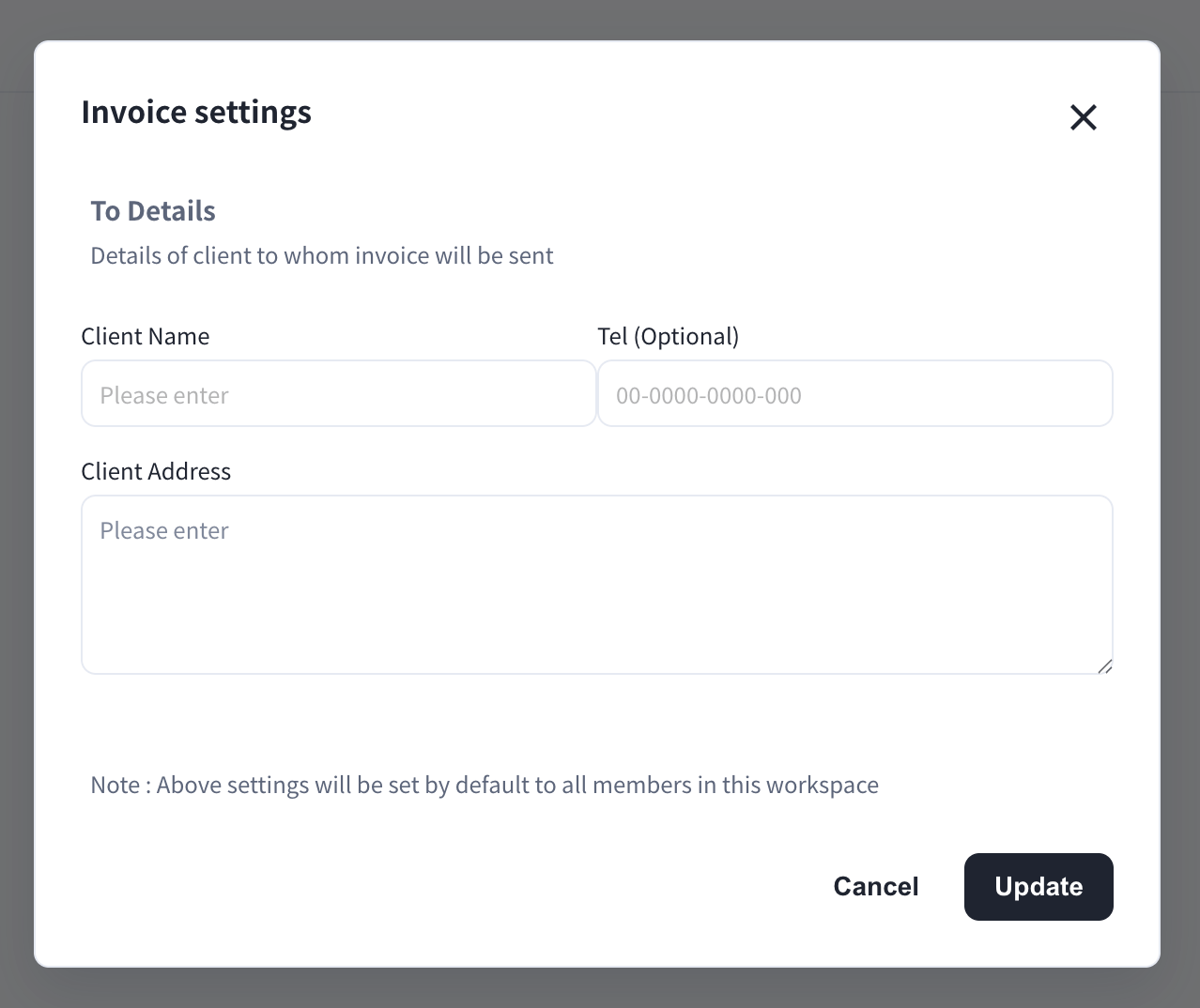
Create an Invoice
- Click the New Invoice button
- Fill in the invoice details: From/To information, issue and due dates, invoice number, and currency
- Click Generate Items from time tracking log
- Choose Last Month or Current Month and click Generate — line items are created from the work logs
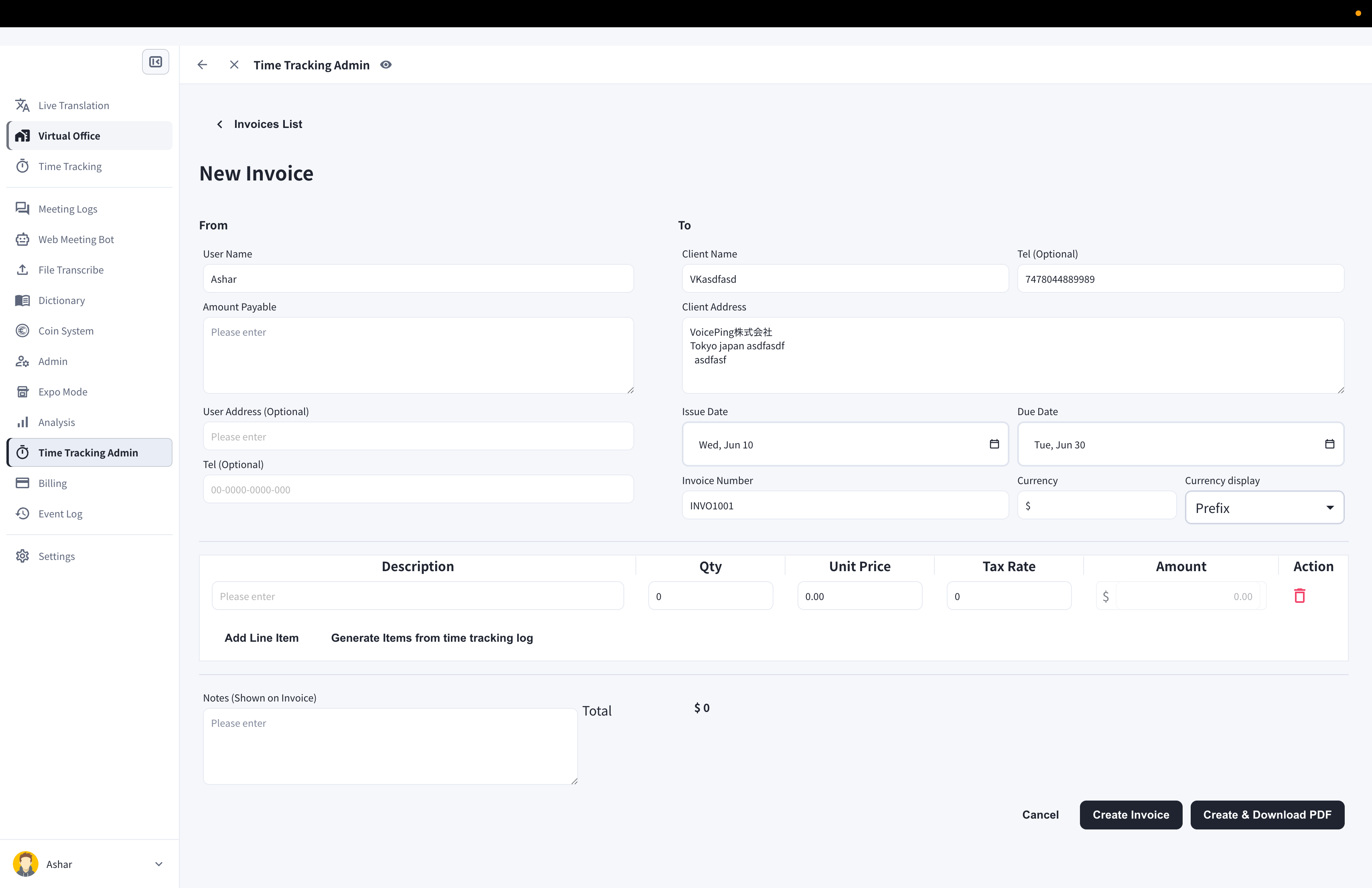
- Click Create Invoice or Create & Download PDF
Invoice: User Search Feature
Using the search field above the invoice list, managers can view invoices by member when organizing invoices.Duplicate an Invoice
- Click the copy icon of the invoice you want to duplicate
Download Invoice (PDF)
- Click the download icon of the invoice you want to save
Edit Invoice
- Click the pen icon of the invoice you want to edit
- After editing, click Save Invoice or Save & Download PDF
Delete Invoice
- Click the trash icon of the invoice you want to delete
- Click the Delete Invoice button in the confirmation dialog
Official Links
Official Website
Visit our official website
X (Twitter)
Follow us on X
Like us on Facebook
Connect on LinkedIn