
- Only workspace owners and managers can invite members.
- After registering, invited members should install the app by following the Member Registration steps.
Add a Member
Go to Admin → Manage Users and click Add Member. Every invite method lives in one dialog with three tabs — Invite to workspace (by email), Manage invites (track pending invites), and Invite by URL (shareable link). There is no longer a separate flow for Virtual Office.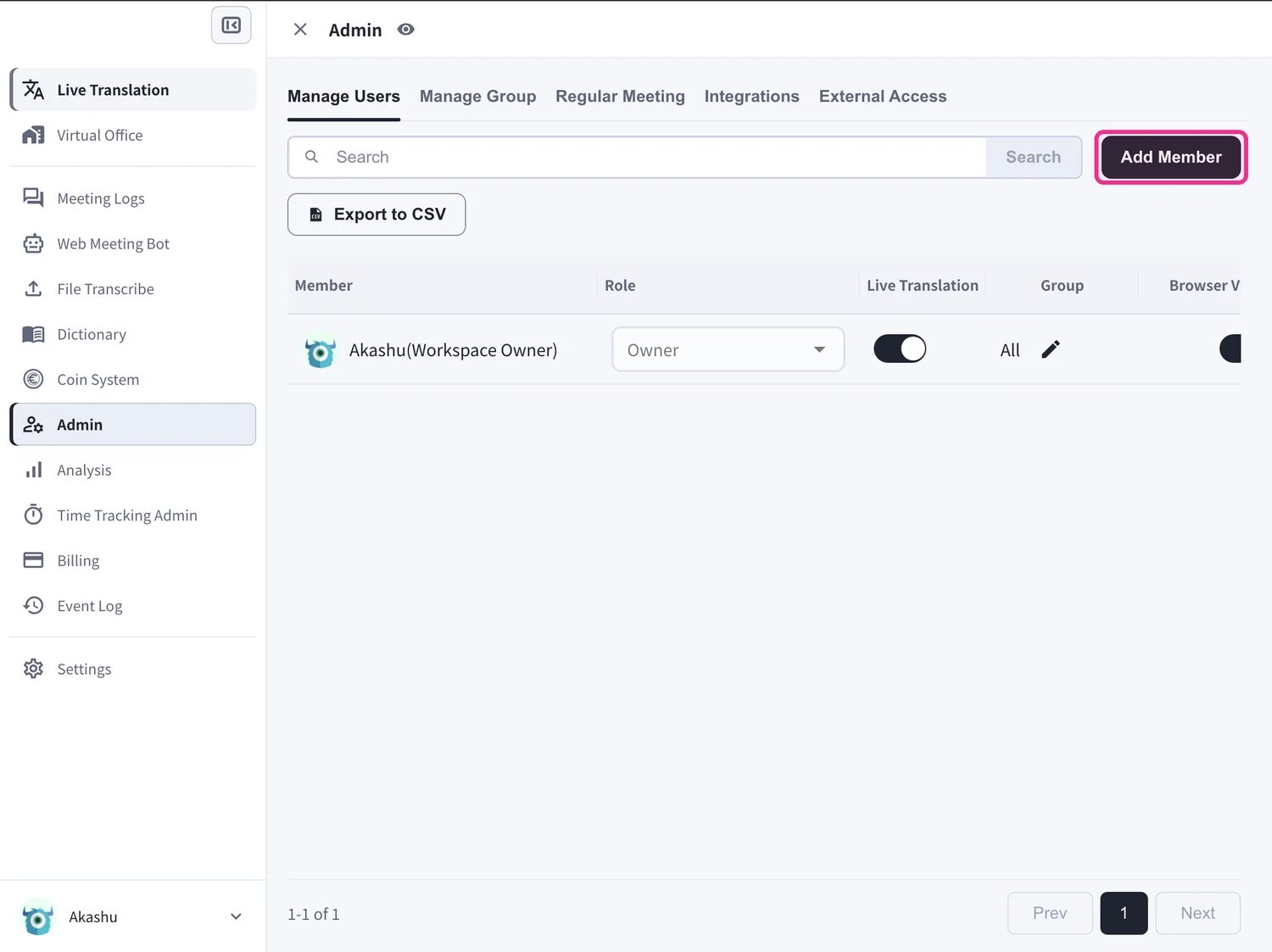
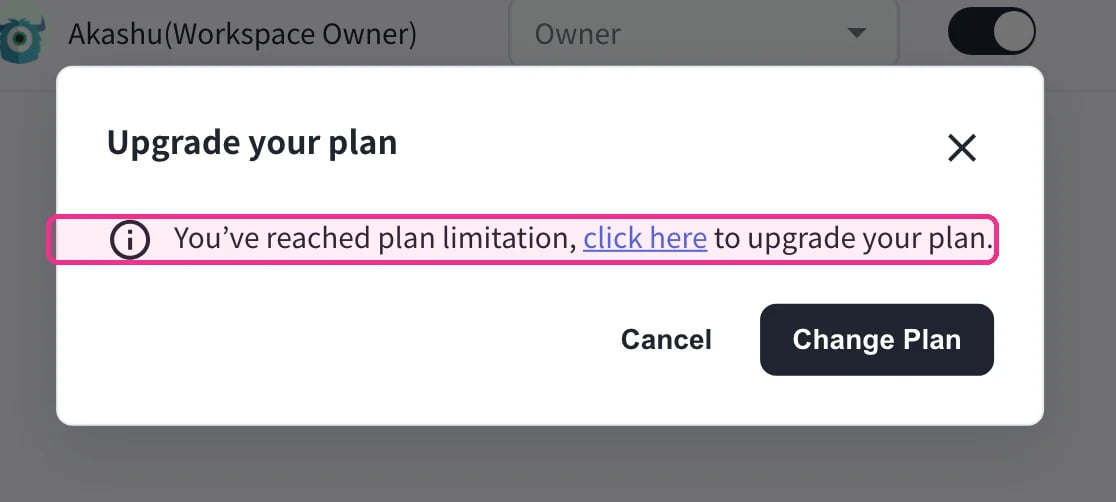
Invite to Workspace (by Email)
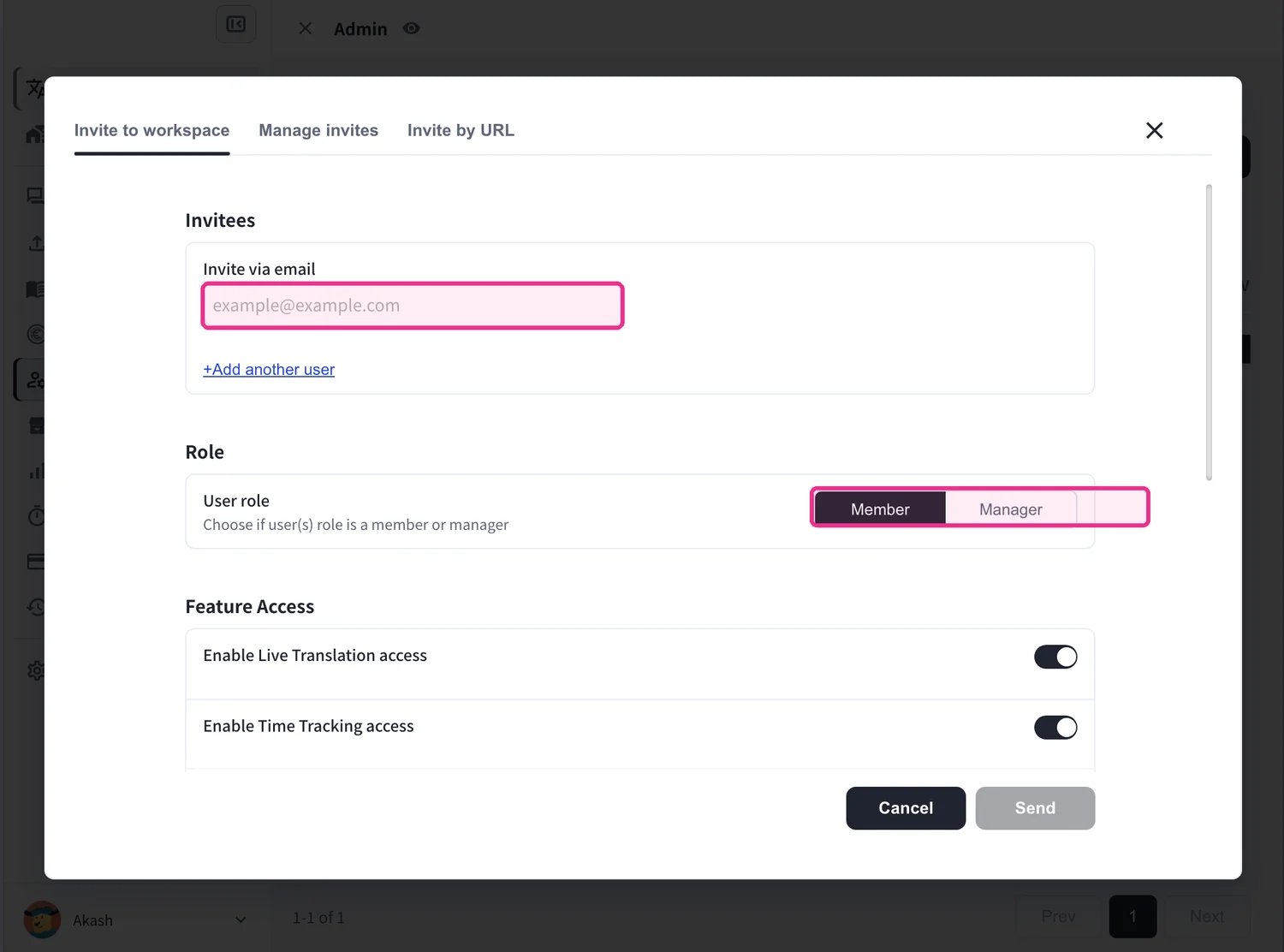
Use this to invite members by email and set their role and access at the same time.- Under Invite via email, enter the member’s email address (use +Add another user to invite several at once).
- Set the User role — Member or Manager.
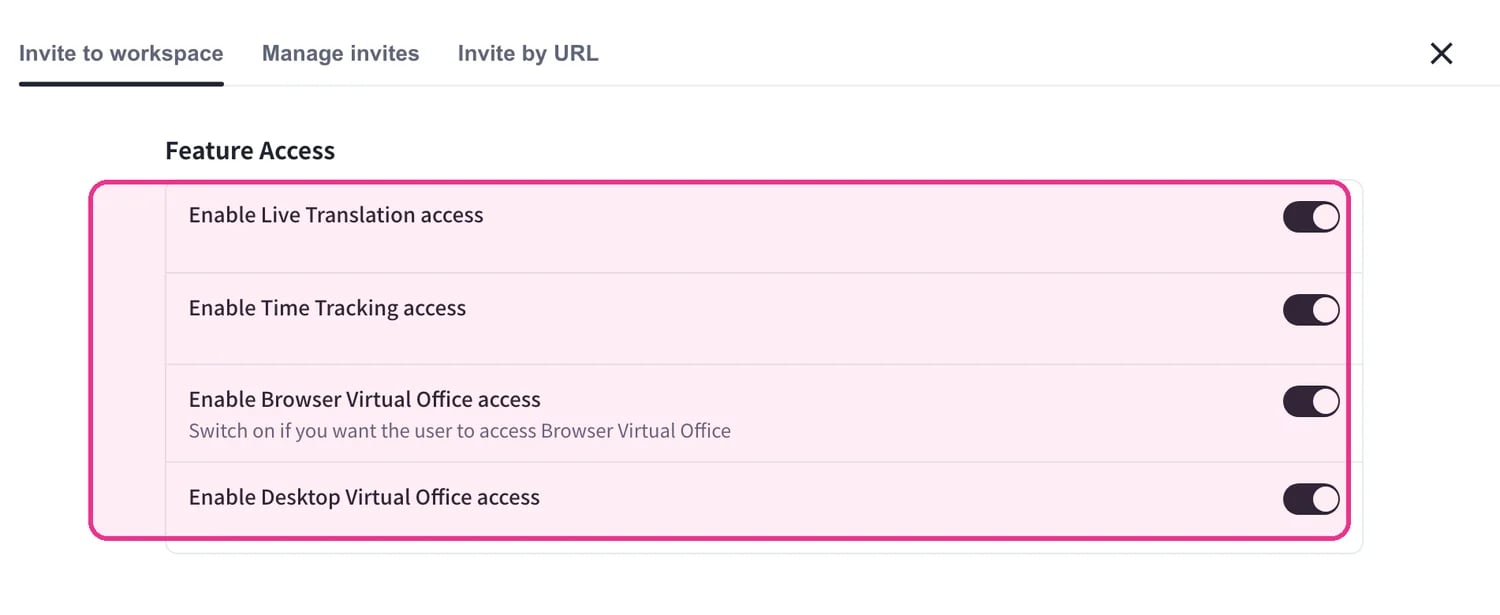
- Under Feature Access, choose which features the member can use: Live Translation, Time Tracking, and Browser / Desktop Virtual Office. Virtual Office access is granted right here — that is why no separate Virtual Office invite section is needed.
- Optionally assign the member to Projects, Groups, and specific Floors, and set the Tracking Options (Screenshot capture, Webcam shots, Input activity) when Time Tracking is enabled.
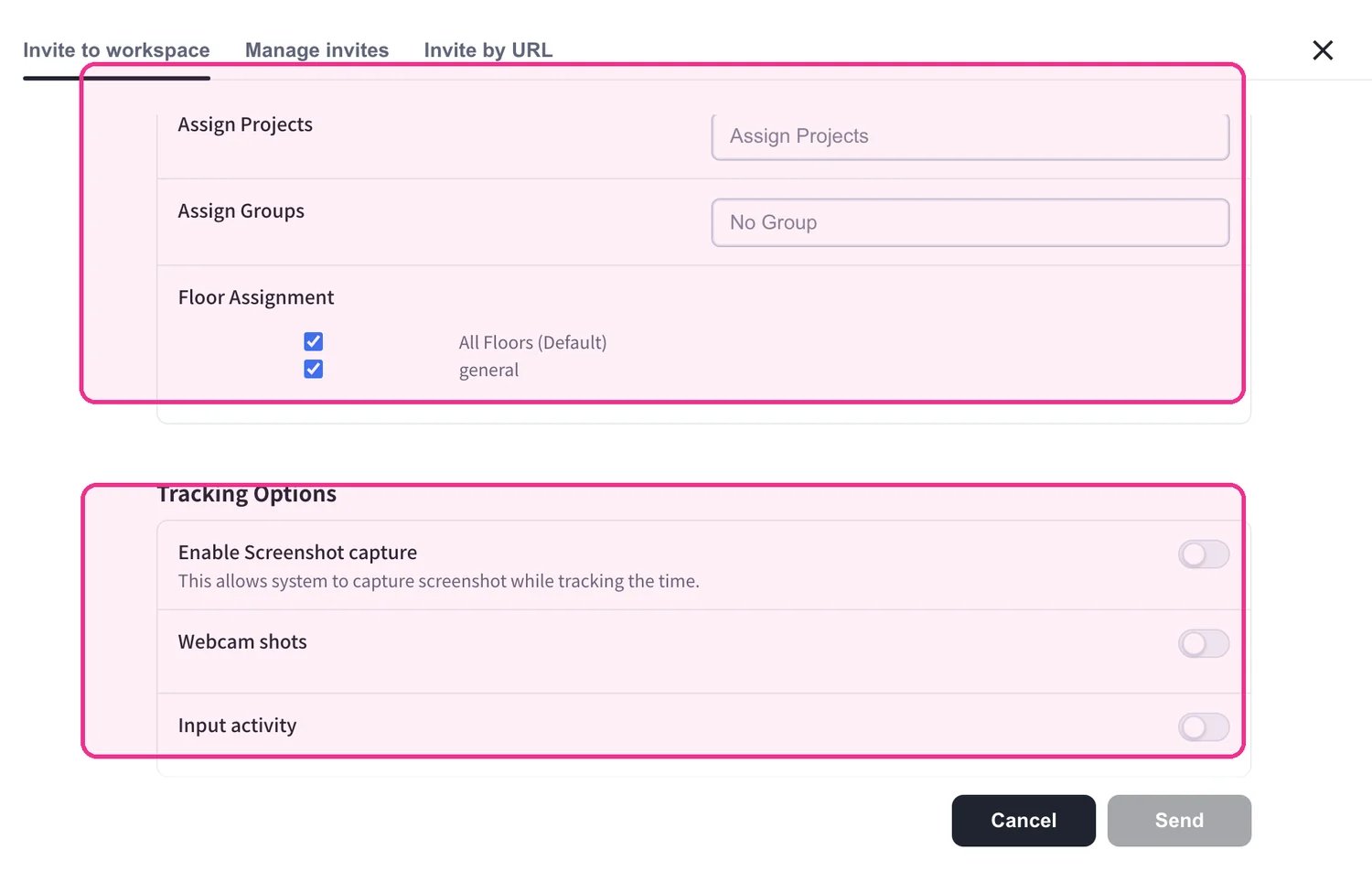
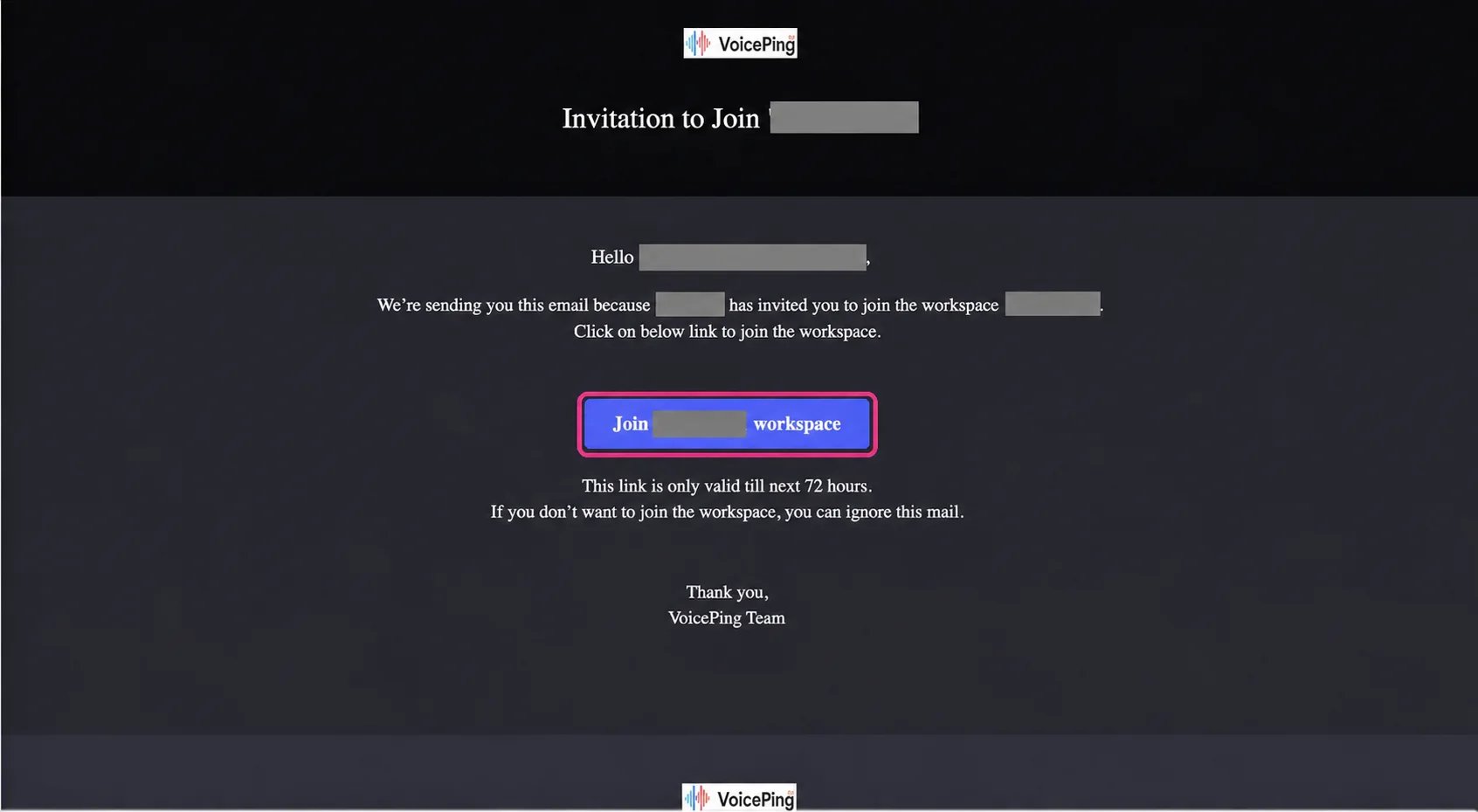
- Click Send. The member receives an invitation email and clicks Join workspace to register.
Invite by URL
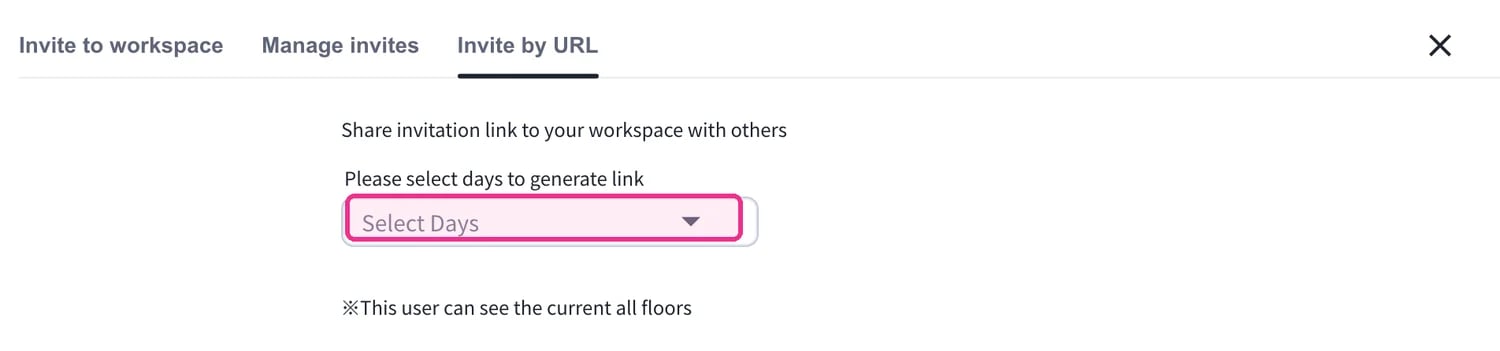
Use this to share a single invitation link instead of entering individual email addresses.- On the Invite by URL tab, choose how long the link stays valid (1, 3, 7, or 30 days).
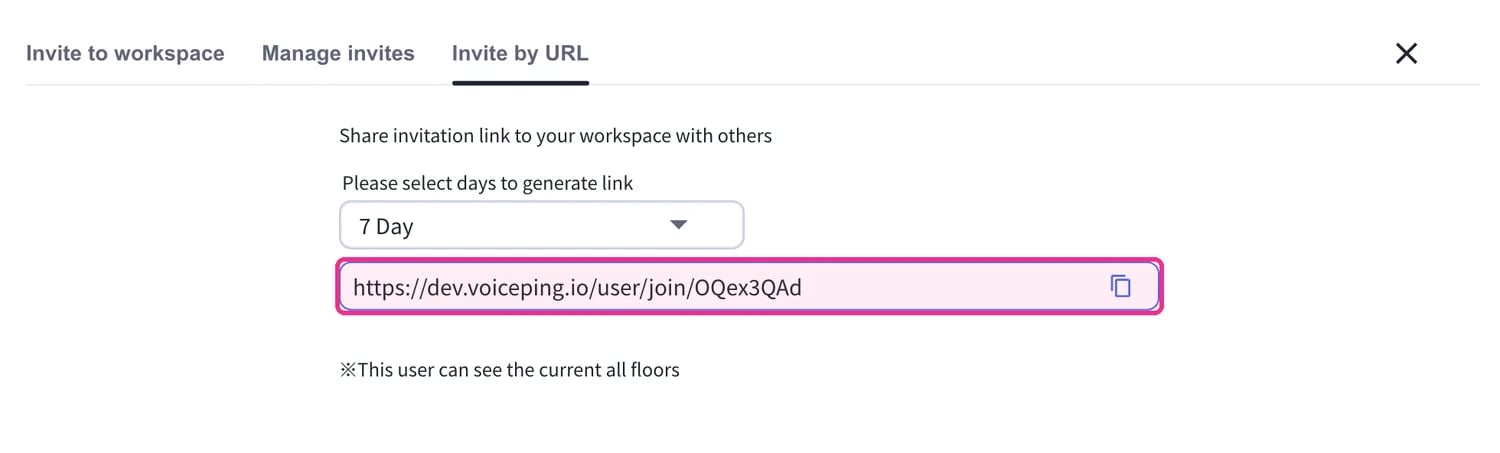
- Copy the generated link and share it with the people you want to invite.
Two-Factor Authentication
You can require email-based two-factor authentication for everyone in the workspace. Go to Settings → Workspace → Security and turn on Enable two-step verification with Email tokens for all users (available on paid plans).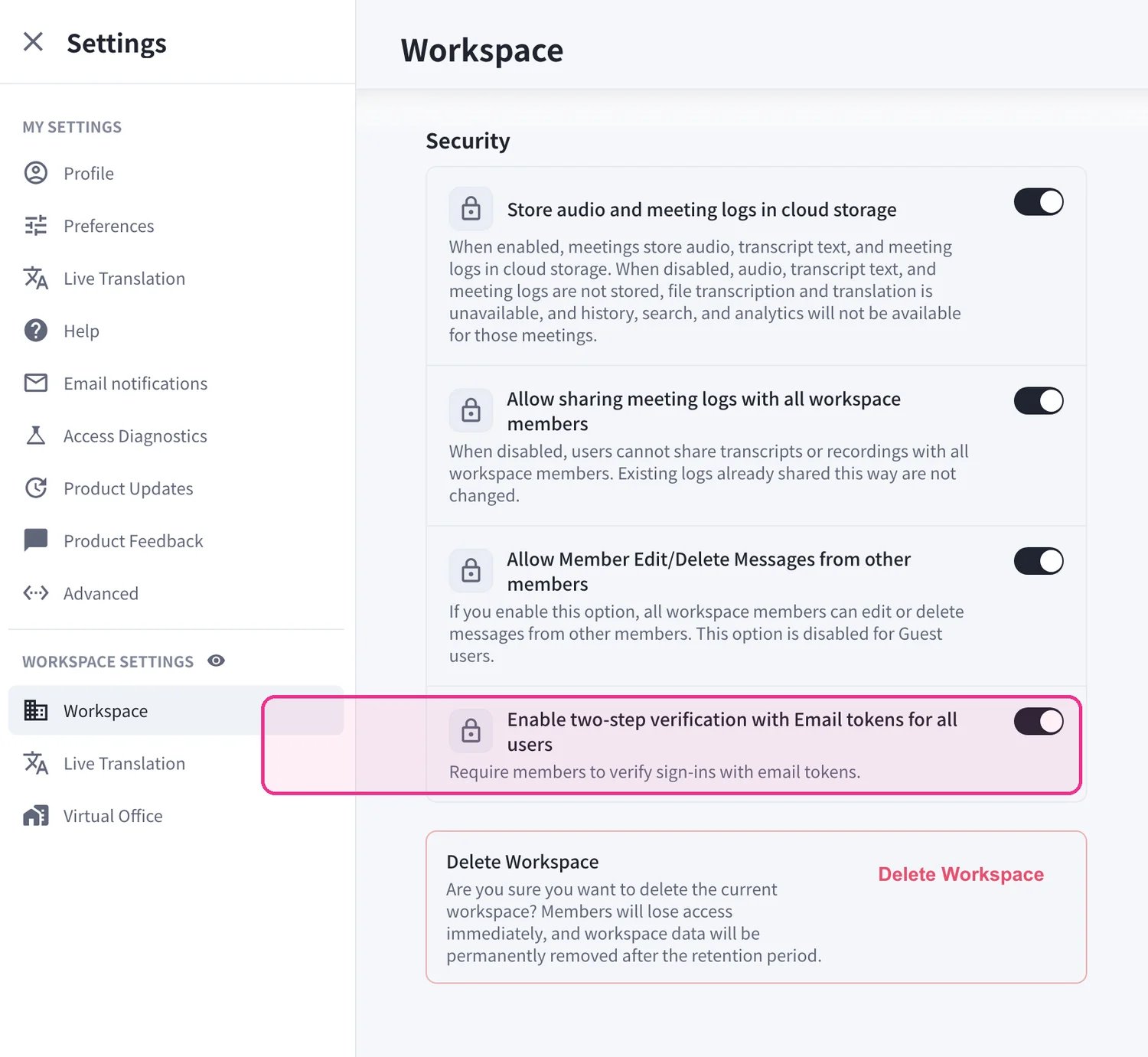
- When enabled, invited members must verify their email when joining, so a new member can only register with the exact email address they were invited with.
- As an exception, members who sign in with a Google or Apple account do not need email verification.
Official Links
Official Website
Visit our official website
X (Twitter)
Follow us on X
Like us on Facebook
Connect on LinkedIn