
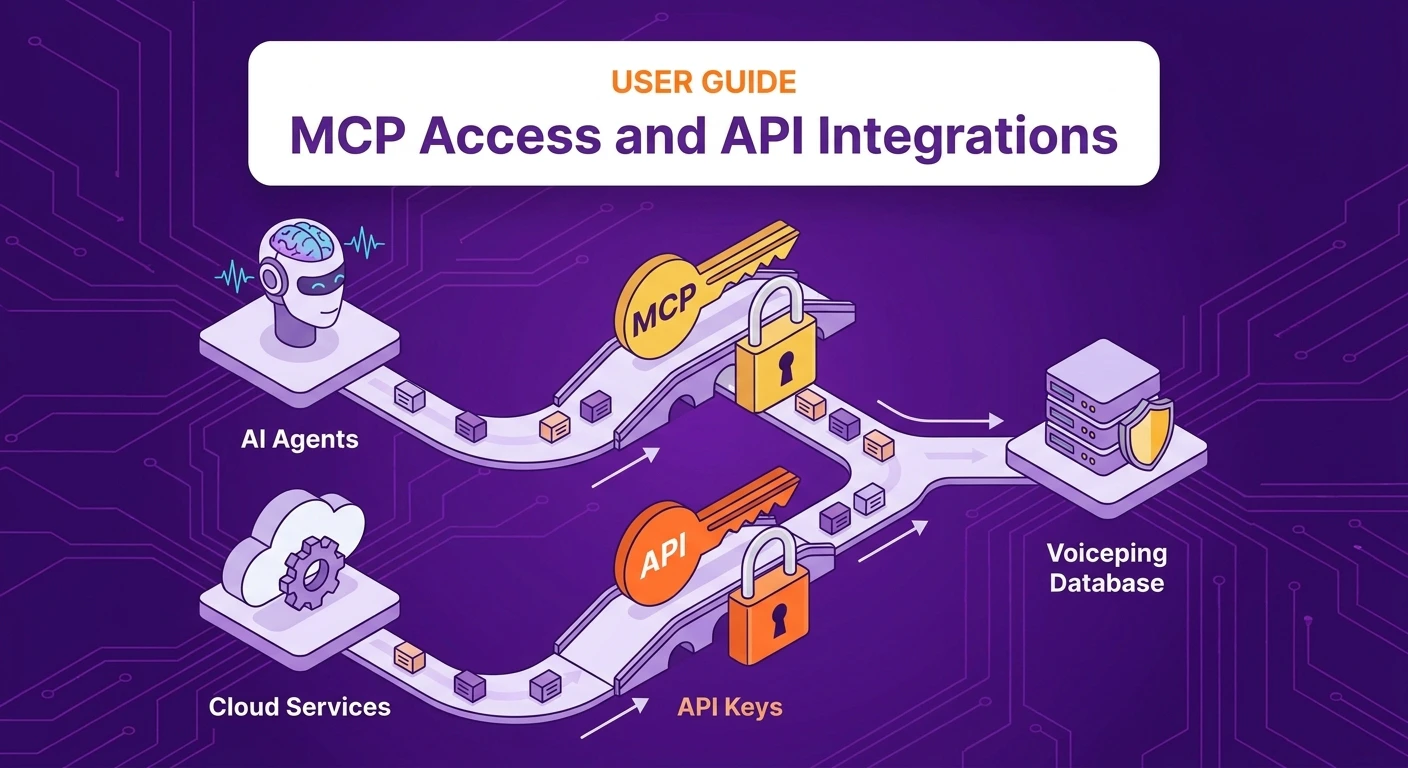
Connect Meeting Transcripts to AI Clients and Your Backend
Your team is already generating the most valuable artifact in your company: meeting transcripts. Decisions, pain points, objections, deadlines, commitments — all recorded, all searchable. VoicePing External Access makes that data usable outside the transcript page in two ways:- MCP Access — your AI client (Claude, ChatGPT, Codex, Claude Code, Gemini CLI, or any MCP-compatible tool) reads your transcripts directly, so your meeting history becomes a live source of answers, drafts, and insights.
- API Access — your backend calls the VoicePing API with a scoped API key, so transcripts can flow into your CRM, reporting pipeline, dashboards, or internal tools.
Pick your path
MCP Access for AI clients
Turn on MCP Access and connect ChatGPT, Claude, Claude Code, Codex CLI, or Gemini CLI. Step-by-step setup for every client.
API Access for your backend
Create an API key, authenticate with a bearer token, and call the API from TypeScript, Python, Java, or Go.
Five example MCP workflows
These are the highest-leverage workflows teams run through MCP Access every week. Each has its own page with copy-paste prompts and real screenshots.Build a client-ready agenda
From the last 3–4 meetings with a customer, generate a practical, time-boxed agenda you can paste into a calendar invite.
Draft a proposal from one meeting
Extract goals, pain points, objections, and timeline — then turn them into an executive-ready proposal draft.
Send a follow-up email in 30 seconds
Recap decisions, assign owners, and push a professional follow-up email before the meeting room has cleared.
Track team KPIs across members
Pull every meeting run by a set of teammates and produce a manager-ready KPI comparison report.
Find bottlenecks across deals
Surface recurring blockers, ownership gaps, and security delays — with a prioritized action plan.
Transcript scopes
External Access is scoped — admins decide exactly what each MCP connection or API key is allowed to do.
For API keys, you can also restrict access by allowed IP address so only your trusted server can use the key.
Lifecycle controls
Lifecycle controls let you pause or remove access at any time, for both MCP connections and API keys:Event logs
Every External Access change — key creation, connection approval, deactivation, deletion, mode toggles — lands in the workspace event log. Admins always know when, who, and from which IP.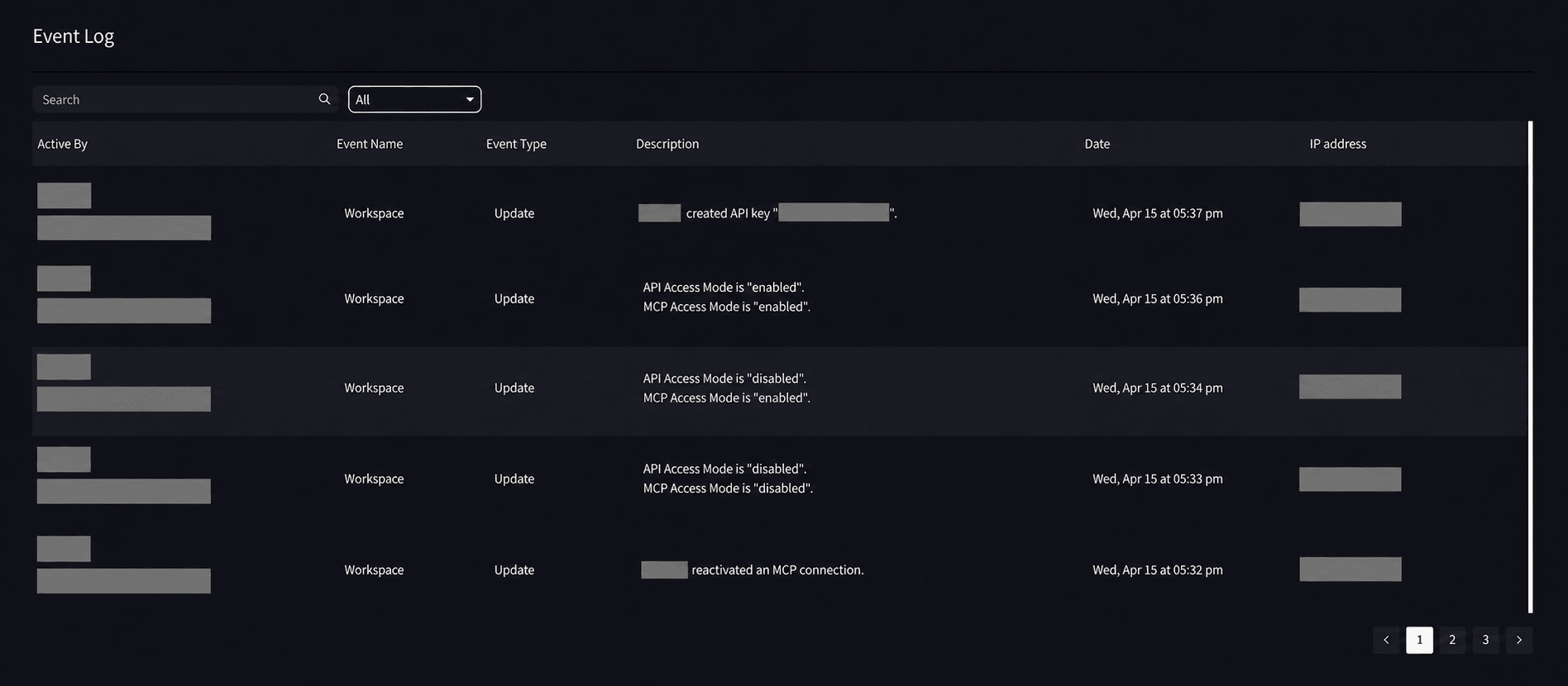
Start with one workflow this week
The teams that get the most out of External Access don’t try everything at once. They pick one workflow — usually follow-up emails, because the time-save is immediate — and make it a habit. Then they add the next one. Within a month, meeting transcripts stop being an archive and become an operating system.Go to MCP Access
Connect Claude, ChatGPT, Codex, Claude Code, or Gemini CLI and start with the five example workflows.
Go to API Access
Jump to the TypeScript, Python, Java, and Go quickstart for the API.