
Issue an Invoice
- Open Time Tracking Admin from the left sidebar and click the Invoices tab
- Click the New Invoice button
- Fill in the invoice details: From/To information, issue and due dates, invoice number, and currency
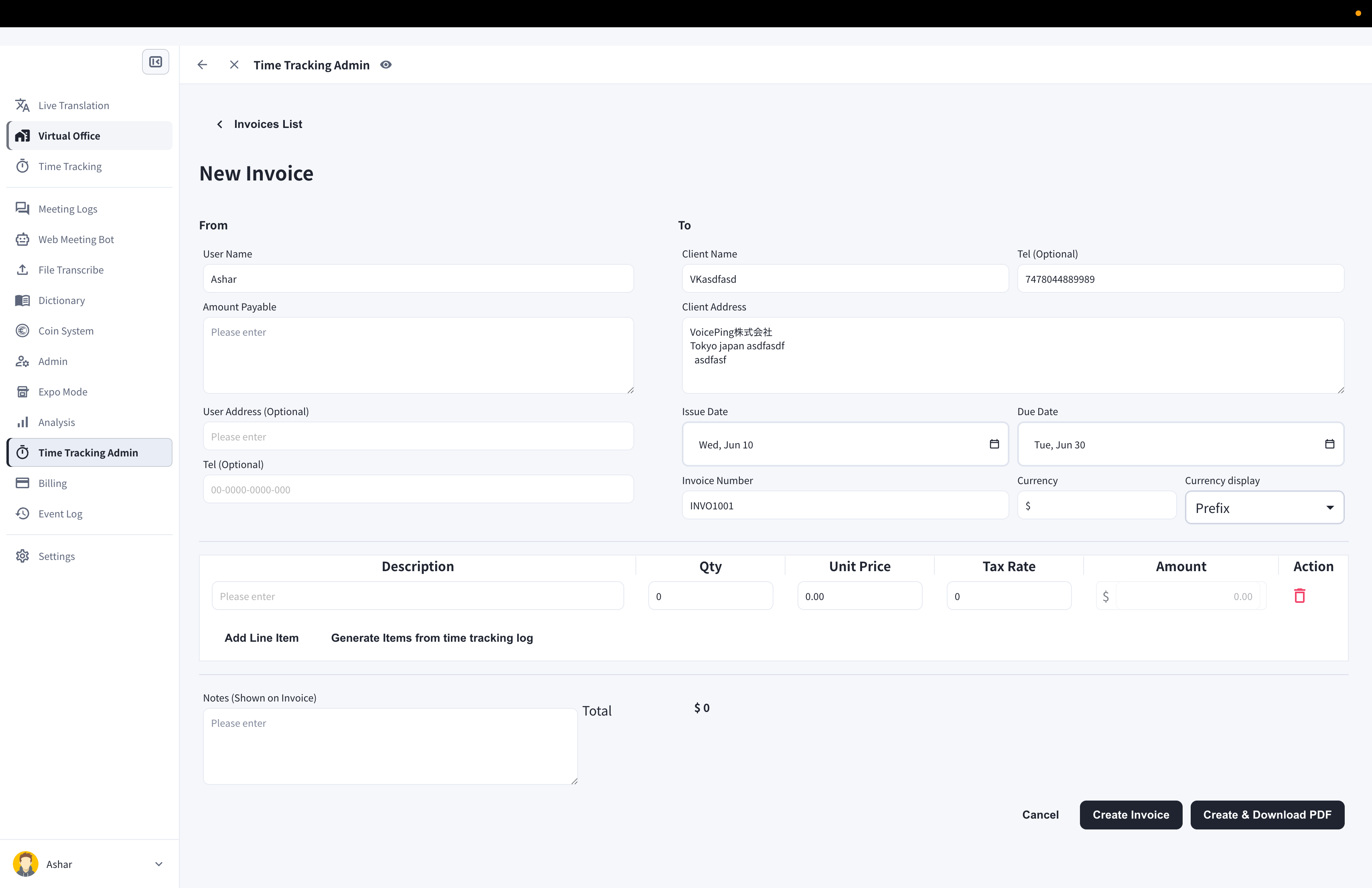
- Click Generate Items from time tracking log
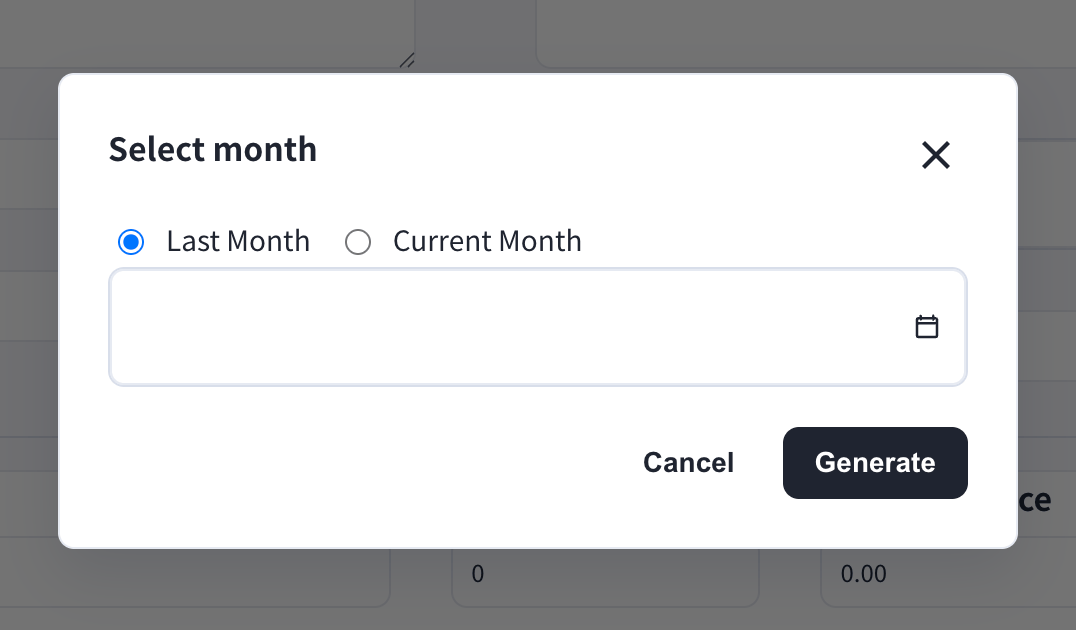
- Choose Last Month or Current Month and click Generate — line items are created automatically from your work logs
- Click Create Invoice or Create & Download PDF
If your manager has filled in the client billing details in Invoice settings, they are automatically entered in each new invoice.
Edit an Invoice
- In the invoice list, click the pen icon of the invoice you want to edit
- After editing, click Save Invoice or Save & Download PDF
Official Links
Official Website
Visit our official website
X (Twitter)
Follow us on X
Like us on Facebook
Connect on LinkedIn