
This is a paid plan feature. If you are using the free plan, please upgrade your plan.
Custom Phrase Dictionary Demo
Technical terms, brand names, and internal vocabulary are often misrecognized by speech-to-text engines. VoicePing’s Specialized Vocabulary Dictionary lets you define the correct spelling and translation for these terms — ensuring accurate transcription and translation every time.
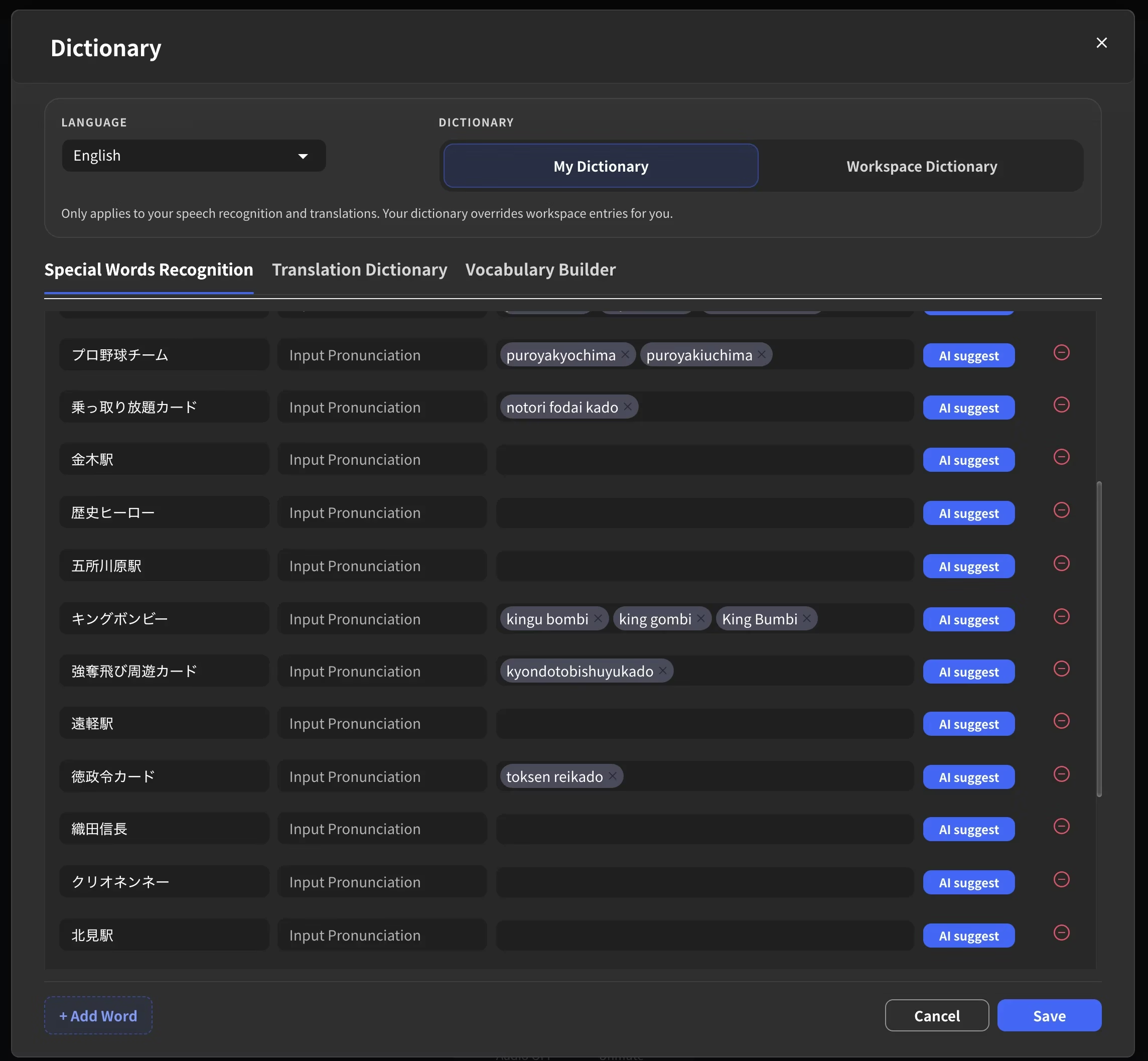
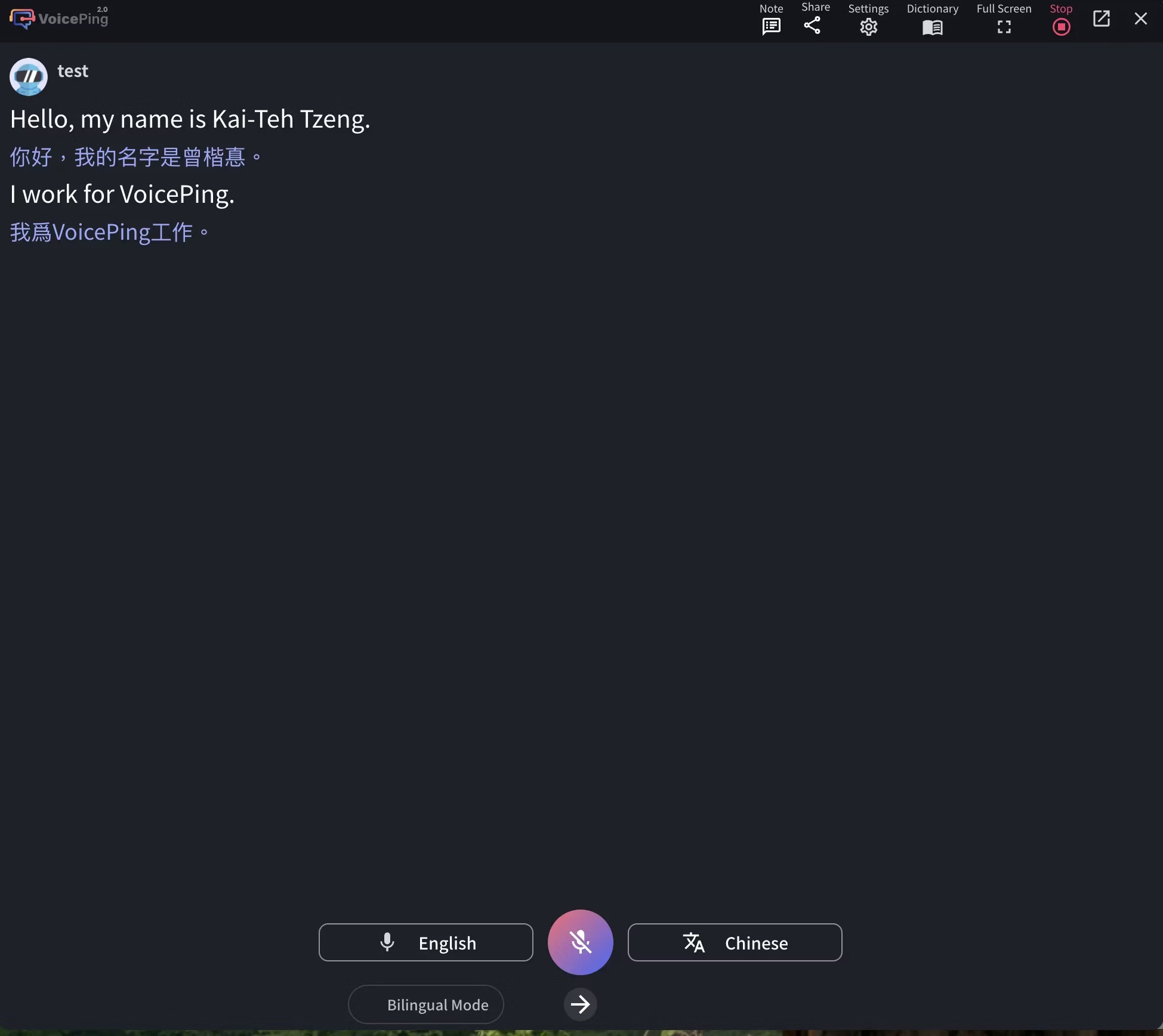
Technical terms may be incorrectly transcribed due to pronunciation or homophones. By utilizing the “Special Words Recognition” and “Translation Dictionary”, you can correctly transcribe and translate specific words.
My Dictionary vs Workspace Dictionary
VoicePing provides two separate dictionary scopes:
Use My Dictionary when:
- Testing new terms privately before sharing with the team
- You need a personal override for your own pronunciation or usage
- Working with temporary or role-specific terms
- The whole team should use the same approved terminology
- Preparing shared vocabulary for an event or customer-facing meeting
- You want consistency across all speakers and sessions
Types of Dictionary Features
How to Use Special Words Recognition
1. Open the Dictionary Feature
You can access the Dictionary from three places: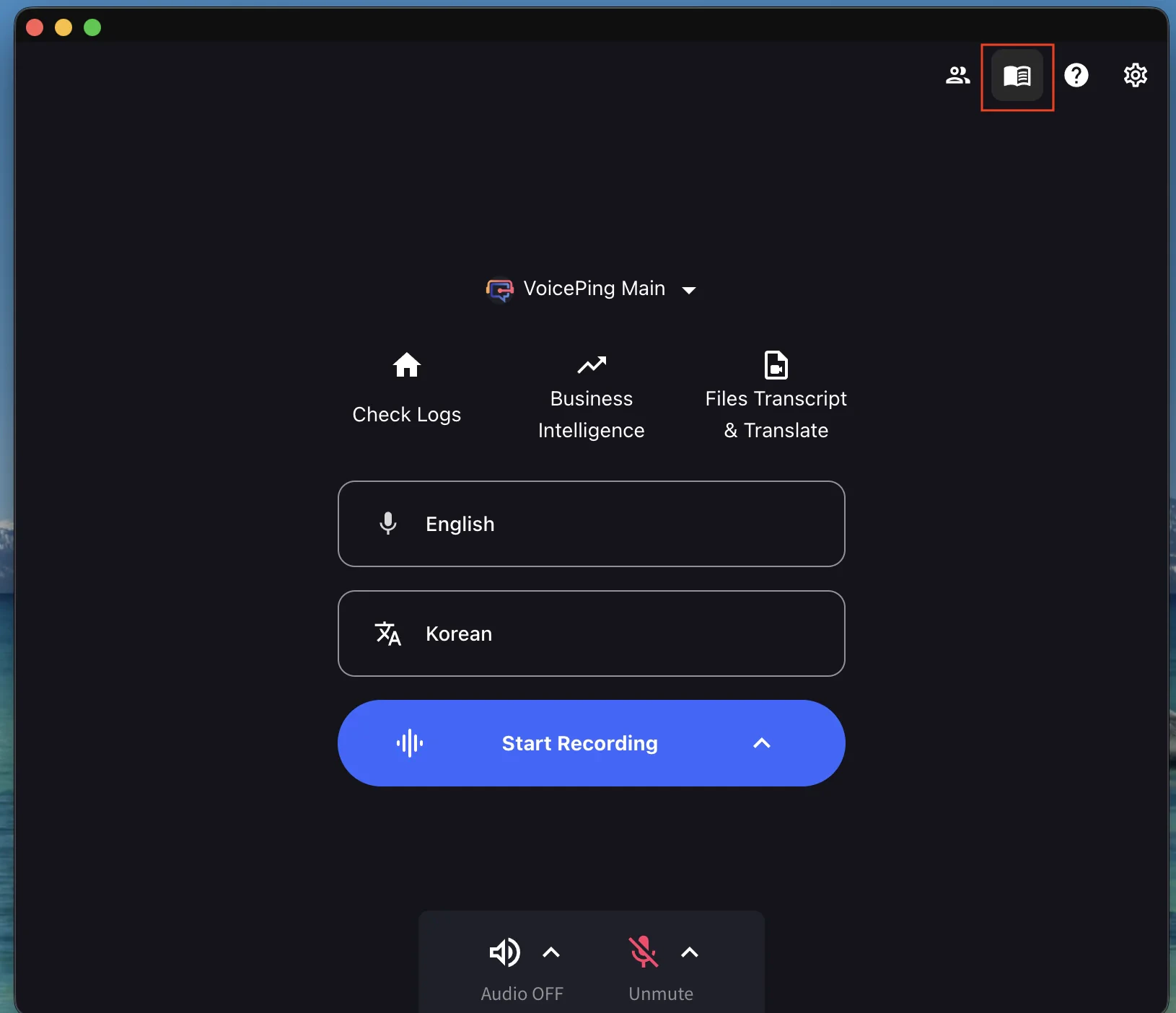
Home Screen
Click the Dictionary icon (top-right) before starting a session.
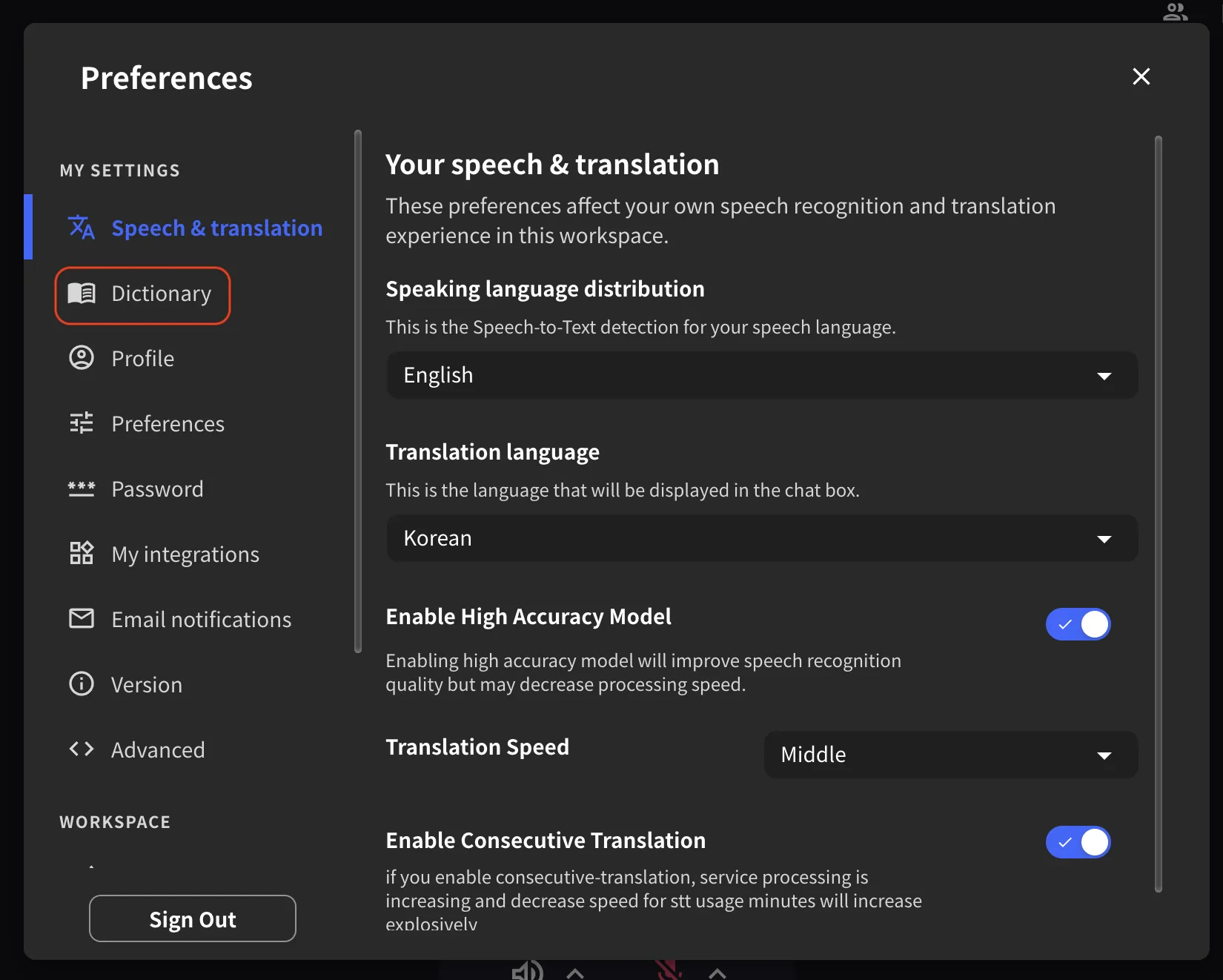
Settings
Click the Settings icon (top-right) → Dictionary in the left sidebar.
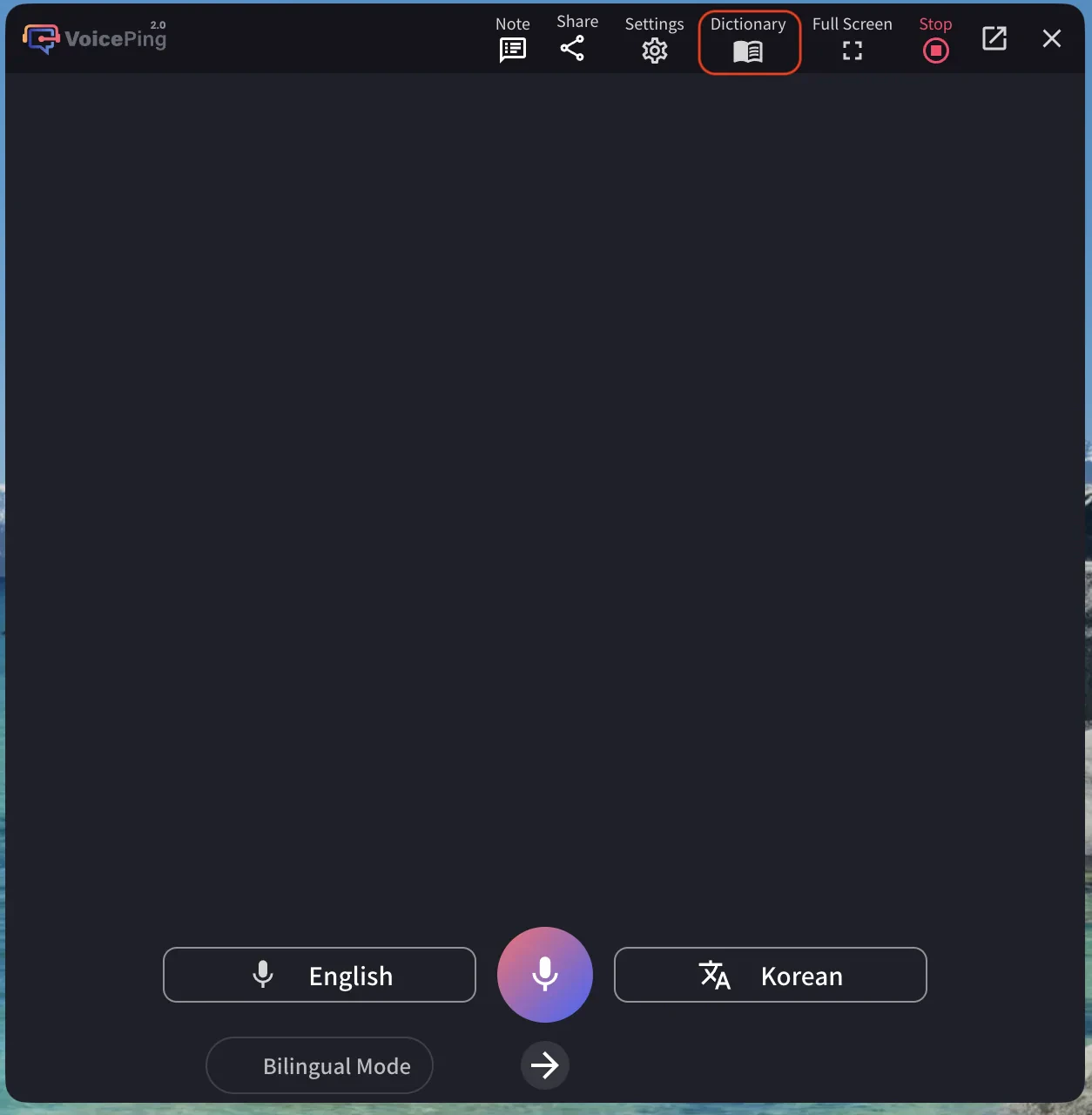
Live Session
Click Dictionary in the top toolbar during transcription.
2. Select Your Scope
Choose My Dictionary or Workspace Dictionary at the top of the modal, depending on whether you want terms to apply only to you or to the whole workspace.3. Register Words
Register from the Screen
- Click + Add Word at the bottom of the list.
- Enter the correct spelling of the word in the Special Word field.
- Enter the pronunciation in the Pronunciation field (how the word sounds when spoken).
- In Misrecognized Words, enter the common incorrect transcriptions that VoicePing should auto-correct.
Kai-Teh Tzeng, the pronunciation field might be kai teh tseng. Common misrecognized words could include kite tseng, kaitseng, Kai Tianzen, Kate Zen. These are the variants that speech engines might produce when someone says the name aloud.
Example — product name: If the correct term is VoicePing, the pronunciation is voice ping. Misrecognized words might include boys ping, voice thing, voice pin. Adding these ensures the transcription always shows VoicePing regardless of how the speech engine initially hears it.
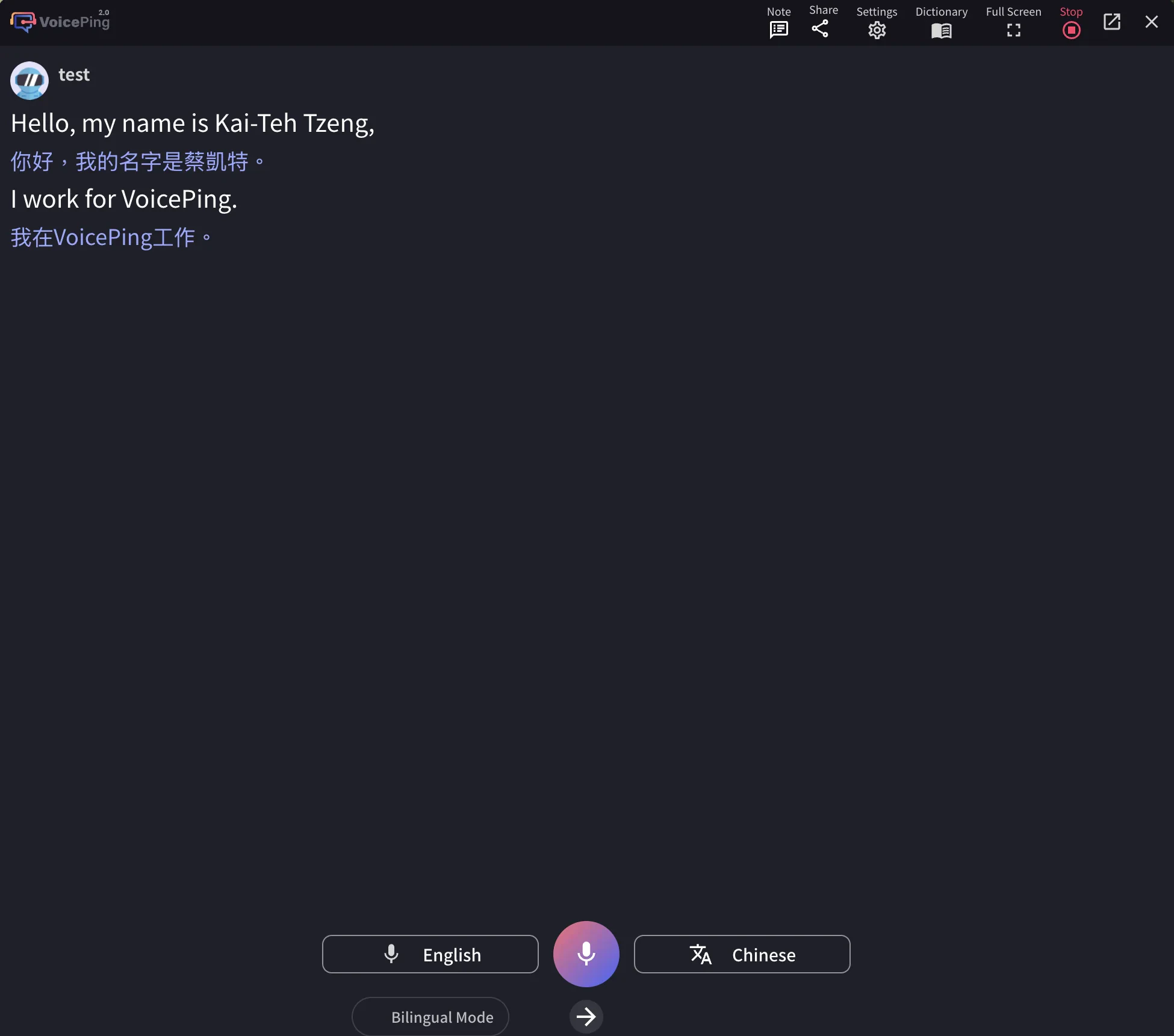
Using AI Suggest
Each term has an AI suggest button that automatically generates common misrecognized variants for you. This is especially useful for:- Names that speech engines frequently guess incorrectly
- Technical terms with unusual pronunciation
- Words that sound similar to common words in the same language
Batch Register with CSV File
- Click Download CSV template to get the template file.
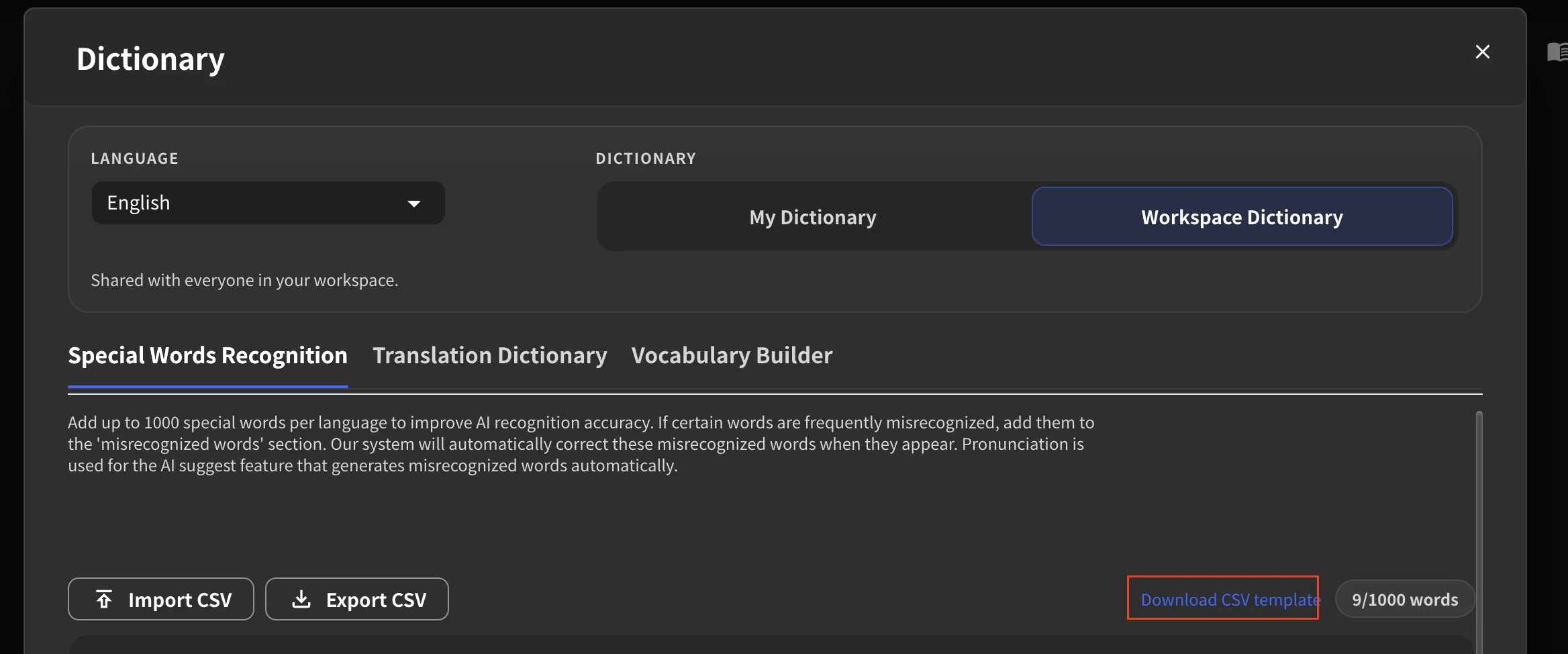
- In the template, enter the correct word spelling and misrecognized variants, then save the file.
- Click Import CSV to upload the completed file.
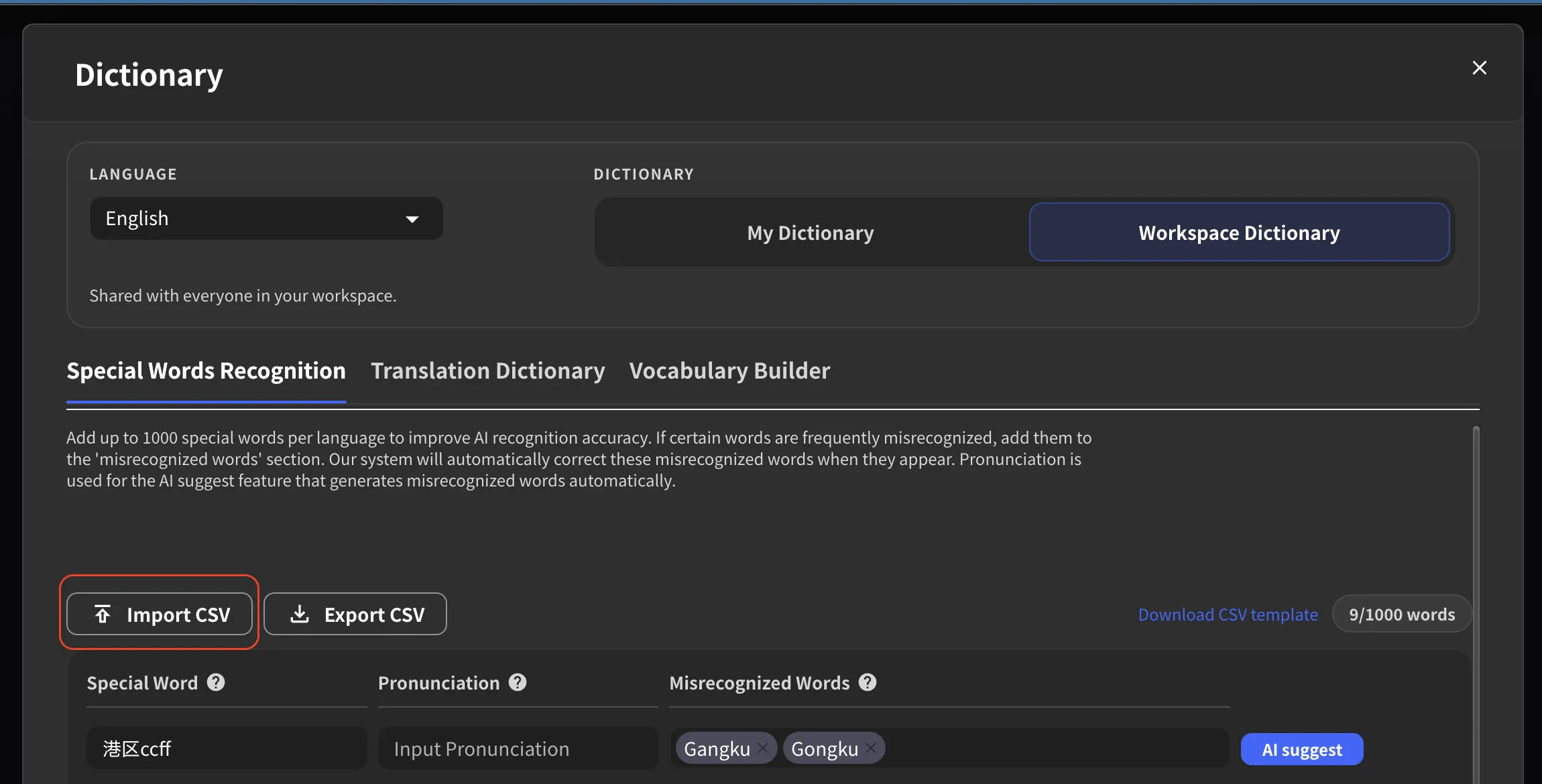
- Press the “Save” button to complete registration.
Word Limit
You can register up to 1,000 words per language in Special Words Recognition. The current count is displayed at the top right of the word list (e.g., “6/1000 words”).How to Use the Translation Dictionary
Adding a Single Word
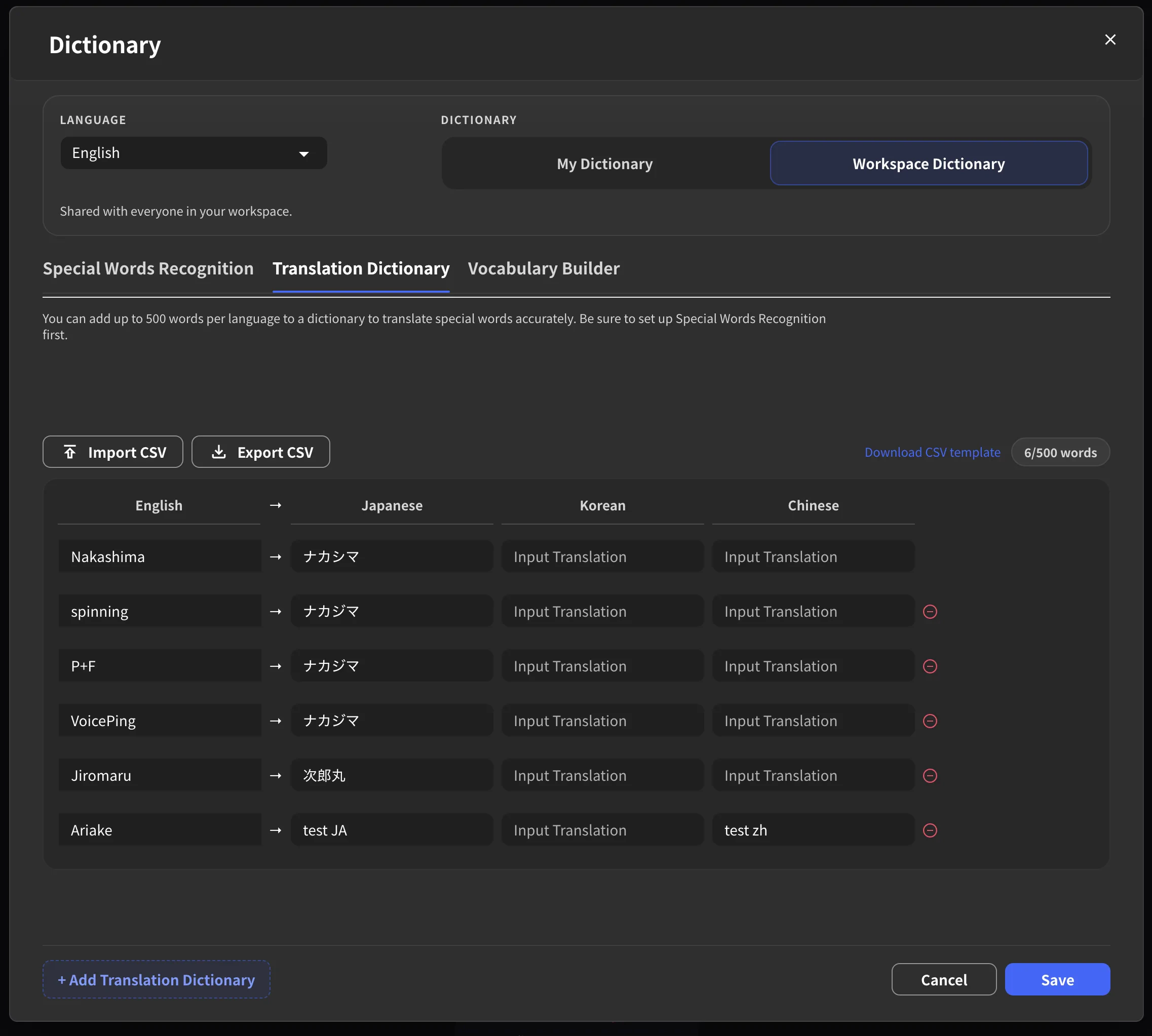
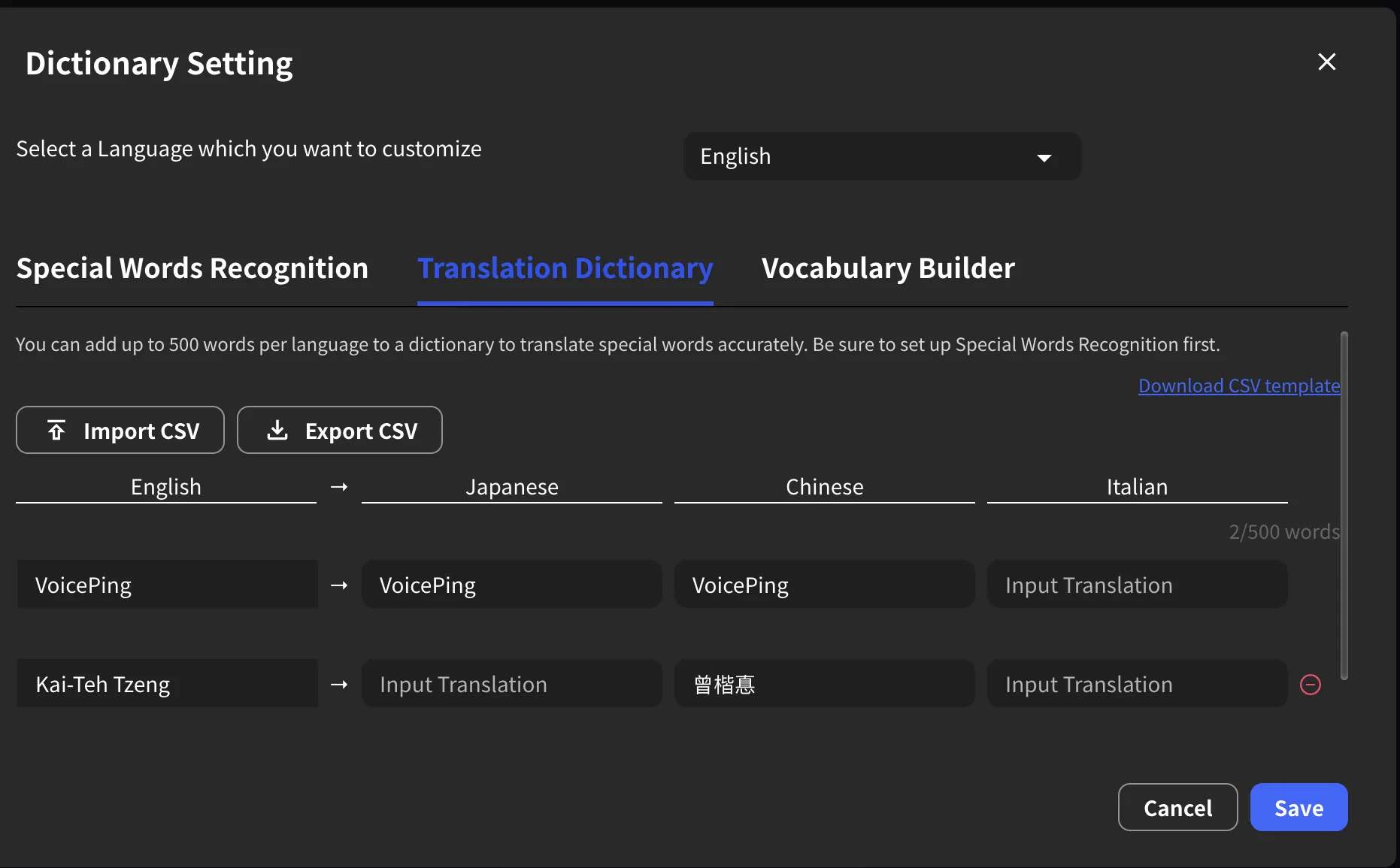
- Click the Translation Dictionary tab.
- Each row shows the source term with columns for each target language.
- Enter the approved translation for each language.
- Click Save to apply.
Word Limit
You can register up to 1,000 translation entries per language. The current count is displayed at the top right (e.g., “6/1000 words”).Batch Register with CSV File
- Download the CSV template.
- In the template, enter the approved translation for each language and save the file.
- Upload the created file from “Import CSV”.
- Press the “Save” button to complete registration.
Best Practices
- Start with the words people will notice if they’re wrong — names (speakers, customers, partners), product names, brand names, and acronyms your team uses in every meeting.
- Use Workspace Dictionary for shared terminology. If the whole team needs the same terms, put them in Workspace Dictionary so everyone benefits immediately.
- Test in My Dictionary first if you’re unsure. Add a term to My Dictionary, run a test meeting, and verify it works before sharing it workspace-wide.
- Run Vocabulary Builder before important events. Upload the agenda, slide deck, or speaker list and let AI extract terms you might miss manually.
- Always export before bulk CSV import. CSV import overwrites existing settings. Export first so you have a backup if anything goes wrong.
- Review your dictionary periodically. Remove terms that are no longer relevant — old project names, former partner brands, or outdated product codes. A cleaner dictionary is a faster dictionary.
Troubleshooting
A registered term is still being misrecognized
- Check the Misrecognized Words field. The variant the speech engine is producing may not be in your list. Listen to the actual transcription output, copy the wrong text, and add it as a new misrecognized variant.
- Try AI Suggest. It may generate variants you didn’t think of.
- Make sure you clicked Save. Edits are not live until you press the Save button.
- Check which dictionary scope you’re using. If you added the term to My Dictionary but another team member is seeing the error, the term needs to be in Workspace Dictionary.
Translation Dictionary entries are not working
- Check the language columns. The translation must be entered in the specific language column that the listener or reader is using. Empty columns mean no translation will appear for that language.
- Make sure you clicked Save. Translation entries are not live until you press Save.
CSV import didn’t work or data looks wrong
- Check file encoding. The CSV file must be saved as UTF-8. Other encodings (Shift-JIS, EUC, ANSI) will cause character corruption, especially for Japanese, Chinese, and Korean text.
- Check column format. Download the CSV template first and use it as your starting point. Custom column layouts will not import correctly.
- Remember that import overwrites. If your imported file has fewer entries than your current dictionary, the missing entries will be deleted. Always export a backup before importing.
Official Links
Official Website
Visit our official website
X (Twitter)
Follow us on X
Like us on Facebook
Connect on LinkedIn