
1. PC
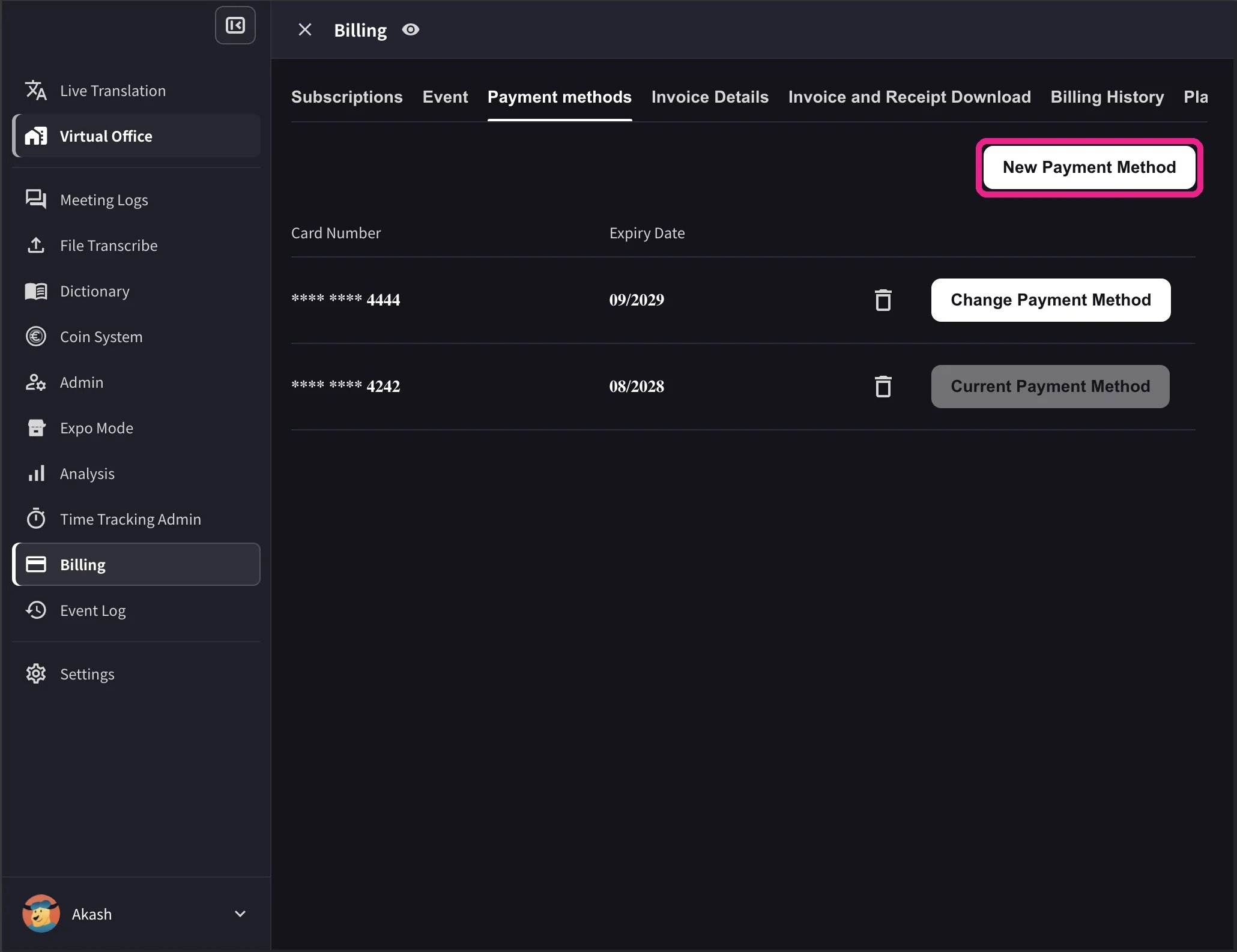
- Open top nav → Billing → Payment methods and click New Payment Method to register a new credit card.
- In the card list, click Change Payment Method on the card you want to use. The active card shows Current Payment Method after the change completes.
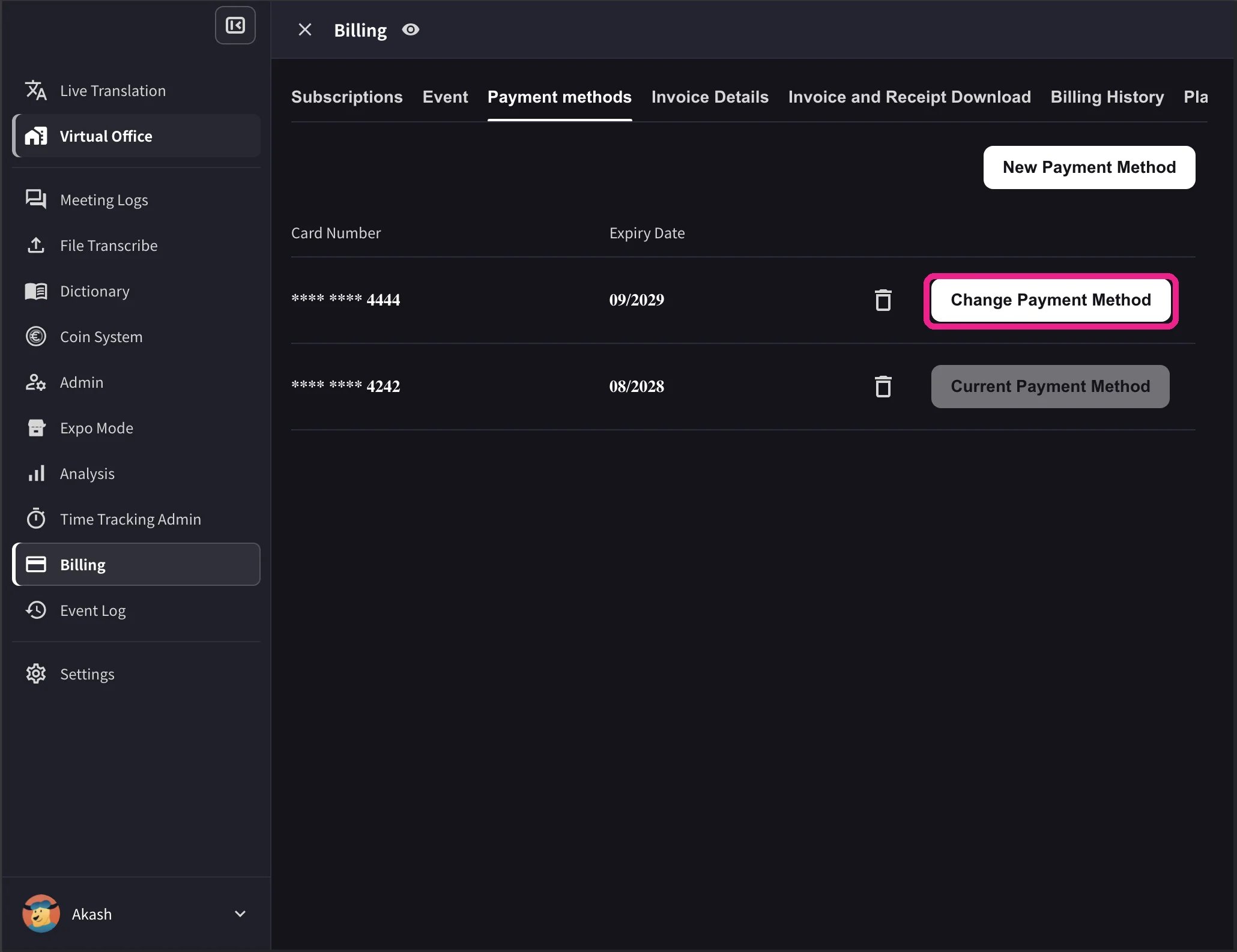
The desktop list also shows card expiry dates and a delete icon. Change Payment Method appears only when the workspace has an active Stripe subscription and no scheduled cancellation. Cards that cannot be used with the workspace currency show Not Supported instead of the change action.
2. Mobile
From the mobile app, card management lives under Billing → Manage Cards.1
Open Manage Cards
Open the side menu → User Settings → Billing → Manage Cards.Every card on file is listed. The one in use has a Using Now pill.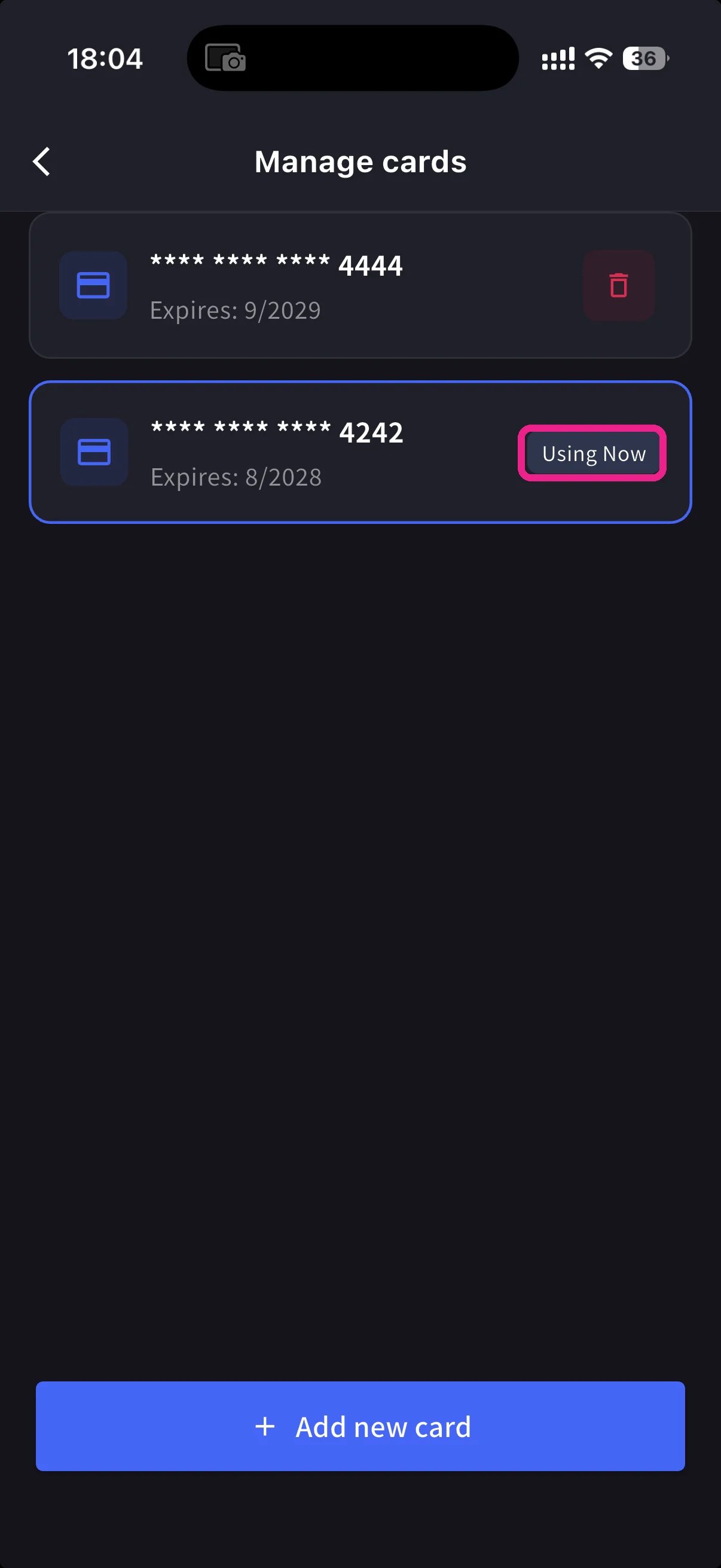
2
Add a new card
Tap the blue + Add new card button at the bottom. The add-card sheet offers two paths: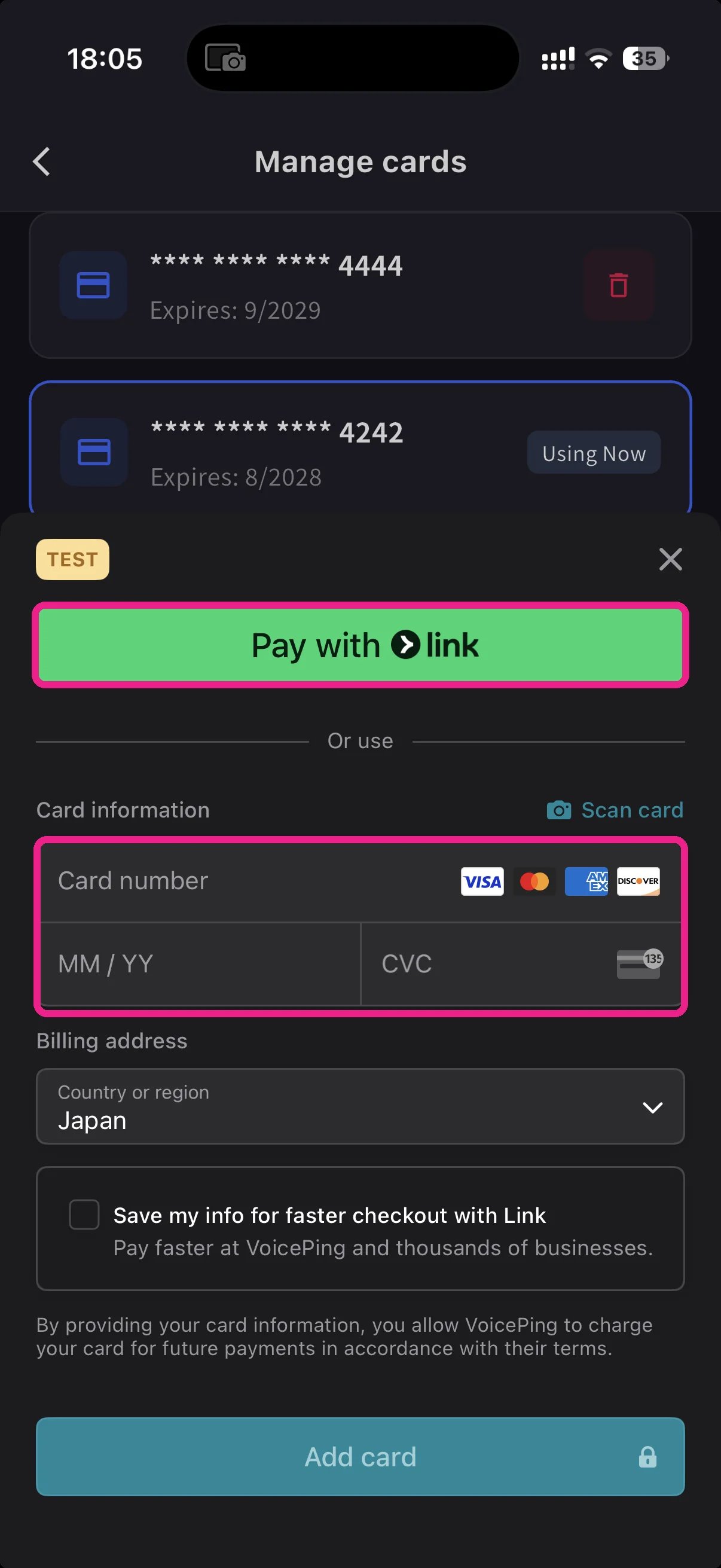
- Pay with Link — Stripe Link one-tap if your phone number is already linked.
- Manual card — type the number, MM/YY, CVC, or tap 📷 Scan card to fill it from the camera. Pick a billing country and tap Add card.
3
Switch the card in use
Back on Manage Cards, tap the card you want to use — the Using Now pill moves to it. Future charges run on the selected card.
Cards are tokenised by Stripe — VoicePing never stores the raw card number.
Related
- Plan Changes, Cancellation & Trial End — upgrade, downgrade, cancel
- Invoices, Receipts & Billing Activity — invoice PDFs, receipts, event log
Official Links
Official Website
Visit our official website
X (Twitter)
Follow us on X
Like us on Facebook
Connect on LinkedIn