
PC
- Go to the VoicePing homepage and click the “Start Free” button in the top right.

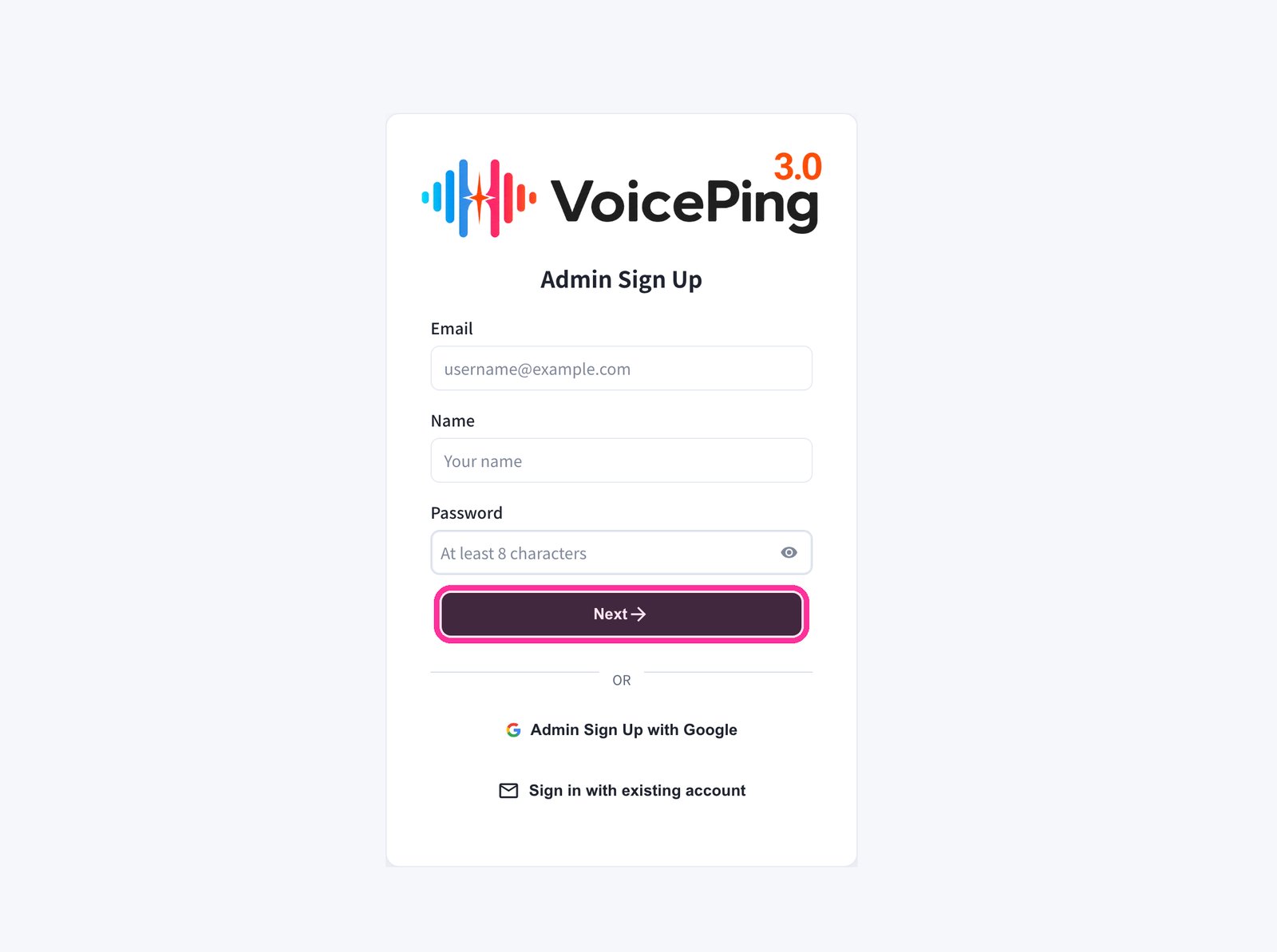
- The registration form will appear. Enter your email, name, and password, then click “Next →”.
- To sign up with Google, click “Admin Sign Up with Google”.
- If you already have an account, click “Sign in with existing account”.
- Enter the verification code sent to your registered email address.
- Follow the on-screen instructions to set up your workspace.
Mobile / Tablet
Register with Email
- Go to the VoicePing homepage and tap the “Start for free” button.

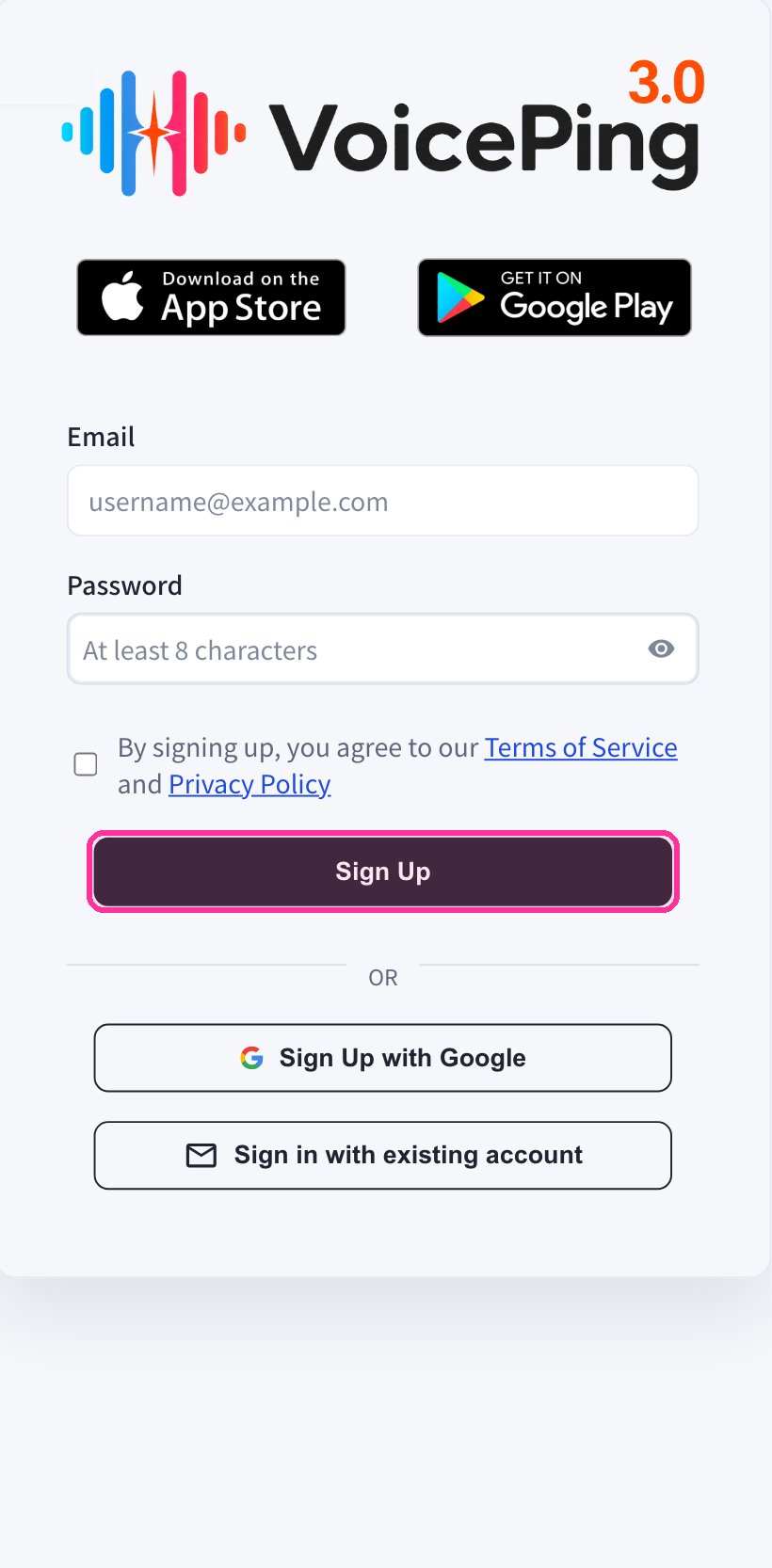
- The registration form will appear on the mobile web app. Enter your email and password, agree to the Terms of Service, then tap “Sign Up”.
- Enter the verification code sent to your registered email address.
- Follow the on-screen instructions to set up your workspace.
- Download the VoicePing app from the App Store or Google Play, and log in with your created account.
Register with Google or Apple Account
If you have a Google or Apple account, you can create an account and log in directly from the mobile app.- Download the VoicePing app from the App Store or Google Play.
- Open the app and sign up with your Google or Apple account.
If the PC app download does not start automatically, you can download it directly from the PC App Download page.
Official Links
Official Website
Visit our official website
X (Twitter)
Follow us on X
Like us on Facebook
Connect on LinkedIn